This article was originally published on January 31, 2025 and has been updated to reflect changes to the organization status dashboard in ArcGIS Online.
As an ArcGIS Online administrator, one of your primary responsibilities is monitoring and managing credit consumption in your organization. Credits are the currency of ArcGIS. They are consumed for specific transactions and various types of storage, including feature storage, imagery storage, and file storage.
Storage credits are consumed when organization members create and store content items such as maps, apps, scenes, and layers. If your organization’s storage credit consumption is higher than you and other stakeholders would like, you may be looking for ways to reduce it.
Well, look no further. This article outlines practical strategies for managing storage credits in your organization. You will also learn how ArcGIS Online calculates storage credits and how to identify and manage the content items that are incurring the highest storage credit costs.

Understanding storage rates
Before getting into strategies to reduce storage credit costs, it’s important to understand how storage credits are calculated. Credit costs for storage are based on the total size of items, including features, files, 3D tiles, scenes, and vector tiles, or the size and item count for images stored in ArcGIS Online. Costs are calculated each hour and credits are charged hourly on a prorated basis. This handy table provides a breakdown of credit costs by capability. Storage credit information is provided in the first three rows of the table.
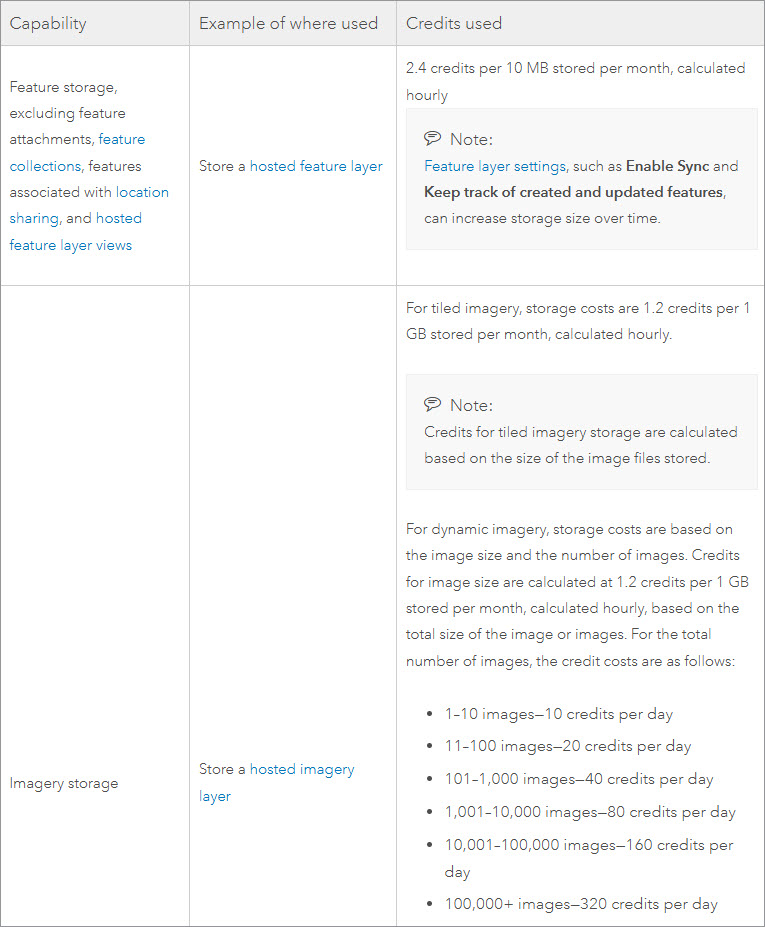
The table lists the number of credits consumed for each unit of storage per month. ArcGIS Online calculates this number hourly to reflect new content items created in the organization. For example, feature storage, which corresponds to the storage of hosted feature layers, costs 2.4 credits per 10 MB of feature data stored per month, calculated hourly. Imagery storage and storage of other types of content have their own associated credit costs, as shown in the table.
How many storage credits is my organization using?
ArcGIS Online administrators can see a quick breakdown of storage usage at the organization level by exploring the organization status dashboard.
After signing in to your organization, go to Organization > Status dashboard and specify the usage period you are interested in.
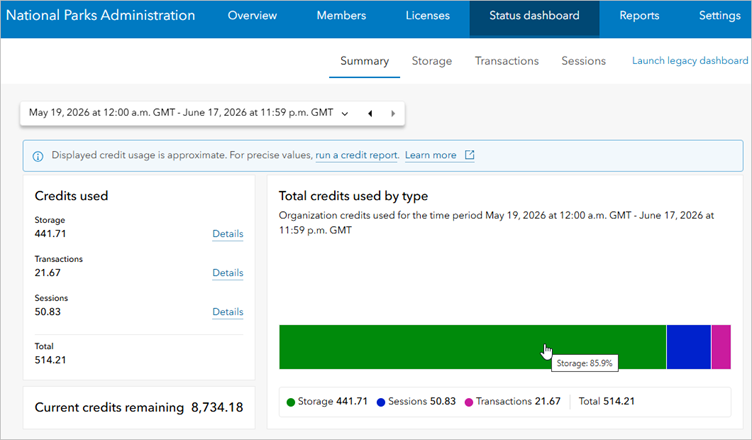
The Summary tab is displayed by default. In this sample organization, the chart shows that storage accounts for nearly all credit usage in the past 30 days (441.71 credits). Hovering over the storage bar in the chart shows the percentage of credits in the organization that are used for storage (85.9%).
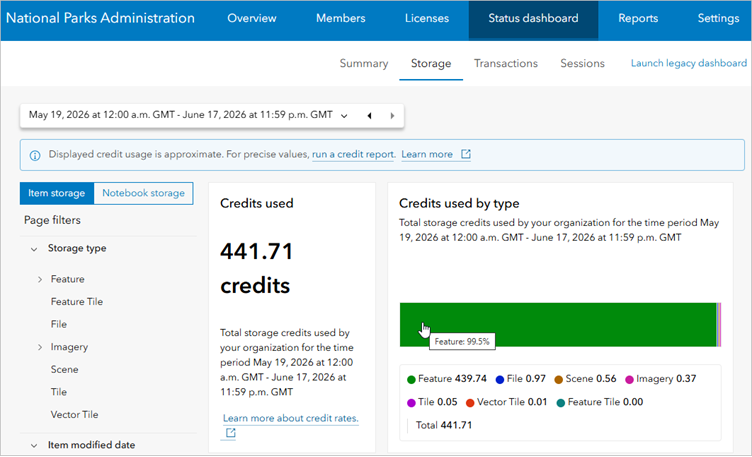
You can click the green Storage bar in the chart (or click the Storage tab) to see a breakdown of storage credit usage by type of storage (feature, scene, file, and so on). In this sample organization, feature storage accounts for almost all storage credits incurred.
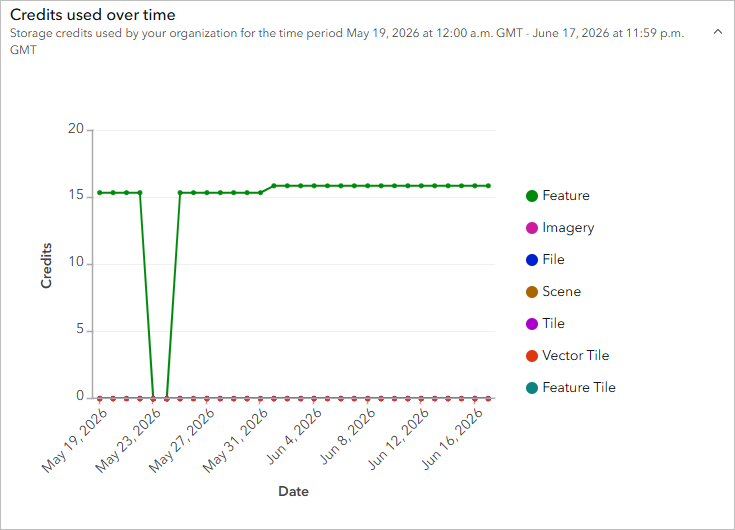
Scroll down the page to see a line chart showing storage credits used by type over the timeframe you specified.
Tip: Another way to see a breakdown of storage costs by week, month, or quarter is by creating a credit report. To learn how to create a credit report, check out this blog article or watch this short video.
What items have the highest storage credit costs?
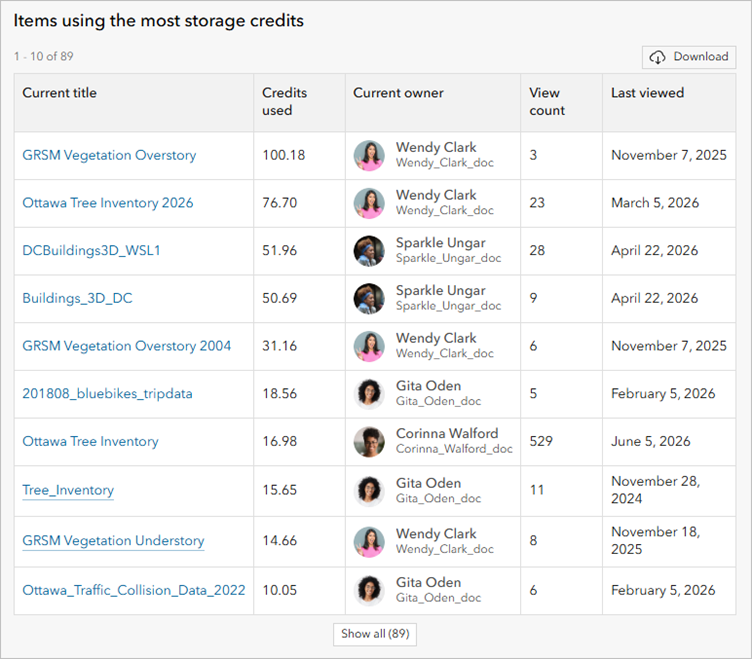
If you want to reduce storage credit costs in your organization, a good place to start is identifying the items in the organization that are using the most storage credits. You can get this information at a glance by scrolling to the Items using the most storage credits table on the Storage tab.
The table provides a list of the top storage credit-consuming items in the organization with information about each of the items, including the name of the item, the number of storage credits it consumes, and the owner of the item. You can easily get more information about each item by clicking the item title to view the item details.
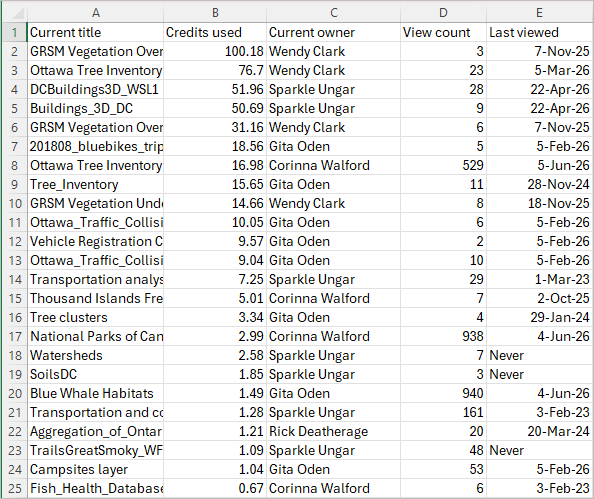
You can also click the Download button to export information about all credit-consuming items in the organization to a CSV file that can be saved and shared as needed.
What can I do about large items?
Once you have identified the items that are largest in terms of storage size, consider the following strategies to help you reduce storage credit expenditures.
Identify and remove unused items
An easy way to reduce storage credit costs is to identify and remove unused items, with a focus on items that consume the most storage credits.
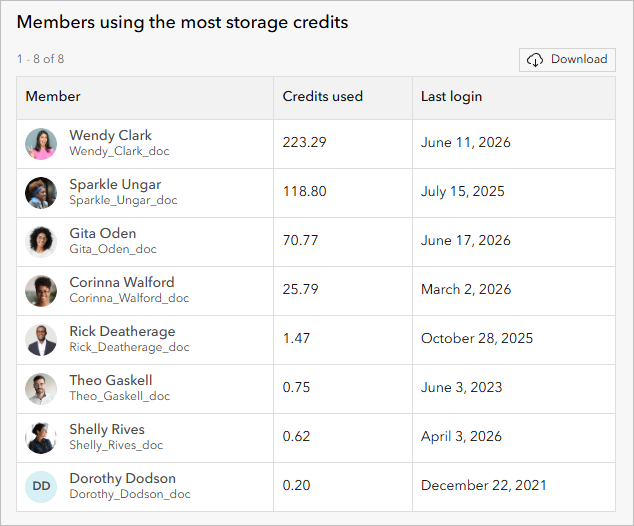
One approach is to use the Members using the most storage credits table at the bottom of the Storage tab to identify members who have the highest storage credit-consuming items. You could ask the members to assess whether their items have been used recently—in the last 6 months, for example. If not, the items might be candidates for removal.
For example, in the example shown below, Wendy Clark’s and Sparkle Ungar’s items use the most storage credits.
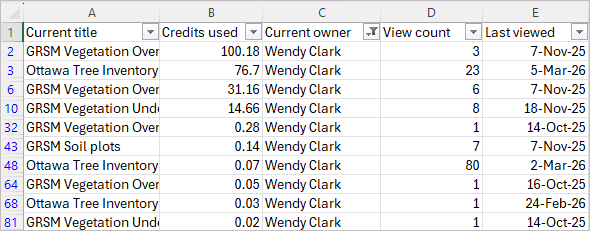
To help identify items for assessment, you could filter the CSV file of credit-consuming items that you downloaded earlier for each member to show only their items, and send each of them their filtered report.
The Last viewed column can help identify older items but it’s probably more meaningful to look at the usage information associated with the items. To do this, Wendy can find the items in her content and look at the Usage tab of each layer’s item page.
This feature layer, for example, is using the most storage credits in the organization, but has only had 5 requests in the last 12 months, with an average of 0.01 requests per day:
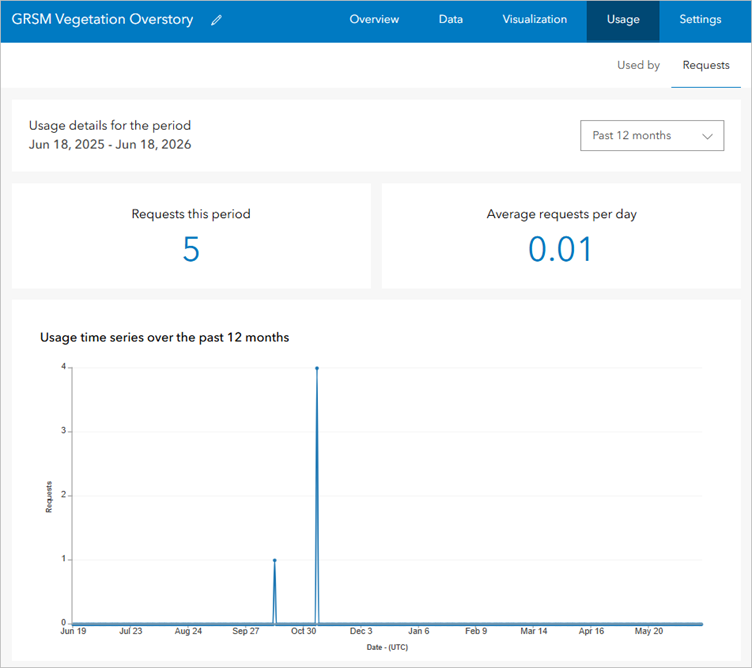
Since the layer doesn’t appear to be used very often, it might be a good candidate for removal. However, it’s important to first ensure that the layer isn’t being used in a shared map or app that other organization members or the public may be using.
Tip: If you’re interested in finding out how many times items in your organization have been viewed throughout a specific time period, you can create an item view count report. This might provide additional information about the popularity or usefulness of items in the organization.
Reduce hosted feature layer size
If you have large hosted feature layers in your organization, you may be able to make changes to the layers themselves to reduce their size, thereby reducing their associated storage credit costs.
Tip: To see the specific storage credit usage for all hosted feature layers in your organization, you can set the Storage type filter on the Storage tab to Feature > Database. The Items using the most storage credits table will update to show only hosted feature layers and the credits used for each.
The following factors may affect the size of a hosted feature layer:
- Number of features
- Number of fields
- Complex features with many vertices
- Layer optimization
- Editing and sync settings (more on these below)
When publishing a hosted feature layer, you can remove any unnecessary features and fields to reduce the size of the layer. Simplifying the geometry of features will also reduce size and improve display performance.
Editing settings such as enabling sync for offline use and collaboration, as well as turning on the option to keep track of edits, can also increase feature storage usage over time. When either of these options is enabled, ArcGIS Online stores information about data changes and offline versions in a change log, which grows as changes accumulate. You can cut down on the additional storage costs associated with the change log by trimming it.
Many hosted feature layers contain attachments, which are stored as files and incur storage costs (listed in the File Storage Size column of the item report). Disabling attachments on an editable hosted feature layer will prevent other users from adding attachments to the layer.
Tip: If your organization has a lot of members and content, you might consider upgrading to Premium Feature Data Store. Premium Feature Data Store offers dedicated database resources for your organization. It uses a fixed price model rather than charging credits for feature storage. For more information, check out the blog article, Tracking your ArcGIS Online Feature Data Store Key Health Indicators.
Learn more
For more information about managing credits in your ArcGIS Online organization, explore this tutorial series or refer to the following individual resources:
- Credits overview (web page)
- ArcGIS Online Credits (video series)
- Understand credits (help documentation)
- Configure credits (help documentation)
- View status dashboard (help documentation)
- Managing credits in ArcGIS Online (blog article)
- Tips for managing credits consumed by analysis tools (blog article)
- Supercharge your ArcGIS Online Organization Management with Reports (blog article)
- Purchase additional credits (web page)
- Tracking your ArcGIS Online Feature Data Store Key Health Indicators (blog article)


Commenting is not enabled for this article.