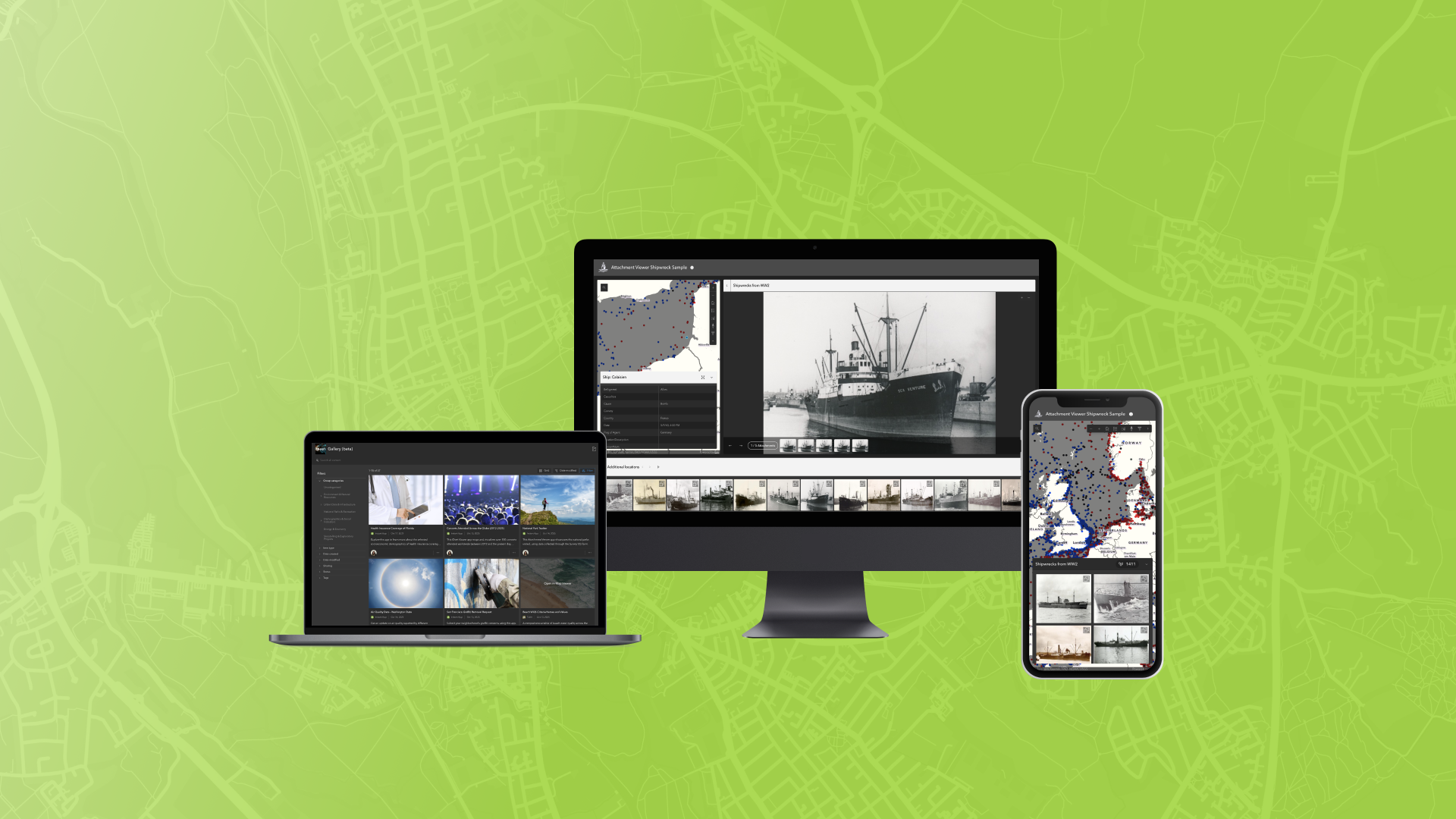
The October 2025 ArcGIS Online update introduces new features and key updates throughout the site. The same applies for ArcGIS Instant Apps, as we have rolled out several updates and new features to our existing apps, further improved choosing and managing your apps on the Instant Apps home page, and addressed various bugs and enhancements to help stabilize and improve your experience across the site. See the highlights below.
Attachment Viewer updates
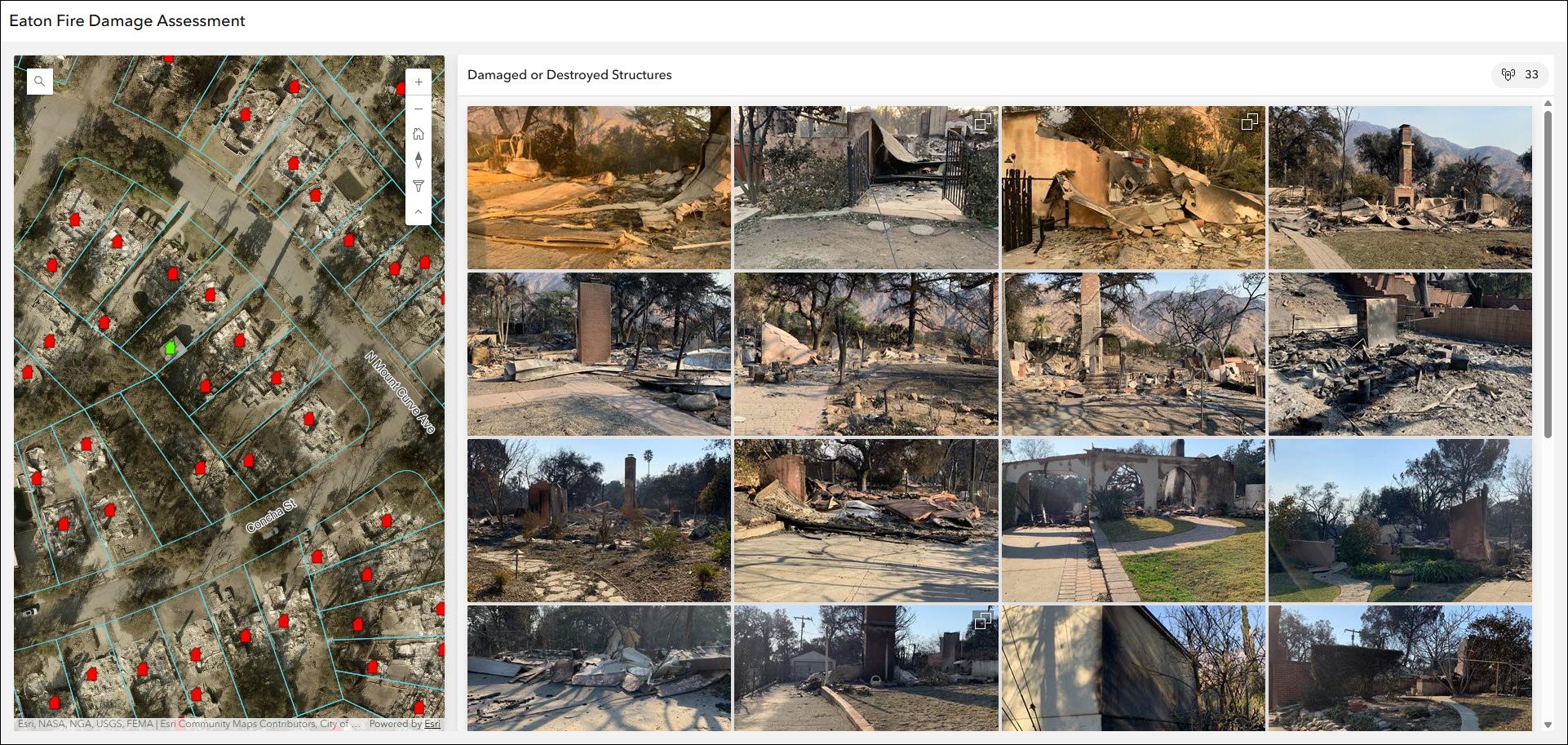
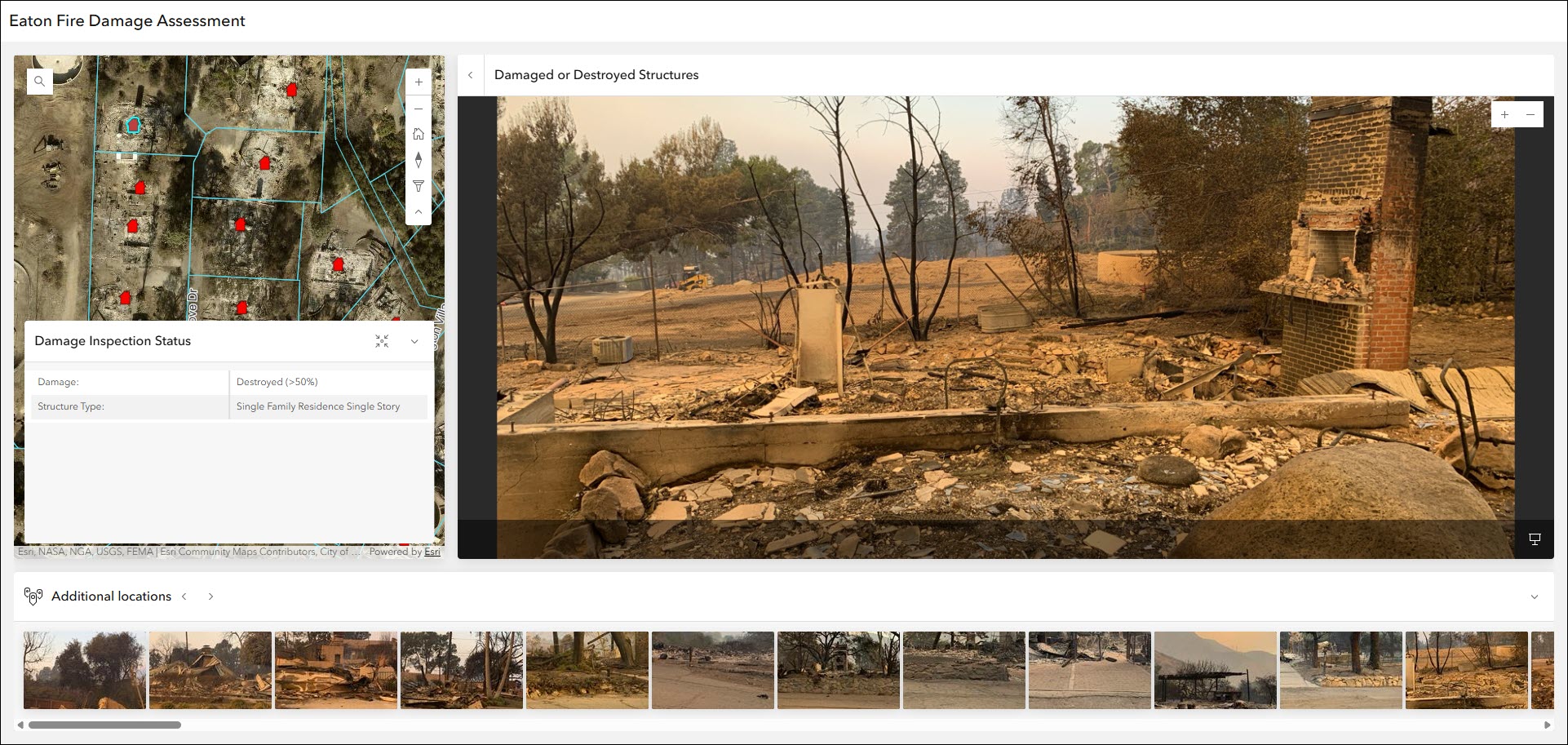
Display photos, videos, and PDF files stored as attachments alongside your map using the Attachment Viewer template. With this update comes an improved look and feel for a more modernized layout and experience of navigating through features and attachments. This update applies to both the Attachment focused and Map focused layouts. When viewing an app configured to use the Attachment focused layout, the app now loads showing a large gallery of attachments that correlate with features in the current map extent. Once a feature or attachment is clicked, the familiar attachment-centric layout shows with more detail.
Both layouts include a new filmstrip concept that lets you browse other features from the layer while still focused on one. The filmstrip is easily collapsed using the icon in the top right corner when not being used.
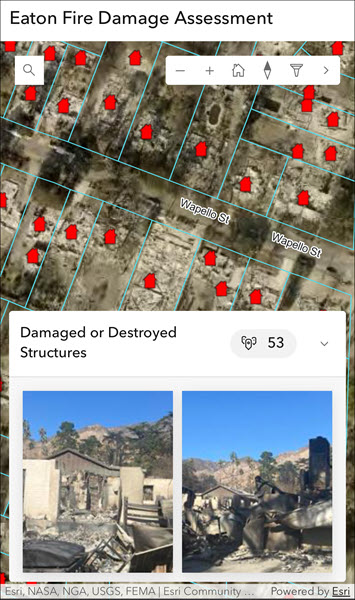
Lastly, an update to the mobile interface uses a split-screen approach to view the map and attachment gallery simultaneously in both app layouts. All of these updates are integrated into your existing apps automatically without any manual reconfiguration.
Check out our Attachment Viewer: A New Attitude blog for a deeper dive into these exciting updates.
New: Gallery (beta)
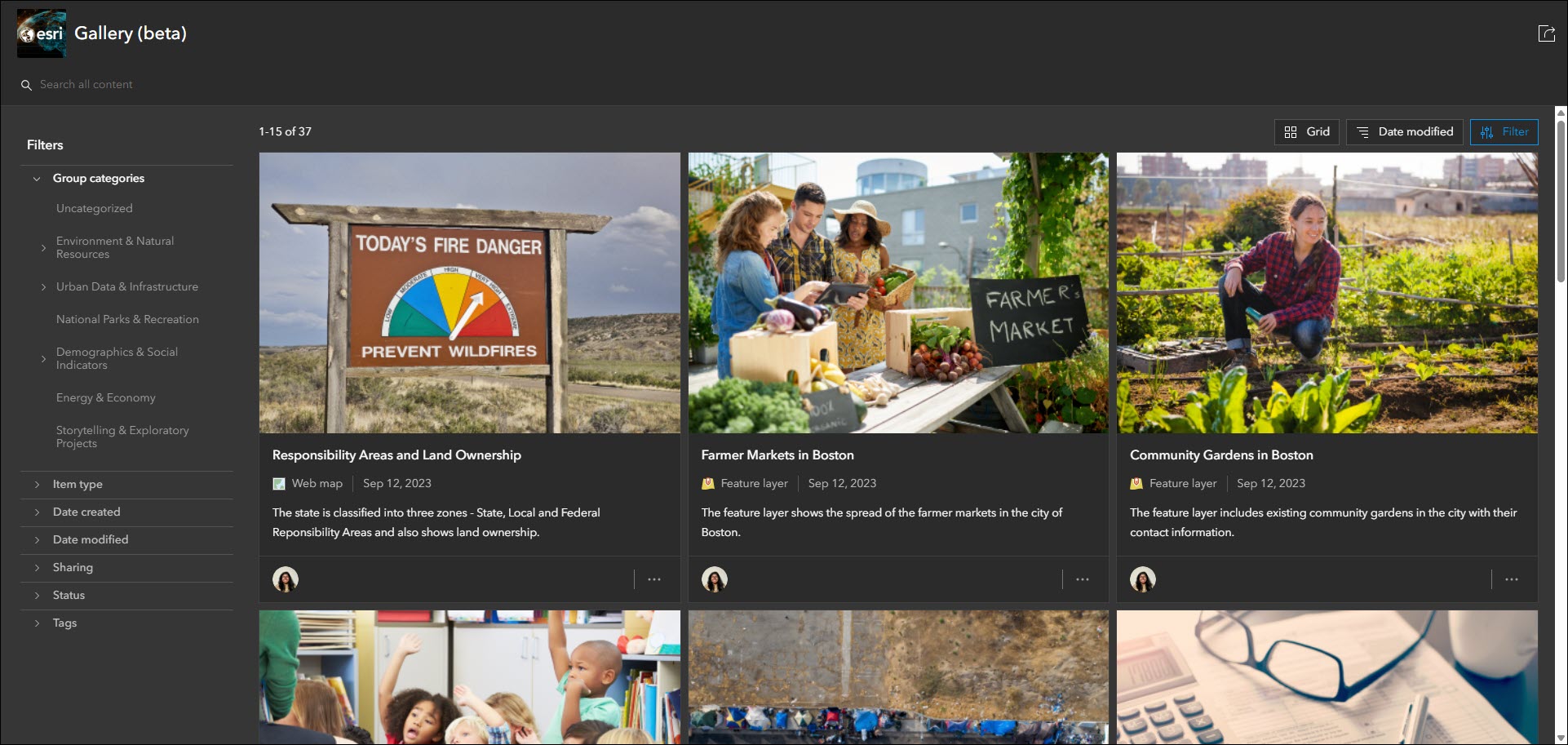
Showcase items from a group in a filterable and searchable grid or list using the new Gallery (beta) template. Present a collection of items that offer app users the ability to view, open, and explore all in one place. Gallery (beta) offers several different ways to filter content in the app using the filter panel, such as by category, item type, date created or modified, tags, and more. The category filter can be configured to use group categories or organization categories. A setting in the configuration lets the app creator decide which one to leverage in their app.

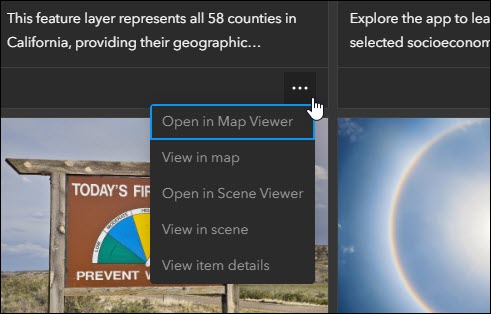
The app configuration offers several key settings beyond filtering, such as default layout (grid or list), sign in button, and the ability to open content externally from the app in the ArcGIS Online Map Viewer or Scene Viewer. Enable the “Open in Map Viewer or Scene Viewer” setting in Interactivity > Item card display to make this the main opening action on map, scene, and layer item cards. If this setting is disabled, only the app’s built-in viewers will be used to display these items.
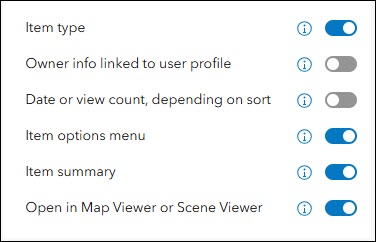
The configuration also lets the app creator determine which details are exposed on the item cards. On the Interactivity > Item card display tab of the configuration, decide to expose and display details such as item type, owner info, date, item options menu, and the item’s summary text. Configuring these settings will help achieve the desired look when your app is displayed to your audience.
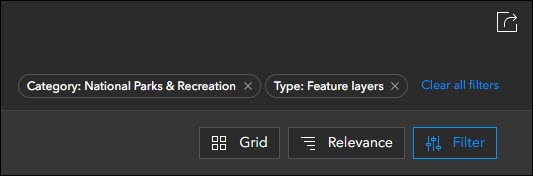
Enable the Share tool in your app so that app viewers can share it with others. The Share tool preserves any filters that are applied using URL parameters so that they can share exactly what they see. When filters are applied in the app they are represented as elements in the top right near the Share tool.
Gallery (beta) will be the eventual replacement for the Category Gallery template. When Category Gallery is set to be deprecated, we will message this ahead of time so that you can consider using the new Gallery (beta) template as the replacement solution for your apps created using Category Gallery.
Introduction window updates
Provide app details to introduce viewers to your app using the Introduction window. Once dismissed, the Introduction window can be reopened by app viewers in the app. Take advantage of a new set of configuration options that affect how the Introduction window is presented and dismissed. On the About tab of most app configurations, enable “Introduction window” and then find the new “Close behaviors” setting.

Choose between one of the three behaviors:
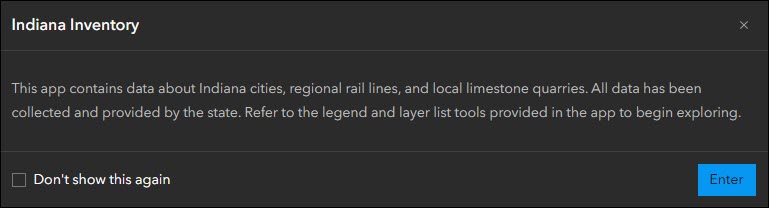
- Allow permanent dismissal – The Introduction window includes a checkbox for “Don’t show this again” so that the app viewer has the choice to never see it again unless they uncheck it.
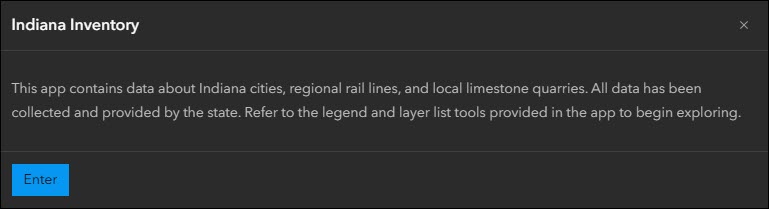
- Require dismissal each time – There is no “Don’t show this again” checkbox available. This requires the app viewer to see and dismiss the Introduction window every single time they load the app.
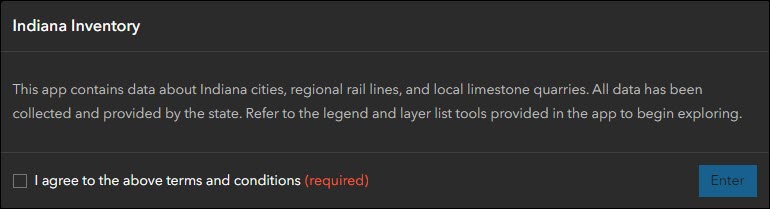
- Require confirmation before dismissal – A checkbox with a consenting message is present and must be checked to activate the button for dismissal. This requires the app viewer to agree and consent to your terms and conditions before viewing and using your app every time. The default message is “I agree to the above terms and conditions” but this is fully customizable in the app configuration.
Cover page updates
Enable a cover page in your app to introduce app viewers with a title, subtitle, and body of description text that can provide information about who owns and/or created the app and the general theme. Upload an icon image, such as a company logo, to show branding. The cover page takes over the entire screen before displaying the app so it is beneficial to configure a desired background color or background image to provide further introduction to the theme or project that your app is used for.
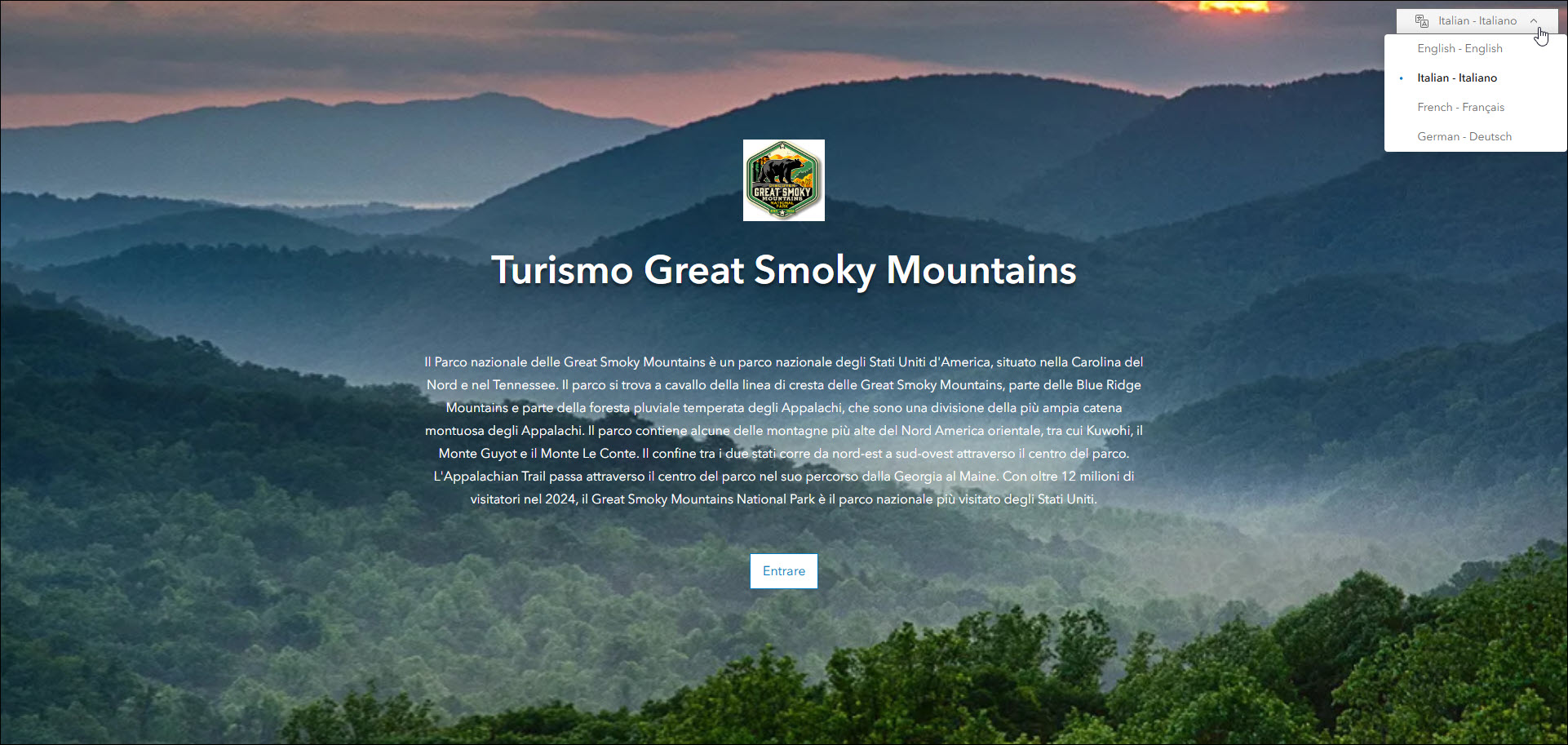
We have added support for displaying the cover page in multiple languages with this release. The Language switcher, which can be found in most apps, now translates the text you add to the cover page title, subtitle, description, and button text. Enable the “Language switcher” setting on the Language Switcher tab of the configuration to begin setting up your app in your desired languages.
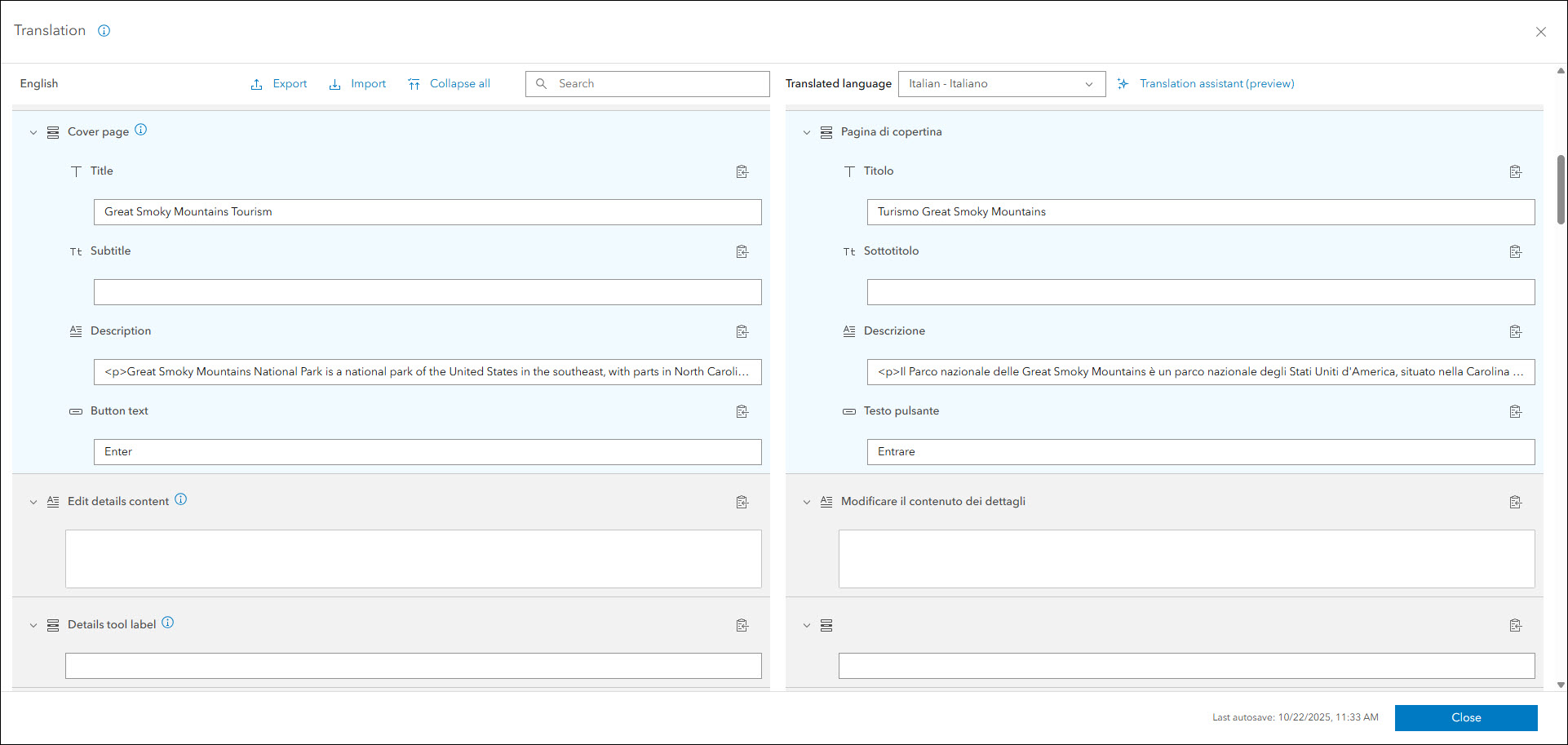
When your app loads and displays the cover page, the Language switcher drop-down displays on the cover page so that app viewers can instantly view it in any language that you have configured support for.
Streamflow Viewer updates
Interact with streamflow forecast data through a chart and time slider using the new Streamflow Viewer template. This app includes two different 10-day river forecast services, the GEOGLOWS Streamflow forecast service for global coverage from the European Centre for Medium-range Weather Forecasting (ECMWF), and the United States National Water Model service for US coverage from the NOAA’s National Water Prediction Service.
The October 2025 release includes an update with the Global GEOGLOWS model. This model now includes access to retrospective streamflow simulation, an 85+ year deterministic model simulation at hourly resolution beginning 1 January 1940.

Sidebar updates
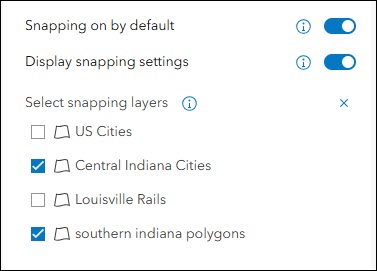
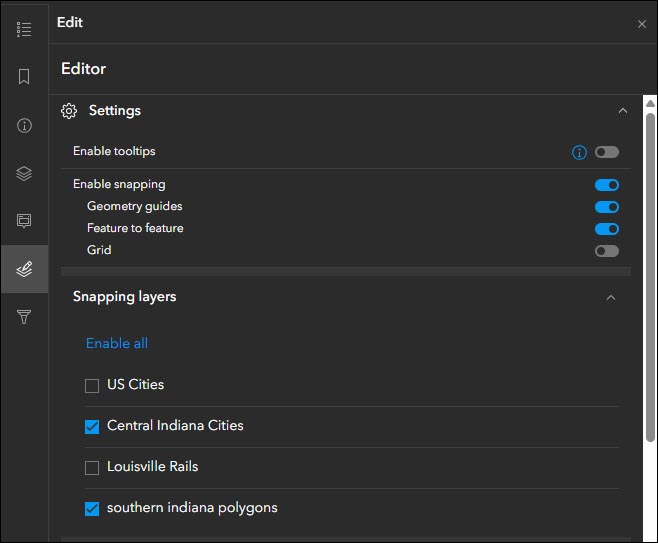
Sidebar offers a range of tools for exploring, understanding, and managing data. Configure an app that lets users carry out data editing workflows using a set of tools in the side panel of the app. In the configuration, enable the “Display snapping settings” option on the Sidebar > Editing tools tab to find the new snapping layers settings. Determine which layers from the map will participate in snapping by default. When using the app, viewers can access and modify these settings in the Edit panel as they are working.
Public Notification updates
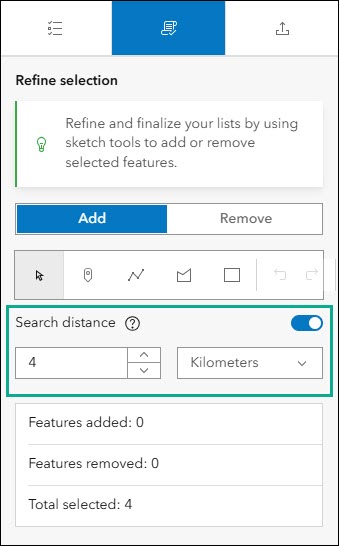
Create a list of features using a map that can be exported to CSV or PDF using Public Notification. Search for a single location or draw an area of interest using sketch tools to define a set of features. You can also use the geometry of an existing feature or apply a search buffer to expand the resulting features used to create the list. While refining a selection, take advantage of the new setting to define a distance for a search buffer that will help select the new features. In the app configuration, enable the “Refine selection” setting on the Public Notification > Results tab. When using the app, find the “Search distance” setting on the Refine selection tab of the side panel to declare a distance.
Deprecation Notice for ArcGIS Configurable Apps
As of the June 2023 update of ArcGIS Online, a deprecation notice has been issued for ArcGIS Configurable Apps. Deprecation does not impact the availability, functionality, and Product Lifecycle Support phase of ArcGIS Configurable Apps.
ArcGIS Configurable Apps continues to be available until it is officially retired but will not receive new features or other enhancements. Before retirement, users are still able to create apps using ArcGIS Configurable Apps templates and existing apps will continue to work.
Retirement of Configurable Apps is expected to happen in the Q1 2026 release. Please take a look at our detailed announcement blog: ArcGIS Configurable Apps Roadmap for Retirement.
More information
For more information please reference our documentation page where you can find details about getting started with creating and sharing ArcGIS Instant Apps.

Article Discussion: