ArcGIS Online helps you understand the world around you by using interactive maps to connect people, locations, and data. You get smart, data-driven visualizations and intuitive analysis tools that deliver location intelligence. This intelligence can then be easily shared as a map, story, dashboard, or app with your organization or the world. ArcGIS Online can help you scale the reach of the work done in ArcGIS Pro, and also work alongside an ArcGIS Enterprise deployment.
The October 2025 update includes new capabilities in Map Viewer, AI assistants for Arcade, new labeling options, and other improvements and new capabilities. Highlights of these updates, along with other enhancements and new functionality throughout ArcGIS Online, are provided below.
ArcGIS Online is updated three times each year. See the ArcGIS Online blog articles to learn more about previous updates to ArcGIS Online and new functionality and enhancements you may have overlooked.
For more information and additional details about this release, see the What’s new help topic or view all posts related to this release.
Don’t have time to read the blog article? View the video instead.
Quick links
Use the links below to jump to sections of interest.
- Map Viewer
- Analysis in Map Viewer
- Scene Viewer
- AI assistants
- Content management
- Accounts and administration
App Builders
Apps and Extensions
Ready-To-Use Content
Map Viewer
Using Map Viewer, you can author, explore, edit, and share web maps. Map Viewer is used to perform common GIS tasks, such as to explore the contents of a web map, change the basemap, add data layers and styles, perform measurements, and execute different types of data analyses. Map Viewer features responsive mapping and supports real-time updates to the map as you work.
Here’s an overview of new features and enhancements to Map Viewer delivered with this update.
Share maps without creating an app
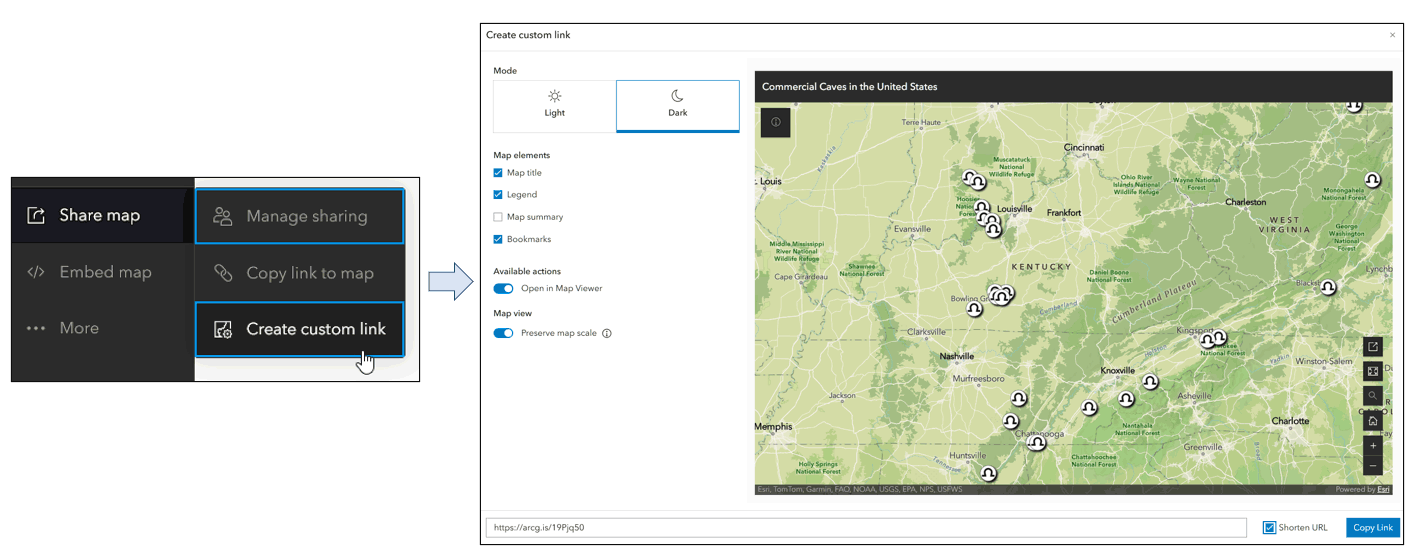
You can easily share any map in Map Viewer using Copy link to map or Create custom link, a new option from Share map on the Contents (dark) toolbar.
Copy link to map, introduced with the June update, creates a short link that preserves the map at its current extent and makes it easy to share the map with others using Map Viewer.
Create custom link enables you to configure a simple viewing experience by choosing from a variety of options, such as including a legend, summary, bookmarks, preserving map scale, or using light or dark modes. This delivers an alternative to using app builders, providing a quick and easy way to share any map in a customized way. For more information, see Customize a simple view of your map.
iFrame option for embedding a map
Embed can be accessed from the Contents (dark) toolbar and now includes new options. Previously only the script embed option was offered, requiring adding a script to the head of your page to load the embeddable map component.
An iFrame embed option has been added, providing an alternative that generates ready-to-use HTML code. Embed includes similar configuration options as Create custom link (see above), but is intended to generate the necessary code for embedding the map in a website.
Labeling enhancements
You can use labels on features to help viewers understand what your map is showing. Map Viewer automatically places labels on the map on or near the features they describe. The text for a label is typically derived from attributes in the layer. When you enable labels on a layer, you create one or more label classes, which allow you to customize the labels. For more information, see Configure labels.
Label deconfliction control
Previously when multiple labels on a map overlapped, Map Viewer would default to label deconfliction so that only one label is visible when they overlap. With this update, you will now have more control over maps with the ability to expose all labels on a map by turning off label deconfliction. This is important for many different uses, such as in complex utility maps where every label should be visible.
Label class priority management
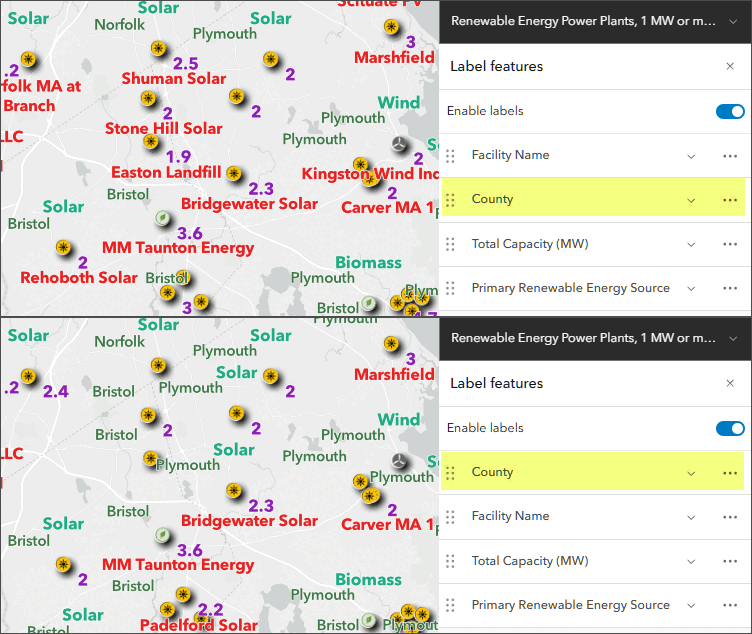
Using drag-and-drop ordering of label classes in a map, you can adjust how they are prioritized when they conflict. Label classes dragged to the top have priority over label classes below them. The example below shows how reordering label classes changes the labels that are displayed.
Animated symbol style
The February 2025 update introduced animation properties for point symbols with an included Animation symbol style. These animation capabilities are now supported for both lines and polygons.
You can configure additional animation properties for these feature types, including color transition and transparency. These animations can be used to apply focus to specific lines or areas of interest in your map.
Gradient symbol and offset styles
Gradient and offset symbols have been added to the default symbol styles, providing more options for display.
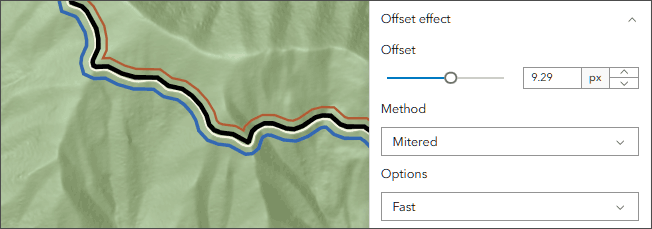
Vector properties for symbol offsets as authored using ArcGIS Pro have been supported for quite some time. Now, similar controls to those offered in ArcGIS Pro are available in the symbol style options, so adjustment can be made for offsetting coincident features. For example, in the case of overlapping lines for bike trails and hiking trails, the symbol offsets can be adjusted to display both lines clearly using both positive and negative values. The underlying geometry is not changed, only the symbol properties are adjusted for display.
The image below shows using both positive and negative offsets to separate coincident hiking, biking, and horse trails.
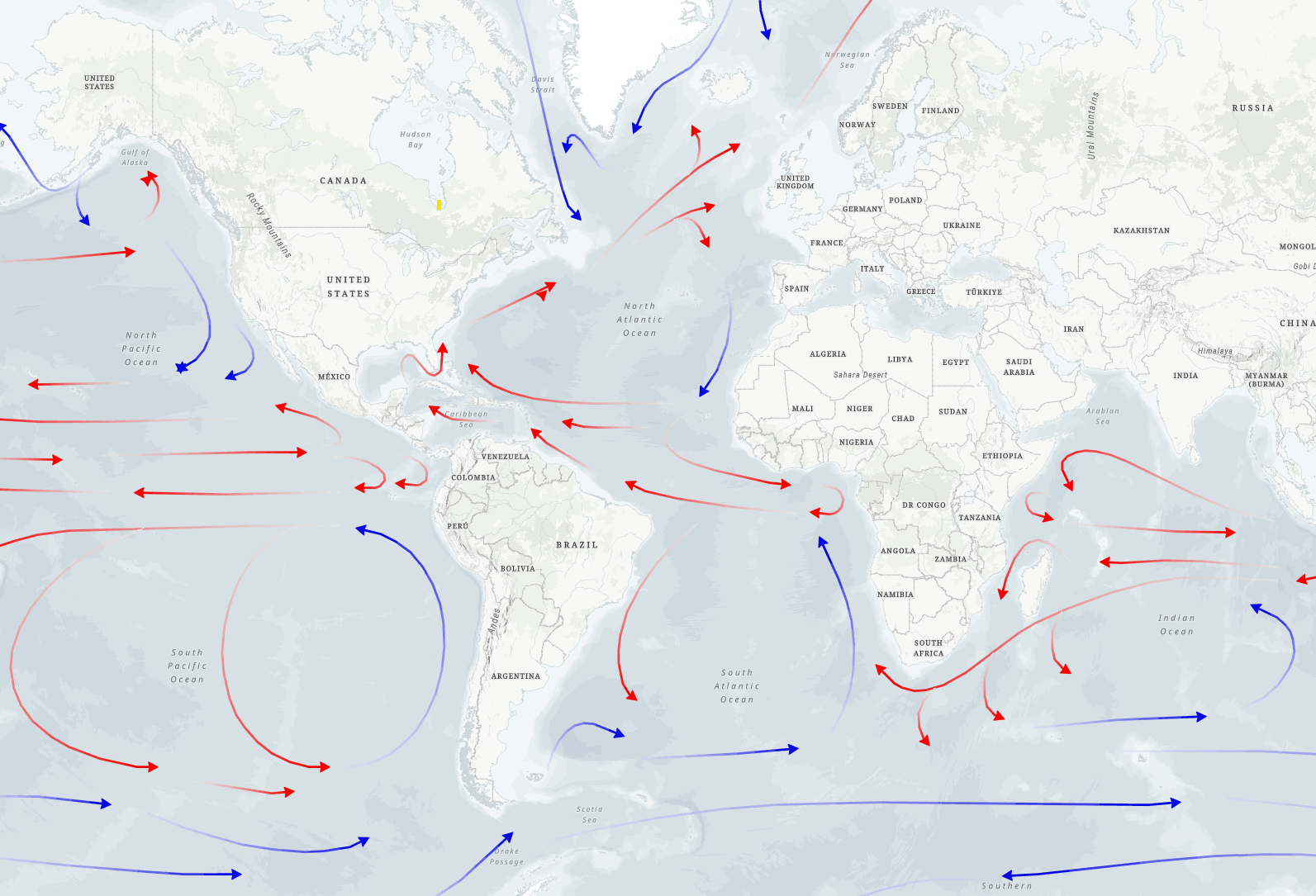
Below, gradient stroke symbols have been used to show warm and cold ocean currents.
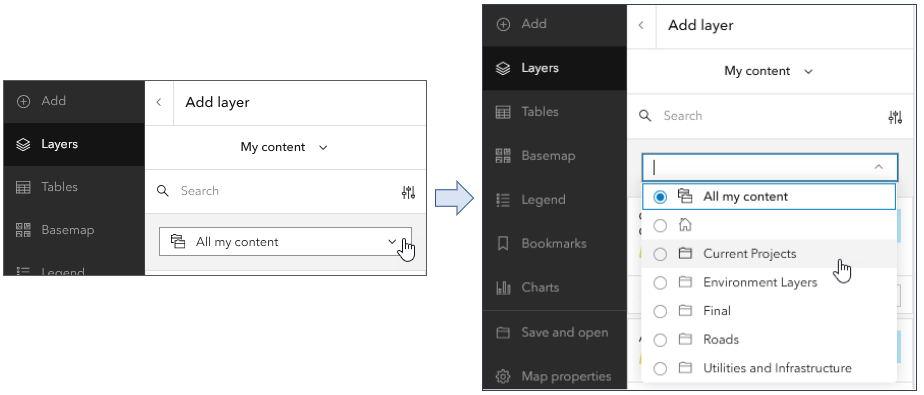
Narrow search when adding layers using folders and groups
A new drop-down list lets you select layers to add to your map from a specific folder or group, making it easier to find what you are looking for. When adding layers to your map from My Content, you can choose a folder from a drop-down list to filter for specific content. Similarly, when adding layers from My Groups, you can choose a group from a drop-down list.
Add content from ArcGIS Hub sites
ArcGIS Hub is a cloud-based community engagement platform that empowers individuals, organizations, and communities of practice to share trusted, curated content.
You can now add ArcGIS Hub content to maps directly in Map Viewer. Once you favorite one or more Hub sites, the option to search for content from Hub catalogs appears in the Add layer drop-down list. Select any catalog to search for layers to add to your map.
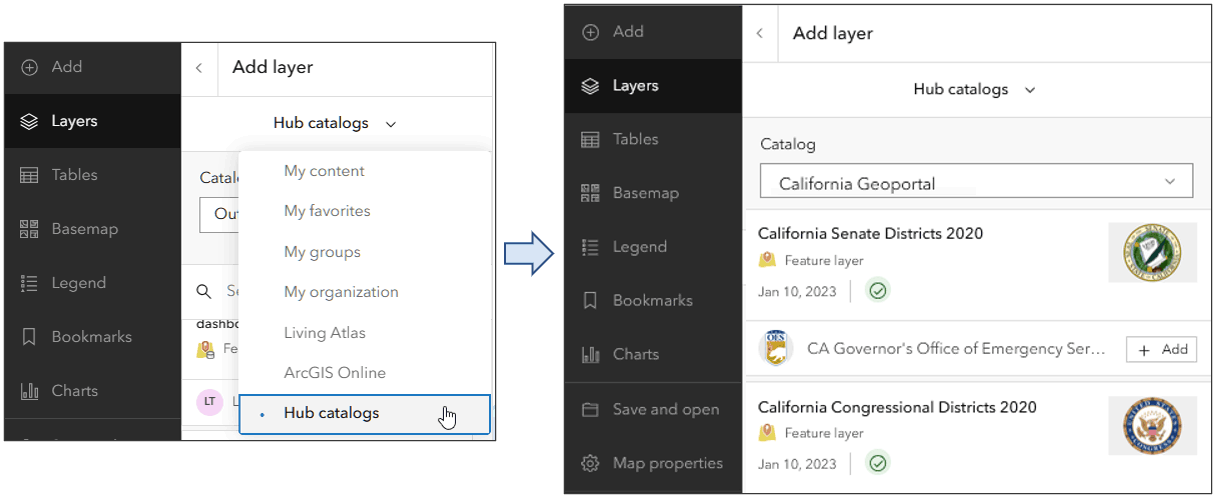
If you launch Map Viewer from a Hub site, you remain connected to the site and can use the Hub catalog search to add additional content. See Using curated data from ArcGIS Hubs catalogs in Map Viewer for more information. To get started with ArcGIS Hub, see Introduction to ArcGIS Hub. To learn about recently added features in ArcGIS Hub, see What’s new in ArcGIS Hub (October 2025).
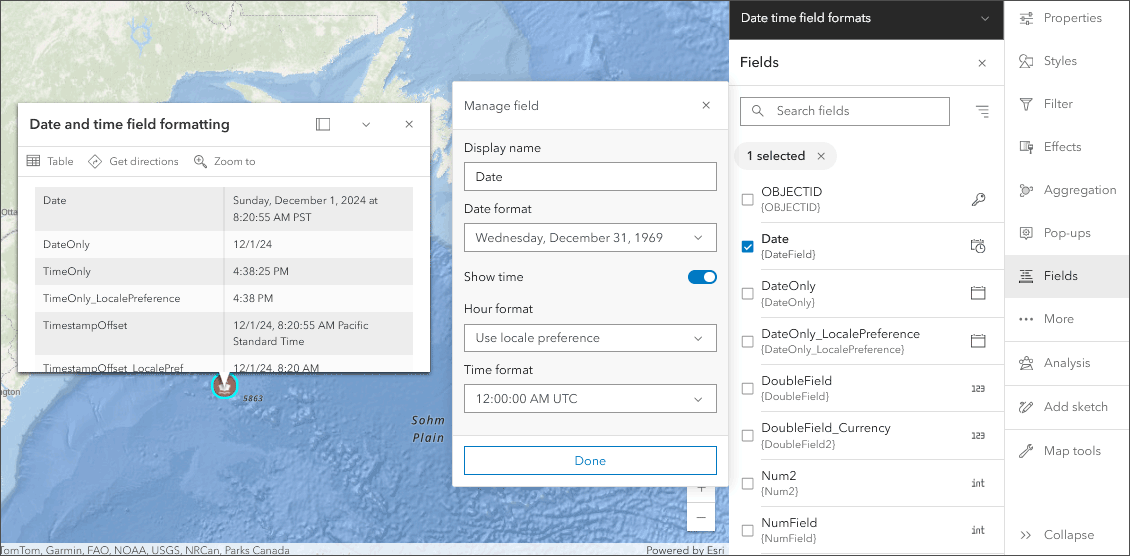
Improved field value formatting
Field value formatting has been updated and improved to better support internationalization standards. These include improved locale support for date and number fields, and the introduction of new formatting options. You can now show properties such as the time zone in pop-ups, enabling you to author maps intended for multiple locales.
Raster tile layer pop-ups
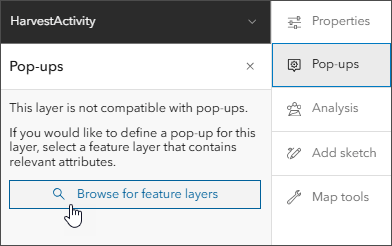
Pop-ups can be configured to work with tile layers by specifying a feature layer to associate with the tile layer. When you configure pop-ups for a raster tile layer, you will be prompted to choose a feature layer with relevant attributes, from which the pop-ups are derived. The pop-up panel populates using the referenced feature layer, and all feature layer configuration capabilities (including Arcade use and attachments) are enabled.
Attachment pop-up filters
When configuring pop-ups, you can now filter which attachments are displayed in the pop-up based on keywords or attachment type. Filtering for specific kinds of attachments is useful when there are many different attachments associated with a feature, such as photos, video, and documents (for example, in post-fire damage assessment). Attachments can also be filtered by Survey123 keywords associated with the attachment.
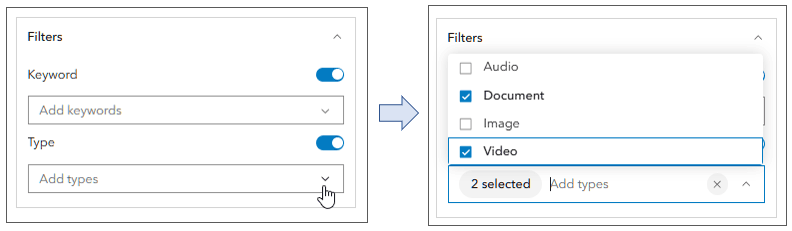
Chart improvements
A chart is a graphical representation of data. As with maps, charts help uncover patterns, trends, and relationships. When used in conjunction with maps, charts can help you tell a more complete story with your data. The following improvements have been made to charts with this update.
Scatterplots are used to illustrate the relationship between two variables, with one variable represented on the x-axis and the other on the y-axis. Scatterplots now include a Tooltip display field parameter, which is used to choose a number field to display in the tooltip for a point without being used as a variable to create the chart.
Bar charts summarize and compare categorical data using proportional bar lengths to represent values. Bar charts have two new parameters: Treat null as category and Enable temporal binning. When enabled, Treat null as category will add a bar summarizing null values from the Category field to the chart. Enable temporal binning is available when a date field is chosen for the Category variable and is used to create bins of time intervals along the x-axis of the chart.
For more information, see Configure charts.
New editing tools
Two new editing tools have been added: Split and Merge. Both can be applied to either line (polyline) or polygon geometries. Click any feature in an editable layer to display the pop-up, then click Edit to display editing options. Or, open Edit from the Settings (light) toolbar to make your selections. A new toolbar improves feature selection for replacing, adding to, or removing a selected feature. Attributes for the split or merged features can also be updated in the same workflow.
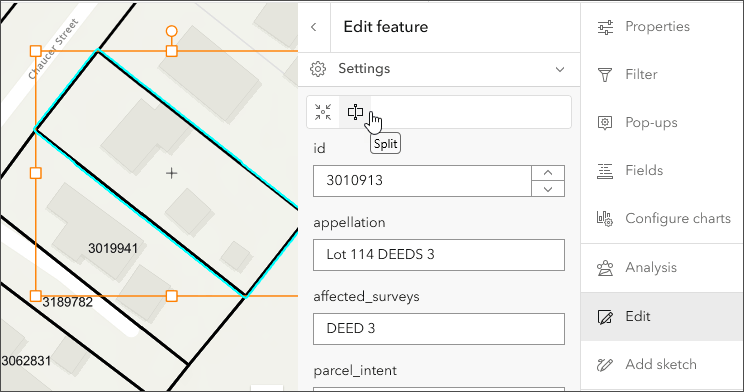
Additionally, new selection tools allow you to choose between replacing, adding to, or removing a selected feature.
View oriented imagery
An oriented imagery layer is a collection of camera locations with reference to the captured image paths. Oriented imagery layers can be viewed and managed in Map Viewer using the oriented imagery viewer. When added to the map, each point in an oriented imagery layer indicates the camera location where an image was acquired; click the location to explore the imagery in the viewer.
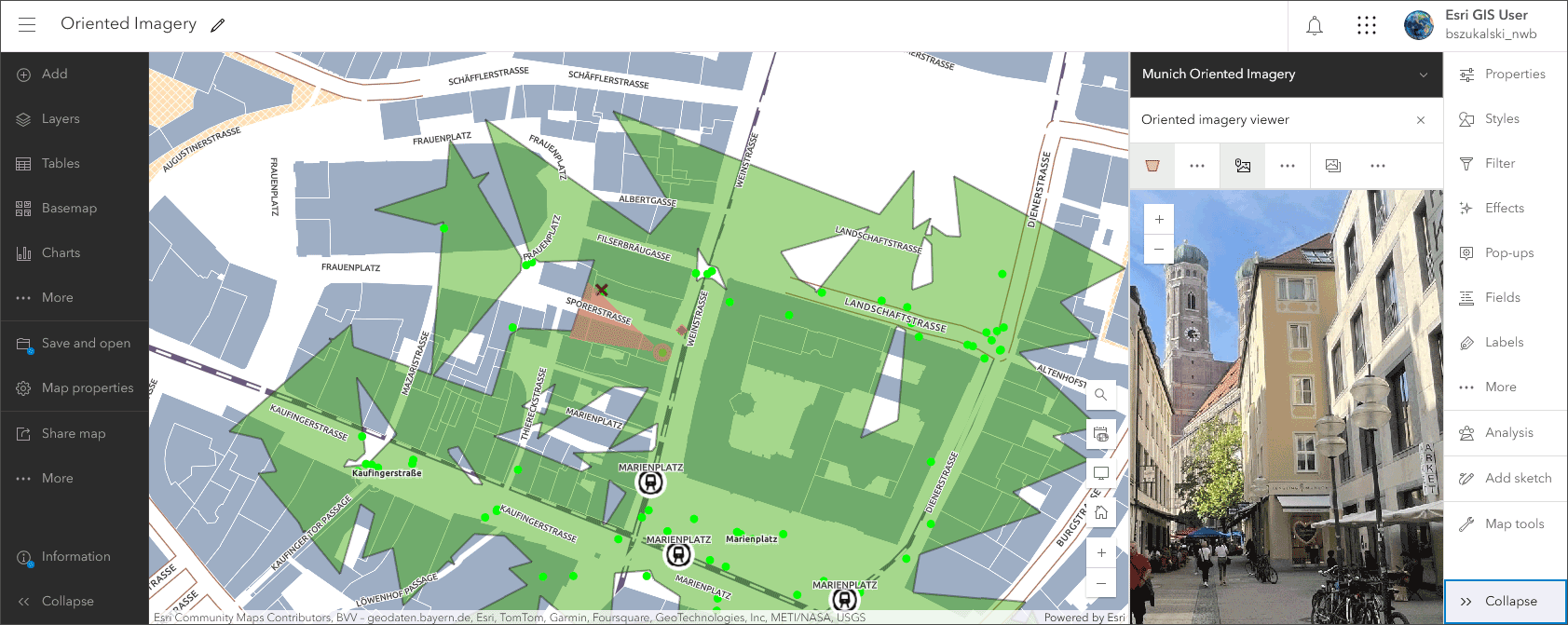
Updates to the oriented imagery viewer include the following:
- The oriented imagery viewer now supports COG and MRF image formats.
- When working with the oriented imagery viewer, you can now compute triangulated measurement for both frame and 360-degree imagery.
For more information, see Introduction to oriented imagery layers and Work with the oriented imagery viewer.
Arcade assistant (beta)
Introduced in the June 2025 update, an Arcade assistant (beta) is available that helps in generating code to perform certain tasks using AI. For example, you can ask a question about your data or describe what you want to do and the assistant will generate the Arcade from your prompt. Example prompts might be:
- Change the values in the field “NAM” to sentence case and append “National Park” to the string.
- Compute the change in oil production from the current feature with the average of all features within 5 miles. Include the production value for the current feature, the average production within 5 miles, the total change and percent change. Use HTML to format values in bold and colored so an increase uses green text and a decrease uses red text.
- Create a label that includes the total production of various kinds of wheat in the most recent year on separate lines. Each line should include the type of wheat and a nicely formatted value. If a value isn’t present or zero, exclude that wheat type from the label. Total wheat should always be on the first line.
New for this update, you can now use the Arcade assistant (beta) to generate ArcGIS Arcade expressions when calculating field values in Map Viewer.
Note that as a beta feature, the Arcade assistant is only available to organizations that have enabled beta features and AI assistants.
Other new features and enhancements
Map Viewer now supports keyboard shortcuts for opening the Measurement toolbar and Location window. These shortcuts are handy when performing other workflows that you do not want to interrupt.
You can now add hosted video layers that have been published in ArcGIS Enterprise to your map to view time-enabled videos in a spatial context. For example, you can visualize the path of a delivery vehicle from an aerial point of view in relation to the landscape and infrastructure around it.
Map Viewer now supports visualization of hyperspectral imagery using both tiled imagery layers and dynamic imagery layers.
Imagery layers styled using the Minimum maximum or Standard deviation stretch types now perform better when dynamic range adjustment is enabled.

Analysis in Map Viewer
Map Viewer’s spatial analysis tools allow you to quantify patterns and understand relationships in your data. Feature and raster analysis tools and raster functions are available to all members with the appropriate privileges.
ArcGIS Living Atlas imagery layers optimized for analysis
Select Living Atlas imagery layers have been optimized for analysis. The spatial extent for analysis has been expanded to state-wide, country-wide, or even global scale, and these layers can be used in conjunction with one another for multisource analysis. Imagery layers optimized for analysis simplify data discovery and accessibility, shifting the focus from data management to extracting actionable insights at scale with workflows such as change detection, land cover classification, urban heat analysis, and more.
The list of optimized layers continues to grow. The full collection of optimized layers can be found in the Living Atlas Imagery Layers Optimized for Analysis group. You can also use the search at the Living Atlas browse tab to return the same list of layers optimized for analysis.
For more information, see ArcGIS Living Atlas ready-to-use imagery layers for analysis.
Analysis processing extent
The processing extent environment setting has been split into two separate settings: Analysis processing extent applies to feature analysis tools and Raster analysis processing extent applies to raster analysis tools and raster functions. You can turn off Use a different processing extent for raster analysis to apply the Analysis processing extent setting to all analysis.
The default processing extent for raster analysis is now Display extent.
ModelBuilder
ModelBuilder is an interactive canvas for building analysis workflows using the analysis tools available in Map Viewer. Models are created by chaining together data and analysis tools into workflows, where the output of one tool becomes the input for another tool. These workflows can range from routine data management tasks to complex spatial analysis.
With ModelBuilder, you can design, execute, and share complex multi-step analysis workflows—entirely within a browser and without writing a single line of code.
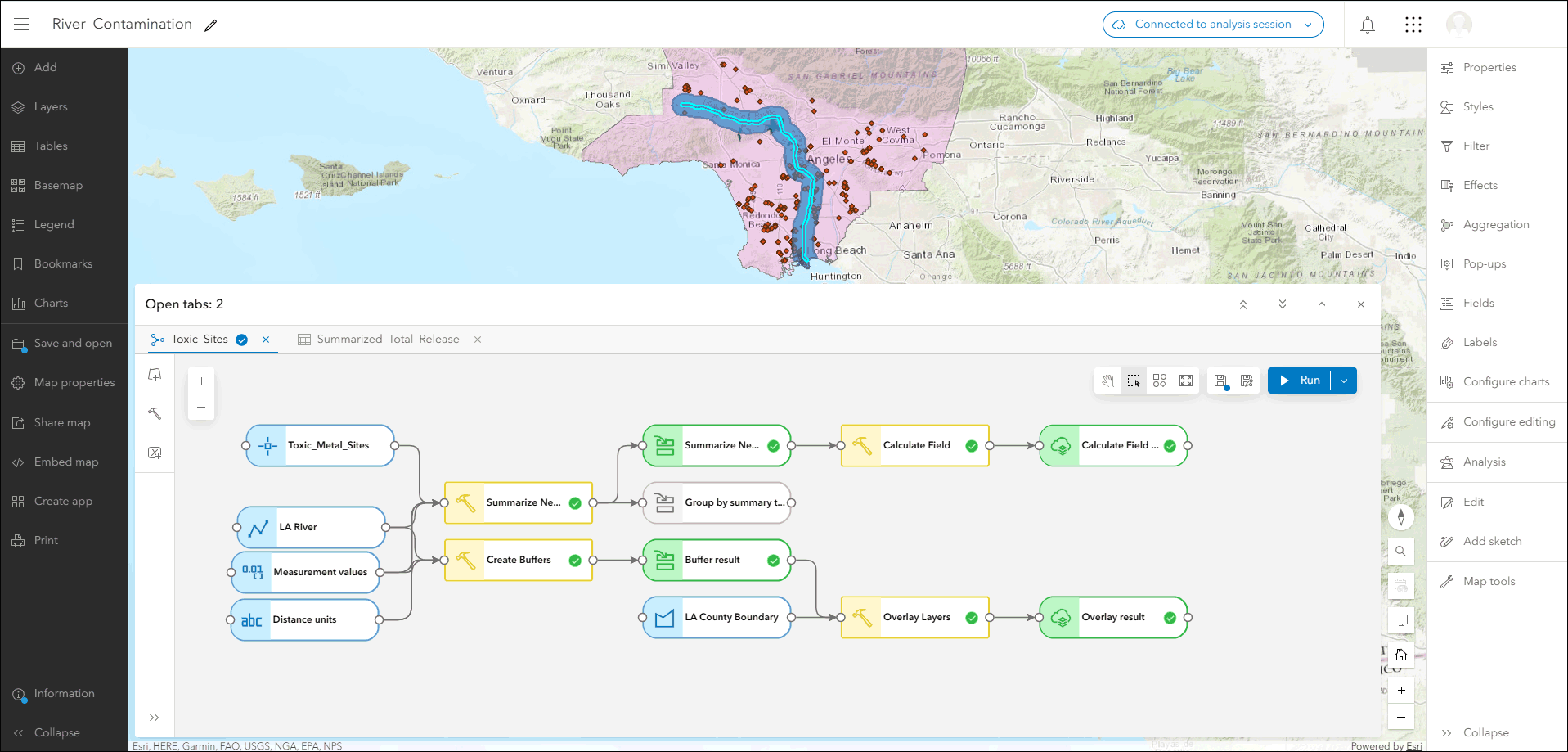
Value variables are now supported to add to a model in ModelBuilder. Value variables are connected to tool elements to use as inputs and can be useful for iterating on tool parameters. Users can add or change variables in models, making it simpler to customize workflows for different situations.
Calculate Field is a new ModelBuilder tool that uses an SQL expression to calculate values for a new or existing field. The Calculate Field tool lets users create new data fields or update existing ones with calculated values.
For more information, see What’s new in ModelBuilder (October 2025).
Scene Viewer
Scene Viewer is ArcGIS Online’s dedicated web app for visualizing geospatial data in 3D, from local web scenes to large-scale digital twins. With this update, Scene Viewer has been enhanced with the following new capabilities and features.
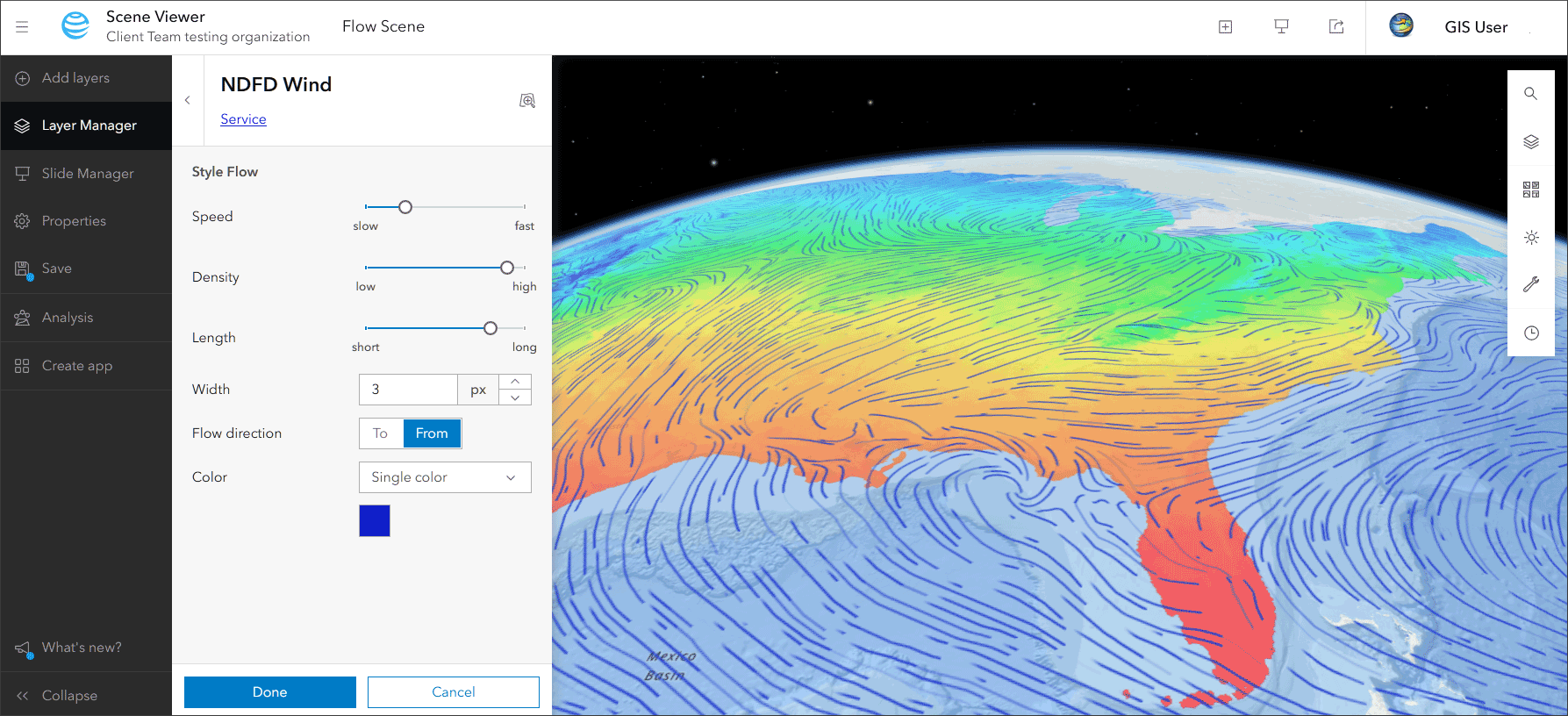
Flow style
You can apply a flow style to imagery and tiled imagery layers that visualizes the flow of raster data that contains magnitude and direction. Visualizing raster dataset flows is useful in fields such as meteorology, climatology, hydrology, and oceanography. For example, you can use this style to display ocean or wind currents as streaming lines, in which the direction indicates the direction of flow; and the length, color, and speed of the flowlines indicate the magnitude, or power, of the current.
Run custom web tools
You can run custom web tools directly within Scene Viewer to enable more flexible, scenario-specific analysis workflows. Custom web tools are geoprocessing workflows that are published and hosted in your ArcGIS organization. Custom web tools can be added to Scene Viewer, and run from the Analysis pane.
Other enhancements
- 3D models with georeferencing information such as IFCv4 files, are now placed automatically in the scene when uploaded.
- Improved user experience for managing error messages.
- You can use the Arcade assistant (beta) to generate ArcGIS Arcade expressions when configuring pop-ups in Scene Viewer.
For more information, see What’s new in Scene Viewer.
AI assistants
Organizations can enable AI assistants for members to use. AI assistants are enabled by the organization administrator on the AI assistants pane of the organization settings.
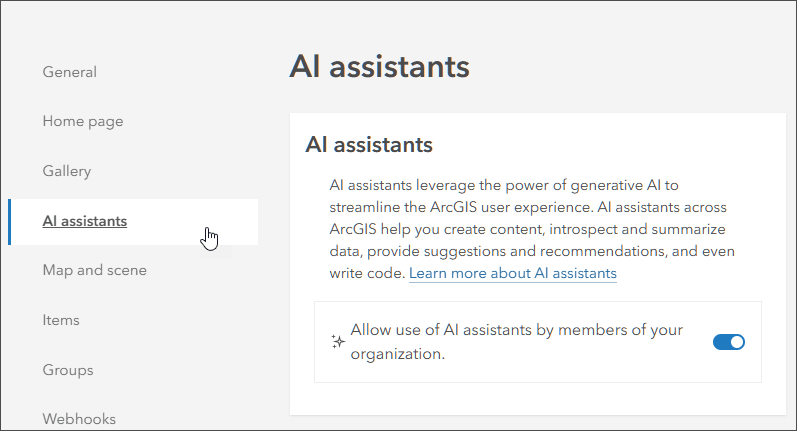
Note: You must turn off the Block Esri apps and capabilities while they are in beta setting to enable AI assistants in ArcGIS Online while they are in beta.
When AI assistants are enabled, all of the assistants listed below are available for use in the organization. Follow the links to learn more about each assistant.
- ArcGIS Arcade assistant (beta)
- ArcGIS Business Analyst assistant (preview)
- ArcGIS for Teams assistant (beta)
- ArcGIS Hub assistant (beta)
- ArcGIS Instant Apps assistant (preview)
- ArcGIS Pro assistant (beta)
- ArcGIS StoryMaps assistant (beta)
- ArcGIS Survey123 assistant (preview)
- Documentation assistant (beta)
For more information, see What’s new in AI assistants (October 2025). For answers to common questions, see Trusted AI in ArcGIS.
Content management
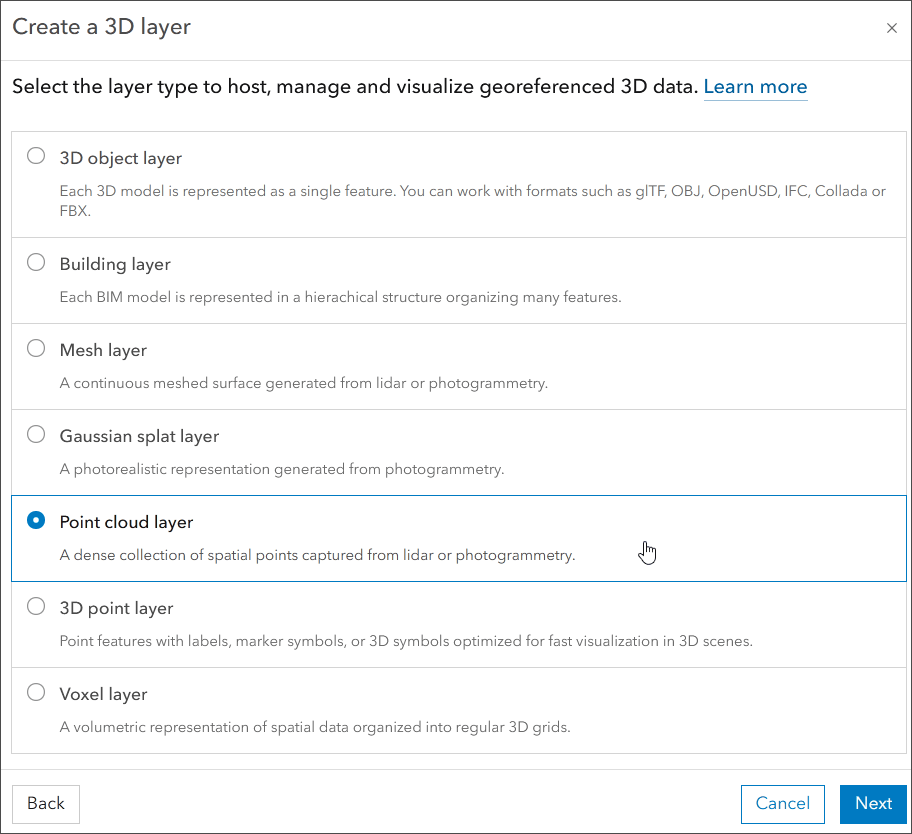
Create 3D layer
A 3D layer option is now available from the New item menu on the Content page. Using the 3D layer option you can create scene layers, 3D tiles, and other supported 3D layer types. Select from the list of available types.
Calculate field values using the Arcade assistant (beta)
You can now use the Arcade assistant (beta) to generate ArcGIS Arcade expressions when calculating field values in the Data tab of the item pages. Note that as a beta feature, the Arcade assistant is only available to organizations that have enabled beta features and AI assistants.
Other enhancements
If you configure a webhook receiver outside ArcGIS Online, you can create a webhook to use that receiver to automate quality control, notification, or reporting workflows for your hosted feature layers, hosted feature layer views, or hosted tables.
When an app or report requests aggregated data from a hosted feature layer or hosted table that contains millions of rows, it can take a long time to perform the query and render the aggregated results. To help reduce the amount of time it takes to perform these types of queries, you can add a columnindex to the fields that participate in the aggregate query.
Accounts and administration
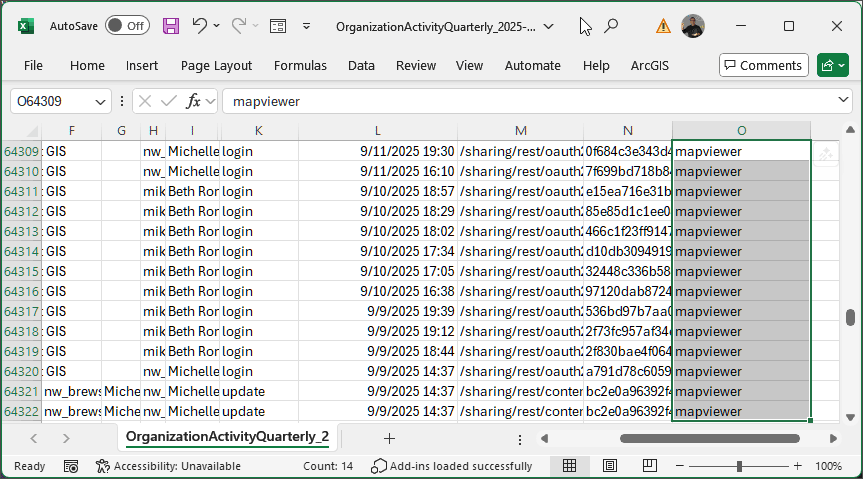
Track Map Viewer usage
You can now track Map Viewer usage via the administrative Activity Reports using Map Viewer’s unique clientID. While logins via Map Viewer have always been tracked, this enables you to distinguish Map Viewer logins from other logins. See Report fields for more information.
Streamlined MFA resets
If an organization enforces multifactor authentication (MFA), the number of steps an admin has to take to reset MFA for their users has been reduced.
Increased security for administrator role changes
Administrators will now be notified when a member is elevated or demoted to an administrator role, improving security oversight. Previously, only the member was notified of such changes.
Simplified transfer workflow
Administrators can now use a single workflow to transfer a member’s user type, role, content, groups, add-on licenses, settings, and member categories to another existing member.
ArcGIS Instant Apps
ArcGIS Instant Apps are lightweight, configurable web applications that allow users to quickly create and share interactive maps and apps without the need for extensive coding or development skills. The templates feature a streamlined experience that lets you build apps quickly and easily using express or full setup modes. All Instant Apps templates can be found on the searchable Instant Apps home page.
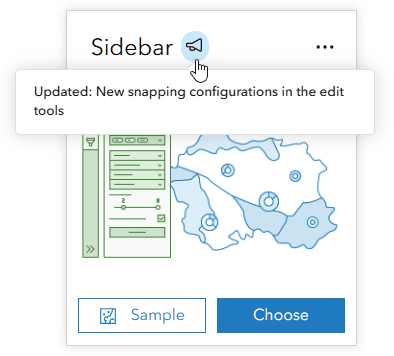
ArcGIS Instant Apps templates are regularly updated. On the Instant Apps home page, look for and hover over the announcement badge or card to learn more about any new, updated, or beta apps.
Instant Apps updates
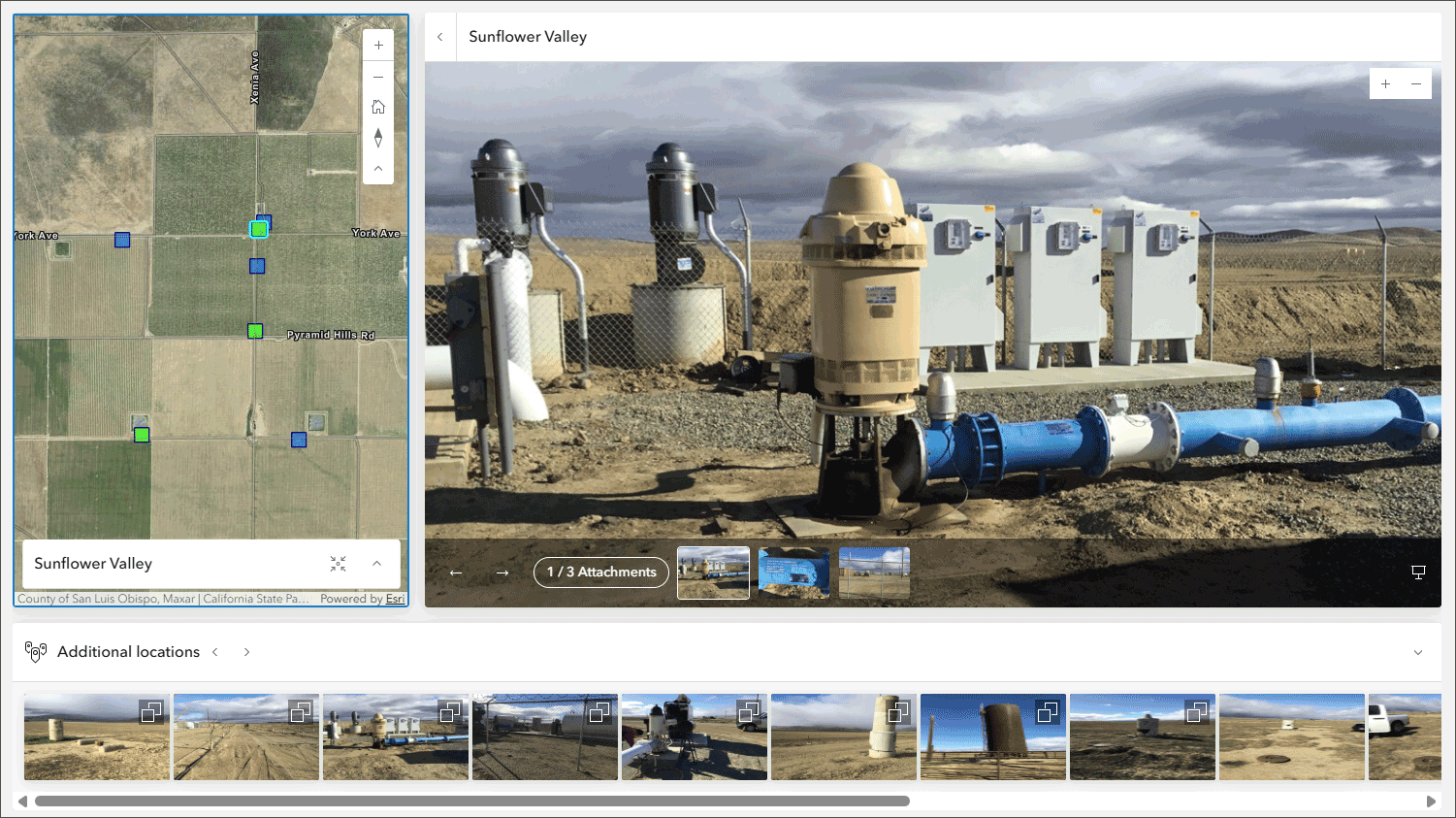
Attachment Viewer is getting a refreshed look and feel, optimized for both desktop and mobile devices. Attachment Viewer can be configured with an attachment focused layout, or a map focused layout. When configured with an attachment focused layout, the app no longer opens a single feature by default, instead displaying a gallery of attachments corresponding to features within the current map extent. Both layouts now include a new filmstrip element, shown below.
Users can also now refresh data directly within the app, ensuring up-to-date content without needing to reload the entire app. For more information, see What’s new in Attachment Viewer.
Public Notification allows users to create a list of features by searching a location, drawing an area of interest, or using the geometry of an existing feature. The list can be exported to a CSV or PDF file. Public Notification now includes the option to add a search distance to refine selection additions.
Sidebar provides a side panel layout next to the map that can be configured with various tools for adding and updating features. Sidebar now adds new snapping options for edit tools.
Streamflow Viewer enables users to view and explore streamflow forecasts. The app includes the GEOGLOWS Streamflow Model and the United States National Water Model. The GEOGLOWS has been updated to include access to retrospective streamflow simulation, an 85+ year deterministic model simulation at hourly resolutions starting January 1, 1940.
Early Access templates
Gallery (beta) enables you to present items from a group that can be filtered, searched, viewed, and explored by app users. Choose to filter content using group categories or organization categories. Display information on item cards including summary text, date created or modified, item type, view count, item owner, and more. Apply content filters and share the filtered app with a URL or to social media.
Web Editor (beta) was introduced as an early access app with the June 2025 update and it has been improved with several fixes. You can use the Web Editor template to offer focused data editing capabilities for both GIS and non-GIS users. The app can be configured with a wide array of editing tools to add, update, or remove features. Forms can be used to auto-populate attribute values and enforce your organization’s data rules to ensure data accuracy. This Instant App complements ArcGIS Web Editor by offering a customized way to deliver editing capabilities to specific members of your organization.
For more information, see What’s new in Instant Apps.
ArcGIS Experience Builder
Use ArcGIS Experience Builder to build modern mapcentric or non-mapcentric web apps and web pages without writing code. Start building from scratch, or choose from an extensive library of templates that you can customize. You can add functionality to any template with widgets you can drag, drop, and configure. You can also add custom widgets, themes, and actions with low-code development to further extend your web app.
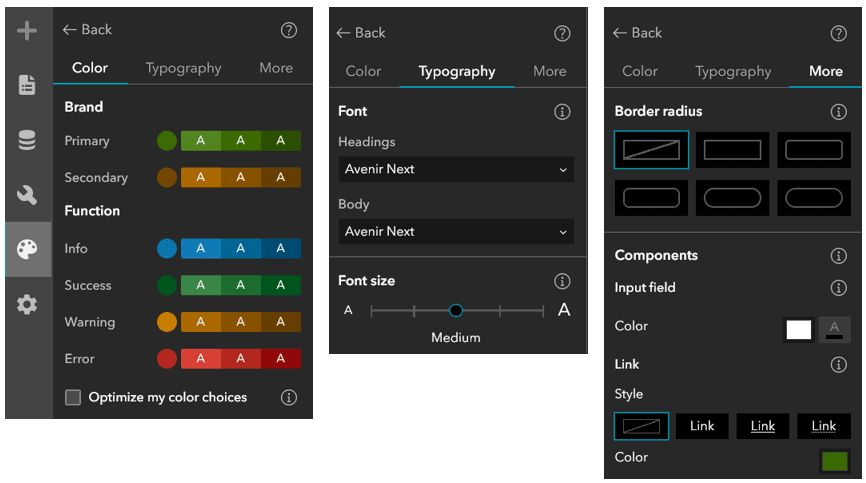
Enhanced app theme customization
Experience Builder delivers a new system for customizing the app theme. In theme settings, you can customize colors, typography, interactive element shapes, and more.
Other additions and enhancements
The new Login widget adds a sign-in experience to apps and allows you to redirect users to specific app pages, views, windows, or external URLs after a successful sign-in or sign-out.
Also new, the Image Collection Explorer widget allows you to view individual images from an imagery layer.
Other enhancements include split and merge tools for the Edit widget, support for restricting page visibility based on user roles and groups, and support for using your current location as an input and clipping polygon and line features by area of interest with the Near Me widget.
For more information, see What’s new in Experience Builder.
ArcGIS Dashboards
ArcGIS Dashboards enables users to convey information by presenting location-based analytics using intuitive and interactive data visualizations. Dashboards are used to help make decisions, visualize trends, monitor status in real time, and inform their communities.
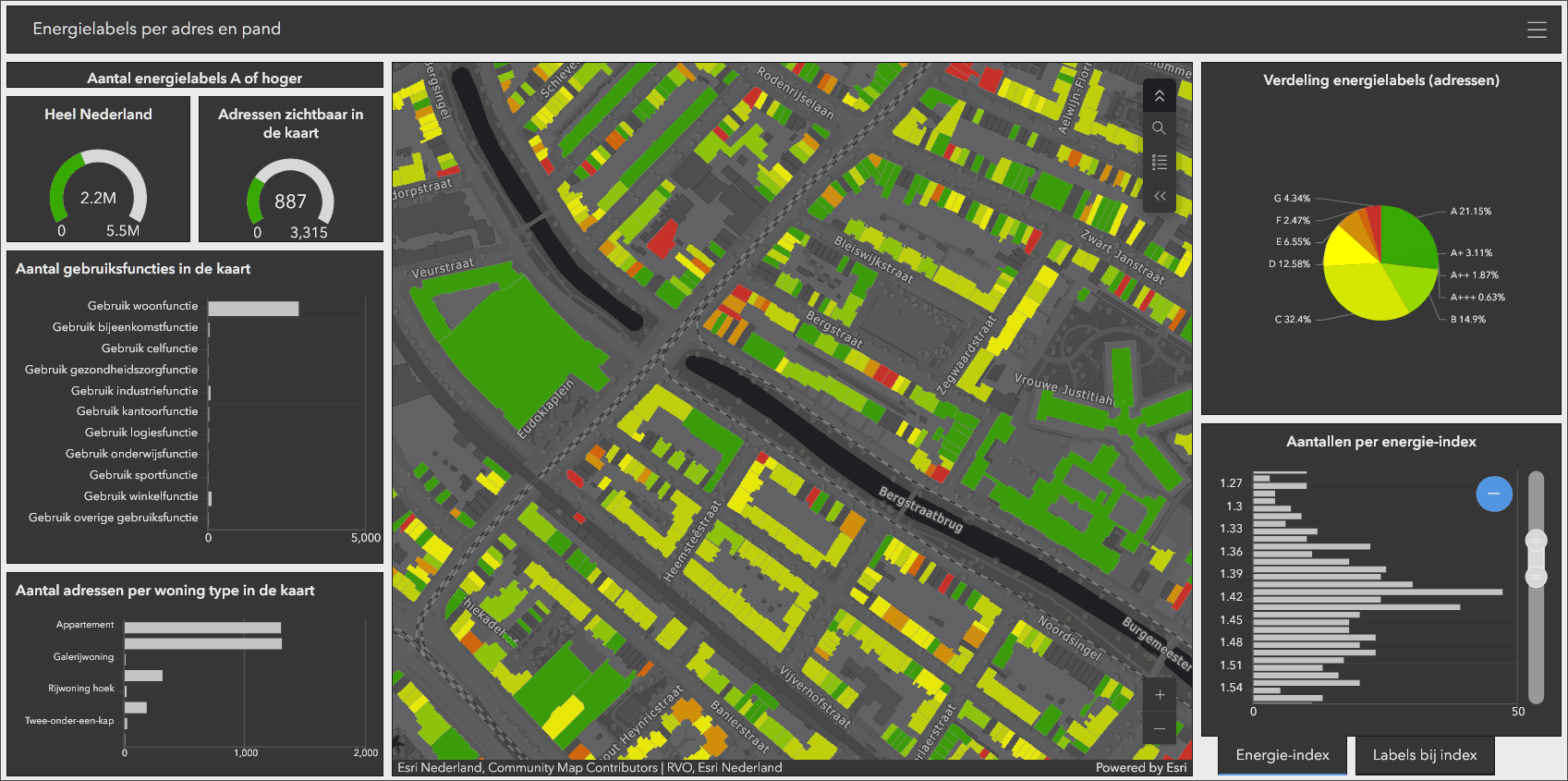
With this update, ArcGIS Dashboards includes several new capabilities and enhancements.
Data source configuration
Dashboard authors can now use the Data sources panel in the action bar to access and review all data sources including maps, layers, and data expressions used in the dashboard in one centralized location. Authors can also quickly identify, replace, or repair broken data sources by reconnecting them to valid working data sources in the Data sources panel.
Date selector slider
Dashboard authors can now use a slider display type in the date selector, providing an intuitive interface for users to drag and select a specific date or date range for dashboard elements. The slider stays in sync with your data.
Date label spacing
Dashboard authors can now customize the spacing of date axis labels in time series charts using the Compact, Default, and Spacious options.
See What’s new in ArcGIS Dashboards and Discover what’s new in ArcGIS Dashboards (October 2025) for additional information. For information about previous updates, see ArcGIS Dashboards Previous releases.
ArcGIS Web Editor
ArcGIS Web Editor is a web-based editing app that provides a focused, efficient editing experience in ArcGIS Online. Web Editor combines tools you’re already familiar with, such as snapping, templates, and forms, along with new capabilities.
With this update, the following new features and capabilities are introduced:
Support batch paste to a new layer
You can copy multiple features and paste them into a different layer, helping you complete and expedite your editing workflows. The target layer must be editable and share the same geometry type as the copied features.
Add temporary layers for context
Editors can now make even more informed editing decisions by adding temporary layers that add context to your map. You can add a temporary layer to a map from a URL, by uploading a file, or by browsing to the layer. Once added, you can copy and paste features into a different layer to quickly add new content to your map. This new capability makes performing edits faster, easier, and more efficient.
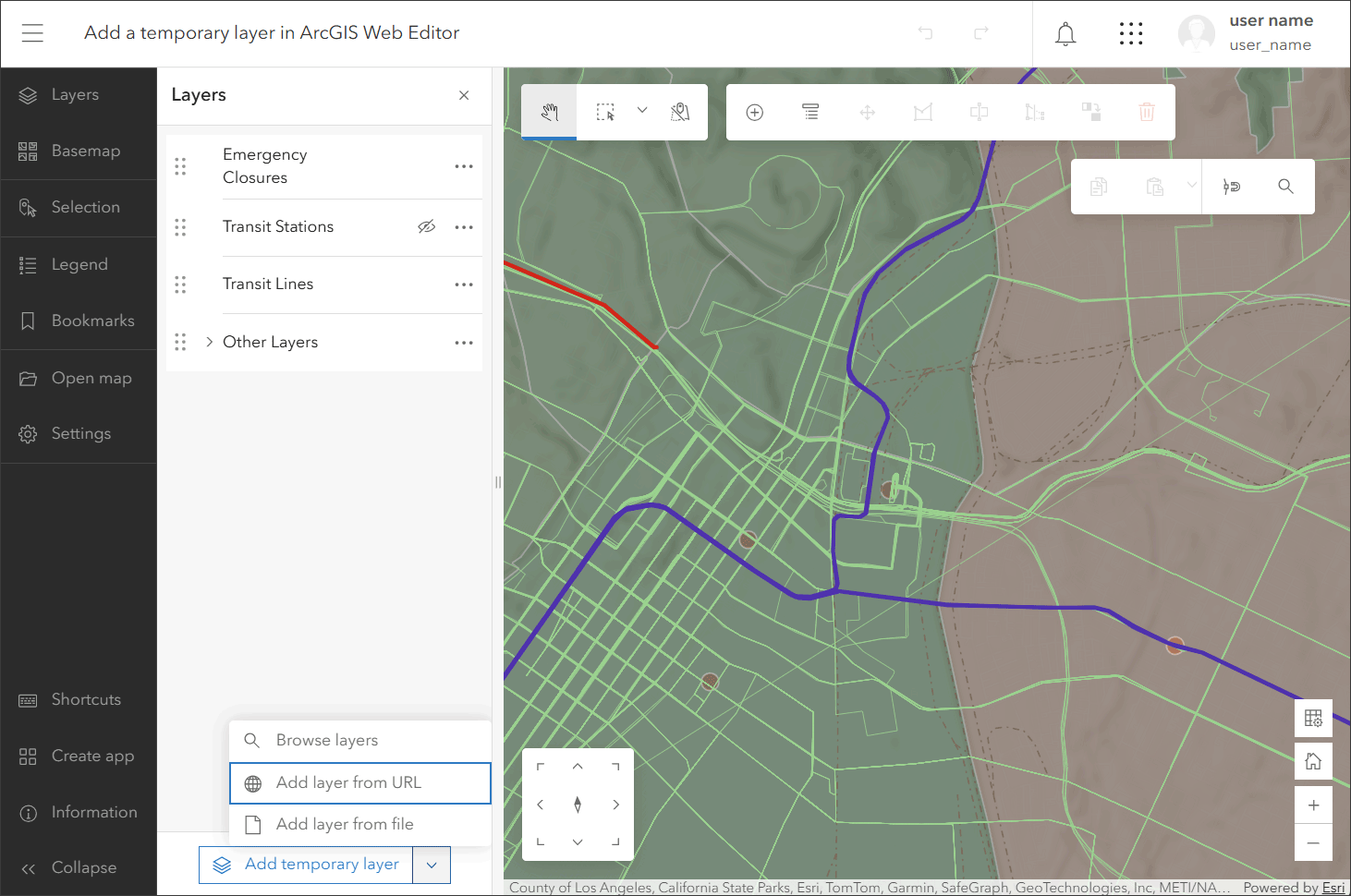
In addition, the Arcade assistant can now be used to calculate field values.
For more information, see What’s new in ArcGIS Web Editor (October 2025) or the ArcGIS Editor What’s New help.
ArcGIS Notebooks
ArcGIS Notebooks provides a Jupyter notebook experience optimized for ArcGIS, allowing users to combine sophisticated spatial algorithms with powerful open-source Python libraries to develop advanced spatial data science models. ArcGIS Notebooks reduce time spent managing dependencies across data science ecosystems and increase cross-team collaboration and transparency.
Updates for Notebooks include:
- Users can now create a notebook using a template, a low-code experience that allow users to select from a collection of ready to use notebooks organized into predefined categories that allow you to begin with a working example.
- You can now change a notebook runtime from the Notebooks home page in addition to the item page for a notebook.
Note that the TensorFlow library and several related libraries and dependencies are deprecated and will no longer be included in the notebook runtimes after February 2026.
For more information, see Get started with Notebooks.
ArcGIS StoryMaps
Use ArcGIS StoryMaps to combine maps, 3D scenes, embedded content, multimedia, and more into an interactive narrative that can create awareness, influence opinion, and affect change. The easy-to-use builder helps you create digital stories and presentations (called briefings) that incorporate your GIS work and external content. Stories and briefings can also be organized into collections and customized with themes.
The following are highlights of recent changes and enhancements.
Redesigned StoryMaps Content Page
The redesigned StoryMaps Content page (formerly My Projects) features a refreshed design and improved experience on desktop and mobile devices.
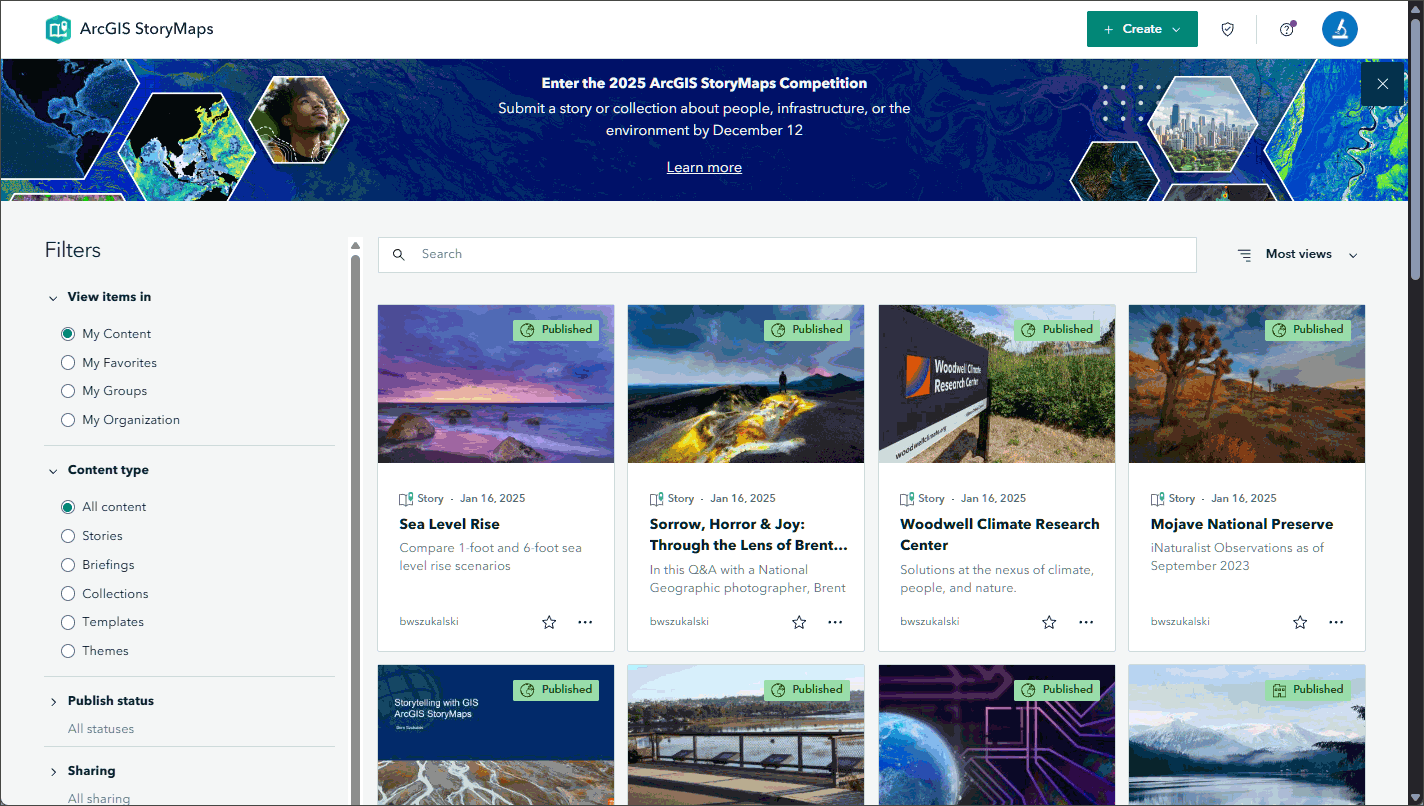
The sidebar offers many filtering options including the ability to view all types of StoryMaps at once. Additionally, you can create any type of StoryMap using the new Create button.
Other features of the new design include:
- Unified view where you can browse, search, and create all types of StoryMaps.
- More filter/sorting options.
- Thumbnails match the standard ArcGIS Online item aspect ratio with no cropping.
- Improved usability and accessibility.
For more information, see New StoryMaps content page.
Add panoramic views
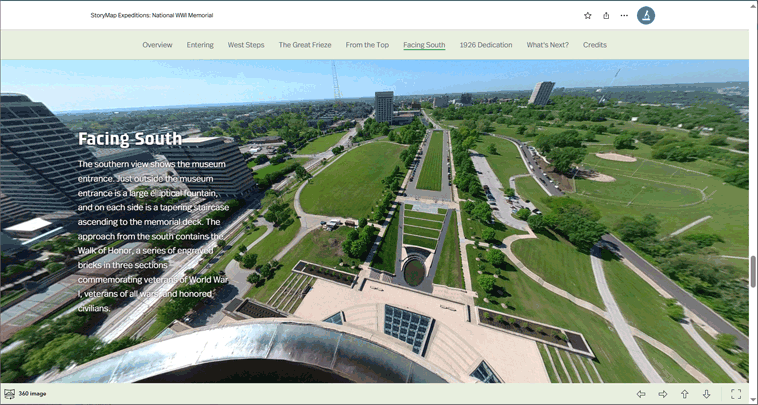
Create immersive, interactive experiences that let readers explore places from every angle by uploading a 360° image. A 360-degree image (PNG or JPG) can now be added to your story from the block palette. 360 images provide a more immersive way to explore a place. As viewers hover near the top of a 360 image, additional navigation tools are presented, including full screen mode. 360 images can be added to any story or briefing.
Item checker
Check items is a new feature on your My projects page (now referred to as the StoryMaps content page) that further enables you to check the functionality of all your published stories, briefings, templates, and themes. Previously, authors had to manually review each story for missing links, broken media, or issues. The item checker scans all stories at once, saving time and improving confidence in content quality—especially for enterprise users with large story libraries. For more information, see Item checker.
Link translated stories
The ArcGIS StoryMaps story builder, viewer, and website currently support 40 languages, enabling authors to create content that connects with audiences around the world. Often authors want to create multilingual options for one story, such as one in English and one in Arabic, like this example titled The Kingdom of Copper. Until now, as seen in this story, a common method to link translated stories was to add a button or linked text at the beginning of the story to create a path between the multilingual options.
A built-in feature to enable this pathway has been introduced. A Translations tab in your Story settings enables you to add translations. By selecting this, you can choose from your published content to add one or more versions of a story to link together. After clicking Publish to save these changes, a language icon will appear in the story header. Viewer can click the icon to access a menu containing the translated versions of the story.
For more information, see Link translated stories.
ArcGIS Apps block
You can now select ArcGIS Apps from the Media section of the block palette. On the next screen, select Apps from the drop-down menu to access available content. Once added, you can enhance the app by using familiar options like adjusting its size or adding alternative text. For more information, see ArcGIS Apps block.
ArcGIS StoryMaps is updated regularly. For more information, see the ArcGIS StoryMaps blog articles and the StoryMaps release notes.
Workflow Manager
ArcGIS Workflow Manager is a scalable workflow management system that acts as the conductor to orchestrate repeatable geographic information system (GIS) and non-GIS operations. It streamlines production processes by automating and simplifying the performance and management of work across environments in an organization.

With the October update, the following is a summary of new features and capabilities now available.
Automatically resume jobs
You can authorize Workflow Manager to automatically resume jobs when a dependency is released. In situations where jobs are placed on hold by a dependency, ArcGIS Workflow Manager can be authorized to automatically resume the job as the assigned user once the dependency is released.
Copy and paste
Steps, paths, and labels that were configured in one diagram can be copied to another diagram in the same tab, across different tabs, or in different windows of the same browser.
Export mapping file
Users can export a mapping file with their workflow item configurations to use between portals. ArcGIS Workflow Manager allows you to export the configuration of a workflow item as a .wmc file that can be used to configure workflow items in another Workflow Manager system.
Other improvements
- Select Features allows users to multi-select or deselect features when defining the location of a job.
- Fit to Window allows users to view the full extent of a workflow diagram in the workflow canvas.
- Users can review the request body and headers when testing a web request with the Web Request step and Web Request template.
- The organization administrator can now limit the number of users with a Publisher role who can create workflow items by requiring an additional privilege.
- Group thumbnails now appear on job tiles.
For more information, see What’s new in ArcGIS Workflow Manager. To learn more about features and capabilities, see the ArcGIS Workflow Manager functionality matrix (PDF).
Content Store for ArcGIS
Content Store for ArcGIS is a new app for premium commercial imagery that can be obtained from ArcGIS Marketplace. The app provides a single access point to high-quality, ready-to-use aerial and satellite imagery from multiple leading providers.
In addition to satellite imagery, users can now also purchase aerial imagery with Content Store for ArcGIS. Aerial imagery is particularly useful for applications requiring high resolution, detailed views, and unobstructed perspectives of specific areas.
Content Store simplifies the process of purchasing commercial imagery for organizations and enables GIS users to quickly discover, integrate, and use it seamlessly within their projects. Select an area of interest, choose dates, then review results before adding the desired imagery to the cart.
For more information, see Premium Aerial Imagery Now Available for Purchase in Content Store for ArcGIS.
ArcGIS Living Atlas
Find ready-to-use, trusted content from the GIS community in the form of layers, maps, apps, tools, and 3D scenes. Easily access this collection of content to quickly kickstart your ArcGIS Online workflows, saving you time and effort.
Living Atlas content is published and updated regularly. For the latest news and information, see the ArcGIS Living Atlas home and the ArcGIS Living Atlas blog. The following are highlights of new spatial content available within Living Atlas.
Imagery layers optimized for analysis
Select Living Atlas imagery layers have been optimized for analysis. The full collection of optimized layers can be found in the Living Atlas Imagery Layers Optimized for Analysis group. You can also use search at the Living Atlas browse tab to return the same list of optimized layers. For more information, see ArcGIS Living Atlas ready-to-use imagery layers for analysis and also the earlier section in this blog article covering Analysis in Map Viewer.
NLCD Explorer
The National Land Cover Database (NLCD) has long been the standard for land cover mapping in the United States. This year, the USGS announced a major advancement in land cover mapping with the release of the Annual NLCD products. Harnessing the full Landsat data record, Annual NLCD provides a scientific suite of land cover data from 1985 to present.
Esri and the ArcGIS Living Atlas team are providing accessibility to this data in the form of a ready-to-use imagery layer and a web mapping application, the NLCD Land Cover Explorer. One of the foremost capabilities of this app is dynamic change analysis, providing dynamic visual and statistical change across annual slices of the NLCD Land Cover data archive. For the full guide, see NLCD Land Cover Explorer quickstart guide.

Global biodiversity and conservation hexagons
Esri is applying a geographic approach to some key biodiversity and conservation data and information that were contributed to the Living Atlas by the GIS community. Over 20 of the datasets are now summarized into 55 fields using multiscale, nested H3 hexagons. The Hexagonal Earth story provides additional context, for an introduction to the dataset, see Introducing global biodiversity and conservation hexagons.

Mapping our ocean’s future with ProtectedSeas
ProtectedSeas is a collaborative initiative aimed at enhancing understanding and stewardship of our planet’s marine environments. By providing detailed, standardized, and up-to-date information on marine protected areas and their regulations, ProtectedSeas empowers decision-makers, researchers, coastal communities, and advocates worldwide. See ProtectedSeas joins ArcGIS Living Atlas of the World for more information.

Wet bulb temperature projections
Researchers at Purdue University have contributed their WBGT projections dataset to the Living Atlas, which is often used to analyze outdoor heat stress levels, such as for occupational safety, sports, and events. The multidimensional layer includes projections for daily minimum, maximum, and mean WBGT across the globe. See Introducing wet bulb globe temperature projections.

NASA mangroves
NASA’s Carbon Monitoring System has contributed their Global Mangroves layer to help track changes in mangrove extent, assess ecosystem health, or plan restoration efforts. The multidimensional layer provides three key attributes: aboveground biomass, maximum canopy height, and basal-area weighted height. For more information, see NASA Global Mangrove Layer Now in the ArcGIS Living Atlas of the World.

EPA Impaired Waters
Getting started with local water quality assessments has now been made easier by having the EPA Impaired Water Bodies dataset available in ArcGIS Living Atlas. See Explore EPA’s Impaired Waters Data in ArcGIS Living Atlas of the World for more information.

Fatality Analysis Reporting System
Understanding where and how fatal motor vehicle crashes occur is crucial to making roads safer, informing public policy, and supporting transportation planning. A new feature layer sourced from the National Highway Traffic Safety Administration (NHTSA) Fatality Analysis Reporting System (FARS) is now available in ArcGIS Living Atlas of the World, providing data on motor vehicle fatal crashes from 2019 through 2023 across the United States. For more information, see Fatality Analysis Reporting System in Living Atlas.

Google Photorealistic 3D basemaps
Google Photorealistic 3D basemaps (beta) will be available in ArcGIS Pro (3.6) for named users connected to ArcGIS Online as their active portal. ArcGIS Online administrators can enable access to the Google basemaps in the Map and Scene section of the organization settings.
The Google Photorealistic 3D basemap provides a three-dimensional mesh textured with high-resolution imagery. It will be available in Scene Viewer and other apps with 3D support in future updates. For more information, see Bring Your GIS to Life with Google Photorealistic 3D Basemap.
More information
For more information and additional details about this update, see the What’s new help topic or view all posts related to this release. You can also watch an introductory video to see new capabilities in action.
Visit the ArcGIS Online Esri Community to ask questions, view blogs, learn from peers, and submit your ideas for future enhancements.


Commenting is not enabled for this article.