The June 2026 update of ArcGIS Online introduced contingent values authoring in the web. Contingent values define dependencies across fields, meaning that the valid values in one field depend on the selection made in another. In the November 2026 ArcGIS Online update, you can be even more efficient when authoring contingencies by copying contingent values between layers that have the same schema; simply export the existing contingent values from one layer and import them into another in a few simple steps.
Preparing to Import
As a layer owner or organization administrator that has already created field groups and contingent values, you may want a different layer with the same schema to also have those contingent values. In that case, there are a few ways to prepare this workflow. The simplest way is to use the create from existing layer option to make a new, independent layer that contains all the fields and domains that exist on the source layer. Alternatively, if you have an existing layer already in mind, you can manually prepare to import contingent values with four easy steps:
- Compare the schema of the source layer and the layer where you wish to add contingent values. Ensure they contain the same fields that participate in the desired field group, and that those fields have the same domains.
- Export the contingent values from the source layer’s settings tab. You’ll receive a zipped folder containing two CSV files: ContingentValues and FieldGroups. Unzip this folder.
- Create a field group on the layer where you wish to import. The field group name, participating fields, and field order should match the source layer’s. Field order is determined by the order in which the fields are selected during field group creation.
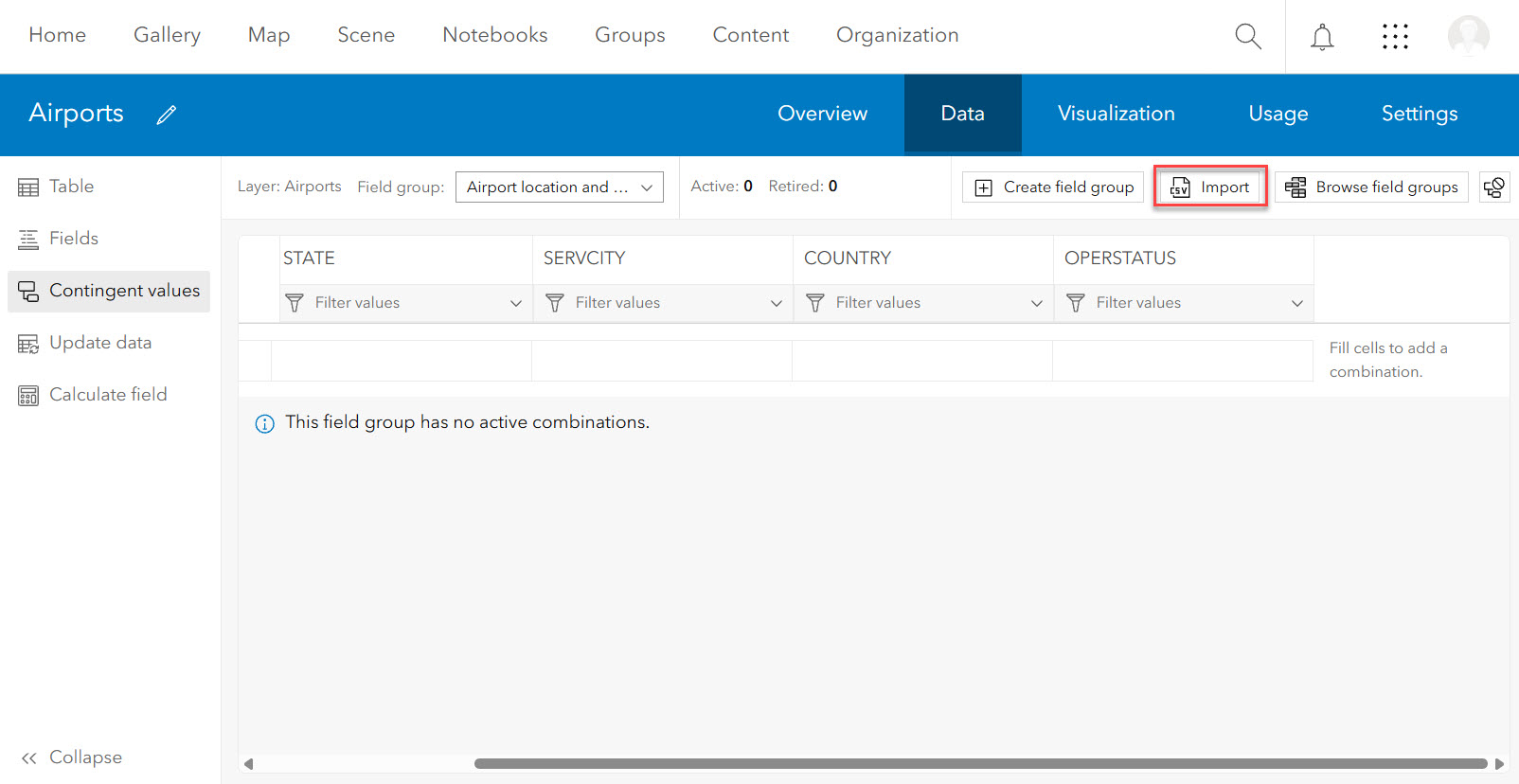
- On the layer where you wish to import, navigate to the Data tab’s Contingent Values table, and select the Import button. Drag and drop that exported ContingentValues CSV from the unzipped folder and review the combinations.
TIP: Not sure about a field group's fields order? Reference the exported FieldGroups CSV from the unzipped folder; FIELD1 should be the field you select first when recreating the field group in a new layer, and so on.
As mentioned above, exporting contingent values from ArcGIS Pro or ArcGIS Online generates a zipped file that contains two CSV files. Only the ContingentValues CSV is required to import new combinations in ArcGIS Online. To avoid spelling or schema problems in your CSV file, it’s recommended to use a file that was generated from ArcGIS Pro or ArcGIS Online. For details about the CSV schema requirements, take a look at the contingent values documentation. The field group CSV is only required for importing in ArcGIS Pro. To create field groups in ArcGIS Online, you must make them manually.
Review the Imported Combinations
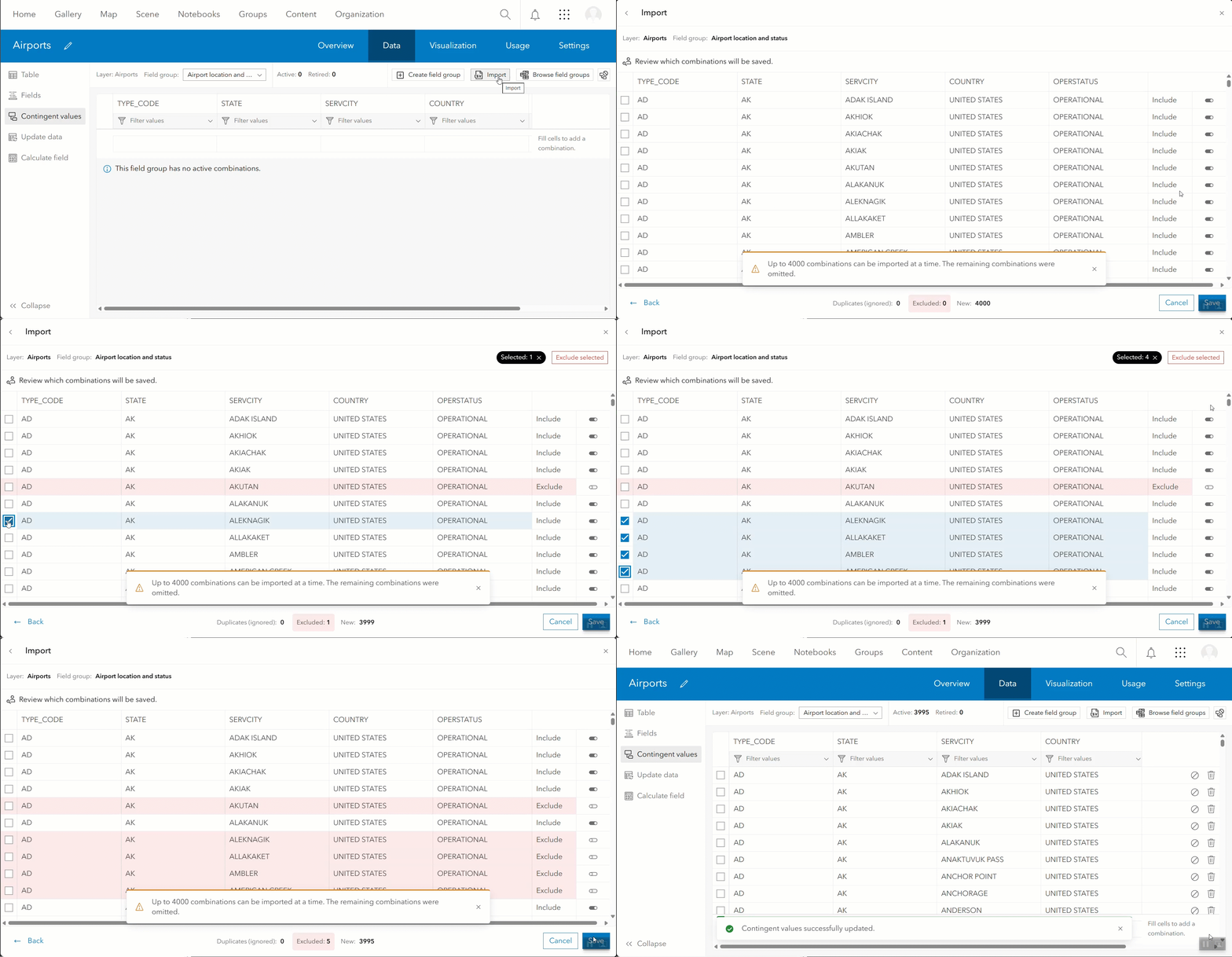
Once a file is selected for import, the import table will populate with the combinations for your review. Here, you have the option to exclude combinations that you don’t want to save to your layer. If the CSV contains multiple subtypes or field groups, only combinations that match the active field group and/or subtype will display in the table. The retired status of the combinations in the CSV will also be honored for newly imported combinations. Other edits like retiring, restoring, deleting, or updating combinations will be possible in the contingent values table after the imported combinations have been saved.
TIP: Use select + shift to select multiple combinations at a time in the import table and the contingent values table.
Import Considerations
Finally, when should you import contingent values? Whenever you need to, if you have a field group to import the combinations into. Import contingent values to add to existing contingent values or to create a new contingent values definition. Keep in mind that you can only import 4,000 combinations at a time. Consider breaking your file up to reduce processing time if you have more than 4,000 combinations to import. To avoid duplicates and only display new and relevant combinations for review, existing contingent values on the layer are compared to the contingent values within the CSV. As the numbers of combinations defined on the layer and stored in the CSV file increase, processing time may increase.
What’s Next?
Looking ahead, you can expect more methods to help generate a large number of contingent values in ArcGIS Online. This includes creating contingent values by scanning existing data or schema values. We value your feedback on our recent changes, so please let us know your thoughts through the ArcGIS Online community.



Commenting is not enabled for this article.