
Approximate Read Time: 6 minutes
Imagine you’re in a coffee shop where one barista serves customers and the others working behind the scenes have single specialized tasks like making drinks or baking. To keep the shop running smoothly, each barista coordinates to ensure all tasks are completed efficiently.
ArcGIS Pro works similarly. It’s a multithreaded application, where tasks are divided across different worker threads. The foreground thread, like the barista taking orders, configures the user interface and map. Meanwhile, the background threads, like the baristas making lattes or baking, perform specialized tasks, like running tools.
New in ArcGIS Pro 3.6, when you run a tool on the Geoprocessing pane, you can choose how your order is handed – directly and immediately at the counter, stopping all new orders (main foreground thread) or by a specialist in the back (background geoprocessing thread).
Tool run modes in ArcGIS Pro 3.6
In previous releases, the thread used to run a tool was determined by where you opened the tool. For example, tools open in floating windows typically run on the foreground thread, taking over your ArcGIS Pro session until it’s complete. Whereas geoprocessing pane tools use the geoprocessing thread, so you can continue working in Pro as the tool runs in the background.
In ArcGIS Pro 3.6, the Geoprocessing pane features a Run Modes menu that allows you to change the thread used by a tool during execution. Run Modes only apply to tools opened on the Geoprocessing pane, and the selected mode is sticky, meaning it will apply across all tools and projects until it is changed.

Tip: Run Modes work with pairwise tools (think Pairwise Buffer or Pairwise Clip) just as they would with any other tool. Also, tools can leverage parallel processing for faster performance using either run mode.
Geoprocessing Thread (Default)
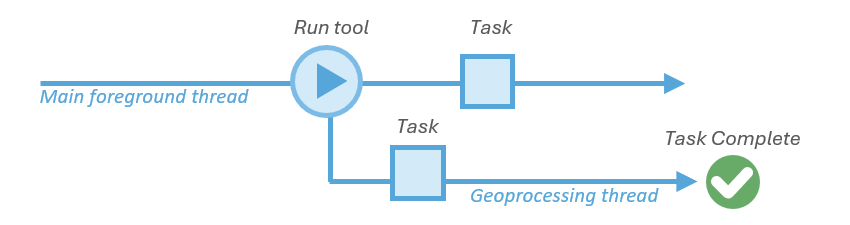
After you order a latte, the barista at the counter passes the order to a specialist in the back. The counter barista is free to take more orders, and the line keeps moving.
The geoprocessing thread runs the tool in the background, allowing the user interface to stay responsive so you can keep exploring your map or use other panes and commands. This is the default thread used by the Geoprocessing pane. It is best for running tools that may take a while to run, so you don’t lose the ability to keep working in Pro.
Foreground Thread
Next, imagine you order a latte but this time the barista at the counter decides to take your order and make the latte themself. All new orders have to wait and the line stops moving until your drink is served.
Tools run on the main foreground thread take over your session, blocking the map and other buttons in Pro until complete. This thread is great for quick to run tools expected to take under a minute, where blocking the interface isn’t a big deal. The foreground thread is the default thread used by tools that run in a floating window, ModelBuilder, ArcGIS Notebooks, Python window, and used by some ArcGIS Pro add-ins.

Note: The foreground thread is always used when a tool runs in an edit session, like when there are pending edits or Enable Undo is on.
What about scheduled and web tools?
There are several cases when a tool will not run on the geoprocessing or foreground thread. Instead, some tools run in a separate process outside of ArcGIS Pro.
- Scheduled geoprocessing tools set to run later or with recurrence will run in a separate Python process.
- Web tools using asynchronous execution will manage geoprocessing tasks on the server side.
Use tool Run Modes effectively
Numerous factors can affect geoprocessing performance, like your system resources, data size and location, schema complexity, and projections, to name a few. For instance, writing tool outputs to a local drive is almost always faster than writing to a remote location like a network share or enterprise geodatabase. And datasets with a high volume of features, complex geometry and complex schema may also slow down tool performance.
In Pro 3.6, the Run Modes menu was added to the Geoprocessing pane as a performance enhancement for geoprocessing tools. But to get a performance boost, you need to know when to use each thread.
Use the foreground thread for faster processing
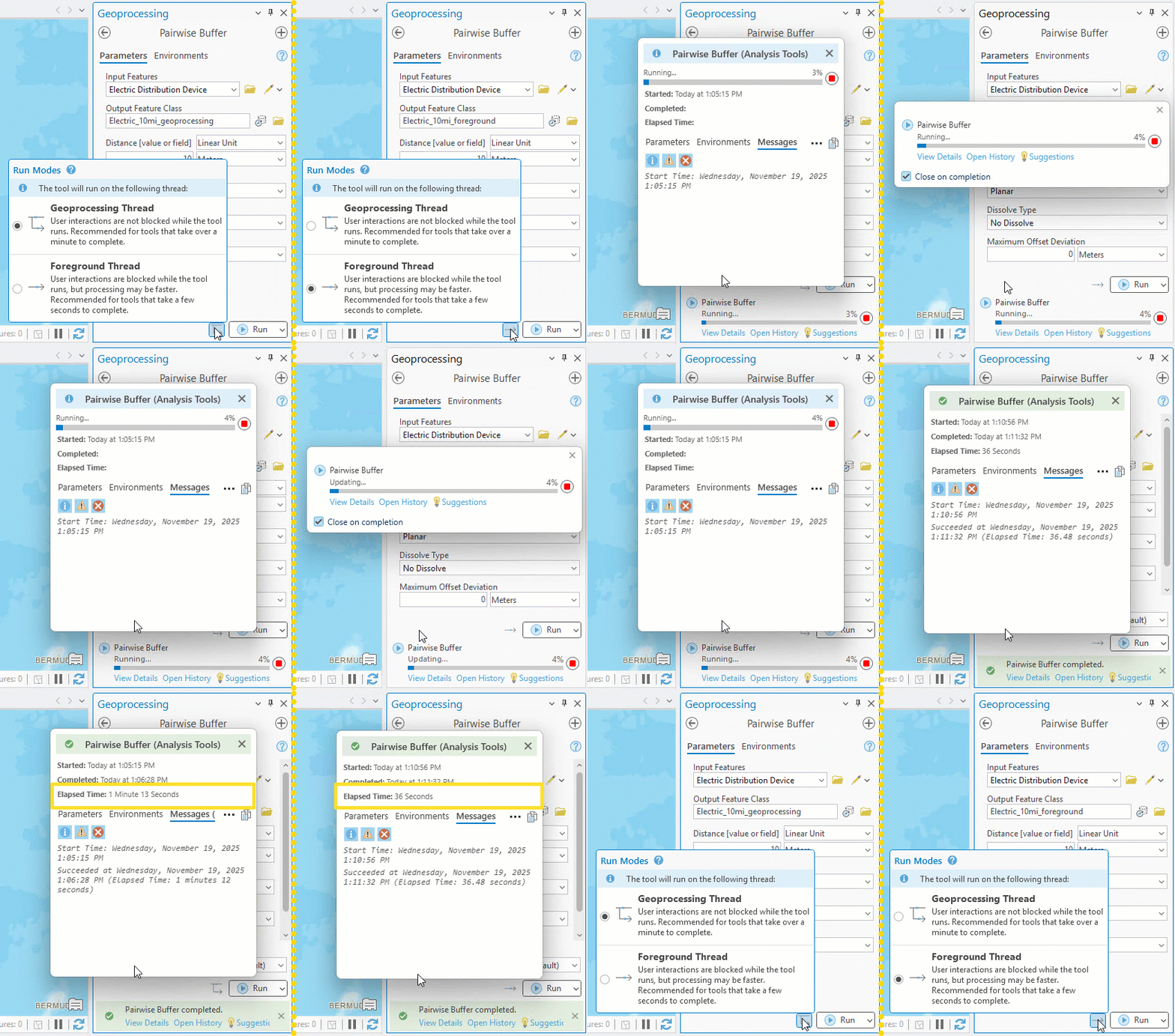
Running geoprocessing tools on the foreground thread can give you a performance boost when your data is complex or remote.
For example, generating a 10-mile buffer around a 1000 points is normally a quick task for the Pairwise Buffer tool. But when the tool is set to create output features in a remote database that contains a utility network dataset, performance is impacted. Running the tool on the foreground thread (right) is considerably faster than the geoprocessing thread (left) due to the reduced overhead keeping multiple threads in sync.
Use the geoprocessing thread when run-time costs outweigh the benefits
Not every tool will benefit from running on the foreground thread. The geoprocessing thread is a better fit for tools you expect to take well over a minute to run because it keeps the foreground threads free for other tasks like navigating the map, updating layer properties, and using other Pro functions.
Use the geoprocessing and foreground threads simultaneously
You can use Run Modes to run two tools at the same time!
In previous releases, after you run a tool in the Geoprocessing pane, any additional tools run while that first tool is running will go into a queue where the first tool must finish before the next tool starts running.

But if the tools are not using a data source or workspace that requires exclusive locks, you can run the first tool on the geoprocessing thread, then switch to the foreground thread to run a second tool. This allows you to run two tools simultaneously.
Summary
Geoprocessing performance is influenced by a variety of factors. Choosing the right thread to run a tool can give you a performance boost whether you need to multitask in Pro or run a tool faster than before.
In ArcGIS Pro 3.6, tools opened on the geoprocessing pane include a Run Modes menu. You can use the menu to choose the thread a tool runs on. Use the Geoprocessing Thread if you expect a tool to take a while to run, so you don’t lose the ability to keep working on your project in Pro. If you find that a tool that normally runs quickly takes longer than expected, try switching to the Foreground Thread for faster performance. Running tools on the Foreground thread will block the ArcGIS Pro user interface, so it’s recommended for tools that are expected to run in under a minute.

Article Discussion: