The ArcGIS Pro Editing team expands and enhances editing capabilities with each release of ArcGIS Pro. This blog article describes four of the new and enhanced editing capabilities at ArcGIS Pro 3.7: upgraded attachments in the Attributes pane; streaming constructor enhancements; the Apply button on the Editor Settings dialog box; and a new add-in on editing templates that reports potential warnings or errors. Additionally, you can now customize the toolbar, allowing you to streamline editing workflows.
To learn more about the latest ArcGIS Pro release overall, check out the What’s new and improved in ArcGIS Pro blog article and What’s new in ArcGIS Pro 3.7 documentation.
Upgraded attachments in the Attributes pane
ArcGIS Pro 3.7 supports an optional, upgraded attachment model and the Attributes pane is one way to manage this important data. Upgraded attachments support EXIF information, keywords, and alternative text (alt text) fields. EXIF information exposes image metadata for review and use, while alt text facilitates section 508 compliance throughout the ArcGIS platform. The Attribute pane Attachments tab has a new command to view and edit attachment properties, and the Add button has extended behavior.
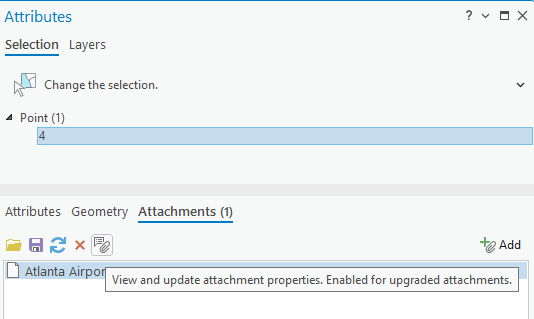
After clicking Add and choosing a single attachment, the Attachment Properties pane opens. This pane the shows file name and preview, allows you to edit the Alternative Text and Tags (keyword) properties, and presents EXIF metadata, if available, for the file type along with a Copy button. Clicking Apply adds the attachment and returns you to the main pane, whereas clicking Cancel does not add the attachment. Once added, use Properties to review or further edit the attachment.
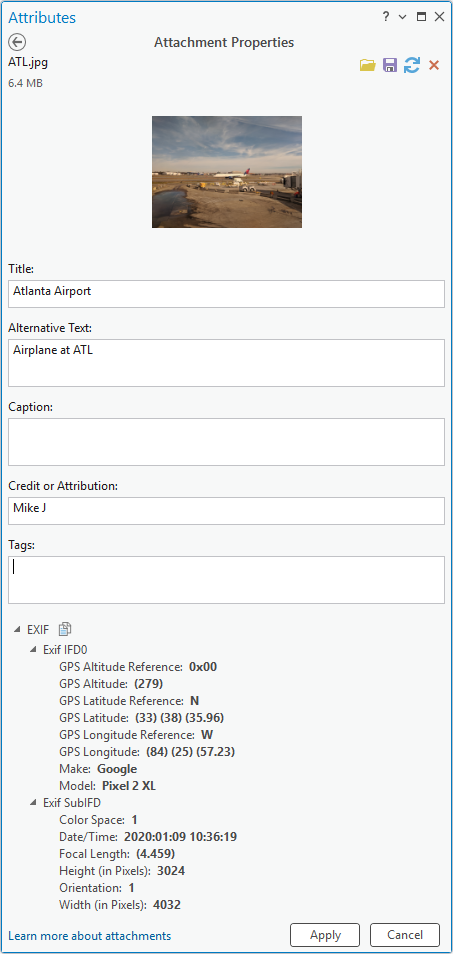
Although you can still add attachments in bulk, you must update alt text for each attachment individually.
To learn more about upgrading attachments, read the What’s new in Upgrade and Downgrade Attachments tools blog article and refer to the Upgrade attachments geoprocessing tool help topic.
New Simplify streaming option
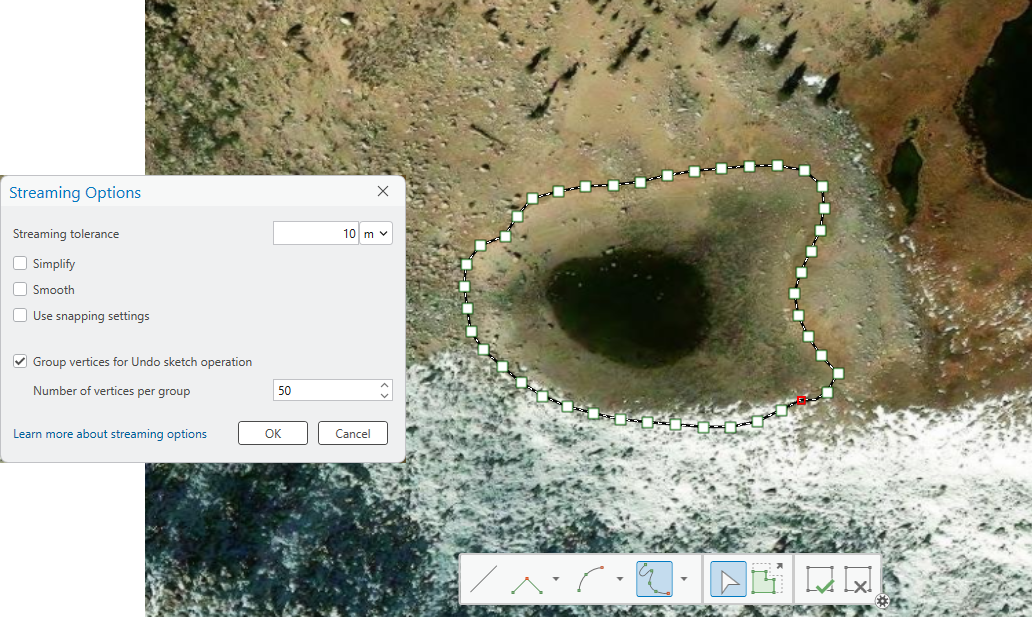
Streaming is a capability that is available as a constructor for many editing tools that involve line and polygon sketching; it can be accessed as an editing template construction tool or as a constructor on the editing toolbar for tools such as Reshape and Continue Feature. ArcGIS Pro 3.6 added two Streaming options based on user feedback: Group vertices for Undo sketch operation and Use snapping settings. ArcGIS Pro 3.7 added another streaming option based on user feedback: Simplify. Simplify will remove extraneous features while preserving essential shape. When checked, redundant vertices will be removed. By unchecking Simplify, redundant vertices are not removed, allowing you to get the specified distance between vertices.
If you cannot upgrade to ArcGIS Pro 3.7 and want the results that the Simplify option provides, use the Generalize editing tool’s Simplify method after streaming. To learn more about Generalize, refer to the Generalize a feature help topic.
Apply the Editor Settings options
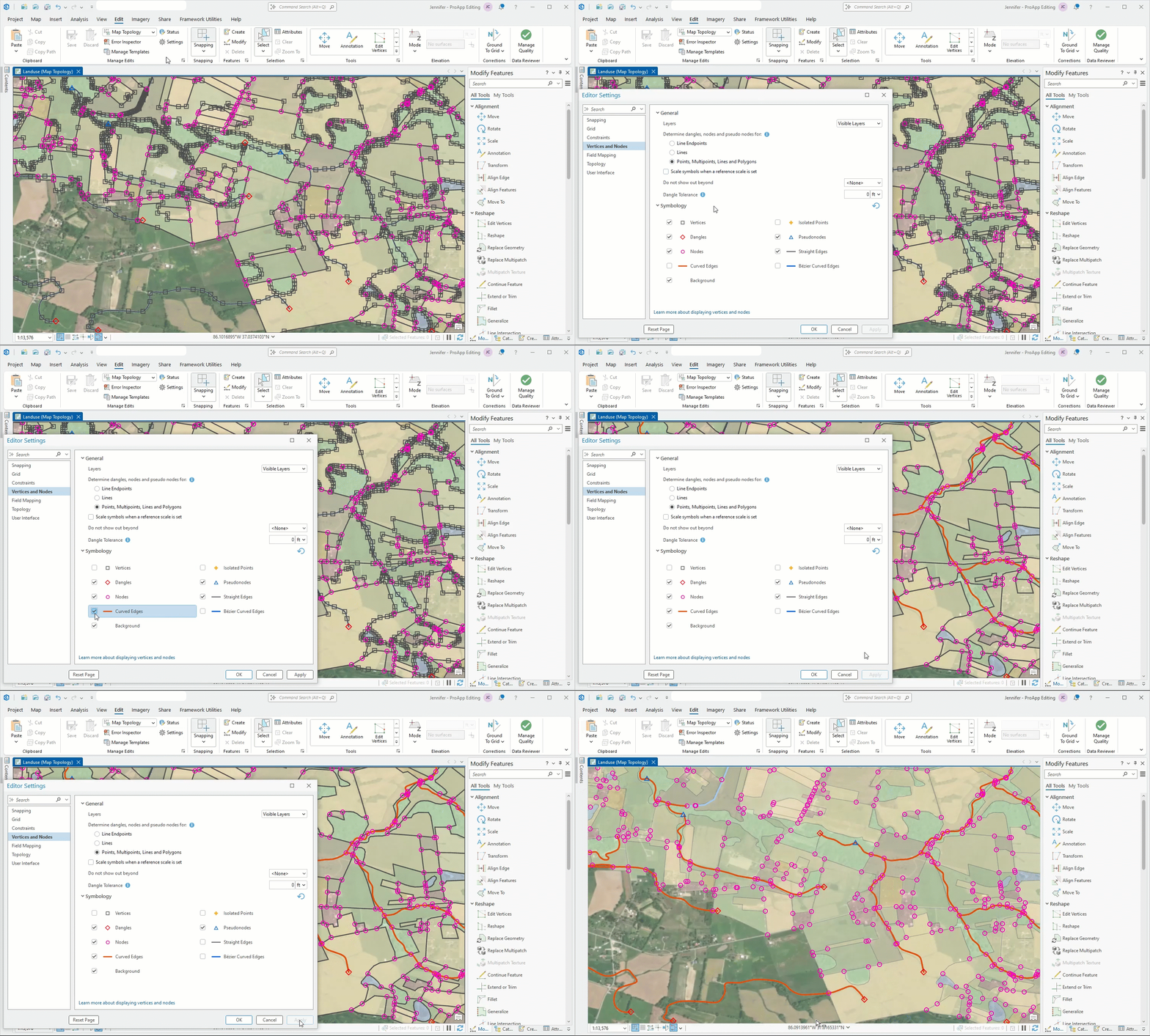
To see how updates to the Topology display improve your editing experience or to confirm changes to the grid symbology that allows you to see minor grid lines, click the Apply button on the Editing Settings dialog box. Apply allows you to preview updates on the map without having to close and reopen the dialog box to make further refinements.
Find broken Group Templates with an add-in
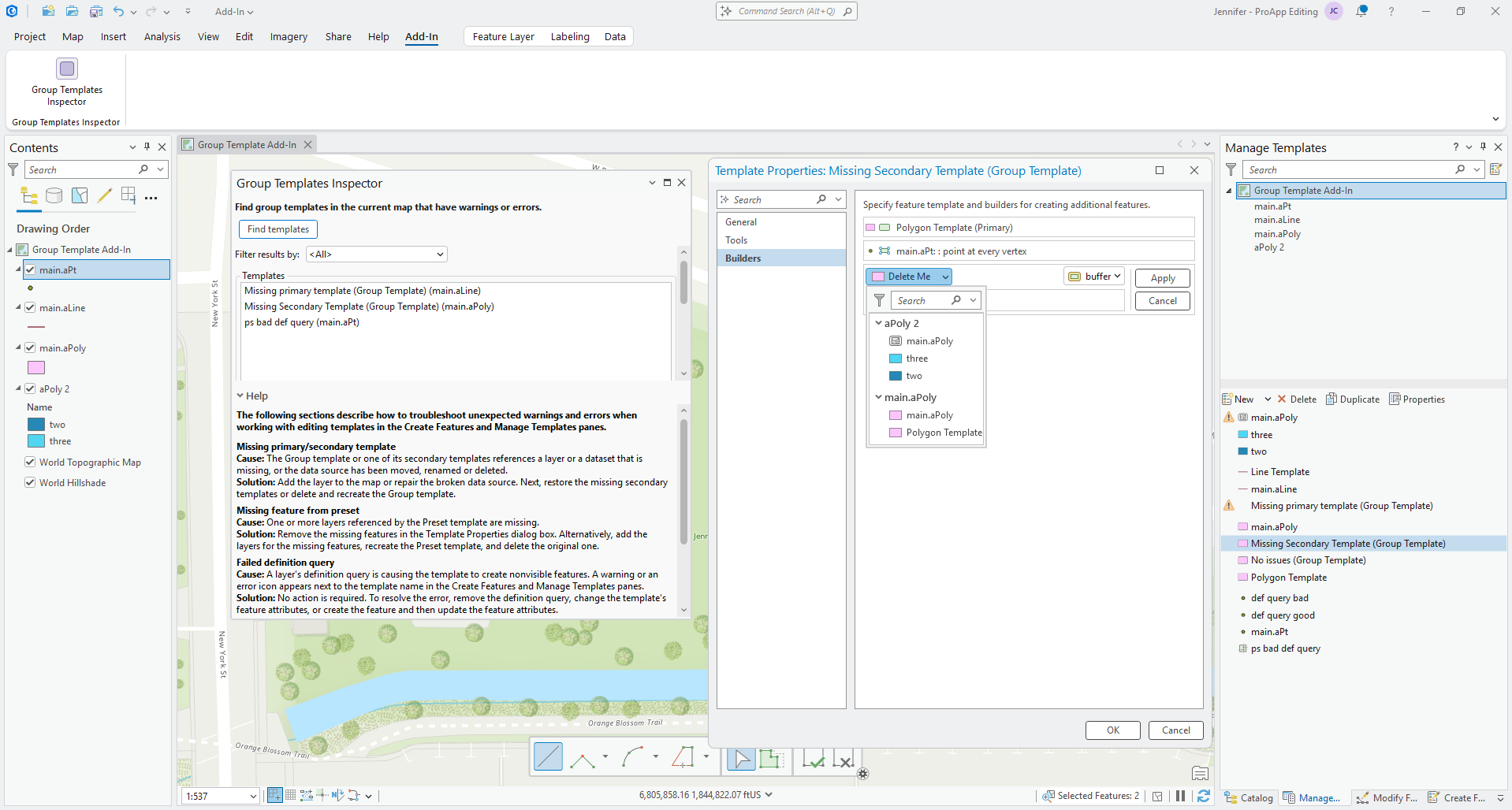
A new Group Templates Inspector Add-in is available to analyze and report on Group Templates and Preset templates that may be problematic. The following list describes the checks along with solutions:
- Missing primary or secondary template
- If a Group Template’s participating feature templates are no longer available, features fail to create. This may not be immediately apparent and would be a data integrity issue.
- To fix, complete the following steps:
- Open the Manage Templates pane.
- Find the Group Template with the problem and open its Properties dialog box.
- from the Builder tab, edit each builder and check the feature template picker for the configured template. If it is not there, choose a different template or close out of the properties, recreate the template and then repeat steps 1-3 choosing the new template.
- Missing feature from Preset
- This is a very unlikely scenario but could arise if templates are updated incorrectly through the REST end point.
- Missing feature builder
- This is a very unlikely scenario but could arise if templates are updated incorrectly through the REST end point.
- Failed definition query
- Default attributes of one or more of the participating feature templates does not satisfy that layer’s definition query. When a template’s attributes do not satisfy the definition query, features may not be visible upon creation. This could be a problem if the user doesn’t realize this and attempts to create features a second time, resulting in duplicates. There is more information in the Editing template warnings and errors help topic.
- To fix this issue, do one of the following
- Update the template’s default attributes in Properties.
- Set attributes at time of use in the Active Template pane.
- Create features and immediately update them in the Attributes pane before changing the selection.
- Remove the definition query from the layer.
- Missing tags or descriptions
- Tags and descriptions are not required but are helpful in documenting and organizing editing templates.
- To add either, open the Group Templates Properties and make updates on the General tab.
These are quality control checks for editing templates you are using, that you are authoring for other users, or that you have received from others. These checks will be expanded and incorporated into the core software at a future release, but this add-in can help you get started as soon as possible. The add-in sample code will be made available on GitHub as part of the ArcGIS Pro 3.8 release.
Toolbar customization
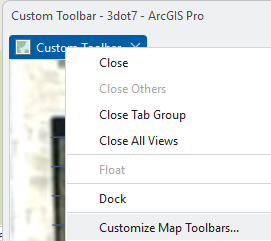
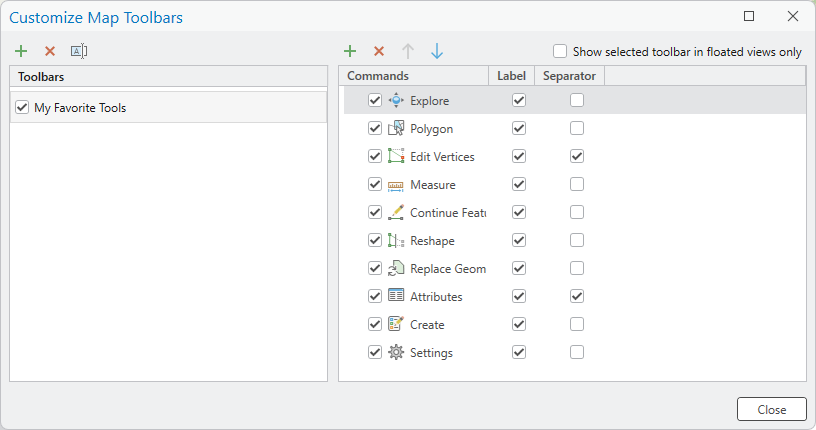
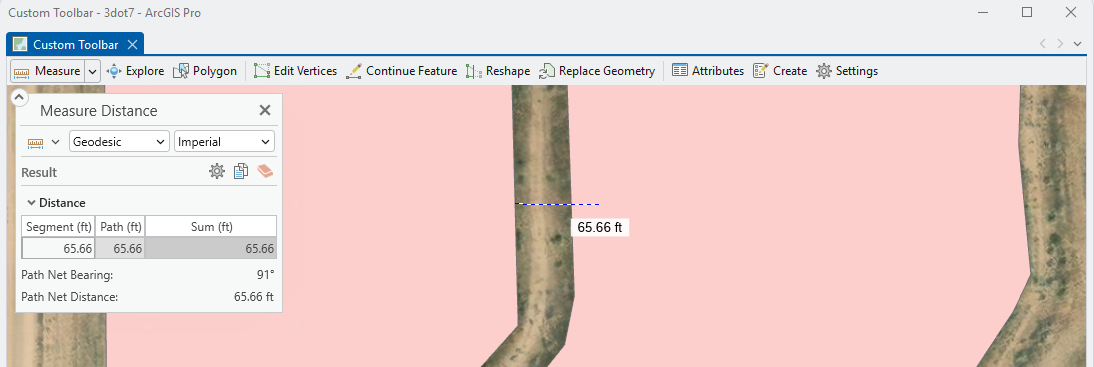
Although not specific to the editing area of ArcGIS Pro, the editing user community has been requesting toolbar customizations—and finding work arounds—for many releases of ArcGIS Pro. With ArcGIS Pro 3.7, you can add toolbar customizations to a view. There are many benefits, but the most apparent benefit is not having to switch tabs to access different tools. To get started, right-click any map view’s name and choose Customize Toolbars. To learn more, refer to the Bring Your Most-used Tools into View: Customizable View Toolbars in ArcGIS Pro 3.7 blog article.
Summary
ArcGIS Pro 3.7 is full of new and enhanced features. In this blog article, you learned about a few of these features that are important to data editors:
- Upgraded attachments can store and manage EXIF metadata, keywords, and alt text fields using the Attributes pane
- With Streaming, you can get the vertex spacing you expect with Streaming Tolerance and unchecking Simplify.
- In Editor Settings, you can click Apply to iterate through changes that update map feedback.
- The Template Inspector add-in can help you find and fix potentially problematic editing templates.
- You can customize the toolbar with your most used tools.

Article Discussion: