In recent years, hosted AI services have quickly become the main way for organizations to access and use deep learning models. Instead of downloading and running models locally, many now rely on cloud platforms such as OpenAI, Azure, Hugging Face, Google, AWS, and Anthropic to deliver ready-to-use language, vision, and multimodal models. These services remove the need for complex local infrastructure, instantly provide access to the latest model updates, and effortlessly scale as data volumes grow.
For GIS professionals, this shift means that powerful AI capabilities can be integrated directly into mapping and spatial workflows when there’s a secure and efficient way to connect ArcGIS Pro with these third party hosted models. ArcGIS Pro includes powerful built-in tools for deep learning, which traditionally required models to be downloaded and run locally. Nowadays, many models, such as OpenAI’s GPT for text analysis or Google’s Gemini for imagery and multimodal analysis, can only be accessed remotely through secure cloud APIs. These third-party LLMs and cloud AI services can be integrated with ArcGIS Pro by creating custom deep learning packages. Such packages can use Python raster functions for imagery analysis and Python NLP functions for text analysis, allowing these third party hosted AI services to be called directly within your workflows. To securely connect to those models, you need credentials and configuration details.
This is where the Create AI Service Connection File tool becomes essential: it allows you to create a reusable .ais file that stores endpoint information, API tokens, and model details. Once created, this file can be used by third-party models inside ArcGIS Pro to securely connect to third party AI services—just as they would to a local deep learning model—without repeatedly entering sensitive credentials.
AI Service connection file
When working with the third party AI models, every provider—whether it’s OpenAI, Azure, AWS, Hugging Face, Google, or Anthropic— requires some combination of credentials and settings. It could be an API key, a model ID, or even the region where the service is running. Entering them manually each time you use a third party AI model is inefficient and can lead to errors.
The Create AI Service Connection File tool in ArcGIS Pro solves this problem. It lets you create a file that keeps tracks all configuration details for a given service. General information, such as the model’s name or endpoint, is written into the file, while sensitive information, such as API keys, is securely stored in the Windows Credential Manager. This design ensures your keys remain safe, won’t appear in logs, and can only be used from your account on that machine.
Create a connection file
To see how the service connection file works, consider a scenario where you want to use a third party AI model, such as an Azure OpenAI deployment, in ArcGIS Pro. Instead of manually entering your endpoint and credentials every time, you can create a connection file for the service.
Required information
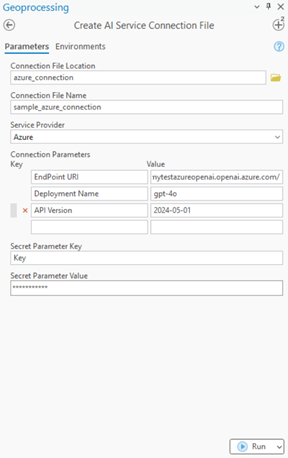
When setting up Azure as your provider, the tool will ask you for the following information:
- Endpoint URI – The base URL of your Azure OpenAI service.
Example: https://mytestazureopenai.openai.azure.com/ - Deployment Name – The name of your deployed model in Azure.
Example: gpt-4o - API Version – The API version you want to use.
Example: 2024-05-01 - API Key – Your secret credential for authentication.
The first three values are stored directly in the .ais file, while the API key is treated as sensitive information. It’s never written to the file; instead, it’s stored in Windows Credential Manager and referenced securely.
Create AI Service Connection File tool
Output connection file
Here’s a simplified example of what the resulting .ais file might look like for Azure:
{

"version": "1.0",

"serviceProvider": "Azure",

"protocol": "https",

"host": "mytestazureopenai.openai.azure.com/",

"authenticationScheme": "accessToken",

"authenticationProperties": {

"parameterType": "header",

"parameterName": "azure_api_key"

},

"authenticationSecrets": {"token": " "},

"serviceProviderProperties": {

"deployment_name": "gpt-4o",

"api_version"    : "2024-05-01"

}

}
In the “token” field does not contain your real API key; instead, it contains a random GUID (globally unique identifier) that’s automatically generated when the key is stored in Windows Credential Manager.
Retrieving credentials in Python
Once your connection file is created, you don’t need to worry about manually managing the API key. You can simply load the .ais file using the arcgis.learn API in your Python raster (or NLP) function
from arcgis.learn import AIServiceConnection

conn = AIServiceConnection("azure_openai.ais")

params = conn.get_dict()

api_key = params["authenticationSecrets"]["token"]

print(api_key)
This code securely fetches the stored key, reads the model parameters, and prepares them for use in your workflow.
Other service providers
In addition to Azure, the Create AI Service Connection File tool supports a wide range of provider. While each service has its own set of parameters, the overall structure remains the same: general details are stored in the .ais file, and sensitive credentials are replaced with a GUID that points back to your Windows Credential Manager.
- AWS
- Access Key: Identifier for your AWS account. (Example: IAMAWSTESTKEY)
- Model ID: The third party AI model you want to use. (Example: amazon.titan-text-premier-v1:0)
- Region Name: The AWS region where the model is available. (Example: us-east-1)
- Anthropic
- Model: The Claude version you want to connect to. (Example: claude-3-opus)
- Azure
- Endpoint URI: The base URL of your Azure OpenAI service. (Example: https://mytestazureopenai.openai.azure.com/)
- Deployment Name: The name of your deployed model in Azure. (Example: gpt-4o)
- API Version: The API version you want to use. (Example: 2024-05-01)
- Hugging Face
- Model ID: Identifier of the open-source model you want. (Example: facebook/detr-resnet-50)
- OpenAI
- Model: Name of the third party model. (Example: gpt-4o-mini)
- Google
- Project ID: Your Google Cloud project name. (Example: my-gcp-project)
- Region: Location of the hosted service. (Example: us-central1)
- Model Name: Identifier of the model you want to use. (Example: text-bison)
- Others
If your provider isn’t listed, you can define your own. For instance:
- Custom Endpoint: https://example.ai/api
- Model: my-custom-model
Third-party AI model integration
In ArcGIS Pro, custom deep learning packages (DLPKs) serve as an extensibility feature, enabling you to securely connect to external AI services and integrate them directly into your workflows. By leveraging these DLPKs, you can enhance geospatial analysis with state-of-the-art AI capabilities without leaving the ArcGIS Pro environment.
Establishing connections
In a custom deep learning package, the getConfiguration method can retrieve connection details from the AI service connection file and establish a secure connection to the third party hosted AI service. This method is responsible for:
- Extracting input from the tool (e.g., classes, AI connection file path, etc.).
- Storing these values in class-level variables or a configuration dictionary.
- Controlling how the model processes input and generates output based on the updated parameters.
The example below demonstrates how to read a connection file and establish a connection to an Azure OpenAI service.
def getConfiguration(self, **kwargs):
“””
Retrieves connection details from the AI Service Connection File
and establishes a connection to the third party hosted AI service.
“””
# Import required modules
from arcgis.learn import AIServiceConnection
from openai import AzureOpenAI
# Load the AI service connection file provided by the user
con = AIServiceConnection(kwargs[“ai_connection_file”])
cfg = con.get_dict()
# Extract relevant connection details
self.azure_endpoint = cfg[“serviceProviderProperties”][“endpoint_uri”]
self.api_key = cfg[“authenticationSecrets”][“token”] # Secure token reference
self.api_version = cfg[“serviceProviderProperties”][“api_version”]
self.deployment_name = cfg[“serviceProviderProperties”][“deployment_name”]
# Initialize the client for interacting with the hosted Azure OpenAI service
self.client = AzureOpenAI(
azure_endpoint=self.azure_endpoint,
api_key=self.api_key,
api_version=self.api_version
)
# Return kwargs so other methods can access additional parameters if needed
Once the getConfiguration method retrieves the connection details and establishes a secure connection to the third party AI service, the model is ready to perform inference. The predict method can now use the parameters and credentials stored during getConfiguration to send input data to the service and receive predictions.
Conclusion
ArcGIS Pro’s support for third-party AI models transforms how GIS professionals work with text, imagery, and spatial data. With the connection file handling authentication, you can tap into third party AI services to run entity extraction, image classification, and more while keeping your attention where it belongs—on the analysis.


Article Discussion: