Hello again! In May 2026 the ArcGIS Pro team released version 3.7, which includes a performance review tool called the Analyze Map pane. The pane identifies drawing issues and performance bottlenecks to help optimize your map or scene. A similar tool for ArcGIS Online, Review Map, helps optimize web maps to support high usage levels.
Evaluating Your Map’s Drawing Performance: The Analyze Map Pane
In a previous blog post, we introduced the pane and where to find it in ArcGIS Pro, the types of issues the analysis finds, and how drawing metrics can be used to optimize the map. In this blog, we showcase a sample map that needs some refinement and use the pane to work through solutions.
Analyzing a real-world map
This is a map of Acadia National Park in Maine, USA. Lauren originally made the map for the 2026 User Conference, but together we are assessing its performance.
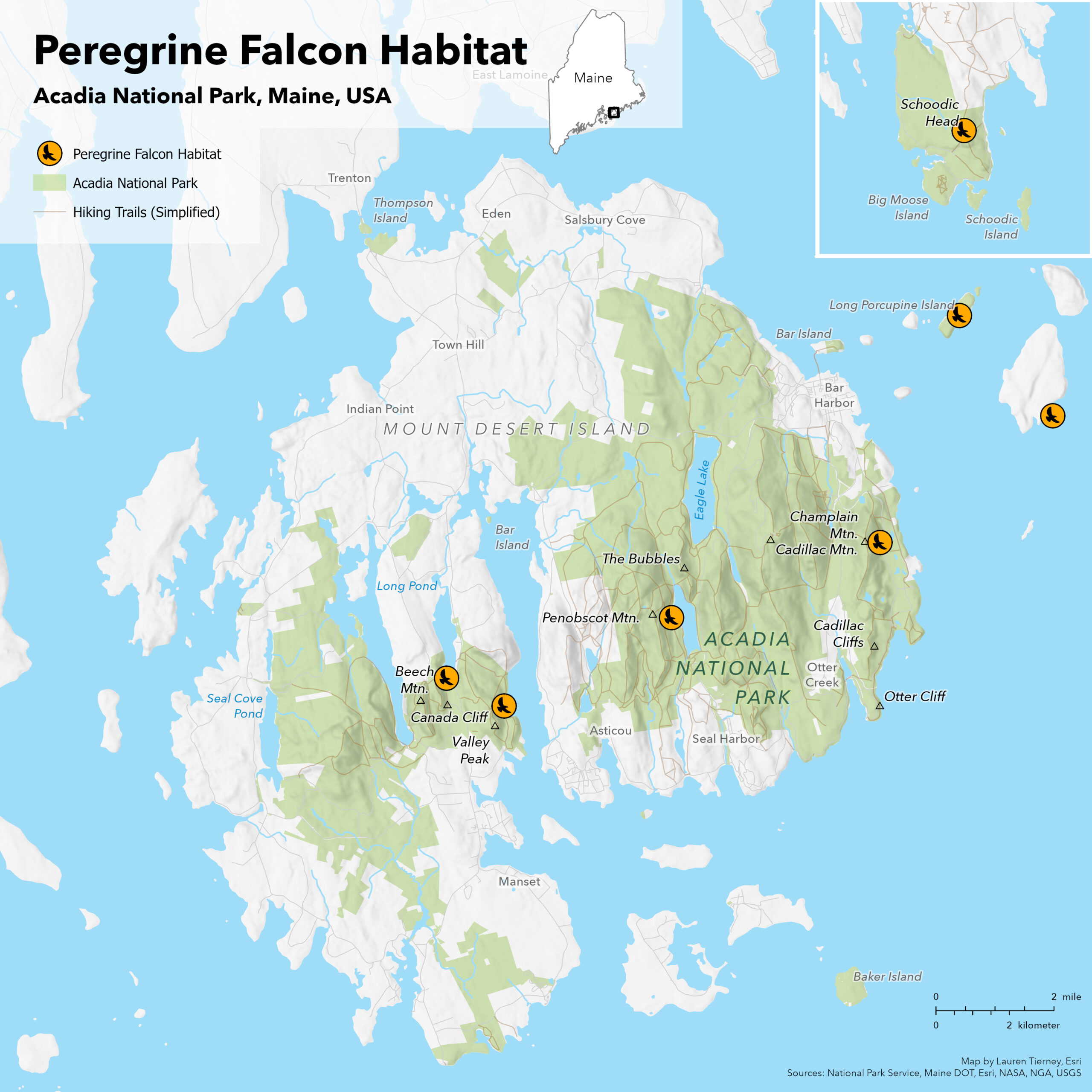
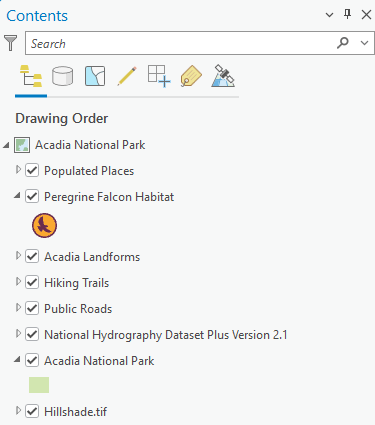
The map includes eight layers that show the locations of peregrine falcon habitats and surrounding areas within Acadia National Park. Peregrine falcon habitat data was sourced from the Maine Department of Inland Fisheries and Wildlife. Hiking trails were sourced from the National Park Service and roads were sourced from the Maine Department of Transportation. This map also includes layers for populated places, park boundaries, landforms, hydrography, and elevation data (all courtesy of ArcGIS Living Atlas.)
The map is designed for the layout, and we are happy with the result. But we notice some unexpected slowdowns in the way it loads, particularly as we get to a larger scale. That is where the Analyze Map tool comes in.
Analyze map for potential issues
We’re going to close the layout for now and open the map to take a look at its drawing performance. When we run the analysis at the full extent of the map, we get some interesting feedback as drawing completes. There are 39 warnings and 37 notifications! Thankfully, there are no errors.
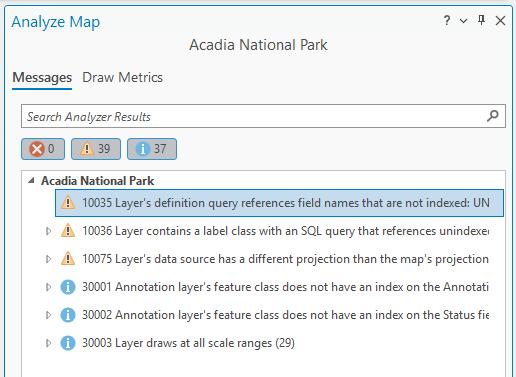
These warnings look like they fall into three codes. The codes (such as 10035, 10036, and so forth) are reference identifiers to the respective warning. We can expand 10036 and 10075 to see which layers are impacted by these issues and address them by dissecting the message and applying a solution.
Before we do that, we’ll click on the Draw Metrics tab and generate metrics for our map.
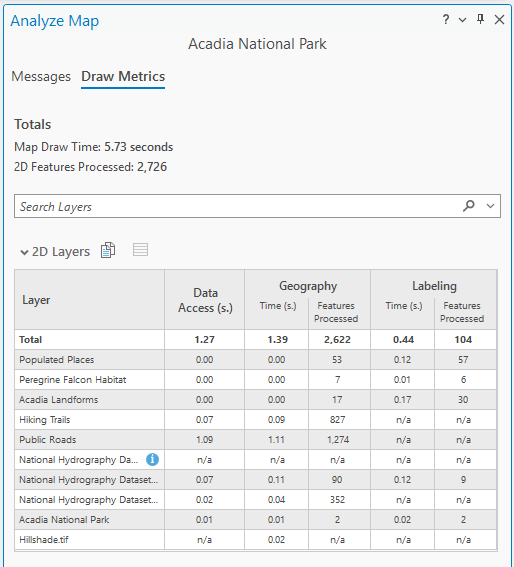
Overall, it’s not terrible. The map draw time is less than six seconds at 1:140,000 scale. But there is always room for improvement.
Addressing the warnings
Having reviewed the drawing metrics, we can now look into making adjustments to speed up our map’s performance. Let’s go back to the warning codes.
The first warning (10035) says our definition query references a field that is not indexed. If you aren’t familiar with how to address this or why field indexing is important, you can double-click or right-click the warning and click Help to open documentation for this issue.
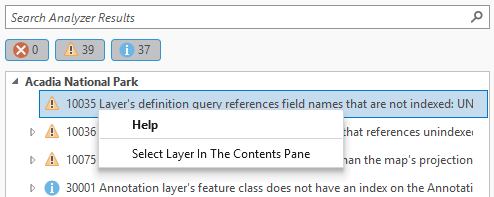
The documentation recommends indexing this field since it is used for querying features when drawing the map. (See Attribute indexes in the geodatabase for more information.) You can also choose to remove the layer from the map, or do nothing and accept the display performance as is.
The second warning (10036) is similar, but it refers to label class SQL queries. The recommended solutions are the same as the first warning.
In both cases, we will accept the performance as is, since they are not major contributors to the slowdowns—our feature count is only a couple thousand. In a map with hundreds of thousands, or even millions, of features, field indexing will make more of a difference. Perhaps we will do something about these labels later.
The final warning (10075) indicates that many of the layers in the map have a different projection than the map’s projection. The layers are reprojecting on-the-fly, which is a common practice when starting a map, but it can later impact drawing performance.
The documentation recommends three potential solutions:
- Change the projection of the map to match the projection of the layer.
- Project the layer’s data source to match the projection of the map.
- Do nothing. (In some situations, on-the-fly projection does not degrade performance.)
For a singular map like this one, we may choose to leave this warning alone. If we frequently made maps of Acadia National Park, we would make sure the projections of the datasets and maps match to improve performance across projects and our organization, especially if there is a set standard projection for that work.
One of the Analyze Map informational messages (the codes with a blue info icon next to them) states that layers are drawing at all scale ranges. Because this map is only for print at a set scale, this is okay. In other situations, such as a multiscale map designed for interactivity that needs to maintain strong performance, a message like this is a helpful reminder and recommendation.
With this information, we can look into improving the draw time from the six seconds recorded previously.
Generalizing layers
First, we will generalize some layers. Roads, trails, and hydrography take the most time to draw, and the processed feature totals for those layers are our highest. When possible, generalizing data can lessen processing numbers and, in turn, draw time.
We are going to swap these layers out for feature layers that we simplified with tools in the Cartography Toolbox. We adjusted roads with the Thin Road Network tool, and we made hiking trails less detailed with the Simplify Line tool. After those adjustments, the total draw time of the map is less than five seconds.
Need for speed
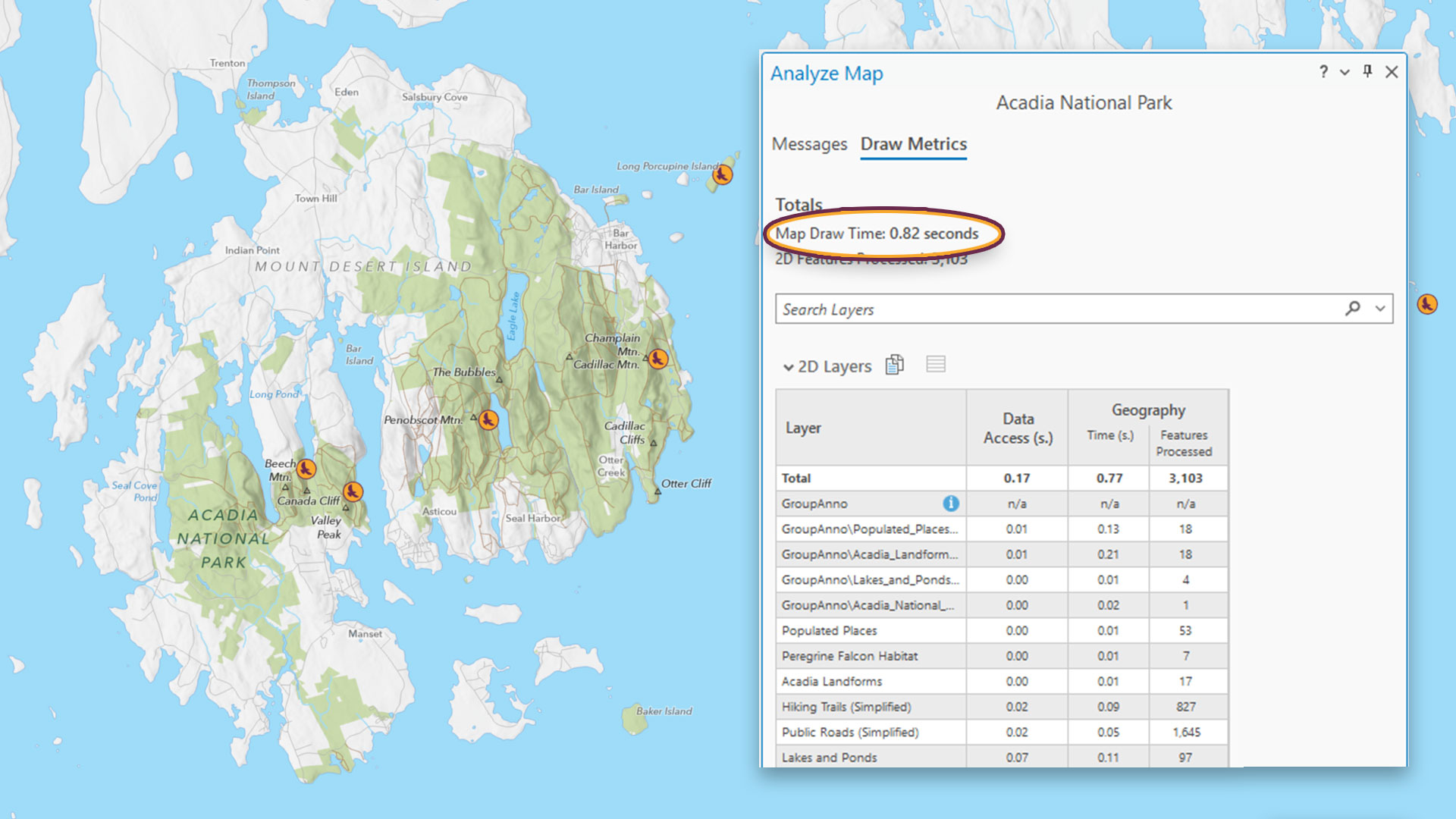
Next, let’s see if we can reduce the labeling draw time. When we first generated draw metrics, the labels drew on the map dynamically. We are done making adjustments, so we converted the labels to feature-linked annotation and the draw time is now an expeditious 0.82 seconds! (Because we are no longer drawing labels, the Labeling column does not appear when regenerating metrics.)
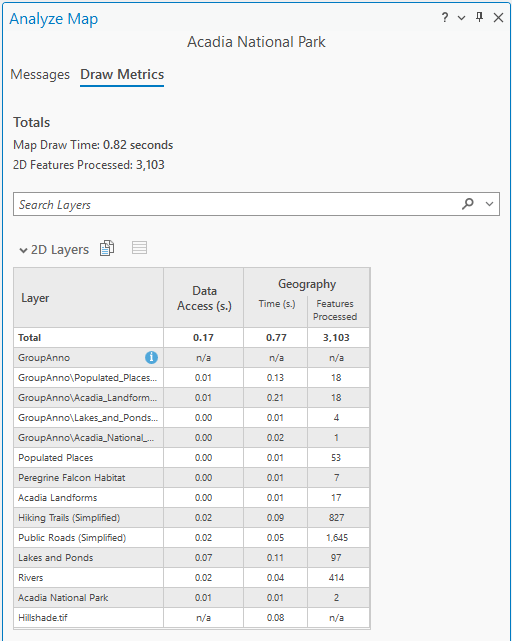
Using these metrics made it easier to find and explore ways to speed up the drawing of the map. It also highlighted how decisions we made along the way (not reprojecting or generalizing the feature layers, for example) led to some slowdowns. Thankfully, they could be addressed with the help of documentation and a little know-how of geoprocessing tools.
Looking ahead
In ArcGIS Pro 3.7 the Analyze Map pane covers many different aspects of drawing performance. Work is ongoing to expand this analysis with more potential messages and warnings, provide better guidance for those messages, and cover more layer types in the draw metrics. In ArcGIS Pro 3.8, the Analyze Map pane will include symbol draw time information, stereo map support, and elevation source metrics.
Thank you for reading, and happy mapping!




Article Discussion: