Calling all mapmakers, wildlife lovers, and anyone who has ever wondered where a grizzly bear goes when nobody is watching!
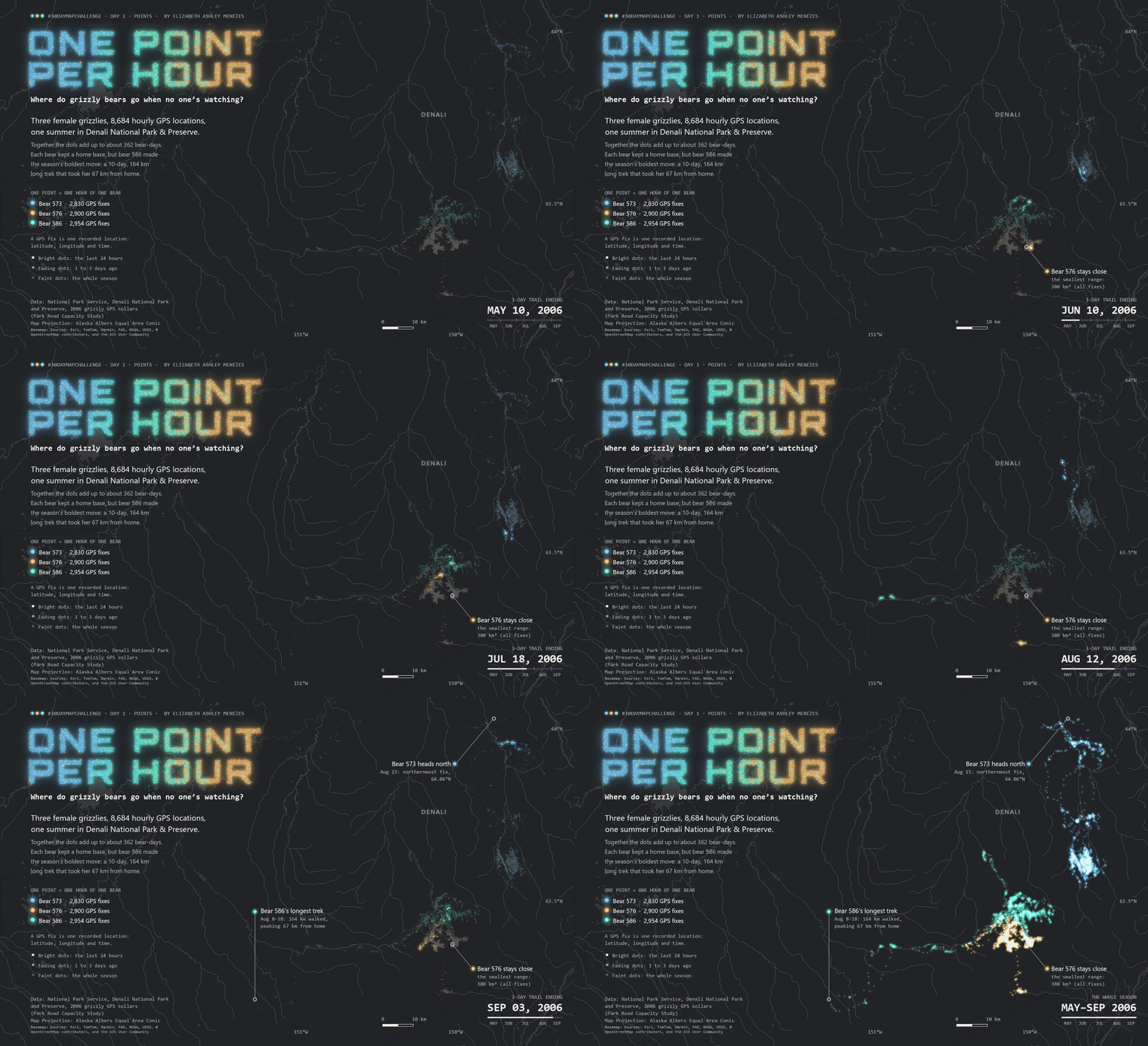
Welcome to Day 1 of the 2026 #30DayMapChallenge (a map a day, all November long!), where the theme is Points. For this one, I’m heading back to one of my favorite places on Earth… Denali National Park and Preserve, Alaska, where I once worked as a science communicator (more on that later)!
About the Map
In the summer of 2006, wildlife biologists fitted three female grizzly bears with tracking collars that recorded each bear’s location once an hour. Here, each bear gets her own neon color marker, and every point glows against a dark basemap. The dark basemap makes each bear’s point marker pop like a simulated GPS ping on a wildlife tracking screen. It also gives the map the feel of a starry Denali night, which I find ironically funny, since the sun barely sets there in the summer!
Zoom into the full-resolution map or download to spot the bright clusters where bears lingered and the scattered pings where one bear wandered far from home.
Keep reading to learn more about the inspiration behind the map, and how to recreate the map yourself in ArcGIS Pro!
Can’t wait to get started? Skip ahead to the step-by-step guide below.
Why is Denali my favorite place on Earth?
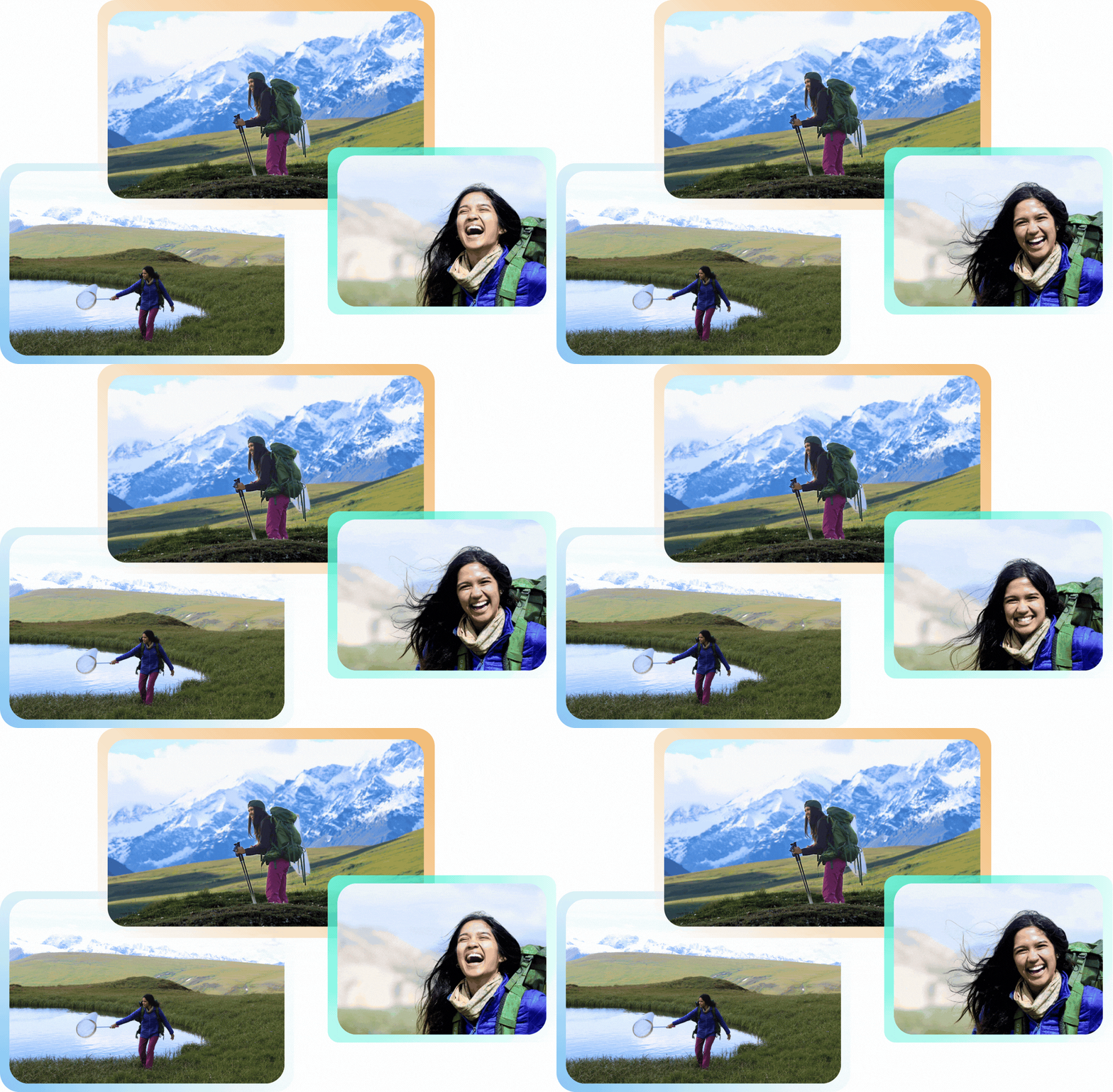
In the summer of 2018, I grabbed my backpacking pack and laced up my hiking boots to spend an unforgettable season here as a science communicator with the Scientists-in-the-Parks program. I led youth field programs, designed visitor center exhibits and a children’s book, and helped survey alpine bees (yes, Denali has bees, and they are un-bee-lievably cool).
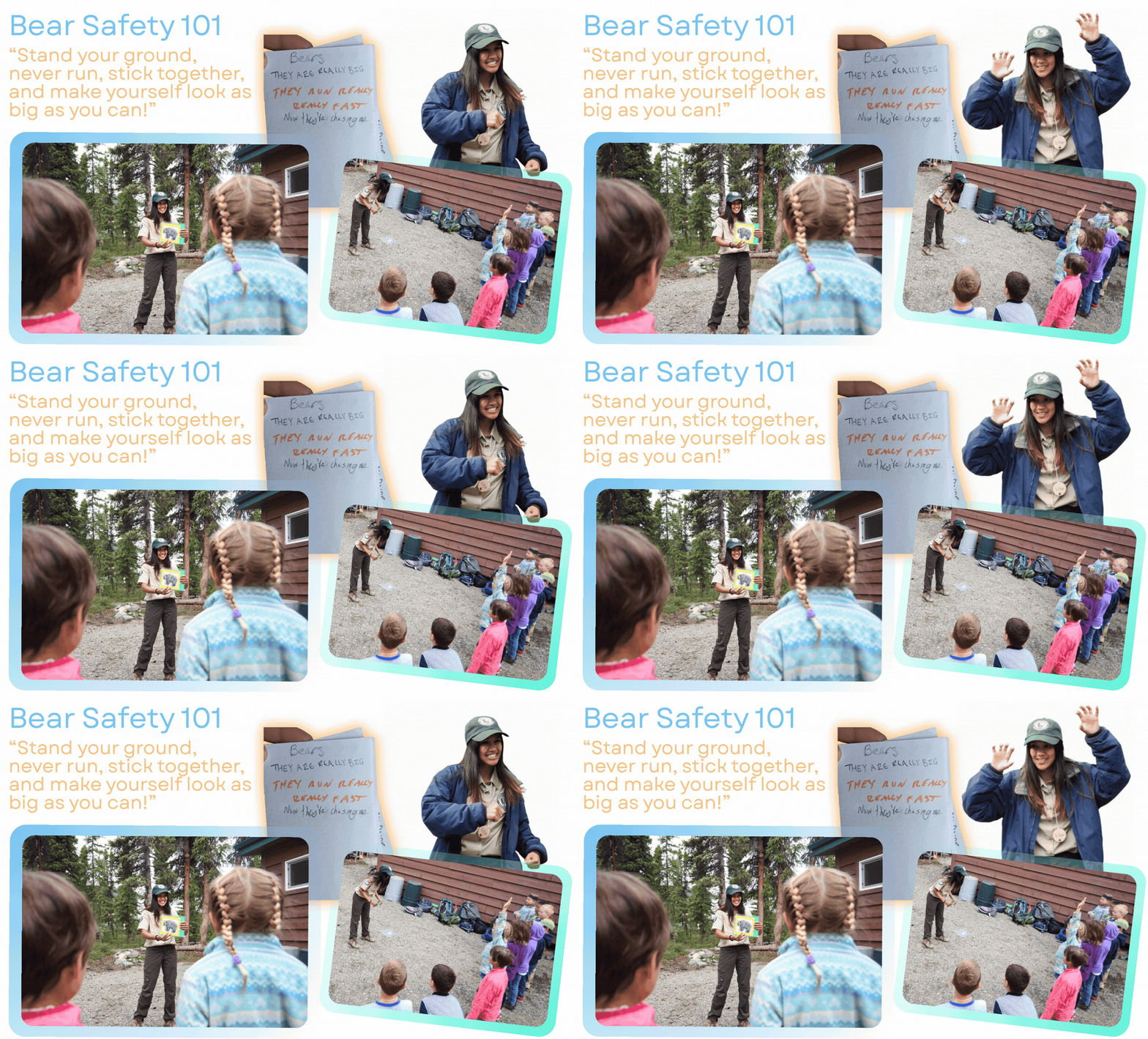
Grizzlies were a big part of my summer in Denali. In the youth programs I led, bears were always a crowd favorite, and the kids had tons of questions about them. To teach bear safety, I brought along bear picture cards and demonstrated what to do if they ever met a real one. Out on the trail, we always made plenty of noise so we wouldn’t surprise one.
Where does the data come from?
The data comes from Denali’s Park Road Capacity Study, which put GPS collars on 20 grizzly bears along the park road to learn how traffic affects wildlife. The National Park Service published the tracks of three of those bears as free downloads.
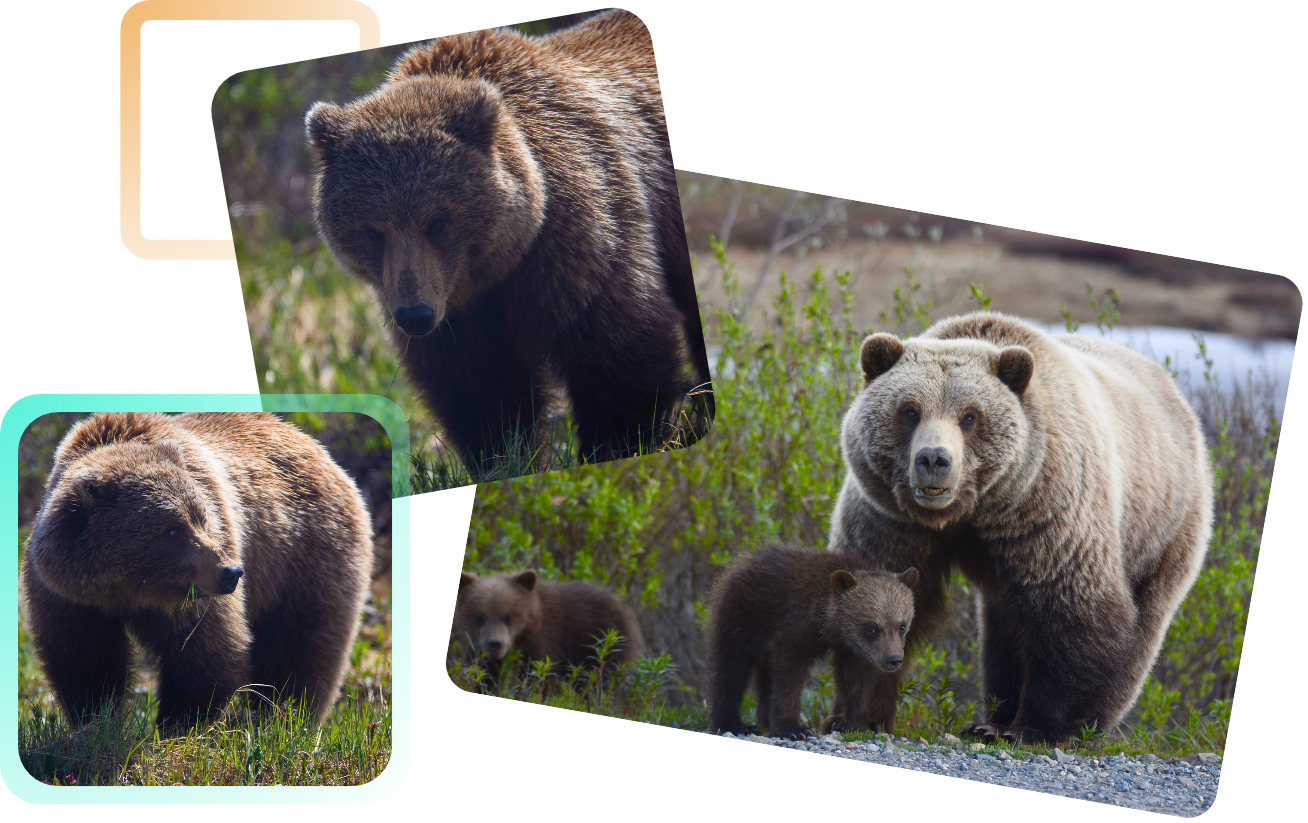
Fun fact: two of the three, bears 576 and 586, had a yearling cub with them when they were collared!
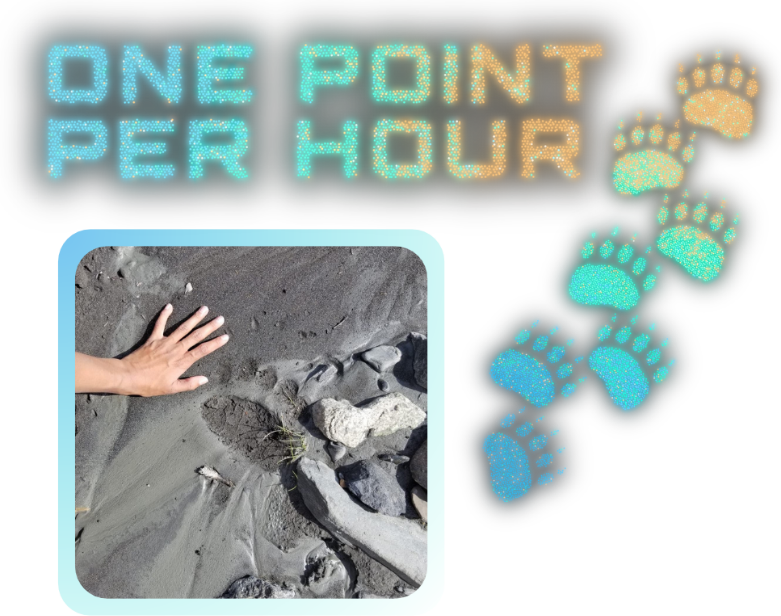
So, what makes this data perfect for Points? Every location a collar records a “GPS fix,” which is about as pure a point as you can get: one latitude, one longitude, and one moment in time. On its own, a single fix looks almost insignificant. Put thousands of them together, though, and a bear’s whole summer starts to take shape.
But wait, what exactly is a GPS fix?
Great question! Let’s take a quick detour into how GPS works, because it’s the reason these points exist at all.
A GPS receiver listens for signals from satellites orbiting high above Earth. It measures how long each signal takes to arrive, turns those travel times into distances, and solves for its own position. Four satellites is the magic number, because the receiver has four unknowns to solve for: its latitude, longitude, height, and the error in its own clock (which is far less precise than the atomic clocks riding on the satellites). Each successful solution, stamped with a time, is one “fix” (Scientific American).
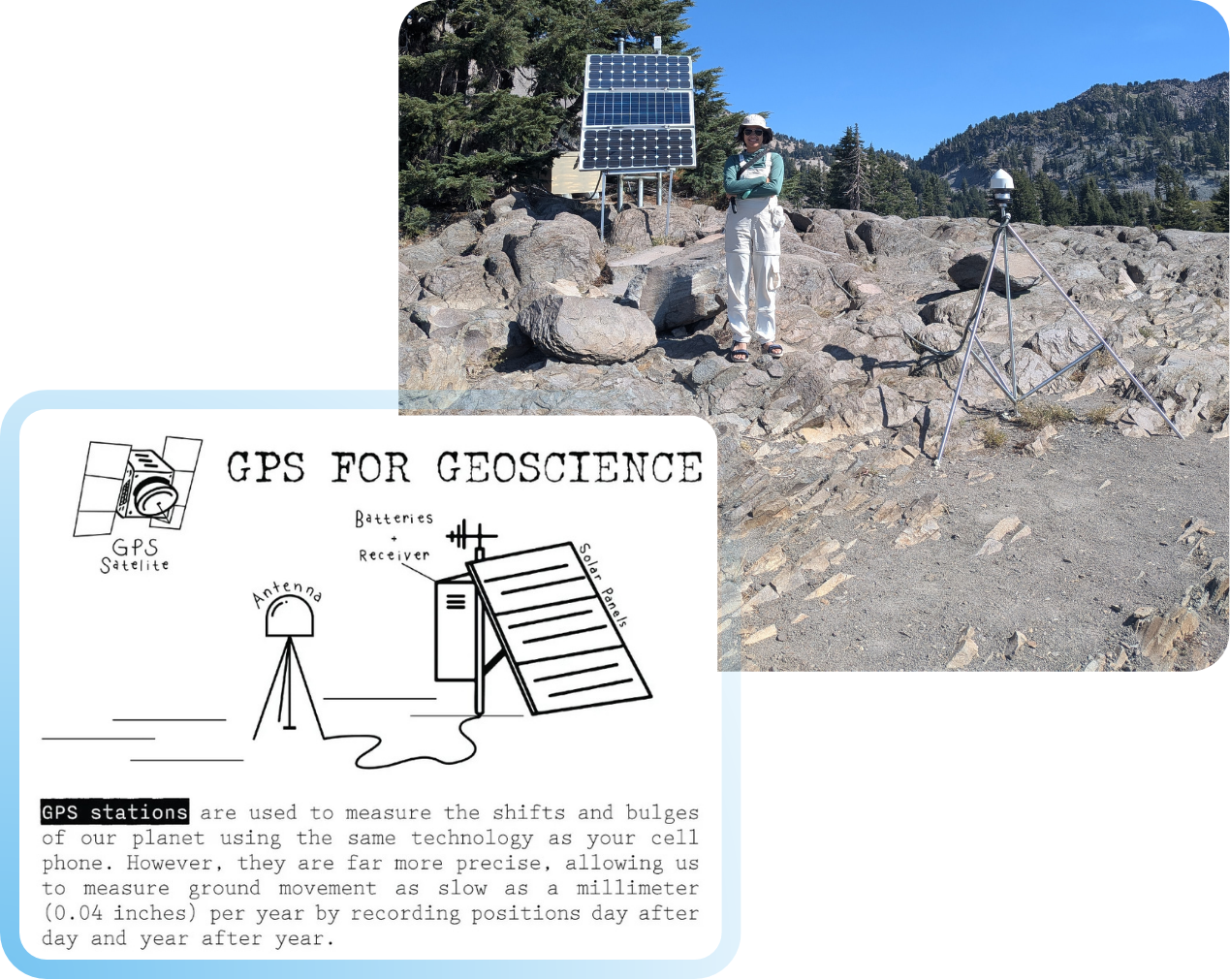
Here’s where it gets fun. A permanent GPS station, like the one I’m standing next to pictured below, stays perfectly still and records its position day after day and year after year. Those long records let scientists measure ground movement as slow as a millimeter per year, from shifting tectonic plates to land that sinks as groundwater is pumped out during droughts. A GPS collar flips that idea around: the ground stays put and the antenna goes for a walk (a very long walk, in bear 586’s case).
Collars don’t always get their fix, though. Dense forest, steep terrain, and even a bear’s choice of napping spot can block the sky. That’s why our bears have a few gaps in their records. In the animated map, I used a definition query to hide the trail segments that cross those gaps, so they don’t show up as long, misleading lines.
(back to top)
Ready to make your own?
Follow this step-by-step guide to recreate the map in ArcGIS Pro! A handful of ArcGIS Pro tools did most of the work, and you can rebuild the static map in just 10 approachable steps. Look for the Quick way options to skip ahead with my ready-made data and layout.
Estimated time: 25 mins (about 10 with the quick ways)
- Get the data.
- Quick way: Download my file geodatabase, unzip it, and add the bear_points_2006 layer to your map. It’s already merged and labeled by collar ID, so skip ahead to step 4. Planning to use my layout too? Jump all the way to step 8.
- From scratch: On the NPS Denali Park Road Capacity Study page, download the Bear 573, Bear 576, and Bear 586 KML files.
- Convert each file. Run KML To Geodatabase once per KML. Each run creates a point feature class, like Bear_573_Points.
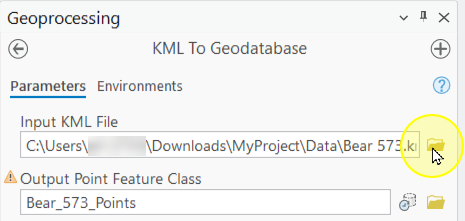
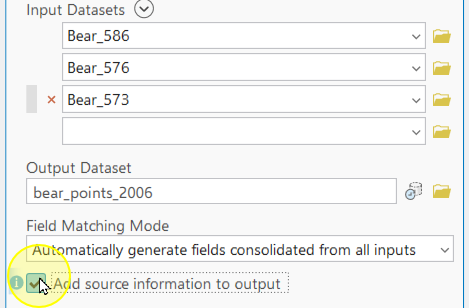
- Combine the bears. Run Merge on the three Points layers, name the output bear_points_2006, and check Add source information to output. The new MERGE_SRC field records which file each point came from.
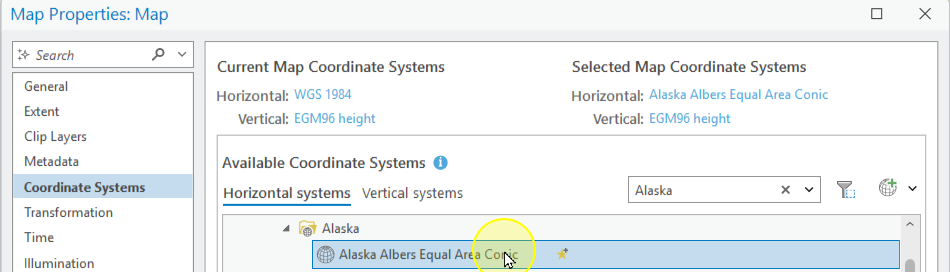
- Set up the map. Right-click the map > Properties > Coordinate Systems, search for “Alaska,” and choose Alaska Albers Equal Area Conic. Plain latitude and longitude would stretch Denali east to west by about 2.2 times, while this equal-area projection keeps every cluster at its true size. Then go dark: on the Map tab, click Basemap and choose Human Geography Dark Map.
- Add my bear style. Download Denali grizzlies 2006 bear point symbols (.stylx). On the Insert tab, in the Styles group, click Add > Add Style and browse to the file. All three glow symbols now live in your project.

- Color by bear. Coloring by bear makes it easy to find each bear’s home range and compare how the three moved through the same landscape. In the Symbology pane, choose Unique Values with Field 1 set to bear_id (or MERGE_SRC if you built the data from scratch).
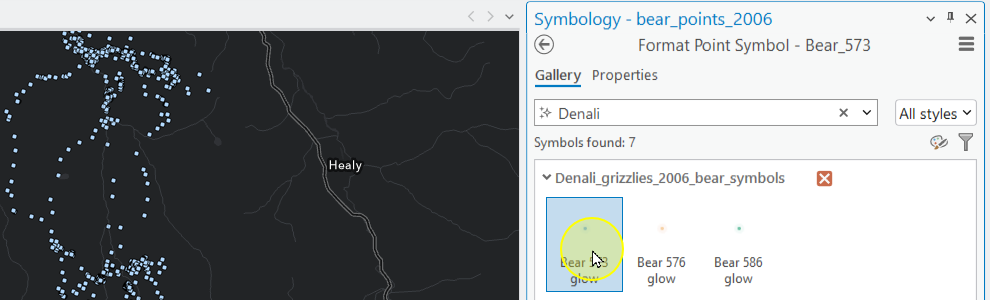
- Click each bear’s symbol to open the Gallery tab. In the search box, type “Denali,” and click that bear’s glow symbol.
- Rename each class to its bear, so your legend reads Bear 573, Bear 576, and Bear 586.
Note: The NPS file named “Bear 573” contains collar 574586, and “Bear 586” contains collar 574573. I label bears by collar ID, so those two names swap on my map. My geodatabase already uses the collar IDs.
- Make it glow. On the Feature Layer tab, in the Effects group, set both Layer Blend and Feature Blend to Screen. Like overlapping flashlight beams, stacked points brighten one another, turning the places where a bear lingered into bright glowing clusters.

- Build the layout.

- Quick way: Download my layout file, One Point Per Hour (.pagx). On the Insert tab, in the Project group, click Import Layout > Import layout file, browse to the file, and click OK. My finished map comes along with it: projection, dark basemap, glow symbols, and callouts included. If the bear layer shows a red exclamation point in the Contents pane, click it and browse to bear_points_2006 in my geodatabase. Then skip ahead to step 10.
- From scratch: I designed mine from scratch with a few custom touches, like the title, which I made in Adobe Illustrator and imported into the layout. To build yours, on the Insert tab, click New Layout and choose a US Legal landscape page (14 × 8.5 in). Add a map frame and set its scale to 1:525,000. To keep every callout next to the right bear, lock it in place: right-click the map frame in the Contents pane, choose Properties, and on the Display Options tab, set the constraint to Fixed center and scale. Then add a title, legend, scale bar, and credits.
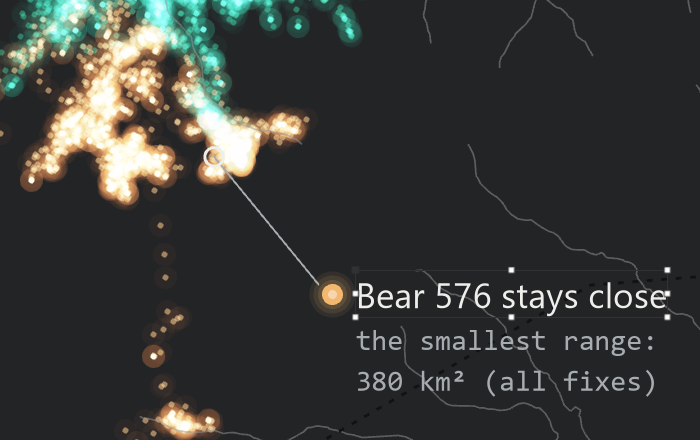
- Add the story. Place text callouts with leader lines on the moments worth noticing, like bear 586’s big August trek and bear 576’s small home range.
- Export. Use Share > Export Layout to save a PNG for social media or a PDF for print.
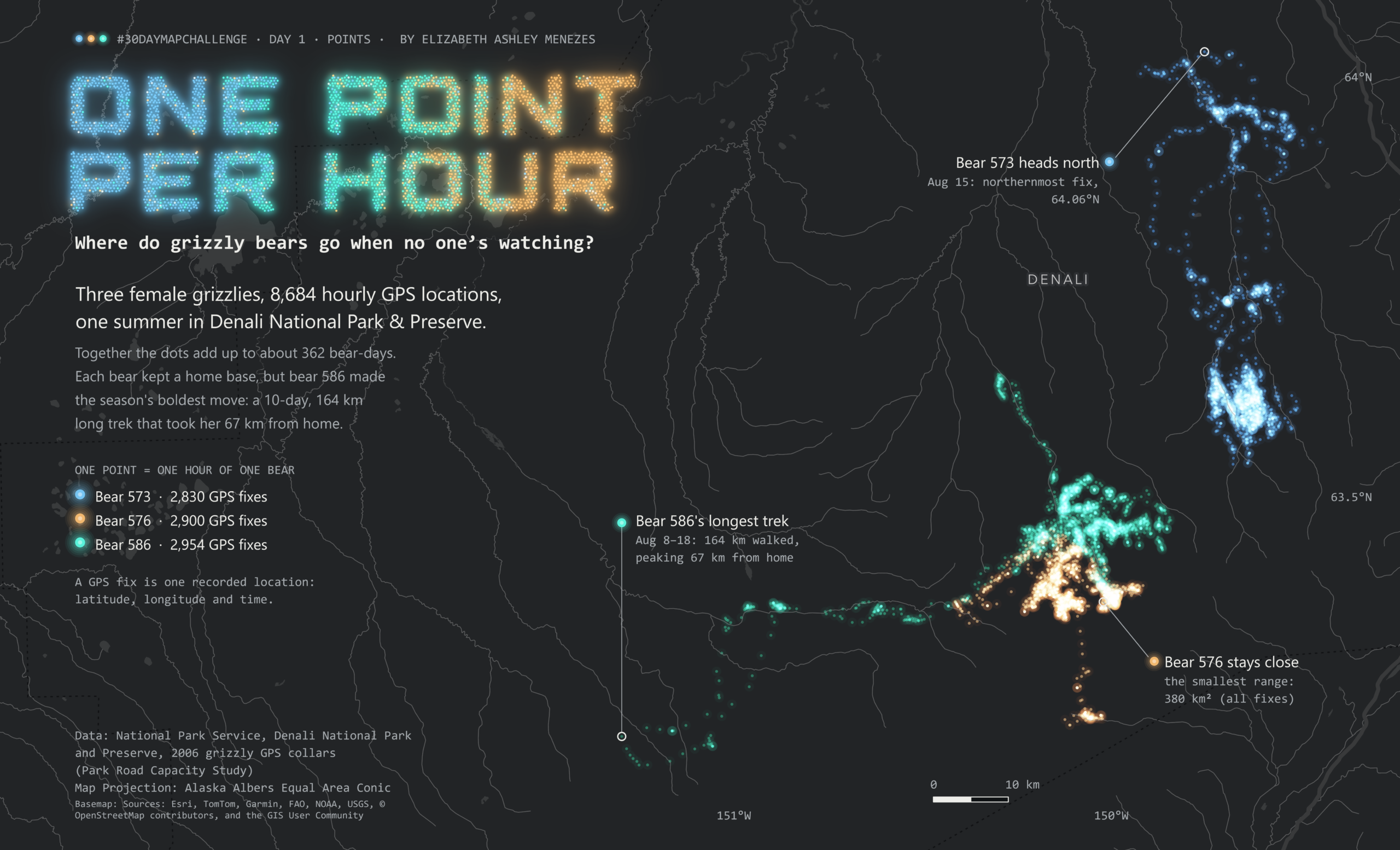 Click the map to enlarge.
Happy mapping!
Thanks for trekking with me and da’ bears. 🐻
Special thanks to park photographer and good friend Mary Lewandowski, who took the bear photos and most of the photos I’m in!


Commenting is not enabled for this article.