Prompt writing is the practice of creating clear and thoughtful instructions for an AI tool such as an ArcGIS AI assistant. These instructions, called prompts, are how you ask the tool to answer a question, write a summary, generate text, or help with a task. The way a prompt is written has a big impact on the quality of response you receive, so learning how to write good prompts will help you get better results. This article includes guidelines for prompt writing, and provides simple, practical examples to help you get started with ArcGIS AI assistants.

Prompt writing guidelines
When creating a prompt, be sure to state your goal, provide any necessary context, and outline your formatting expectations. Consider the following guidelines when communicating with an assistant:
Use clear and simple language
State clearly what you want the assistant to do and avoid using ambiguous language. Take a look at the Arcade assistant (beta) prompt below.
 |
Summarize marital status in some type of table or graph that looks organized. |
The prompt lacks clarity by leaving the formatting up to the assistant’s interpretation instead of directly stating the desired outcome. The table or graph type, for example HTML table or bar graph, is not specified, leading to further potential misinterpretations by the assistant. The following would be a better prompt:
 |
Create an HTML table listing marital status. Have the first column be marital status, and the second be the number of people in each category. Format numbers with commas. Highlight the row with the highest value in orange. |
Be specific
Provide enough detail when explaining a task or command to avoid generic results. Take a look at the Survey123 assistant (preview) prompt below.
|
Create a survey to provide feedback about an event. |
The prompt does not specify an event type; therefore, the assistant can only create generic questions that apply to a wide range of events. Tailored questions which provide more valuable results, such as asking about sound quality at an outdoor concert, require additional context and details. Important survey questions or topics are not mentioned in the prompt; as a result, key information might not be collected. Remember to always include sufficient detail to achieve the best results. The following would be a better prompt:
|
Create a survey for participants to provide feedback about the Boston Marathon. Include questions about pre-race communication, race safety, clarity of route markings, water station locations, post-race snacks, parking, and overall satisfaction. |
Specify a presentation format
Tell the assistant how you would like the results presented by providing constraints, such as word count, and explicitly stating your desired format. Take a look at the documentation assistant (beta) prompt below.
|
Compare partnered collaboration to distributed collaboration. |
The prompt clearly states a task; however, the desired presentation format is not specified. It is unclear to the assistant whether the resulting information should be provided as a list, paragraphs, chart, table, or other format. The following would be a better prompt:
|
Compare partnered collaboration to distributed collaboration using a maximum of 50 words. Present results as bullet points. |
Specify the audience
Provide information about the intended audience, such as age, reading ability, or preferred languages, to achieve results that are better tailored to your needs. Take a look at the documentation assistant (beta) prompt below.
|
What is ArcGIS Instant Apps? |
The prompt does not specify the needs of the intended audience, such as result length or reading ability. In this case, the assistant does not know that the intended recipient is new to GIS and will require definitions for subject-specific terms and the use of simplified language. Without specifying the audience, the assistant might provide you with a result that is too technical and complex for your needs. The following would be a better prompt:
|
Explain what ArcGIS Instant Apps is to a person with minimal GIS knowledge. Use simple language. Maximum 100 words. |
Iterate prompts to refine results
When communicating with an assistant, a good strategy is to write a prompt, evaluate the results, then rewrite the prompt to improve the results. You may need to experiment with multiple iterations of a prompt to get what you’re looking for. Take a look at the example below.
|
Original prompt: Create a map of the number of preschool aged children in California. First iteration: Create a map of the number of children under the age of 4 in California. Second iteration: Create a map with a green color ramp of the number of children under the age of 4 in California. Add further iterations if necessary. |
The original prompt returned an undesired result because ambiguous language, such as preschool aged, was used. If a result is not what you envisioned, rewrite the prompt with added details and context. For example, the first iteration restates the original prompt with additional information about age. To further tailor the result, the second iteration specifies a color ramp for the map. Remember that your first prompt might not always be successful; refine your prompts to get better results.
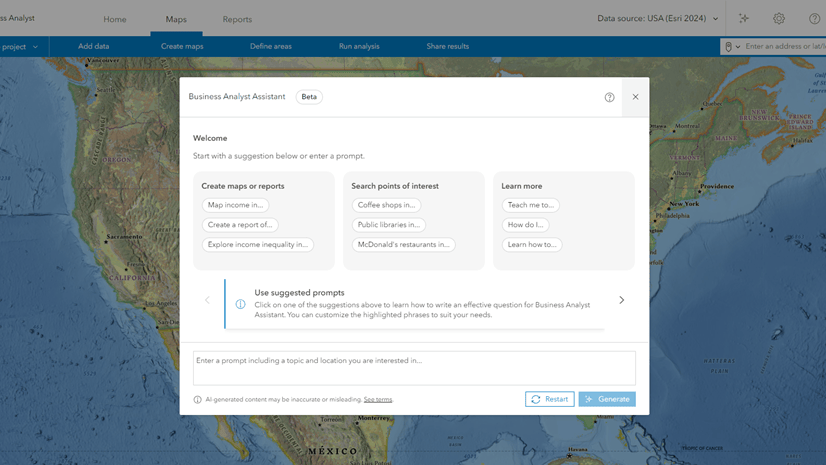
Some assistants, such as the Business Analyst assistant (preview), are conversational and remember content from the beginning of the session. When communicating with a conversational assistant, you do not need to rewrite previous prompts or iterations in their entirety. For example, the second iteration of the example prompt could be shortened to ‘Switch the color ramp to green’.
Next steps
These guidelines can help you begin crafting effective prompts to get the most out of an AI assistant. Try them today and experience how an AI assistant can enhance your workflow.
Start with the Configure AI assistants page to choose an assistant that interests you and learn how to get started.
Learn more about AI assistants by watching the video below:
More resources
For more detailed information and tips, check out these blog posts:
- Create a survey with an ArcGIS assistant (video)
- Get to know Business Analyst Assistant (Preview) (Video)
- Using the ArcGIS StoryMaps AI assistants to your benefit (Article)
- Join the ArcGIS Pro assistant 3.5 beta: Help Shape the Future of Desktop GIS (Article)
- Introducing the ArcGIS documentation assistant (beta) (Article)
- Introducing the ArcGIS Arcade assistant (beta) (Article)
- Introducing Business Analyst Assistant (Beta) in ArcGIS Business Analyst Web App | June 2024 (Article)
- Tap into AI in the ArcGIS System (Story)




Commenting is not enabled for this article.