Getting started can be a daunting task for just about anything. Getting started with an analysis in ArcGIS can also present challenges, especially knowing where and how to curate data for your project. Initial data prep is a prominent part of organizing work, with common questions like:
- How do I add Esri’s boundaries to the map?
- Where can I get demographic or socioeconomic variables?
- What is the best way to build it all? What tools do I use?
- And is my data use violating any licensing restrictions?
To improve this data prep quandary, the November 2025 release of Business Analyst Pro contains a nifty little utility that allows you to build datasets for a single level of geography by enriching standard geographies or hexagons with demographic data.
Enter the Add Business Analyst data utility. We think so highly of this addition we’ve included it on our main gallery:
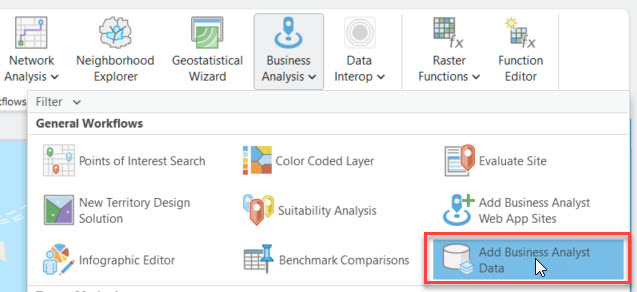
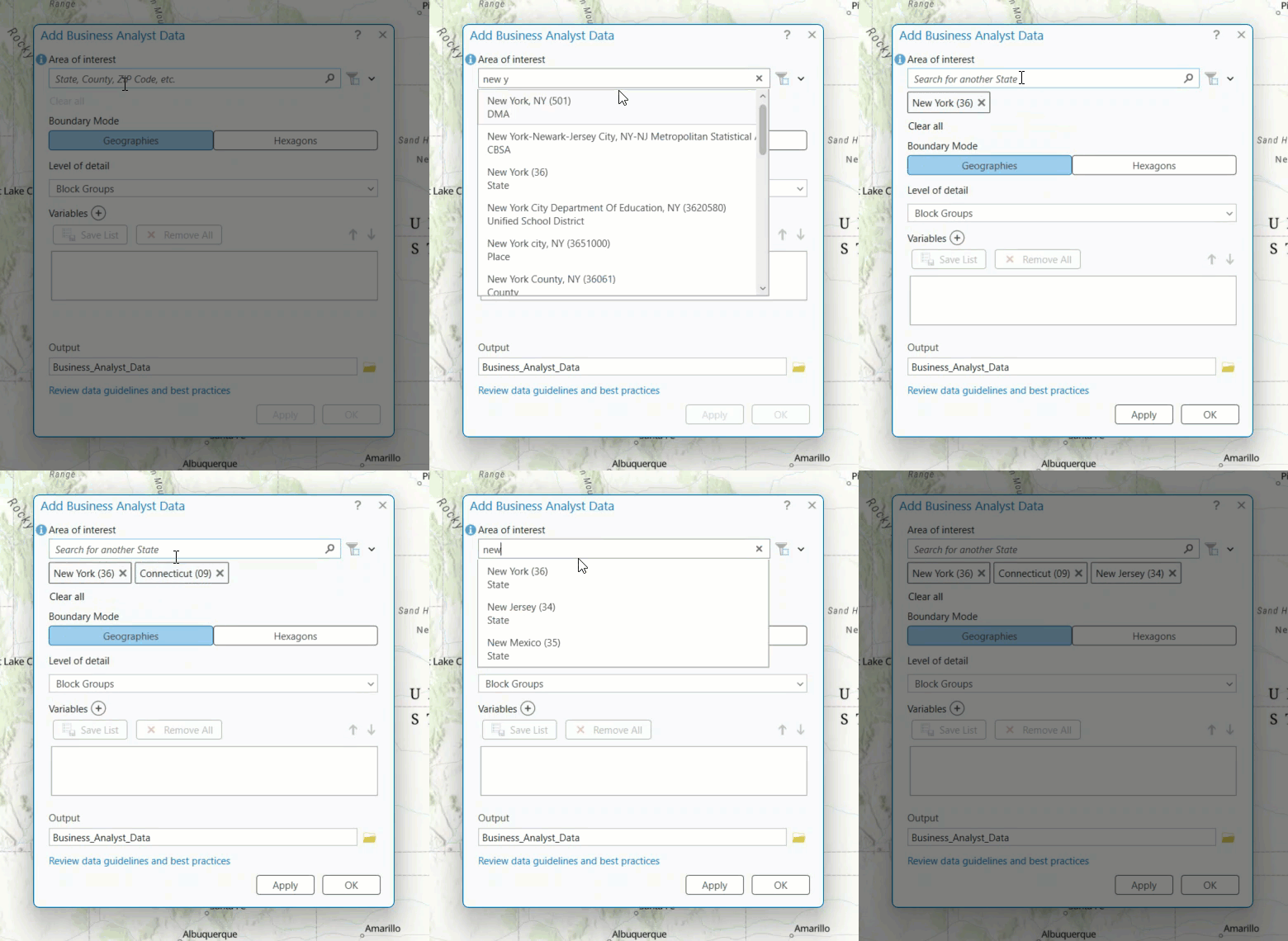
The utility contains a smart search feature to quickly find areas of interest. For example you can limit your analysis to a state (or states! or provinces!), a metro area, or a collection of counties. If the geographic boundaries are available with Business Analyst, you can search for them here. You can also use any boundary you have in the map, or even the map extent.
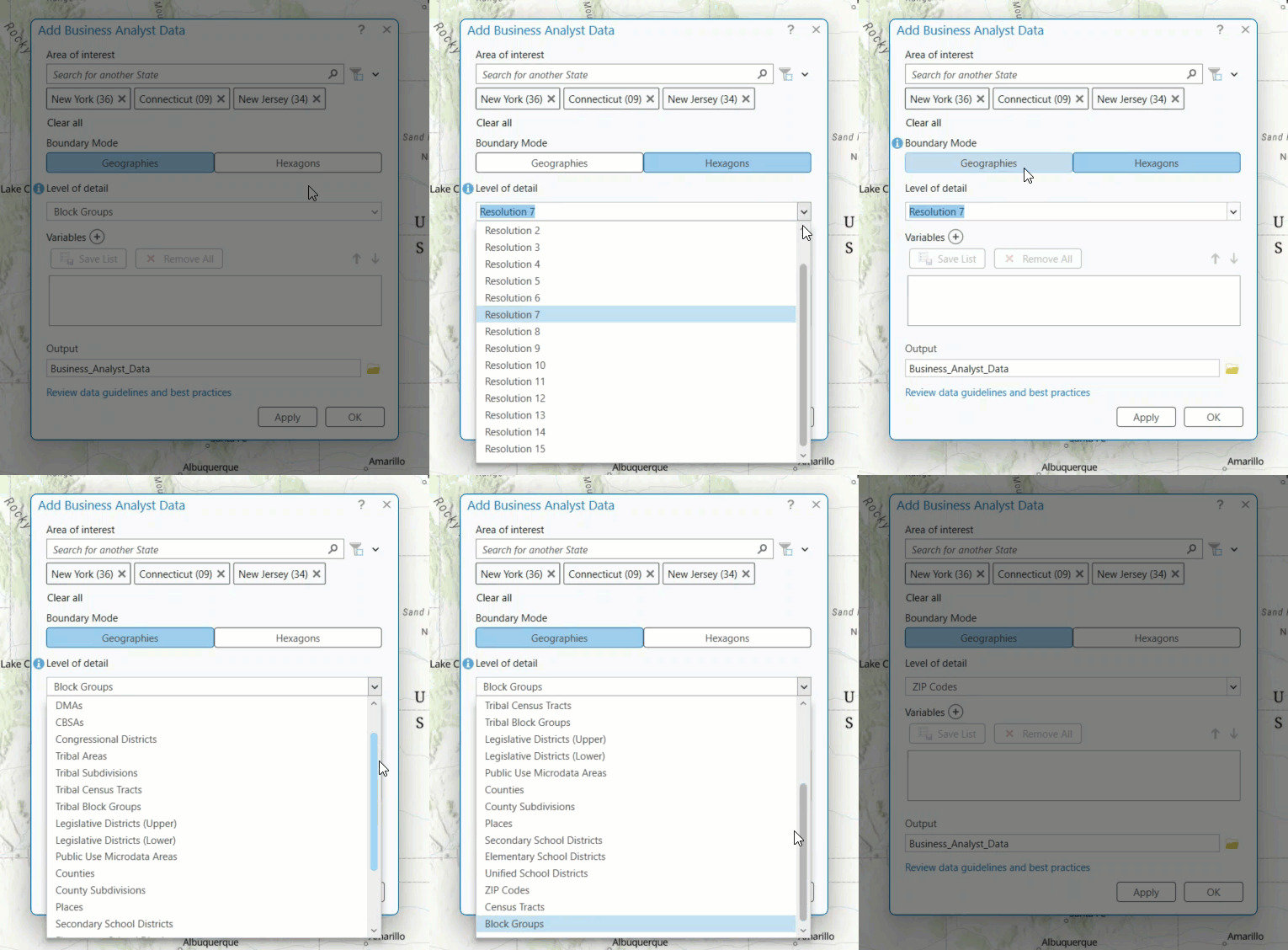
Once your area of interest is set, you select the level you want to work with. You can select from a variety of administrative geography levels, or you can use H3 hexagon levels.
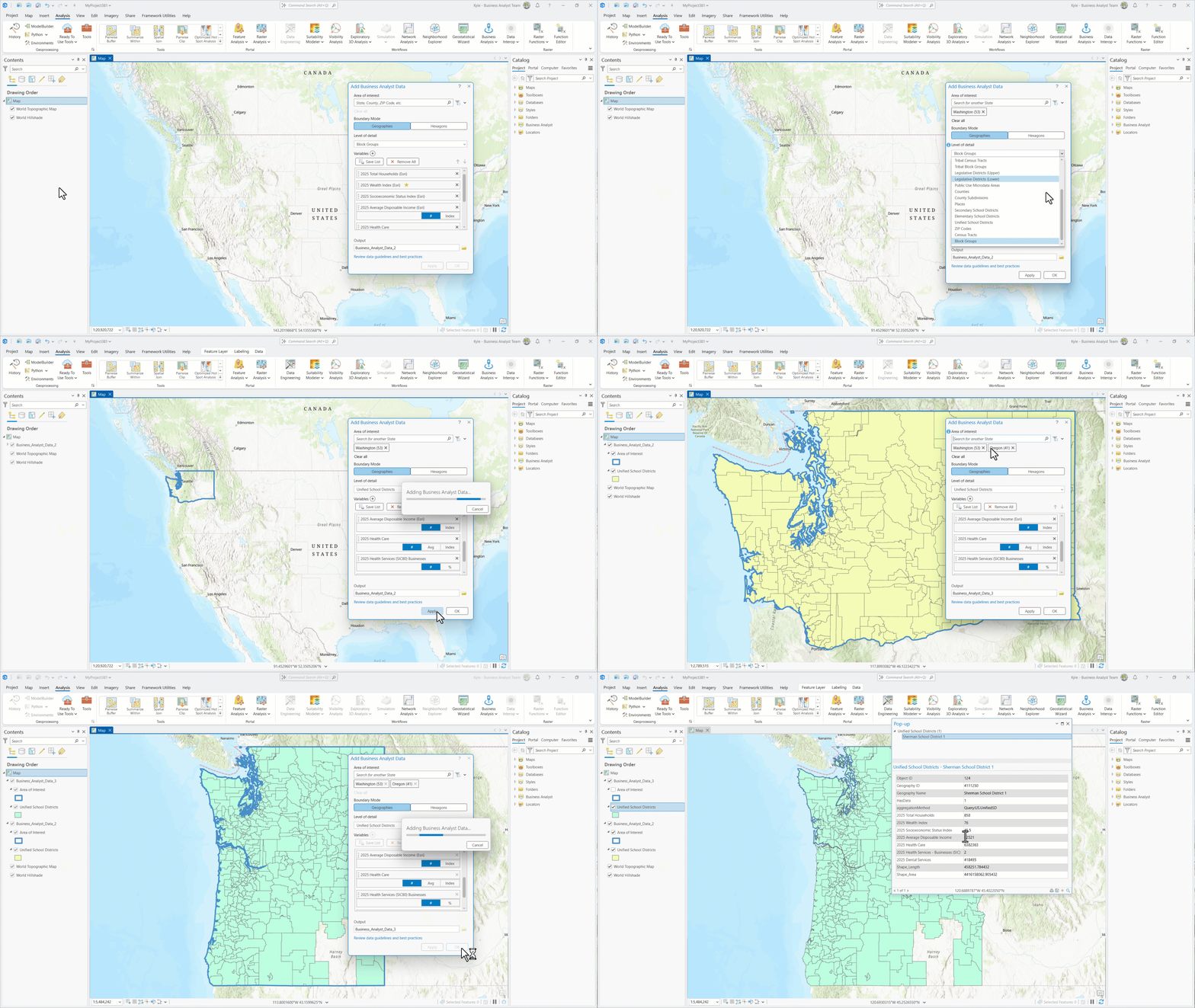
With your area of interest and boundary levels loaded, you just need to select your desired variables from the data browser and the dataset is ready to build. Custom variables are supported too, such as quarterly sales by ZIP or total customers. Below I’ve selected a school districts level for the the states of Washington and Oregon, along with a collection of income and education variables that I plan to analyze. The layer is quickly created and ready for analysis in ArcGIS Pro. What can I do with this layer? To name a few options: you can build territories, analyze with spatial statistics, perform data engineering, or tell your story with cartography.
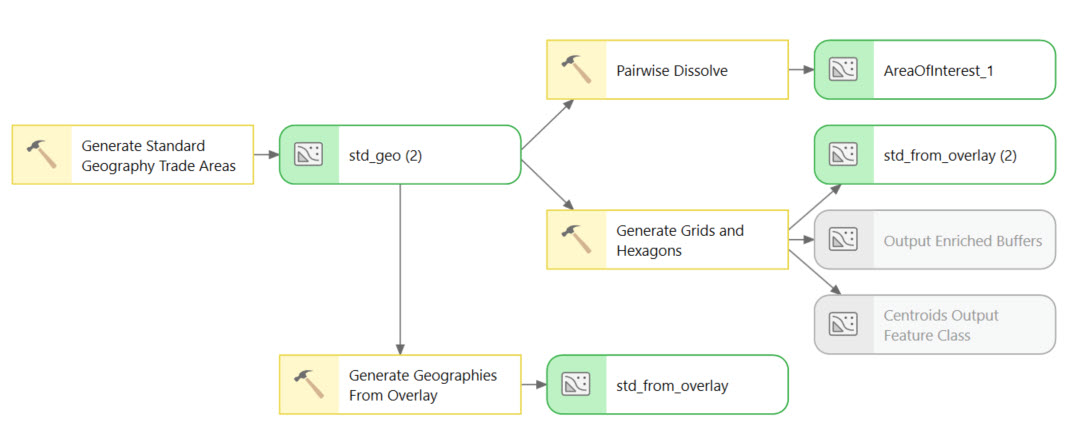
This utility simplifies data preparation by combining several geoprocessing tools and utilities into a single dialog. To give you an idea of the overall process, the model diagram below is the workflow required to create a typical dataset. It’s a lot! And there is no way to “smart search” for the area of interest because it is not a geoprocessing function. So the smallish utility is mighty on functionality.
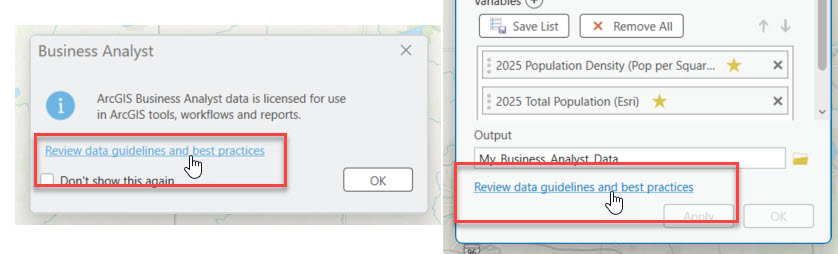
And to outline how these datasets can be used within and shared outside ArcGIS Business Analyst, we’ve added a link in the utility that opens a doc page about data guidelines and best practices. This appears in a pop-up when you first open the utility, then is always available on the dialog.
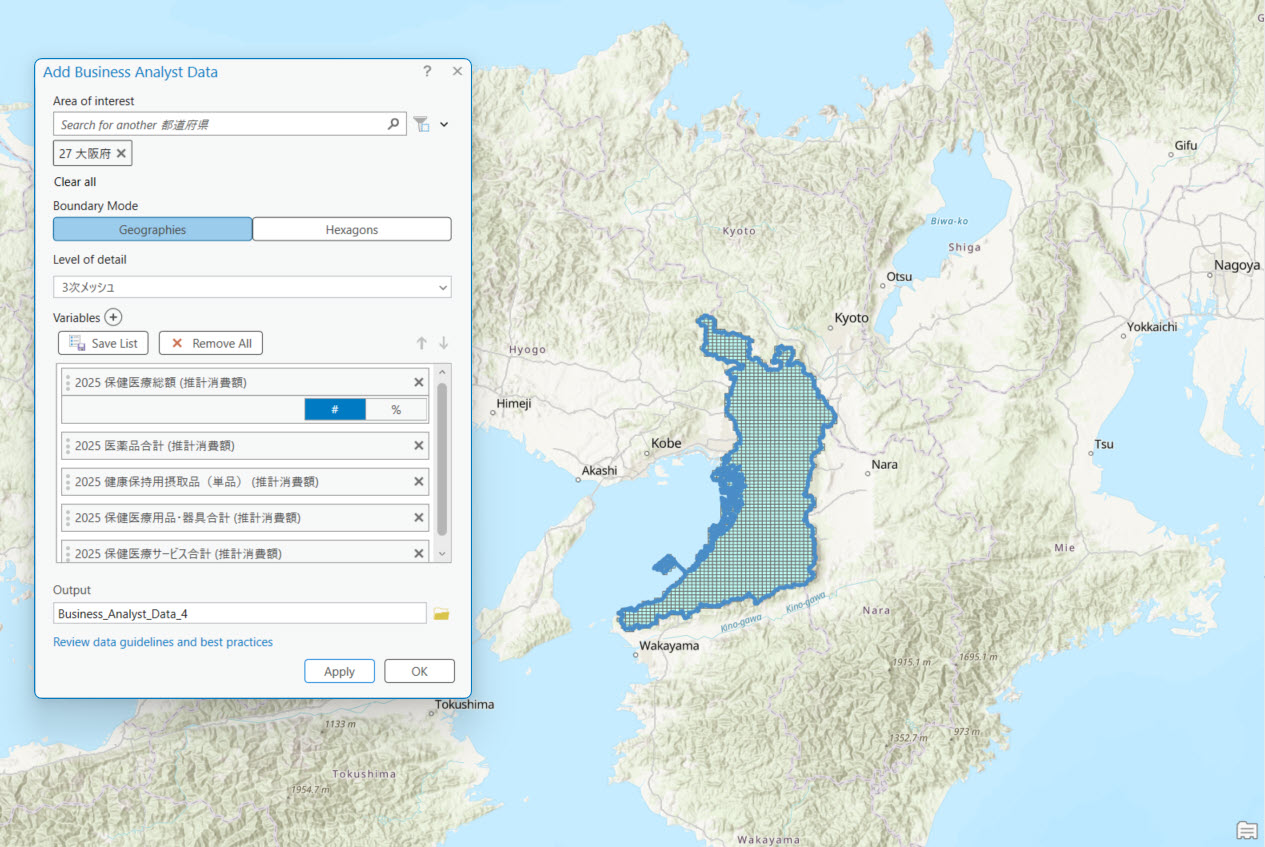
Add Business Analyst Data works with any local dataset. If you happen to have ArcGIS Business Analyst Pro with Japan data, here’s an example output containing grid cells enriched with consumer spending variables for the Osaka region.
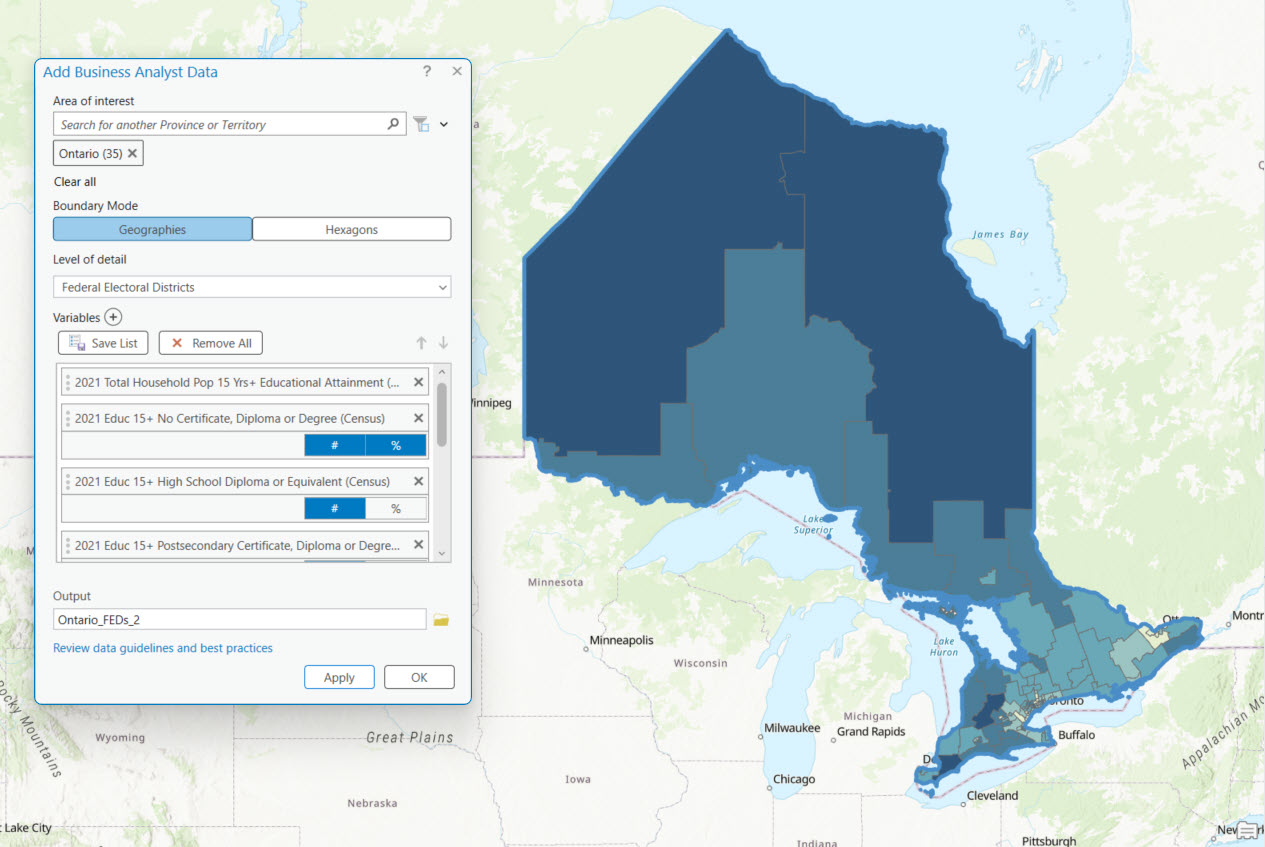
If you happen to have ArcGIS Business Analyst Pro with Canada data, here’s an example output containing education variables enriched to federal electoral districts for the province of Ontario.
And if you made it this far, here is a one-minute narrated ArcGIS Short video that walks through the process.
We hope that this productivity enhancement becomes part of your data prep process.
This article uses the local Esri Updated Demographics dataset from Esri.
This article uses ArcGIS Business Analyst Pro 3.6.
Resources
Now that you’ve learned about the Add Business Analyst Data utility, we hope you’ll explore its use in all the analysis, mapping, and reporting capabilities the software has to offer. To continue your Business Analyst journey, visit the following resources:
- Business Analyst product overview page
- Review pricing and purchase Business Analyst
- Business Analyst resources page
- LinkedIn user group
- Business Analyst Web App video channel
- Business Analyst Pro video channel
- Business Analyst on Esri Community
- Business Analyst Web App login page
- Email the team: businessanalyst@esri.com

Article Discussion: