The February 2026 release of ArcGIS Experience Builder in ArcGIS Online brings exciting new features to help you design and build web apps you envision.
First, we’ve added two new widgets—Date Filter and Theme Mode Switcher. The Date Filter widget lets you filter features by a specific date or date range using a simple calendar, while the Theme Mode Switcher widget lets you to switch between light mode and dark mode. We’ve also introduced the Arcade assistant (beta) to help you write expressions that power dynamic content and advanced styling. Other anticipated improvements include the ability to copy and paste features in the Edit widget, the ability to import and export drawings with the Draw widget, and the ability to customize map tool placement. Let’s explore these updates in detail.
Quick links:
- Date Filter widget
- Theme Mode Switcher widget
- Arcade assistant (beta)
- Let others make a copy of your app
- Enhancements
- Accessibility updates
- More info

Date Filter widget
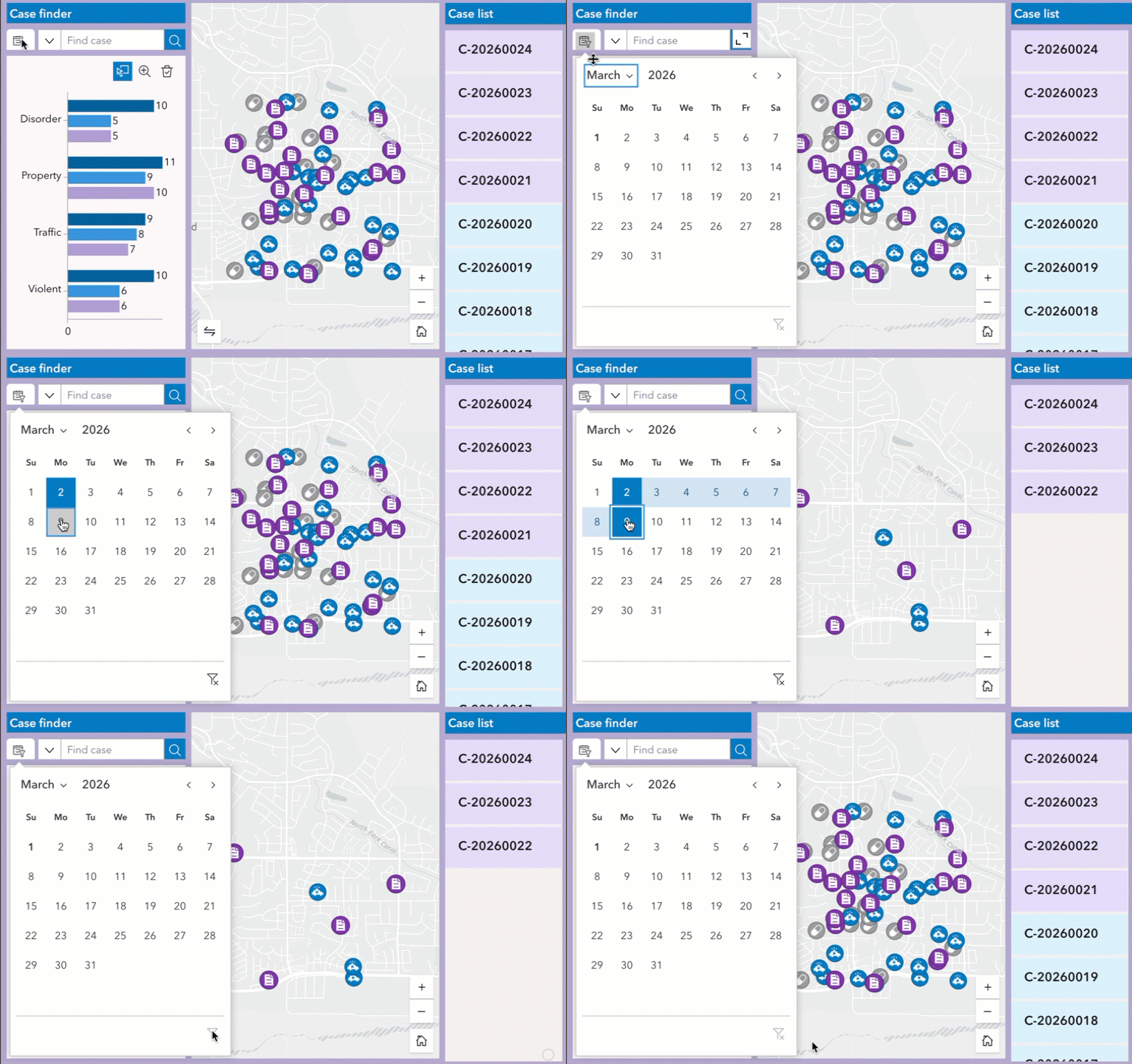
Filtering your data by date is now as easy and intuitive as selecting travel dates when booking flights online. With the new Date Filter widget, you can select a specific date or date range from a calendar to display only the features that match your chosen timeframe.
For example, a community safety administrator can quickly view incidents that occurred within a specific week, making it easier to focus on cases and respond effectively.
Theme Mode Switcher widget
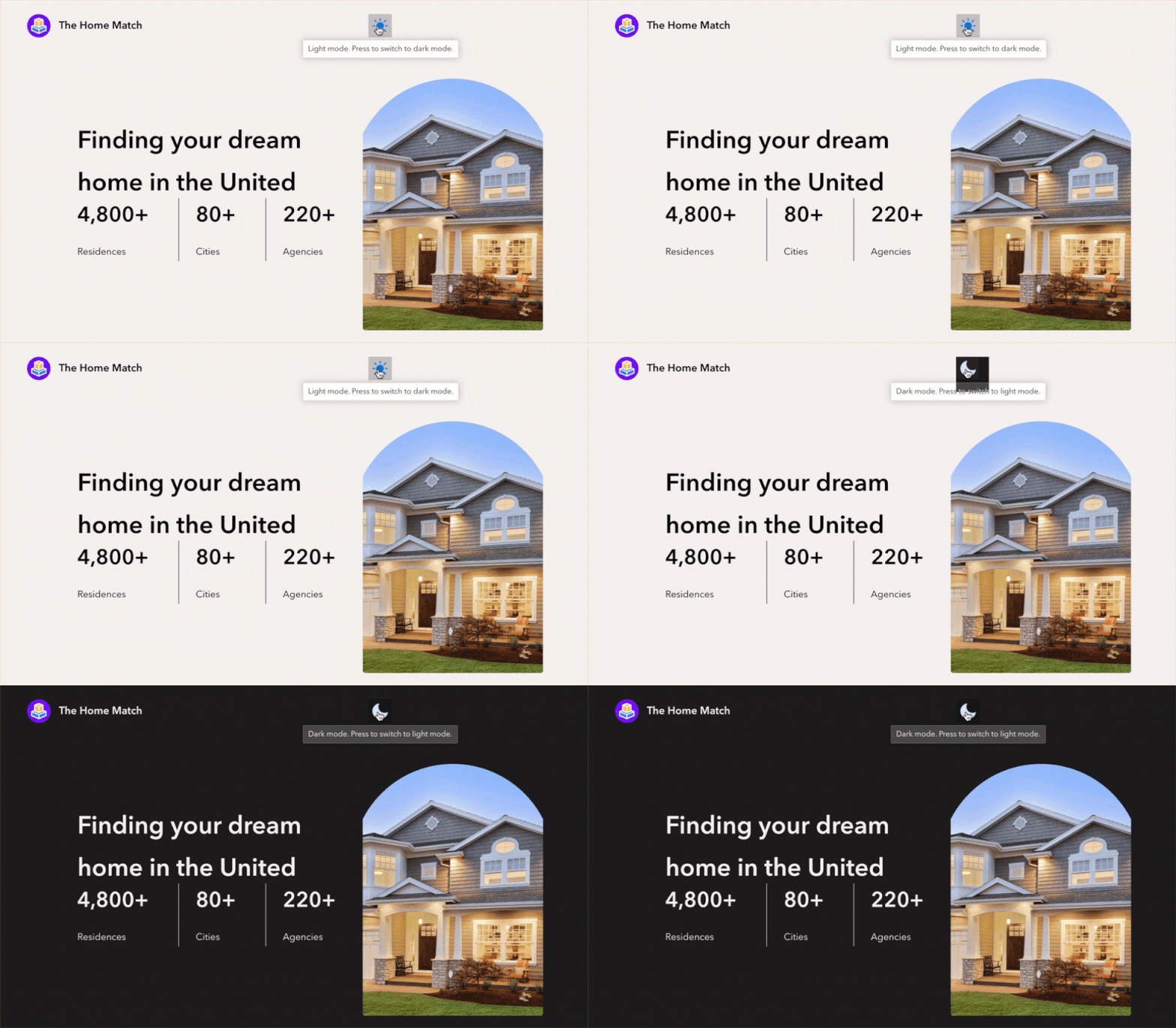
The Theme Mode Switcher widget gives you control over the app’s appearance by switching between light mode and dark mode with a single click.
Arcade assistant (beta)
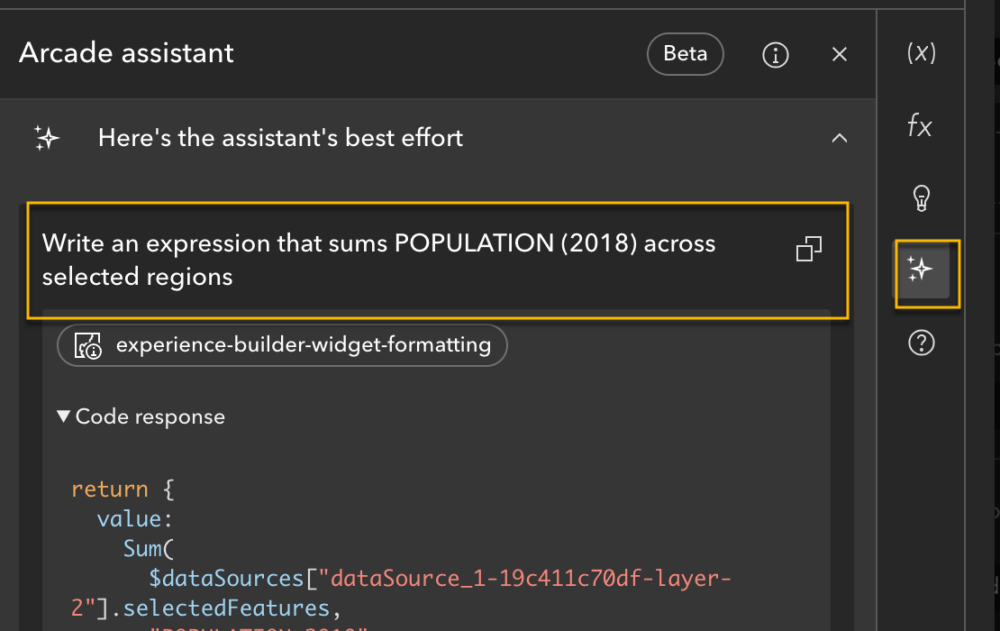
If you’ve ever struggled to write ArcGIS Arcade expressions, there’s a new tool that can make your life much easier—the Arcade assistant (beta). This feature uses artificial intelligence (AI) to generate Arcade expressions directly from instructions you type in natural language. This is similar to the Arcade assistant (beta) in Map Viewer.
Instead of manually crafting complex syntax, you can simply describe what you want. For example, you might type:
“Write an expression that sums POPULATION (2018) across selected regions.”
The assistant will interpret your request and produce a ready-to-use Arcade expression—helping you save time, reduce errors, and focus on your workflow.
Notes:
- The Arcade assistant (beta) must be enabled in your organization by your administrator.
- You must sign in as a member of an organization with a role that includes privileges to use AI assistants.
Let others make a copy of your app
As the app author, you can now allow others to duplicate your app by enabling the Allow others to save a copy of this app option under General settings in the builder. This new capability makes it easy to duplicate your app or template within an organization, and for anyone with an ArcGIS organizational account who is viewing your app or template to duplicate it. It’s a quick way to share and replicate designs without starting from scratch.

How it works
Once this option is enabled, others can duplicate your app or template in the following ways:
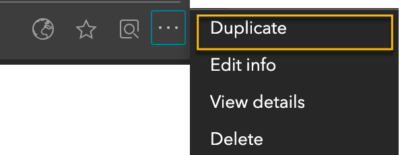
- From the Experience Builder home page—Click the More button on the app item card and choose Duplicate (this option is available when the app is shared within the organization).
- Using a direct URL—Enter the following URL in the browser address bar, replacing <item_id>with the ID of the app to be copied: https://experience.arcgis.com/builder/?copy_app_id=<item_id>
Notes
- The user must have permission to access the app.
- The user must have content creation privileges in their ArcGIS organization.
This feature makes it easier for teams to collaborate, share templates, and quickly adapt existing apps for new purposes.
Enhancements
Edit widget
Copy and paste features
Just like you could in Web AppBuilder, you can now copy and paste features within the same layer or into another layer with the same geometry type. This enhancement streamlines workflows by allowing you to duplicate features quickly, even from non-editable layers.
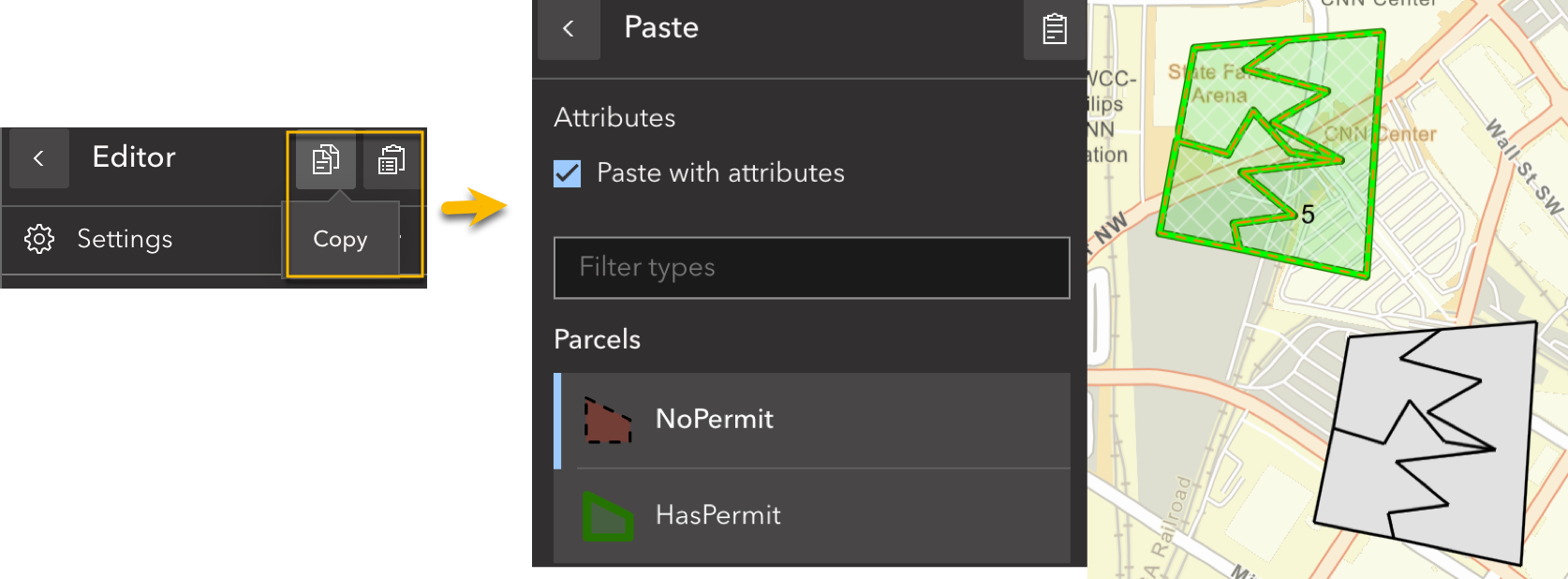
While copying from non-editable layers is supported, the target layer must allow feature creation in order to paste. For example, emergency management agencies can add a ZIP Code layer from ArcGIS Living Atlas using the Add Data widget, then copy impacted areas and paste them into an editable layer for incident response—such as creating evacuation orders. When needed, you can also merge pasted features into one single feature using the Merge tool. This capability improves operational efficiency across a variety of scenarios.
Configure fields for batch editing
Many of you have been asking for a way to directly configure fields for bulk attribute updates in the Edit widget—just like you could in Web AppBuilder. With this release, you can now customize fields when batch editing is turned on.
Draw widget
The Draw widget now supports exporting and importing drawings locally using JSON files. This capability makes it easy for users—especially those without GIS expertise—to share sketches and annotations with others.
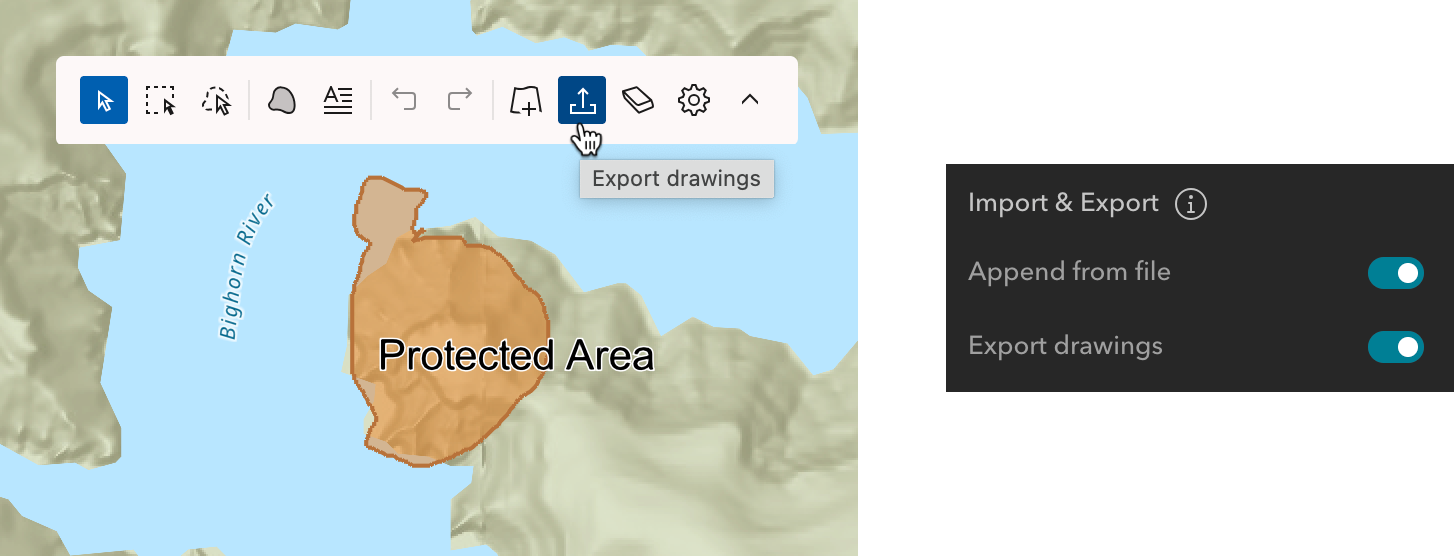
Whether you’re marking up a map for planning, highlighting areas of interest, or collaborating on design ideas, you can now save your drawings locally and re-import them later, or share them with colleagues for continued editing. This enhancement improves collaboration, preserves work, and streamlines communication across teams.
Map widget
Show your location
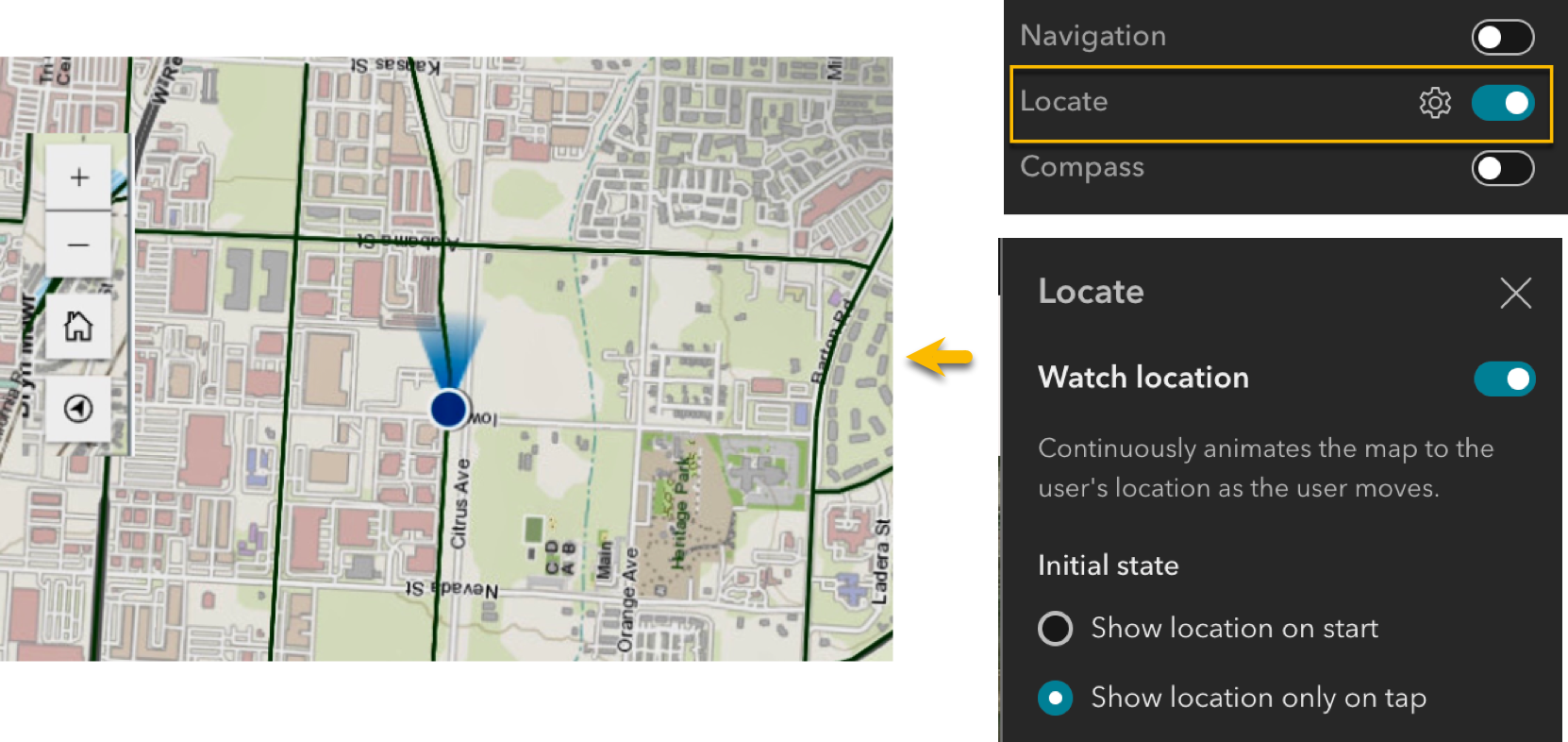
Like the similar tool in Web AppBuilder, the Locate tool in the Map widget lets you display your real-time location as you move. This is especially valuable for construction crews, environmental inspectors, or people on trails who need on-the-go positioning.
Customize map tool placement
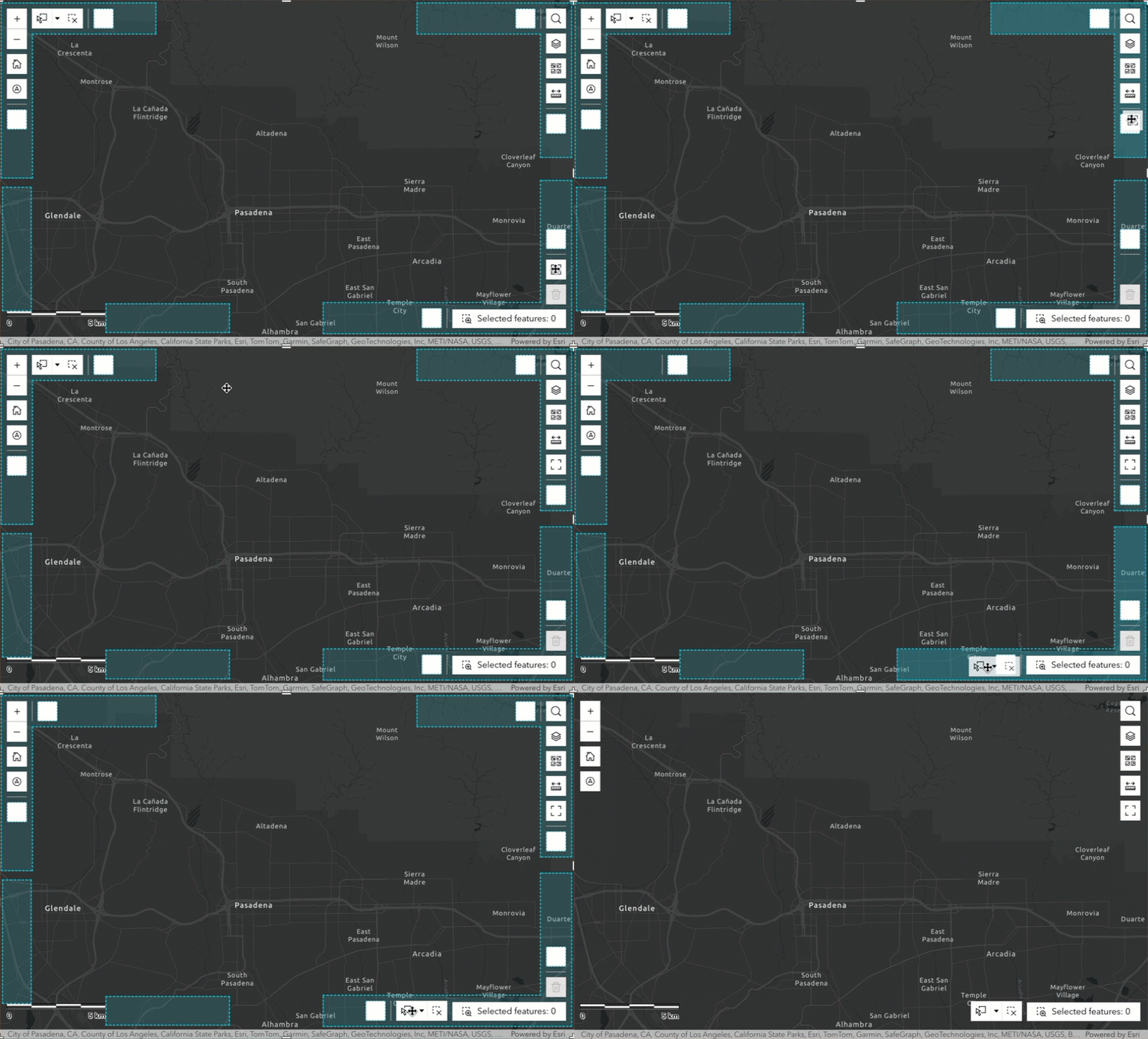
If you prefer to arrange the tools on your map, the new Customize option lets you easily move tools on the map to suit your application’s needs.
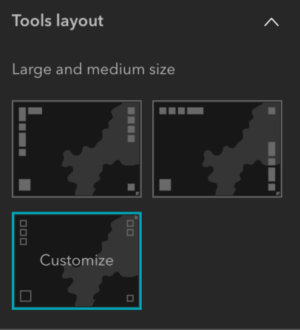
After selecting the Customize option, you’ll see tool areas in each corner of the map, showing where tools can be placed. Simply drag and drop any tool to your preferred spot and tailor your map interface to your needs.
Near Me widget
This update introduces several enhancements to the Near Me widget, improving both performance and usability—especially when working with extensive or complex datasets. For further details, see the What’s new in Near Me post on Esri Community.
Table widget
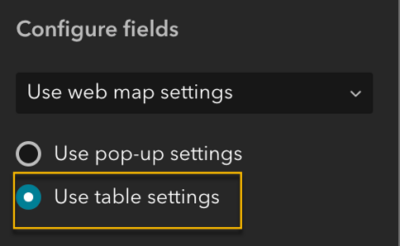
Previously, the Table widget only supported pop-up settings from the web map when configuring fields. If you set up fields in the table using Map Viewer, those settings were not reflected in the Table widget. Now, the new Use table settings option allows you to display table fields configured directly in Map Viewer within the Table widget.
This improvement ensures consistent data presentation across maps and apps, reducing configuration redundancy.
Add Data widget
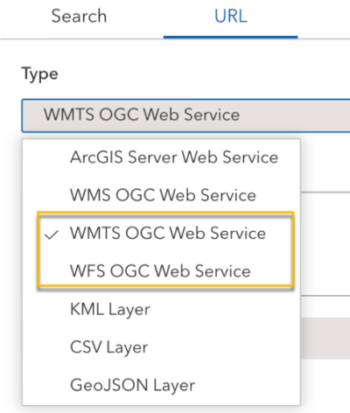
Just like you could in Web AppBuilder, you can now add data by URL from a Web Feature Service (WFS) or Web Map Service (WMS), connecting to more external data sources.
Additionally, you can predefine the size of the Add Data window by dragging the corners of the window, similar to the floating panel arrangement in the Widget Controller widget. This flexibility allows you to tailor the window to your workflow.
Seach widget
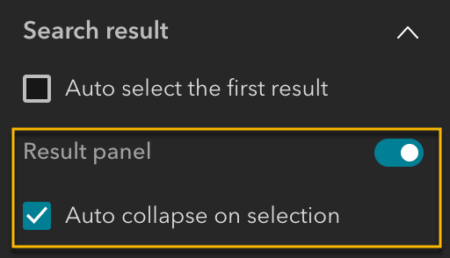
The Search widget offers an option to automatically collapse the result panel when a user selects a search result. This enhancement ensures that other widgets located directly below the Search widget remain visible and unobstructed, creating a cleaner and more efficient user experience.
Select widget
Sometimes you need to select features on the map immediately when the app starts. This release adds options to:
- Choose a default interactive selection tool.
- Automatically activate it at widget launch—no extra clicks required.
New message actions
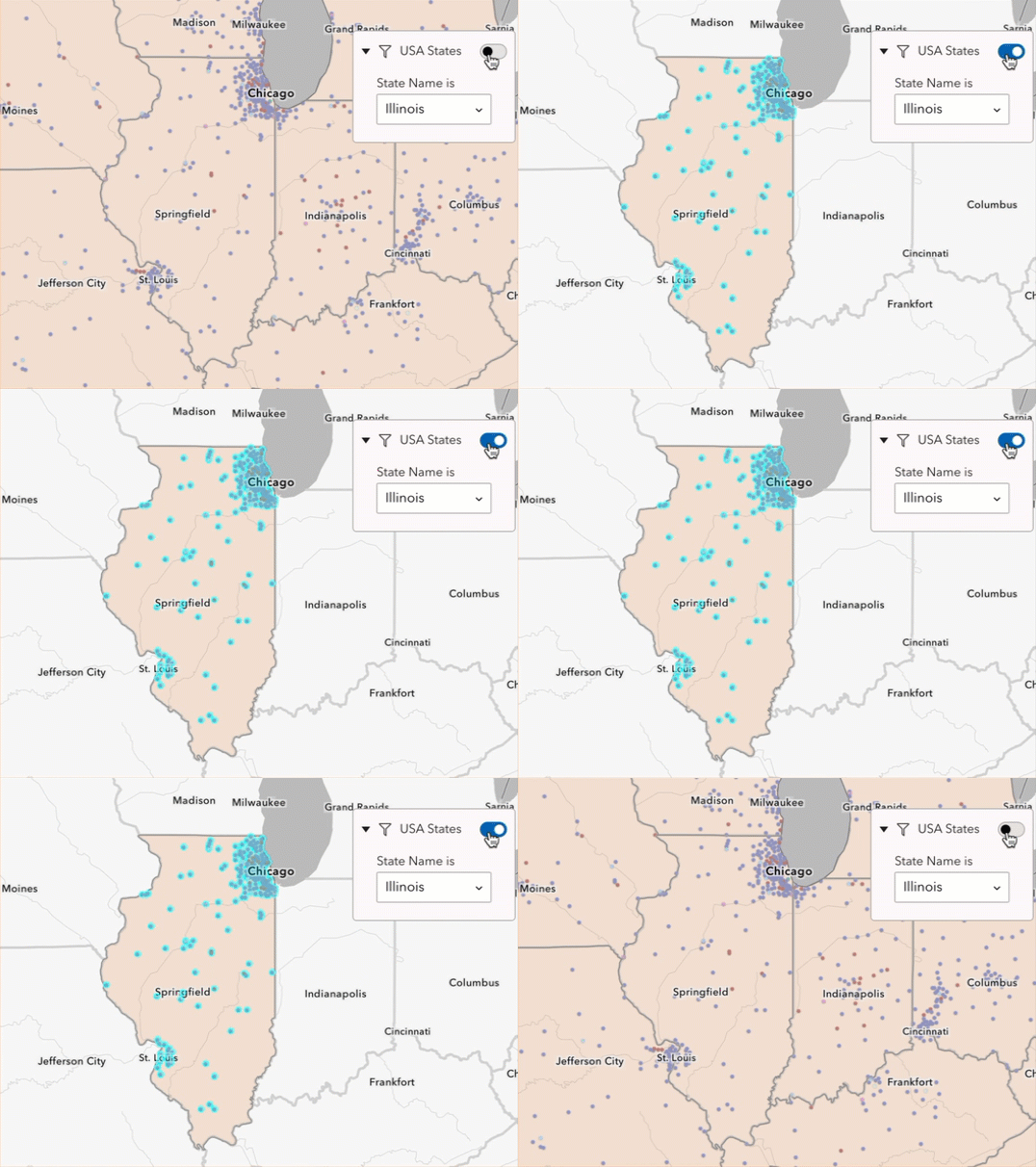
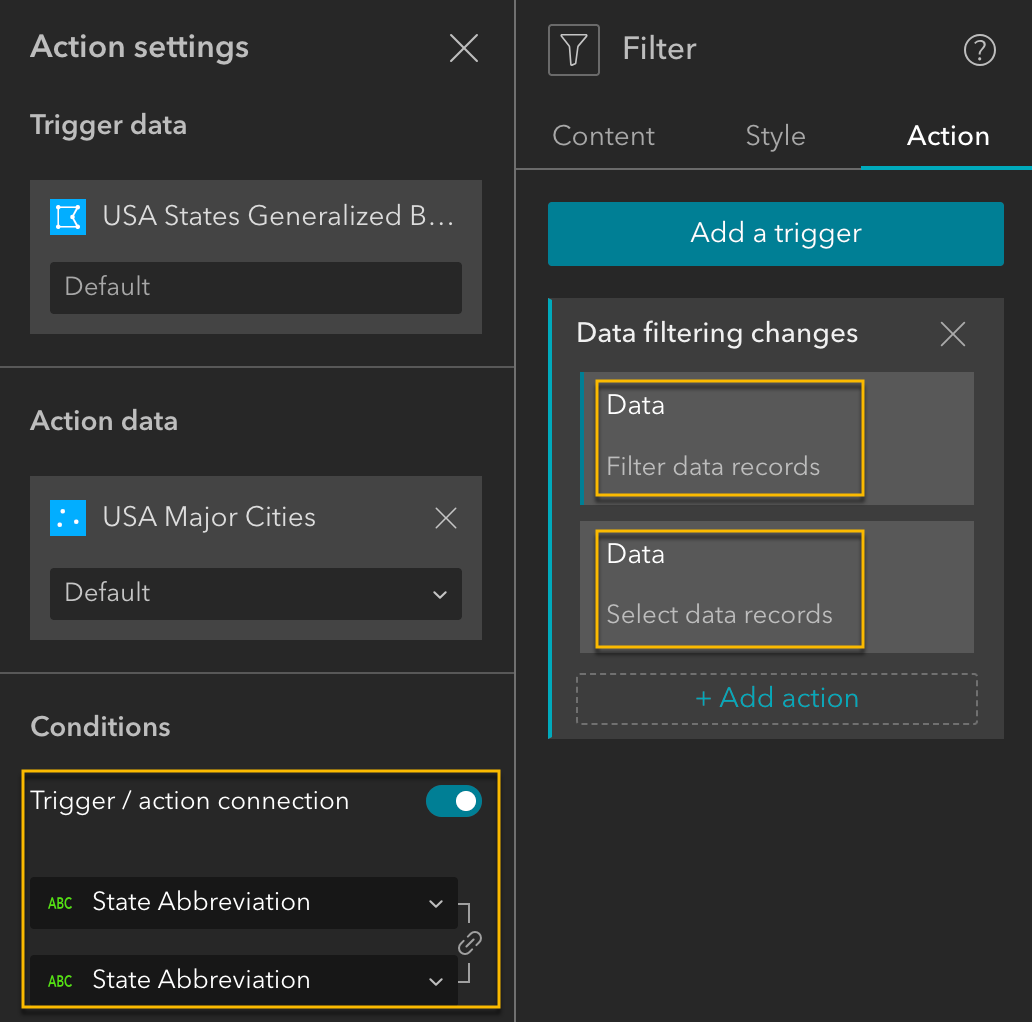
Previously, when the Data filtering changes message was triggered, the only available actions were Zoom to and Pan to. In this release, we’ve expanded the capabilities by adding Filter data records and Select data records actions in response to this message. This enhancement allows widgets such as Map, List, Search, and Table to interact with data more intuitively.
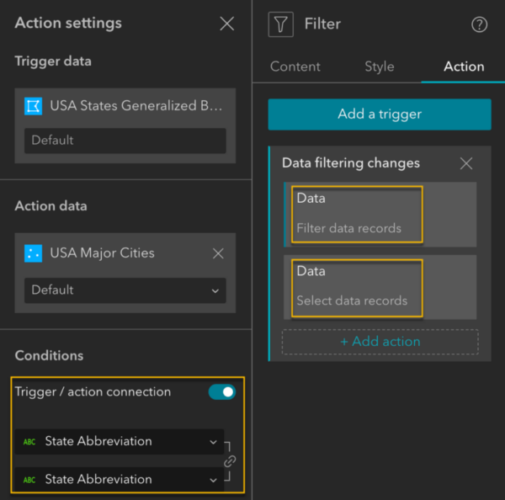
For example, you have a map with two layers—US States and Cities. When you filter a state, the cities within that state are automatically filtered and selected. This creates a seamless, connected experience across your widgets, making it easier to explore and analyze related data.
Template
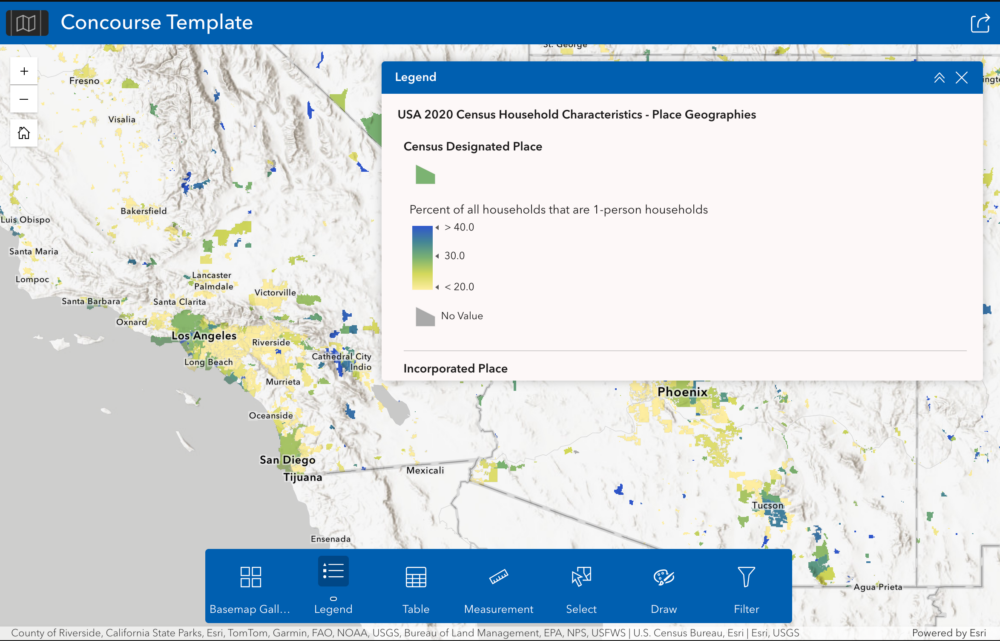
Concourse is our latest map-centric template, thoughtfully designed to enhance usability. It features a prominent bottom widget controller with large, easy-to-read icons and labels, ensuring quick recognition and effortless navigation. When activated, widgets open in a panel in the top-right corner.
Theme
ArcGIS apps, such as ArcGIS Instant Apps and ArcGIS Dashboards, use the Calcite design system. The new Calcite theme in Experience Builder lets you create apps with a consistent look and feel across the ArcGIS ecosystem, ensuring a unified and familiar experience for your users.
Accessibility updates
We’ve made significant improvements to ensure a more inclusive and accessible experience:
- Landmark roles for page structure—Page headers and footers now have assigned landmark roles, enabling screen readers to identify them correctly as headers and footers.
- Expanded widget accessibility—Six additional widgets now support accessibility features: Date Filter, Fly Controller, Legend, Login, Query, and Section.
- Keyboard navigation for views—With the Views Navigation widget, you can use the arrow keys to move between views and press Enter to activate a view.
- Keyboard focus for scrollable elements—The Text widget, Legend widget, and other non-interactive elements can now receive keyboard focus when they are scrollable.
- Expanded template accessibility—the Journey default template is optimized for accessibility.
- Improved Builder navigation—In the builder, the Insert widget panel search box is now first in the keyboard navigation tab order for that panel, making it quicker to find and add widgets.
More info
Classic Oriented Imagery retirement
The Classic Oriented Imagery widget is retired and is no longer available in the builder or apps. If you already have it in your apps, they will continue to function without the Classic Oriented Imagery widget. We recommend transitioning to the Oriented Imagery Viewer widget for a more modern and supported experience. For more information, see the Time to transition from the Oriented Imagery Classic widget post on Esri Community.
Level up your Arcade skills
Want to enhance your Arcade expertise? Explore the Try advanced formatting with Arcade in ArcGIS Experience Builder post on ArcGIS Blog to learn powerful formatting techniques to make your apps more dynamic.
Web AppBuilder retirement timeline extended
The retirement of Web AppBuilder in ArcGIS Online has been extended. For detailed information on the updated timeline and guidance for transitioning, read the ArcGIS Web AppBuilder in ArcGIS Online Retirement Extended post on ArcGIS Blog.
Sneak peek at what’s planned for 2026
Get an early look at the exciting features and enhancements planned for 2026 in our roadmap preview.
For more information, see What’s new in Experience Builder. Please reach out to experiencebuilder@esri.com with questions.
Thank you,
The ArcGIS Experience Builder Team

Article Discussion: