Advanced formatting with Arcade is now available in ArcGIS Experience Builder in ArcGIS Online, ArcGIS Enterprise 12.0, and versions 1.18 and later of the developer edition.
In this article, we’ll show you how to do a few things with advanced formatting:
- Add advanced dynamic content to Text widgets with Arcade
- Dynamically style a List widget with conditional styling
- Set the source for an Image widget and for Button widget text with Arcade
- Dynamically style Button widget icons with Arcade
If you want to learn more about Experience Builder, we recommend this tutorial series: Design a layout in ArcGIS Experience Builder.

What is advanced formatting?
In Experience Builder, advanced formatting involves linking text and other app elements to data, logic, conditions, and functions.
There are two types of advanced formatting in Experience Builder:
- Advanced dynamic content involves running calculations with data and returning dynamic values to display as widget content. You can create advanced dynamic content with Arcade expressions.
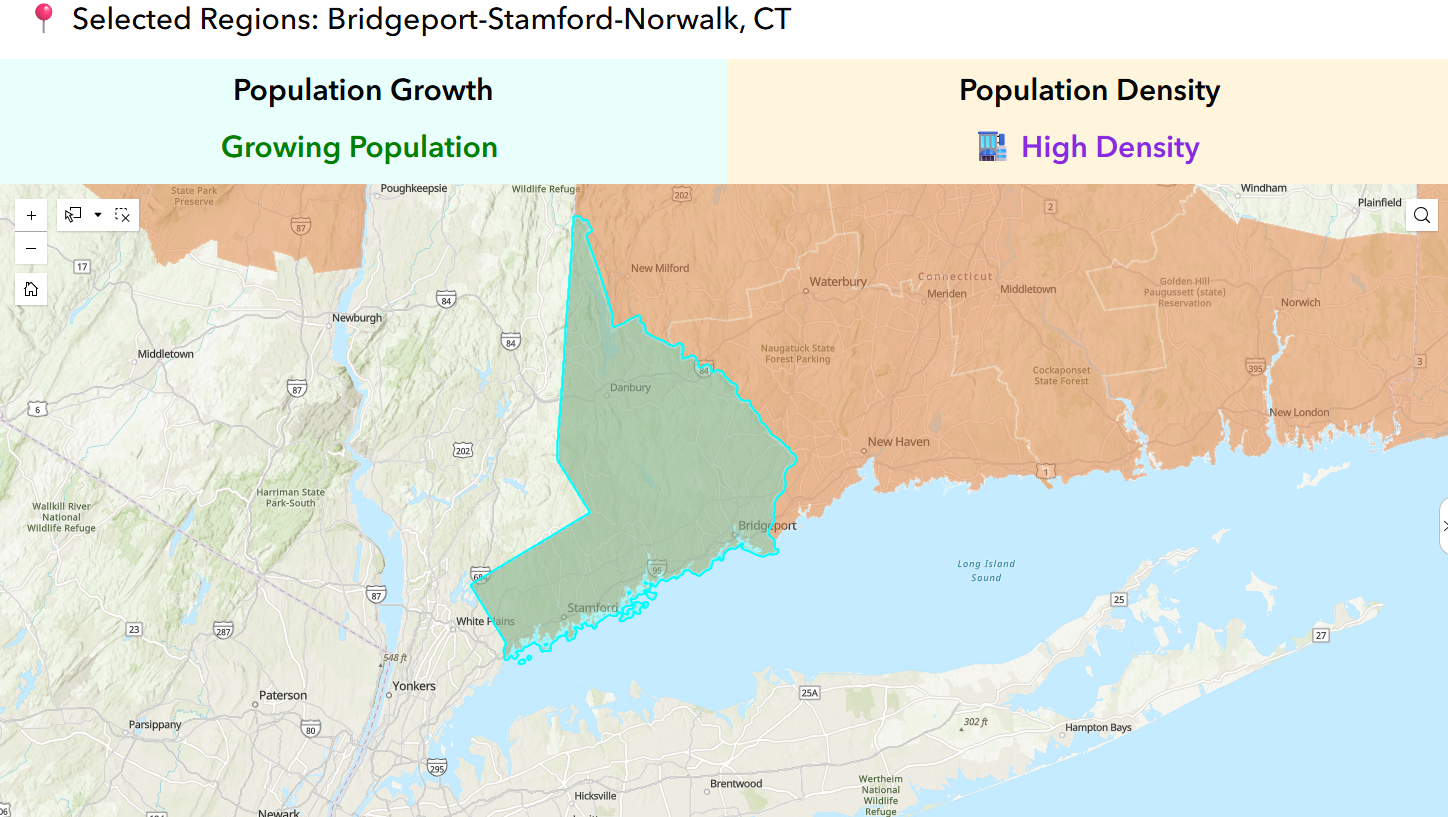
- Dynamic styling involves updating widget backgrounds, borders, and other visual elements based on data. You can create dynamic styling with Arcade expressions and with conditional styling, a no-code feature.
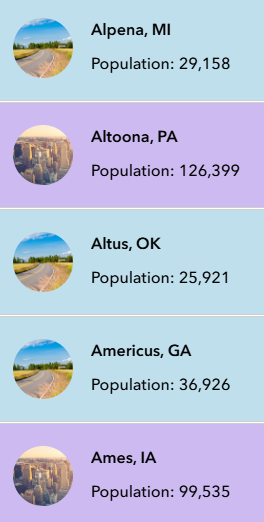
If you follow along with this article, you’ll use the following materials:
- Try advanced formatting (Template)
- USA Core Based Statistical Boundaries (Feature Layer)
The statistical areas layer is managed by Esri Demographics and is available on ArcGIS Living Atlas of the World.
Create an app from the template
1. Open Experience Builder.
Go to experience.arcgis.com. Sign in to an ArcGIS account or create a free trial account.
2. Click Create new.
3. Find the template in the template gallery.
Browse to the ArcGIS Online tab. Search for Try advanced formatting.
4. Click Create.
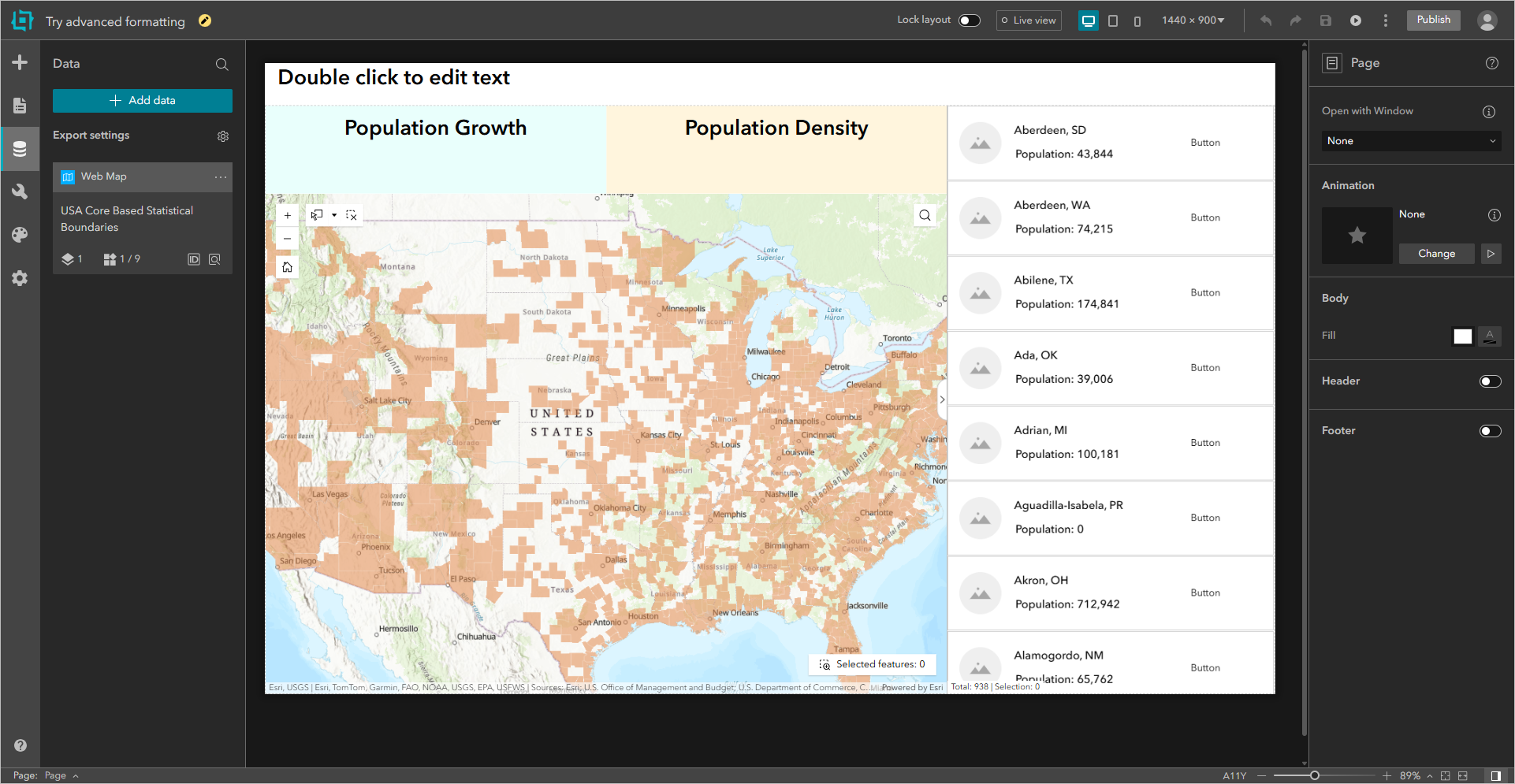
This is a one page template with a Map widget, a List widget, and a few Text widgets.
Add advanced dynamic content to Text widgets with Arcade
You can use Arcade to perform mathematical calculations and evaluate logical statements.
Say you want the names of any statistical areas that the user selects to appear in a Text widget. If the user selects multiple areas, you want multiple names to display. You also want to calculate population trends for any selected areas and display the results. You can do all of that with Arcade.
1. Click the Text widget named Text Title on the canvas or in the page outline.
2. Click Arcade in the widget toolbar.
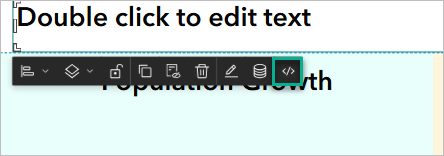
The Arcade script window appears.
3. Copy the following script, then paste it into the Arcade script window. Replace any existing script.
var selectedFeatures1 = $dataSources["dataSource_2-197c022ade6-layer-2"].selectedFeatures;

if (Count(selectedFeatures1) == 0) {
  return "🌎 All Regions"
}

var names = [];
var i = 0;

for (var f in selectedFeatures1) {
  if (i < 3) { Push(names, f.NAME); } i++; } var label = "📍 Selected Regions: " + Concatenate(names, ", "); if (i>3) {
  label += " + " + (i - 3) + " more";
}

return label;
4. Click Insert.
With this script, you are telling Experience Builder to display the text All Regions when no features are selected and to display Selected Regions (with up to three region names) when some features are selected.
You can turn on Live view to test your script. Try using the Map widget select tools to select multiple statistical areas.
5. Click the Text widget with the text Population Growth.
6. Click Arcade on the widget toolbar.
7. Paste the following script into the Arcade editor.
  function getFilteredFeatureSet(ds) {
  var result = ds.layer;
  var queryParams = ds.queryParams;

  if (!IsEmpty(queryParams.where)) {
    result = Filter(result, queryParams.where);
  }
  if (!IsEmpty(queryParams.geometry)) {
    result = Intersects(result, queryParams.geometry);
  }
  return result;
}

// USA Core Based Statistical Boundaries
var filteredFeatureSet1 = getFilteredFeatureSet($dataSources["dataSource_2-197c022ade6-layer-2"]);
var selectedFeatures1 = $dataSources["dataSource_2-197c022ade6-layer-2"].selectedFeatures;

var str = "";
var color = "";
var bold = true;

// Check whether features are selected
var useSelection = Count(selectedFeatures1) > 0;
var targetSet = IIf(useSelection, selectedFeatures1, filteredFeatureSet1);

// Calculate population sums
var pop2018 = Sum(targetSet, 'POPULATION');
var pop2010 = Sum(targetSet, 'POP2010');

// Determine trend string and style
if (pop2018 >= pop2010) {
  str = "Growing Population";
  color = "rgb(0, 128, 0)";
} else {
  str = "Shrinking Population";
  color = "rgb(220, 20, 60)";
}

if (IsEmpty(pop2018) || IsEmpty(pop2010)) {
  str = "No data";
  color = "rgb(169, 169, 169)";
  bold = false;
}

return {
  value: str,
  text: {
    color: color,
    bold: bold,
  },
};
8. Click Insert.
With this script, you are telling Experience Builder to calculate population growth by comparing a statistical area’s 2018 population to its 2010 population, then assign a label (either Growing or Shrinking) and text color based on the value.
9. Click the Text widget with the text Population Density.
10. Paste the following script into the Arcade editor.
  function getFilteredFeatureSet(ds) {
  var result = ds.layer;
  var queryParams = ds.queryParams;

  if (!IsEmpty(queryParams.where)) {
    result = Filter(result, queryParams.where);
  }
  if (!IsEmpty(queryParams.geometry)) {
    result = Intersects(result, queryParams.geometry);
  }
  return result;
}

// USA Core Based Statistical Boundaries
var ds = $dataSources["dataSource_2-197c022ade6-layer-2"];
var filteredFeatures = getFilteredFeatureSet(ds);
var selectedFeatures = ds.selectedFeatures;

var str = "";
var color = "";
var den = null;
var bold = true;

// Use selected features if any, otherwise use the filtered full set
var useSelection = Count(selectedFeatures) > 0;
var targetSet = IIf(useSelection, selectedFeatures, filteredFeatures);

var totalPop = Sum(targetSet, 'POPULATION');
var landArea = Sum(targetSet, 'SQMI');
Console(landArea)

// Calculate population density ratio
den = IIf(IsEmpty(landArea), null, totalPop / landArea);

// Assign label and style
if (IsEmpty(den)) {
  str = "No data";
  color = "rgb(169, 169, 169)";
  bold = false;
} else if (den > 500) {
  str = "🏬 High Density";
  color = "rgb(138, 43, 226)";
} else if (den >= 100) {
  str = "🏠 Moderate Density";
  color = "rgb(255, 165, 0)";
} else {
  str = "🚜 Low Density";
  color = "rgb(105, 105, 105)";
}

return {
  value: str,
  text: {
    color: color,
    bold: bold,
  },
};
11. Click Insert.
With this script, you are telling Experience Builder to calculate population density by dividing total population by land area, then assign a label (High Density, Moderate Density, or Low Density) and text color based on the value.
Dynamically style a List widget with conditional styling
Say you want list items in a List widget have different styles depending on feature attributes. Specifically, you want to show whether statistical areas are classified as metropolitan (more than 50,000 residents) or micropolitan (less than 50,000 but more than 10,000 residents).
You can do this with the conditional style editor, a no-code feature.
1. Click the List widget on the canvas or in the page outline.
2. In the widget’s Content settings, expand States.
3. Turn on Dynamic style then click settings (gear icon).
4. In the Dynamic style panel, choose the CBSA_TYPE field for the indicator.
5. Under Style conditions, configure the following conditions:
If value is (Unique) Metropolitan Background Fill = HEX#ccbaf0
If value is (Unique) Micropolitan Background Fill = HEX#c0dfed
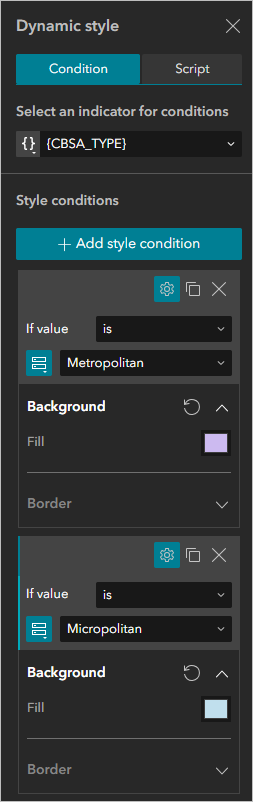
List widget items now display with a specific background color that shows whether they are classified as metropolitan or micropolitan.
Set the source for an Image widget and for Button widget text with Arcade
You can set the source for an Image widget with Arcade.
1. Click the List widget, then click the Image widget in the first list item.
2. In the Image widget settings under Connect to data, click the Dynamic tab.
3. Click the drop-down menu under URL, then click Arcade.
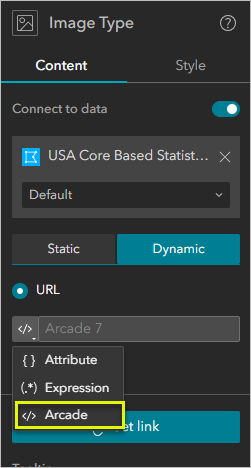
4. Click Arcade Editor.
5. Paste the following script into the Arcade editor.
var type = $feature.CBSA_TYPE;

if (type == "Metropolitan") {
  return "https://arcgis.com/sharing/rest/content/items/d5ca28bf46fa44ea8e0aa0b9a8e513fb/data";
}
return "https://arcgis.com/sharing/rest/content/items/b385127f92de4460afba630cbe106b39/data"
6. Click Apply.
With this script, you are linking the Image widget to two images URLs. One image shows a city skyline and the other shows a rural area. If a statistical area has the “metropolitan” value in the CSBA_TYPE field, this script instructs Experience Builder to display the city image. Otherwise, display the rural image.
7. If necessary, click the List widget, then click the Button widget in the first list item.
8. In the Button widget settings under Text, click the drop-down menu and click Arcade.
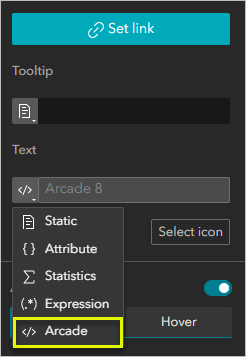
9. Click Arcade Editor.
10. Paste the following script into the Arcade editor.
var age = $feature.MED_AGE;
var str = IIf(age > 55, "Elder", IIf(age < 35, 'Young Area', 'Mid-age Area'));

return str;
Click Apply.
Button text now shows general median age in each statistical area.
Dynamically style Button widget icons with Arcade
You can set the source for Button widget icons with Arcade.
1. Click the List widget, then click the Button widget in the first list item.
2. If necessary, in the Button widget settings, turn on Advanced.
3. Turn on Dynamic style then click settings (gear icon).
4. Click the Script tab.
5. Click Arcade Editor.
6. Click Icons, then click Add.
Add three icons and name them Elder, Middle, and Young.
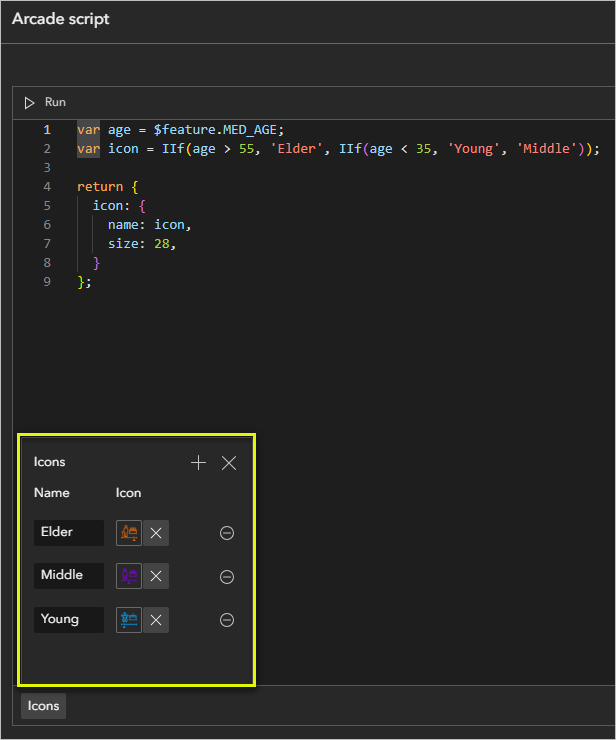
7. Paste the following script into the Arcade editor.
var age = $feature.MED_AGE;
var icon = IIf(age > 55, 'Elder', IIf(age < 35, 'Young', 'Middle'));

return {
  icon: {
    name: icon,
    size: 28,
  }
};
8. Click Apply.
Button icons display based on each area’s median age.
Try adding advanced formatting to your Experience Builder apps!
You can take the scripts from this article and change the data sources, variables, and field names to work with your data. Or, write your own scripts.
If you are interested in learning more about Arcade, we recommend this tutorial series: Get started with ArcGIS Arcade.
More information
- ArcGIS Experience Builder documentation: Advanced formatting
- ArcGIS Experience Builder documentation: What’s new
- Learn ArcGIS: Get started with ArcGIS Arcade
Do you have any thoughts about our new Experience Builder features? Let us know on Esri Community.




This is great content, thanks. The link to “View Final Result” at the top of the article doesn’t appear to be publicly accessible, however. It is prompting for a login.
Thank you! That is fixed now