ArcGIS Field Maps is the comprehensive app for viewing maps, collecting data such as for maintenance records and inspections, as well as completing tasks, and providing situational awareness in the field. Field Maps includes two apps: the Field Maps Designer web app and the Field Maps mobile app.
Both include all the features needed to prepare maps for the field and deploy field workflows. In this article, learn about the key features and capabilities included in ArcGIS Field Maps.
Field Maps Designer
- Create a map
- Build forms
- Coordinate work
- Leverage location awareness
- Create geofences
- Support offline and indoors work
Field Maps mobile app
- Interact with maps
- Collect data
- Complete tasks
- Share location for awareness
- Stay aware with geofences
- Work offline and indoors
Field Maps Designer
Field Maps Designer is a web application through ArcGIS Online and ArcGIS Enterprise that allows office associates to build maps and customize the mobile app experience for staff working in the field.
With Field Maps Designer, you can quickly create maps and layers, build data collection forms, generate tasks workflows, and prepare maps for use offline and in designated areas.
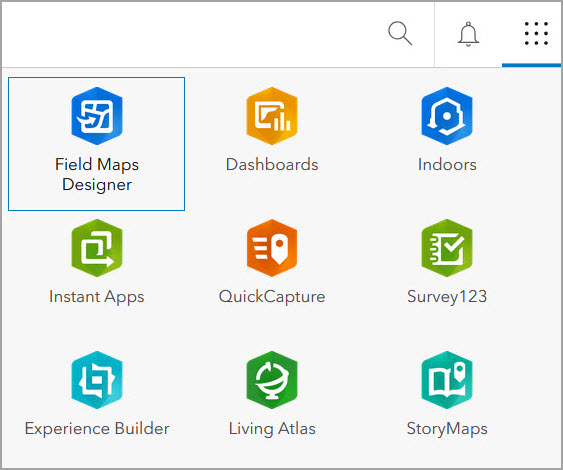
Access Field Maps Designer from the app launcher at the top of your organization’s home page in ArcGIS Online or ArcGIS Enterprise.
Create a map
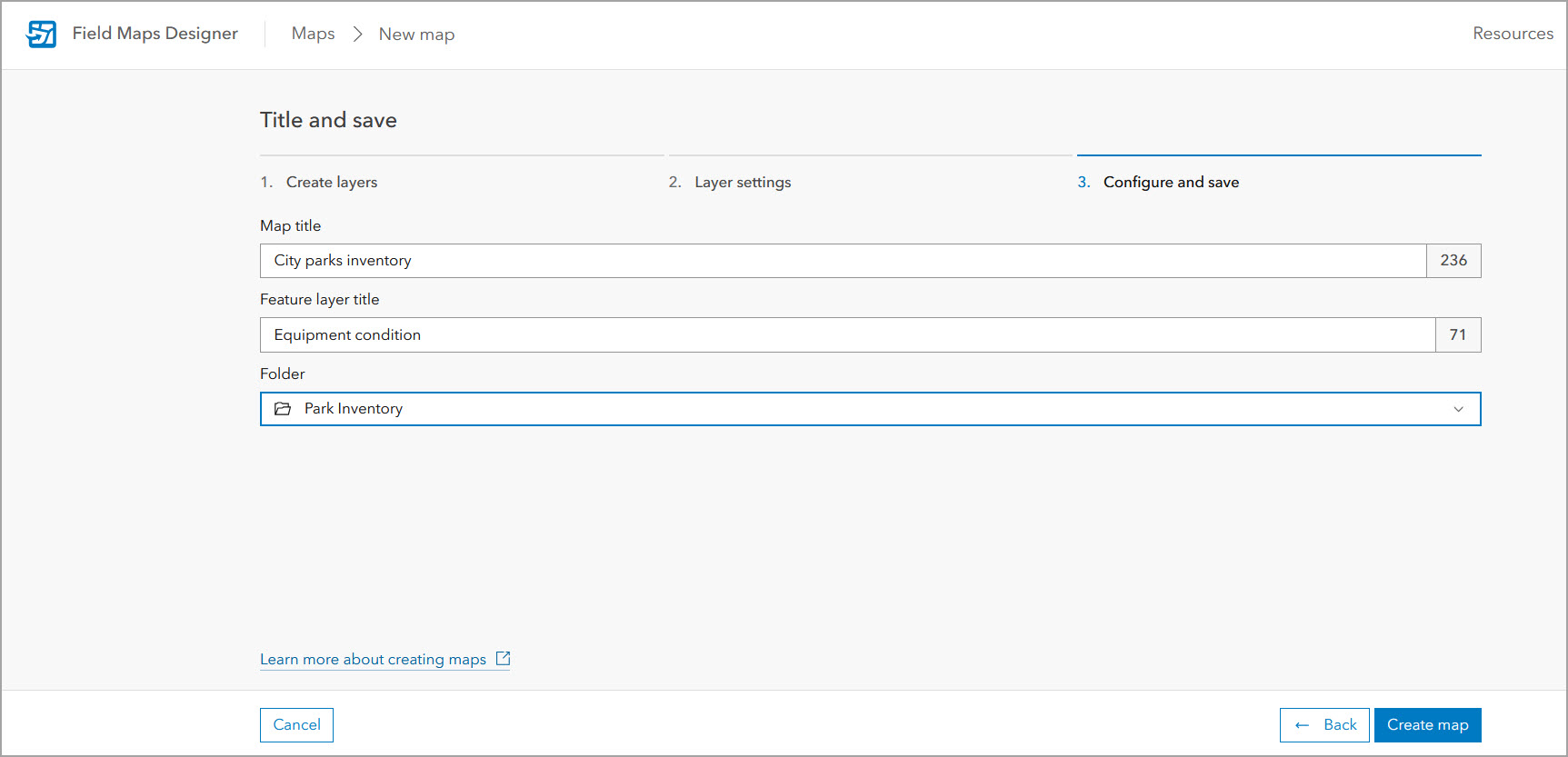
Field Maps Designer enables you to create a web map and manage layers for your mobile workflows. Depending on your needs, start with new layers, with a map template, or with no layers when creating a map.
Your maps can include layers for editing and forms that mobile staff can complete or update using data collection workflows. To ensure maps include relevant geographic features, add read-only layers as reference or for your view-only workflows.
Refer to Create a map for data collection to learn more about preparing maps for data collection in Field Maps.
Build forms
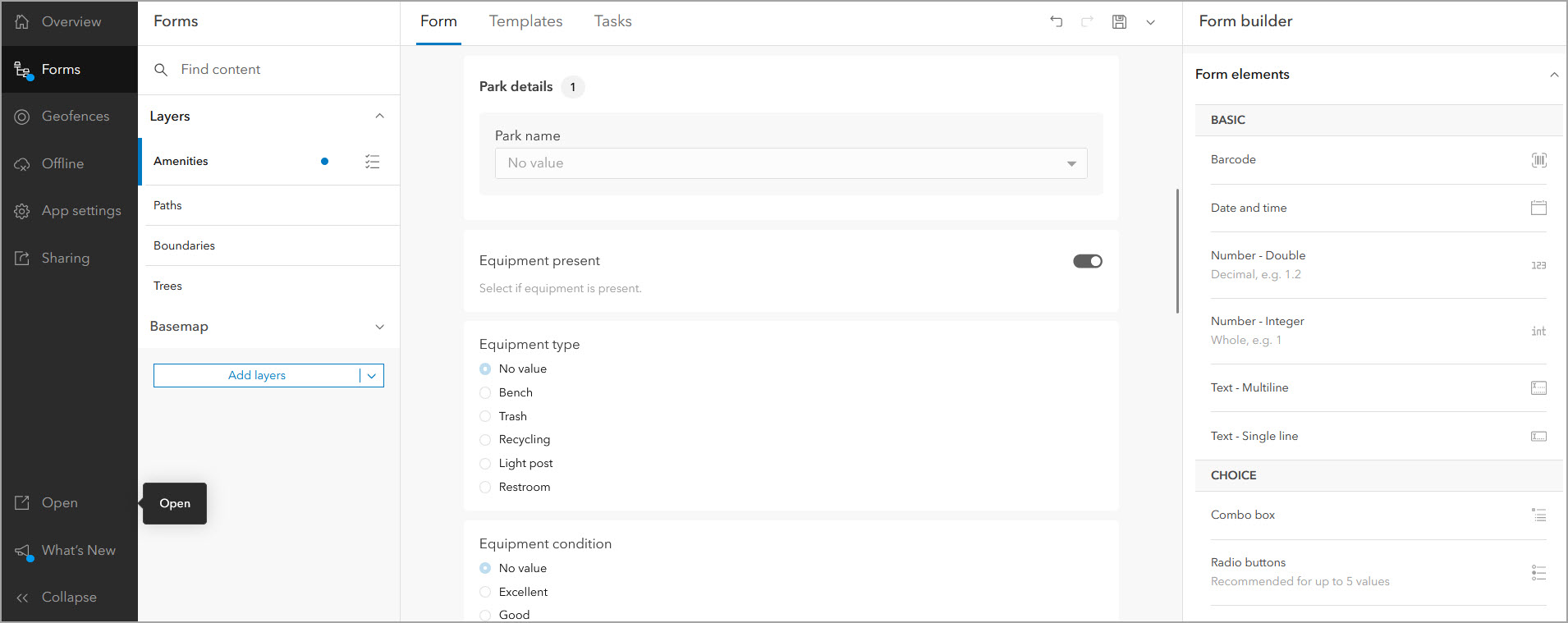
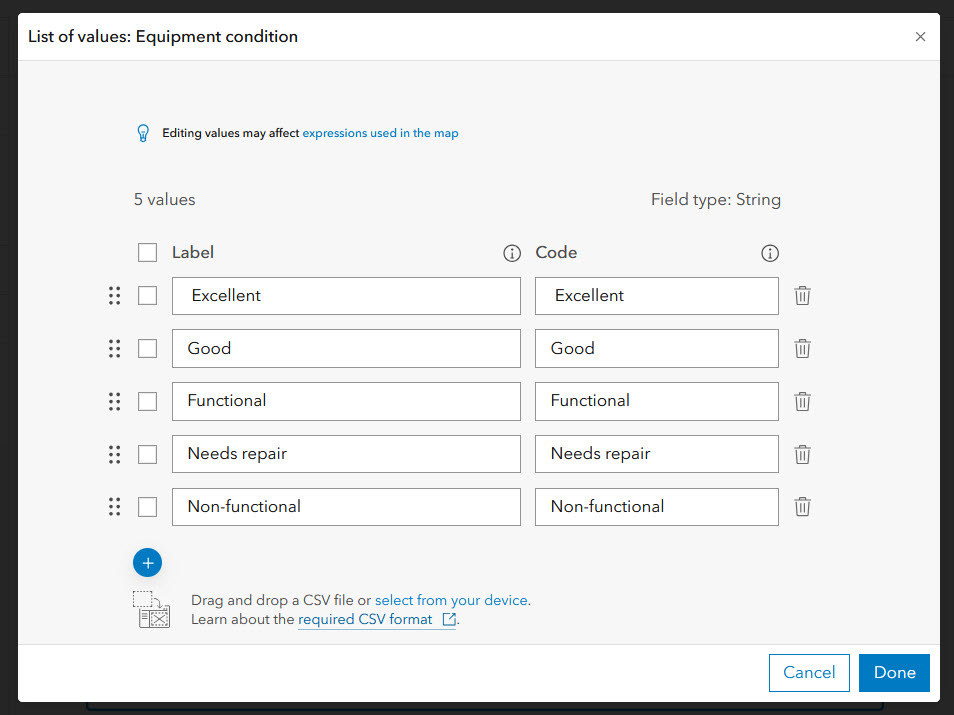
You can configure forms in the Field Maps Designer web app. This allows you to ensure mobile workers can successfully collect data in the field.
Add and customize form elements such as text, radio buttons, and switches to correspond with the data your mobile workers need to collect. Refer to Build the form to learn more about creating forms in Field Maps Designer.
Coordinate work
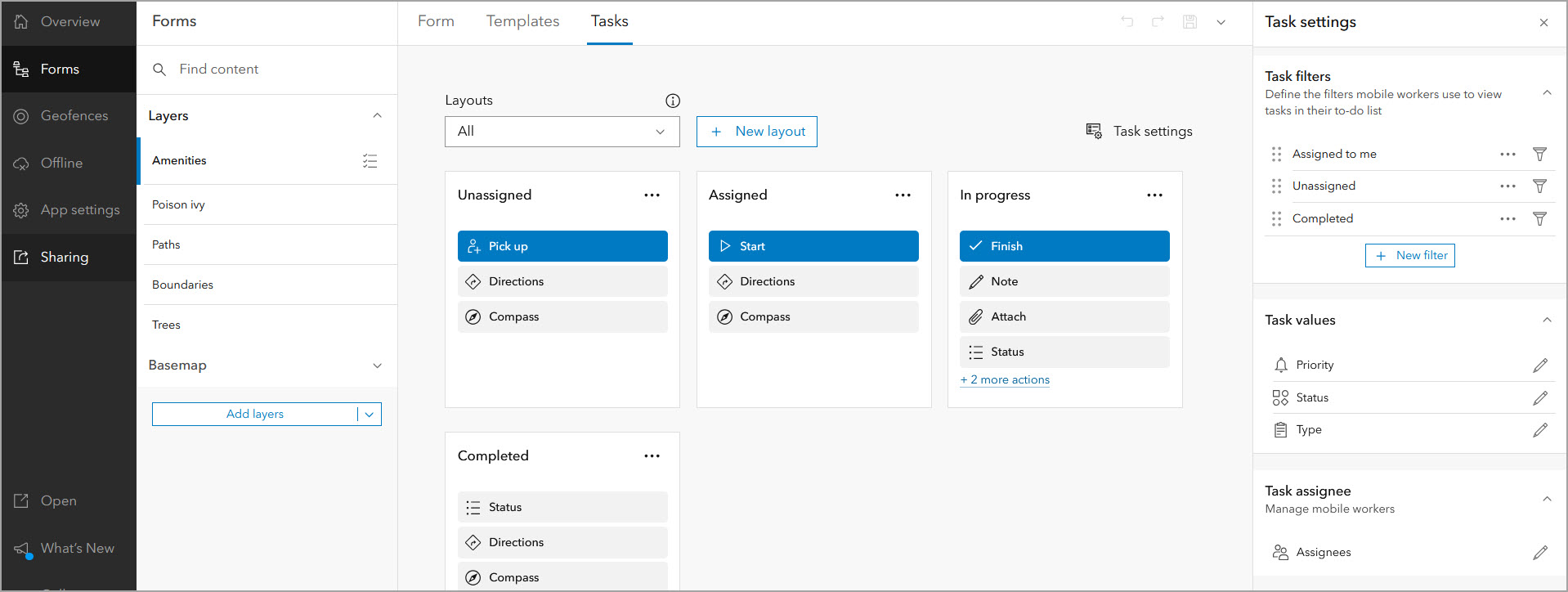
Use the tasks capability to help manage and organize work in the field. Tasks are specific work assignments that show up as dynamic to-do lists for your mobile workers in the field. You can use points, lines, or polygons to create your task layer to represent the type of work being done such as conducting inventories, recording inspections, or performing maintenance.
Those with the mobile worker user type and above can efficiently tackle these actionable to-do lists using the Field Maps mobile app. Refer to Prepare tasks and Configure tasks for detailed information and workflows.
Leverage location awareness
With location sharing, mobile workers can view their location and share it back to their organization. This can serve a variety of purposes, where mobile workers need to know where they have been or respond quickly to emergent situations.
To use this capability in Field Maps, location sharing must be enabled for your organization. For more information, see User types, roles, and privileges in ArcGIS Online or User types in ArcGIS Enterprise.
Create geofences
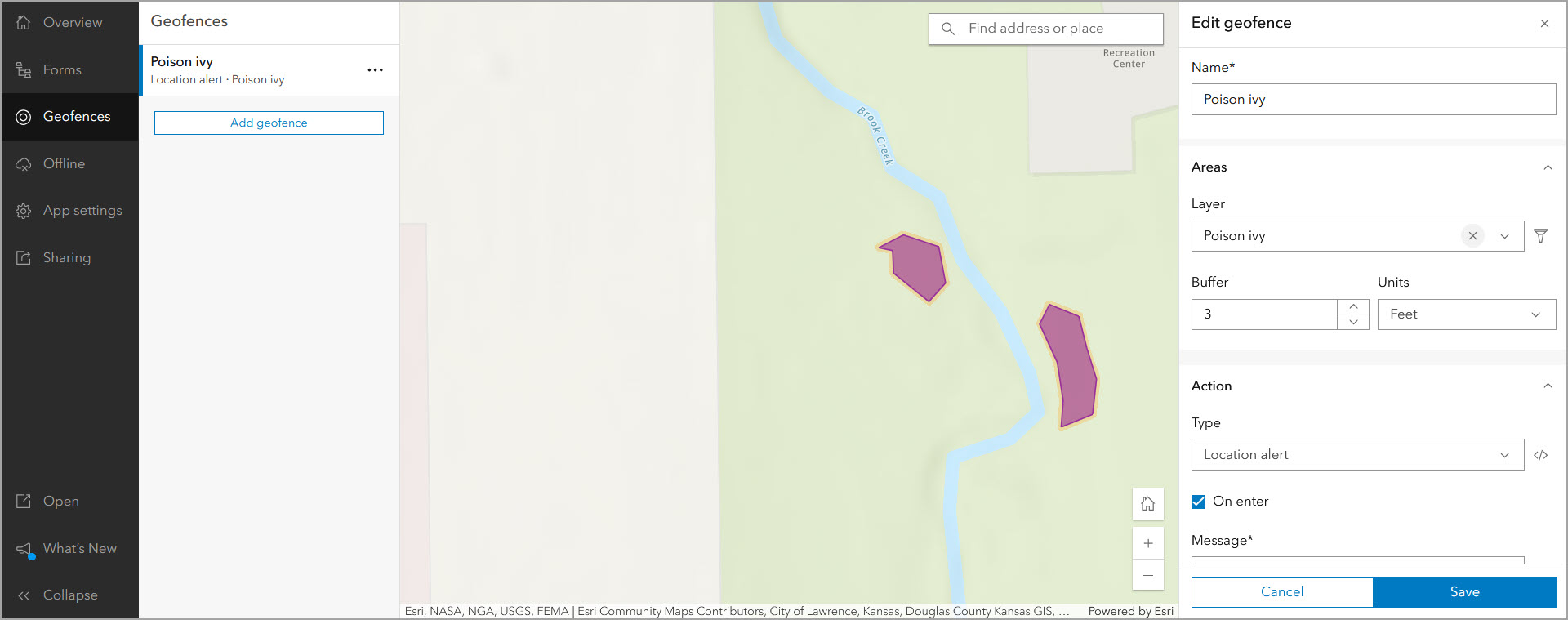
Geofences allow you to define areas that, when exited or entered, set off location alerts or prompt users to turn off or on their location sharing. Are there restricted areas, dangerous features, private or inaccessible properties that you want to alert your mobile workers about?
Add geofences to your map with Field Maps Designer to delineate these areas and ensure safe, efficient, and productive work. Use geofences to manage location sharing or to set up location-based alerts.
Refer to Configure the map to learn more about creating geofences in Field Maps.
Support offline and indoors work
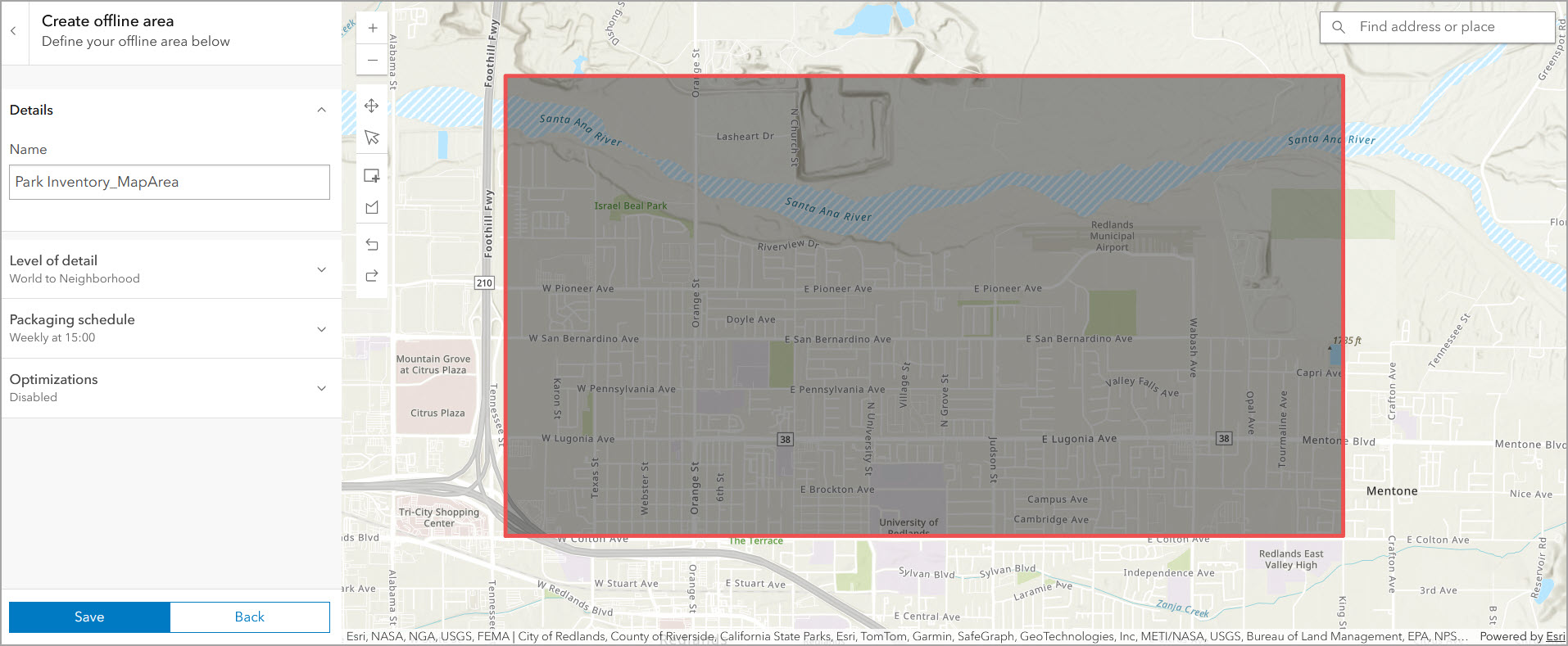
If your staff work in areas with no internet connection or where internet is spotty, you can enable maps for offline use and create offline map areas. Mobile workers can also create their own offline map areas, as needed, using the Field Maps mobile app.
Refer to Configure the map and Prepare maps for download to learn more about configuring offline map areas in Field Maps Designer.
Field Maps also supports working indoors via floor-aware maps and indoor positioning systems (IPS). You can create a floor-aware map so that mobile workers can view, filter, and edit indoor feature layers. If you configure a map in Field Maps for IPS, the app detects IPS beacons within a building and uses them to show locations of mobile staff.
If feature layers are enabled for editing, mobile workers can make changes to indoor features. Indoor positioning is not required to create or use floor-aware maps. Refer to Create a map for indoor use to learn more.
Field Maps mobile app
With the Field Maps mobile app, mobile workers can view and mark up maps, collect data, complete tasks, filter indoor assets, share their location, and complete other essential field work. All of this can happen whether they are in connected or disconnected areas.
Interact with maps
As a mobile staff member, you can tap features in the map to view asset information in a pop-up. Search for and locate features on the map using the search function.
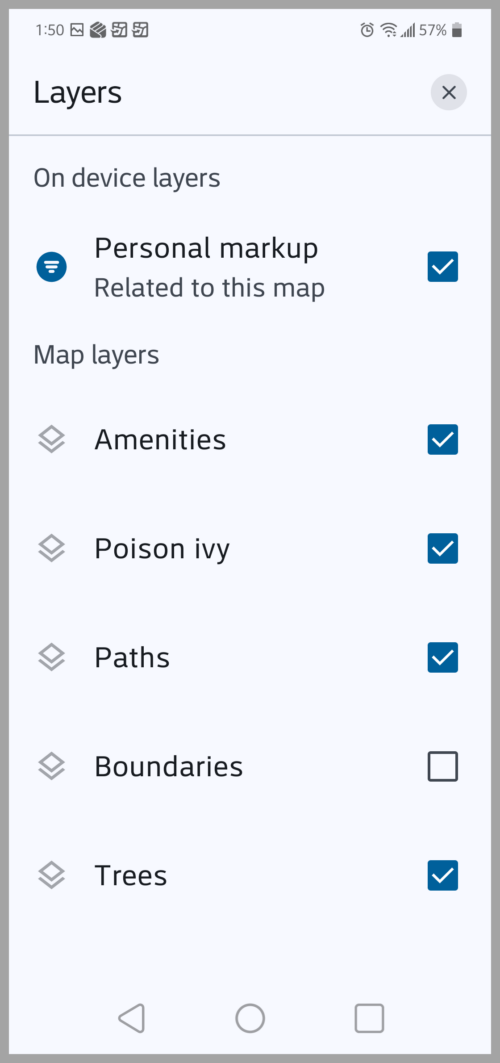
You can also open a map and tap Layers  to see all the layers in the map. These layers can be toggled on or off to show or hide them.
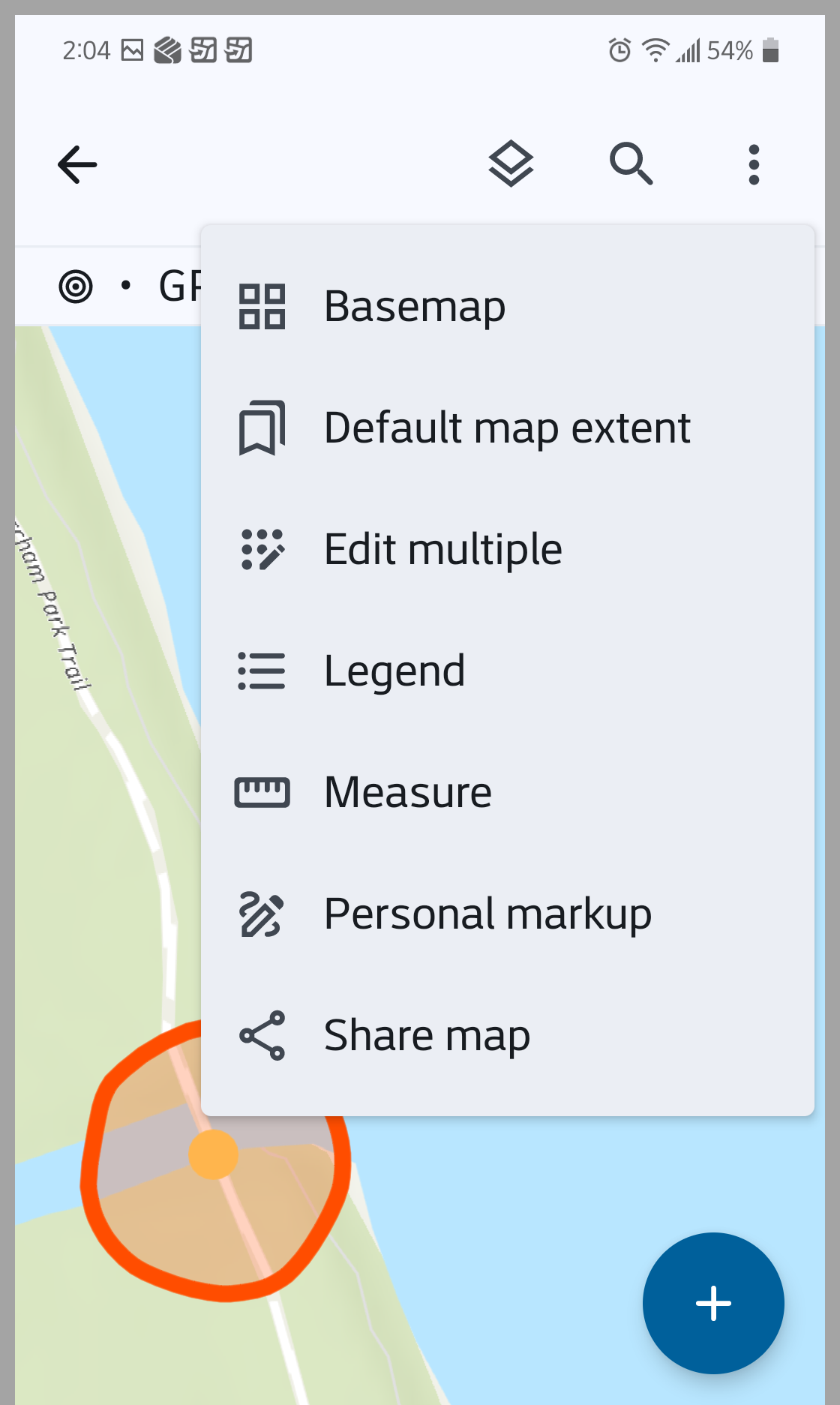
Use the Overflow  menu to change the basemap, access bookmarks, view your map legend, and even measure distances between points on the map. Tap Personal markup to add custom sketches to your markup. Notes and labels can be added to communicate additional information.
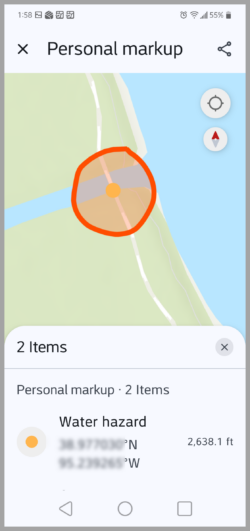
To share markup with other associates, open the Overflow menu and tap Share map. Refer to Tools and features to learn more about working with maps in Field Maps.
Collect data
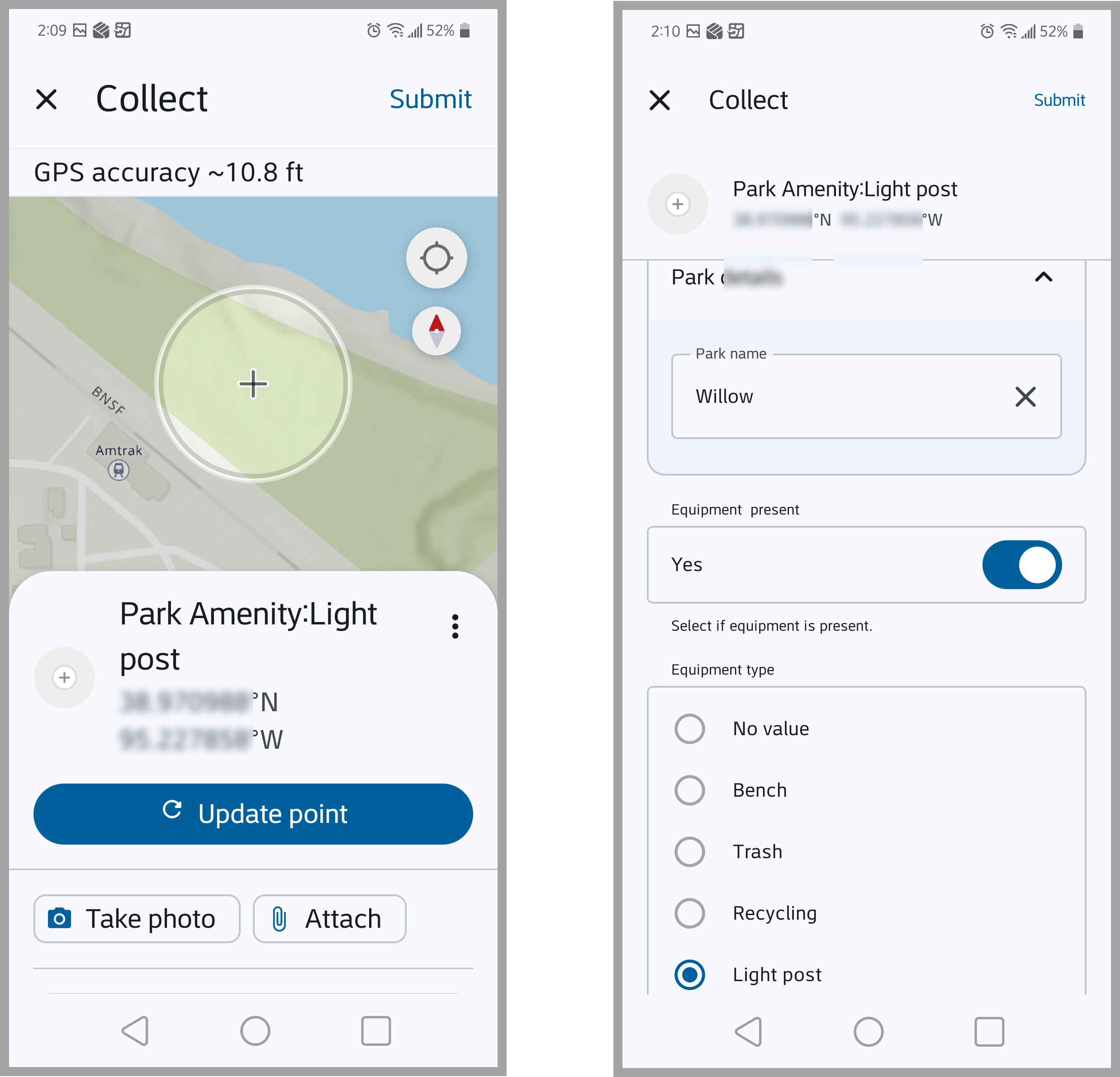
Field Maps allows you to collect data using the Add  button. When collecting data, select assets from a feature template and add data by completing smart forms. Forms can allow for inclusion of photos and attachments to provide additional details.
Complete tasks
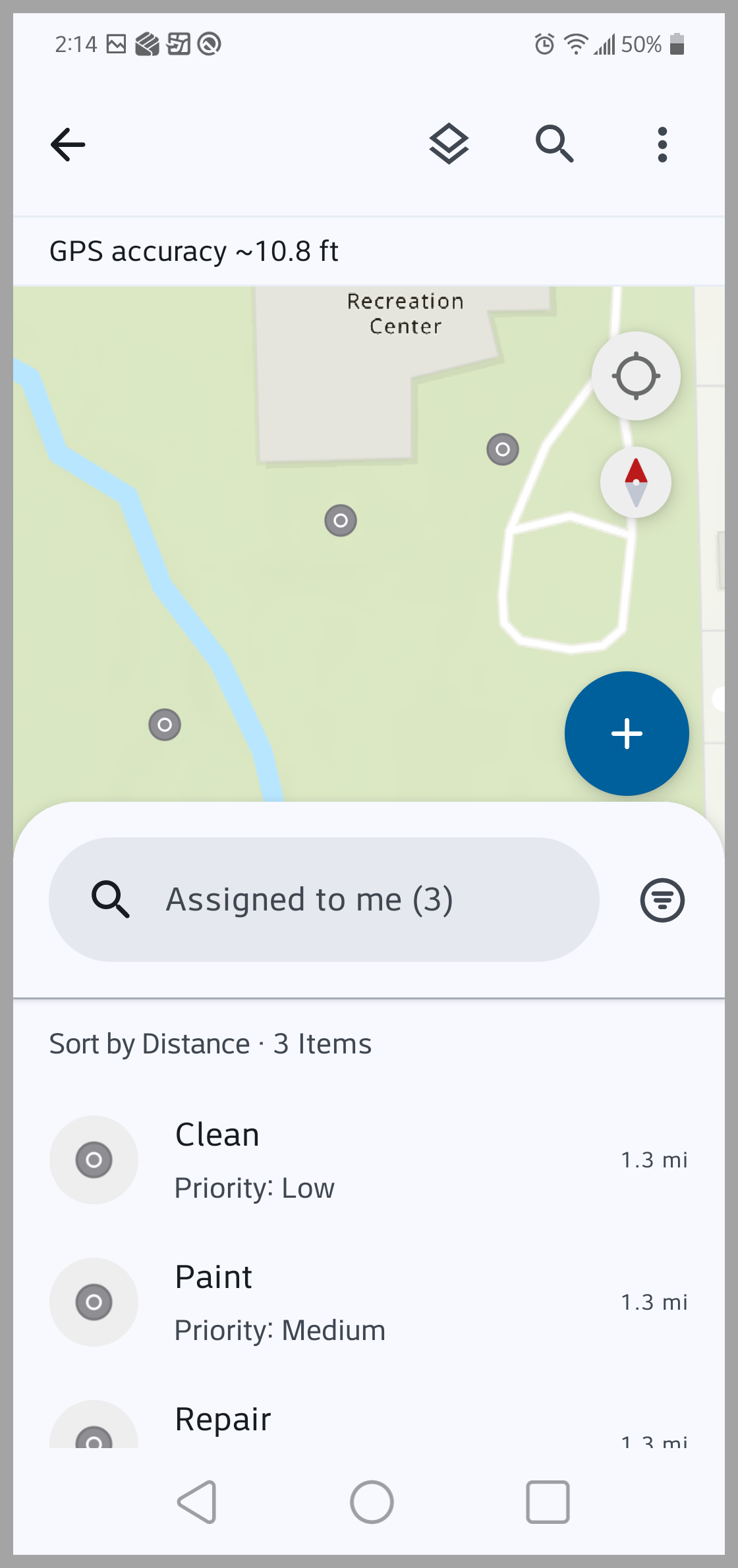
If using a map with a task-enabled layer, you can quickly access and manage work from organized to-do lists. View and locate tasks on the map and search, sort, and filter a list of tasks assigned to you. Refer to Tasks to learn more about this tool.
Share location for awareness
Mobile workers turn location sharing on and off in the Field Maps mobile app using the My Tracks card in the Maps list. While location sharing is on, their location is recorded. This works whether they are using the app or it’s running in the background, and tracks are collected whether the device is online or offline.
Refer to Share location to learn how to enable location sharing in Field Maps.

Stay aware with geofences
With geofences configured in Field Maps Designer, location sharing or a location alert is activated in the mobile app when workers enter or exit the defined geofence.
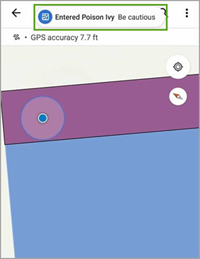
Geofences also work indoors if IPS are configured for the map. Field Maps uses IPS to record and update indoor locations while the map is open. Refer to Add geofences to learn how to create geofences in Field Maps.
Work offline and indoors
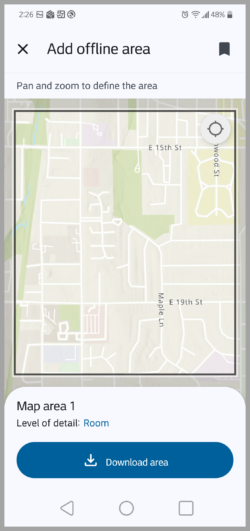
Field Maps works where you work—even offline. If you plan to work in an area with an unreliable internet connection, you can create a map area or use a mobile map package (MMPK) that allows you to view assets and collect data while working offline. Refer to Download maps to learn more about working offline in Field Maps.
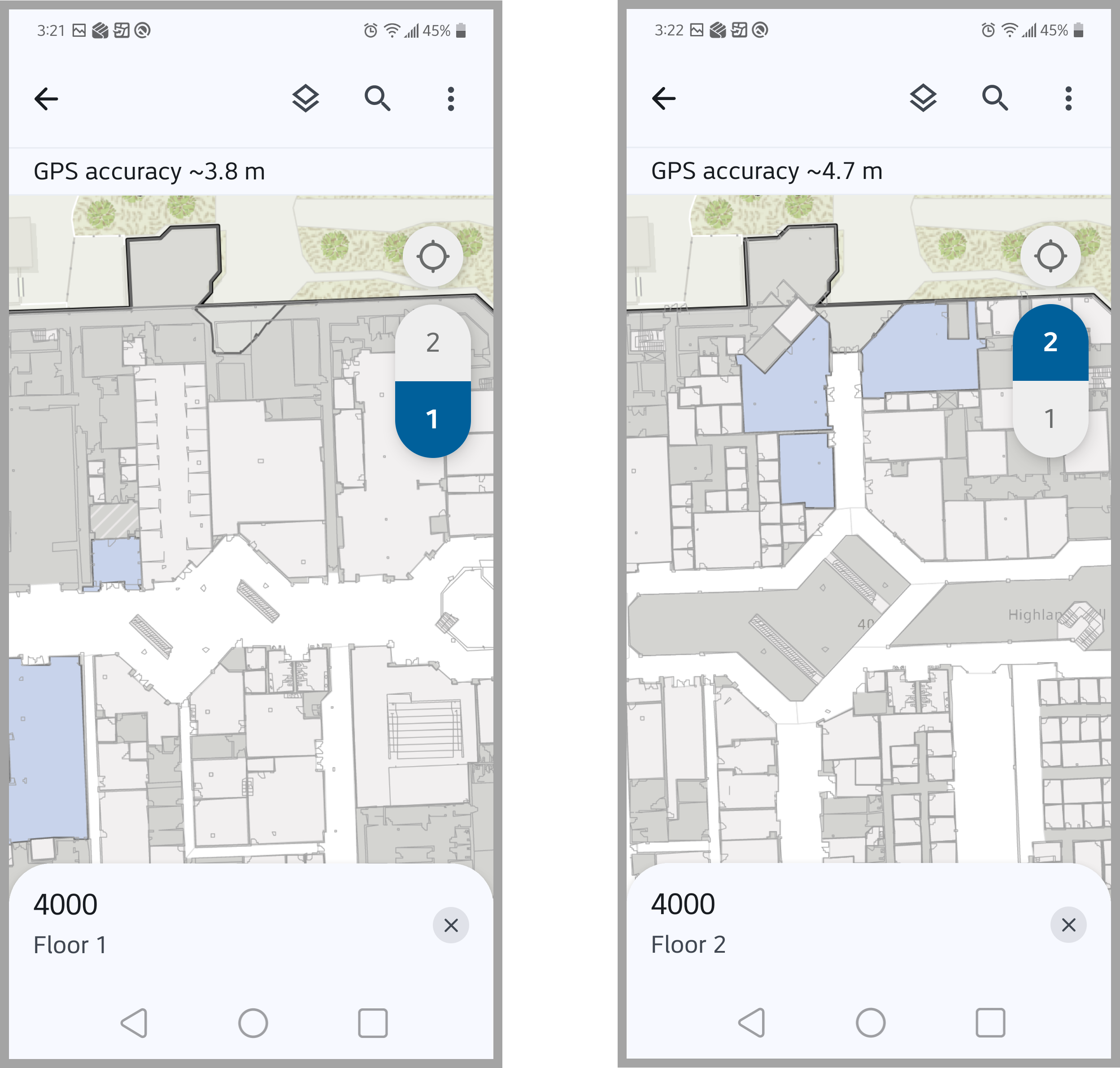
If your work is inside, Field Maps is there for you too. With floor-aware maps, mobile staff can view and edit indoor feature layers and associated floor and building information. Use the Floor filter to filter indoor assets by floor. To learn more about using and filtering indoor map layers, refer to Floor-aware map and floor filter.
If you open a map in Field Maps that’s configured for IPS, the app automatically generates your location using IPS beacons within a building. The map updates to display your current floor when moving among floors in a building.
Resources
Now that you know more about ArcGIS Field Maps and its capabilities, check out the following resources to learn even more:
- ArcGIS Field Maps Resources page
- ArcGIS Field Maps documentation site
- ArcGIS Field Maps Esri Video channel
Additionally, check out the Get to know Field Maps video below!
This article was originally published on August 28, 2023 and has been updated.


Explorer allowed the ability to share MMPKs to mobile devices without the need to login on that device. is that still possible with Field Maps?
I just found the answer in the Requirements section of the help pages.
https://doc.arcgis.com/en/field-maps/faq/requirements.htm
thanks D’Maia Curry