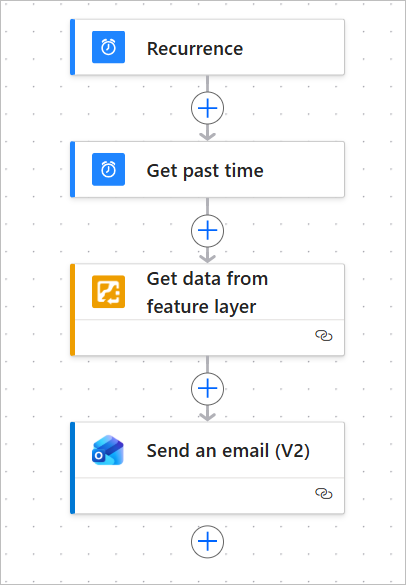
With ArcGIS Connectors for Power Automate, you can ensure you stay up to date on dynamic spatial data. This blog article shows you how to set up a reoccurring report of the weekly average of a feature layer field using the Get data from feature layer action. Uses for this workflow include the following:
- Aggregating air quality measurements for a town with multiple sensors
- Assessing the average value of houses recently sold in a city
- Evaluating the condition of a neighborhood’s water system through samples taken at several locations
The ArcGIS connectors are available with a premium license to Microsoft Power Automate and are accessible with ArcGIS Online (ArcGIS) or ArcGIS Enterprise connectors. To learn more, see Set up the ArcGIS Online (ArcGIS) connector and Set up the ArcGIS Enterprise connector.
Before you start
This flow automates notifications that summarize recent updates to a feature layer. Before you begin, ensure you have the following:
- A connection to the ArcGIS Online (ArcGIS) connector, from a login or API key, or the ArcGIS Enterprise connector in Microsoft Power Automate
- A connection to Office 365 Outlook
- A feature layer with a Date field and numerical field
This example uses an air quality readings feature layer to aggregate air quality measurements throughout a town. Your results will differ depending on the feature layer you query.
Create a flow that triggers weekly
As the feature layer is continuously updated, this flow will summarize its data at the weekly time you choose. Complete the following steps to set up the flow to trigger once a week:
1. From the Power Automate home page, click Create on the sidebar.
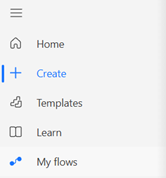
The Create page opens, showing a variety of flow types.
2. Click Scheduled cloud flow.
3. In the Build a scheduled cloud flow window, provide a name for the flow.
4. Choose a time of day for the flow to run and set the frequency in the Repeat every fields to 1 and Week so that the flow runs once a week.
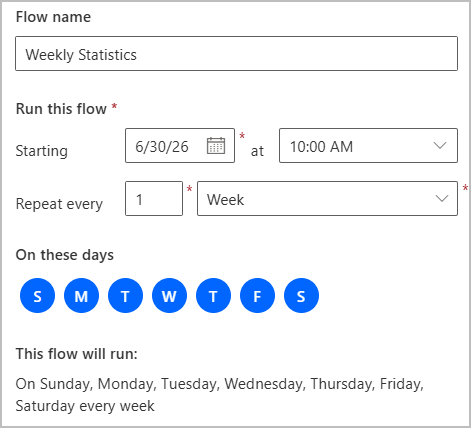
The On these days section appears, with each day of the week selected.
5. Click the day of the week buttons to deselect the days you do not want the flow to run. Ensure only the day of the week you want the flow to run is selected.
6. Click Create.
Generate a statistical summary
After creating a flow that triggers once a week, you can configure ArcGIS actions that will provide you with weekly summary statistics on the feature layer. To ensure the flow only retrieves data from the previous week, you will first add a Get past time action. Complete the following steps to retrieve the weekly average from a field in the feature layer:
1. Under the Recurrence trigger, click the button to add an action.

2. In the Add an action window, type Get past time into the search bar.
3. Click the Get past time action from the results.
The Get past time action window opens.
4. In the Interval parameter, type 1, and set Time unit to Week.

You can now reference this action in the flow to filter data one week prior to its runtime.
5. Click the button to add an action under the Get past time action and search for the Get data from feature layer After it appears in the ArcGIS section, add it to the flow.
The Get data from feature layer action opens.
6. Click the Feature layer parameter, and from the drop-down menu, select the feature layer from which you want to receive statistics.
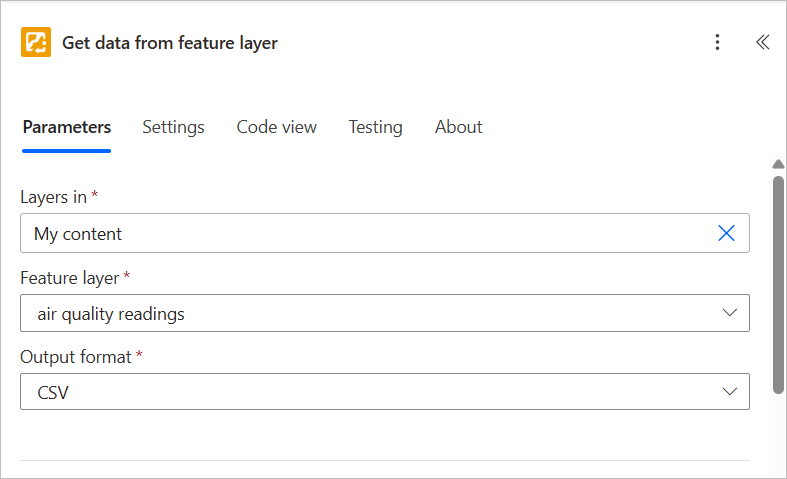
In this example, the air quality readings feature layer is selected.
7. Set the Show statistics parameter to Yes.
8. Click the Advanced parameters drop-down menu and select the following parameters:
- Query by field
- Comparison type
- Search value

The window shows these three parameters.
9. For each field, do the following:
- For Query by field, select the field in the dataset that contains the time and date of each record.
- For Comparison type, select Greater than.
- For Search value, type a slash (/), select Insert dynamic content, and select Past time, the output from the previous action.
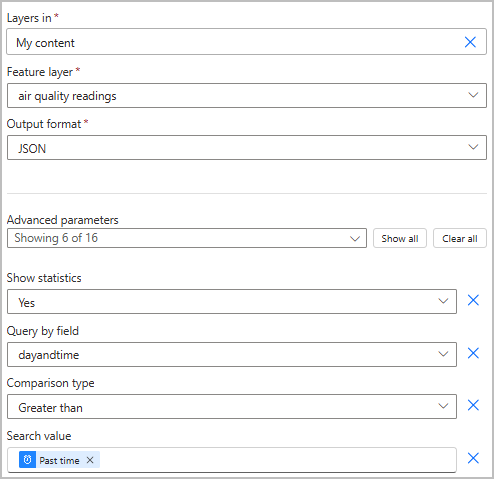
The Get data from feature layer action now filters out records older than a week.
10. Click the Advanced parameters drop-down menu, and select Output statistics.
The parameters list shows the Output statistics box.
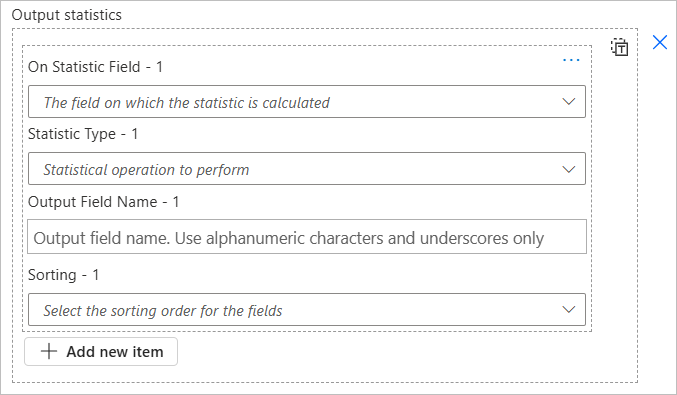
11. For each field that appears under Output statistics, do the following:
- For On Statistic Field, select the field that holds the values you want to average.
- For Statistic Type, select avg.
- For Output Field Name, type Average-.
- Leave the Sorting parameter empty, as sorting won’t affect this operation.

The flow now produces a weekly average on a field selected from the feature layer.
Send an email report
Now that the flow will calculate a weekly average from the feature layer, you can include that information in an email sent to yourself and other stakeholders. Complete the following steps to automate a weekly report:
1. Click the button to add an action under the Get data from feature layer action, search for the Send an email (V2) action, and add it to the flow.
The Send an email (V2) window opens.
2. In the To parameter, provide the email addresses of the desired recipients.
3. In the Subject parameter, type Weekly average of and type the field name.
4. In the Body parameter, type Here is the weekly average [field name] from [your feature layer]:, using the field name and feature layer included in the report.
5. Press Enter.
6. Type a slash (/), select Insert dynamic content, and select CSV.

7. Click Save at the top of the flow designer, and then click Test to ensure the flow works.

Your flow now sends an email detailing a weekly average from the feature layer.
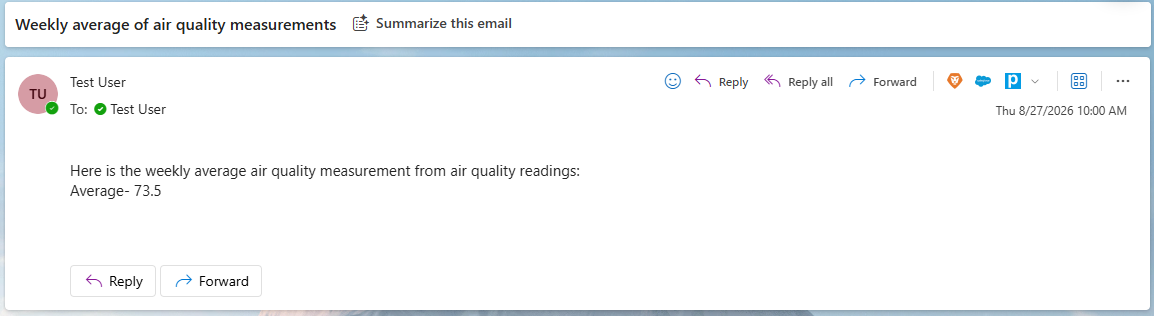
This blog article outlines the process of creating a Microsoft Power Automate flow that sends you a weekly statistic from an ArcGIS feature layer field. Learn how to upgrade the flow to send multiple statistics in a formatted table.
Additional Resources
For more information on ArcGIS Connectors for Microsoft Power Automate see the following resources:




Article Discussion: