Offline briefings include downloaded as well as local briefings. Downloaded briefings are available on all platforms while the local briefings are supported on Windows only. The concept of local briefings was introduced in February 2025 (app ver .1.8.4) release enabling users to easily copy their downloaded briefings from Windows devices and share them with others locally. Users can select one or multiple downloaded briefings and share them via a network or a USB portable drive. This allows for offline viewing and presentation of briefings, eliminating the need for a network connection. Additionally, users can customize their local briefings by replacing existing media with an image, video or mobile map package.
To access the downloaded briefings and share them via a network or a USB portable drive, navigate to the following path:
- In case of ArcGIS Online or Enterprise Organization account
C:\Users\xxxxx\ArcGIS\Esri.ArcGIS.StoryMaps.Briefings\Organizations\<Org ID>\Users\<Org Username>\Items\Item ID
where, xxxxx is your Windows machine username
Example 1 location path for a downloaded briefing as shown in the screenshot below,

- In case of ArcGIS Online Public account
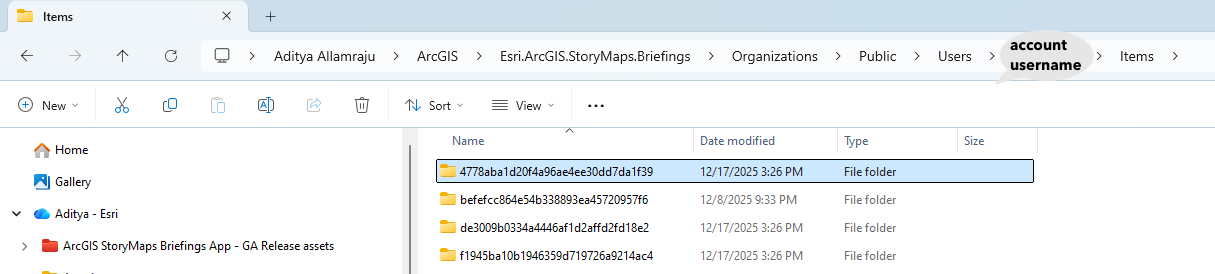
C:\Users\xxxxx\ArcGIS\Esri.ArcGIS.StoryMaps.Briefings\Organizations\Public\Users\<account username>\Items\Item ID
where, xxxxx is your Windows machine username
Example 2 location path for a downloaded briefing as shown in the screenshot below,
How Local Briefings 2.0 is different from Local Briefings (v.1.8.4)?
| Feature |
Local Briefings (v.1.8.4)
|
Local Briefings (v2.0 or later)
|
|---|---|---|
| Visibility | Can be viewed only after signing to the app at least once and enabling “Local Briefings” configuration in the settings page | Can be viewed even without signing to the app the first time |
| Access briefings | The location of the offline briefings depends on the app’s download source. For more details, check out this blog. | Single location for all downloaded briefings |
| Edit media | N/A | Click on the options menu (…) in briefings header to enable the edit mode for the briefing |
| Replace media | Click on the folder button in the content block | Click on the “Replace Media” button in the content block after enabling the edit mode for the briefing |
| Save edits | All edits are auto saved | In the edit mode, click on “Save Edits” to save all the edits made to the briefing. |
| Reset briefing | Delete the “LocalItemsMapping” file from the briefing resources folder manually | Simply click on “Reset” button from the options menu in the briefing’s header |
| Locate briefing while viewing | N/A | Simply click on “Show in Explorer” from the options menu in the briefing’s header to locate the path of the briefing’s resource folder |
Local Briefings Workflow in Briefings App 2.0
The Briefings App 2.0 has introduced several enhancements to streamline the local briefings workflow for Windows users, making it easier for users to access, manage, and share important information. This article will guide you through the key features and steps involved in utilizing the local briefings workflow effectively.
Steps to Utilize Local Briefings Workflow
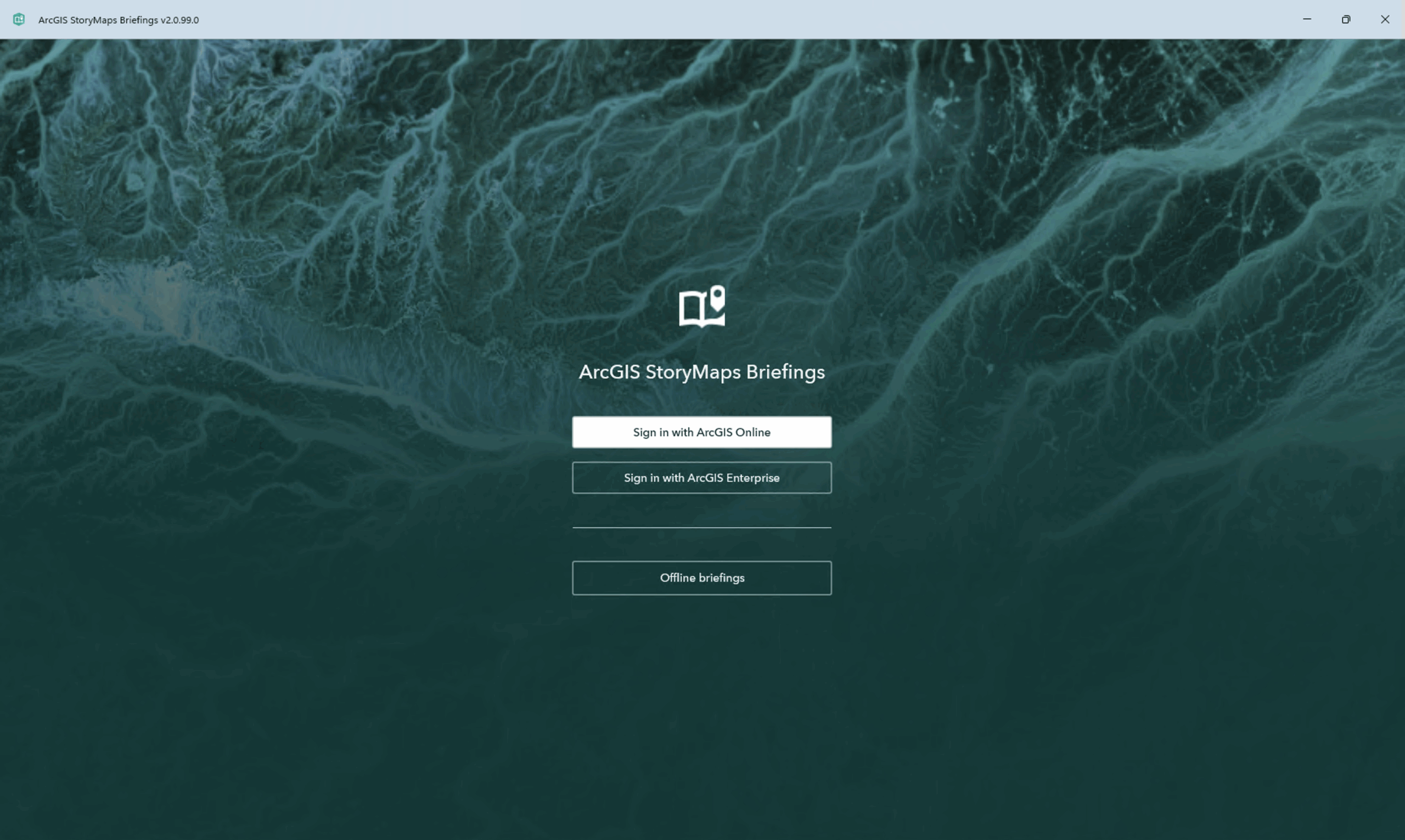
Step 1: Access local briefings in anonymous state
- Open the Briefings App 2.0 on your Windows device.
- Click on the Offline briefings button. You will be taken to the gallery page with a local briefings tab.
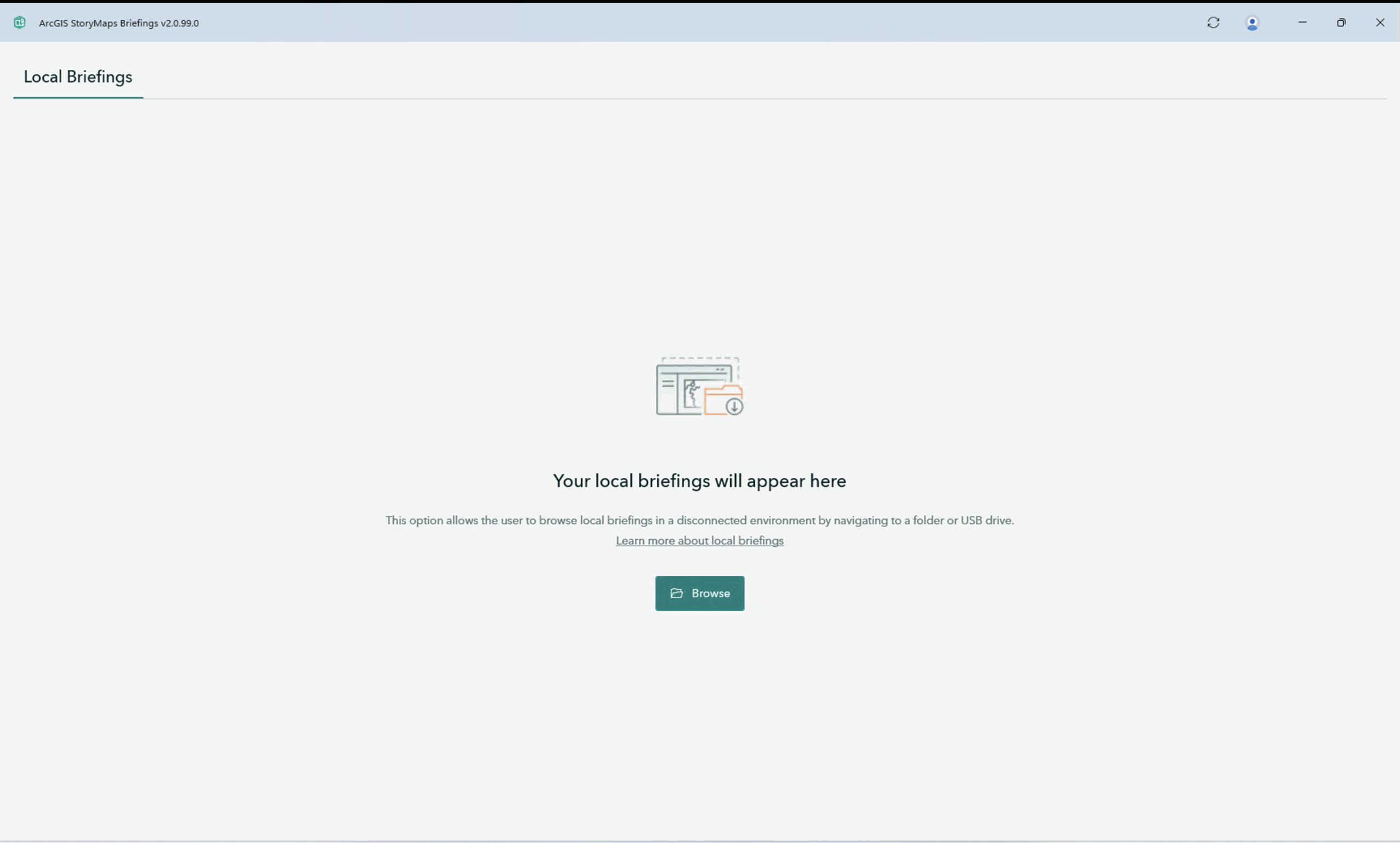
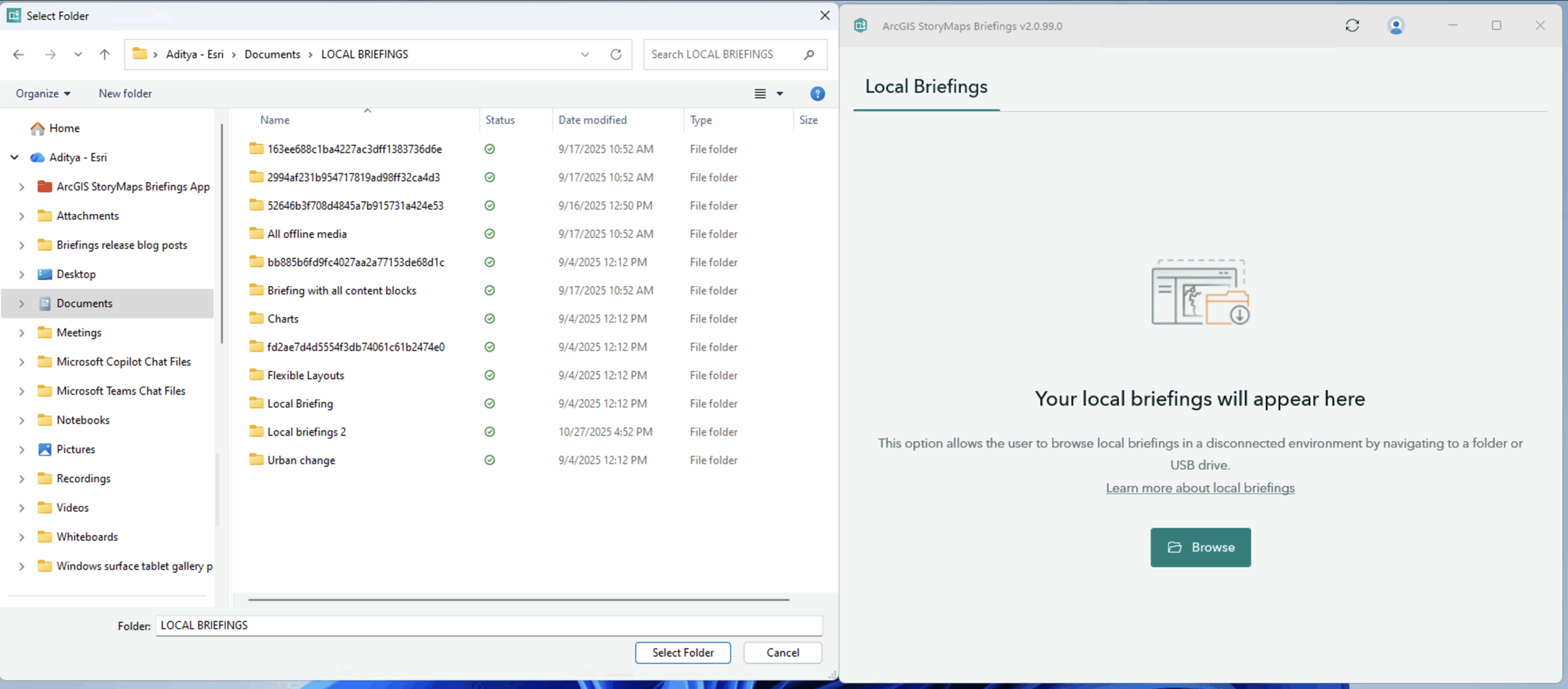
Step 2: Browse local briefings
- Click on the “Browse” button to select the briefings that are shared with you.
- Choose the location path where you saved the shared offline briefings.
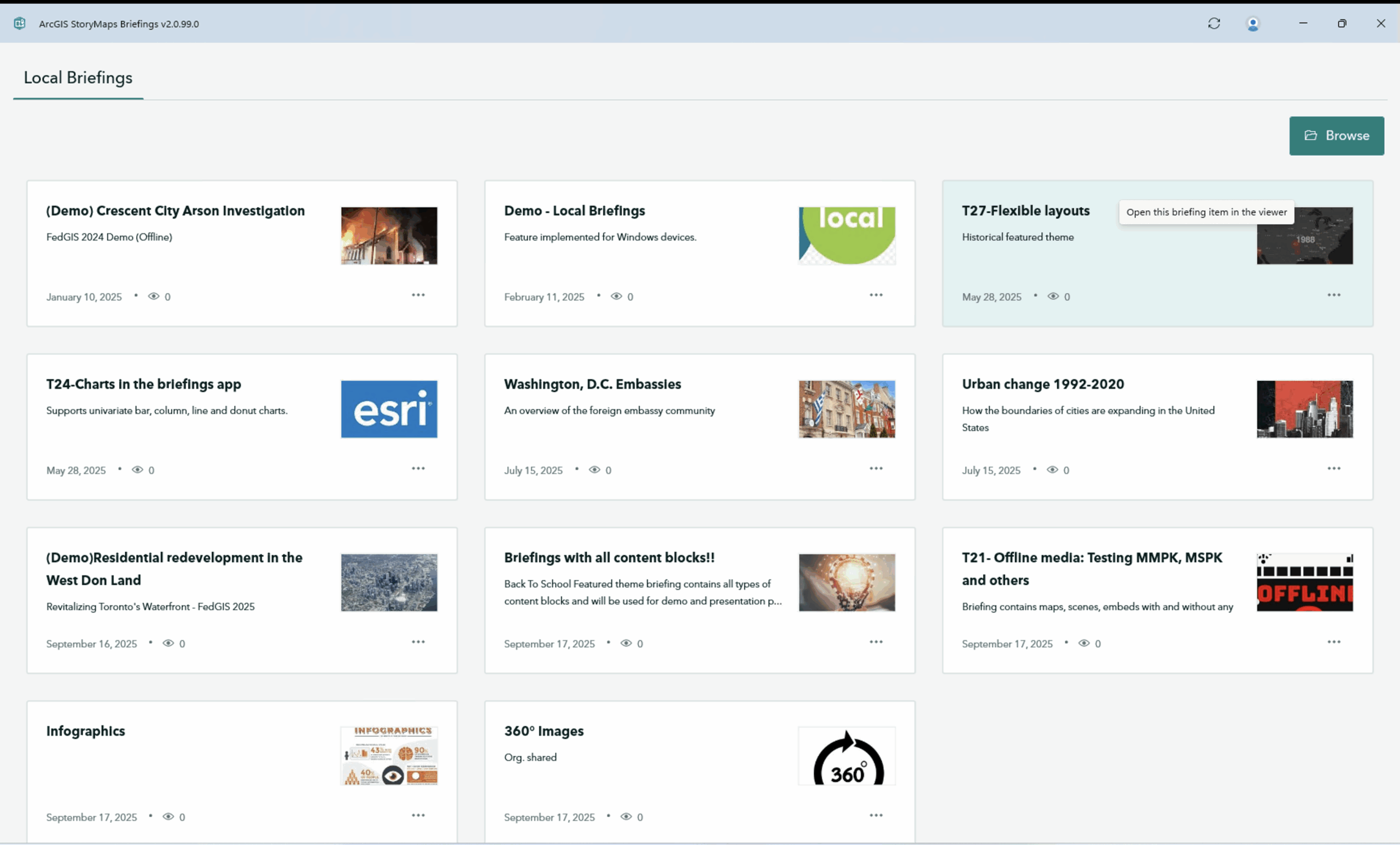
Step 3: Edit your local briefing
- Click the “Edit briefing media” in the options menu (…) on the briefing’s header.
- Once the edit mode is enabled, you will notice “Replace Media” button on top of every content block.
- You can replace any offline media like images, videos, Mobile Map Packages in the respective content types.
Step 4: Save your edits in the local briefing
- Once editing your briefing is complete, make sure to click on “Save edits” to save the offline briefing with the latest offline media. Now, these edits will be persisted even after you close the briefing or the app.
- In case if you do not wish to save your edits, please note that the briefing will show the original media that was before replacing the new media.
Step 5: Reset your edits in the local briefing
- Click the “Reset” in the options menu (…) on the briefing’s header.
- Once you confirm reset from the confirmation dialog, all your edited offline media will be reset, and the original version of the local briefing will be back.
Step 6: Locate your local briefings path
- In case, you want to locate your local briefing path anytime while viewing the briefing, you can click the “Show in Explorer” in the options menu (…) on the briefing’s header.
The video below shows the entire workflow of how to access local briefings, edit, save and reset the local briefing, and locate the local briefings folder through the Briefings App 2.0
Conclusion
The local briefings workflow in Briefings App 2.0 is designed to enhance the way users interact with the offline media. By following the steps outlined above, you can create effective, informative, and engaging briefings that support decision-making and collaboration within your organization. Embrace the new features and capabilities of Briefings App 2.0 to stay ahead in your local initiatives.

Article Discussion: