This article was written for ArcGIS Enterprise 11.5.
If you’re a GIS administrator for an ArcGIS Enterprise organization, it’s your responsibility to ensure that your organization has an adequate number of licenses so that all members have access to the apps and privileges they need to perform their tasks effectively.
This article is the first in a tutorial series about licensing ArcGIS Enterprise. The tutorials should be completed in order:
- License ArcGIS Enterprise 1: Choose user types and member roles
- License ArcGIS Enterprise 2: Generate ArcGIS Enterprise licenses
- License ArcGIS Enterprise 3: Authorize ArcGIS Enterprise and manage licenses
If you are the administrator for your ArcGIS Enterprise organization, you can follow the steps in this tutorial series to license your organization. The series uses an example scenario in which I’ll assume the role of the GIS administrator for a fictional organization, OAG GIS. Your scenario will be different from mine, so you may see different options and need to make different choices than I do.
At OAG GIS, my organization’s ArcGIS Enterprise license is scheduled to expire soon and needs to be renewed. Furthermore, five consultants are joining our company soon as field technicians, and they need access to the organization.
In this tutorial series, I’ll renew my licenses for ArcGIS Enterprise and ensure that they include appropriate user types for my new staff members. By following along, you’ll learn how to determine your license requirements, how to generate license files in My Esri, and how to authorize ArcGIS Enterprise with those license files.
The first step of licensing is to decide which user types you need. In this first tutorial, you’ll learn about user types and member roles, and choose appropriate ones for your organization.
Requirements
- An account in ArcGIS Enterprise assigned either the default Administrator role, or a custom role with the Manage portal member licenses administrative privilege
View user type licenses
Every member in your organization must be assigned a user type. When you purchase ArcGIS Enterprise, you are allocated a set number of Creator and Viewer user types. For example, if you purchase ArcGIS Enterprise Advanced, you are allocated 25 Creator and 500 Viewer user types. You can purchase additional types as needed.
One significant difference between the six user types is their base capabilities:
| User type | Base capabilities |
| Viewer | View |
| Contributor, Mobile Worker | View, Edit |
| Creator, Professional, Professional Plus | View, Edit, Create, Publish, Analyze, Administer |
To start, you’ll sign in to ArcGIS Enterprise and review the available user type licenses.
1. Sign in to ArcGIS Enterprise using an account with administrator privileges.
2. On the ribbon, click the Organization tab. On the blue ribbon, click the Licenses tab.
3. Click User types.
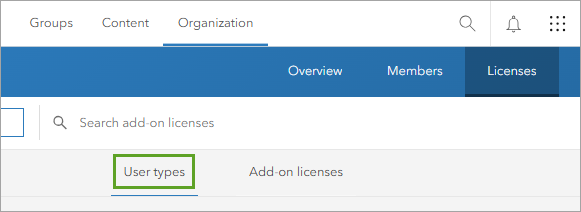
The user type licenses currently available to your organization are displayed.
4. Click the arrow next to Creator to collapse this section.
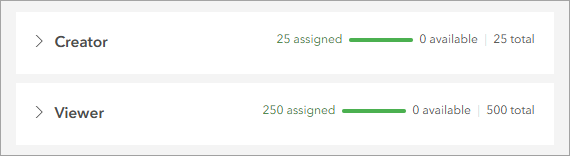
In the OAG GIS organization, pictured above, there are 25 Creator and 500 Viewer user types allocated, all of which have been assigned to members.
User types also determine which apps the member can access by default.
5. Expand Creator and each of the other user type sections. Review the list of included licenses for each user type.
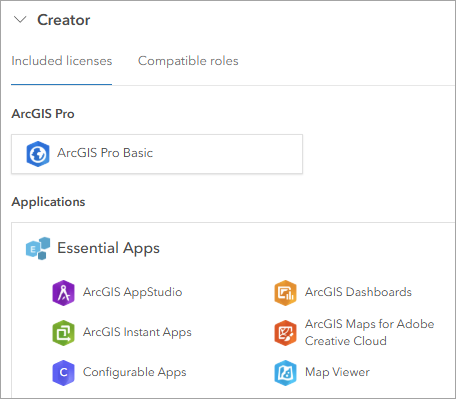
The Creator user type includes ArcGIS Pro Basic and many other apps. The Viewer user type includes fewer apps, and a note indicates that viewers have view-only access to these apps.
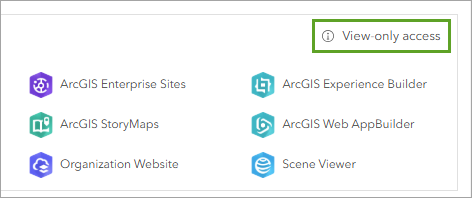
You can see the full list of which apps are included with each user type on the User Types page. Members can be granted access to more apps later through add-on licenses.
Finally, user types determine which member roles are possible for those assigned the user types.
6. Under each user type, click Compatible roles.
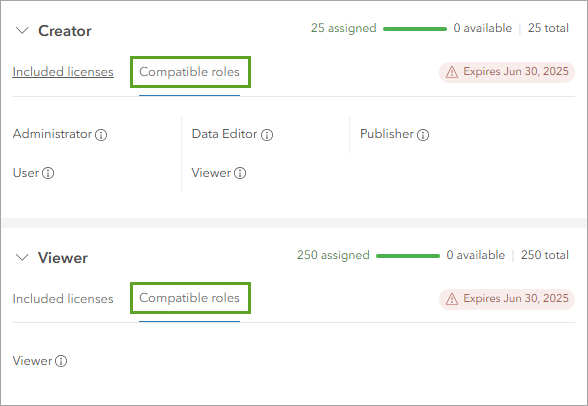
This list shows which roles are compatible with each user type. All five of the Esri default roles are compatible with the Creator user type, but only the Viewer role is compatible with the Viewer user type.
The expiry date for each user type is also listed. At OAG GIS, both the Creator and Viewer user type licenses will expire soon. These user type licenses are part of the license file for Portal for ArcGIS, so I know that I need to renew that license and include 25 Creator user types and 500 Viewer user types. If these licenses expire, the members assigned those user types will not be able to sign in to ArcGIS Enterprise.
Choose user types
Every member in your organization must be assigned a user type and a member role. The user type determines course-grain capabilities while the member role determines fine-grain privileges. When you assign user types to members, you will only be able to choose from the user types that you licensed, so you need to consider which user types are needed before you generate a license file.
There are six user types. To choose between them, consider the following questions:
- Which capabilities does each member need? The table below lists the base capabilities included with each user type.
| User type | Base capabilities |
| Viewer | View |
| Contributor, Mobile Worker | View, Edit |
| Creator, Professional, Professional Plus | View, Edit, Create, Publish, Analyze, Administer |
For example, if the member only needs to view maps and data, and never to edit or create data, they can be assigned the Viewer user type. The new members I need to add to the OAG GIS organization are field technicians. Their primary task is collecting data, so they might be best suited to the Contributor or Mobile Worker user types.
- Which apps does each member need? Each user type includes a set of apps. You can see the full list on the User Types page. For example, if the member requires the use of ArcGIS Pro Advanced, you should assign them the Professional Plus user type. The new field technicians at OAG GIS will need access to ArcGIS Survey123, which comes with the Mobile Worker user type, but not with the Contributor user type. The field technicians will need Mobile Worker user types to do their job.
- Do you have the necessary number of user types to provide your members the capabilities and apps they need to do their jobs? There are five field technicians joining OAG GIS, so I’ll need to generate five Mobile Worker user types. All of my other user types are already assigned to other employees, so I can’t remove any of them.
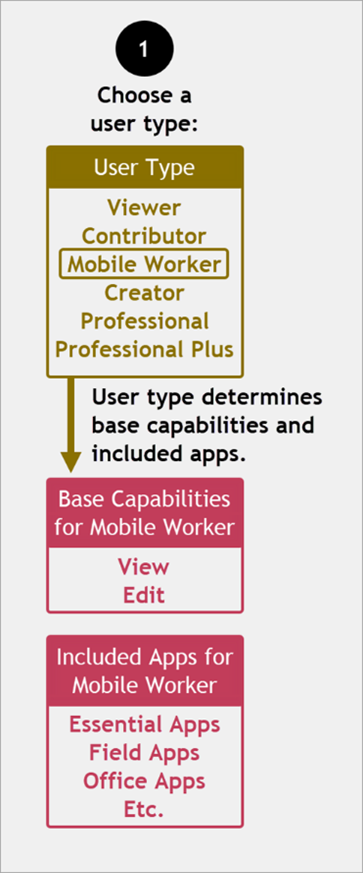
The graphic below illustrates the choice I made for the new members of the OAG GIS organization. For user type, I chose Mobile Worker (shown in yellow). This choice determines a set of base capabilities and included apps (shown in red).
Choose member roles
The next step is to choose member roles. Member roles determine the member’s fine-grain privileges—which specific tasks they can and can’t do in the software. Member roles don’t need to be selected until later, when you add new members to your organization, and you can change member roles at any time. However, it’s helpful to consider user types and member roles together, since they are closely related. It’s possible that you may change your choice of user type after coming to a better understanding of its compatible member roles.
Your choice of member role depends on the user type. For example, the Contributor user type can only be assigned the Viewer or Data Editor member roles, or a custom role with no more than viewing and editing privileges.
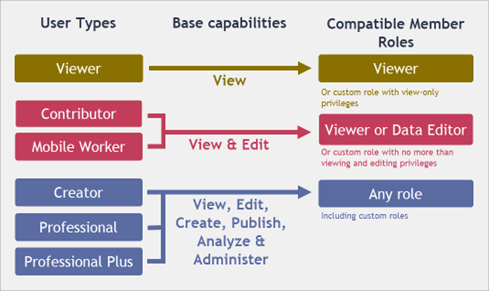
There are five default member roles in ArcGIS Enterprise: Viewer, Data Editor, User, Publisher, and Administrator. You can also create custom roles.
The graphic below illustrates the choice I made for the new members of the OAG GIS organization. Because I chose the Mobile Worker user type (shown in yellow), only two of the default member roles are compatible (shown in blue). From this list, I chose the Viewer member role.
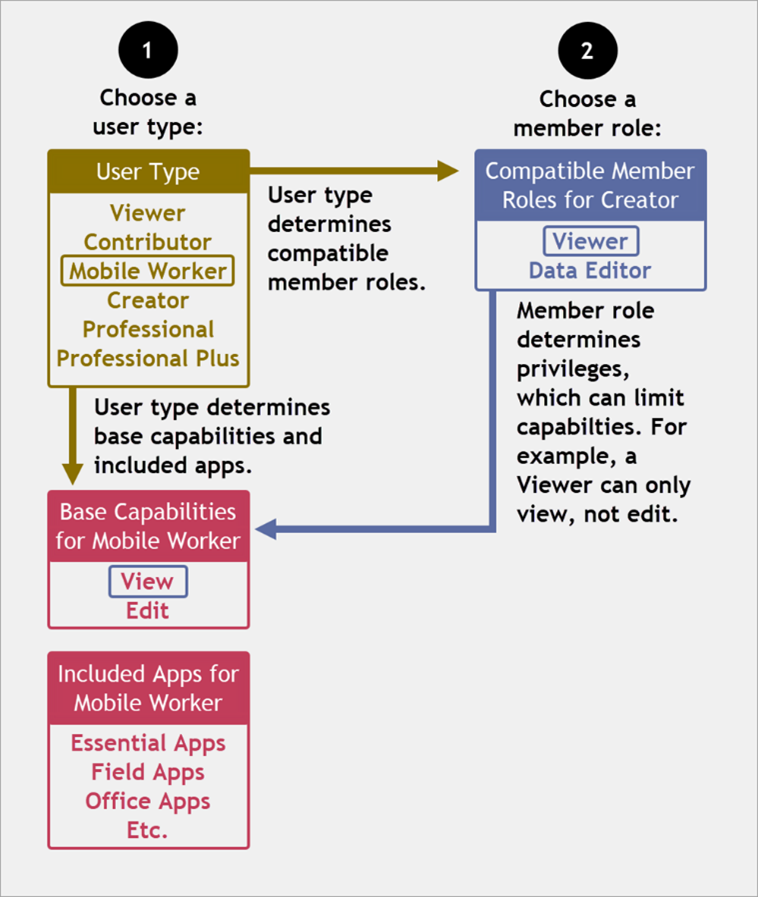
Member roles determine the member’s privileges, and this can limit what the member can do (their capabilities). In the graphic above, I chose the Viewer role. Viewers can only view data; they can’t edit it. The field technicians joining my company need to be able to edit data, so the Viewer member role is not suitable for them. I will choose the Data Editor member role instead.
You should aim to assign a user type and member role that best provides the capabilities and app access the member needs to do their work, but also does not provide more capabilities or access than needed. For example, although you can assign a member the Creator user type and Viewer role, you are providing them more base capabilities and app licenses than they require to just view content. Instead, a better fit is the Viewer user type and Viewer role.
Conclusion
When you renew your licenses, you’ll need to choose how many of each user type to license. Take some time before licensing to decide which user types will best meet the needs of your organization’s members. At OAG GIS, I’ll renew the licenses for the 25 Creator and 500 Viewer user types that I already have. I’ll also add five more Mobile Worker user types to accommodate the new field technicians joining the company.
Next, you need to review your ArcGIS Server license information, and generate new license files for both Portal and ArcGIS Server. Read the next blog in the series, Generate ArcGIS Enterprise licenses to learn how.





Article Discussion: