This article was written for ArcGIS Enterprise 11.5.
This article is the last in a tutorial series about licensing ArcGIS Enterprise. The tutorials should be completed in order:
- License ArcGIS Enterprise 1: Choose user types and member roles
- License ArcGIS Enterprise 2: Generate ArcGIS Enterprise licenses
- License ArcGIS Enterprise 3: Authorize ArcGIS Enterprise and manage licenses
You can follow the steps in this tutorial series to license your organization. The series uses an example scenario in which I’ll assume the role of the GIS administrator for a fictional organization, OAG GIS. Your scenario will be different from mine, so you may see different options and need to make different choices than I do.
Now that you have received ArcGIS Server and Portal for ArcGIS license files from My Esri, you’ll update your licenses in ArcGIS Enterprise. The order in which you update your licenses does not matter, but in this tutorial, you’ll start with ArcGIS Server.
Requirements
- Access to the machine where ArcGIS Enterprise is installed
- An account in ArcGIS Enterprise assigned either the default Administrator role, or a custom role with the following administrative privileges:
- Add members to portal
- Manage portal member licenses
- Manage portal security and infrastructure settings
- Manage portal server settings
Authorize ArcGIS Server with a new license
In the second tutorial of this series, you viewed the ArcGIS Server licenses in ArcGIS Server Manager and noted that they are expiring soon. Next, you’ll authorize ArcGIS Server using the Software Authorization Wizard (SAW).
Note: The instructions below assume that ArcGIS Server is installed on a Windows environment. If your ArcGIS Server is installed on a Linux environment, follow the instructions on the Authorize ArcGIS Server documentation page and skip to the next section.
1. Access the environment where ArcGIS Server is installed as a user who has read/write access.
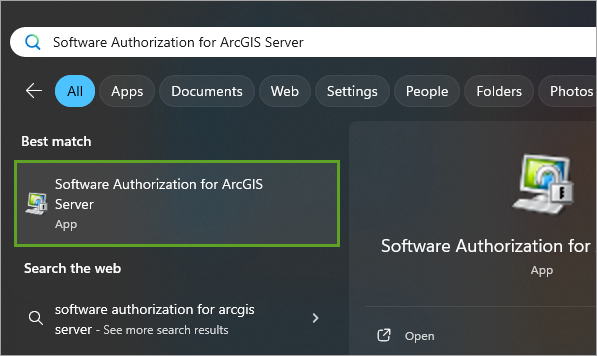
2. Open the Windows Start menu, search for Software Authorization for ArcGIS Server, and open it.
When the Software Authorization Wizard window appears, you will be presented with three authorization options:
- I have installed my software and need to authorize it. This option is appropriate when you have an ArcGIS Server authorization code, but no ArcGIS Server license file from My Esri.
- I have already authorized the software and need to authorize additional extensions. This option is appropriate when you’ve already authorized ArcGIS Server but want to authorize additional roles or extensions.
- I have received an authorization file and am now ready to finish the authorization process. This option is appropriate when you have an ArcGIS Server authorization file from My Esri. You received an authorization file in the previous tutorial, so this is the correct option for you.
3. Select the third option, I have received an authorization file and am now ready to finish the authorization process.
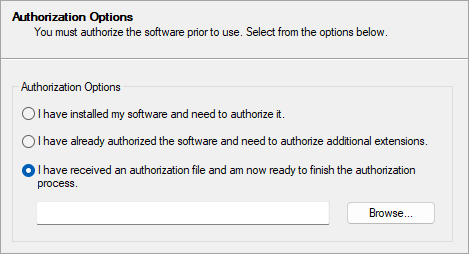
4. Click Browse and select the ArcGIS Server license (.prvc) file that you downloaded earlier from My Esri. Click Next.
Next, you must choose an authorization method.
5. Choose the first option, Authorize with Esri now using the Internet. This is an automatic method and the quickest authorization method when your environment is connected to the internet.
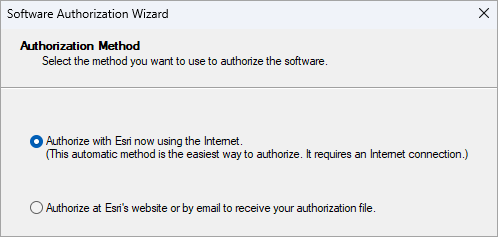
6. Click Next.
7. In the next two windows, enter your name and other information.
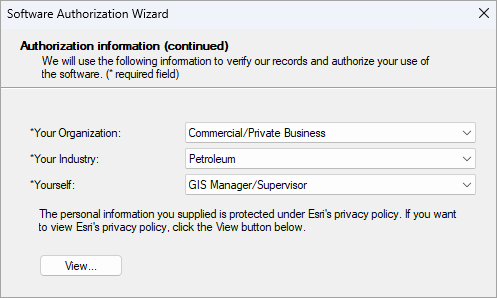
8. Click Next.
In the next window, the ArcGIS Server authorization number is automatically populated from the ArcGIS Server license file.
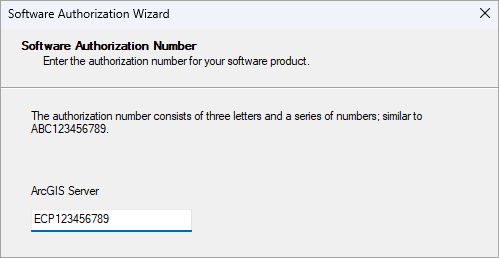
9. Click Next.
Next, you have the option to authorize ArcGIS Server extensions.
10. If you generated licenses for any ArcGIS Server extensions in the previous tutorial, select I have authorization number(s) to authorize one or more extensions and type the authorization numbers in the table. Otherwise, select I do not want to authorize any extensions at this time.
For OAG GIS, I choose not to authorize any extensions.
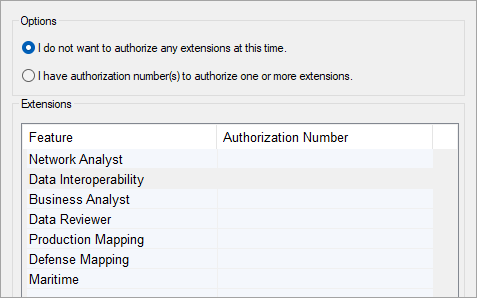
11. Click Next.
Next, you can optionally choose an evaluation authorization, or free trial, of certain ArcGIS Server extensions: Network Analyst, Data Interoperability, and Data Reviewer. At OAG GIS, I don’t need to evaluate any extensions, so I’ll leave the boxes unchecked.
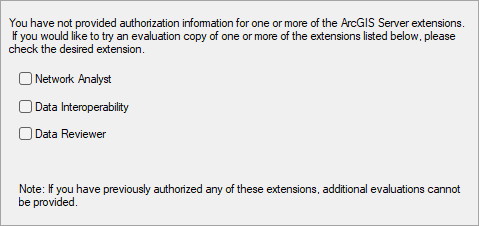
12. Click Next.
The Software Authorization Wizard authorizes ArcGIS Server and a check mark appears as each step succeeds.
13. When all the steps have completed, click Finish.
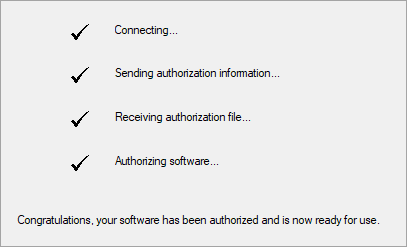
View updated ArcGIS Server license information
Now that you have authorized ArcGIS Server, you can view the license information in ArcGIS Server Manager and verify that the licenses were updated as expected.
1. Open your organization’s ArcGIS Server Manager site and ensure you are signed in.
The expiration notices that you saw earlier should no longer be shown, unless you chose to not renew one of your licenses.
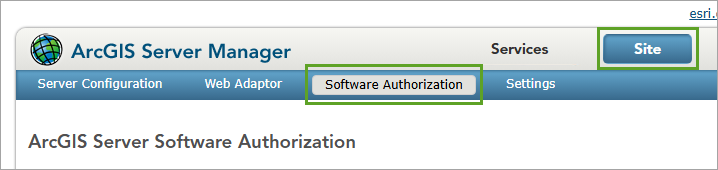
2. Click the Site tab and click the Software Authorization tab.
3. Next to each license, confirm that the expected expiration date is listed.
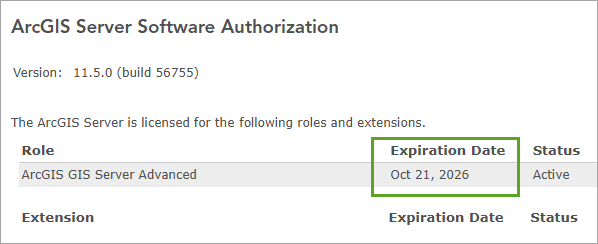
ArcGIS Server is now licensed.
Import the new Portal for ArcGIS license file
You also have a new license file from My Esri for Portal for ArcGIS. Next, you’ll import this license file into ArcGIS Enterprise. Unlike authorizing ArcGIS Server, it doesn’t matter which computer you use to authorize Portal for ArcGIS.
1. Sign in to ArcGIS Enterprise using an account with administrator privileges.
2. On the ribbon, click the Organization tab. On the blue ribbon, click the Licenses tab.
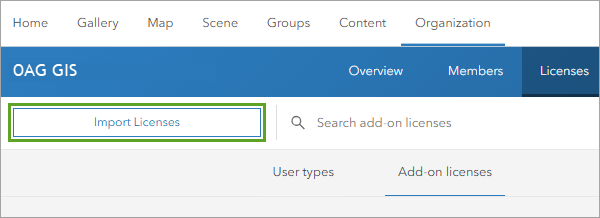
3. Click Import Licenses.
4. Click Choose File and select the Portal for ArcGIS license file you received from My Esri to authorize users and apps in ArcGIS Enterprise.
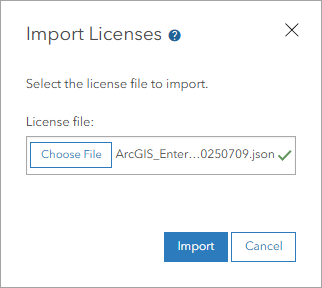
5. Click Import.
A warning appears, alerting you that the user types and add-on licenses in the new license file will replace your current licenses. In the first tutorial, you identified which user type licenses you needed and you accounted for them when creating the license file.
6. Click OK.
After a few seconds, you’ll receive notice that the licenses were successfully imported.
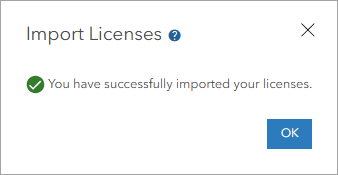
7. Click OK.
View updated ArcGIS Enterprise licenses
Next, you’ll view your user type license information. At OAG GIS, I renewed Creator and Viewer user types and added Mobile Worker user types to accommodate five new staff members, so I expect to see these three user types listed.
1. Go to your ArcGIS Enteprise organization.
2. On the ribbon, click the Organization tab. On the blue ribbon, click the Licenses tab.
3. Click the User Types tab.
4. If necessary, expand the Creator section.
In the OAG GIS organization, the count of licenses has not changed, I still have 25. However, the expiration date has updated to next year.

5. Collapse the Creator section and expand each of the other sections.
In the OAG GIS organization, the count of Viewer licenses hasn’t changed, but the expiration date has. I also have 5 Mobile Worker licenses now, which expire next year. None of the Mobile Worker licenses have been assigned yet.
Add new members to ArcGIS Enterprise
Finally, you’ll add new members to your organization, if necessary. If you don’t need to add any new members, you can skip to the tutorial’s conclusion. At OAG GIS, I need to add the five new field technicians as members so they can start their work.
1. On the blue ribbon, click the Members tab.
2. Click Add Members.
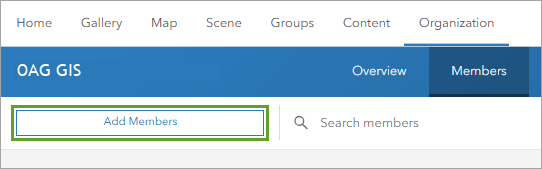
Next, you’ll decide how to add the new members. Different options will be available depending on your portal authentication configuration. At OAG GIS, I am using the built-in identify store, so I can add built-in portal members. If your organization uses a different user identity store, you can follow the instructions on the Add members to your portal documentation page and skip ahead to step 16.
3. Select Add built-in portal members and click Next.
You can add members individually or in bulk. If you have more than a few members to add, like I do, you can save time by adding them in bulk.
4. Click New members from a file.
5. Click Download CSV template.
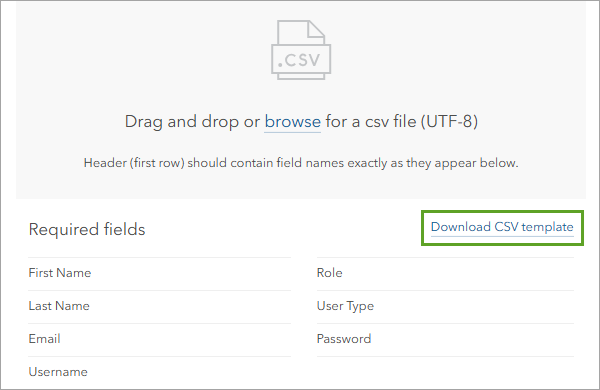
6. Open the downloaded file in Microsoft Excel, a text editor, or similar program.
7. Edit the file to list the email address, role, user type, and name for each new member.
To fill in the Role and User Type columns, refer to the list of requirements you made in the first tutorial. I need to add five members to the OAG GIS organization, and all of them should have the Data Editor role and the Mobile Worker user type.
8. Also add a temporary password for each member.
Request that they change their passwords later.

Note: If you need a completed CSV file to test with, you can download the OAG_GIS_new_members table.
9. Save the edited CSV file.
10. Return to the portal and click browse.
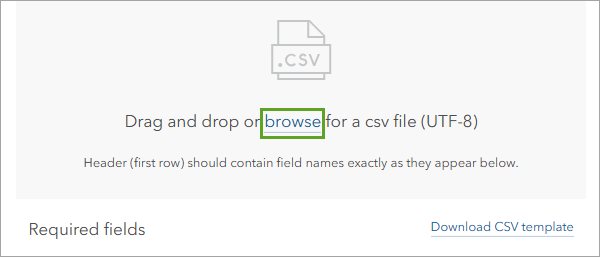
11. Select the edited CSV file and click Open.
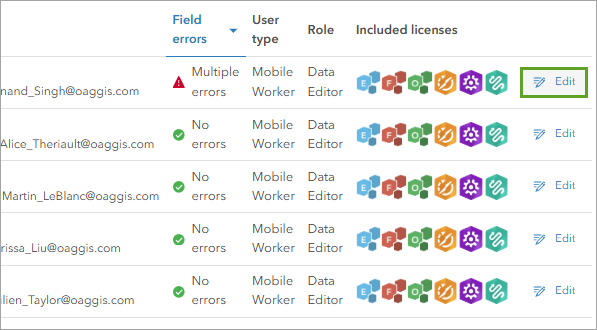
The list of new members appears in a table.
12. If any of the table rows reports an error in the Field errors column, click the Edit button and resolve the issue.
13. Click Next.
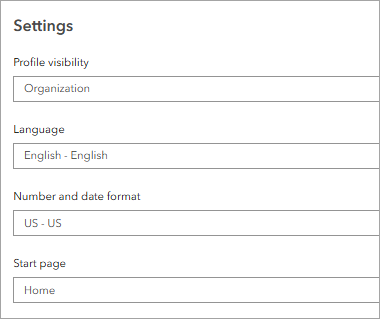
Next, you can configure the default member properties for the new members, including their profile visibility, language, number and date format, and start page. You can also add them to groups. For the new members of OAG GIS, I’ll keep the default member properties; they can change these properties themselves later.
14. Click Next.
15. Review the information on the Summary page. If all is correct, click Add members.
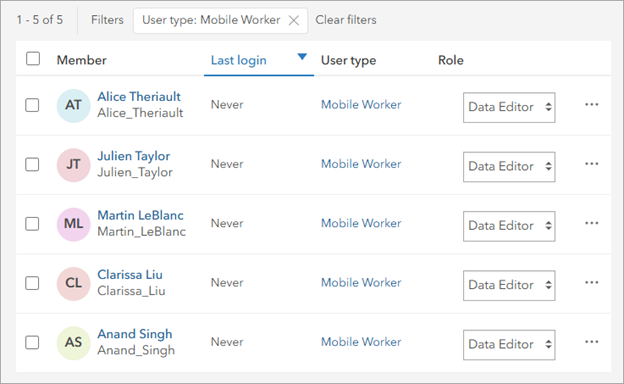
Your organization’s member list appears. Next, you’ll confirm that the new members were successfully added to the organization. You’ll filter the member list by user type to find the new members.
16. If necessary, expand the User type filter list. Click the user type that matches the new members that you added.
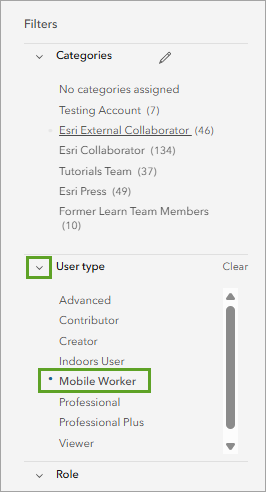
The list of members is filtered to show only those who are assigned the selected user type. In the OAG GIS organization, I see the five new mobile worker members.
Conclusion
In this tutorial, you authorized ArcGIS Server with new licenses and imported new Portal for ArcGIS license files. You reviewed and confirmed both license updates, and added new members to your portal.
In this tutorial series, you licensed ArcGIS Enterprise. You determined which licenses were needed, generated them from My Esri, and authorized ArcGIS with the new license files. Your organization and all its members are now equipped to continue their work for another year.
You can learn more about the capabilities available in ArcGIS Enterprise in the ArcGIS Enterprise functionality matrix.





Article Discussion: