This article was written for ArcGIS Enterprise 11.5.
This article is the second in a tutorial series about licensing ArcGIS Enterprise. The tutorials should be completed in order:
- License ArcGIS Enterprise 1: Choose user types and member roles
- License ArcGIS Enterprise 2: Generate ArcGIS Enterprise licenses
- License ArcGIS Enterprise 3: Authorize ArcGIS Enterprise and manage licenses
You can follow the steps in this tutorial series to license your organization. The series uses an example scenario in which I’ll assume the role of the GIS administrator for a fictional organization, OAG GIS. Your scenario will be different from mine, so you may see different options and need to make different choices than I do.
In the first tutorial, you determined which user types to license. Now you’ll review your ArcGIS Server license information and generate licenses from My Esri.
Requirements
- An account in ArcGIS Enterprise assigned either the default Administrator role, or a custom role with the Manage portal server settings administrative privilege
- Access to My Esri with an account that is connected to an organization and has licensing permissions
View ArcGIS Server license information
The ArcGIS Enterprise base deployment requires two licenses:
- Portal for ArcGIS license file: This license includes your user types, along with any optional add-on licenses and organizational capabilities.
- ArcGIS Server license file: This license authorizes your ArcGIS GIS Server role and any optional extensions.
In the previous tutorial, you reviewed your needs for user types. At OAG GIS, I don’t need any add-on licenses. However, you may want to expand the capabilities for your organization.
Next, you’ll check the status of your ArcGIS GIS Server license. It is important to have a valid ArcGIS Server license to ensure services are available and publishing workflows are supported.
1. Open your organization’s ArcGIS Server Manager site and ensure you are signed in.
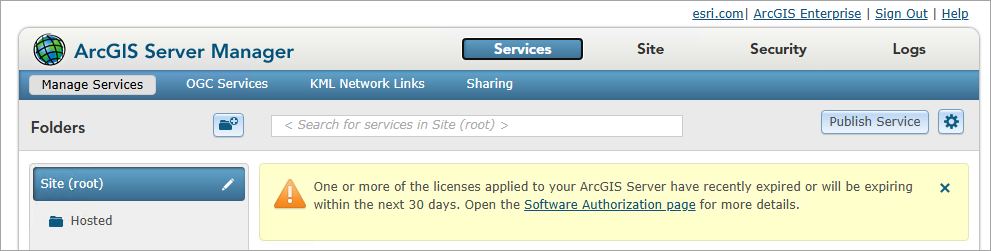
If one or more of your ArcGIS Server licenses have recently expired or are expiring in the next 30 days, you will see a warning on the Services landing page.
2. Click the Site tab and the Software Authorization tab.
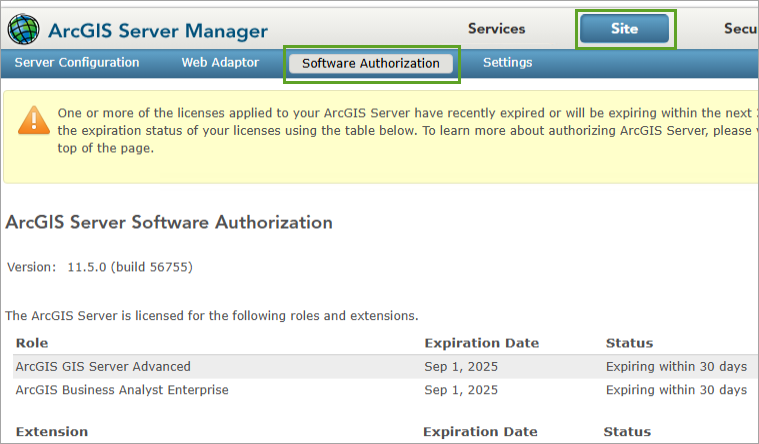
The licensed ArcGIS Server role and extensions are displayed, along with their expiration dates. At OAG GIS, the ArcGIS GIS Server Advanced license is expiring soon. (The ArcGIS Network Analyst extension is included with ArcGIS GIS Server Advanced, so it will be renewed at the same time).
Now that you’ve reviewed your organization’s existing licenses and know which licenses are needed, you can contact your Esri account manager to discuss them.
3. Write your requirements down.
The following are the requirements that I determined for OAG GIS:
- I must renew my Portal for ArcGIS license with 25 Creator, 500 Viewer, and 5 Mobile Worker user types.
- I must renew my ArcGIS GIS Server Advanced license.
At OAG GIS, I don’t require any additional ArcGIS Server roles or extensions, or add-on licenses or capabilities for portal. If you do, include them in this list.
4. Contact your Esri account manager and share your list of requirements with them.
Tip: To find the contact information for your Esri account manager, sign in to My Esri. Click the Overview tab and click Esri Contacts.
They will ensure that the necessary licenses are available for you in My Esri.
Generate the Portal for ArcGIS license file from My Esri
When you have received an email that your ArcGIS Enterprise licenses are available in My Esri, you can start by generating the Portal for ArcGIS license.
1. Sign in to My Esri.
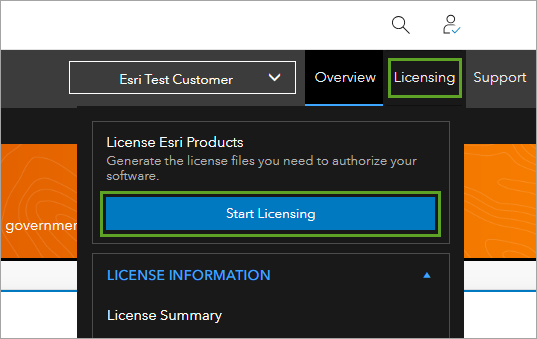
2. On the ribbon, click Licensing and click Start Licensing.
3. Click the ArcGIS Enterprise card.
4. For Product, choose ArcGIS Enterprise and select a Version.
At OAG GIS, I am renewing an expiring license at 11.5.
5. For License Type, choose Portal for ArcGIS.
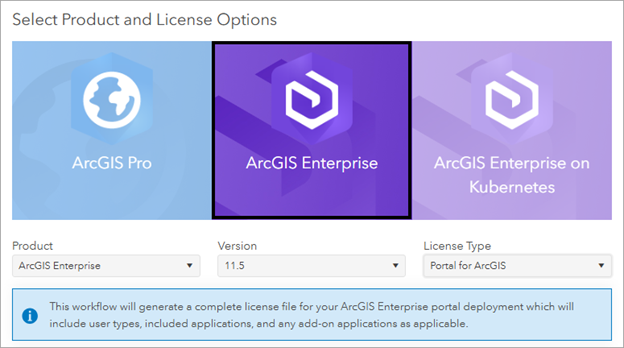
The products and licenses visible to you in My Esri are those that are available to your organization. If you do not see products or licenses that you have purchased, reach out to your Esri account manager.
6. Click Next.
On the next page, you’ll choose which user types and add-on licenses you want to include in the license file.
7. Use the drop-down menus to learn which applications and extensions are included with each user type, and which add-on licenses can be assigned to members with that user type.
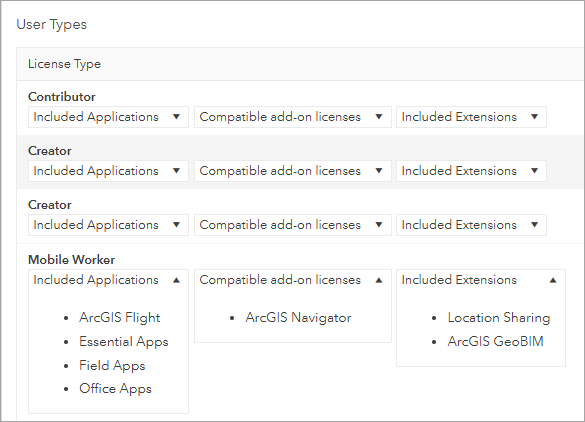
8. In the Select column, type the number of each user type you want to license. Use the requirements list you created earlier in this tutorial.
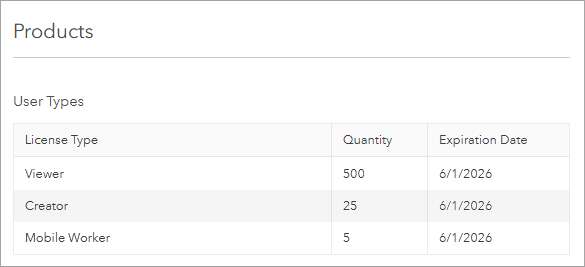
For OAG GIS, I will select 25 Creator, 500 Viewer, and 5 Mobile Worker user types.
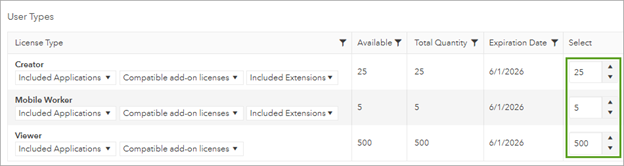
9. If you want to license any add-ons or extensions, add them in the Select column as well.
10. Scroll to the bottom of the page and click Next.
If you have purchased any add-on licenses for ArcGIS Pro, you will next see the option to license them. I did not purchase any add-on licenses for OAG GIS, so I don’t see this option.
11. If you want to license any add-on licenses for ArcGIS Pro, and the option is available, add them in the Select column. Click Next.
12. On the next page, type or copy and paste the URL for your ArcGIS Enterprise organization.
This is the public organization URL that members use to access your ArcGIS Enterprise organization. This step is required to support named user licensing of ArcGIS Pro with your ArcGIS Enterprise organization.
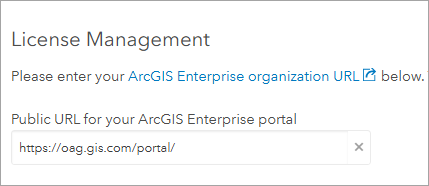
Note: If you’re generating a license file for ArcGIS Enterprise 11.3 or earlier, you’ll need to enter your ArcGIS License Manager information instead of your portal URL.
13. Click Next.
On the next page, you’ll enter information about the end user. The end user is the person who will be importing the license into ArcGIS Enterprise. At OAG GIS, I will be the end user.
14. If you are the end user, select Populate fields from my profile. Otherwise, you can choose a user already connected to your organization, or enter a new user.
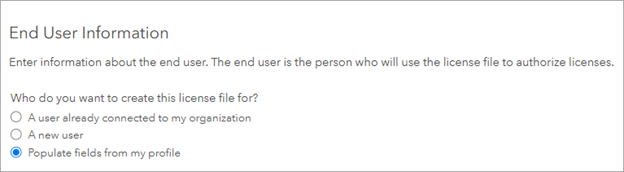
15. Click Next.
16. On the next page, review the summary of the user type and add-on licenses selected.
These will be included in the Portal for ArcGIS license file.
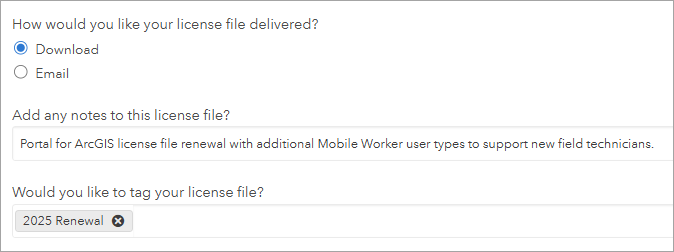
17. For How would you like your license file delivered, choose Download or Email.
At OAG GIS, I chose to download the license file.
18. Optionally, add notes and tags to the license file to make it easier to find later in My Esri.
At OAG GIS, for notes, I typed Portal for ArcGIS license file renewal with additional Mobile Worker user types to support new field technicians. For tags, I typed 2025 Renewal.
Next, you’ll choose a deployment type for the license file.
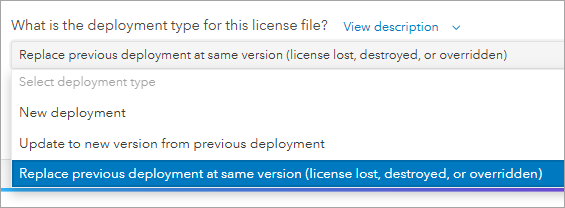
For OAG GIS, I’ll choose to replace my previous deployment (license file) at the same version. This is the appropriate choice to replace a license that will soon expire.
19. Click Create File.
The license file is either downloaded to your computer, or sent to you by email. It has a .json file extension.
20. Save the license file in a safe place.
You’ll use this file in the next tutorial, when you import it into ArcGIS Enterprise.
Generate the ArcGIS Server license file from My Esri
Next, you’ll generate the ArcGIS Server license file from My Esri.
1. If you’re not already viewing the License Esri Products page of My Esri, on the ribbon, click Licensing and click Start Licensing.
2. Click the ArcGIS Enterprise card.
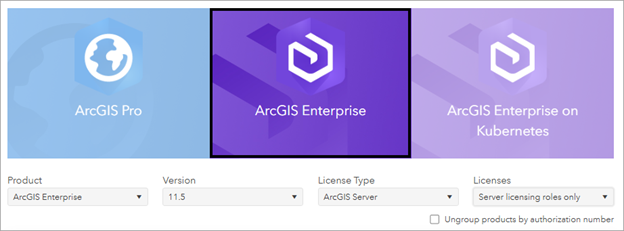
3. For Product, choose ArcGIS Enterprise and select a Version.
4. For License Type, choose ArcGIS Server and choose a Licenses option.
At OAG GIS, I only need to renew my ArcGIS GIS Server Advanced license. I don’t need to license any extensions, so I chose Server licensing roles only.
5. Click Next.
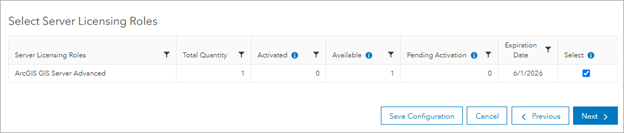
6. Select the Server Licensing Roles that you want to license.
For OAG GIS, I selected ArcGIS GIS Server Advanced.
7. Click Next.
8. On the End User Information page, enter the information for the person who will be using the file to authorize ArcGIS Server.
For OAG GIS, I chose Populate fields from my profile.
9. Click Next.
10. Review the summary of ArcGIS Server licenses that will be included in the license file.
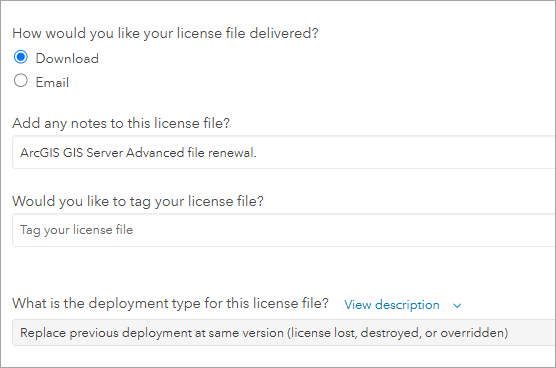
11. Choose to have the file downloaded or sent by email. Optionally, add notes and tags to the license file.
12. Choose a deployment type.
Since I am renewing an expiring license at OAG GIS, I chose Replace previous deployment at same version (license lost, destroyed, or overridden).
13. Click Create File.
The license file is either downloaded to your computer, or sent to you by email. It has a .prvc file extension.
14. Save the license file in a safe place.
You’ll use this file in the next tutorial to authorize ArcGIS Server.
Conclusion
In this tutorial, you reviewed your ArcGIS Server license information and generated license files from My Esri for ArcGIS Server and Portal for ArcGIS.
Next, you need to put your new license files to use. Read the next blog in the series, Authorize ArcGIS Enterprise and manage licenses to learn how.




Article Discussion: