ArcGIS Hub Premium is a cloud-based collaboration and engagement platform that enables organizations to work together, share data openly or securely, and turn insight into measurable impact.
Organizations of all types and sizes, such as governments, non-profits, and businesses, from local to national to international levels can share trusted, curated content and information. This can help increase transparency, improve communication, and support decision-making on your mission and priorities.
With Hub Premium, you can create geo-enabled websites that integrate web maps, apps, datasets, and more. Use groups to create collaboration spaces that connect internal and external audiences. Work together on content, initiatives, and projects and engage through discussions and events.
You can also invite stakeholders within your broader community to contribute their own content and feedback and assist with organized efforts.
This guide covers how to:
- Create a site inventory
- Bring in collaborators using groups
- Share a long-term objective with an initiative
- Track a short-term goal with a project

Before you get started
The capabilities in this guide require a license to Hub Premium. We will start with an existing Hub site. If you don’t have Hub Premium yet or for guidance on creating a site and configuring a content catalog, you can Get started with ArcGIS Hub Basic.
While all Hub users can create sites, only Hub Premium has advanced features, such as the community organization, projects, events, and other tools for engagement.
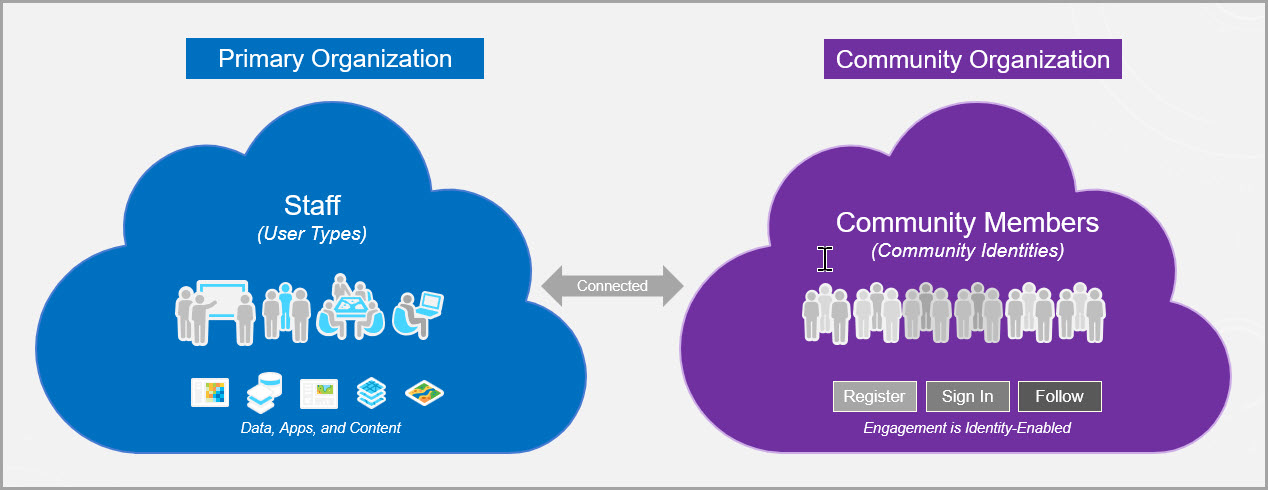
Hub Premium provides you with two ArcGIS Online organizations: the primary organization and an additional community organization. The community organization is a separate ArcGIS Online subscription allowing your employees and authoritative content to remain in the primary organization. Utilize the community organization to share selected content and engage with your stakeholders and volunteers.
Hub connects the two organizations and the sharing model in ArcGIS Online allows community members to view and create content through groups that you set up.
For instance, you can add community members to groups that are part of a site in the primary organization so that community members can contribute content.
Learn more about the powerful capabilities of Hub Premium. If needed, use the following workflows and resources from the Hub web help:
- Activate ArcGIS Hub Premium
- Set up and manage the community organization
- Create a site
- Customize the site and the layout
- Configure a content catalog for the site
- Manage site details and settings in the workspace
Overview of sites, initiatives, and projects
Hub Premium provides the capability to create and manage a site and create one or more initiatives (or projects) connected to the site. Projects can be nested under a related initiative through associations.
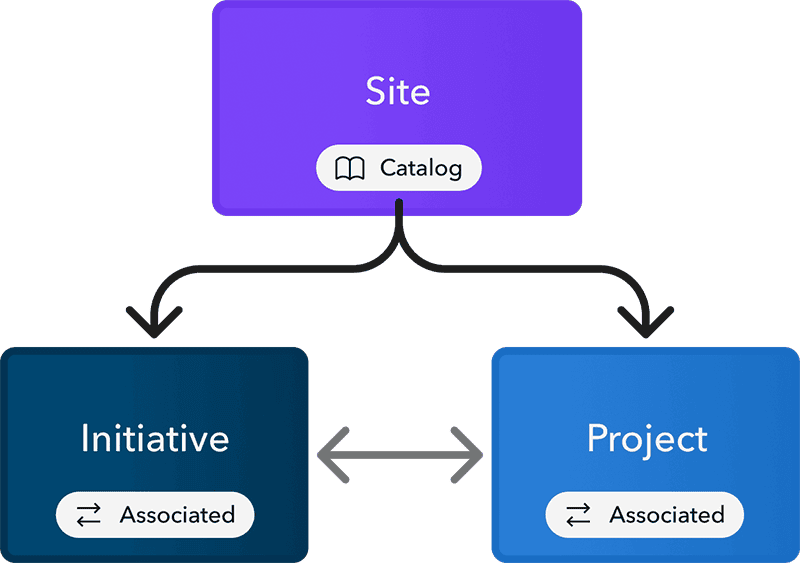
Sites recommended uses:
- Build a website with pages and content, share a narrative
- Design your site in the layout editor with drag-and-drop cards, display content without needing to know HTML
- Apply branding at the organizational level (via custom domain, color, theme, logo, header, etc.)
- Provide a broader framework of information for multiple initiatives
- Use for longer lasting or more extensive content
Initiatives recommended uses:
- Manage and share your longer-term, multi-part objectives
- Connect and organize projects that have related themes
- Provide a broader framework of information for individual projects
- May contain more extensive content than projects
Projects recommended uses:
- Track and communicate your shorter-term goals
- Break down your larger initiatives into more detailed, time-based, projects
- Focus on work that can be broken down into stages to be more manageable and delegated
- Associate projects with initiatives that have similar themes
Create an inventory
Consider a site you have already created or plan to create for your organization. Start building it out by making a list of your content and other items such as maps and apps that you want to share or that help convey your message.
As part of every site, you can create initiatives and projects, add events, and add content to drive your site’s search results. Content included in a site catalog can also be used when designing the layout of your sites and pages.
Will it be useful for people to see charts and metrics, such as data related to proposed developments? Do you want to communicate specific goals and objectives with your site?
Or, do you need a way to generate feedback, such as a survey to gauge the impacts of a new streetscape project or a map-based discussion board to gather comments on affordable housing projects?

For steps on how to get started, refer to the following links:
- Learn about the basics of content and catalogs
- Manage and edit content in ArcGIS Hub
- Create and manage surveys
- Integrate statistics and charts into your sites and pages
Bring in collaborators
Groups provide the opportunity to bring people, such as stakeholders, community advocates, volunteers, residents, students, and other audiences, together with content, so that they can participate and represent their community. These external collaborators can join the community organization as authenticated users.
Groups can include members from your primary organization, other organizations, and your community organization, bringing people together around a common goal or activity.
Don’t worry if you’re not sure what you want to share yet or all of your content is not ready. You can work collaboratively on content with internal and external stakeholders by connecting a group to your site and adding people to the group.
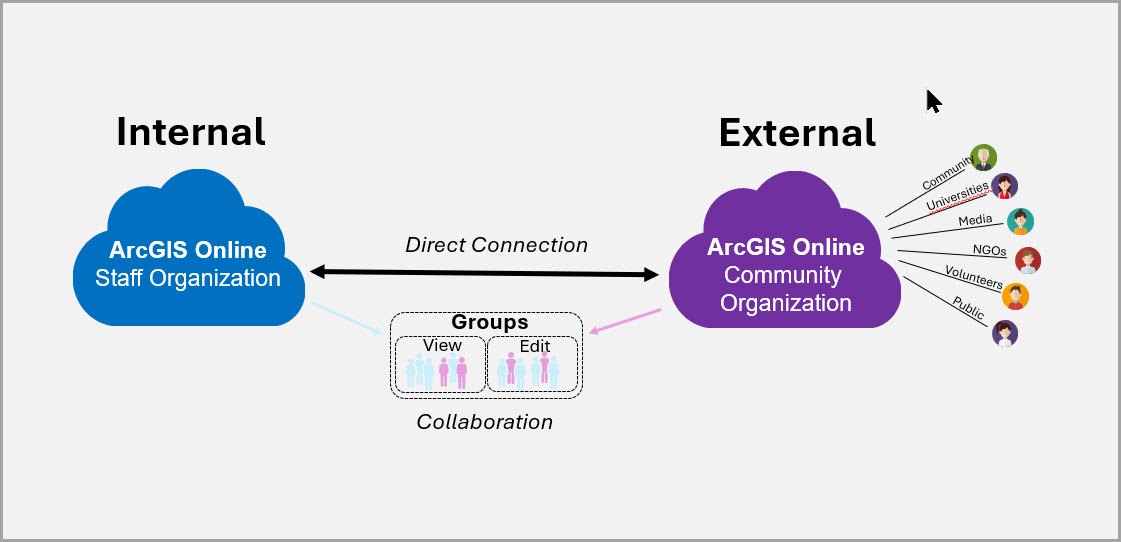
Group members can have view only access or the ability to update content shared with the group (via shared update groups). Together, you can organize content, including data, web maps, surveys, events, and stories, as part of your site catalog.
Groups can empower people to take part in the processes and decisions that shape the places around them. Learn more about using groups.
Use an ArcGIS Online shared update group as a site’s edit group. With the ability to invite other members to the group, send targeted surveys, and connect with site followers, group members can provide knowledge and insight.
Site editors can even help out by editing the layout of a site with updated content, creating events and adding details, and organizing an events catalog for the site. To bring in collaborators as site editors, follow these steps (Refer to Step 11).
Create a site editing group
If you don’t already have a shared update group in place for site editors, you can easily create one.
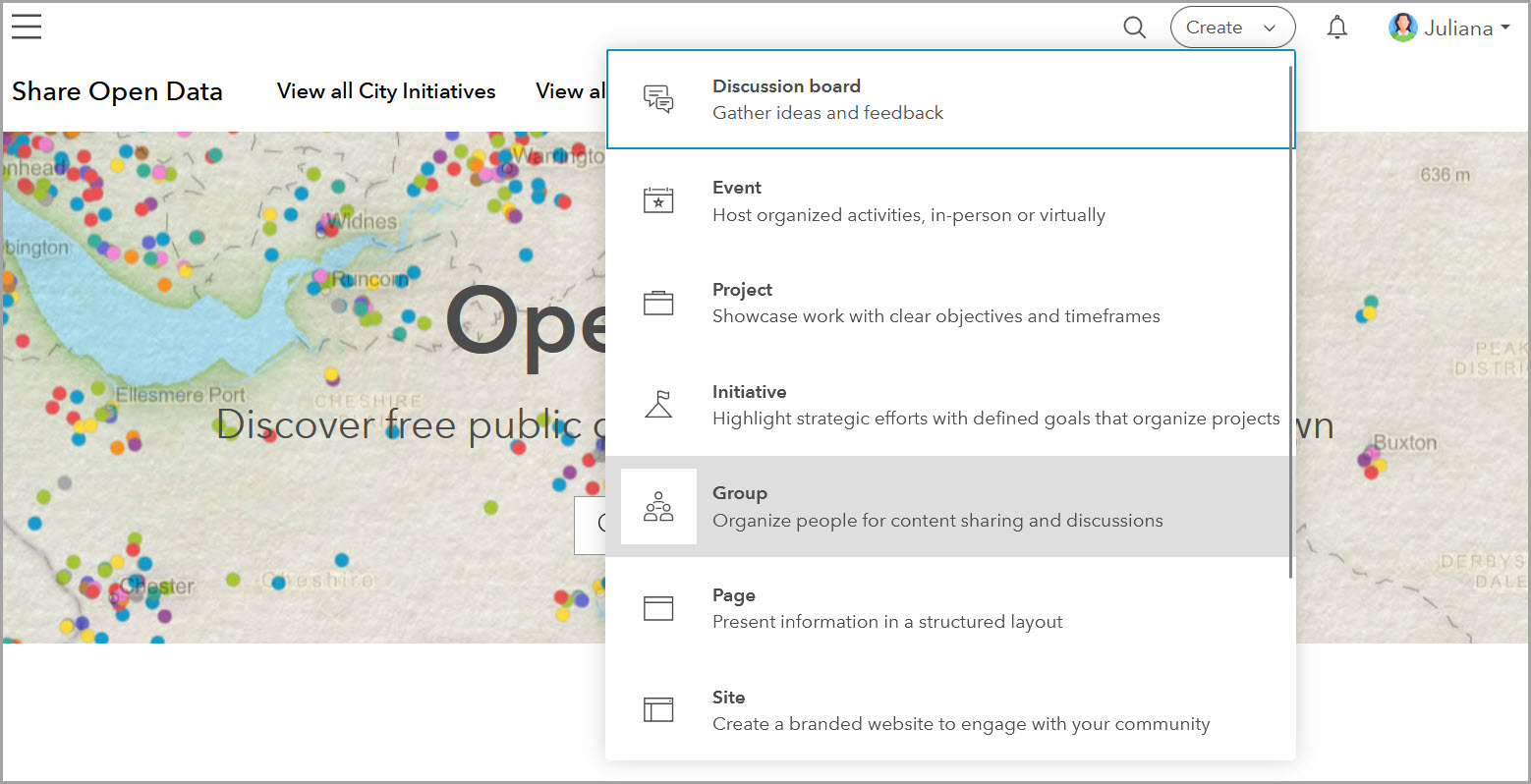
- On the global navigation header, select the Create button and choose Group. Note, you can also create groups in ArcGIS Online.
- Provide a name for the group and configure the group settings.
- Select Create.
Manage a group
In the group workspace, administrators, group owners, and group managers can edit group details, add or remove members, share content with the group, and more. Group managers and members can view group content and share their own content with the group. Learn how to share content with a group.
Content items can be added to a group in the group workspace (open the Content pane). Items can be shared with groups in the content workspace (open the Settings > Sharing pane).
Follow this guidance to manage a group in the group workspace. Learn more about access and sharing.
Start a new initiative
An initiative is a longer-term objective of your organization that may involve external partners and stakeholders. For example, initiatives could include a series of events highlighting upcoming youth activities in a local park or a community engagement campaign around an upcoming long-range plan.
Let’s create an initiative that is focused on a five-year plan to improve pedestrian access and fitness opportunities in the community. Whatever your initiative is, Hub Premium can support your team in sharing your message with the right audience.
1. Follow the instructions to create an initiative using one of the following methods:
- Use the Create button if you do not have an existing site related to the planned initiative.
Note: If you already have an ArcGIS Online shared update group with members who can be initiative editors, you can select that group while creating the initiative. Or, you can share with groups later.
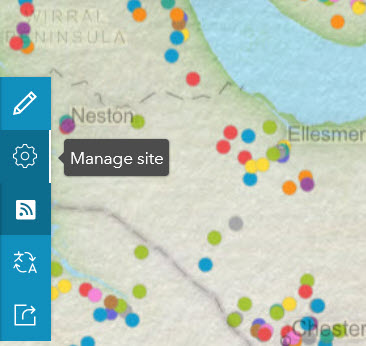
- Open the workspace of a site related to the planned initiative: From a live view of the site, select the Manage site button.
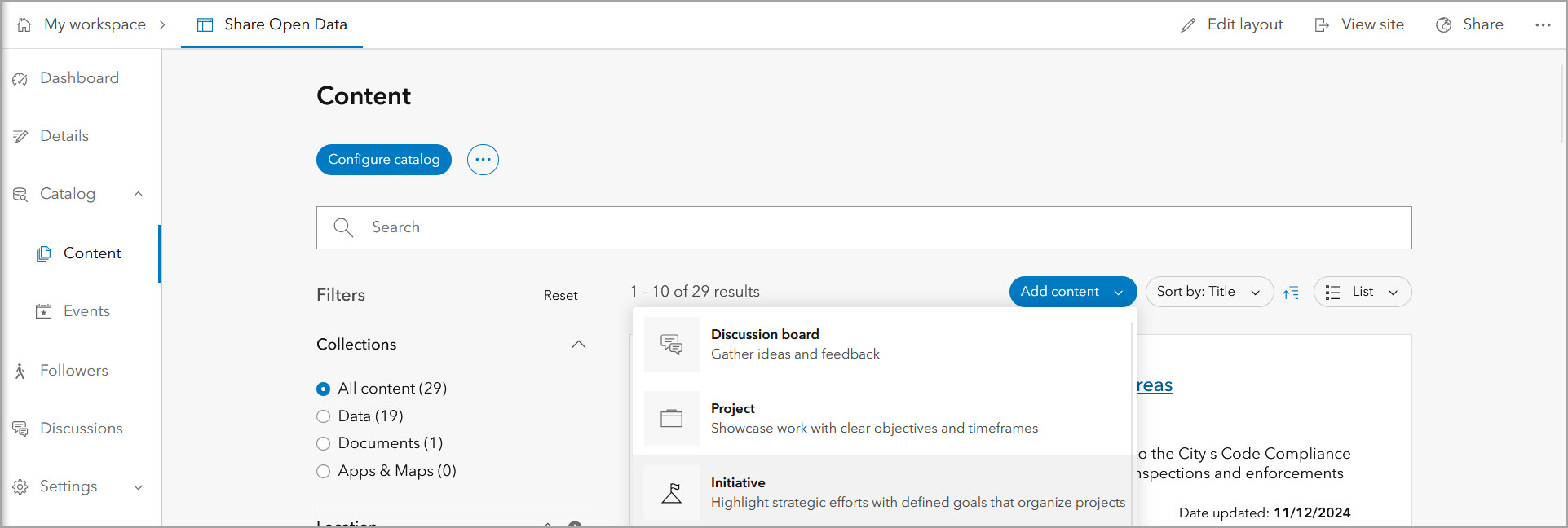
2. Select the Catalog > Content pane.
3. Use the Add content button to create an initiative and add it directly to the site’s configured catalog.
Note, if the site does not have a catalog configured, select Configure catalog where you can populate the catalog with groups of content.
4. Follow the steps to Create an initiative (selecting a group that is part of the content catalog).
Note, on the first step you can select a catalog option:
- Blank catalog
- Quick start catalog with a new group
- Start catalog with existing group
Note, Regardless of the selected catalog option, in Step 2, select the content group that is configured to make up the site catalog.

Manage the initiative
Find the new initiative, either in the sites catalog or from your user workspace (My workspace > Content pane). Select the Manage button next to the initiative to open the workspace. Save any changes made on each workspace pane before navigating away.
- In the initiative workspace on the Details pane, you can add a summary, thumbnail, location, and other details to appear on the live view. Under Progress details, consider whether it’s useful for the purposes of this initiative to:
- Include a Hero banner to feature a map or image above the initiative’s title
- Include a Timeline to display phases of work over a specified timeframe.
2. When you create and collect content or plan events related to your initiative, you can include them in catalogs. This allows visitors to search and discover information and activities relevant to a particular initiative. Select Catalog > Content pane or Events pane to configure a catalog of content or events.
Note, with a Hub Premium license, sites, initiatives, and projects all have catalogs for content and events. If you selected the quick start catalog option when creating the initiative, you already have a configured content catalog.
3. On the Projects pane, you can connect your initiative to related projects by using associations. Note, from the project workspace, you can set up associations with related initiatives.
4. The Settings > General pane allows you to configure map and deletion settings. On the Settings > Sharing pane, you can choose a Sharing level and share the initiative with groups for viewing and editing.
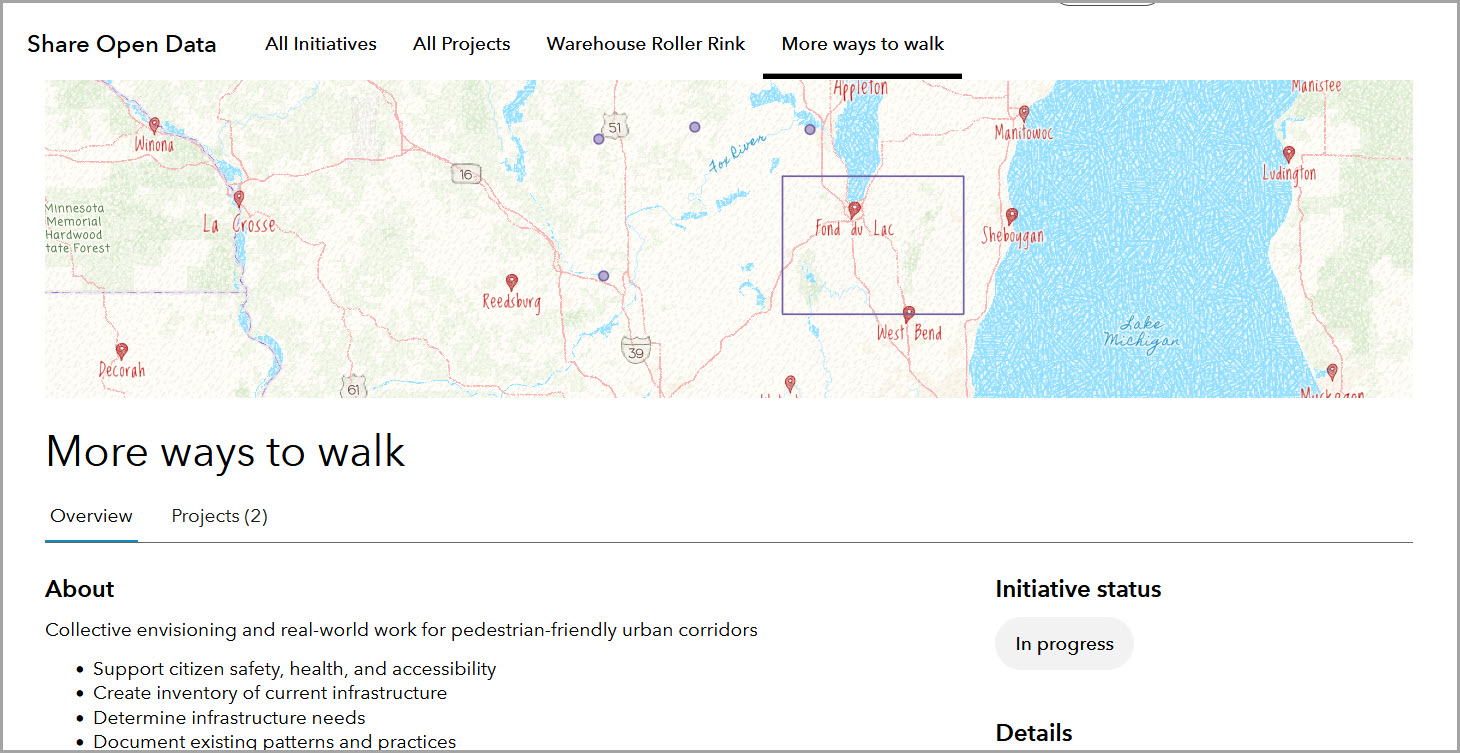
5. When ready, select View initiative.
Create your first project
Think about your work that has defined goals and timelines, and that require material, staff, and financial resources. Hub projects is a built-in feature that can help you organize, administer, and highlight that work.
Let’s say you want to conduct an inventory of pedestrian practices around the city. This project is related to the walking and fitness initiative we worked on above.
- Open the live view of the site you built and select Manage site.
- Select the Catalog > Content.
- Use the Add content button to create a project within the site’s configured catalog.
- Follow the steps to Create a project.
Note, select a catalog option for the project (as with a new initiative).
Add details to your project
You can add more information and access settings in the project workspace. From the live view of your new project, select Manage project.
The project workspace allows you and your collaborators to manage project information.
Notice you have panes for:
- Details– Edit the information that appears on the project view. You can include a status and timeline and add button links to the hero banner.
- Catalog- As described for the initiative, you can configure a catalog of content or events related to this project.
Learn more about creating and sharing events in the Enhanced events – now available in ArcGIS Hub! ArcGIS blog article and in the events web help.
- Initiatives– Project editors can connect (associate) a project to related initiatives, such as the fitness initiative in this scenario. Confirmed associations enable cross-linking: initiatives appear on their related project views and projects appear on their related initiative views.
- Settings– These are described above for an initiative.
Don’t forget to save your changes. Select View project to open the layout view of your project. Select the Manage project button to return to the workspace.
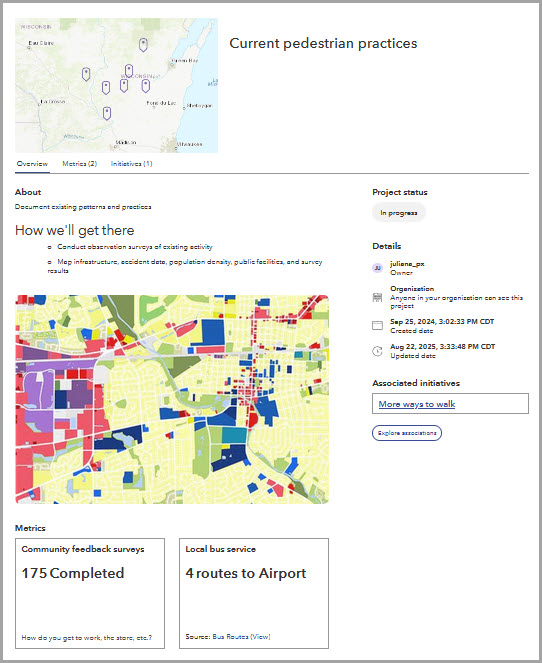
- Share it with a group that is part of the site’s content catalog so that visitors can search and filter.
- Add a link to the site header that directs visitors to one or all initiatives or projects. Each site has an additional search page for all initiatives and for all projects that are shared with a site (part of a site catalog). Use the dedicated search page for initiatives: {siteurl}/initiatives and for projects: {siteurl}/projects.
Add it up! (Let the data speak)
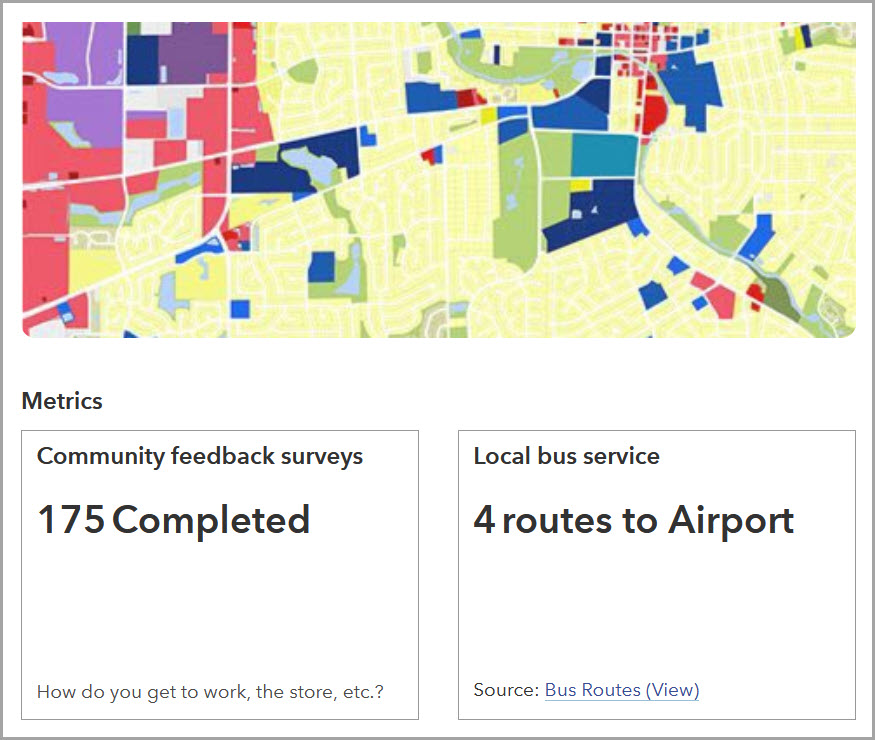
To demonstrate progress or show other measurable aspects of your work, you can add metrics to initiatives and projects. Just open the respective workspace and go to the Metrics pane. Metric values can be powered by a dataset to dynamically display.
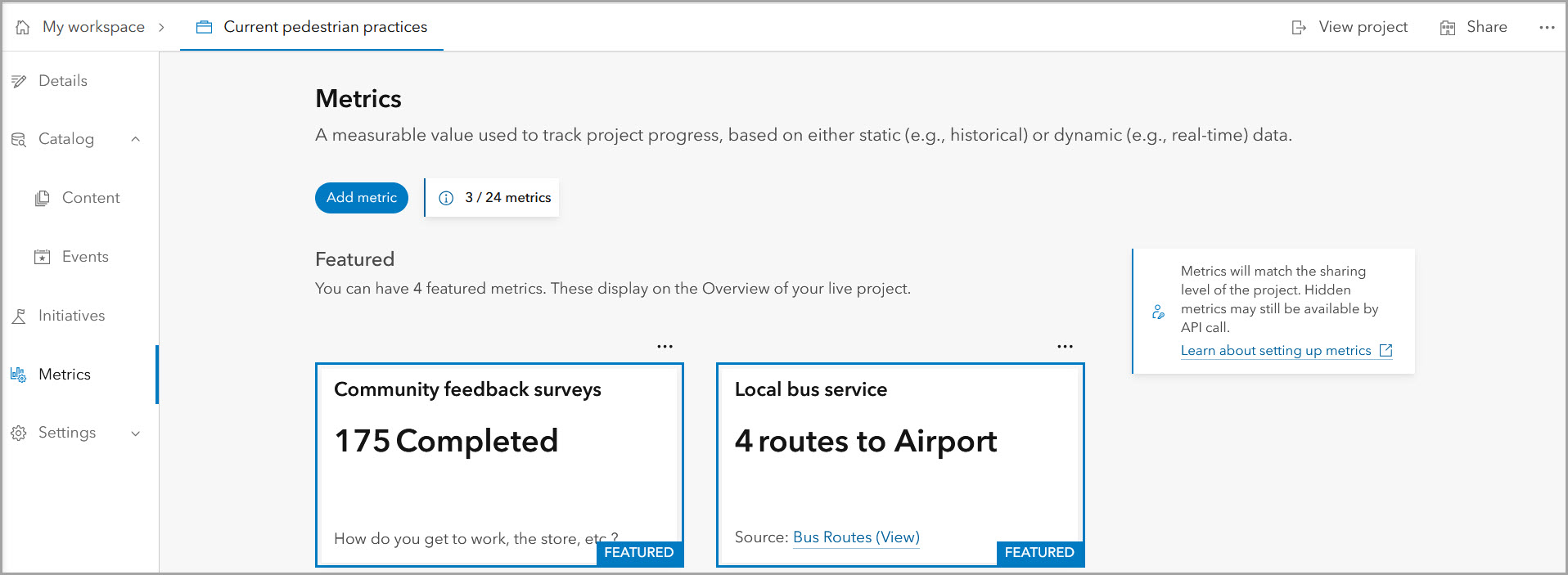
You can also add a manual metric value by using the Static option for information not available as a dataset or other readily usable format (such as a summary value provided in a PDF report).
Learn more about adding and customizing metrics for the initiative or project view.
Showcase all your progress
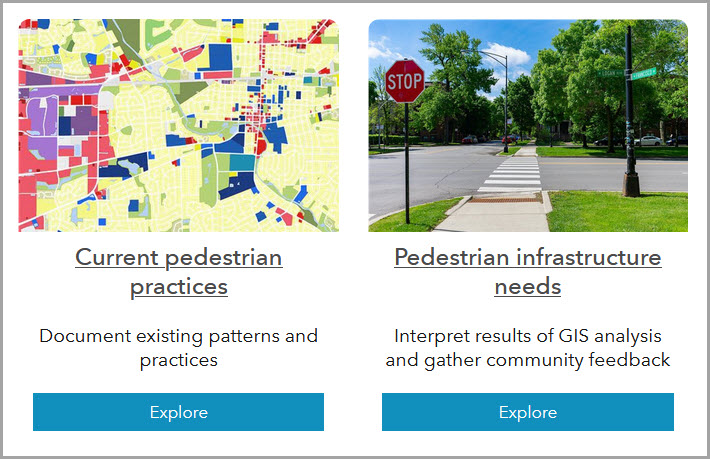
Display your initiatives and projects on the layout of a page or site. To boost their visibility, you have several options:
- Add it to a Gallery card in the site layout. Don’t forget to add a thumbnail if you want it to appear on the Gallery card or use Icon as the Image type.
Next steps
- Know someone who might be interested in participating? Invite them to join your Hub community and follow your site.
- Gather community feedback with a map-based discussion board.
- Discuss content items in Hub using the discussions feature; for map-based content, users can even connect a post to features on the map.
- When you’re ready to introduce your site, share the link on social media.
Go further with ArcGIS Hub
-
- Sign up for the ArcGIS Hub e-newsletter.
- Rely on the Hub web help for detailed information and workflows.
- Sign up and attend Hub webinars.
- Explore educational resources in Hub Learning Resources.
- Learn more in the following ArcGIS Hub blogs:
We value your feedback. Post questions or comments on the ArcGIS Hub Esri Community page.
This article was originally published in 2019 and is regularly updated.



Article Discussion: