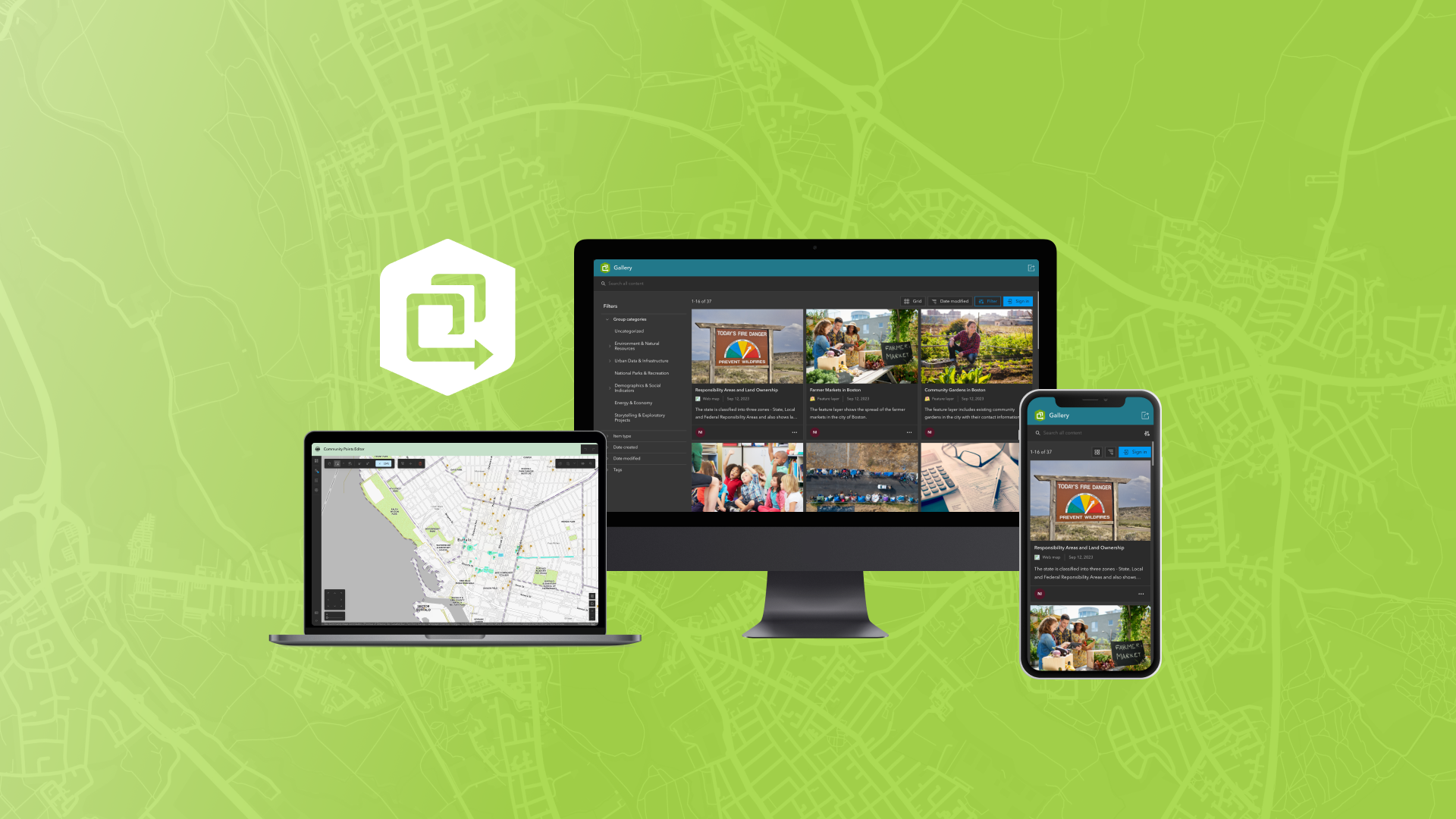
The February 2026 ArcGIS Online update introduces new features and key updates throughout the site. The same applies for ArcGIS Instant Apps, as we have rolled out several updates and new features to our existing apps, further improved choosing and managing your apps on the Instant Apps home page, and addressed various bugs and enhancements to help stabilize and improve your experience across the site. See the highlights below.
New app: Gallery
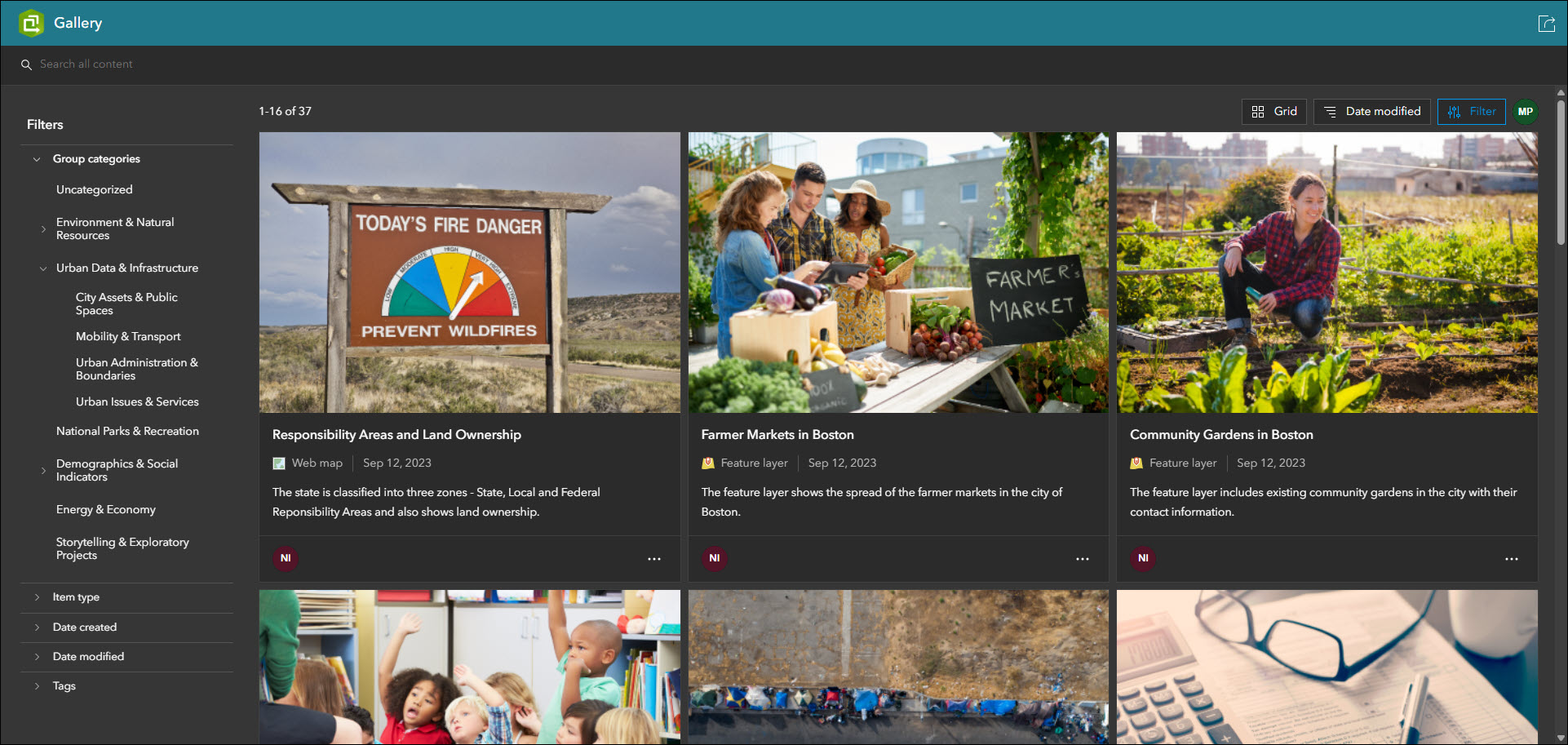
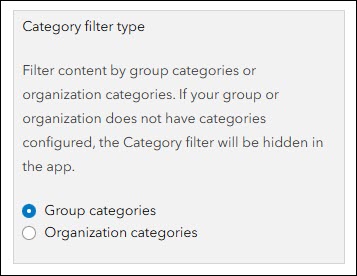
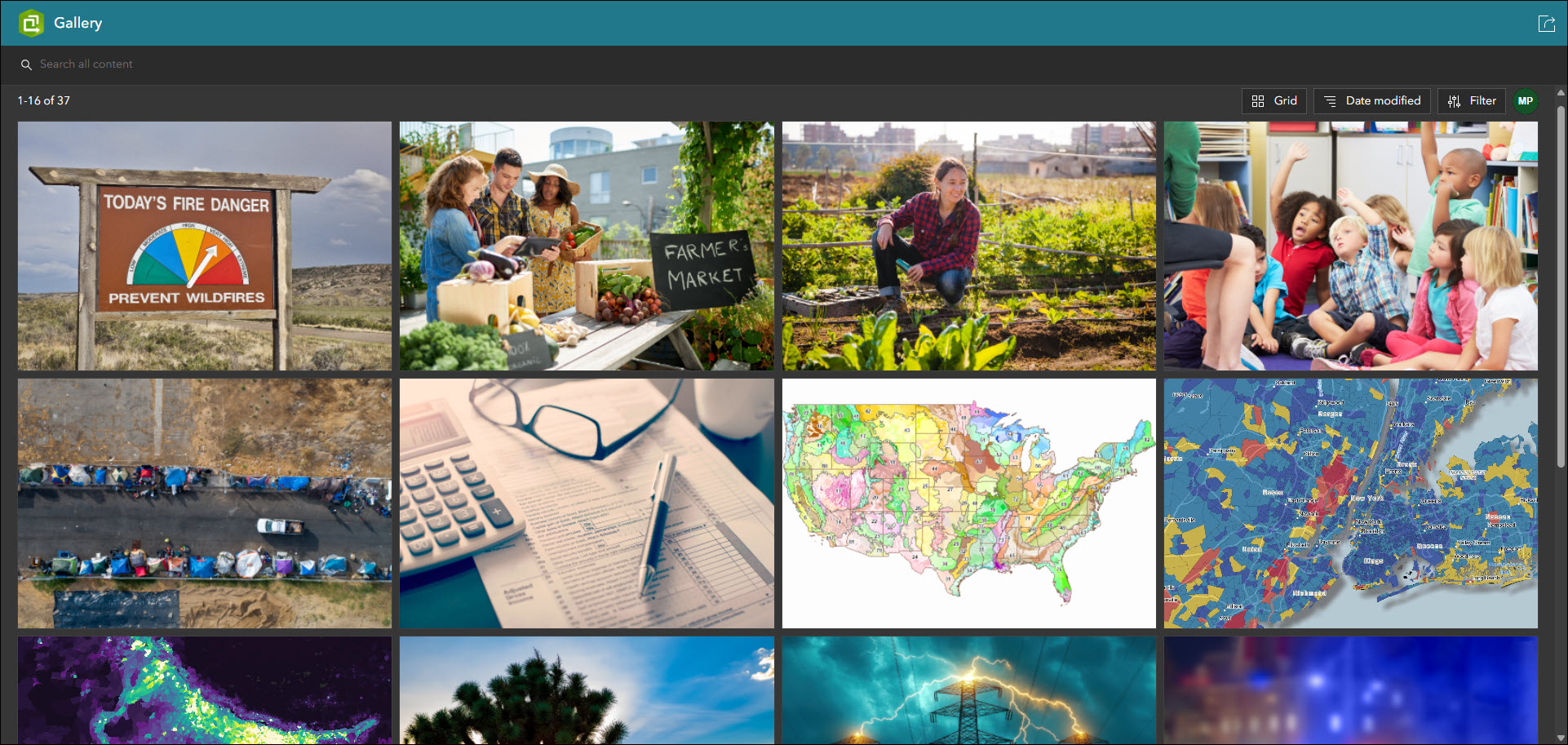
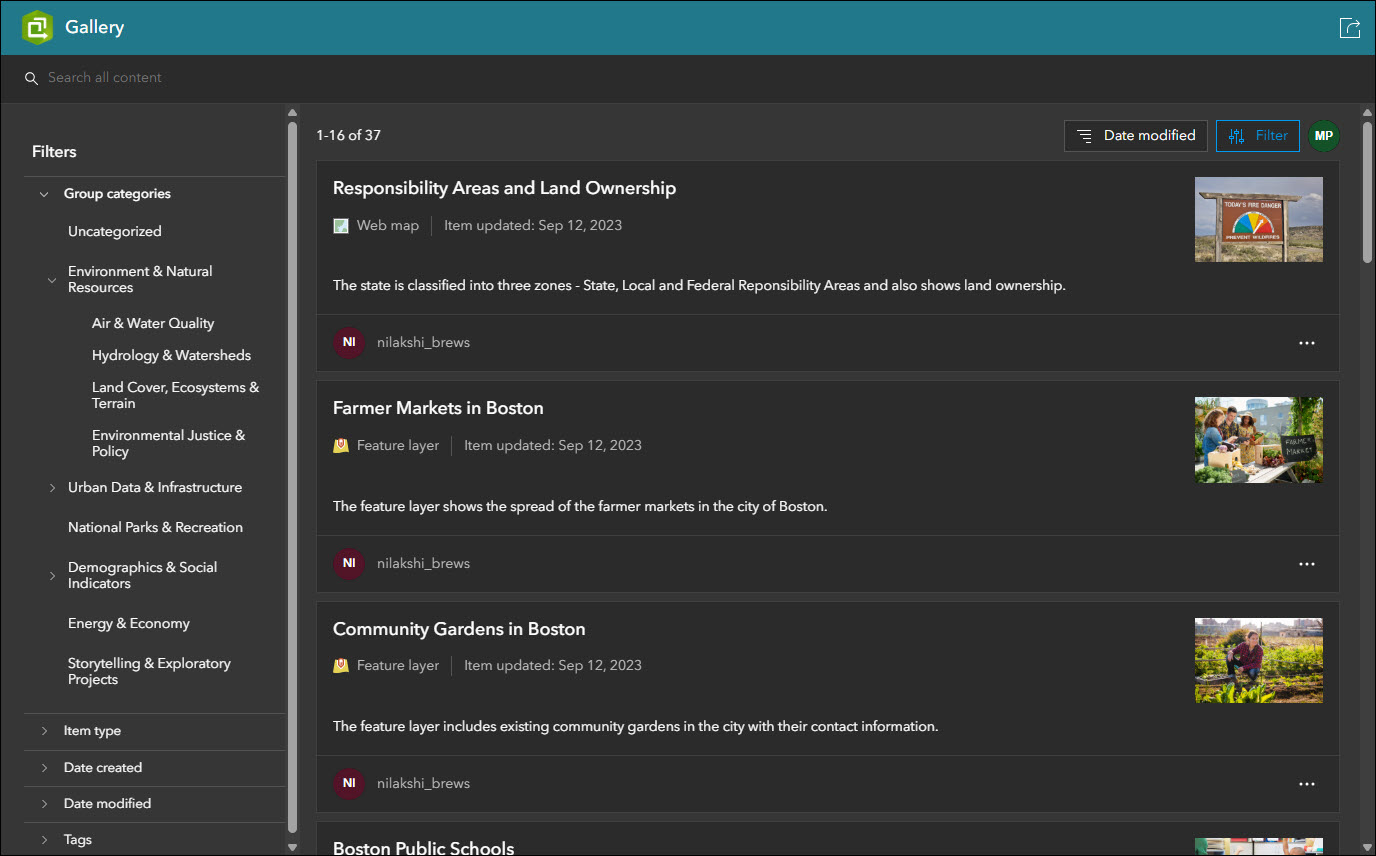
Showcase items from a group in a filterable and searchable grid or list using the new Gallery template. Present a collection of items that offer app users the ability to view, open, and explore all in one place. Gallery offers several different ways to filter content in the app using the filter panel, such as by category, item type, date created or modified, tags, and more. The category filter can be configured to use group categories or organization categories. A setting in the configuration lets the app creator decide which one to leverage in their app.
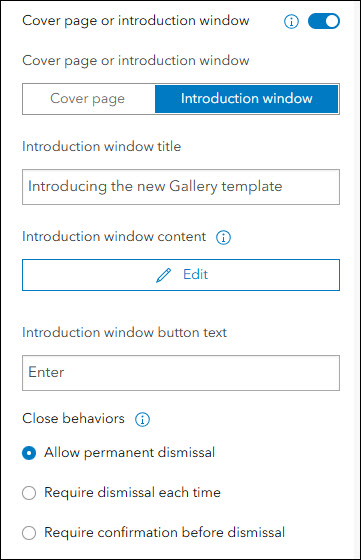
The Cover page and Introduction window have been added to Gallery to offer a means of introducing your app to your audience. On the About > App introduction tab of the configuration, enable “Cover page or introduction window” and then use the toggle to choose which app introduction method best suits your purpose.
The app configuration offers several key settings beyond filtering, such as default layout (grid or list), sign in button, and the ability to open content externally from the app in the ArcGIS Online Map Viewer or Scene Viewer. Enable the “Open in Map Viewer or Scene Viewer” setting in Interactivity > Item card display to make this the main opening action on map, scene, and layer item cards. If this setting is disabled, only the app’s built-in viewers will be used to display these items.
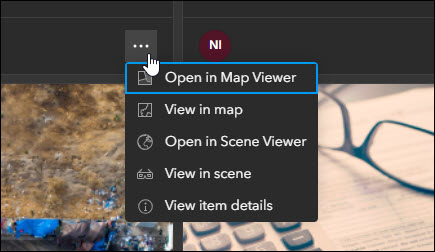
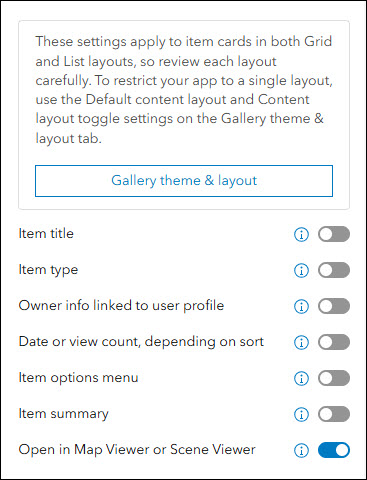
The configuration also lets the app creator determine which details are exposed on the item cards. On the Interactivity > Item card display tab of the configuration, decide to expose and display details such as item type, owner info, date, item options menu, and the item’s summary text. New with this release is the ability to disable the item’s title using the “Item title” setting. The app creator now has full control over showing or hiding every single informational element on the item cards to achieve the desired look. For example, disable all settings on this panel to offer a clean and simplistic layout of only the item thumbnail images in a grid (when using Grid view).
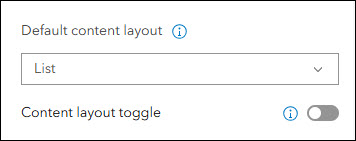
Display items in your app using Grid or List view. Each view displays the same information and items but in different layouts that can both be offered in the app. Use the “Default content layout” setting to choose which view your app displays in on load. Disable the new “Content layout toggle” setting if you would like to restrict the app to only displaying content in one of the views. These settings and more are found on the Theme & Layout > Gallery theme & layout tab of the configuration.
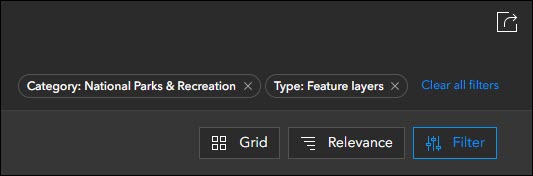
Enable the Share tool in your app so that app viewers can share it with others. The Share tool preserves any filters that are applied using URL parameters so that they can share exactly what they see. When filters are applied in the app, they are represented as elements at the top near the Share tool.
At the June 2026 ArcGIS Online release, the Category Gallery template will enter its deprecation phase. Any existing apps you have created using Category Gallery will continue to work and be configurable, but it will use the updated app code of the new Gallery template. This will also mark the moment of Category Gallery no longer being an available choice of templates to choose from when creating new apps using ArcGIS Instant Apps. Moving forward, please check out the new Gallery template and begin taking advantage of its updated UI, feature enhancements, and configuration updates as it will soon be the replacement solution for Category Gallery.
New app: Web Editor
Streamline data maintenance workflows using the new Web Editor template. Create apps that prioritize editing data by offering app users a complete suite of tools and capabilities to create, modify, remove, and maintain data from any editable feature layer. Perform advanced geometry edits such as editing vertices, splitting, merging, moving, and reshaping features. Several key app capabilities include batch editing support, snapping to features and using a reference grid, support for editing forms, feature and attribute selection tools, and using a directional pad for precise map navigation.
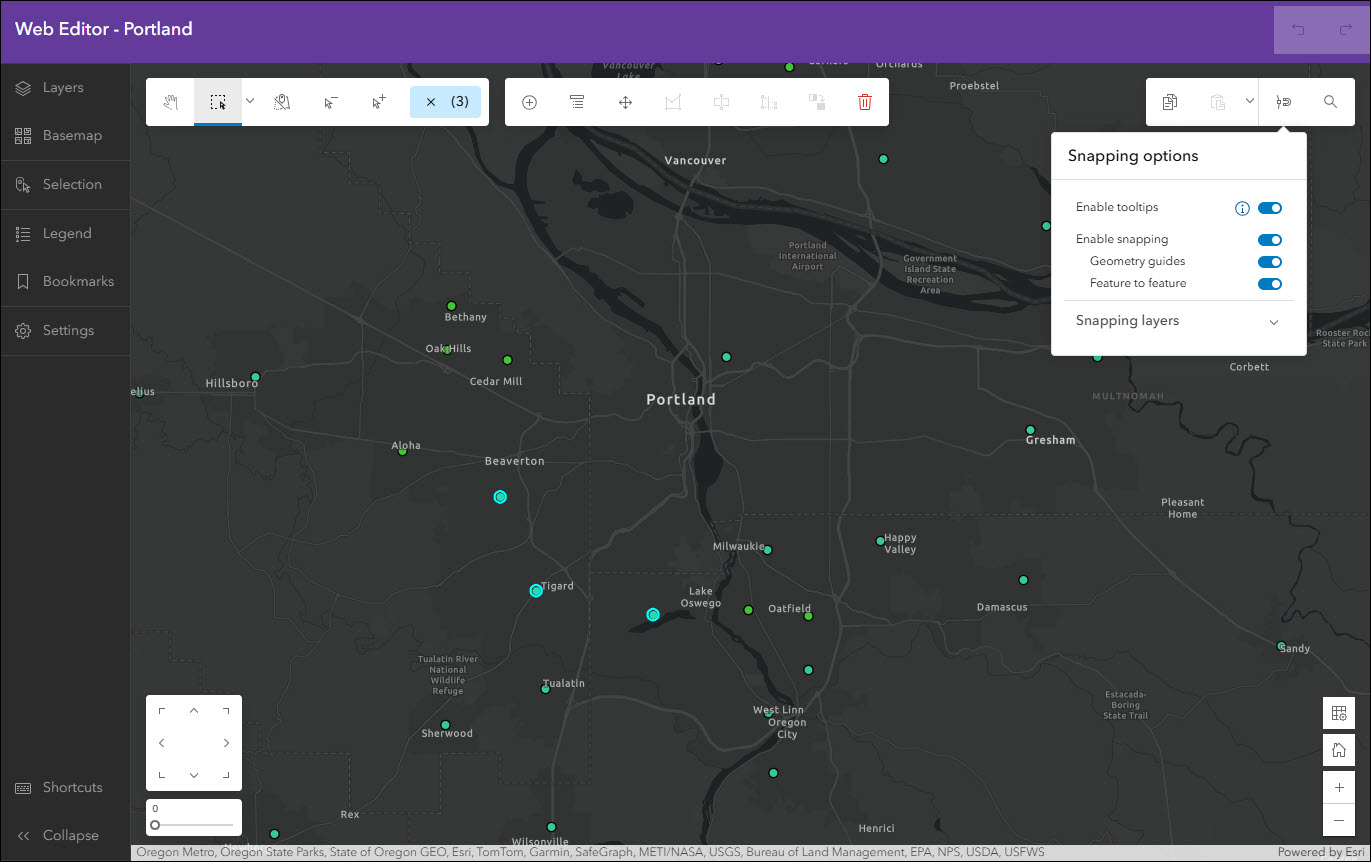
This template requires a web map that has at least one editable feature layer. Since editing data involves important access considerations, you must have a Creator, Professional, or Professional Plus user type and Data Editor, User, Publisher, Facilitator, Administrator, or another custom role with Edit privileges. An app created with Web Editor cannot be accessed anonymously, meaning that your audience must access it using an ArcGIS Online account meeting the above-mentioned criteria.
Create a new app using Web Editor from anywhere you are comfortable creating apps with Instant Apps. Additionally, new apps using the Web Editor template can be created from inside of ArcGIS Web Editor by using the Create app button in the side panel.
For a further introduction and more details, please check out the following blog: ArcGIS Instant Apps: Introducing the Web Editor Template
Manager updates
Review and edit data from multiple maps and layers using the Manager app template. For example, review problems and feedback with new public transit stations that were collected using crowdsourcing. Use the app configuration to choose each map used in the project that you want included for review. A browser in the configuration lets you search and find any map you have access to so that there’s no need to rely on having everything contained inside a single group.
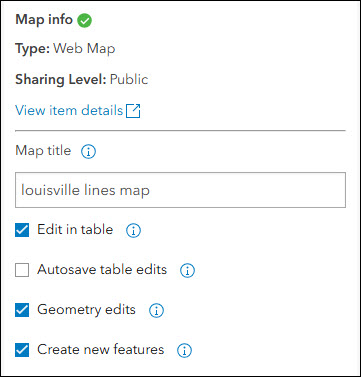
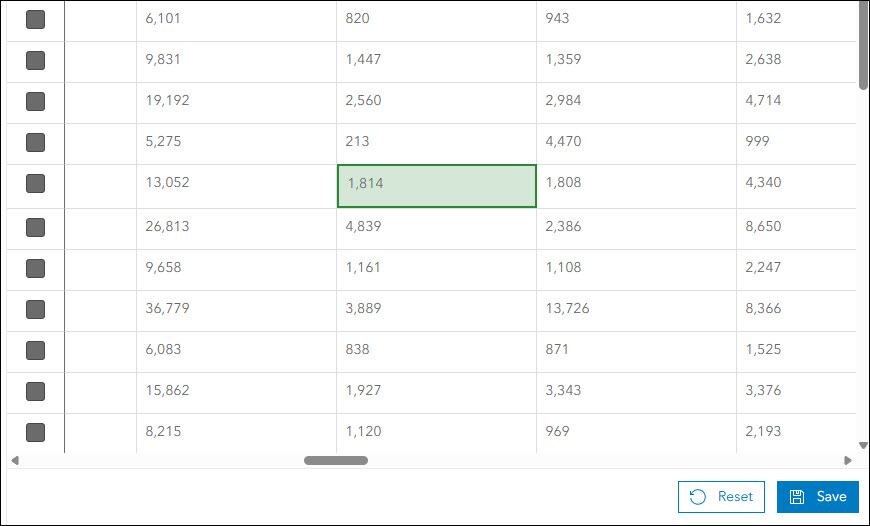
A new setting has been added that offers the ability to disable the autosave feature when editing a table. If disabled, a Save button will appear at the bottom after making any edits to the table values to confirm that these edits should be made. Find the “Autosave table edits” setting by clicking “Edit” on a map in the Manager tab of the app configuration.
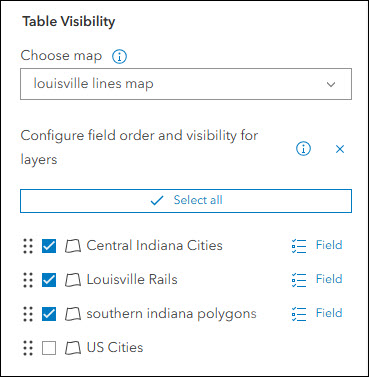
Manager now supports displaying non-editable layers in the table. If your map contains non-editable layers, they can now be used for reference in your app and will display in the table and pop-up. To control which layers from your map are displayed in the app, use the “Table Visibility” settings on the Interactivity > Layer options tab of the configuration.
Attachment Viewer updates
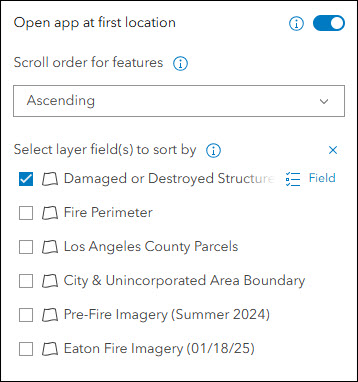
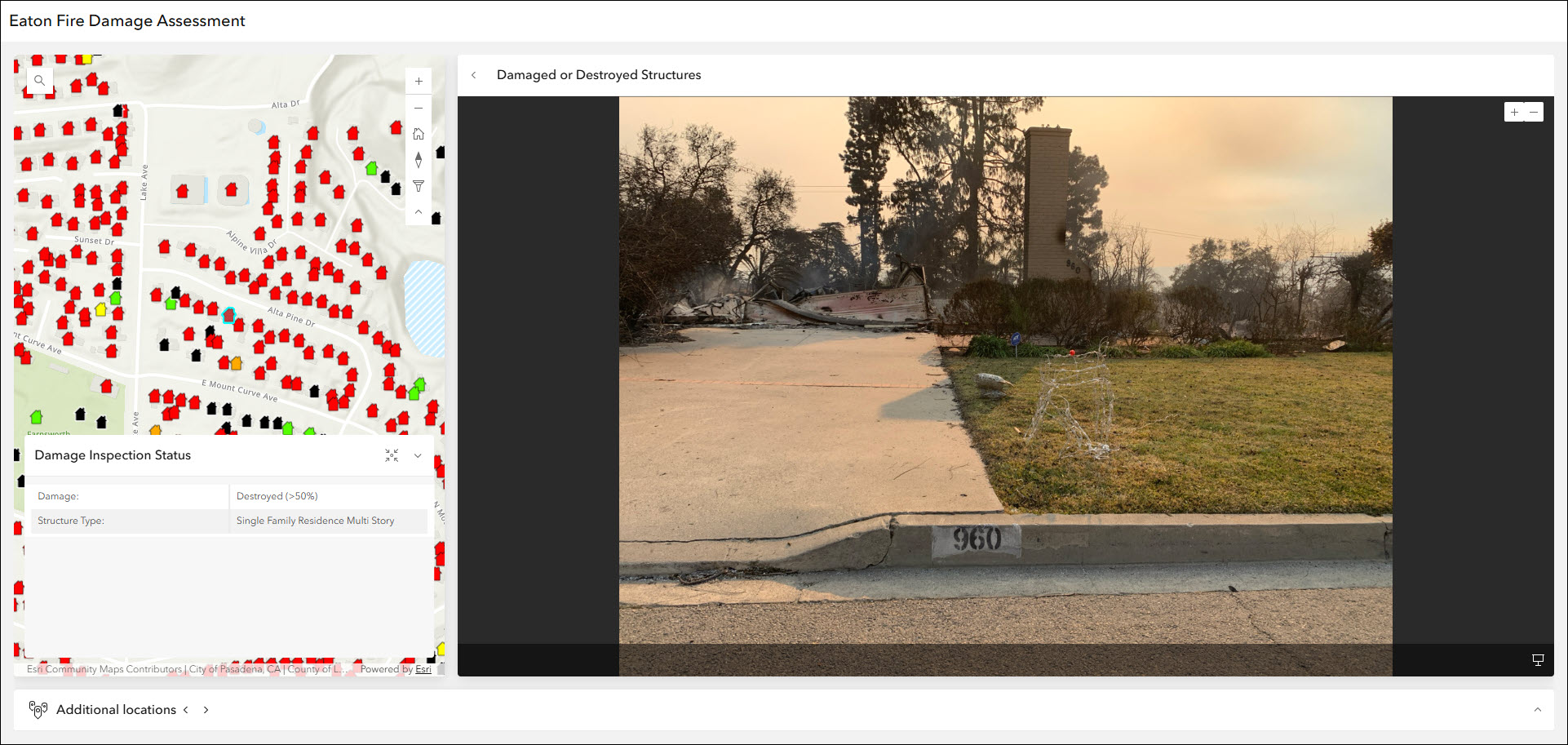
Display photos, videos, and PDF files stored as attachments alongside your map using the Attachment Viewer template. Recently, this template underwent a full UI upgrade offering the same functionality and abilities in a cleaner look for both app layouts. This release offers a few new settings to further improve the experience. A new setting has been added that opens the app to the first location selected with its attachment showing. Enable this setting to control what the default state of the app will be for your users. The first location is determined by the sort field and sort order configured in the app. Find this new option on the Attachments tab of the configuration, titled “Open app at first location”.
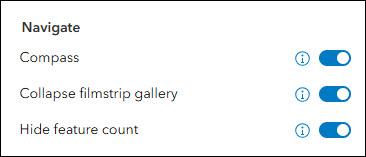
Next, a new setting has been included that lets you collapse the filmstrip gallery by default. The filmstrip gallery lets you browse other features from the layer while still focused on one and is located along the bottom of the app layout. It can be expanded or collapsed while using the app.
Lastly, we have added a setting to disable the feature count from showing in the app. Find the “Hide feature count” setting on the Interactivity > Explore/navigate tab to hide the total number of features value.
Atlas updates
Atlas provides viewers with tools to explore maps and layers with light weight mapping and data exploration capabilities. Viewers can open a map and add individual layers to it. They can utilize measurement tools, generate an elevation profile, toggle the view between 2D and 3D, use a swipe tool and adjust transparency on layers, and view data as a table. We have added a new option to enable an advanced compass that shows cardinal direction labels. This compass provides more directional clarity to app users when navigating and rotating the map than the standard compass. Both compasses are available to choose from in the configuration on the Interactivity > Explore/navigate section using the “Compass mode” setting.
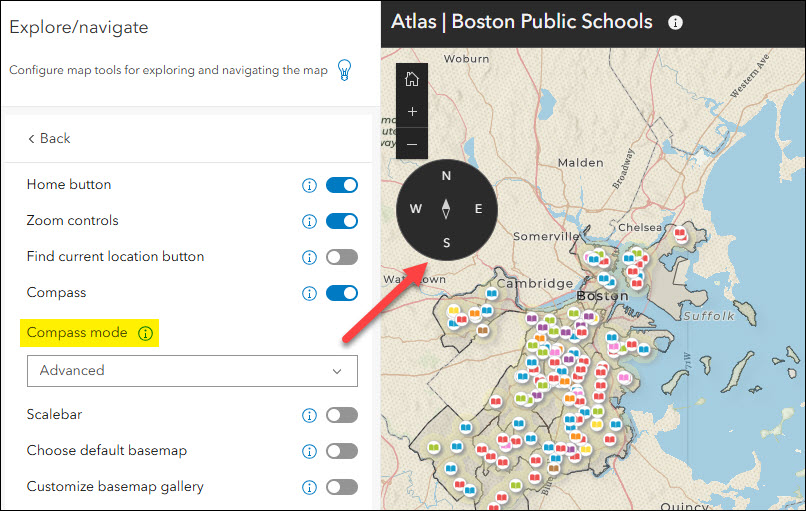
We have also added the “Find current location button” setting. In the configuration, enable this setting on the Interactivity > Explore/navigate section to add a button to the app for users to find and zoom to their current location. Note that this setting relies on your web browser setting to allow access to your location and may need to be enabled in order for it to work.
Public Notification updates
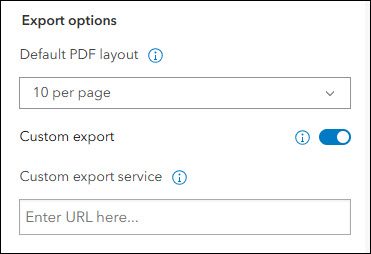
Create a list of features using a map that can be exported to CSV or PDF using Public Notification. Search for a single location or draw an area of interest using sketch tools to define a set of features. You can also use the geometry of an existing feature or apply a search buffer to expand the resulting features used to create the list. This release introduces a new setting to add your own custom print service. Use the “Custom export” option on the Public Notification tab of the configuration to supply the URL to a custom print service from ArcGIS Enterprise to be used as your PDF layout in the app.
Basic updates
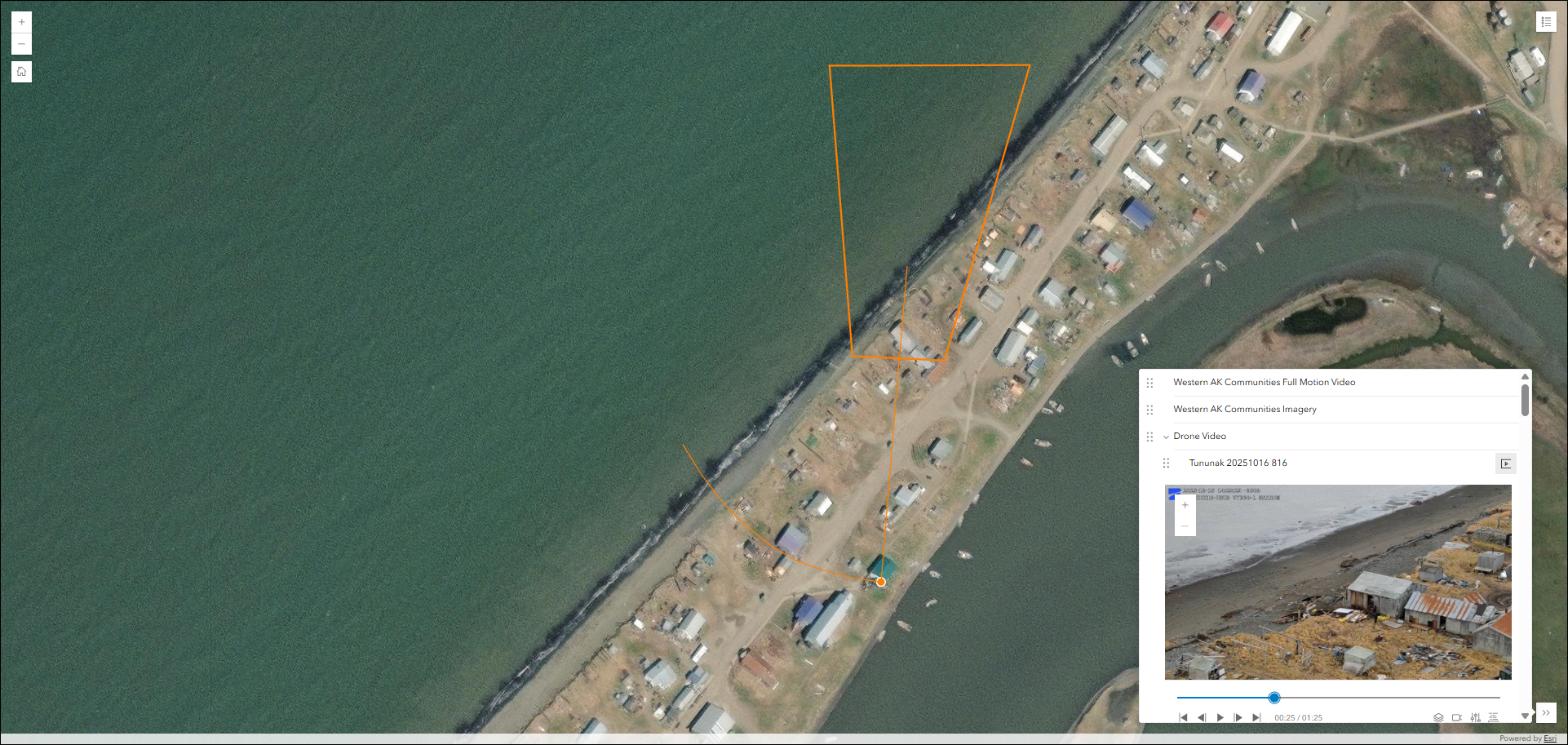
Quickly create an app to share your map in a simplistic layout using the Basic template. Display and animate time-enabled data, utilize map navigation tools, and leverage swipe to compare data from layers in the map. If your map contains ArcGIS video layers you can now view them using the Layer list in the app. ArcGIS video layers are published from ArcGIS Enterprise and can be added to Map Viewer. To ensure your app has the Layer list included, enable the setting on the Interactivity > Modify tab of the configuration.
Basic also includes a new setting to increase the size of tools and buttons in the app. Find the “Tool size” setting on the Theme & Layout > Theme tab of the configuration.
Nearby updates
Highlight points of interest within a defined search radius or map extent using the Nearby template. Create an app that helps users find focused types of locations such as schools or voting sites within a searched distance of an address or their current location.
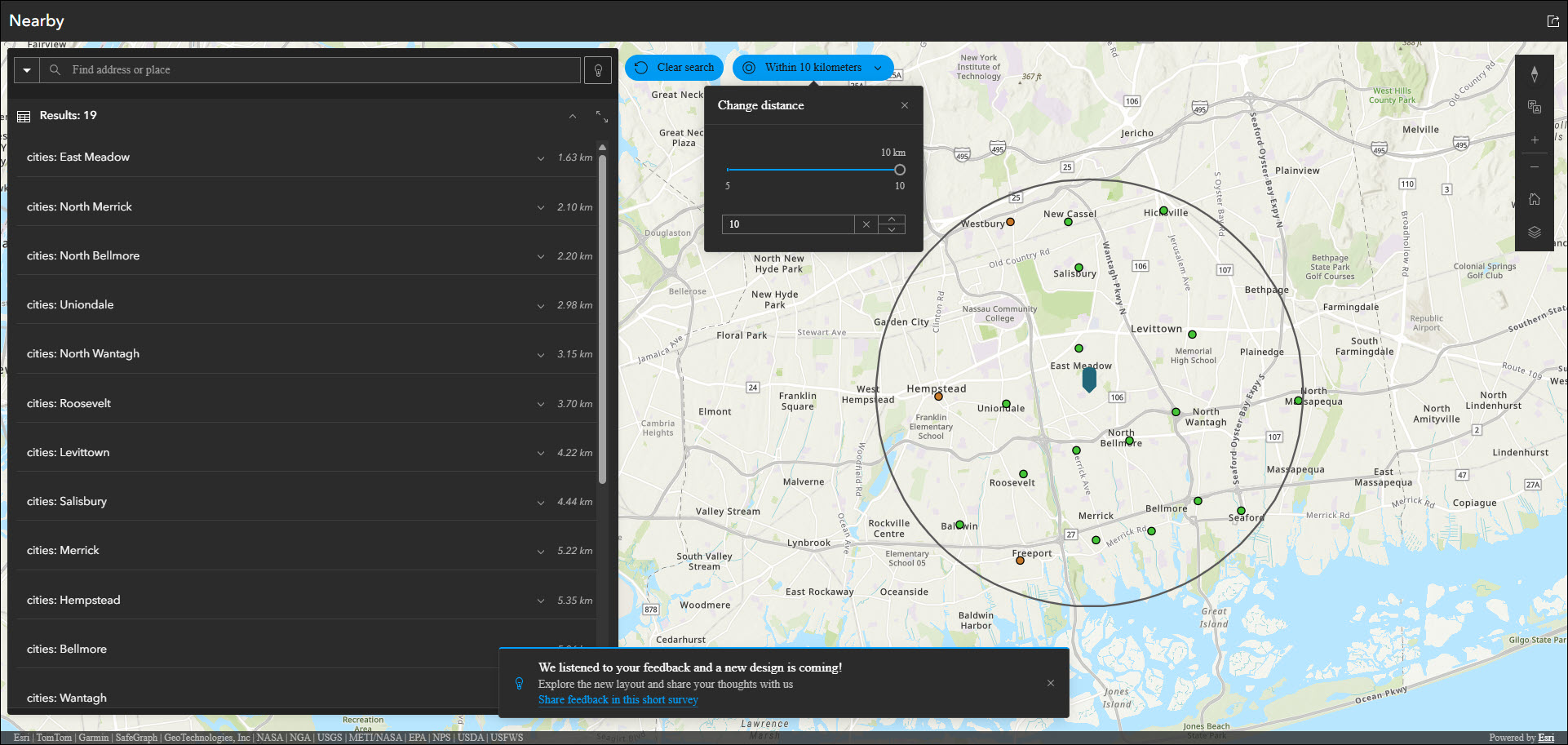
We are working on a brand new UI upgrade for Nearby and you can now preview it from within the app configuration. After publishing your app, look for the new preview message to appear at the bottom of the page. The preview lets you take a look at your app in the new design and see some of the new UI updates. These updates come from the feedback you have submitted, and we would like to continue hearing more. Use the “Share feedback in this short survey” link at the bottom of the preview to let us know how we can continue to improve Nearby. Note that this is only a preview of the ongoing work, and you can expect to see these improvements released officially into Nearby in a coming release this year. For more details about these updates please take a look at the following blog: Nearby Instant App – New look coming soon!

Reporter updates
View and submit issues or observations in an area using the Reporter app template. This app lets users create a report that displays on the map. They can also view existing reports and use basic map exploration tools to navigate the map.
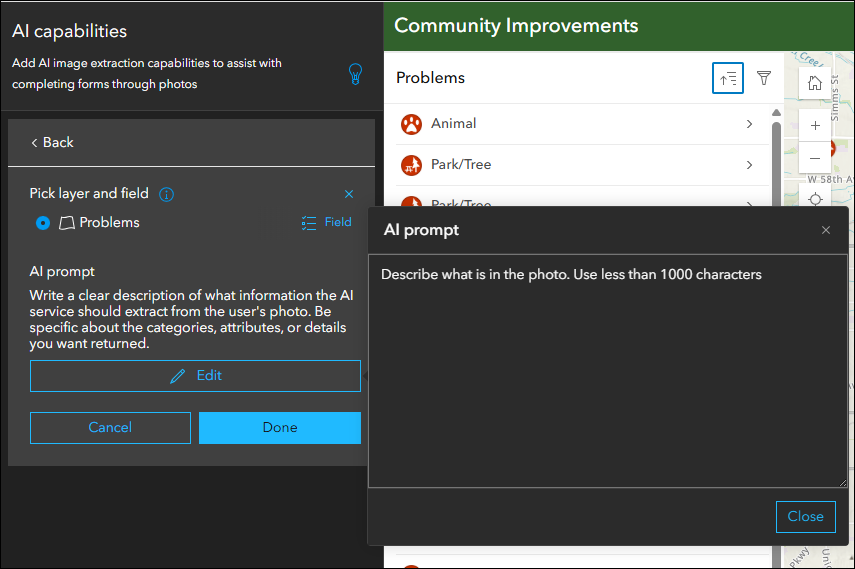
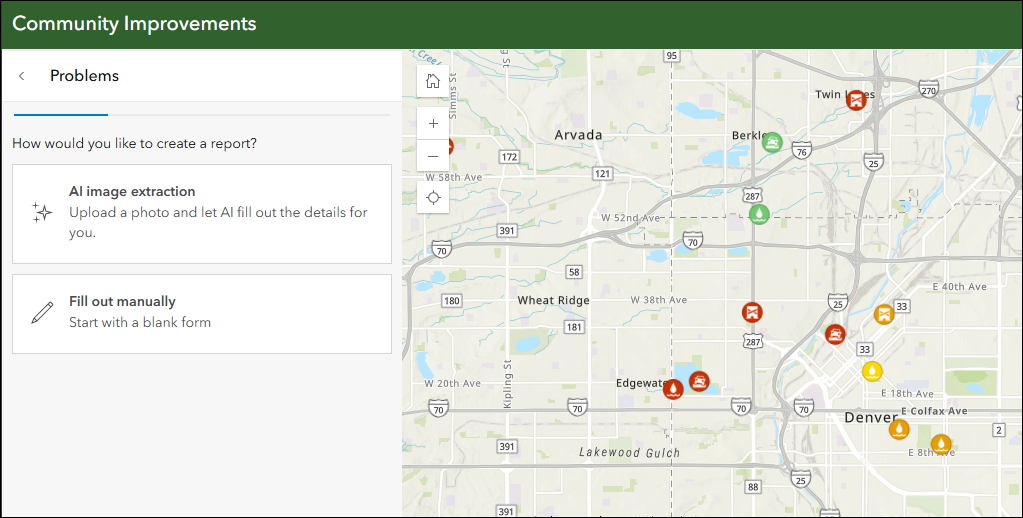
ArcGIS Online organizations that have AI capabilities enabled can now configure their apps created using Reporter to offer AI image extraction (beta). This means that layers with reporting enabled can now be configured to use a photo to populate the report form. In the app configuration, choose a layer and a field, and then supply a clear and detailed prompt of what information the AI service should extract from the user’s photo. The extraction will populate the field that you chose. Find these settings in the configuration on the Reporter > AI Capabilities tab. Note that this feature is currently in beta, and that it is only available to signed-in users in the launched app for now.
For more details about AI image extraction (beta) in Reporter please take a look at the following blog: What’s New in Reporter February 2026
Deprecation Notice for ArcGIS Configurable Apps
With this release, ArcGIS Configurable Apps is officially retired. This is in accordance with the deprecation notice issued in June 2023, and the ArcGIS Configurable Apps Roadmap for Retirement.
Users can no longer create configurable apps and existing configurable apps will not be viewable or editable.
We encourage migration to ArcGIS Instant Apps so as to take advantage of our growing collection of powerful templates. To help users migrate their ArcGIS Configurable Apps, a complete list of equivalent ArcGIS Instant Apps templates and other app builders is available on the Esri Support site. Users can take advantage of the replacement item option to specify the new ArcGIS item they would like viewers to be redirected to in the future.
More information
For more information please reference our documentation page where you can find details about getting started with creating and sharing ArcGIS Instant Apps.

Is there a guide on how to configure a custom print service that will work specifically with components from the Public Notification Instant App?
Hey Michael. Here is a good Esri resource for printing in web applications and setting up custom print services. Public Notification should support your custom print service by using the “Custom export” setting in the app configuration. https://doc.esri.com/en/arcgis-enterprise/latest/administer/printing-in-web-applications.html?pivots=os-windows