Map Viewer continues to evolve with powerful new capabilities that make it easier to explore data, create compelling visualizations, and work more efficiently across your mapping workflows. The February 2026 release introduces enhancements that help you uncover temporal patterns, improve labeling and symbology, edit data with greater precision, and share clearer, more focused maps.
Here’s a look at what’s new—and how these updates can help you work smarter and tell better stories with your data.
Quick links
- Calendar Heat Chart
- Attachment Viewer
- Imagery Layer Pop‑ups
- True Curve Editing
- Field Value Formatting
- View and Update Shared Editing Templates
- Map Viewer Classic Retirement
- Visualization Tab
- URL Parameters
- Reverse Geocoding
- Oriented Imagery
- Directions
Visualize and Style
Improved label positioning
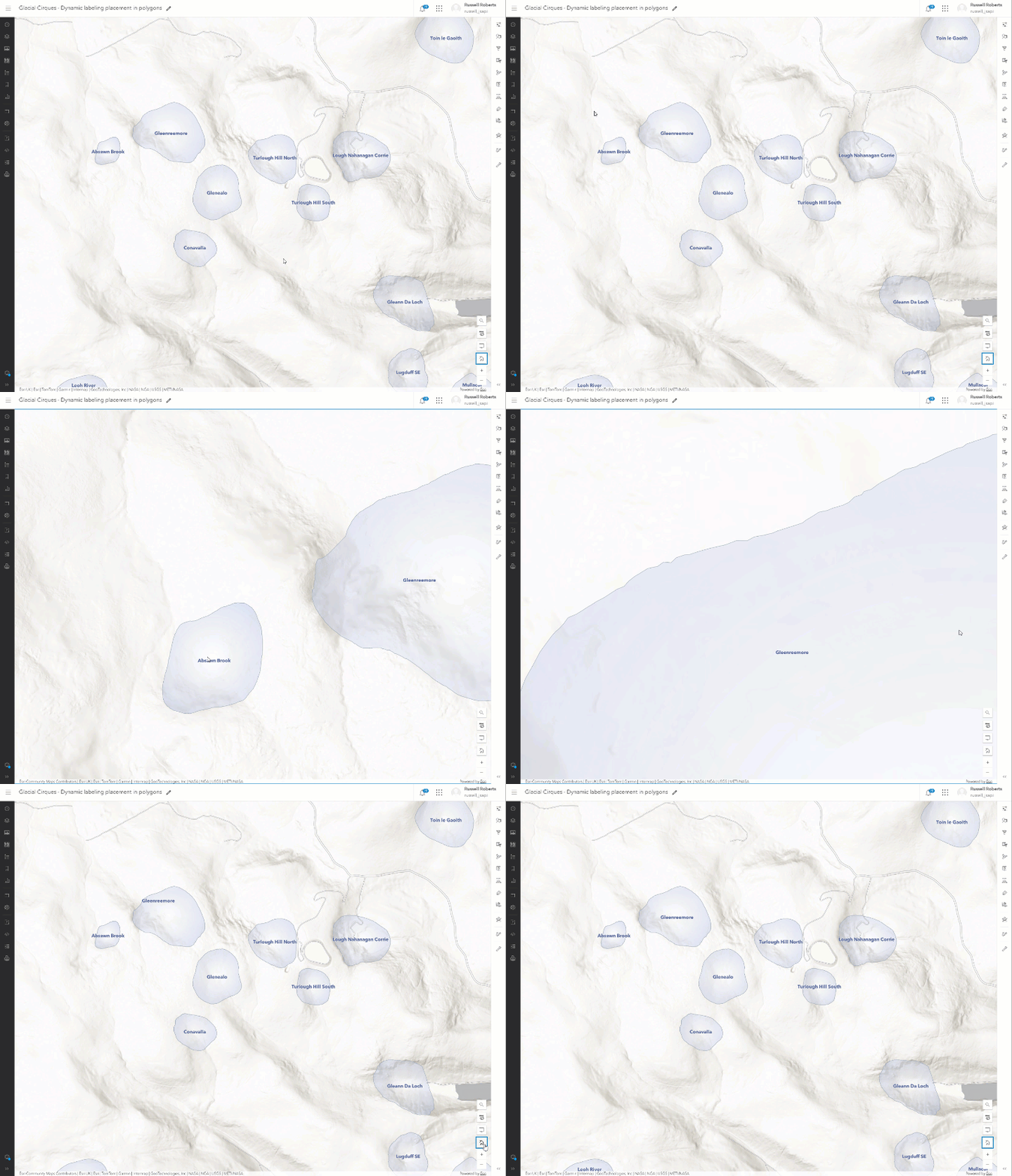
Polygon labels now stay visible as you pan and zoom on the map. When only part of a polygon feature is visible, labels are repositioned instead of locking a fixed centroid that may fall outside the current view. The result is clearer, more reliable labeling without the need for workaround layers or constant map adjustments—making it easier to transition from Map Viewer Classic to Map Viewer with confidence.
Control when layers appear with visible time ranges
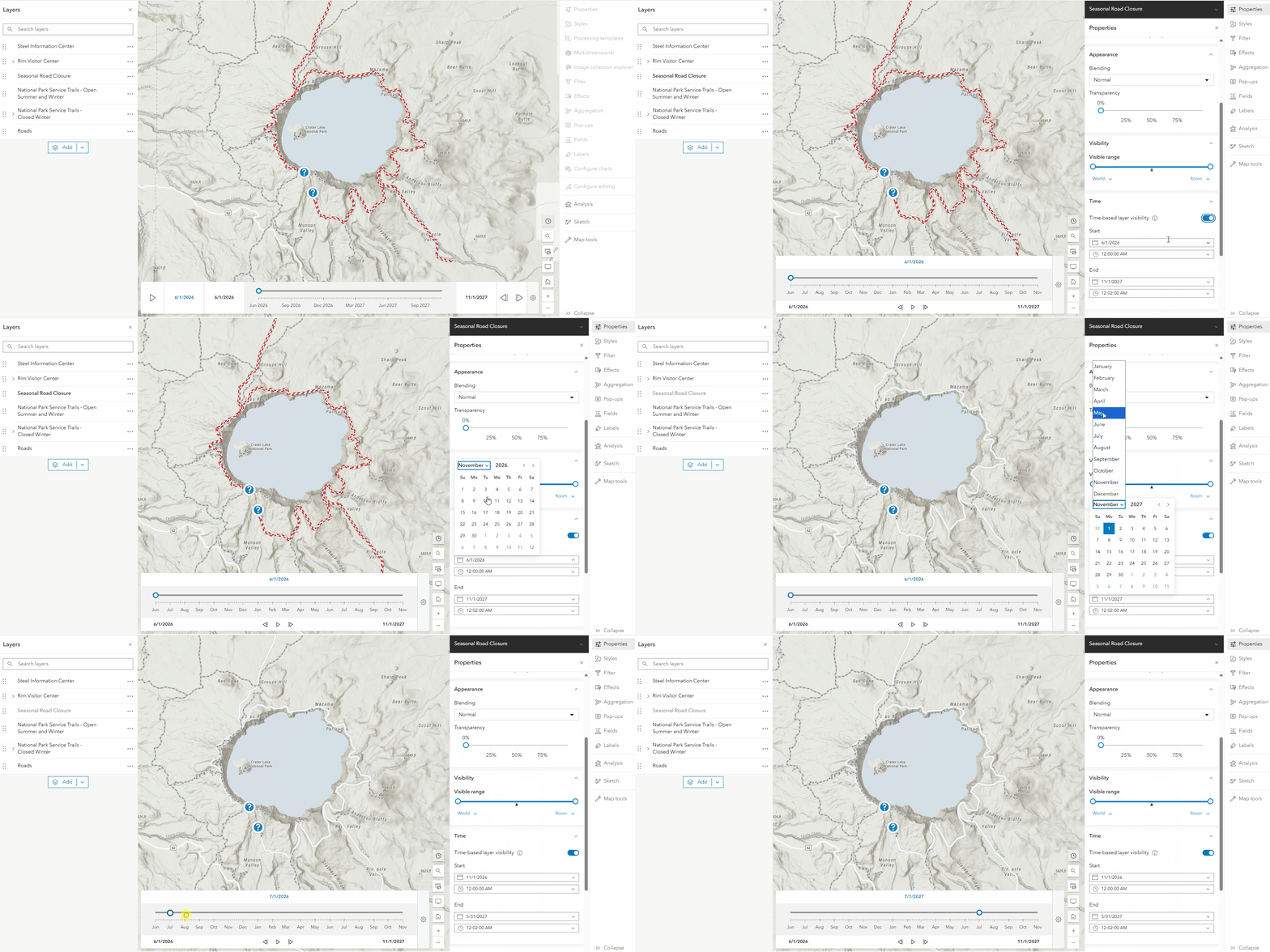
You can now define visible time ranges for layers, even if they aren’t time‑enabled. By specifying when a layer should appear, you gain more control over how multiple layers align across different time periods. This flexibility makes it easier to build richer time‑based visualizations. This capability applies to all layer types for example feature layers, sketch layers, and group layers.
Bring maps to life with symbol animation
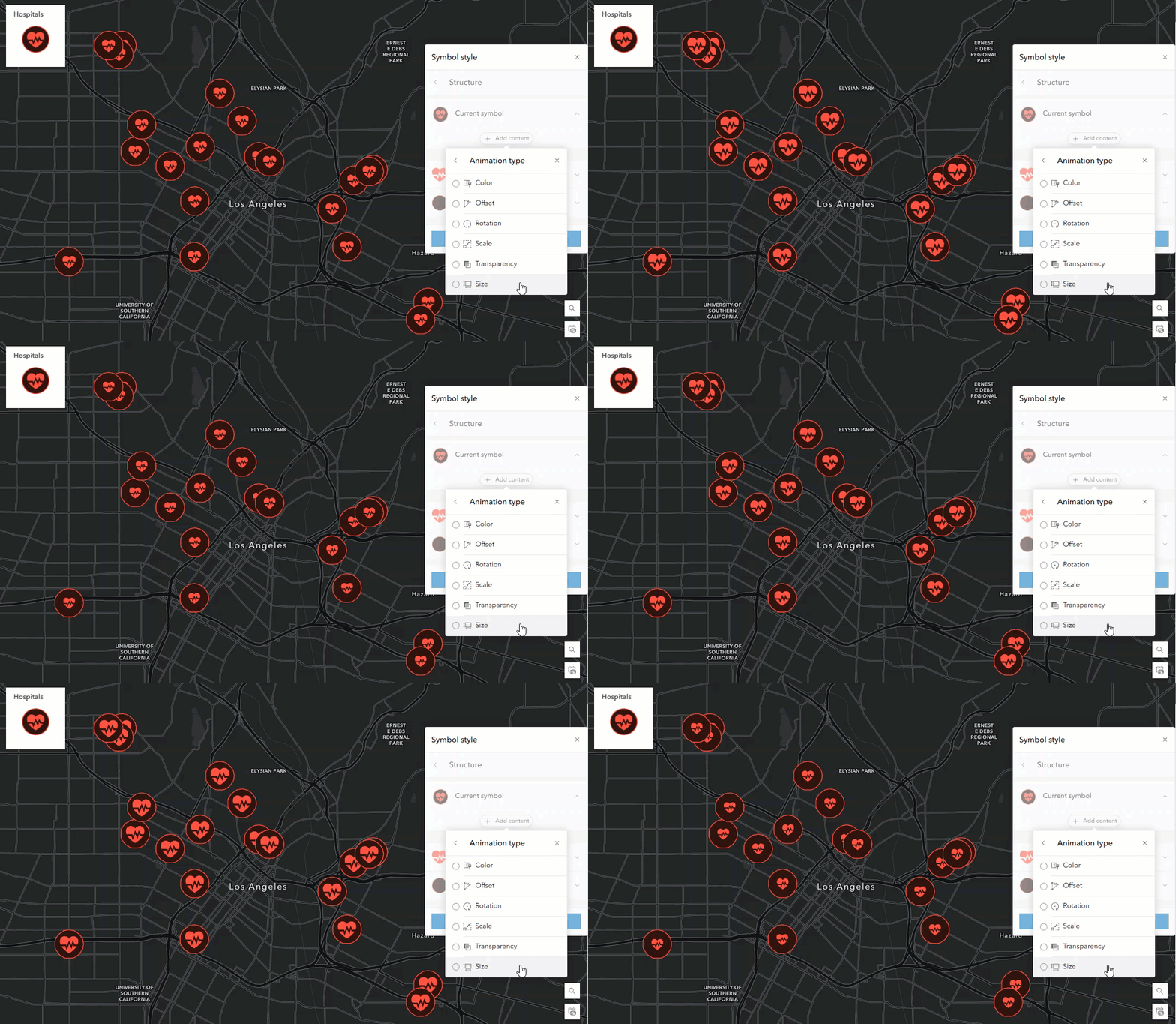
Create more engaging maps with symbol animation. You can now animate any vector symbol—including uploaded symbols—and even target individual parts of a symbol. Apply effects like color, offset, rotation, scale, transparency, and size to draw attention to critical locations, emphasize trends, or add subtle motion that enhances visual storytelling. Animate symbols such as a pulsing heart for hospitals with size animation, power outages from snowstorms with transparency animation, a moving shopping cart for grocery stores with offset animations, and more. We’re excited to see what you create and animate.
Distinguish between overlapping features
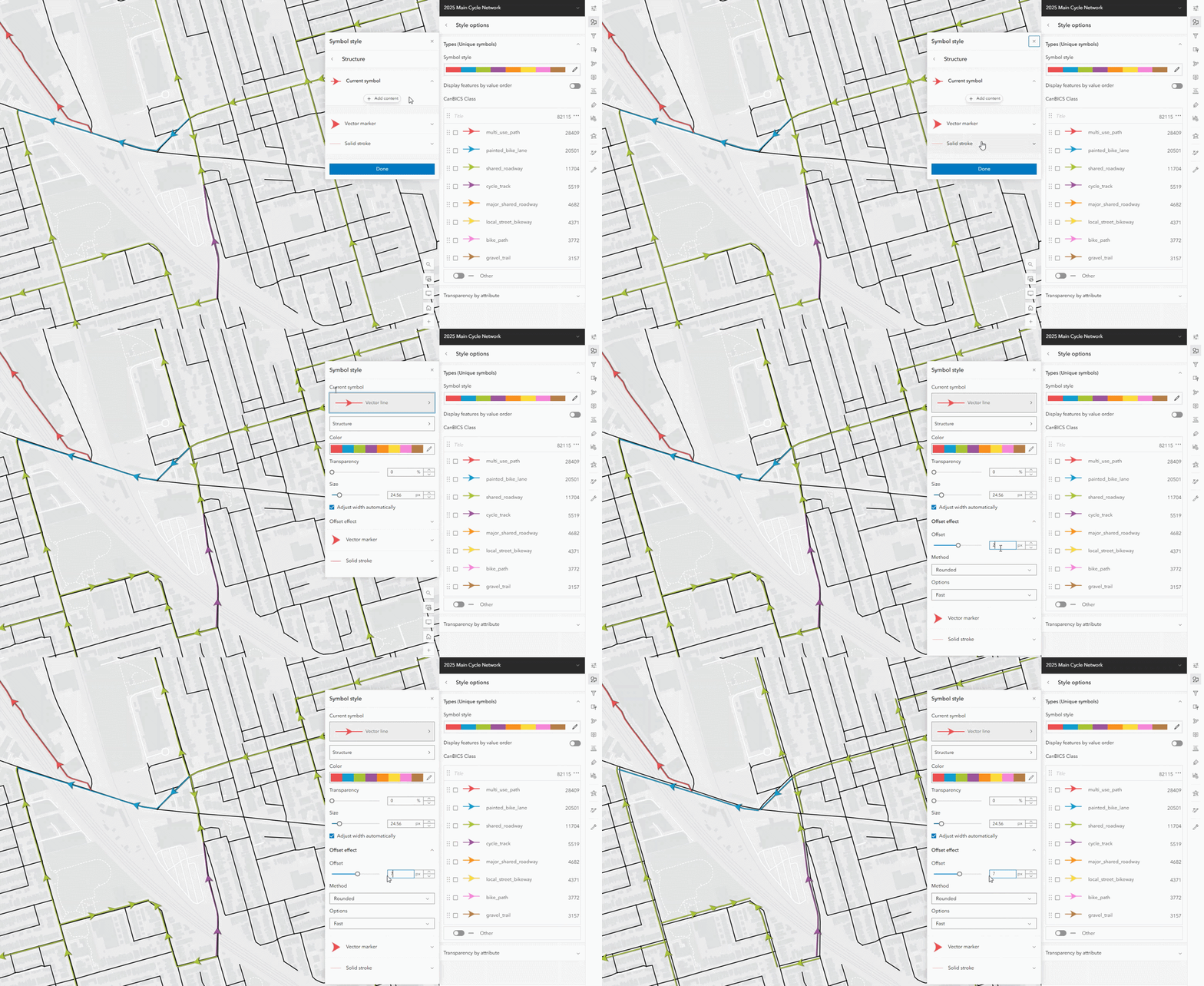
Dense or overlapping features can be made easier to read by adding a symbol offset effect. Offsets can now be applied directly to vector line and vector polygon fill symbols in Map Viewer, with no ArcGIS Pro pre‑configuration required. This is especially useful for directional road data or overlapping boundaries where clarity matters.

Explore and Edit Data
Visualize temporal patterns with Calendar Heat Charts
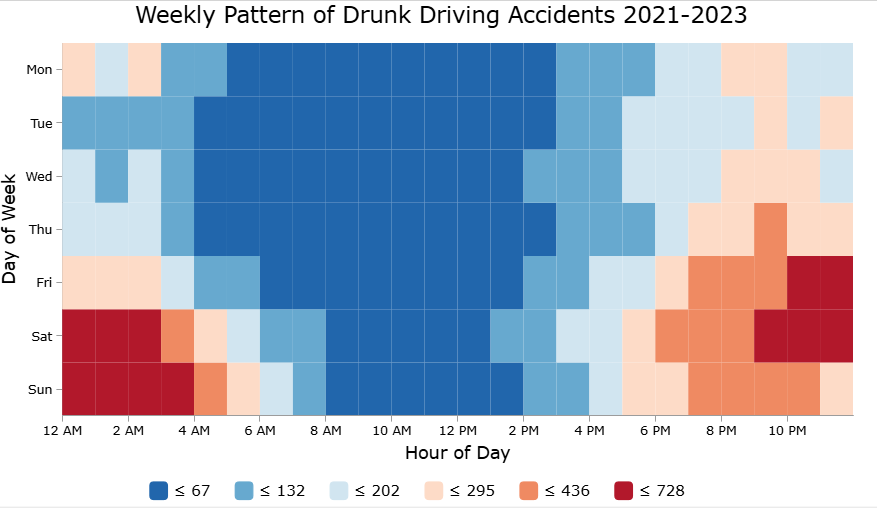
Explore recurring trends in your time‑based data using the new Calendar Heat Chart. This chart organizes records with date fields into intuitive calendar layouts—by day, week, or month—making it easy to identify patterns tied to schedules, routines, and seasonality at a glance. Whether you’re analyzing service requests, traffic incidents, or event activity, calendar heat charts offer a powerful new way to explore when things happen.
Review attachments without leaving your map
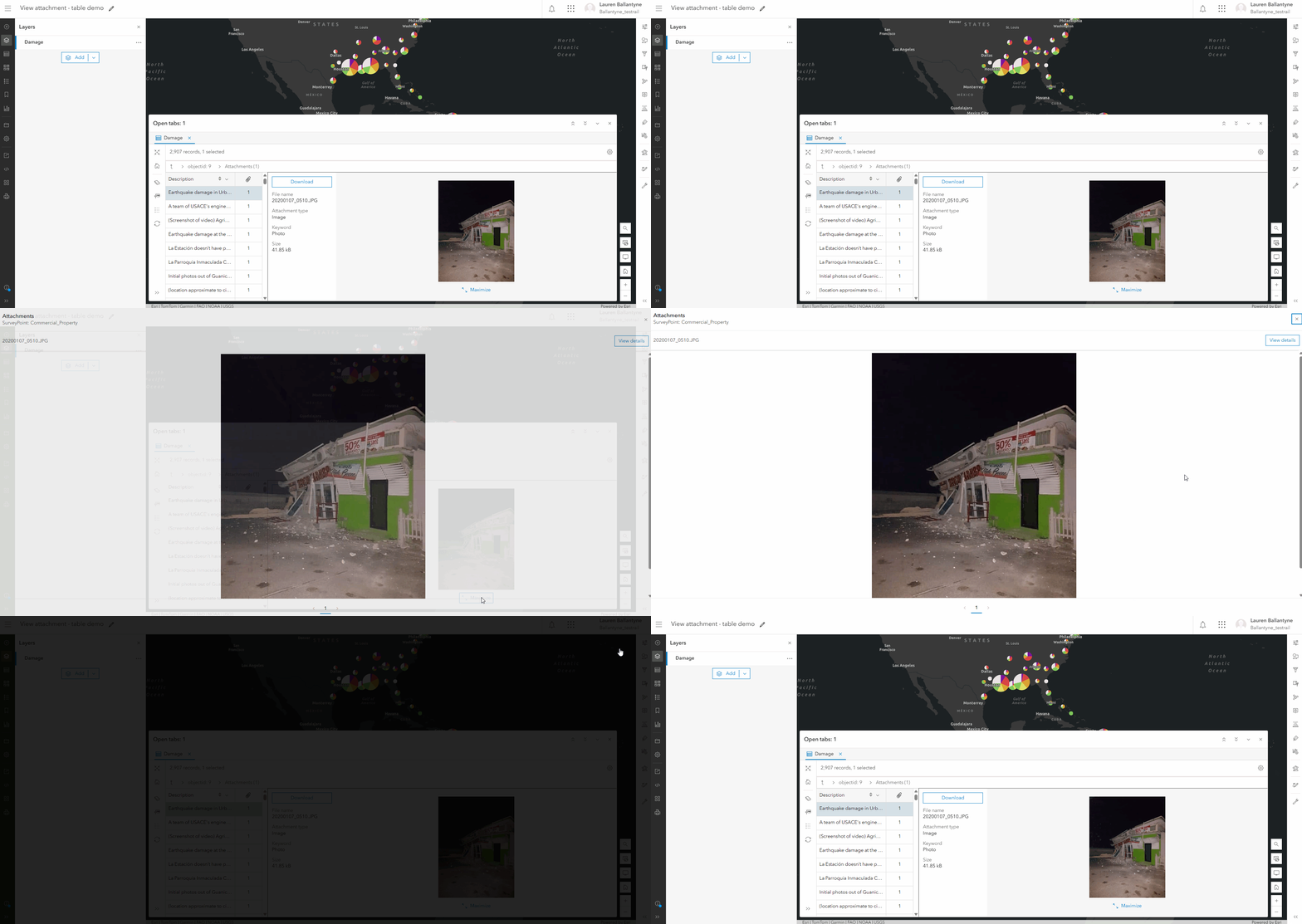
The enhanced attribute table attachment viewing experience lets you view and manage image attachments directly within the table—and maximize them for full‑page viewing—without opening a new browser tab. This update streamlines review and editing workflows and reduces unnecessary context switching.
Create imagery layer pop‑ups with ArcGIS Arcade
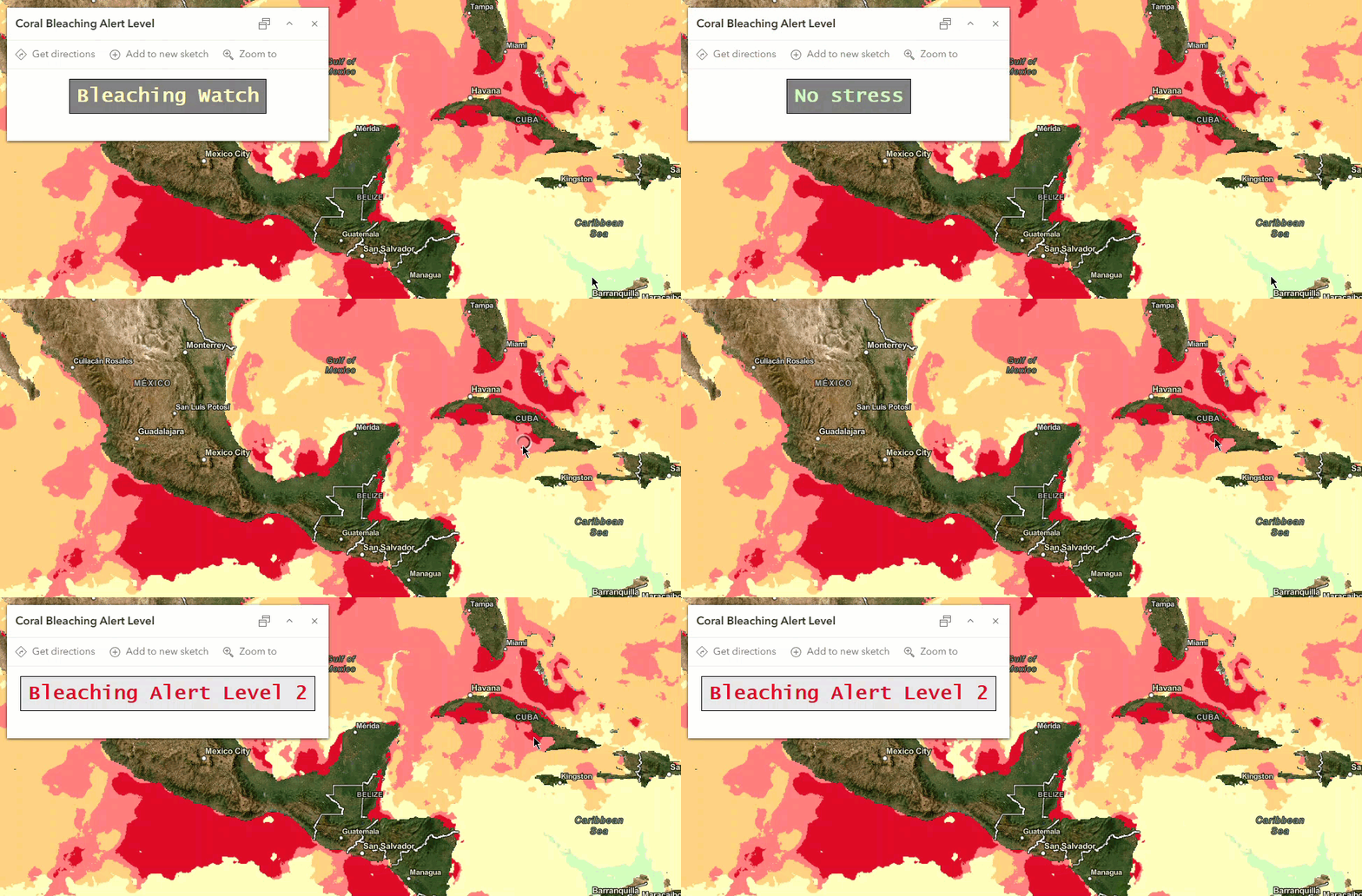
Create smarter imagery pop‑ups with ArcGIS Arcade. Use pixel values and image attributes to dynamically format text, calculate values on the fly, and deliver richer pop‑ups for imagery layers.
Draw and edit curved features with precision
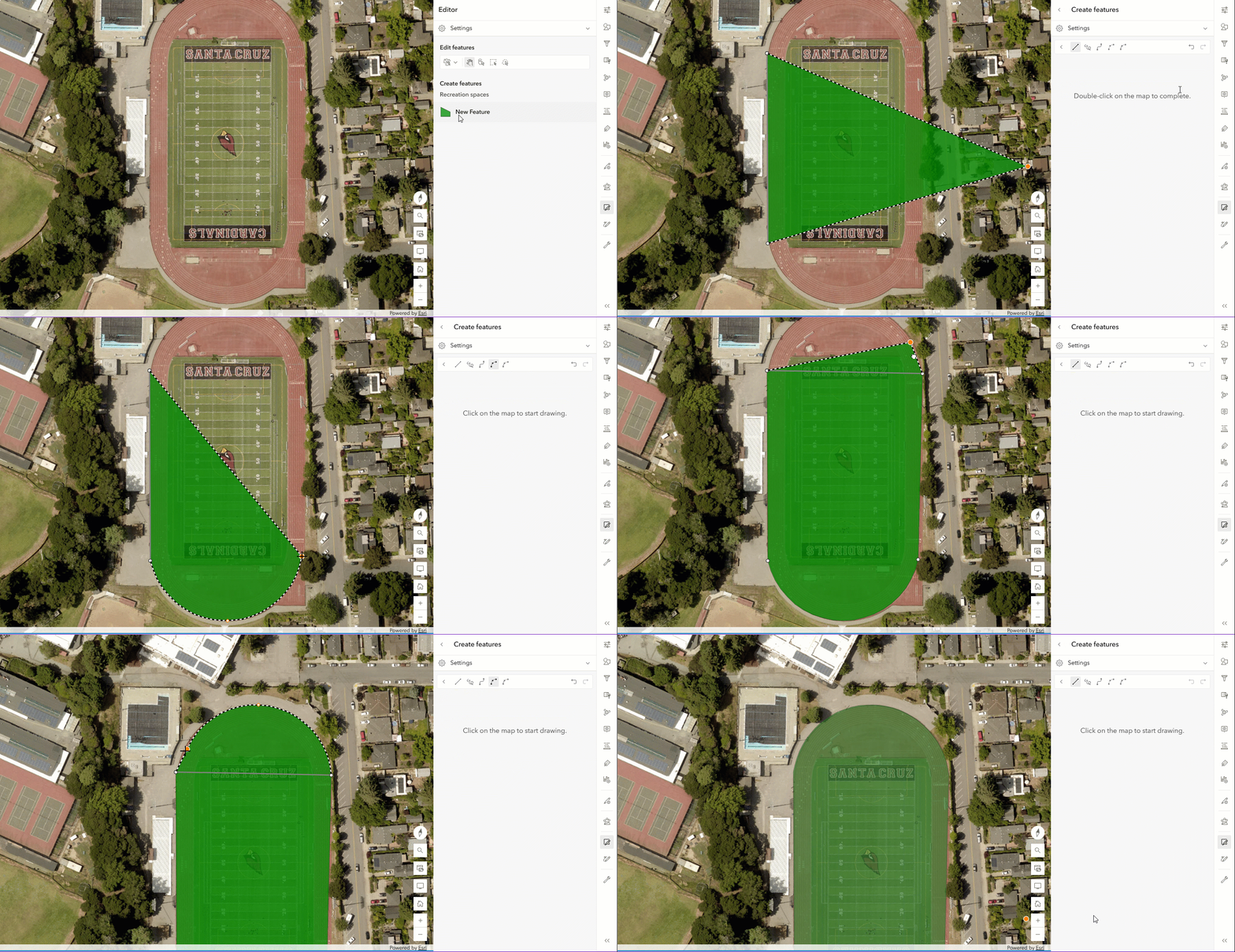
Drawing and editing curved features is now more accurate with true curve editing support. Instead of converting curves into many small straight segments, Map Viewer preserves their true geometry during creation and editing. This improves snapping, measurement, and analysis while delivering cleaner visuals and higher‑quality data—especially for surveyors, engineers, and anyone working with detailed geometries such as roundabouts, cul-de-sacs, and curved pipes. You can also now switch between drawing tools, giving you more flexibility in creating complex shapes.
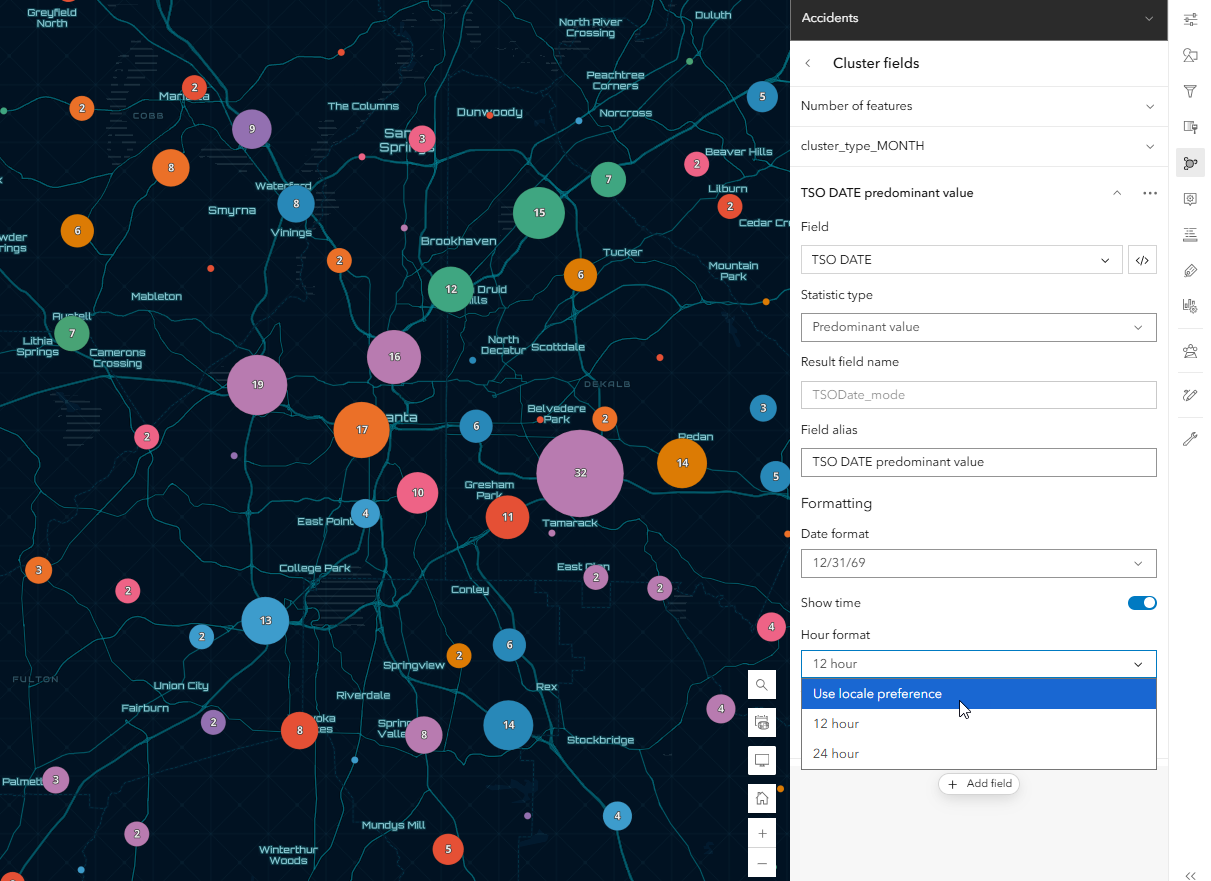
Field value formatting with aggregated features
Field value formatting when configuring cluster fields and configuring bin fields has been updated to better align with internationalization standards, which offers improved locale support for date and number fields and introduces new formatting options.
View and Update Shared Editing Templates
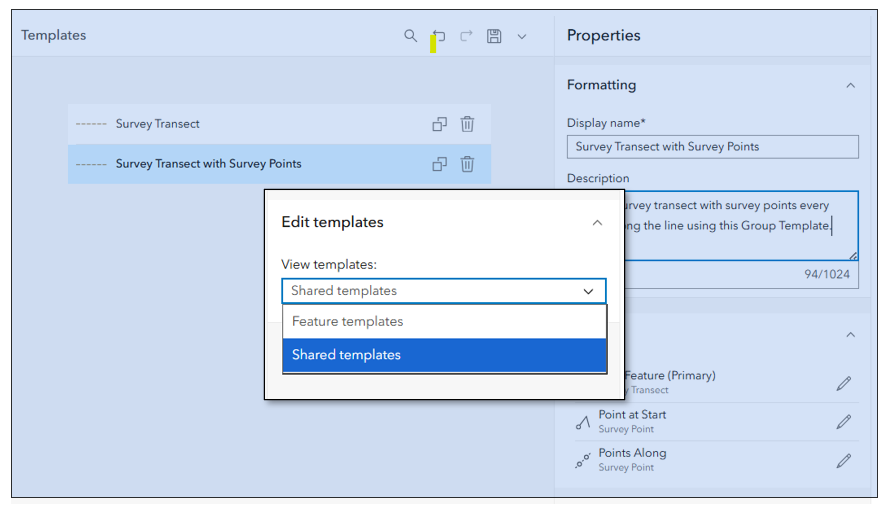
You can now view and update shared editing templates directly in Map Viewer. Shared templates include group templates and preset templates— preconfigured templates that allow you to create multiple features at once. For example, a group template can automatically generate a point every 100 meters along a survey transect while you sketch it—saving time and ensuring consistency. In the Templates window, use the dropdown to choose shared templates or feature templates. Use the shared templates view to explore and update properties for shared, group, and preset templates. With this update, you can create shared editing templates in Map Viewer, while group and preset templates must be created in ArcGIS Pro. Stay tuned for more shared template functionality in the future.
Analyze Spatial Data
Build and share more powerful workflows with ModelBuilder enhancements
ModelBuilder gets a boost with support for new variable types, the ability to publish models as web tools, and expanded tool support for workflows such as Plan Routes. These enhancements make it easier to automate spatial analysis, share custom tools, and reuse workflows across your organization.
Gain deeper insight with new raster analysis tools
Two new raster analysis tools help you extract more value from surface and categorical data. Geomorphon Landforms classifies terrain into common landform types, while Summarize Categorical Raster generates summaries across multidimensional categorical rasters—supporting applications like land‑cover change analysis and environmental monitoring.
Share and Collaborate
Print focused maps with dynamic legends and scale units
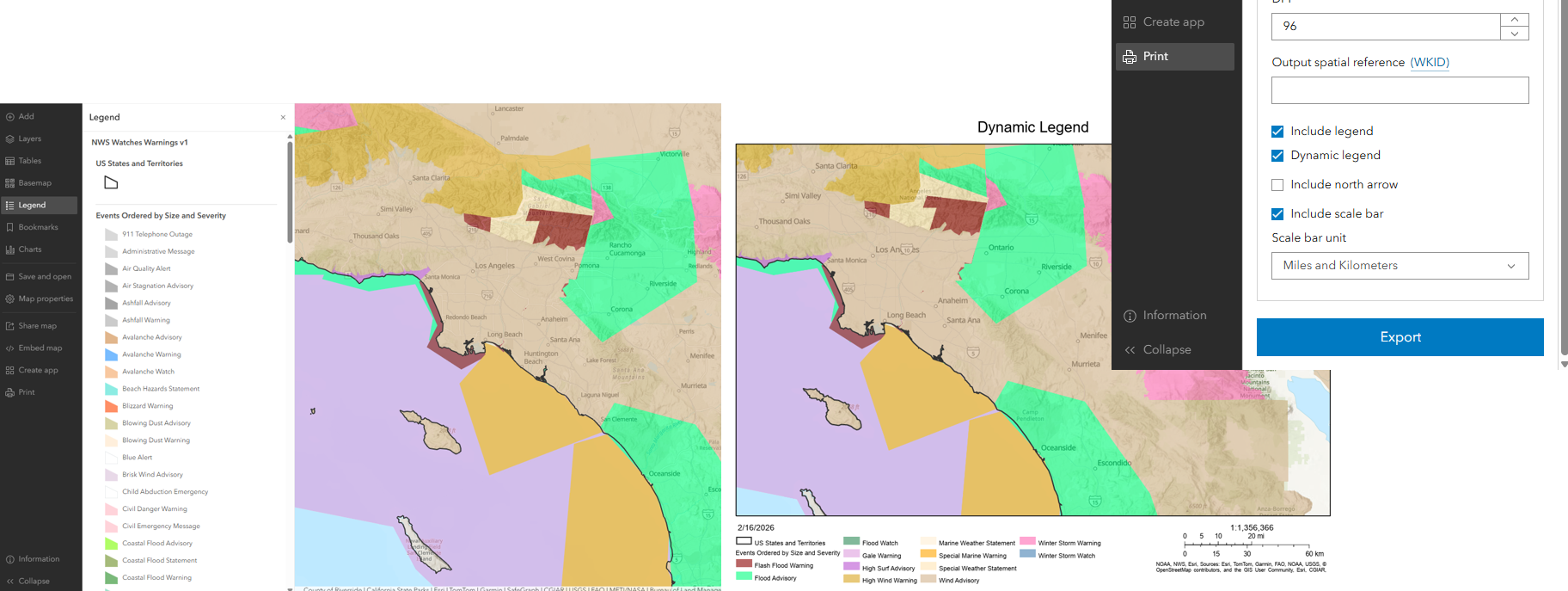
Printing in Map Viewer continues to improve with dynamic legends that reflect only what’s visible in the current map extent, providing focus for the features found in the printed map and improving readability. You can also choose preferred scale units—feet and meters or miles and kilometers—so printed maps align with your audience and use case.
Other Updates
Map Viewer Classic has officially retired
This release marks the retirement of Map Viewer Classic. All existing links now automatically open in Map Viewer, ensuring uninterrupted access to your content while enabling you to take advantage of improved performance, advanced styling, and the latest capabilities.
Note: Map Viewer Classic is no longer available in ArcGIS Online and ArcGIS Enterprise 12.0 and beyond. You can learn more about the retirement of Map Viewer Classic here.
Style map image layers directly from the item page
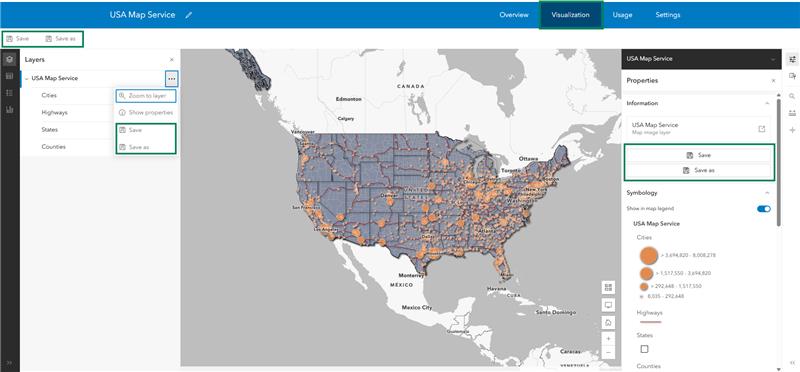
The Visualization tab is now available for map image layer items, providing a quick entry point to style layers, apply filters, configure labels and pop‑ups, and add effects without opening Map Viewer.
Greater URL parameter support
When the mapOnly=true URL parameter is enabled, toolbars are tucked away so the map takes center stage, while still allowing viewers to restore the full interface with a single click. While this option can be helpful for power users, we recommend taking advantage of the Create a custom link option for a simplified view of your map.
Use custom geocoders with the “What’s here?” tool
The What’s here? tool, accessed by right-clicking on the map, now supports custom reverse geocoders configured by your organization. This gives administrators greater control over which geocoding services are used and allows users to work with results that better match local or organizational requirements. Results can also be added directly to sketch layers.
Explore oriented imagery with more room to work
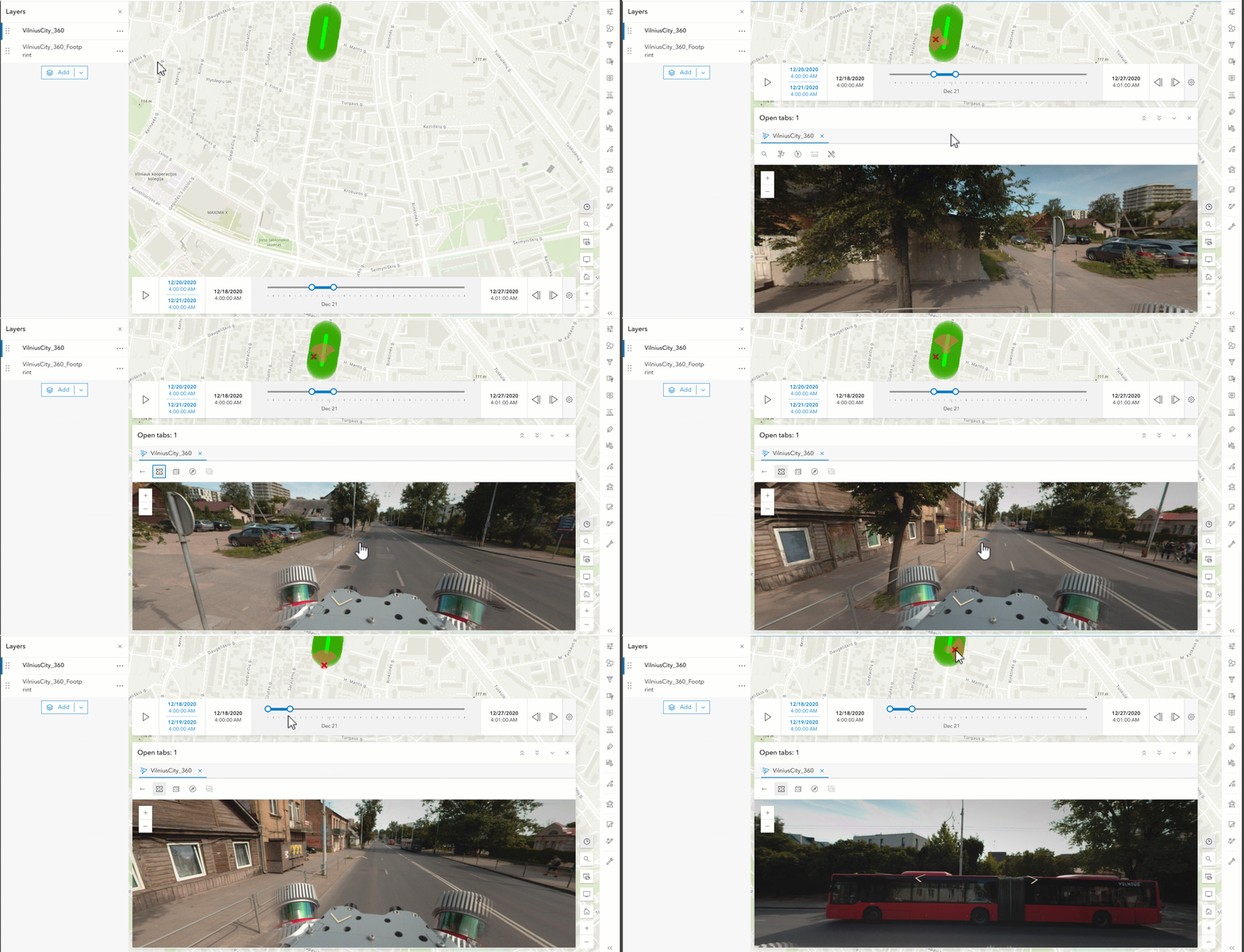
The oriented imagery viewer has moved to the Map Viewer center panel, providing more room to work and a more consistent, optimized viewing experience. A redesigned interface groups related tools under streamlined toggles, introduces new search workflows for exploring imagery in 2D and 3D, and improves performance with image caching and time-based filtering. Together, these updates make finding and viewing oriented imagery faster and more intuitive.
Adjust routes on the fly with waypoints
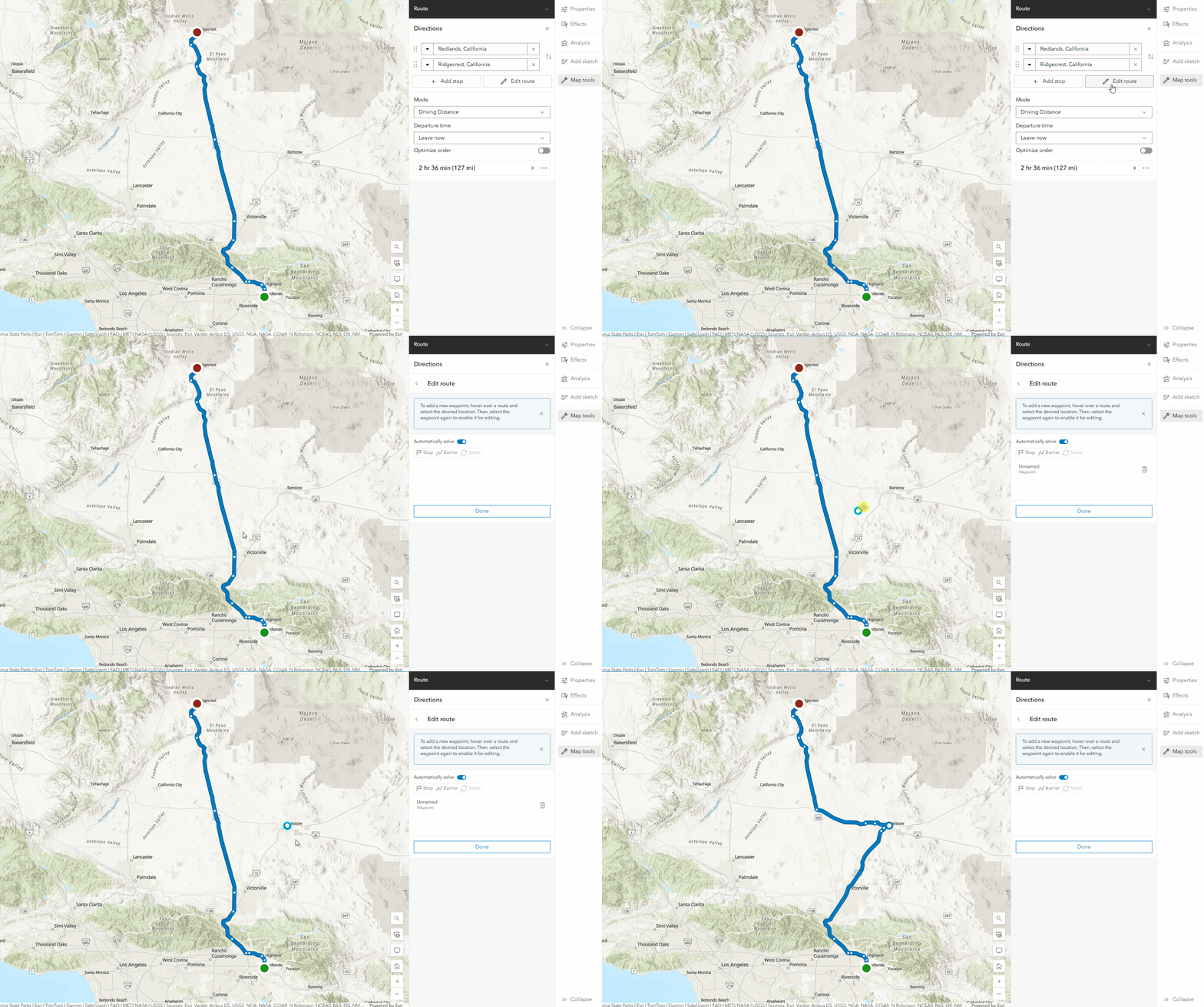
Directions and route layers in Map Viewer now support drag‑and‑drop waypoints, allowing you to dynamically reroute by simply moving points along the path.
Looking ahead
Several additional enhancements—such as track visualization, symbol building improvements, and expanded visualization support for group and sketch layers—are planned for future releases. Stay tuned as Map Viewer continues to grow.

Thank you to the following teammates for their contributions to this blog article:
Shirley Baffoe, Lauren Ballantyne, Bekah Bollin, Jimmy Chen, Maxwell Debella, Emily Garding, Phoebe Gelbard, Athul Krishnan, Zara Matheson, Taylor McNeil, Debapriya Paul, Amanda Ring, Russell Roberts, Flora Vale and Chris Whitmore.




Commenting is not enabled for this article.