Map Viewer continues to evolve with features that make mapping, editing, and sharing more intuitive and powerful. Whether you’re a seasoned GIS professional or just getting started, this release brings enhancements that help you work smarter and communicate more effectively. Let’s dive into what’s new!

Quick links
Sharing
Sharing simplified views of your map
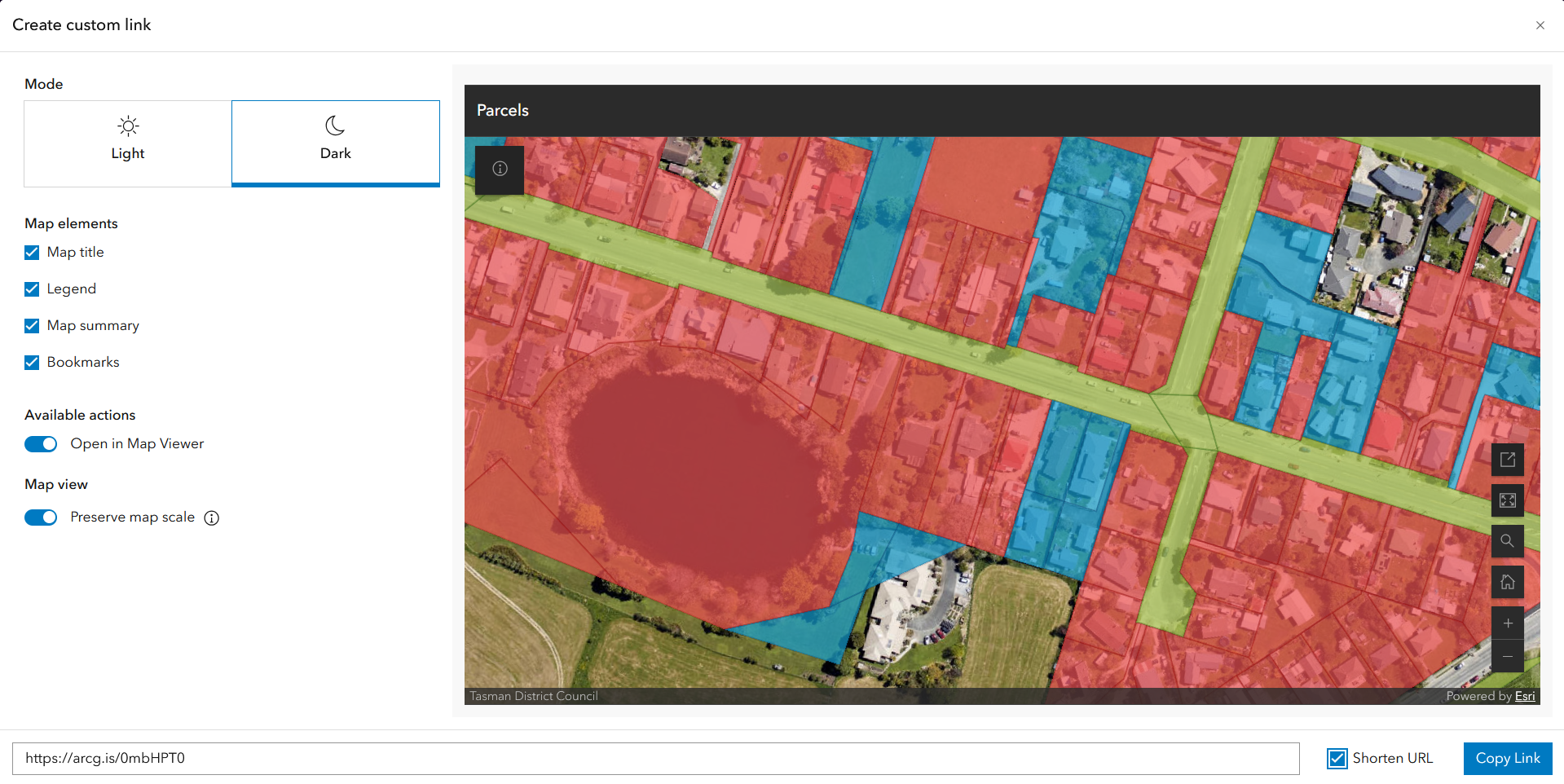
Map Viewer makes sharing maps easy and gives users added control over the viewing experience. The latest update, the Create custom link option, lets you generate a shareable URL that opens in a view tailored to your audience. You can set the map’s extent, choose light or dark mode, toggle elements on or off, preserve the map scale across devices, and even shorten the link for easier sharing. Whether you’re working with project stakeholders or colleagues, Map Viewer makes it simple to share a map that meets their needs. Check out this blog to learn how to create and share custom views of your map.
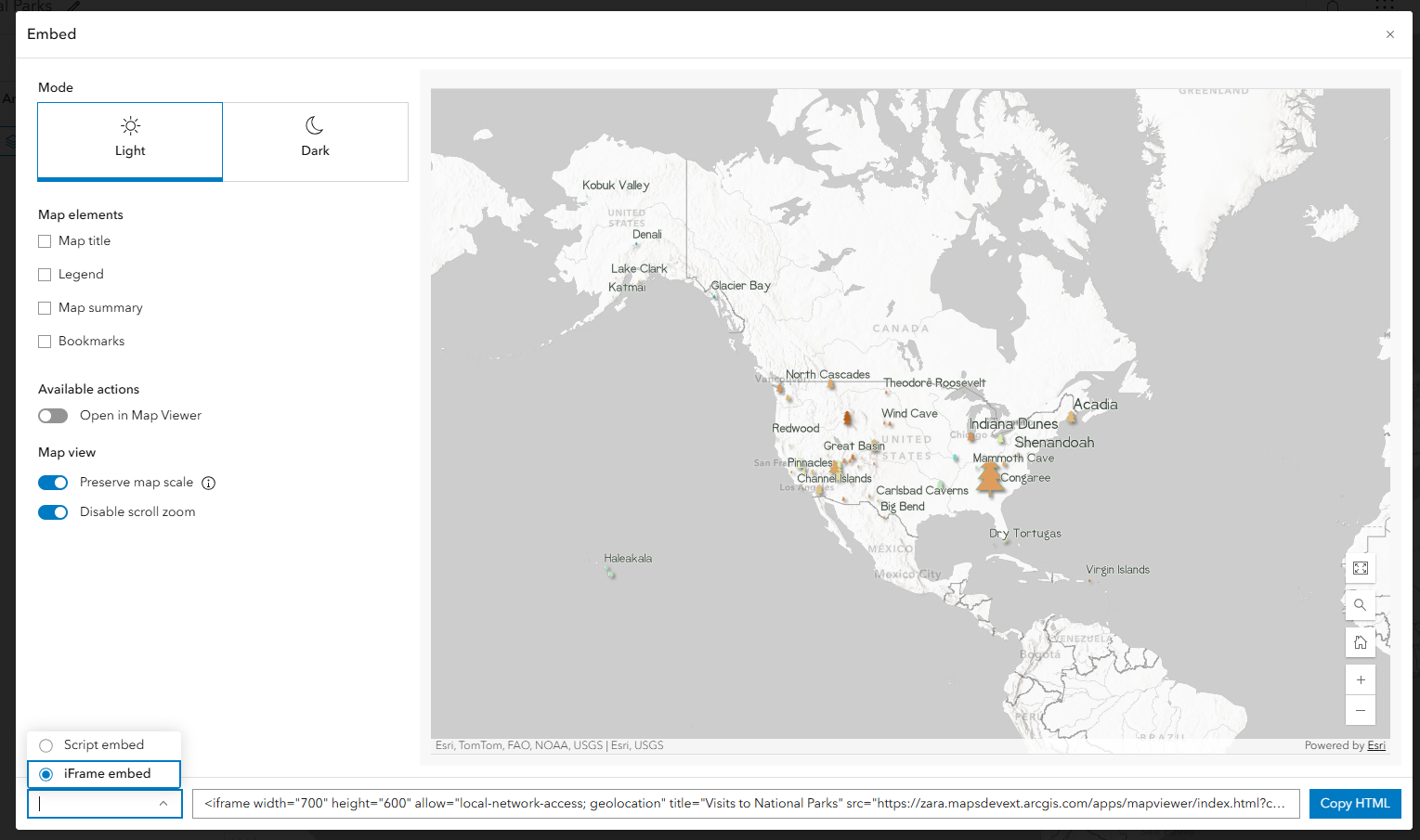
iFrame embed
Embedding maps in websites should be fast and flexible. Map Viewer now supports two embed options: Script embed and iFrame embed. Script embed uses web components for better performance. iFrame embed is ideal for websites that don’t support script embeds. Both options let you configure the map view, and you can now optionally disable scroll zoom for a smoother embedded experience. Check out this blog to learn how to embed a map from Map Viewer.

Styling and symbology
The latest update to Map Viewer gives you greater control over symbology and styling, making it easier to create maps that are both informative and visually compelling.
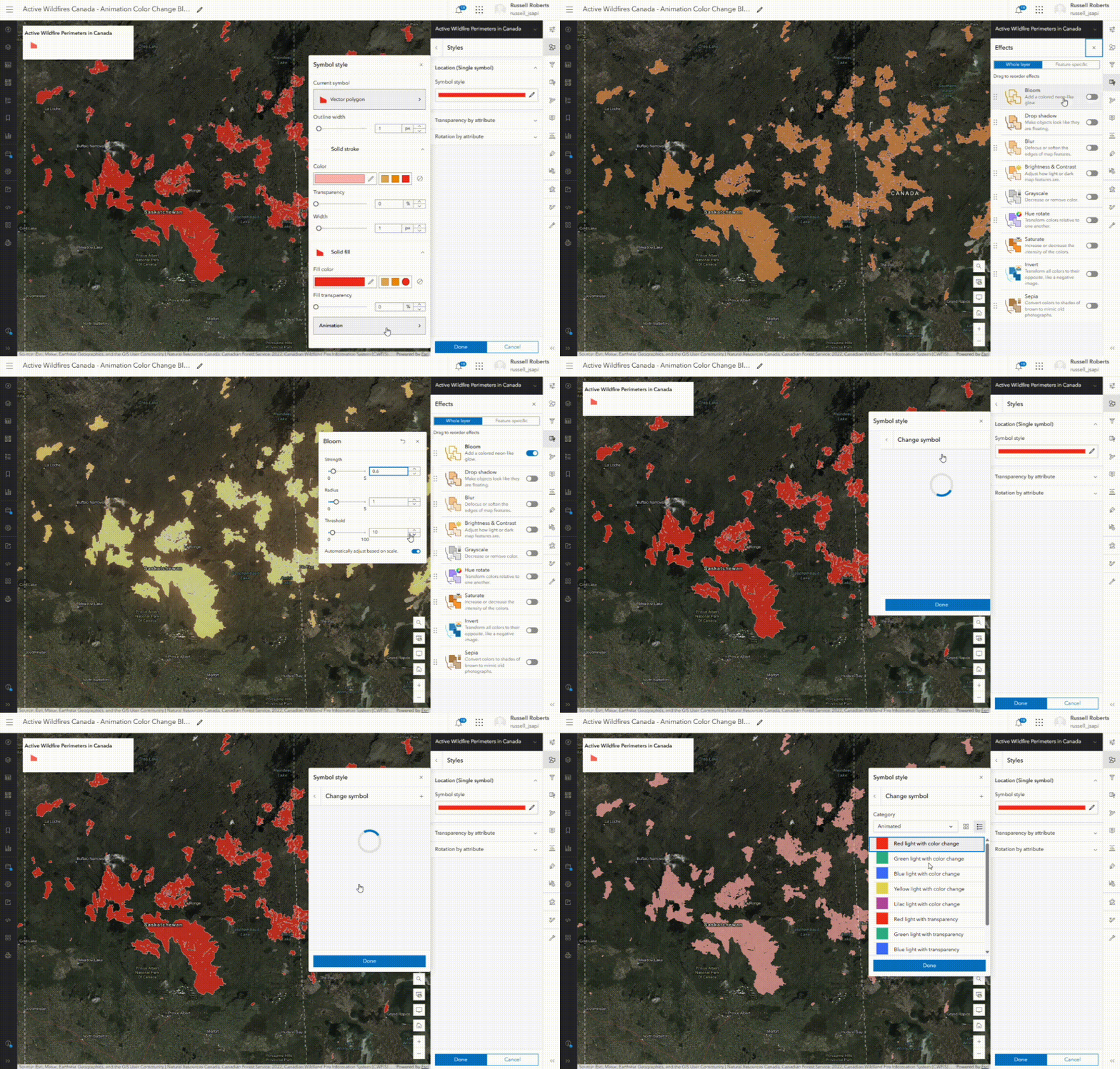
Animated symbology
With the animated symbol gallery, you can fine tune symbol animations—adjusting color, transparency, rotation, and scaling—to achieve the perfect look. The expanded collection of animated line and polygon symbols helps you better convey dynamic scenarios and events, such as movement or change over time.
Gradient fills
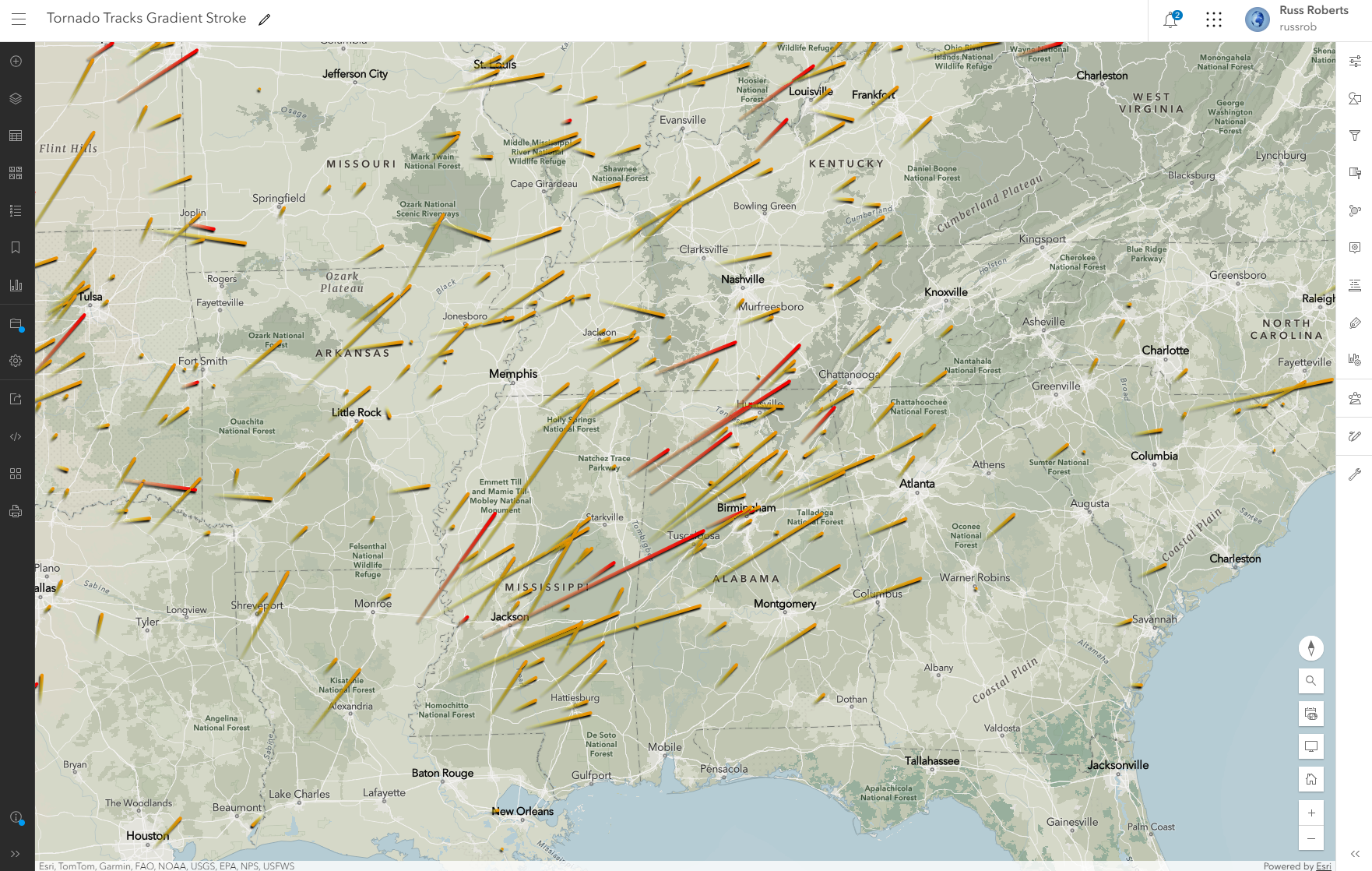
Symbol sets for gradient strokes and fills are now available in the default lines and polygon fills symbol galleries, giving you more flexibility when styling lines and polygons. Apply gradients on all line and polygon features and customize them with color ramps, color stops, angles, fill types, and more. Gradient lines are ideal for showing direction, while gradient polygons work well for visualizing areas such as buildings, water bodies, or wildfire perimeters.
Offset Effect
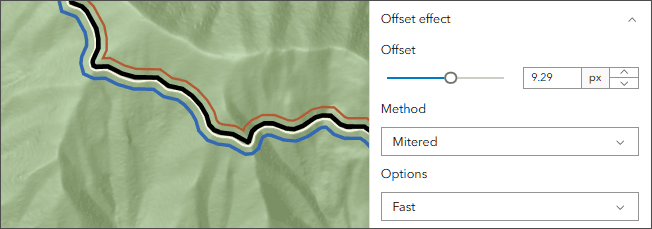
Maps can get messy, especially when there are densely packed overlapping features. Now, symbols that have been authored with an offset effect can be further configured in Map Viewer. Customizing the offset allows you to ensure your features appear just how you need, without changing any of the underlying data. Choose from a dynamic line or outline offset at a specified distance perpendicular to a line or polygon feature.
Labeling
Take a look at how the recent changes made to labeling in Map Viewer can help declutter your maps.
Labeling priority
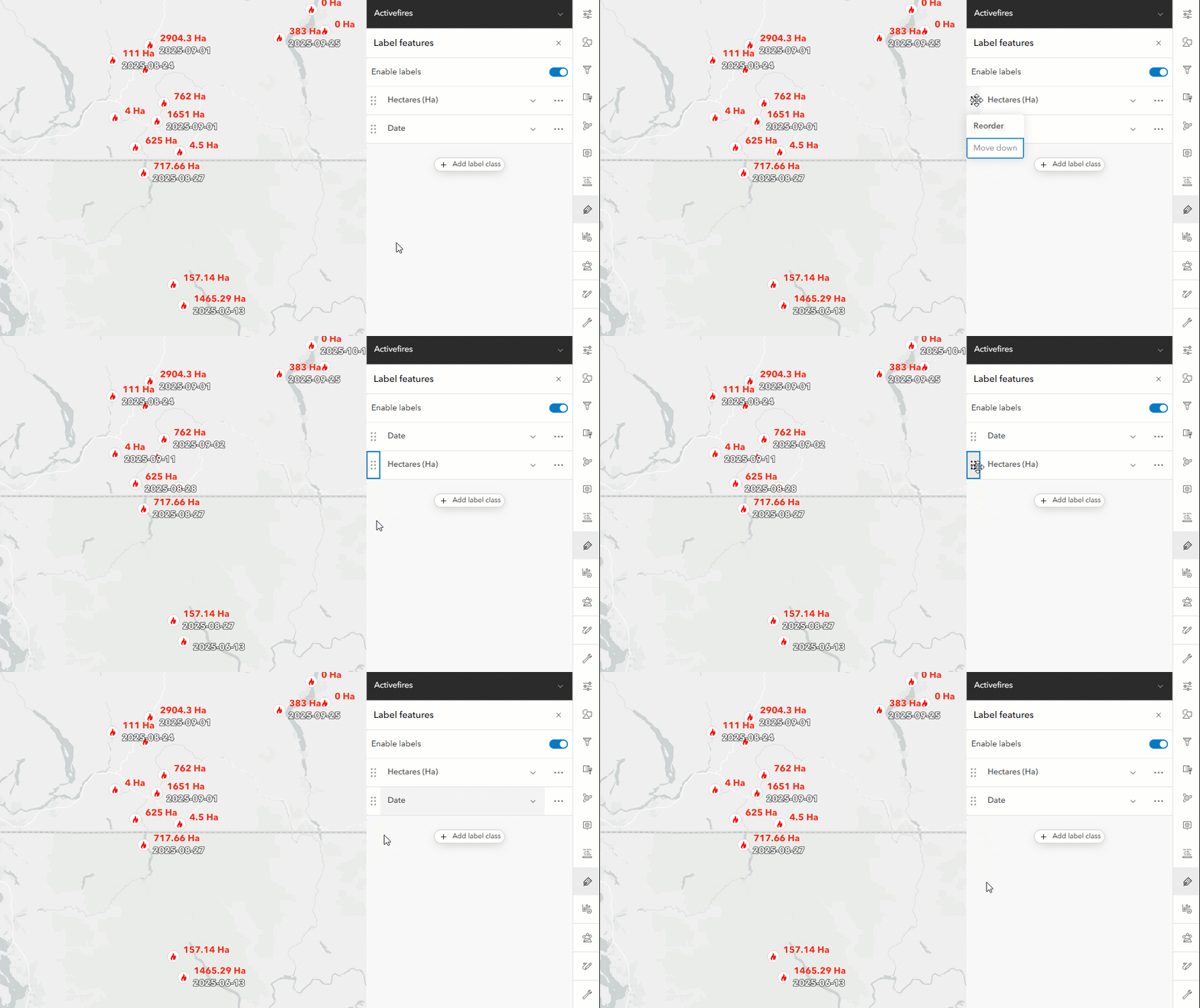
Map Viewer supports authoring multiple label classes, similar to ArcGIS Pro. Within the label authoring panel, you can reorder the label classes by moving them up or down, and the order determines labeling priority: if two labels conflict, the label from the higher-priority class will be displayed. This ensures the most important information is visible, improving map readability and enhancing the overall user experience.
Label deconfliction
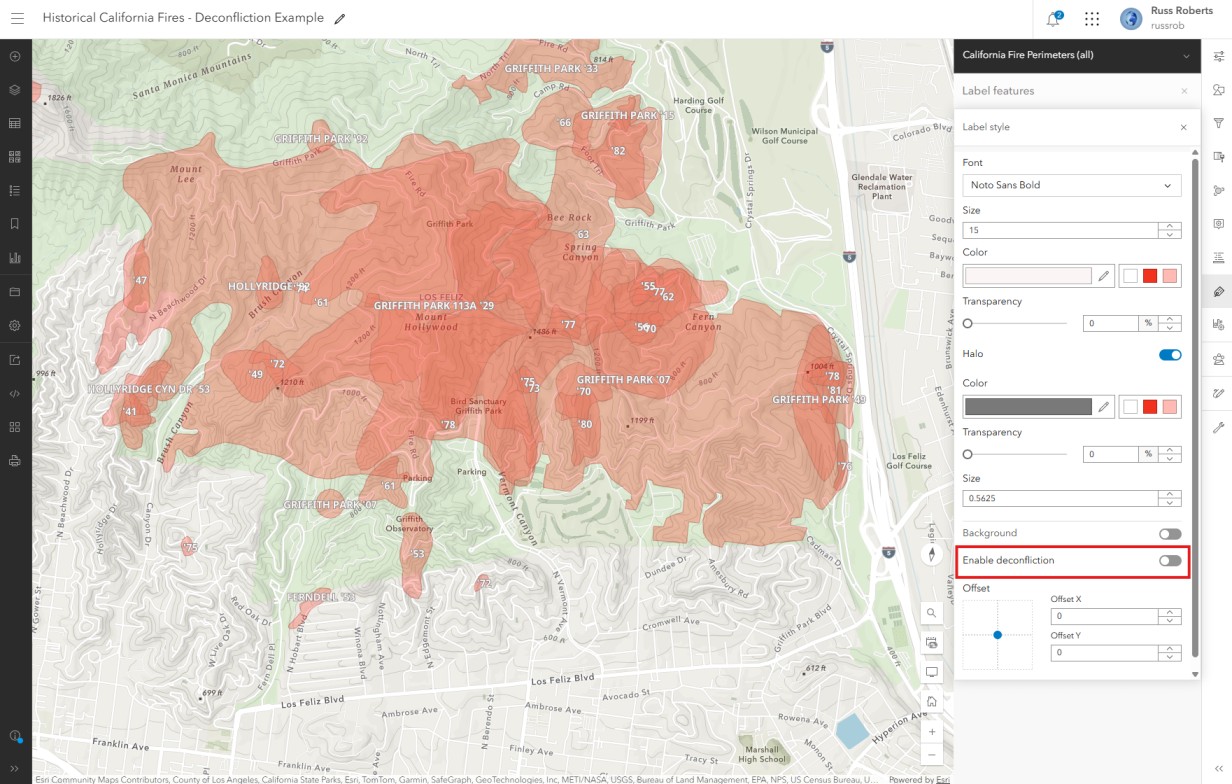
Using the label style option, you can now turn off label deconfliction for a label class. This is helpful when working at large scales where space isn’t an issue, while still using deconfliction at smaller scales for clarity. For example, when mapping utility assets, you may want to always show the asset ID for quick identification, and you might only display extra details like installation date only when zoomed in. Combining scale ranges with label class deconfliction ensures important information stays visible without cluttering the map.
Pop-ups
Pop-ups have always been a powerful way to add context and detail to your maps—and now they’re even more versatile. This release introduces two exciting enhancements designed to give you greater control and flexibility.
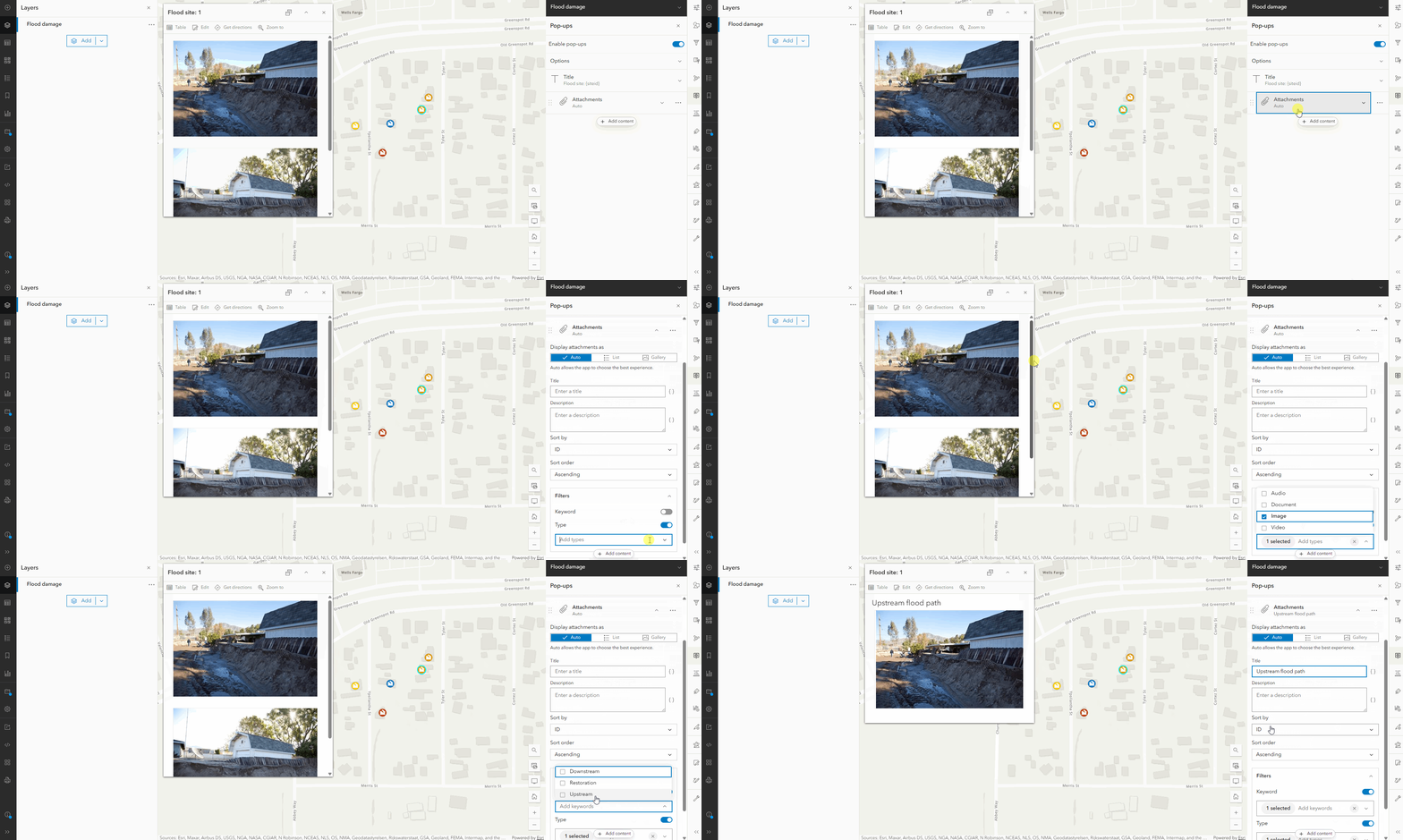
Map Viewer now gives you greater control over how attachments appear in pop-ups. You can filter attachments by keyword, type, or both, ensuring users see only the most relevant content. You can also include multiple attachment elements in a single pop-up, making it easy to organize and present files in a way that fits your needs. This is a significant improvement for users who spend time capturing, curating, and managing attachments, resulting in cleaner, more informative, and user-friendly pop-ups.
Plus, pop-ups aren’t just for feature layers anymore—you can configure them for raster tile layers by referencing a feature layer, unlocking richer interactions with your imagery.
These updates make it easier than ever to deliver tailored, engaging map experiences your users will love. Check out this blog to take a deeper dive into what’s new with pop-ups.
Editing
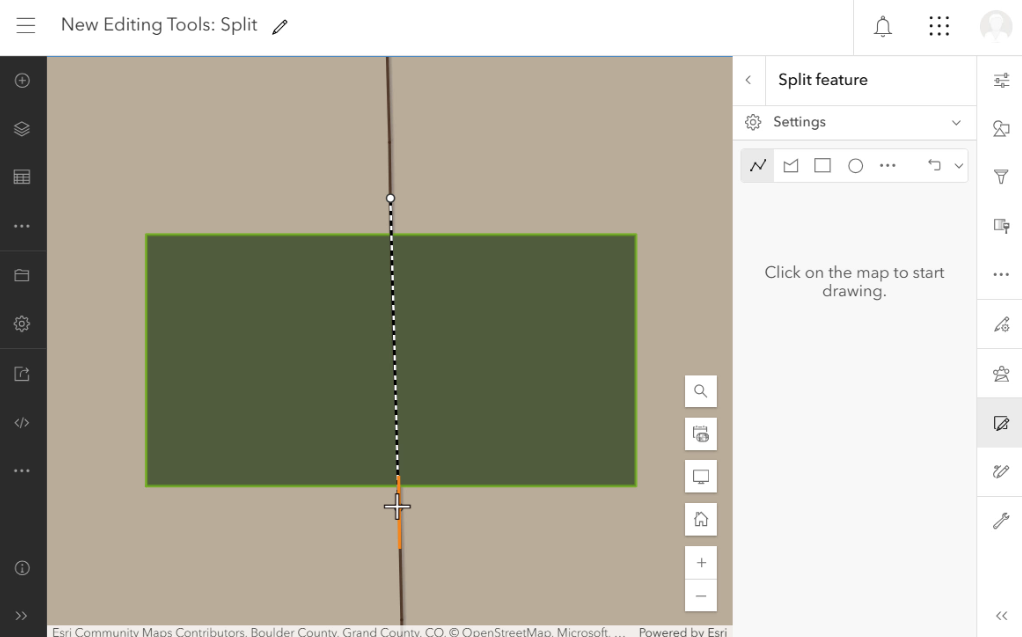
We’re excited to introduce two new tools to support more advanced editing workflows in Map Viewer. The Split tool lets you divide a line, polygon, or multipoint feature into two separate features–perfect for updating boundaries or reflecting changes on the ground.
On the flip side, the Merge tool combines two or more line, polygon or multipoint features from the same layer into a single feature. These powerful options, combined with new tools for selecting features, help you level up your editing workflows in Map Viewer.
Check out this blog to learn more about using these editing tools in Map Viewer.
Field formatting
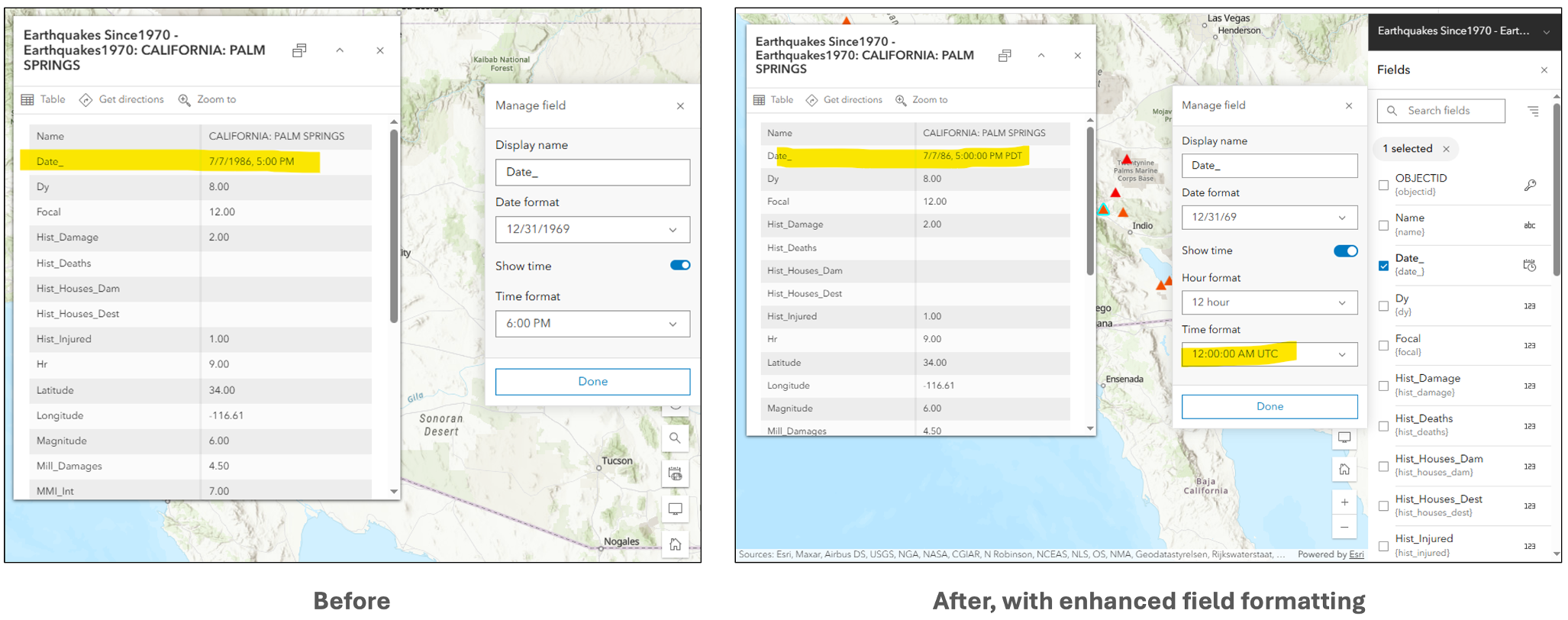
Map Viewer now offers enhanced field formatting for hosted feature layers to better align with internationalization standard for date and numeric fields. These improvements allow dates and numbers to dynamically format based on the viewer’s locale, ensuring clarity and consistency across regions. You can also specify time zones for date and timestamp offset fields directly from the map’s properties panel. Together, these options make it easier to present data in a way that’s accurate, regionally relevant, and user-friendly.
Raster analysis
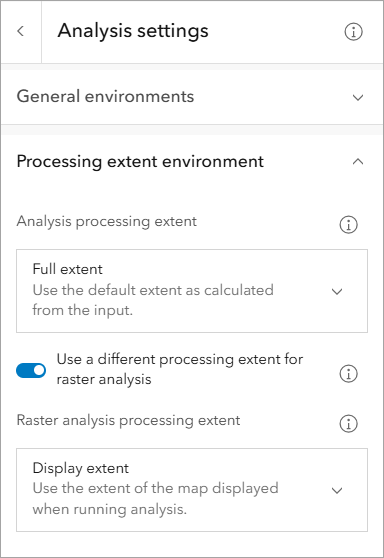
This update introduces a new default for raster analysis in Map Viewer: the processing extent is now set to your map’s display extent. This change helps manage resources and prevent accidental over-processing, reducing unnecessary credit usage when working with large imagery datasets. You can still customize this setting in the Analysis settings pane under Processing extent environment if you need a different extent. Non-raster analysis continues to use the full input extent by default. Check out this blog to learn more about what’s new in imagery in ArcGIS Online, including raster analysis.
Oriented Imagery
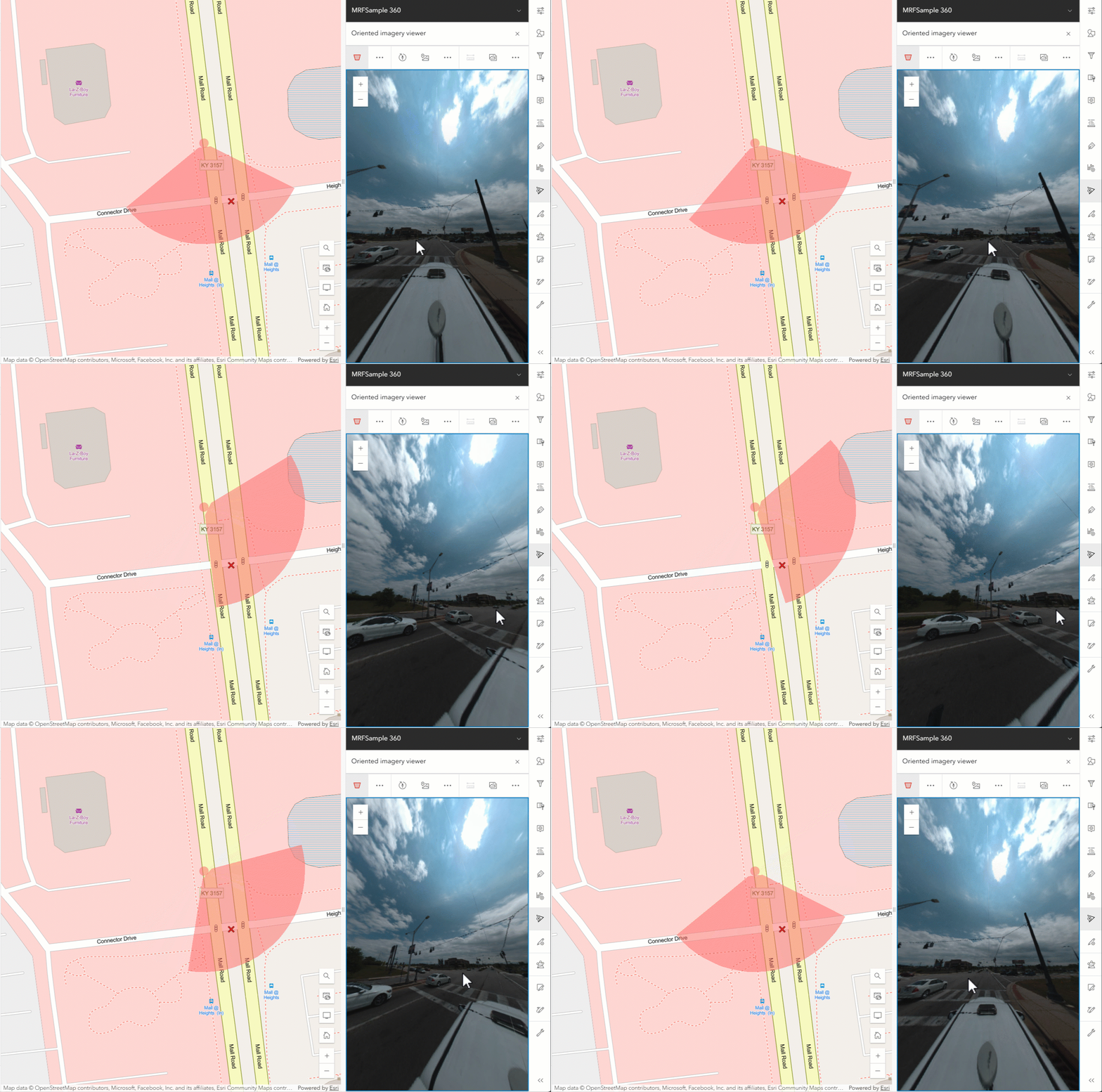
Map Viewer’s oriented imagery viewer now supports tiled formats like MRF and COG for 360° imagery, in addition to JPG. These formats load faster, improving performance and responsiveness for immersive image experiences. Whether you’re visualizing drone captures, street-level inspections, or panoramic scenes, the viewer offers smoother navigation and quicker access to high-res imagery. This update continues to expand the possibilities for working with oriented imagery, making it easier to explore assets from multiple angles, overlay GIS features, and extract insights directly within the map.
Charts
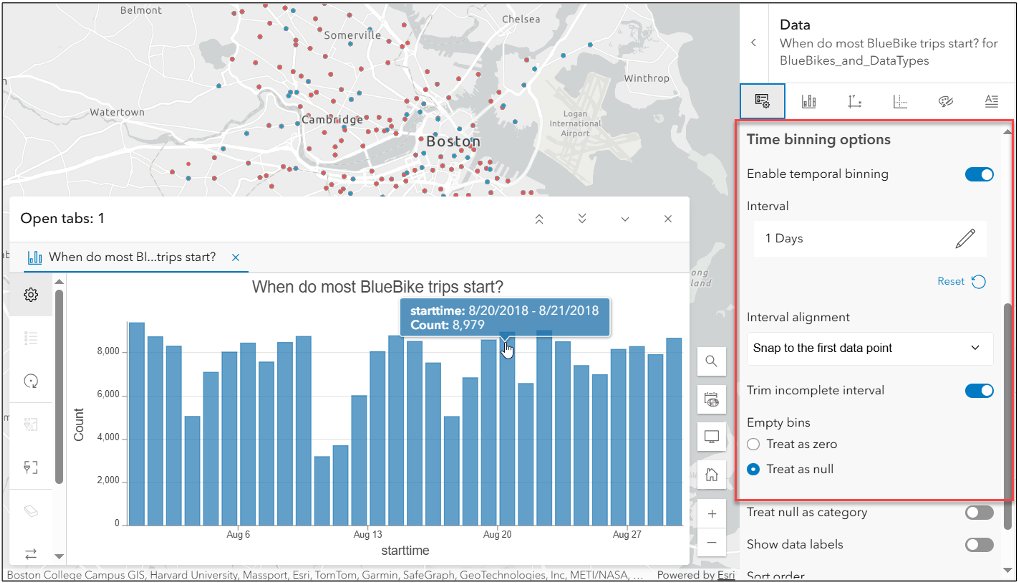
Map Viewer’s latest update brings powerful new charting capabilities that make data storytelling more precise. Bar charts now support temporal binning, allowing time-based data to be grouped into meaningful intervals for clearer trend analysis. A new option to Display Null as a Category ensures no data is left behind, giving visibility to missing values.
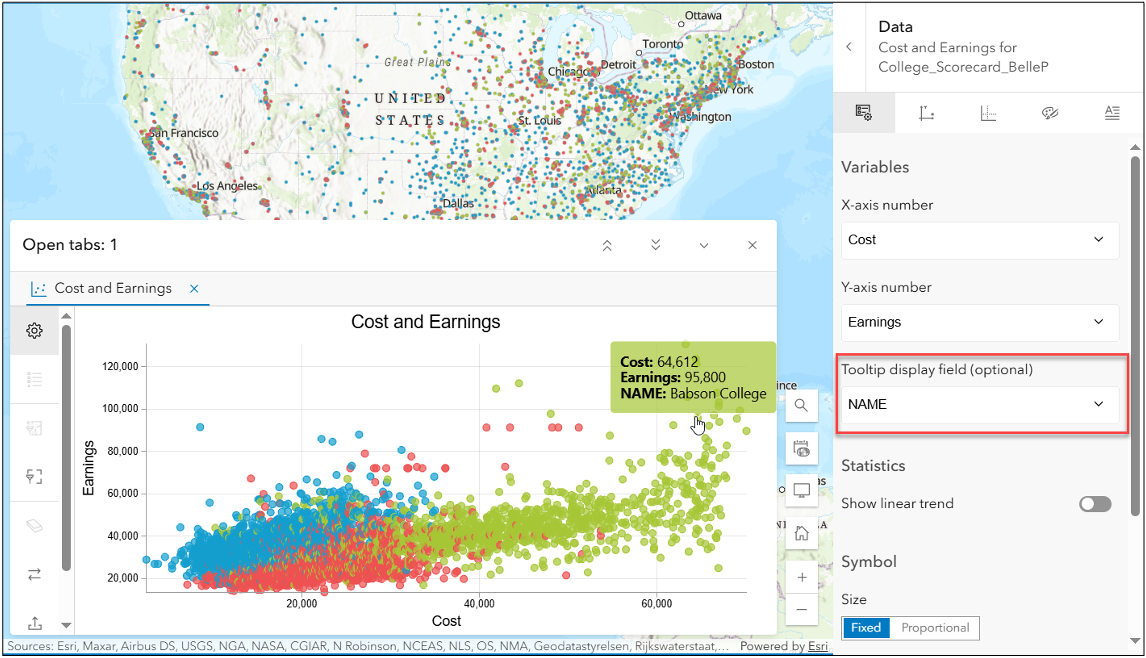
Plus, when working with scatterplots, you can now add an optional tooltip field to show extra details, such as school names, making it easier to identify each point. Check out this blog for more details on our latest updates to charts in Map Viewer.
Other updates
Arcade assistant (beta) now available when calculating field values
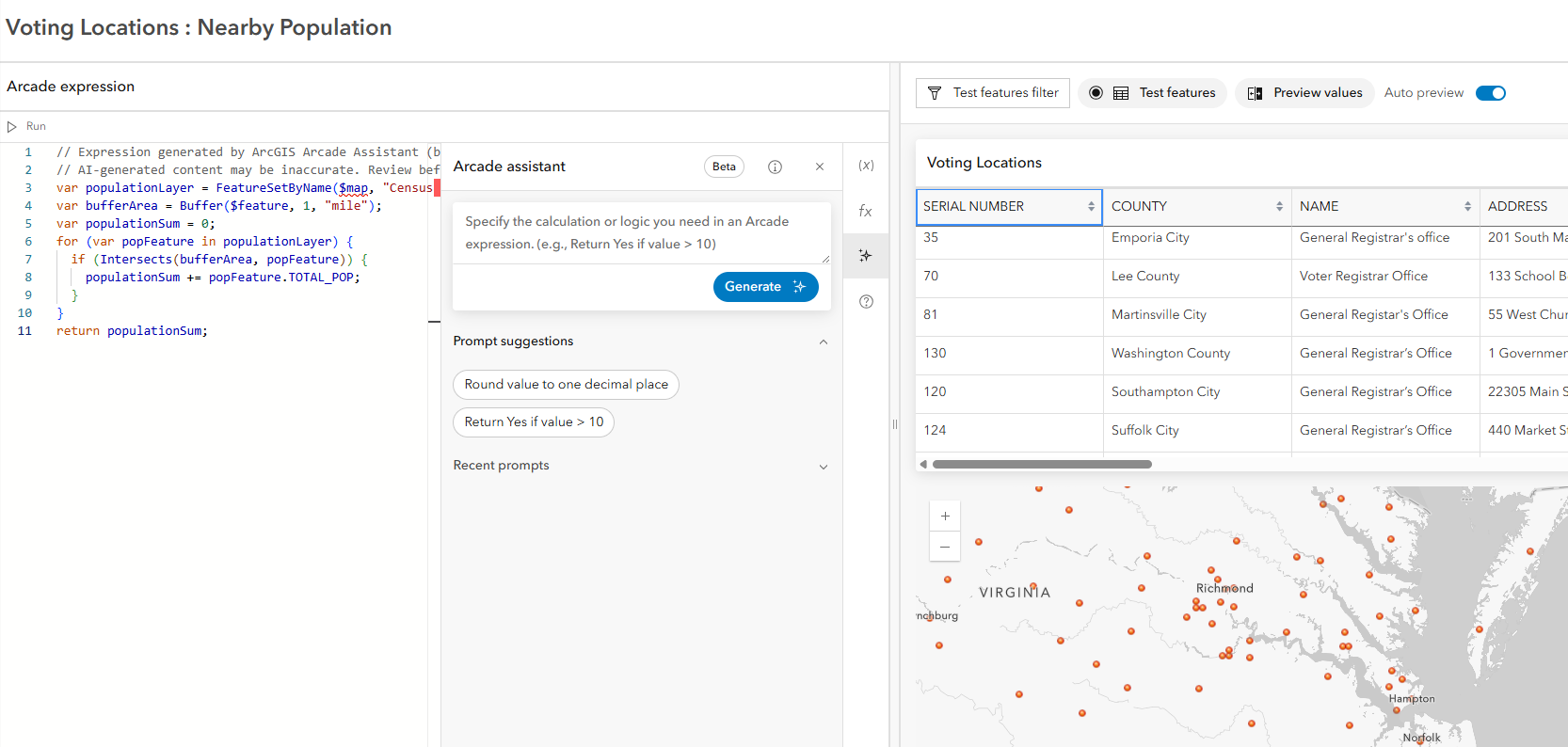
The Arcade Assistant (beta), introduced at the June 2025 update, helps users build expressions using natural language prompts—no coding required. It streamlines workflows for styling, pop-ups, and more, making advanced customization more accessible to everyone. Check out our documentation to learn how to use the Arcade assistant (beta) when calculating field values.
Video player support
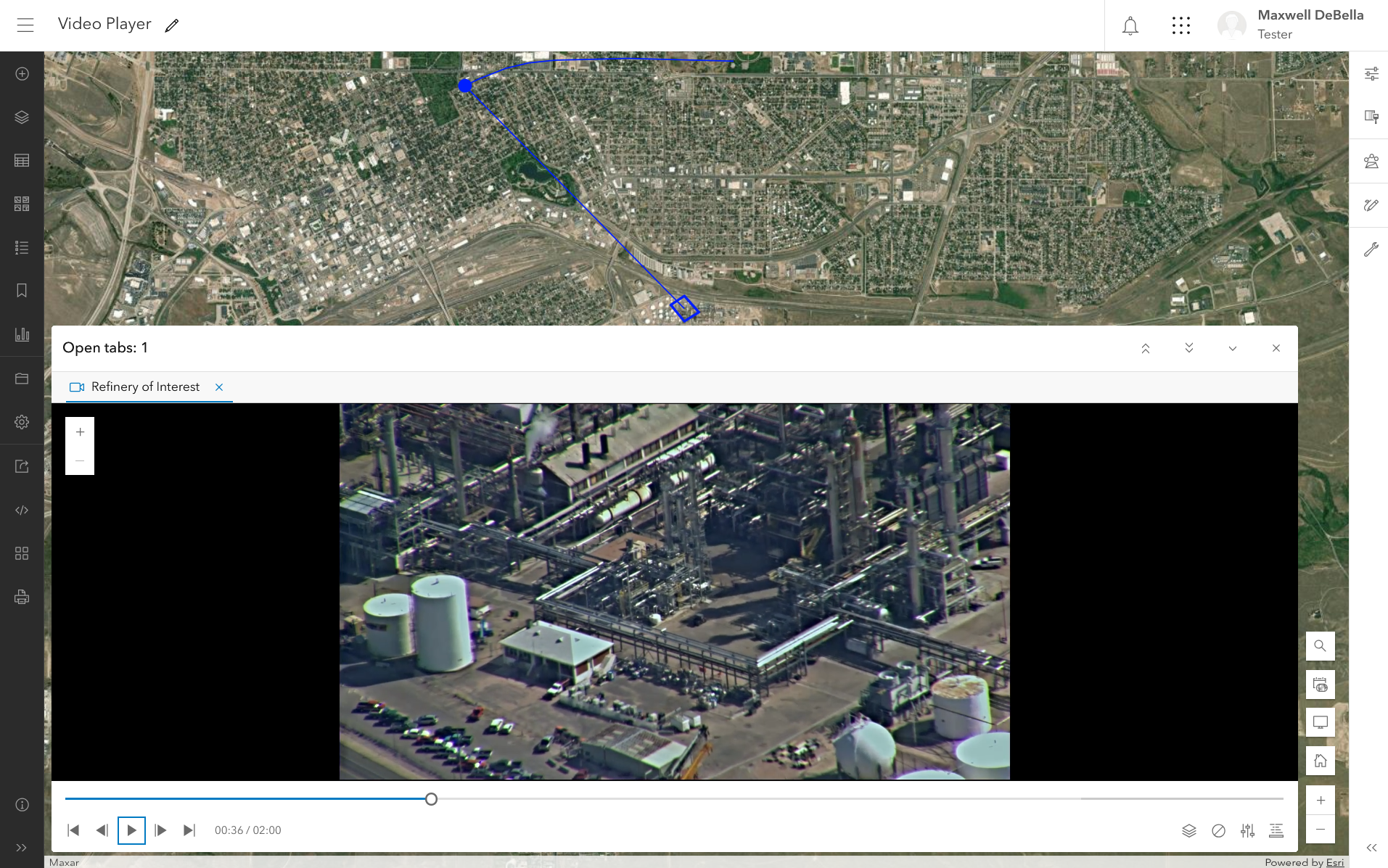
Map Viewer now supports video layers, making it simple to add videos to your maps and view them in an integrated video player. These layers are built from a video service and include live or recorded footage with spatial and temporal context—so you can see exactly where and when the video was captured. During the 2024 wildfires, CalFire used this feature to monitor fire behavior by watching aerial footage while tracking the camera’s flight path. It’s a powerful way to combine location and video for deeper insight. Check out the documentation to learn how to add video layers and view them using the built-in player.
Analysis and ModelBuilder
ModelBuilder is a powerful tool for automating analysis workflows, and it’s getting even better. Two key updates include support for value variables and the Calculate Field tool. Value variables make it easier to run the same model on different datasets and adjust tool parameters without rebuilding your workflow. The Calculate Field tool lets you automate field calculations as part of your model. These enhancements make ModelBuilder more flexible and efficient for repeatable GIS analysis. Check out the this blog to learn more about ModelBuilder.
App ID
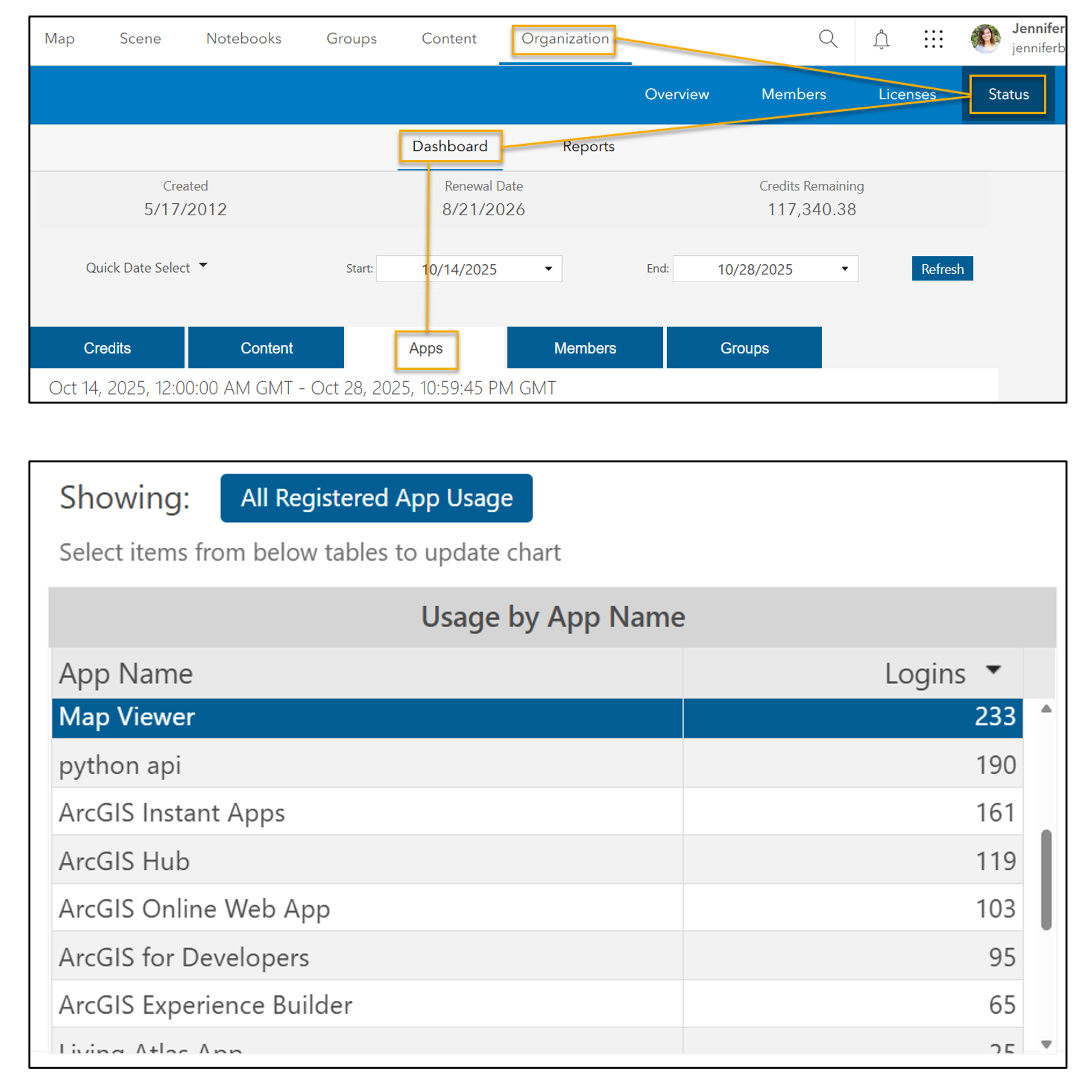
Map Viewer now includes a unique app ID, making it easier for organizations to track usage through Activity Reports. This helps teams monitor adoption, understand engagement trends, and make informed decisions about training, support, and deployment strategies.
Shortcuts
Two new keyboard shortcuts have been added to Map Viewer for quick access to the Measurement and Location tools:
Shortcuts on PC
- Alt + Shift + M opens the Measurement tool.
- Alt + Shift + F opens the Location tool.
Shortcuts on Mac
- Option + Shift + M opens the Measurement tool.
- Option + Shift + F opens the Location tool.
These shortcuts make it easier to work efficiently without navigating through menus.
Transition to Map Viewer
Map Viewer Classic will be retired from ArcGIS Online in Q1 2026. Once retired, users will no longer be able to create maps with Map Viewer Classic, and maps previously saved there will automatically open in Map Viewer. We encourage users to start transitioning now and explore the updated experience. For more details, visit the Map Viewer Classic deprecation support page.




Article Discussion: