When working with geospatial data, one way to effectively improve data quality, enhance user experience, and ensure consistency is through Coded Domain Fields. These fields allow you to restrict data input to a predefined set of values, reducing errors and making data more structured and easier to analyze. In this blog article, we’ll explore how you can use Coded Domain Fields to improve your workflows in ArcGIS Pro and ArcGIS Online.
What Are Coded Domain Fields?
A Coded Domain Field is a field in your attribute table that contains predefined values, or domains, instead of free-text input. These values can be a list of codes that correspond to specific labels, making data entry more standardized and minimizing the risk of typos or inconsistencies.
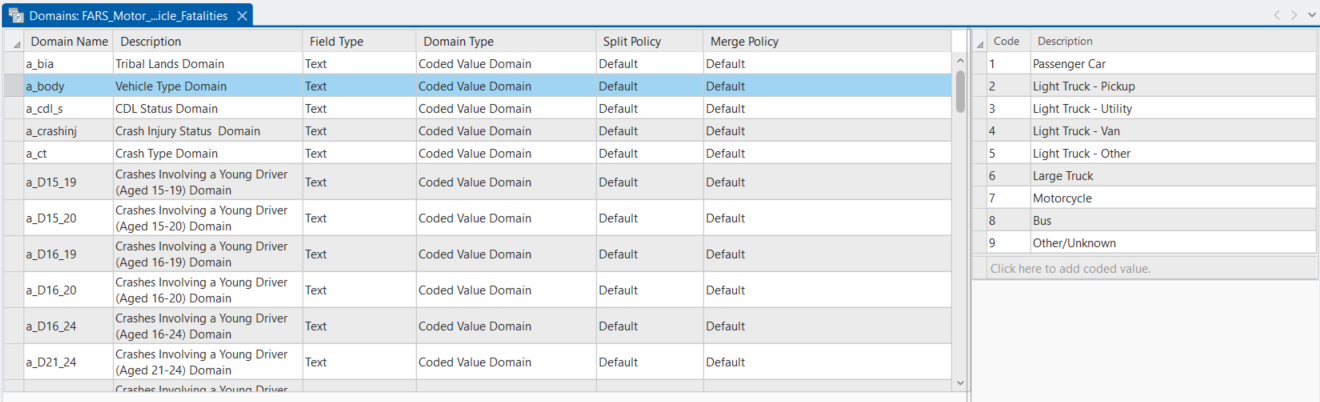
For example, in the FARS Fatal Motor Vehicle Crashes 2019 to 2023 dataset in ArcGIS Living Atlas, a related table variable “Vehicle Type” has the coded domain values of 1 = Passenger Car, 2 = Light Truck – Pickup, 3 = Light Truck – Utility,4 = Light Truck – Van, 5 = Light Truck – Other, 6 = Large Truck, 7 = Motorcycle, 8 = Bus, 9 = Other/Unknown etc.
This ensures that users select the correct classification without introducing errors. Another major benefit is that descriptive text of the domain fields allows users to easily understand what the numeric values means. Users would not have to dig through a code book to understand that the value of ‘1’ is a passenger car.

Benefits of Coded Domain Fields
-
Data Integrity: Coded domains restrict the field values to a specific set, minimizing the chance of user errors and ensuring consistent data input.
-
Better Analysis: When working with data that follows standardized values, analysis becomes more reliable. For example, in crash analysis, consistent severity codes allow for more accurate statistical breakdowns and visualization.
-
Easier Updates: If the classification or labels need to change, you can simply update the domain rather than manually changing values across all records.
-
User-Friendly: Coded domains improve the user experience by offering a dropdown list for data input, making it easier for less experienced users to work with the data.
Working with Coded Domain Fields in ArcGIS Pro
Manually add a Coded Domain Field in ArcGIS Pro
-
Open the Attribute Table:
In ArcGIS Pro, right-click on the layer to which you want to add the domain and select Attribute Table. -
Add New Field:
In the attribute table, click on the Fields tab and then click Add Field. -
Set Field Properties:
-
Field Name: Enter a name for the new field (e.g., “Crash Severity”).
-
Field Type: Choose Short Integer or Text, depending on the domain values.
-
Domain: In the Domain drop-down menu, select an existing domain or create a new one.
-
-
Create Domain (if needed):
If you need to create a new domain, navigate to the Domains section in the Catalog pane. Right-click Domains, select New Domain, and define your domain values. -
Save and Apply:
Once you’ve added the field and set the domain, click Save, and the new domain will be applied to your layer.
Batch create Coded Domains with the Table to Domain Tool in ArcGIS Pro
One of the most efficient ways to batch create coded domains is by using the Table to Domain geoprocessing tool in ArcGIS Pro. This tool allows you to quickly convert a table of values into a coded domain, saving you time and effort, especially when dealing with large datasets.
Steps to Use the Table to Domain Tool:
- Prepare the Table:
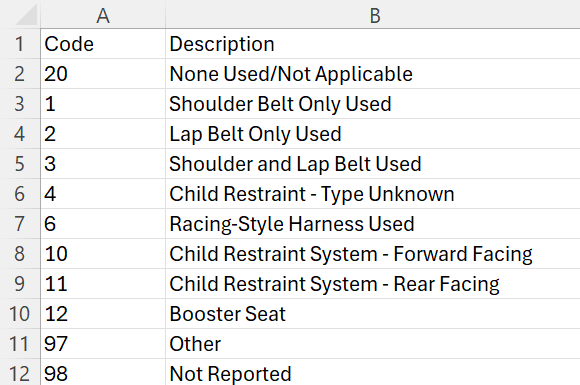
First, ensure you have a table that contains the values you want to use for your domain. For instance, for the Restraint Use field in the FARS Fatal Motor Vehicle Crashes dataset, I have an Excel table for this domain.
- Access the Tool:
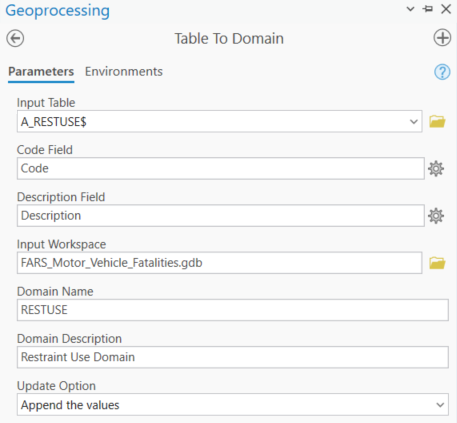
In ArcGIS Pro, go to the Geoprocessing Pane and search for the Table to Domain tool. - Configure the Tool:
- Input Table: Select the table containing the values you want to use for the domain.
-
Code Field: Specify the field where the domain code will be derived.
-
Description Field: Specify the field where the domain description will be derived.
-
Input Workspace: Provide the workspace that contains the domain that will be created or updated.
-
Domain Name: Specify the name of the domain that will be created or updated.
-
Domain Description (Optional): Specify the description of the domain that will be created or updated.
-
Update Option: Specify how the domain will be updated when you’re using an existing domain.
- Run the Tool:
Click Run to create the domain. ArcGIS Pro will automatically generate a domain based on the values in your table, which you can now apply to your feature class or dataset
Adding Domain Lists in ArcGIS Online
-
Open the Fields Tab:
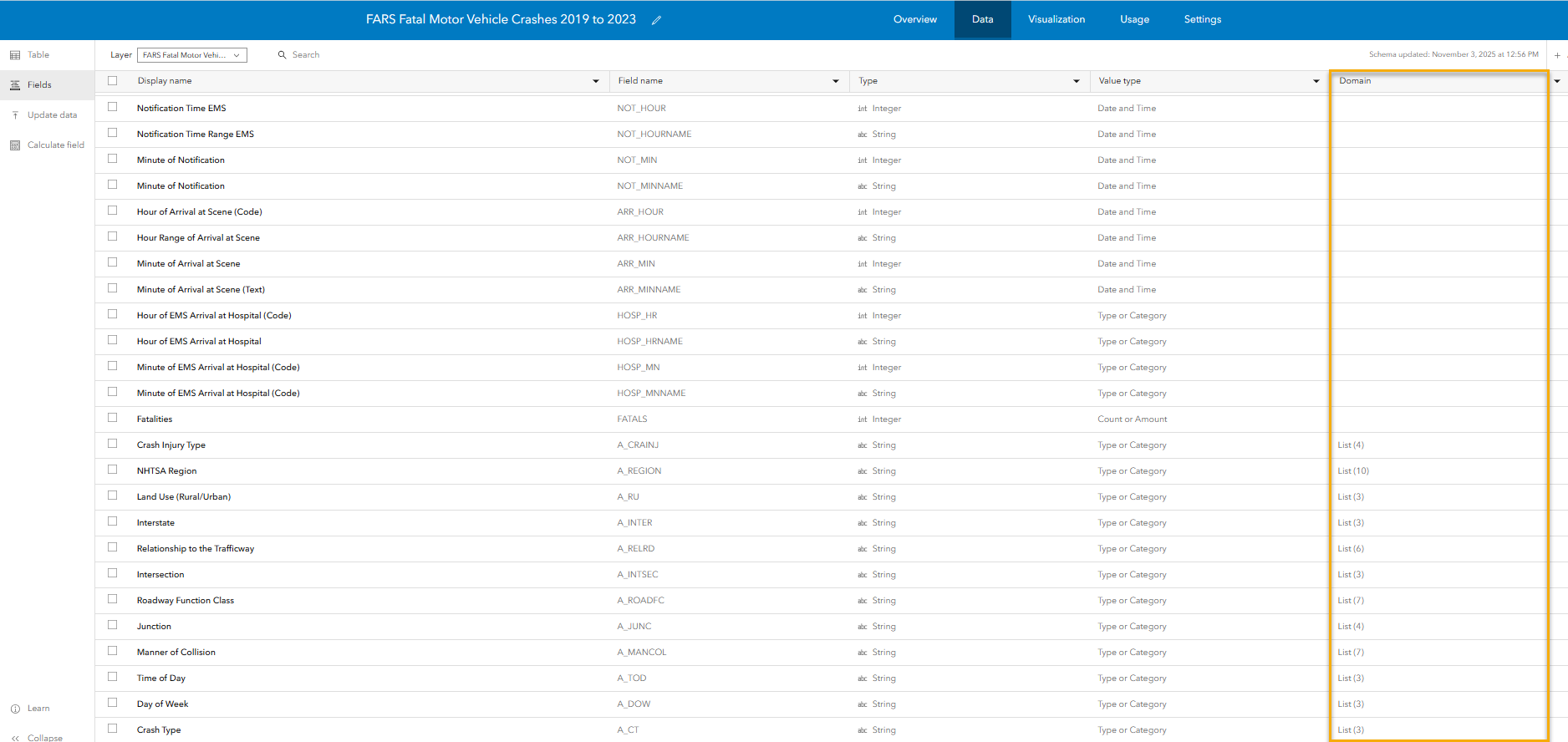
In ArcGIS Online, navigate to the Fields Tab within Data portion of the Item Description Page. -
Select the Field to Add a Domain:
Scroll to the specific field you want to add in a Domain for. Under the Domain Column, you can see which fields do not have a Domain. A blank row indicates no domains defined, while List(n) indicates the number of stored values in the domain list.
3. Add New Domain List:
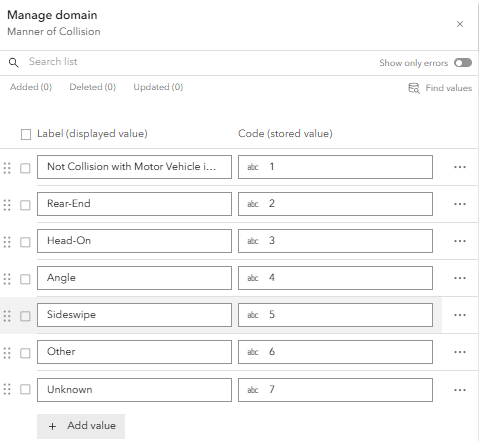
Under the Domain dropdown, select Get Started. Choose ‘Enter Values’ to manually enter values, ‘Find Values’ to use an existing list, or ‘Import Values’ to batch enter values from a csv file.
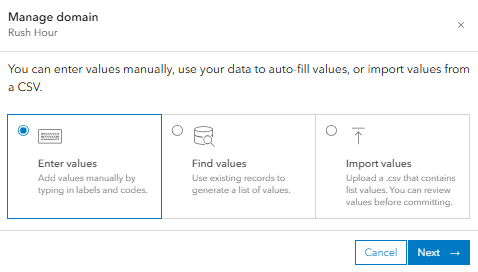
For example, in order for users to know the manner of a fatal collision, I added in the coded values below:
Conclusion
By using Coded Domain Fields in your ArcGIS workflows, you can significantly enhance data consistency, quality, and usability. Whether you’re analyzing crash data, managing environmental data, or tracking infrastructure conditions, domains ensure that your datasets are organized and error-free.
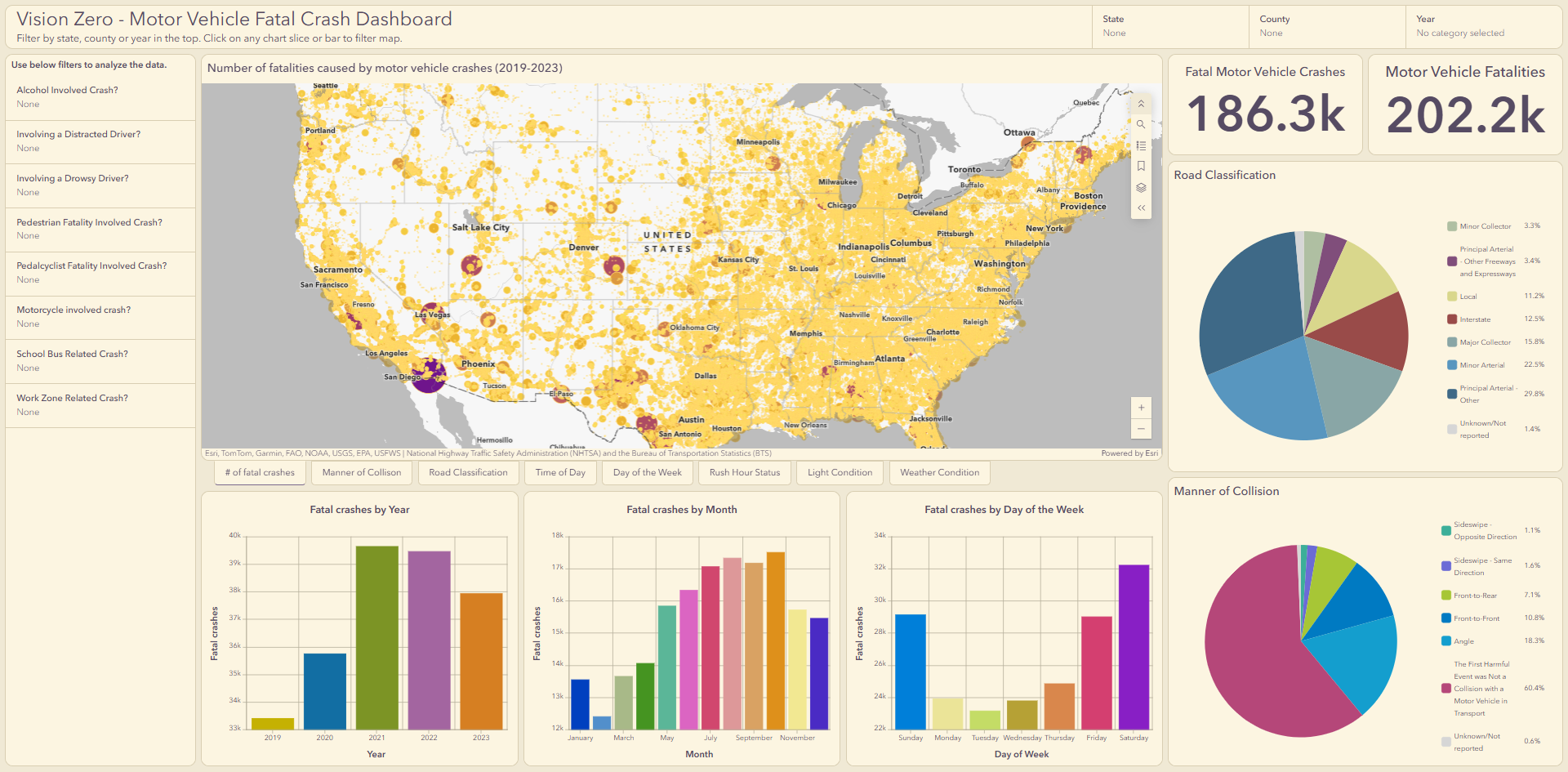
The FARS Fatal Motor Vehicle Crashes 2019-2023 dataset is just one example of how coded domains can help standardize values like vehicle type, restraint use, and more. Click on the image below to see how coded domains helped make user friendly filters for my Vision Zero – Motor Vehicle Fatal Crash Dashboard.




Article Discussion: