This post has been updated for the ArcGIS Online June 2026 release.
Hosted feature layers can be created in a variety of ways. Some are published straight from ArcGIS Pro with carefully curated map properties, others are created through a quick drag and drop from a variety of data sources directly in ArcGIS Online, and still others are generated from scratch or blank templates. No matter how they begin, all layers carry a foundational characteristic: its coordinate system.
It’s easy to forget about coordinate systems. They work quietly in the background, making sure your data shows up in the right spot, until the day something shifts or doesn’t align, and suddenly they’re all you can think about. This is where careful consideration comes in. Choosing the right coordinate system means thinking about both the method used to create the layer and how the data will ultimately be used, ensuring it meets the spatial and workflow requirements of your project.
This blog is all about understanding how coordinate systems are handled depending on how your hosted feature layer is created. The workflow you choose doesn’t just influence your schema or settings; it determines the coordinate system your data ends up living in. But that’s only half the story. The coordinate system you should use also depends on your project needs. Let’s take a look at how coordinate systems are assigned, help you determine which coordinate system is appropriate for your workflow, and review how to check the coordinate system of your existing feature layers.
How Your Publishing Path Determines Your Coordinate System
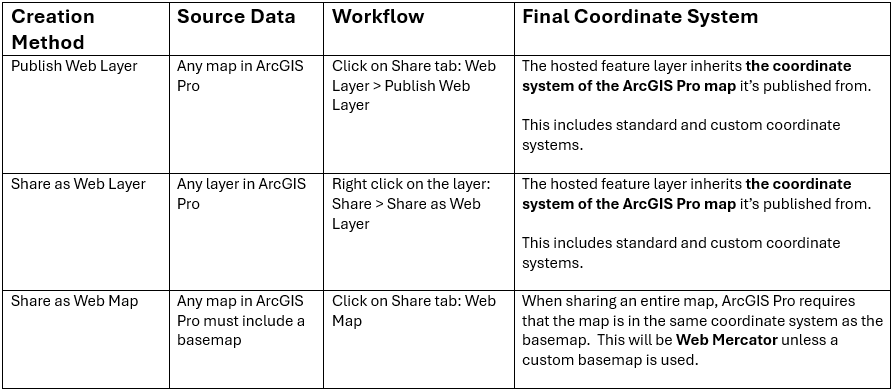
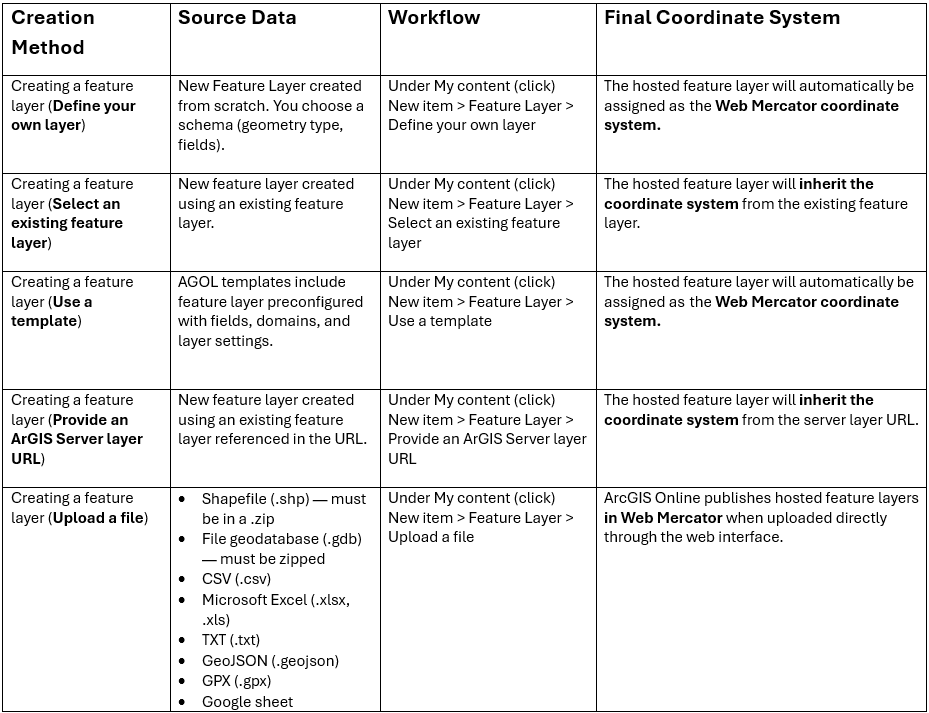
There are many ways to create a hosted feature layer in ArcGIS Online, and each publishing path has its own method to determine the coordinate system. Whether you publish directly from ArcGIS Pro, upload a file through the ArcGIS Online interface, start from a template, or generate a feature layer from an existing feature layer, the method you choose determines the coordinate system of your hosted feature layer. Understanding these publishing paths is the key to understanding why your data lands in one coordinate system versus another. The table below breaks down each creation method and how it assigned a coordinate system to a newly created hosted feature layer.
Publishing Hosted Feature Layers from ArcGIS Pro
Creating Hosted Feature Layers in ArcGIS Online
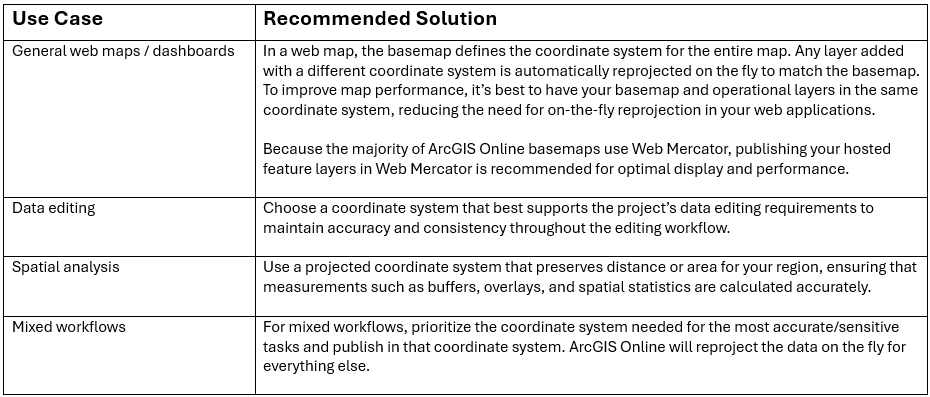
Choosing the Right Coordinate System for the Job
Once you understand how a coordinate system gets assigned to your hosted feature layer, the next step is to make sure you select the right one for what you’re trying to accomplish. Not every project has the same spatial needs: a web map centered on visualization behaves very differently from a field data collection workflow, and both differ from analysis-heavy projects where accuracy is crucial. Each workflow places its own demands on precision, performance, and compatibility. The table below shows how these needs translate into coordinate systems recommendations, helping you set up your layers for success from the start.
How to see the Coordinate System of a Hosted Feature Layer
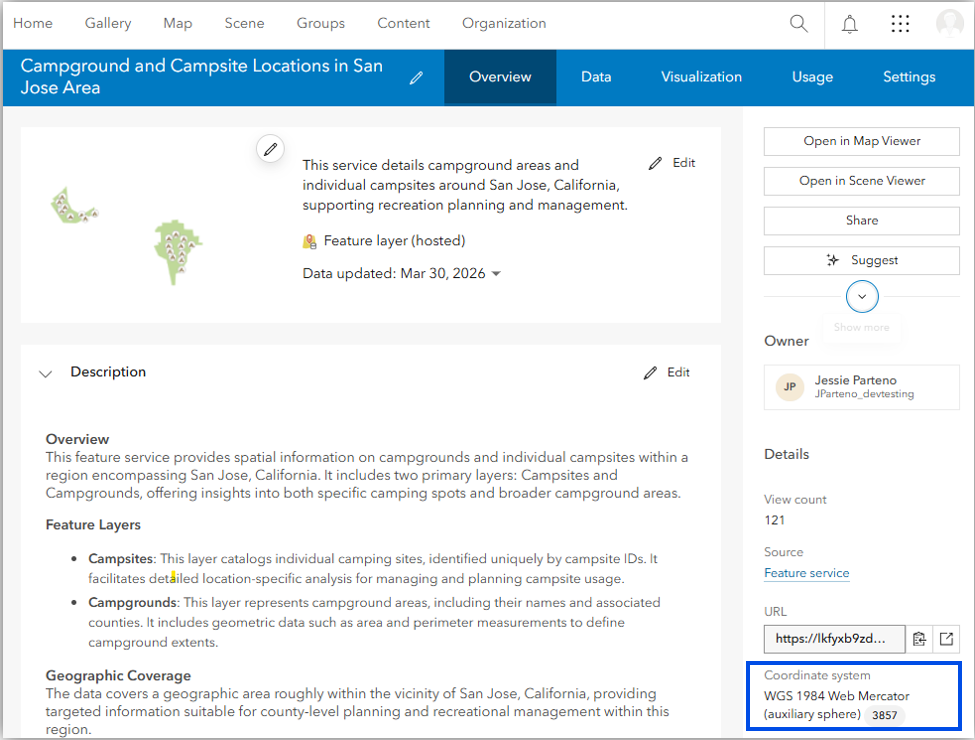
Once your data is published or if you are working with existing hosted feature layers and you want to confirm the coordinate system, you can find that information in three different locations. New in the ArcGIS Online June 2026 release, the coordinate system information is now available on the Overview tab. It can also be found in the layer’s REST endpoint or by bringing the layer into ArcGIS Pro and reviewing the layer properties.
Item Overview Page
New in the ArcGIS Online June 2026 update, the coordinate system of hosted feature layers is now available on the Overview tab. It can be found in the item details under the URL and includes the name of the coordinate system and the latest WKID value. For hosted feature layers that have a custom coordinate system, the name of the coordinate system will appear, and it will display “custom” instead of a WKID.
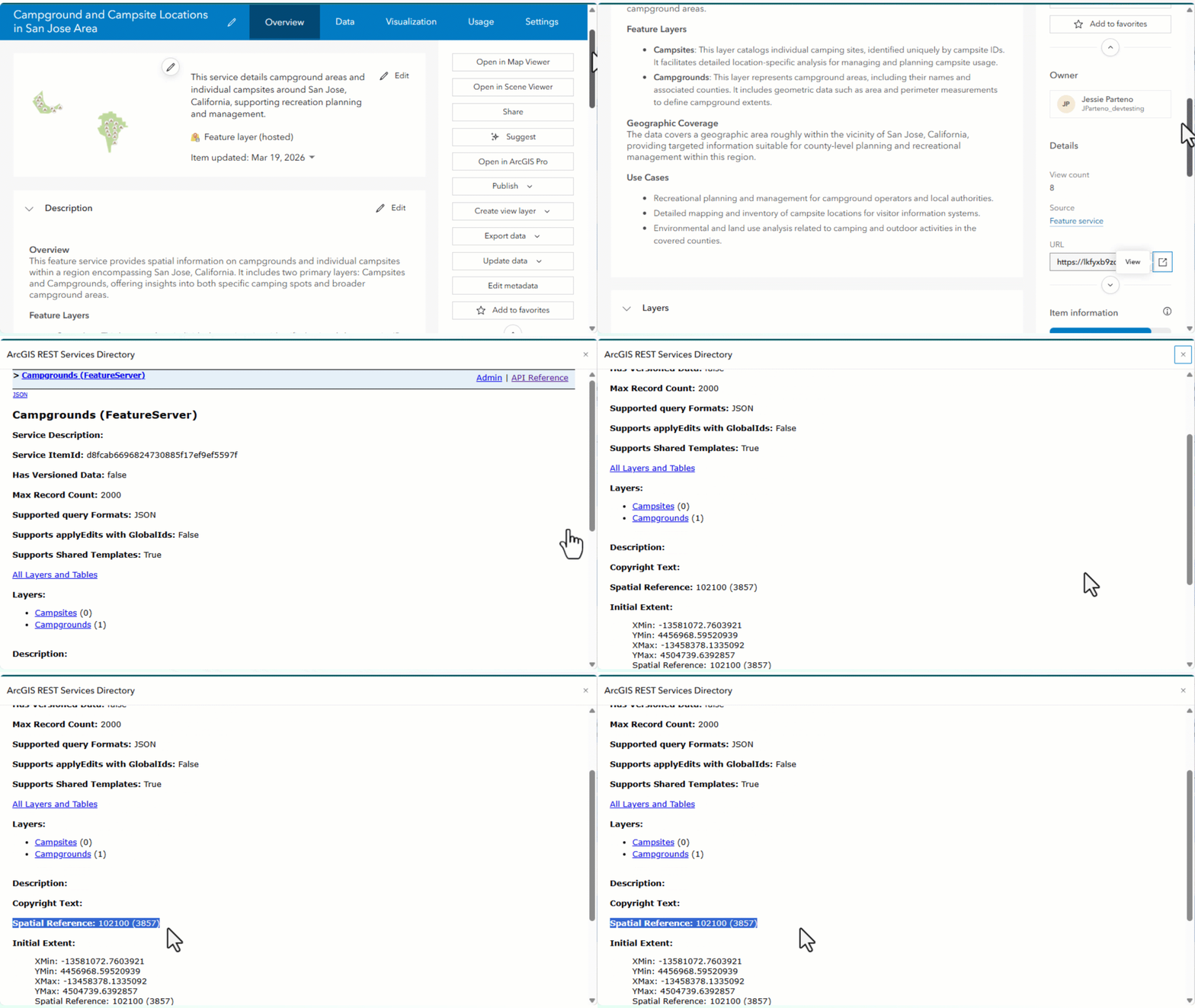
REST endpoint
- Go to the layer’s item page in ArcGIS Online.
- Click the Overview tab.
- On the right side of the page, under Details locate the URL.
- On the right side of the URL click on the View icon.
- This opens the layer’s REST endpoint. Look for the spatial reference section. If the hosted feature layer has a standard coordinate system you will find the WKID, which is a numeric code that represents the coordinate system. Look up the code to identify the coordinate system name. If you are using a custom coordinate system you will find the WKT, which is a full textual representation that defines all the details of a coordinate system.
ArcGIS Pro
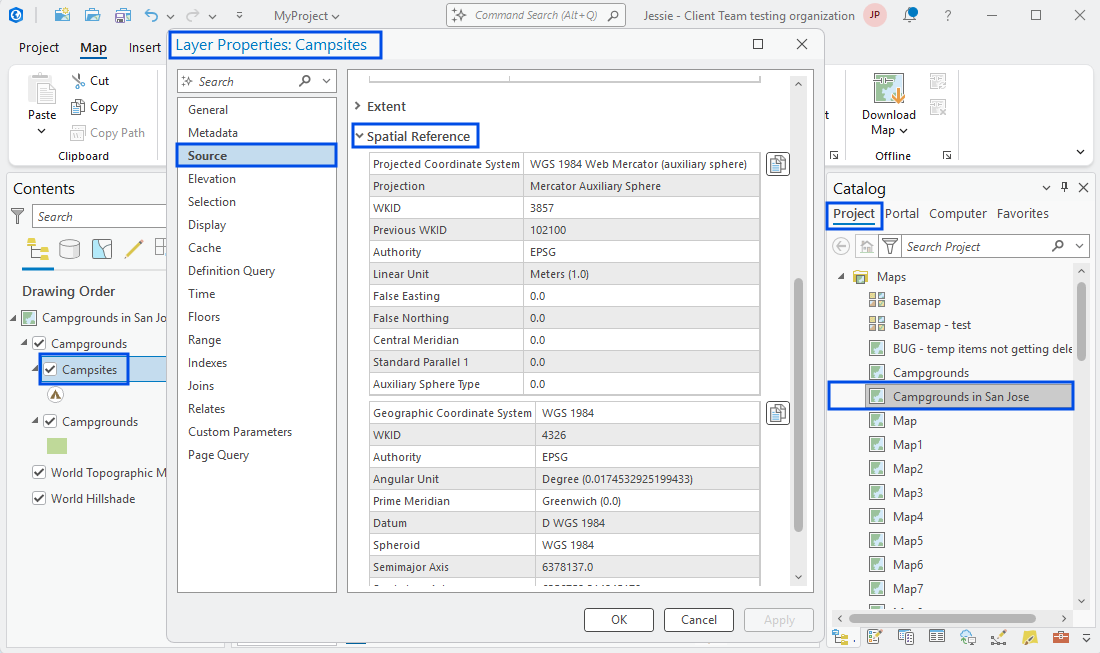
- Open a map in ArcGIS Pro.
- Connect to your instance of ArcGIS Online. Add a web map or hosted feature layer through the portal connection or using the feature layer’s URL (Add Data > From Path).
- In the Content pane, right-click the hosted feature layer and select Properties.
- Go to the Source tab and scroll to the Spatial reference section. This section will include the name and WKID for the coordinate system.

Article Discussion: