We’ve got some exciting new enhancements to web editing with the February 2025 update of ArcGIS Online —including a new way to manage templates right inside of Map Viewer. Many of you already author forms in Map Viewer. Some of you have been asking to author templates here as well. With this update, we’ve got you covered. You can create, update, and delete templates without leaving the map, saving you time while helping you capture cleaner data from the start. In this article, we’ll show you how you can get started today.
Templates
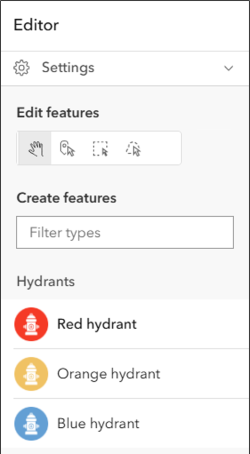
The first step in creating a new feature is choosing a template— think of an editing template as a starting point that makes editing faster, easier, and more accurate. Having a set of well curated templates is a game changer. Here’s how:
Let’s say we have a hydrant layer. The layer contains different colored hydrants to represent the flow capacity for each one. That information is stored in a field called Flow. Red hydrants flow up to 500 gallons per minute (GPM). We’ll create a template for Red Hydrants, and set the default value for the Flow field to < 500 GPM.
When an Editor selects the Red Hydrant tempate and places a new hydrant on the map, the Flow field is automatically populated with the correct value. That helps to ensure that the data is correct from the start, and saves the editor time since they don’t have to fill in the field, all of which helps to streamline the editing process.
Getting started
You’ll find the Templates button in the new Configure editing menu on the light toolbar.
Note: The layer owner or an administrator can manage templates for a layer. Others can view templates in read-only mode.

Configure Templates
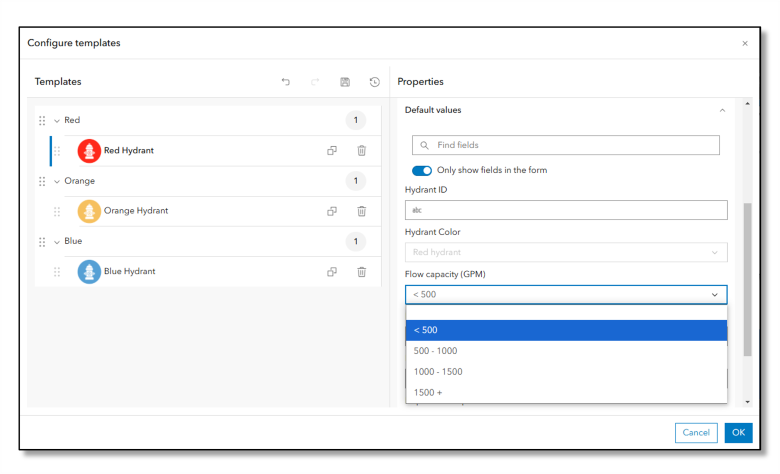
A list of types and their templates appear in the Templates window. Here you can select a template and configure its properties. The actions you can take include:
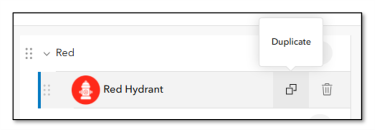
Add or Remove Templates
- Use familiar buttons to duplicate or delete templates.
Format Templates
- Display name
- Description, and
- Default values
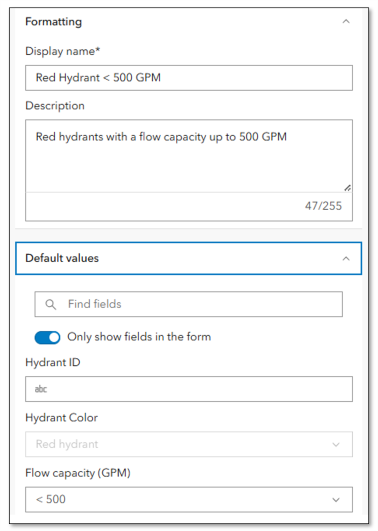
Setting default values for templates is key to leveling up editing workflows. Essentially it fills in the blanks automatically, making data entry faster while maintaining accuracy. You can set default values for attributes in any of your editable layers.
Reorder Templates
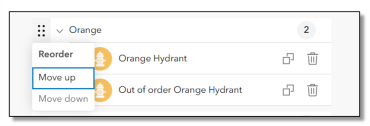
- Drag, drop, or select an option in the menu to rearrange templates in the list.
Save Templates
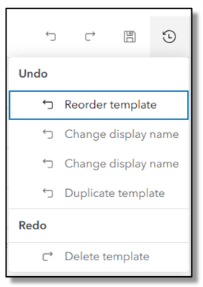
When you save changes, those are saved to the layer. Templates appear the same way across any map that contains the layer. But if you make a mistake you don’t want to save, don’t worry, we’ve added buttons to help you with that. You can:
- Undo an action
- Redo an action
- Save your changes as you work, and
- Undo or Redo a stack of actions in the History menu
Sync Templates to Styles
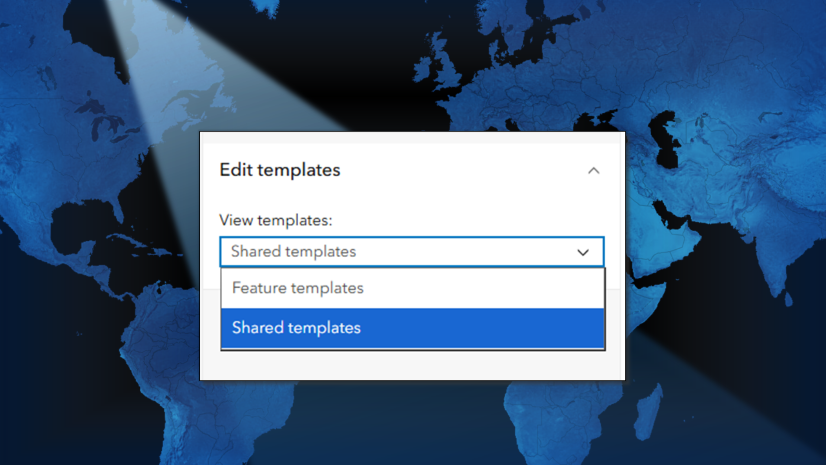
When you change a layer’s style from a single symbol to unique symbols, you may want to generate feature templates for each unique category. Similarly, anytime you add a new category, creating a matching template is a good idea. With the latest update, you can sync templates to the styles in your web map with the push of a button.
Check out this article for a step-by-step guide to syncing your feature templates to the layer’s style.

Summary
Templates make data collection faster, easier, and more accurate. With the latest update, you can seamlessly manage templates in Map Viewer, saving you time. We hope you’ll harness the power of templates for efficient data collection, reduced data clean up, and easier data management. There may be no such thing as a perfect dataset but, using the right tools, we can get close.

Commenting is not enabled for this article.