GeoAI is rapidly changing how spatial analysis, imagery interpretation, and automated feature extraction are performed in ArcGIS Pro. As deep learning methods become increasingly powerful, tools that support fast experimentation, clear visualization, and efficient workflow refinement are also in rise. ModelBuilder also plays a central role in this evolution.
By combining visual workflow design with AI-enhanced capabilities, such as semantic search and intelligent tool suggestions, ModelBuilder provides an ideal environment for building, testing, and operationalizing GeoAI workflows with key advantages such as:
- Quick Prototyping: Its visual, drag-and-drop interface enables it to connect the entire workflow, from exporting training data to performing detection into a working pipeline in minutes, vastly accelerating the initial concept validation.
- Workflow Iteration: Deep learning requires continuous testing of models, hyperparameters, and tool settings. With ModelBuilder, it is easy to change a single parameter and rerun the complex analysis sequence with a single click, saving significant time during the refinement stage.
- Visual Documentation: ModelBuilder acts as a self-documenting flowchart, providing clear visual clarity of the entire GeoAI process. This transparency is crucial for collaboration and ensures the complex methodology is easily understood and shared.
Basic Tenets of GeoAI workflows in ArcGIS
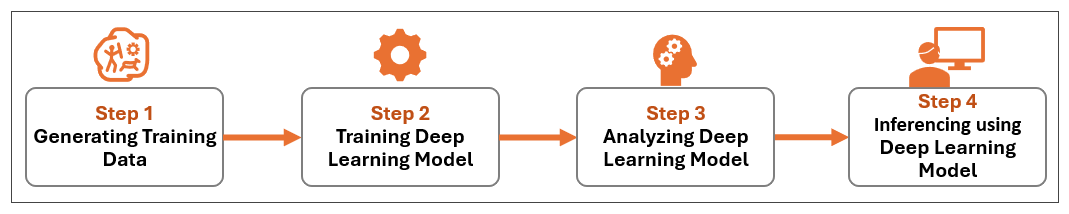
ArcGIS Pro supports a complete end-to-end deep learning workflow, structured into four key steps, enabled by dedicated geoprocessing tools:
- Generate Training Data – Create labeled samples of features or objects of interest to help the model learn distinguishing patterns.
- Train Model – Use the training data to build and optimize a deep learning model.
- Validate Model – Evaluate the model’s performance by analyzing training and validation loss to detect issues like overfitting.
- Run Inference – Apply the trained model to new datasets to identify and extract similar features automatically.
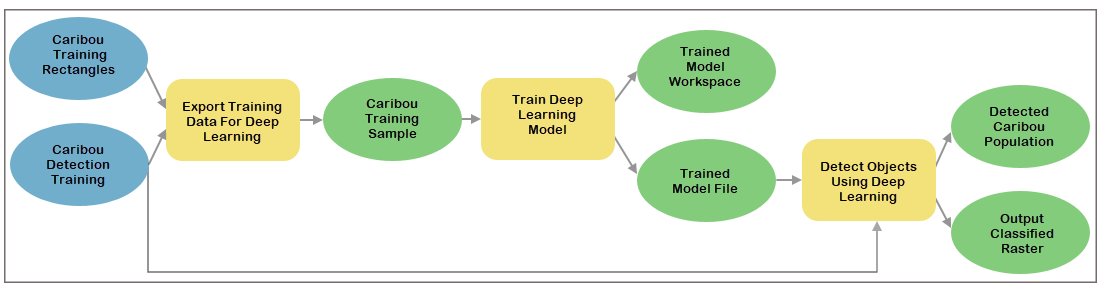
Optimizing Deep Learning Workflows with ModelBuilder Using Semantic Search and Tool Suggestions
Steps, Details and Tips
This workflow is from the perspective of a wildlife biologist with a task to understand the current population of Caribou in Alaska and assess the landscape potential based on those counts. The workflow creation follows the steps below:
- Create training data: Create the training dataset using the Label Objects for Deep Learningtool in ArcGIS Pro. Classify the animal into 2 classes Adult & Calf.
- Create a model: Create a model by clicking the ModelBuilder button on the Analysis tab.
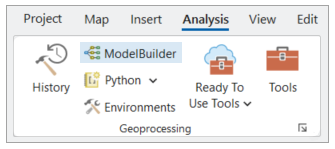
3. Add Export Training Data tool to model using regular toolbox search or AI enhanced Semantic Search: Export the training data created in the previous step, to a format which the next tools can use as input. If you know the name of the next tool it is as easy as searching for the tool name from the ModelBuilder Ribbon toolbox.
Tip: If you do not know the tool name, you can search for tools using natural and conversational language, for example “how do I save my trained data”. This uses an AI-enhanced search technology called semantic search, to find the right tool for the job.
Learn more about Semantic Search in ModelBuilder
4. Fill in the Export Training Data tool: Connect the digitized samples and the Caribou detection landscape raster as input. Set “RCNN Masks” as the metadata format. The output will be image chips with masks over the areas where samples exist. The model generates bounding boxes and segmentation masks for each instance of an object in the image.
5. Add the Train Deep Learning Model using AI-Enhanced Tool Suggestion: ModelBuilder now displays a short list of suggested next steps, allowing you to move forward quickly without searching through multiple tools or relying on external support.
Tip: You can easily discover the new “Tool Suggestion” feature by right-clicking the output of the current tool and viewing a context-aware list of suggested next tools.
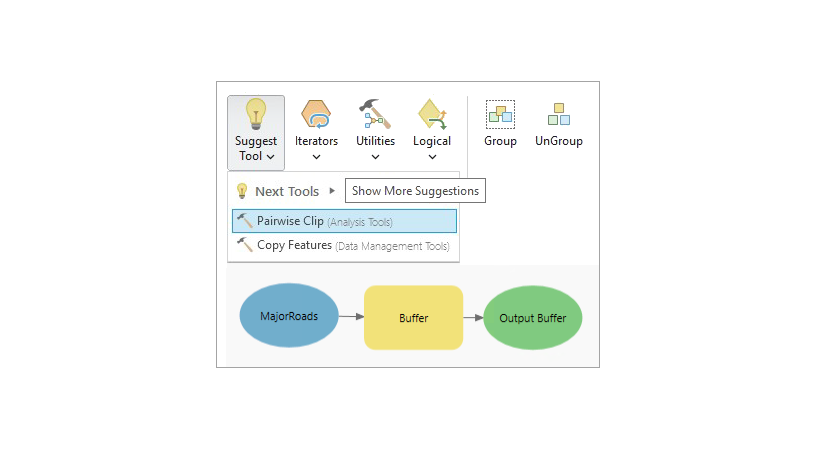
These suggestions come from a sequence prediction model that runs locally on the ArcGIS Pro machine. The model is trained on hundreds of thousands of tool usage logs from users who participate in the End User Experience Improvement (EUEI) program. ModelBuilder analyzes the upstream tools in the connected chain and suggests the tools most likely to come next in the sequence. Each tool displays a hover tip with details and lists additional tools. Based on the basic tenets of the Deep Learning Workflow, the next tool that most fits this workflow is a tool that Trains Deep Learning Model. You can generate suggestions for an individual chain by clicking its output or for all chains by using the Suggested Tool button in the ribbon.
6. Fill in the Train Deep Learning Model tool parameters: Connect the added tool and edit its parameters to train the model using the training dataset from the previous step. Set the Model Type parameter to MaskRCNN with a 90/10 training-test ratio. Use MaskRCNN for precise object delineation because it supports instance segmentation. The tool uses the “RCNN Masks” metadata format specified in the previous step. It prepares the data, performs data augmentation, and sets the appropriate hyperparameters to build a robust model. The training process automatically applies normalization and augmentation techniques such as contrast adjustment, brightness changes, and rotation.
7. Set a workspace value for the Output Folder parameter: This folder stores the model_metrics.html file, which you will use later to analyze model performance (explained below).
Tip 1: Because training can be time-consuming, start by setting the Max Epochs parameter to a smaller value, such as 10–30 epochs. After reviewing the initial results, the Epochs could be increased to 200 to improve accuracy. To stop training when model accuracy no longer improves, enable the “Stop when model stops improving” parameter in the tool.
Tip 2: This tool takes advantage of processing data using the computer central processing unit (CPU) or the graphics processing unit (GPU).
Learn more about setting processor type in tool Environments
8. Add the Detect Objects Using Deep Learning tool: Select the output from the Train Deep Learning Model tool, review the suggested tools, and add Detect Objects Using Deep Learning. This tool applies the trained model to an input raster and generates a feature class of detected objects. The output can include bounding boxes, polygons, or points representing object locations.
9. Configure Detect Objects Using Deep Learning tool parameters: Connect the tools using the trained model output from the previous step and the landscape raster to detect additional instances of the object the model was trained to identify. This creates a workflow, built from the tool suggestion in the context menu.
10. Running the model: Run the model to produce an output that detects caribou adults and calves for further analysis. Learn more about how to run a model in ModelBuilder.
Learn more about how to run a model in ModelBuilder.
Tip: Run the tools up to the Train Deep Learning Model tool by right-clicking the tool and selecting Run.
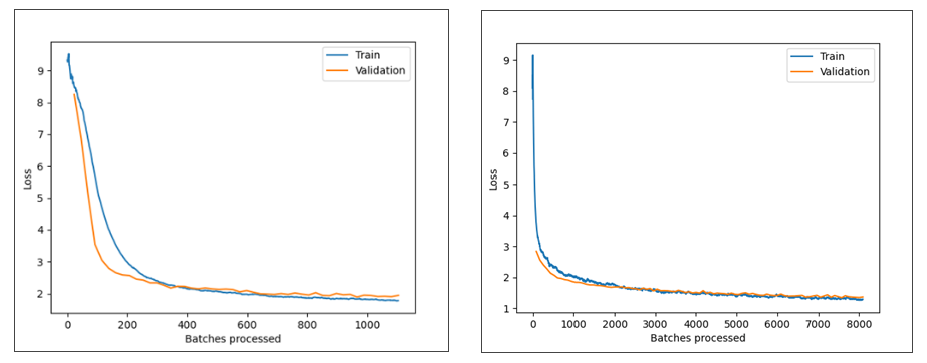
This creates a graph that shows training loss and validation loss during model training. You can find the graph in the model_metrics.html file located in the workspace set in the Output Folder parameter of the Train Deep Learning Model tool. Once the graph looks satisfactory (explained below), run the last tool by right-clicking it or using the Run button on the Model ribbon. Learn more about how to run a model in ModelBuilder.
11. Validating the trained model performance: Use the loss curves graph to understand how learning performance changes across epochs and diagnose issues such as underfitting or overfitting. If the model is underfit or overfit, improve the training samples by adding more examples and including greater variety from different geographic and weather conditions.
Conclusion
In summary, suggestions in ModelBuilder help to quickly get to the next step in a workflow, based on what other users with similar models have done. These tool suggestions apply to a wide range of workflows such as watershed delineation with all tools added from the context menu tool suggestions.
Required Libraries
GeoAI through Image Analyst Extension
Deep learning-based analysis in ArcGIS Pro requires the ArcGIS Image Analyst, which offers advanced tools for interpreting, analyzing, and extracting insights from various types of imagery.
Learn more about the Image Analysis Tools
GeoAI by Installing Deep Learning Libraries
To use deep learning geoprocessing tools in ArcGIS Pro, the appropriate deep learning framework libraries must be installed. For installation guidance, refer to the Deep Learning Libraries Installer for ArcGIS Pro.
- Deep Learning Libraries Installer for ArcGIS Pro 3.6
- Deep Learning Libraries Installer for ArcGIS Pro 3.5
- Deep Learning Libraries Installer for ArcGIS Server 12.0
- Deep Learning Libraries Installer for ArcGIS Server Linux 12.0
- Deep Learning Libraries Installer for ArcGIS AllSource 1.5
Glossary of GeoAI and Key Terms in ArcGIS Pro
Artificial Intelligence (AI)
A broad field of computer science focused on creating systems that can perform tasks that typically require human intelligence, such as understanding imagery or natural language.
Convolutional Neural Network (CNN)
A type of deep learning model widely used in computer vision. In ArcGIS Pro, CNNs power capabilities such as object detection, pixel classification, and land-cover mapping.
Deep Learning (DL)
A subset of machine learning that uses multi-layered neural networks to learn complex patterns directly from data. In ArcGIS Pro, deep learning underpins GeoAI tools for detection, segmentation, and classification.
Deep Learning Libraries
Framework components (such as PyTorch or TensorFlow) required for running deep learning geoprocessing tools in ArcGIS Pro. These are installed separately via the Deep Learning Libraries Installer.
Export Training Data
A geoprocessing tool that prepares labeled imagery samples into a format that deep learning models can use for training.
GeoAI (Geospatial Artificial Intelligence)
The integration of AI and GIS technologies to automate spatial analysis, detect patterns in imagery, and extract features at scale.
Hyperparameters
Settings that control how a deep learning model learns—for example, learning rate, batch size, or number of epochs. These are adjusted during model refinement in ArcGIS Pro.
Inference
The process of applying a trained deep learning model to new, unseen data to detect objects, classify pixels, or extract features.
Instance Segmentation
A deep learning technique that identifies each object in an image and outlines its exact shape. Mask R-CNN is a common model type used in ArcGIS Pro for this purpose.
Label Objects for Deep Learning
A tool that allows users to manually create labeled training samples by drawing features—such as wildlife or buildings—on imagery.
Mask R-CNN
A deep learning model architecture that detects objects and generates detailed segmentation masks for each instance. Useful for tasks requiring precise boundaries.
ModelBuilder
A visual workflow-creation environment in ArcGIS Pro where deep learning tools can be chained together for repeatable, documented GeoAI workflows.
Model Metrics (model_metrics.html)
An output file created during training that charts training loss and validation loss, helping diagnose issues such as underfitting or overfitting.
Object Detection
A computer vision technique used to locate and identify objects within imagery. In ArcGIS Pro, this is done using tools like Detect Objects Using Deep Learning.
Semantic Search
An AI-enhanced search capability in ArcGIS Pro that allows users to find geoprocessing tools using natural, conversational language rather than exact tool names.
Tool Suggestions
An AI-powered ModelBuilder feature that recommends the most likely next tools based on the user’s workflow. Suggestions are generated locally using patterns learned from anonymized usage logs.
Training Data
Labeled examples used to teach a deep learning model how to recognize specific types of imagery features, such as wildlife, vegetation, or buildings.
Validation Loss
A metric showing how well a model performs on unseen validation data. Used to detect overfitting or underfitting.





Article Discussion: