The ArcGIS Pro 3.8 release introduces several enhancements to the GeoAI capabilities in the Image Analyst extension. These updates improve labeling workflows, expand training data support, introduce a new model backbone, and support the latest GPUs.
The enhancements include the following highlights:
- Fast and precise labeling with full-screen crosshairs guides and editing tools
- Improved training data quality assurance for folder and mosaic review, map sync, and editing
- New training data formats and backbone with COCO, YOLO, and EO-DINO
- CUDA 13 hardware acceleration support
The following sections describe each enhancement in more detail.
Fast and precise labeling
pane.
Full-screen crosshairs guides
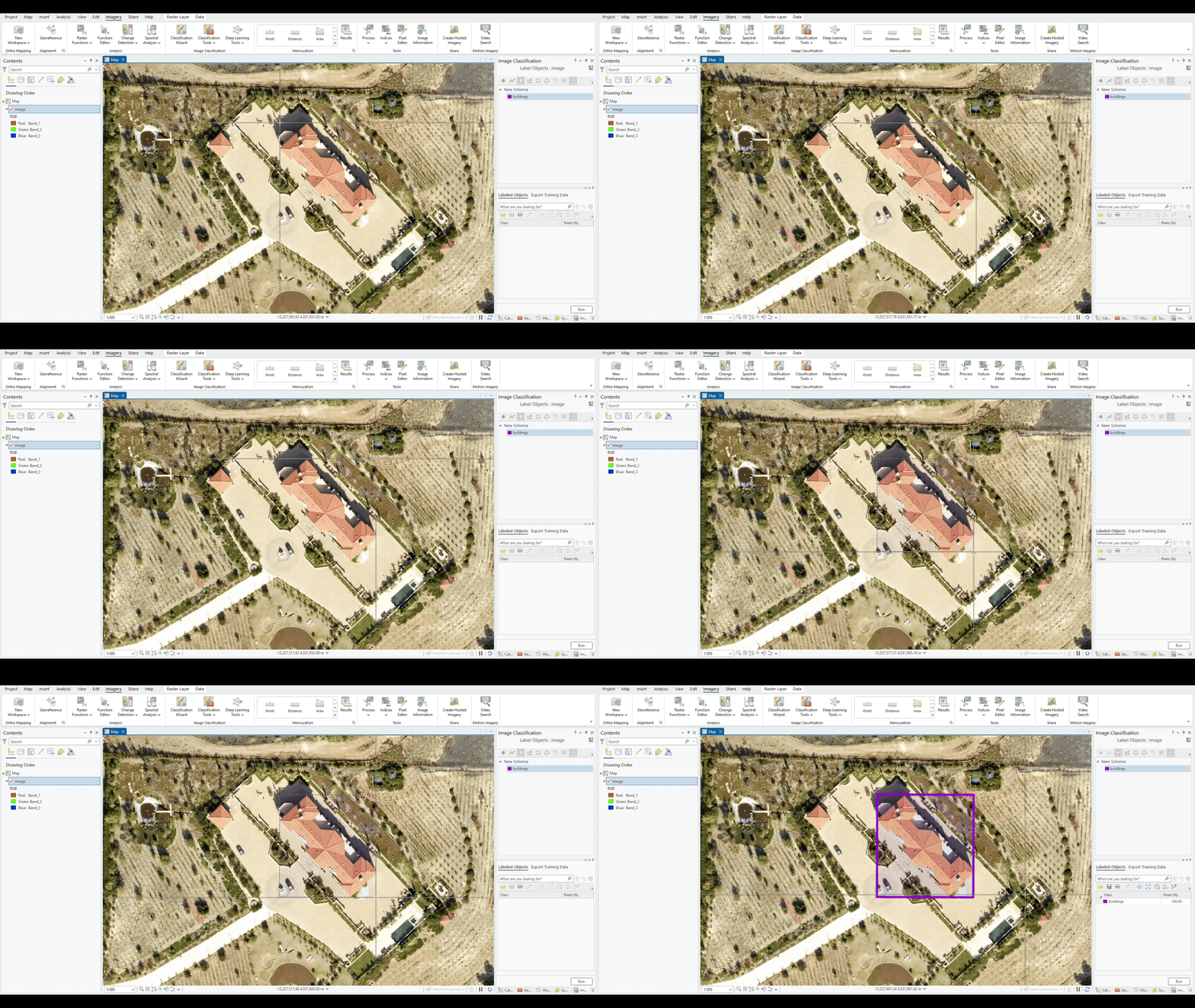
When you draw a bounding box or polygon over a large object, it is difficult to see where each vertex should be placed. This is especially true when the object is larger than the cursor or is oriented at an angle to the image axes. As a result, you have to slow down and carefully create each bounding box. Across a large dataset, that extra care costs you time.
To help with this, the drawing tools in the Label Objects for Deep Learning pane now include Full-screen crosshairs guides. The lines extend to the edges of the display rather than stopping at the cursor. Since the crosshairs guides extend past the object, you can see exactly where each vertex should be placed. The crosshairs guides are on by default, but you can turn the Full-screen crosshairs button  off.
Label editing tools
Creating training data is an iterative process, and labels often need adjustment after they are drawn. A building footprint may miss a corner, a vehicle bounding box may need to be resized, or an object may have been assigned to the wrong class. In previous releases, making these corrections often required deleting a label and recreating it.
ArcGIS Pro 3.8 introduces a comprehensive set of label editing tools in the Label Objects for Deep Learning pane. These tools allow you to update labels directly on the map without redrawing them. Keyboard modifiers also provide quick access to these operations while you are in edit mode.

Improved training data QA
You can now review training data for folders and mosaic datasets, synchronize selections between the map and the pane across supported data sources, and edit labels directly during review.
Review training labels for folders and mosaic datasets
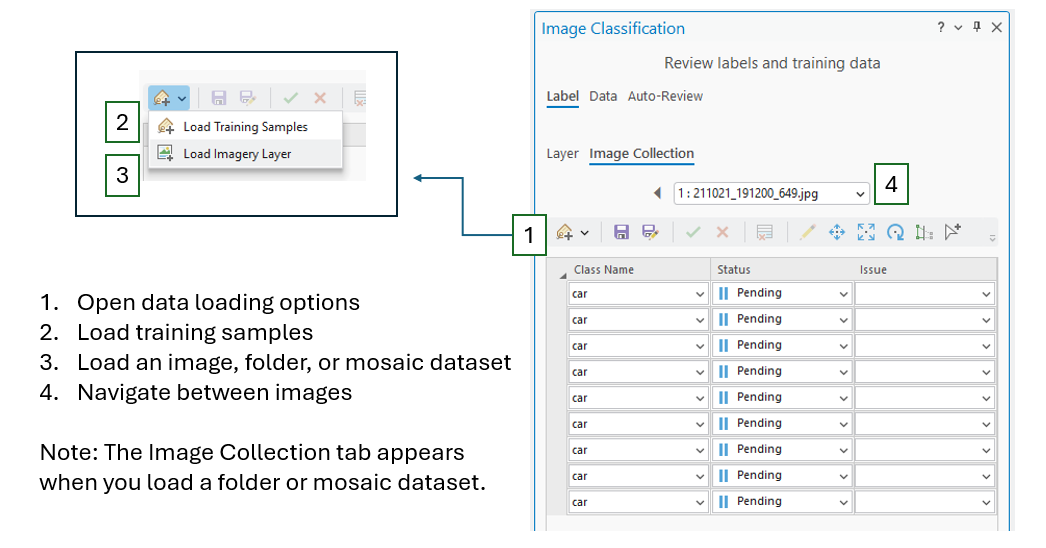
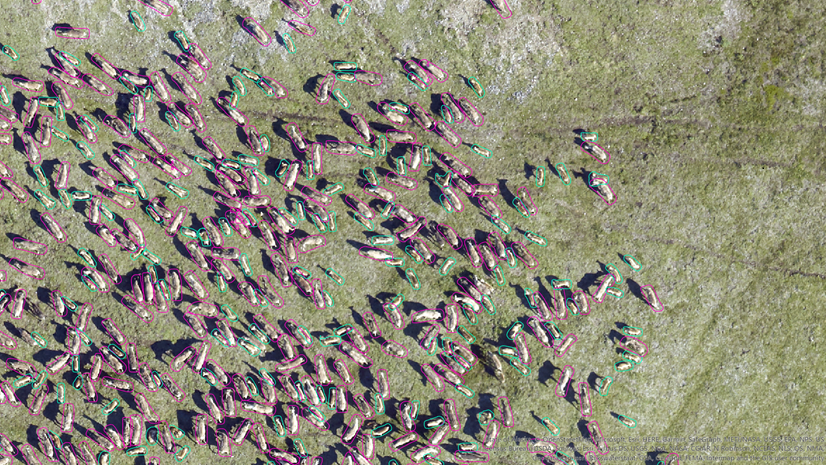
Previously, you could review training labels for an individual image on the Label tab of the Review Labels and Training Data pane. In ArcGIS Pro 3.8, you can also load a folder of images or a mosaic dataset and review labels across the image collection. You can navigate between individual images in the collection while reviewing and validating their labels.
Bidirectional selection between the map and the pane
Your selection now synchronizes in both directions between the map and the Review Labels and Training Data pane when manually reviewing labels. Previously, selecting a label in the pane highlighted it on the map and made review actions such as approve, reject, and delete available, but selecting a label on the map did not update the pane. Finding the corresponding record meant clicking through the sample list. In ArcGIS Pro 3.8, selecting a label on the map also selects it in the pane, making the review actions immediately available for that label. This makes map-driven review practical since you can scan the imagery, select a label, and modify it.
Label editing tools in the review pane
The label editing tools described above are also available on the Label tab of the Review Labels and Training Data pane. Rather than returning to the Label Objects for Deep Learning pane to make corrections, reviewers can modify labels directly during the review process. Keeping review and editing in a single workflow helps streamline quality assurance and makes the creation of high-quality training datasets more efficient.
Training data formats and backbone
This release includes support for COCO and YOLO training data formats for object detection and the EO-DINO backbone.
Support for COCO and YOLO training datasets
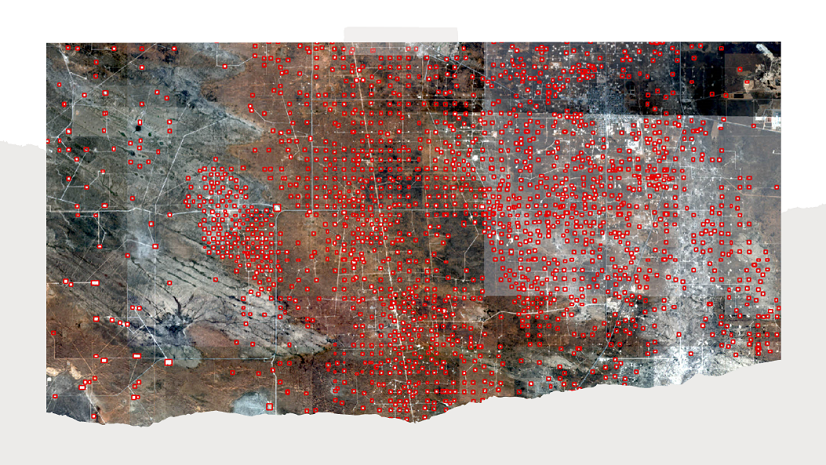
ArcGIS Pro 3.8 adds support for COCO and YOLO datasets in the Train Deep Learning Model geoprocessing tool for object detection workflows. Together with the existing support for Pascal VOC and KITTI, this enhancement allows organizations to train models using a wider range of industry-standard datasets that were not created using ArcGIS Pro.
This allows you to use existing training data, work with publicly available benchmark datasets, and integrate ArcGIS Pro into established computer vision workflows without additional data conversion steps.
EO-DINO backbone
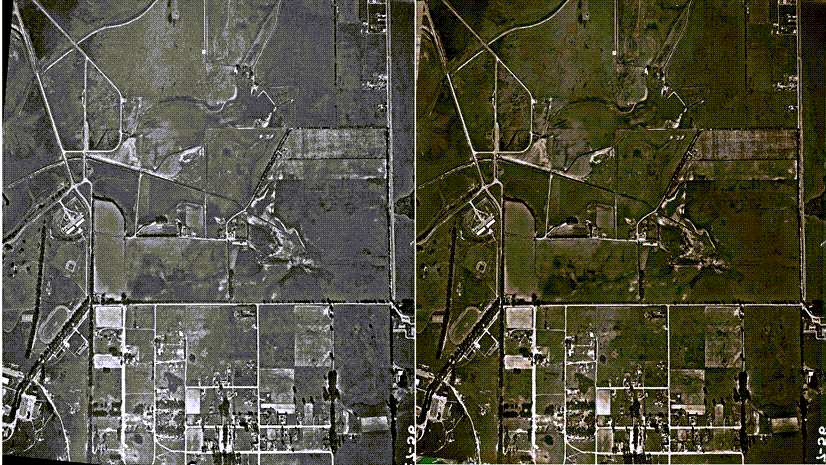
The Earth Observation DINO (EO-DINO) backbone builds on the Vision Transformer (ViT) architecture. It uses a dynamic patch embedding layer that uses wavelength information to generate weights on the fly. EO-DINO was pretrained using self-supervised learning (SSL) on large-scale Earth observation data from multiple imagery and remote sensing sources, including Esri World Imagery, Sentinel-2, Sentinel-1, Landsat, and NAIP.
Unlike backbones pretrained primarily on RGB imagery, EO-DINO can adapt to the spectral characteristics of multispectral inputs, making it well suited to remote sensing workflows with different band configurations.
Support for CUDA 13 hardware
Summary
ArcGIS Pro 3.8 expands GeoAI workflows across training data preparation, quality assurance, and model training. Improved labeling and review tools allow you to create and refine high-quality training data, while broader dataset support, the EO-DINO backbone, and CUDA 13 support provide greater flexibility for training deep learning models with imagery.

Article Discussion: