
For public safety agencies, ensuring safety during major special events can be a monumental task. It is especially challenging when events are held in large venues like stadiums, convention centers, and arenas, which include outdoor and indoor spaces. To support these events effectively, agencies need floor-aware maps of indoor locations so they can efficiently coordinate resources and maintain situational awareness within and outside the event venue.
The Special Event Operations solution helps organizations map operational plans for special events and share them with internal staff and the public. In this blog, we’ll explore how the solution apps can be extended with indoor layers created in ArcGIS Indoors to enable the floor-aware mapping capabilities needed to effectively manage safety and security at indoor/outdoor event venues.
Getting started
To get started mapping indoor special events, deploy the Special Event Operations solution to your ArcGIS Online or ArcGIS Enterprise portal, and ensure that you have the following additional prerequisites:
- Your portal is licensed for the ArcGIS Indoors Maps organizational extension.
- You have indoor hosted feature layers for the event venue
- At a minimum, you will need a facilities layer (that represents each building with an indoor map) and a levels layer (that represents each floor of each facility).
- Indoor hosted feature layers should conform to the ArcGIS Indoors Information Model and should have been created by an ArcGIS Pro user with the ArcGIS Indoors Pro license, or if your organization is licensed for ArcGIS Indoors Spaces, the Floor Plan Editor app .
- Indoor layers should be shared to the Event Operations Coordinators and Event Operations Staff groups included with the solution.
Note: If your organization intends to use the Special Event Maps app to share event maps with the public, create view layers for your indoor layers, share those view layers publicly, and then use the view layers when configuring the Special Event Maps web map later in this blog.
Don’t have ArcGIS Indoors? Learn more about purchasing ArcGIS Indoors for your organization. Need help creating indoor maps for your event venue? Esri Professional Services can help.
Enable floor filtering on solution maps
To begin extending the Special Event Operations with indoor mapping, your indoor event venue layers must be added to three of the solution’s web maps and floor filtering must be enabled on selected layers in each web map.
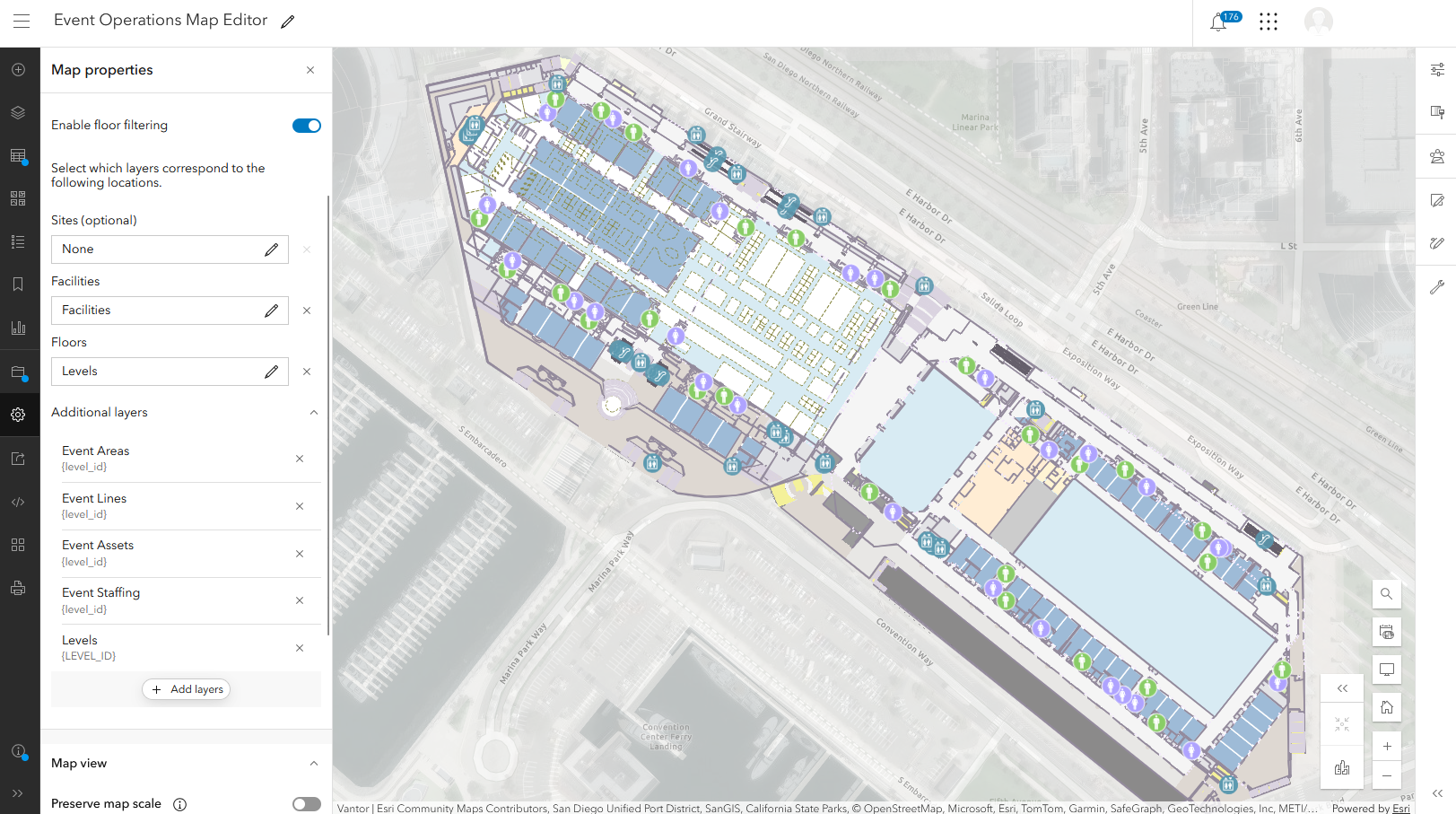
To enable floor filtering on the Event Operations Map Editor map, follow these steps:
- Open the web map in Map Viewer, and add the indoor hosted feature layers of your event venue. In the Layers widget, move the layers to the bottom of the layer list.
- Click Map properties, and then click Enable floor filtering.
- In the Facilities field, select Facilities.
- In the Floors field, select Levels.
- Under Additional layers, click the Add layers button. Select Event Areas, and then click Next.
- Select Floor level, and then click Add.
- Repeat these steps for Event Lines, Event Assets, and Event Staffing layers. For each layer, the corresponding floor field is named Floor level. If the indoor feature layer of your event venue includes additional sublayers, select those as well and for the corresponding floor field, select Floor ID.
Repeat these steps for the Event Operations Map and Special Event Maps web maps. For the Special Event Maps web map, in the map properties, under Additional layers, add: Areas of interest, Lines of interest, Points of interest. For each layer, the corresponding floor field is named Floor level.
Add Floor Filter widget to Event Operations Planner app
After you enable floor filtering for the web maps used in the solution, you must add the ArcGIS Experience Builder Floor Filter widget to all three of the ArcGIS Experience Builder apps in the solution (Event Operations Planner, Event Operations Maps, Special Event Maps). Because these apps all have custom designs for small-screen devices, you must add the widget twice for each app—once for the large-screen device view, and once for the small-screen device view.
Event coordinators use the solution’s Event Operations Planner app to manage events and prepare operational maps. To add the Floor Filter widget to the Event Operations Planner app, follow these steps:
- From your Contents tab, click on the Event Operations Planner web experience, and then on the next page, click Edit.
- In the left side panel, click the Page button, and then click the Edit maps page.
- Under Body, click to open Section 13, and then click Edit maps.
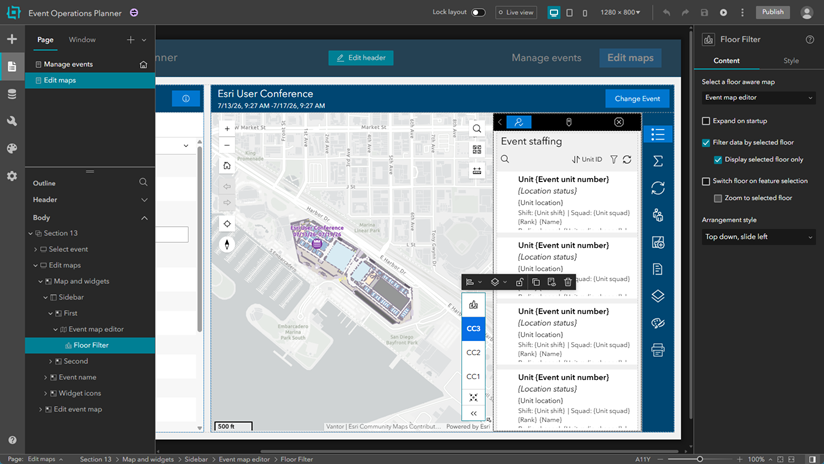
- In the left side panel, click the Insert button, and then drag the Floor Filter widget onto the bottom-right corner of the map.
Note: Whenever you add a widget to a map, avoid placing the widget over other map tools.
- Ensure that the widget is selected, then on the right-side widget properties panel, click Filter data by selected floor, Display selected floor only, and then under Arrangement style, select Top down, slide left.
- In the top panel, click the Edit your page for small-screen devices button.
- Repeat the preceding steps to add and configure the Floor Filter widget for small-screen mode.
- Click Save, then click Publish.
Add Floor Filter widget to Event Operations Maps and Special Event Maps apps
In the solution, the Event Operations Maps app is used to share event maps with internal public safety staff working the event and the Special Event Maps app is used to share event maps with the public. To add the Floor Filter widget to the Event Operations Maps app, follow these steps:
- From your Contents tab, click the Event Operations Maps web experience, and then on the next page, click Edit.
- In the left side panel, click the Page button, then click the Desktop Page page.
- Under Body, click to open Section 10, and then click View.
- On the left side panel, click the Insert button, and then drag the Floor Filter widget onto the bottom-left corner of the map.
- Ensure that the widget is selected, and then on the right-side widget properties panel, click Filter data by selected floor, Display selected floor only, and then under Arrangement style, select Top down, slide left.
- In the top panel, click the Edit your page for small-screen devices icon.
- In the left side panel, click the Mobile Page page.
- In the left side panel, click the Insert icon, and then click and drag the Floor Filter widget onto the bottom-left corner of the map.
- Ensure the widget is selected, then on the right-side widget properties panel, click Filter data by selected floor, Display selected floor only, and then under Arrangement style, select Top down, slide left.
- Click Save, and then click Publish.
Repeat these steps to add the Floor Filter widget to the Event Operations Maps app.
The Special Event Operations solution is now ready for you to plan for and maintain situational awareness at your indoor/outdoor special event!
Learn more
For more information about the Special Event Operations solution and the products mentioned in this blog, check out the following resources:
- Learn how to deploy, configure, and use the solution.
- Learn more about ArcGIS Solutions and ArcGIS Indoors.
- Chat with us on Esri Community.

Article Discussion: