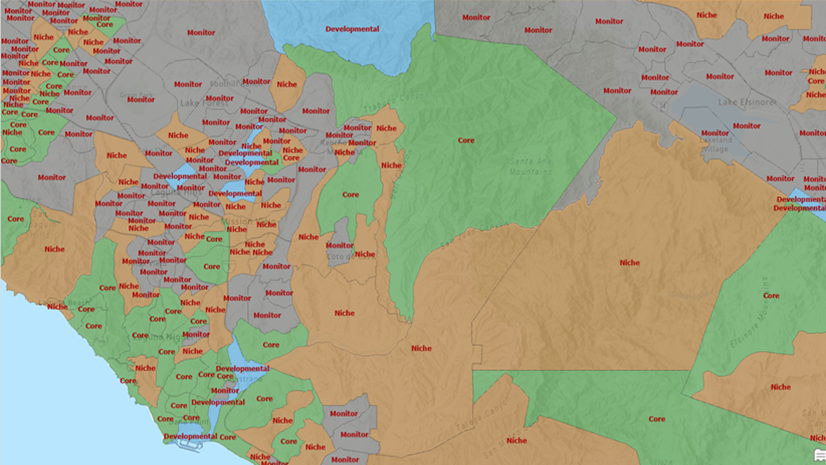
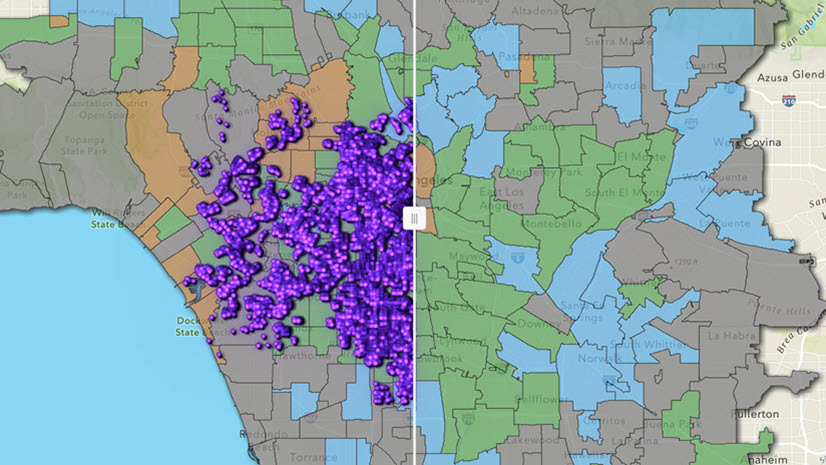
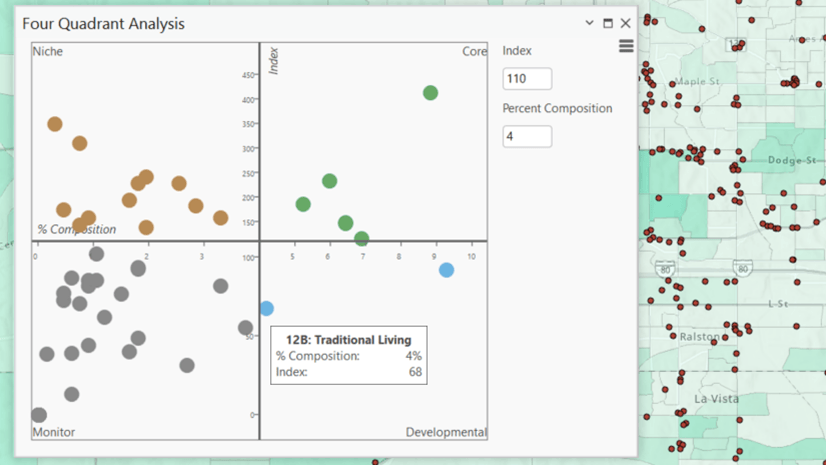
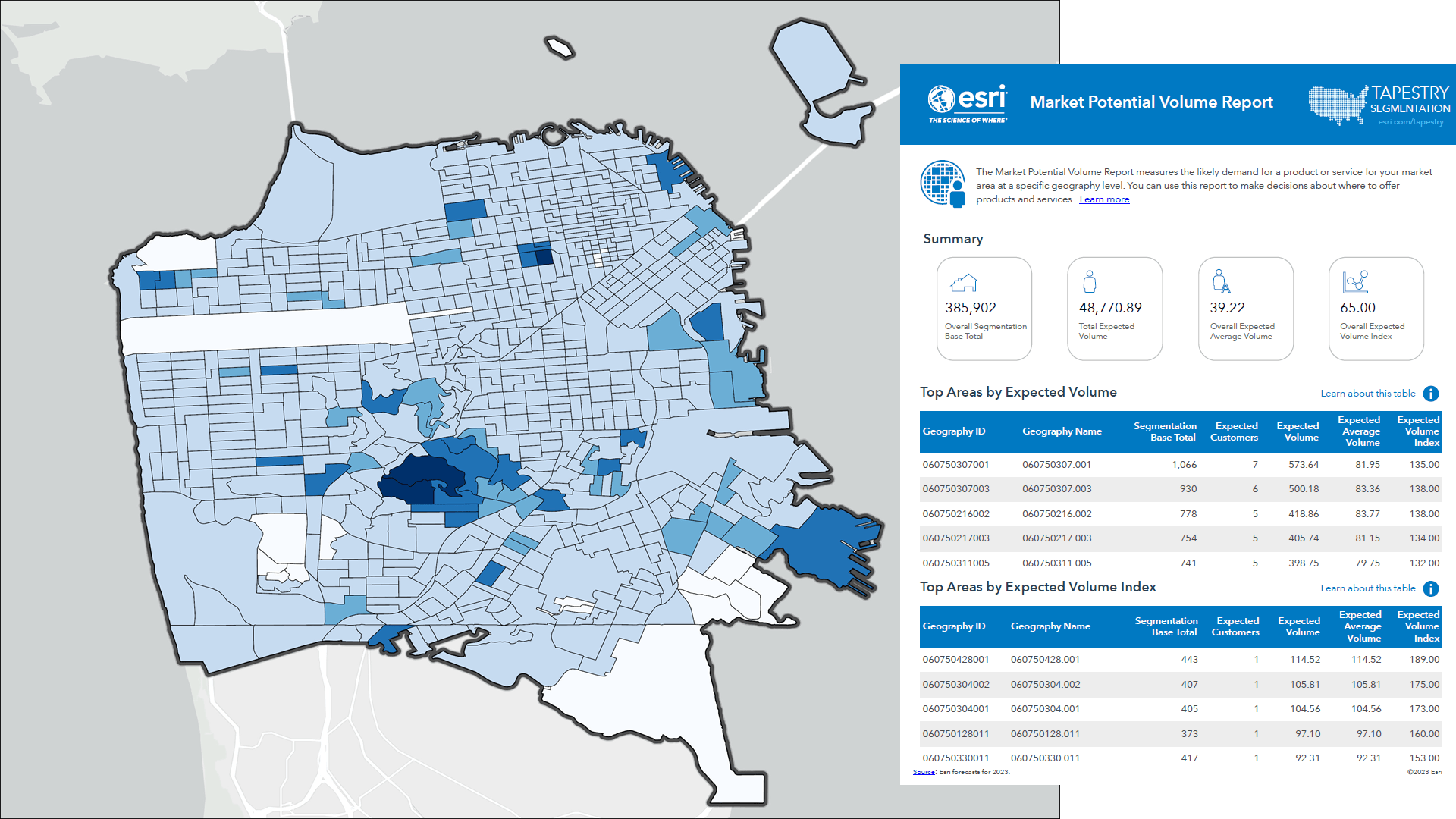
Target marketing is one of ArcGIS Business Analyst Pro’s oldest and proudest traditions, a wizard-driven workflow that uses demographic data to paint a portrait of your customers. Drawing together your customer location data with ArcGIS Tapestry segmentation data, the wizard performs a complex analysis that depicts your current market as multi-faceted human beings rather than mere data points. In the end, you are provided with an array of map layers and reports that plot out your next steps. All this, just from the customer data you have on hand!
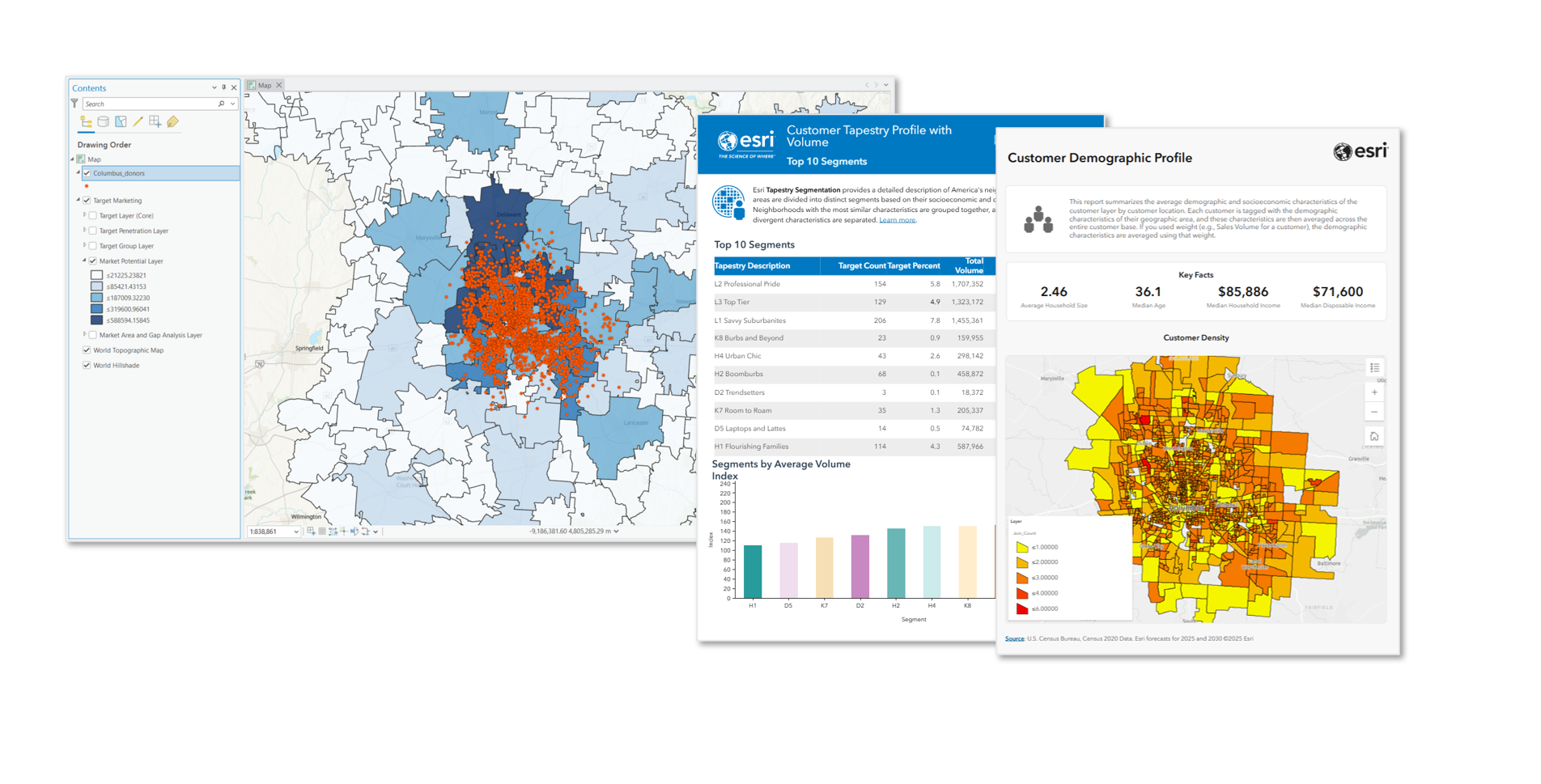
But what if you don’t have access to customer data? Many users don’t realize that there is a path through target marketing, even without a dataset containing customers’ locations and purchasing stats. The Business Analyst Pro 3.7 release foregrounds survey profiles in the workflow’s interface, allowing you to take advantage of them as a proxy for customer data—read on to learn why and how.
What are survey profiles?
Survey profiles are statistical summaries of market potential data that can be mapped. They are gathered from surveys about consumer behaviors, like purchases, product use, or media-listening habits. The surveys are performed regularly by MRI-Simmons and published as the Esri Market Potential dataset. The surveys assess consumer attitudes toward a vast range of products and behaviors, estimating how many people in an area are expected to buy things, do things, or have certain opinions.
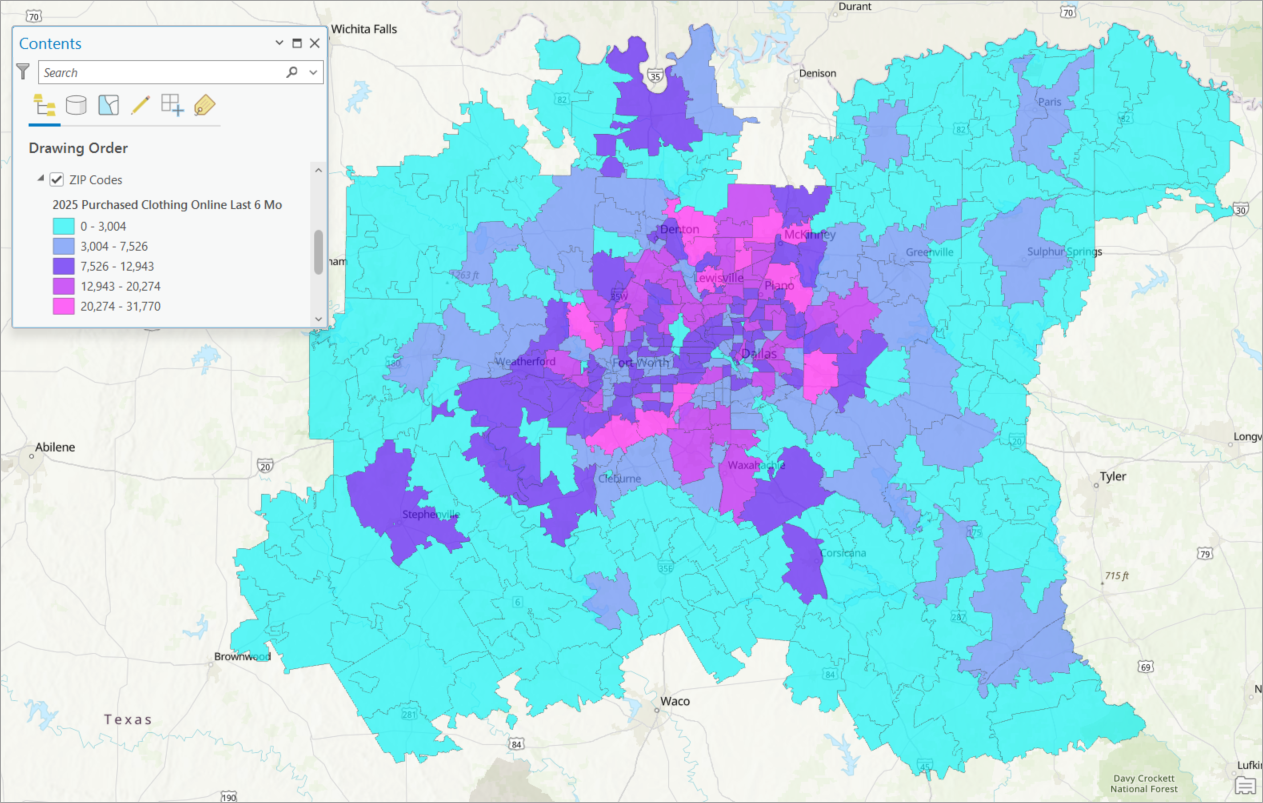
In the Target Marketing workflow, this consumer survey data is packaged as “survey profiles” that indicate the number of people purchasing a product at your selected geography level. So, rather than using your own data that counts the number of customers your business has in the area, you’ll use data that counts the number of customers your product has in the area. Choose a product type in the first step of the workflow, and you’ve got a customer profile without having to add customer data!
How do survey profiles replace customer data?
Survey profile data can stand in for your proprietary customer location layer because the calculations performed in target marketing rely on the count of customers in each block group—not their precise location. Although the workflow asks for customer point data, it actually only uses the points to extract totals, which are then used to calculate various ratios.
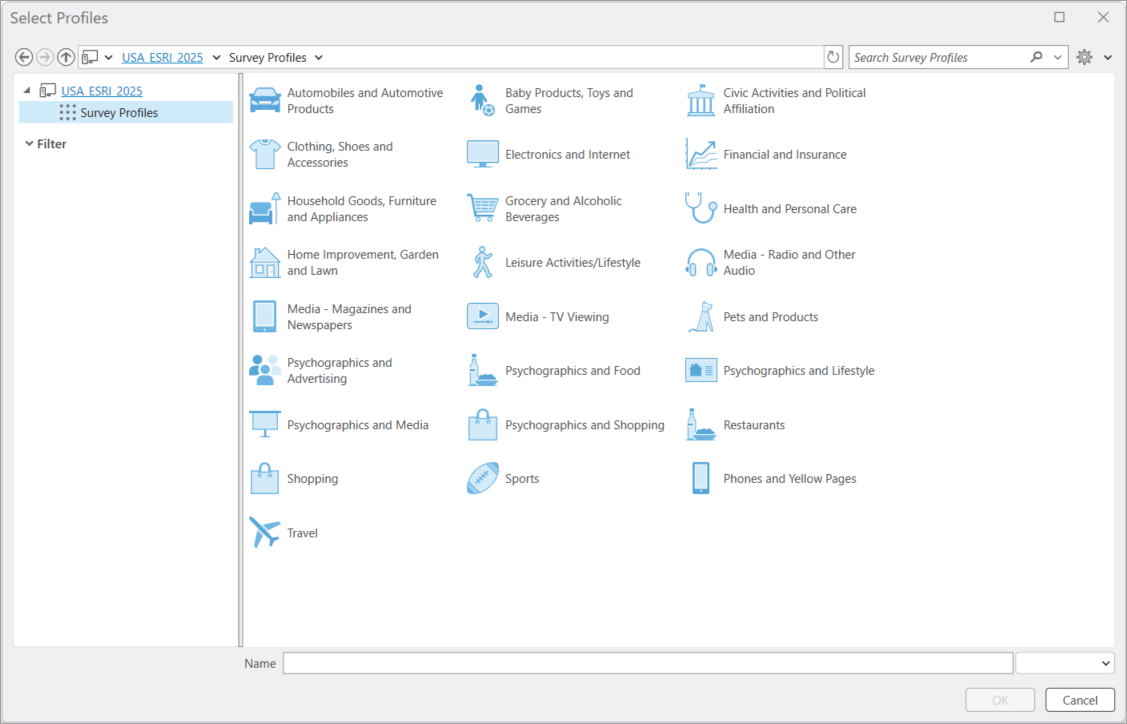
For example, imagine you run an auto shop that specializes in foreign cars, BMWs specifically. You would have liked to use a layer of customer location points to create a profile in target marketing but darn it…you don’t have that kind of data. Instead, you use a survey profile in Automobiles and Automotive Products category: 1089 (H) BMW: Most Recent HH Vehicle Purchase or Lease.

You’ll be amazed at the depth and granularity of the survey data, and how closely it can match up with your business type. The important detail to get right is the segmentation base. When you create a customer profile from your own data, you must pick a Segmentation Base option, which you select based on your business or product type:
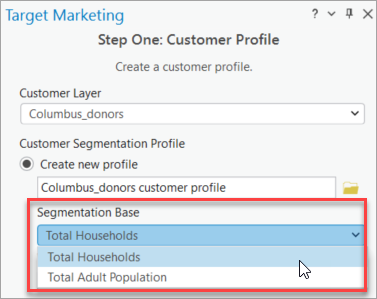
The general guidance is:
- Items purchased by an individual, such as an article of clothing, should use the Total Adult Population base.
- Items that are purchased for a household, like a major appliance, should use the Total Households base.
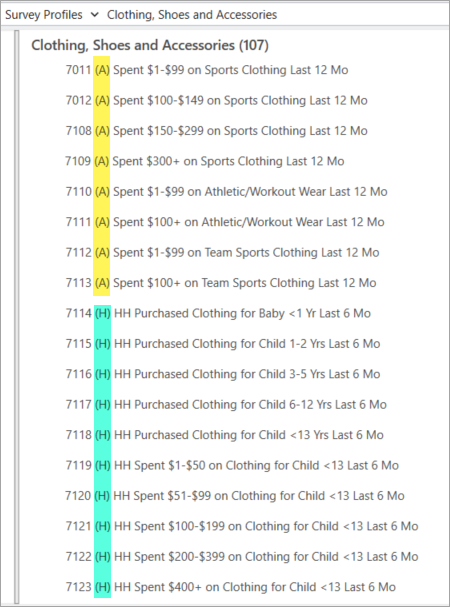
It’s similar when using survey profiles; the profiles include a mix of household and individual purchases. The type of data is denoted by an A for “Adult” (meaning an individual) or H for “Household.”
How do I use survey profiles in target marketing?
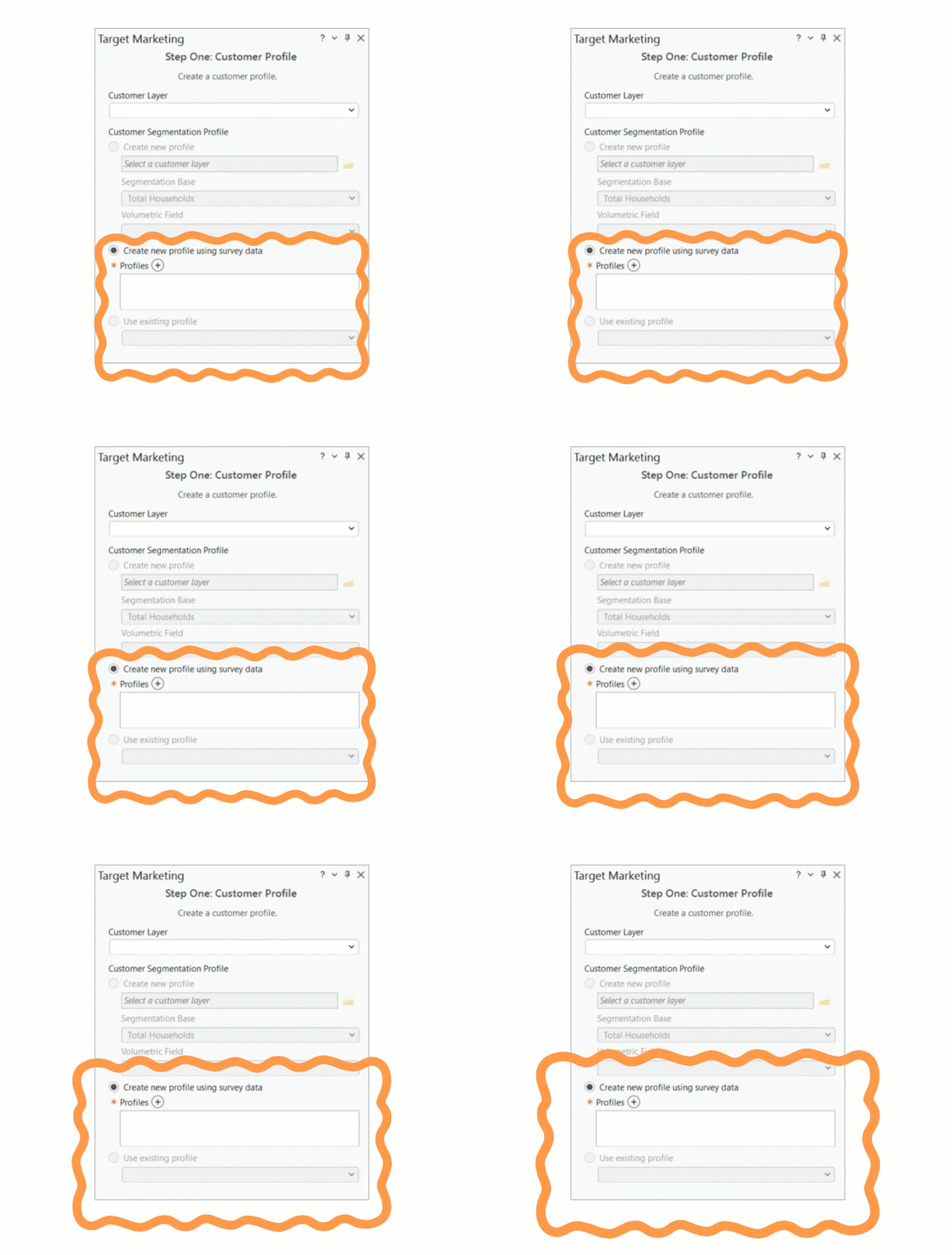
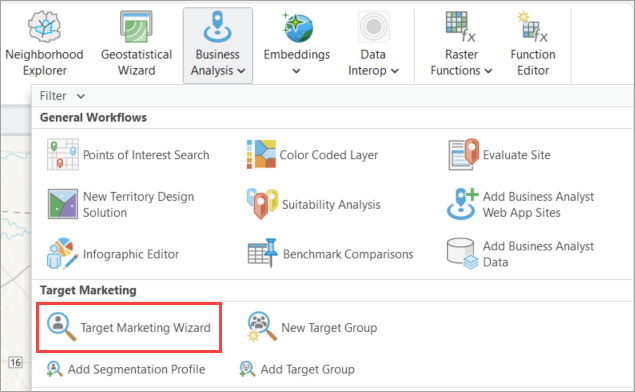
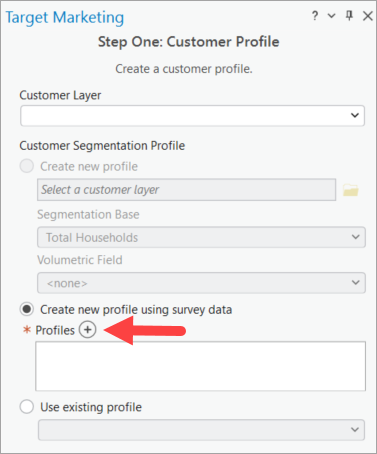
Prior to ArcGIS Pro 3.7, the process of selecting survey profiles was somewhat hidden, tucked away in the Import Survey Profiles geoprocessing tool. With the Pro 3.7 release in May 2026, this capability was brought into the spotlight, available in the first step of the workflow pane. Just open the Target Marketing workflow and you’ll see it right away.
Click the plus button and you’re ready to get started! For complete instructions, visit Create a customer profile using survey data in the target marketing documentation.
This article uses the local U.S. 2025 dataset, containing ArcGIS Tapestry data from Esri.
This article uses ArcGIS Business Analyst Pro 3.7.
Resources
We hope you’ll explore more capabilities in Business Analyst Pro. To continue your Business Analyst journey, visit the following resources:


Article Discussion: