Imagine you work as an election official in the state of Iowa. Your job is to make sure that election and voting materials are distributed to and collected from each county seat in a timely manner year-round. You’ve got a great team of employees: 20 bright-eyed, motivated election workers who are eager to serve Iowa’s voters. Amazing! You’ll just send the election workers to the county seats and democracy will be running smoothly, right? Except for one problem…
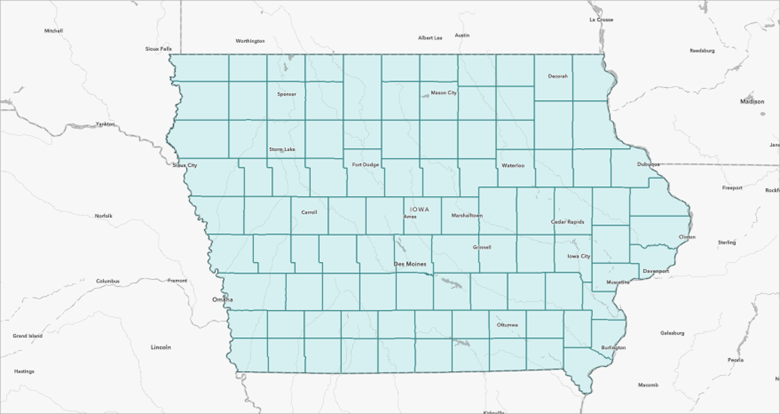
There are 99 counties in the state of Iowa. And your team, plucky as they may be, can’t just organize themselves to get the work covered. You’ll need to create territories for your employees, grouping multiple counties into each territory, to make sure every county is tended to and none of your workers get overtaxed driving around the state. What if there was a GIS toolset that allowed you to input all the information you have, create a solution, and even edit the territories to factor in your employees’ preferences?
In this article, we’ll explain how to use the Territory Design toolset in ArcGIS Business Analyst Pro and walk through the steps so your election workers can get to work!
All about that base
The base level of a territory solution provides the foundation for all further work—it contains the most, well, basic level of geography that your territories are built from. In this example, your territory base level consists of all the counties in Iowa. There are other options too: a base level can be any polygon or point layer in your ArcGIS Pro project, including custom boundaries informed by business needs.
So let’s start by drawing all the counties in Iowa on the map in their own layer. Might sound hard to do, but the Generate Standard Geography Trade Areas tool makes it pretty snappy. We’ll name that layer Iowa_counties so it’s easy to identify. For good measure, let’s enrich the layer with the psychographic variable Vote in National Elections: Always, and use this layer, Iowa_counties_EnrichLayer, in the analysis. Using this variable provides data on the amount of likely voters in each county.
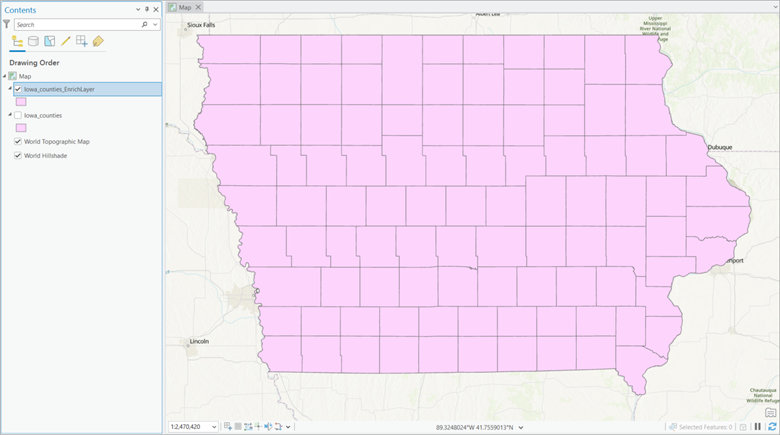
Now that we’ve got the raw material for your base level on the map, let’s dive in to the world of territory design.
Why is it called a solution?
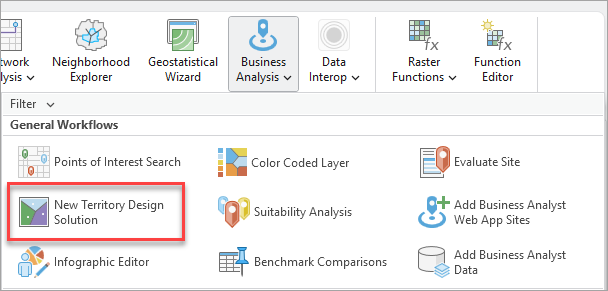
Designing territories requires that you take lots of factors into account: geographic information (such as facility locations and travel barriers) as well as business information (such as work capacity and personal preferences). You feed these constraints into the tool and then “solve” the complex problem you’ve set up. So let’s go ahead and set up your problem, starting by opening the Business Analysis menu and clicking New Territory Design Solution:
The Create Territory Solution tool opens as a free-floating window. It looks like a ton of parameters to fill out, but it’s actually only a couple. For Input Features, you’ll grab your Iowa_counties_EnrichLayer layer, name the territory solution Iowa Election Territories, and specify ID Field as Object ID.
Once your pane looks like this, click OK:
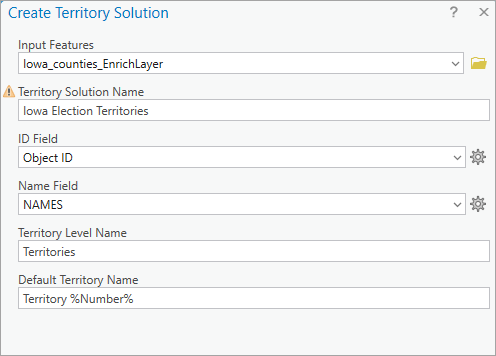
Now that we’ve got the territory group layer set up, handily called Iowa Election Territories, we’ll go about making sure there is a fair balance of work for the election workers.
Striking a balance
We all know that feeling: being expected to do a bunch of work, but the difficulty or complexity of the work being unacknowledged. An election worker tasked with servicing a group of counties that has way more voters than others might reasonably feel this way! So let’s make this fair by balancing the territories. We’ll use that “Always Votes in Elections” variable to approximate counties with higher need for voting materials.
Now that we have the skeleton of a territory solution in place, if we click the Iowa Election Territories group layer, a Territory Design tab appears on the top ribbon in Pro. Go ahead and click it to see the territory design tools at your disposal:
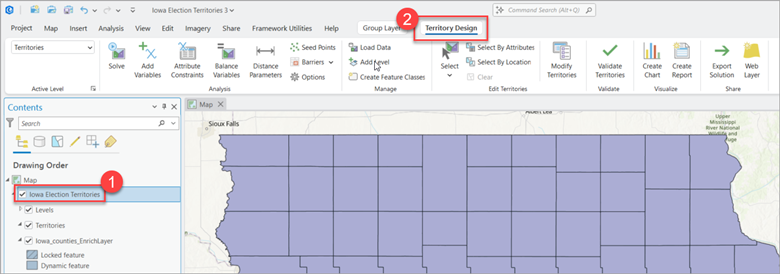
First we’ll add the variable to the Territories layer, then we’ll use it to balance the territories and distribute work evenly. Let’s click Add Variables, and in the Add Level Variables geoprocessing tool that opens, the Variables drop-down menu allows us to choose the voting variable from the enriched layer:
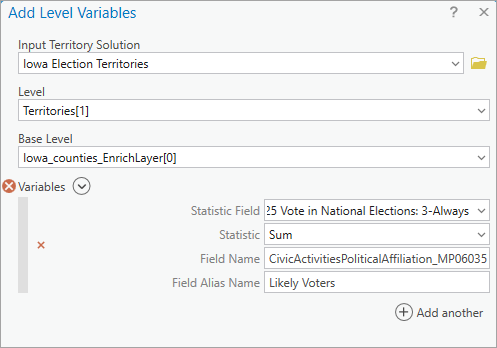
After setting Statistic to Sum and giving the variable the alias Likely Voters, click OK.
Now that the variable is part of the equation, let’s actually tell the tool to balance the territories based on this variable by clicking Balance Variables on the ribbon. In the Set Balance Variables tool that opens, we’ll pick the voting variable (given the convenient alias “Likely Voters”) and set the weight to 100. Since this is a simple version of territory design, that’s all we’ll add! But in more complex design sessions, you could add many variables and weight them according to their importance.
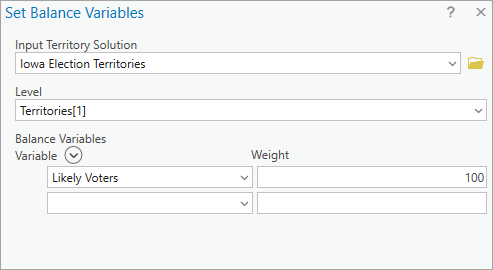
When we click OK, the variable has been factored in to the territories. Up until now, there hasn’t been much visual excitement on the map; we’ve just been building the pieces. That’s about to change…
Solving the problem
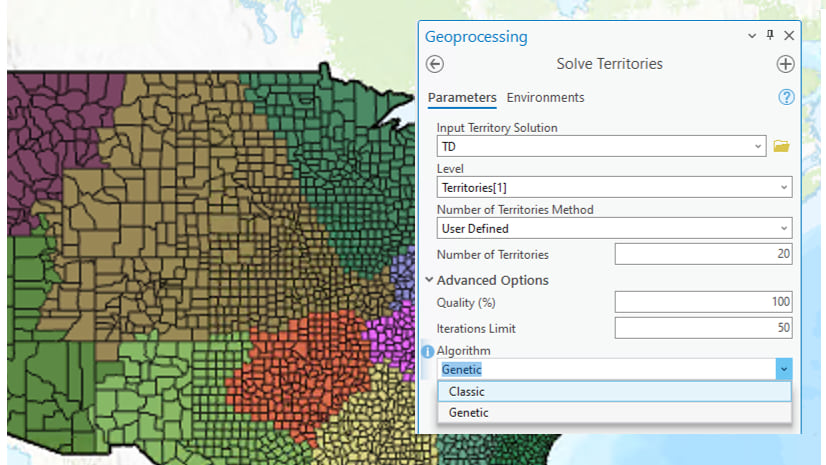
Finally, on the Territory Design ribbon, we get to click Solve. The tool that opens, Solve Territories, is pretty simple: we tell the tool that we (the user) will define the number of territories we need, and enter that number. To divide up the 99 counties into territories that are evenly distributed based on the number of voters in each county, we’ll enter the number of election workers: 20.
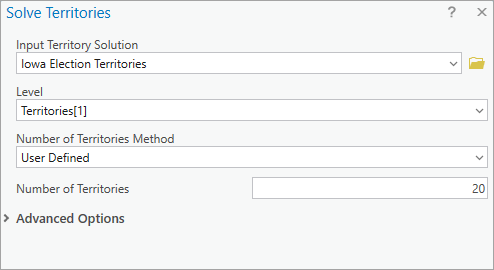
Once we click OK, the magic happens. The counties are grouped into territories, visible on the map by color-coding.
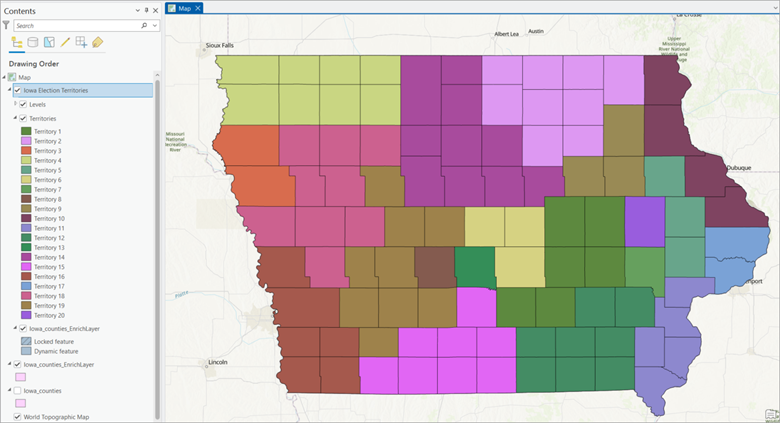
Taking a look at the territories, a few things become apparent:
- There are several single-county territories concentrated around population centers (Des Moines, Cedar Rapids, Iowa City).
- Less populated regions tend to be grouped together.
- There are a handful of awkwardly shaped territories that could possibly be improved.
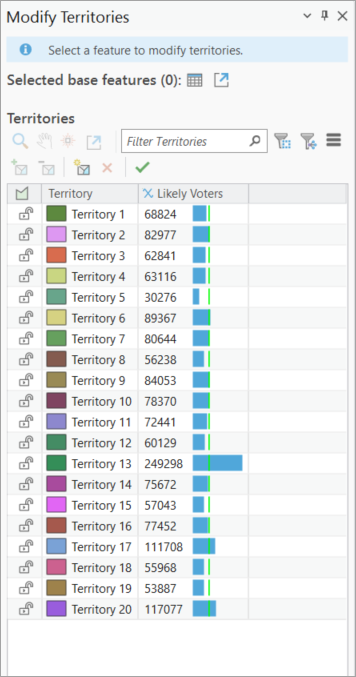
When we open the Modify Territories pane, we also add this to our observation list:
- Territory 13 is comprised solely of Polk County, which contains Des Moines, and has a much larger number of likely voters than any other territory.
Re-solving the problem
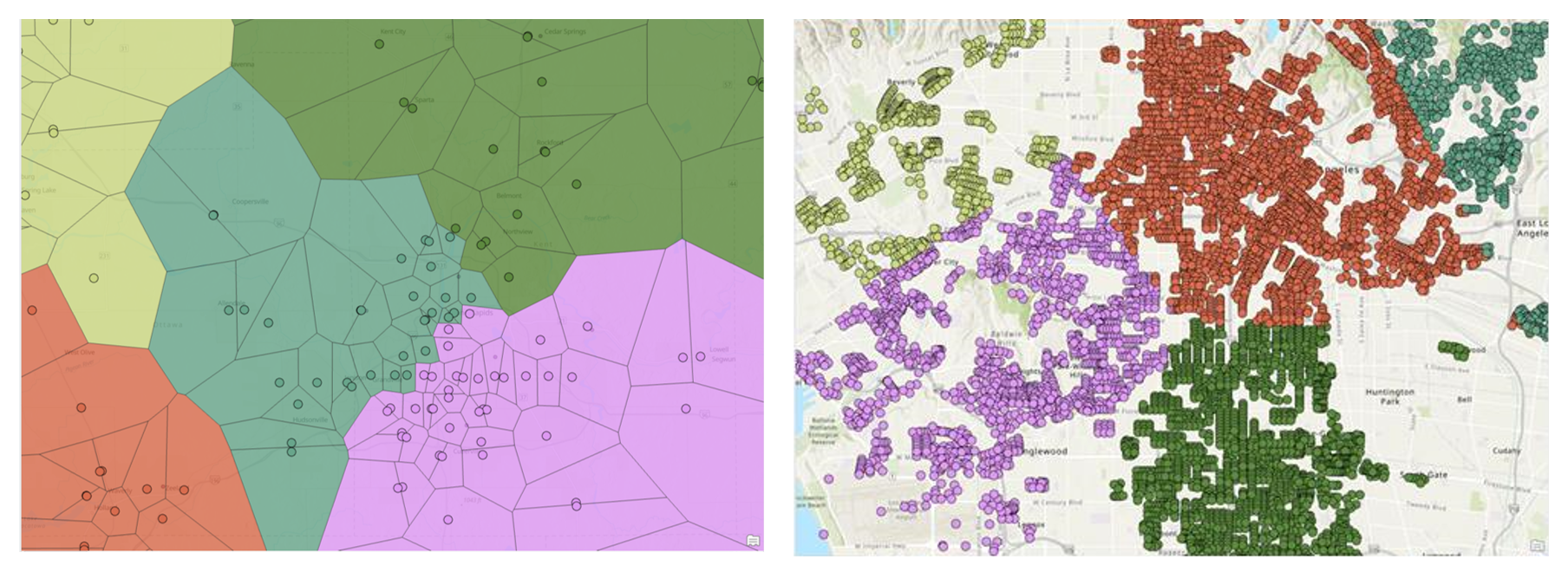
Half the fun of territory design is fiddling with the geographies and parameters to find the best solution for your use case. It’s not uncommon to solve and re-solve the territories multiple times as you zero in on the best design! For example, to deal with the disproportionate amount of people living in Polk County in our Iowa example, we could create a new territory solution for just that county, using census tracts and allotting four of our twenty election workers to that county. (If you’re interested in reading up on this type of geography conundrum, see Modifiable areal unit problem in Esri’s GIS Dictionary.)
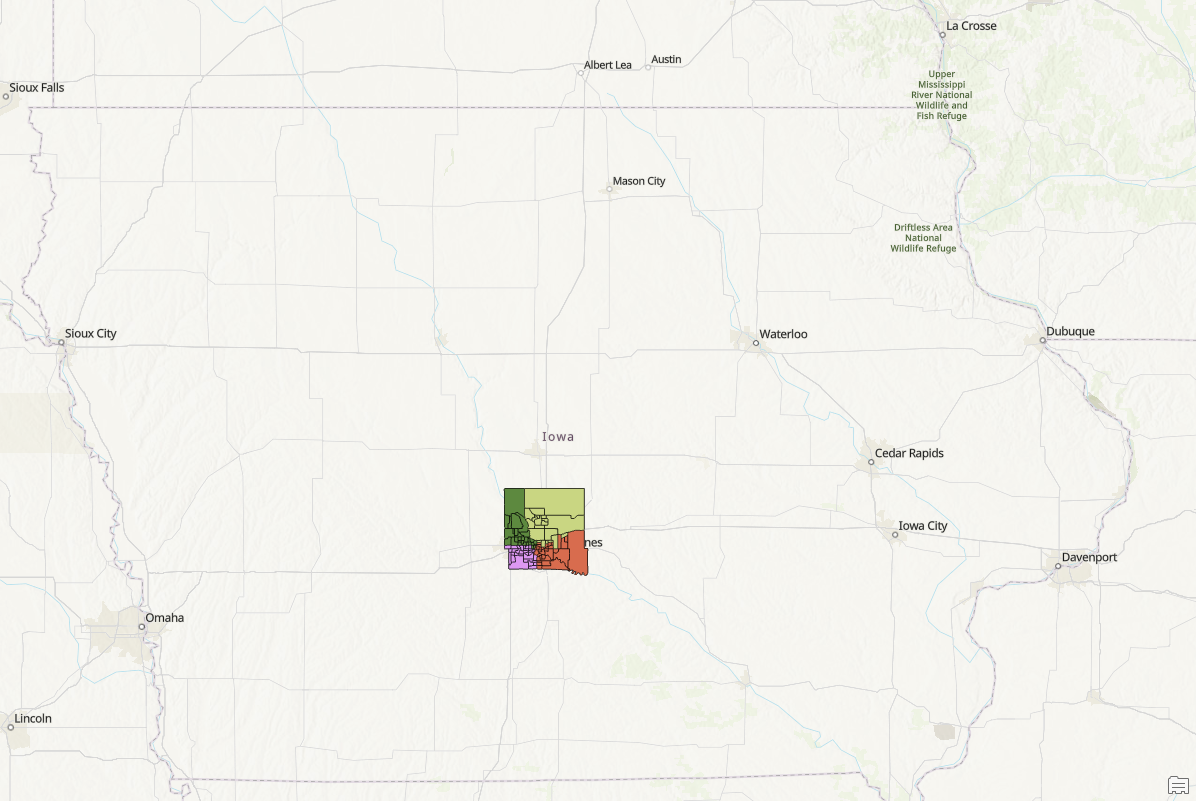
Of course, that does mean going back and redoing the state-wide territories to exclude Polk County:
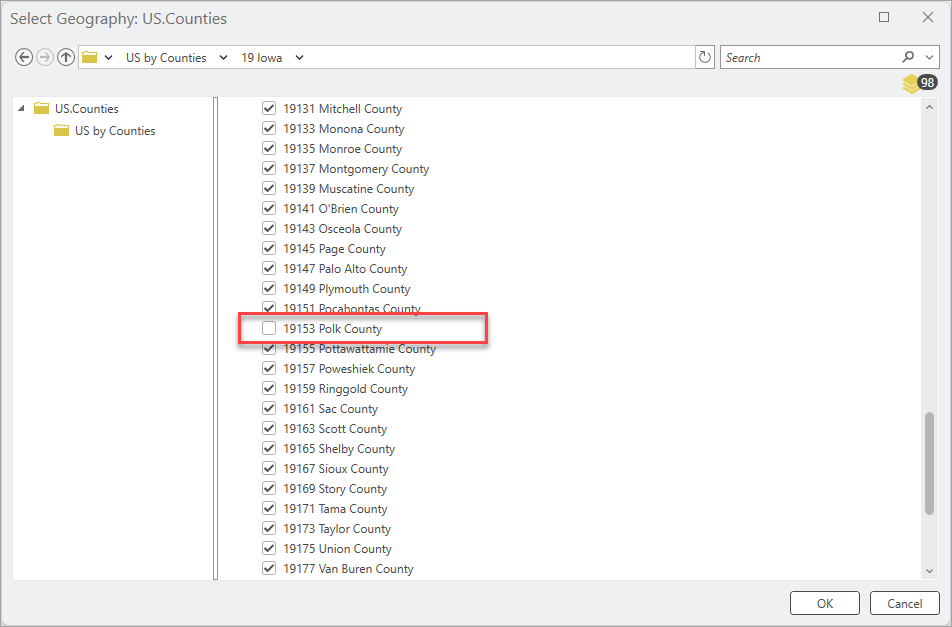
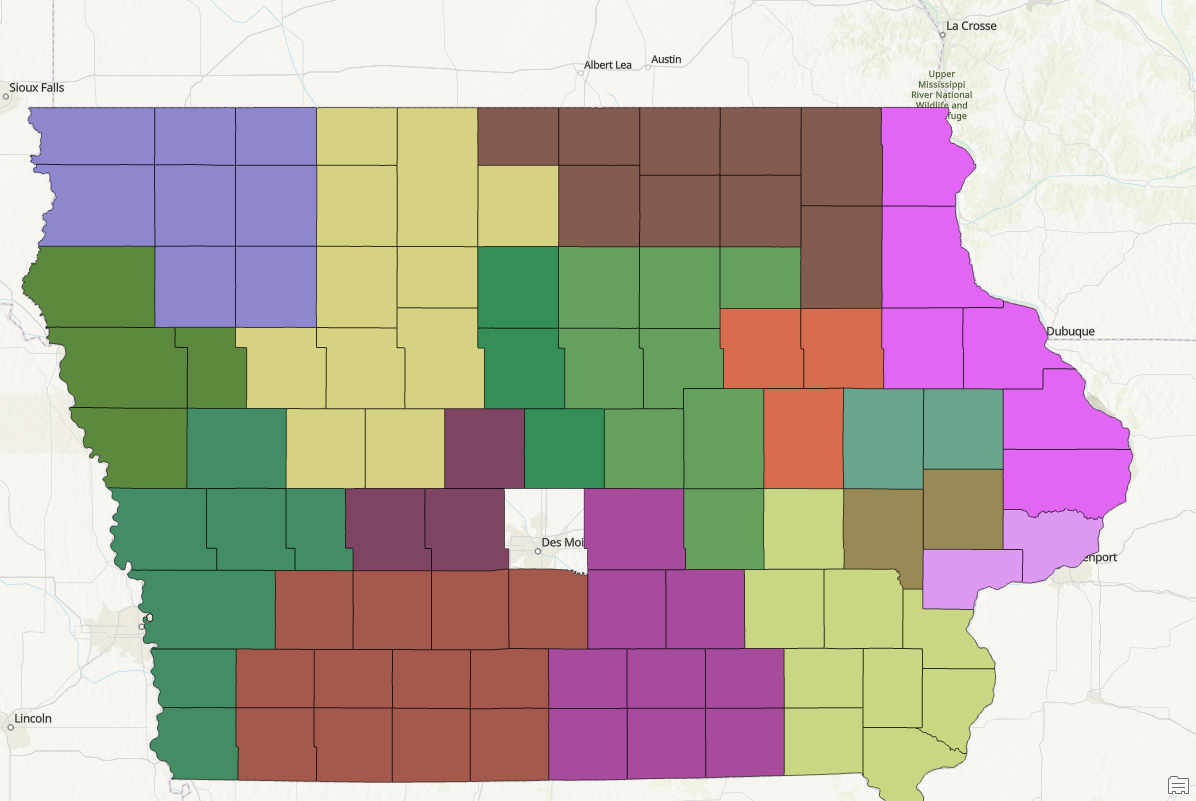
When we rerun the solution omitting Polk County, adjusting our available election workers to sixteen rather than twenty, we get this neat little Polk-hole in the state’s territories:
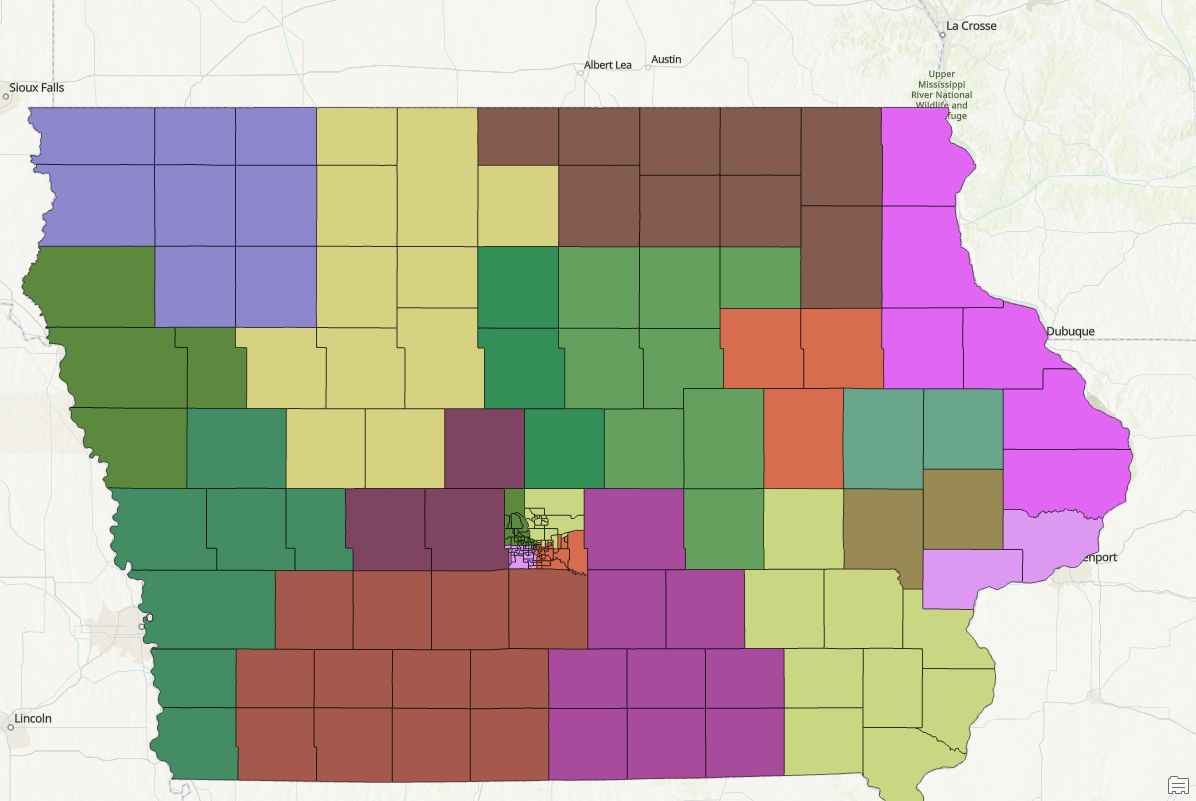
Then we toggle on our Polk County territories, and we’ve got a more balanced map.
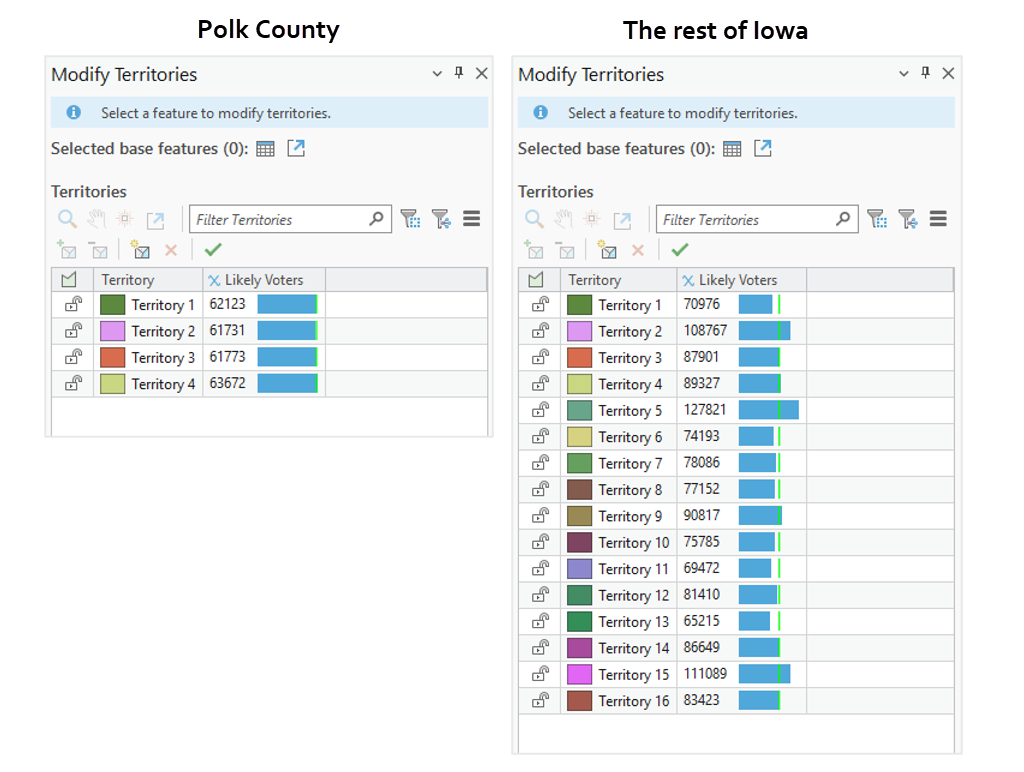
The territories aren’t perfectly balanced, but the disparity across territories is much better than before, when some territories had 55,000 likely voters and others had over 200,000:
There are tons of ways to keep exploring territory design, working with things like barriers and seed points. You might continue your territory design journey by taking the Design territories for college recruiting tutorial or checking out territory design videos on the Business Analyst Pro video channel.
Resources
Now that you’ve learned about territory design in Business Analyst Pro, we hope you’ll explore more capabilities in Business Analyst Pro. To continue your Business Analyst journey, visit the following resources:
- Business Analyst product overview page
- Review pricing and purchase Business Analyst
- Business Analyst resources page
- LinkedIn user group
- Business Analyst Web App video channel
- Business Analyst Pro video channel
- Business Analyst on Esri Community
- Business Analyst Web App login page
- Email the team: businessanalyst@esri.com


Article Discussion: