In June 2026, the Esri Tapestry Segmentation system and 2024 dataset will be retired, marking an important milestone in the evolution of market segmentation within the ArcGIS Data ecosystem. It is recommended that ArcGIS Business Analyst users take action now to migrate to the new ArcGIS Tapestry dataset.
Introduced in 2025, ArcGIS Tapestry replaced the legacy Esri Tapestry Segmentation system with reconfigured segments and LifeMode groups, a refreshed user experience, and improved alignment with current demographics and consumer behavior patterns. While the foundation remains familiar, ArcGIS Tapestry represents a meaningful shift that brings new capabilities along with breaking changes that require user action.
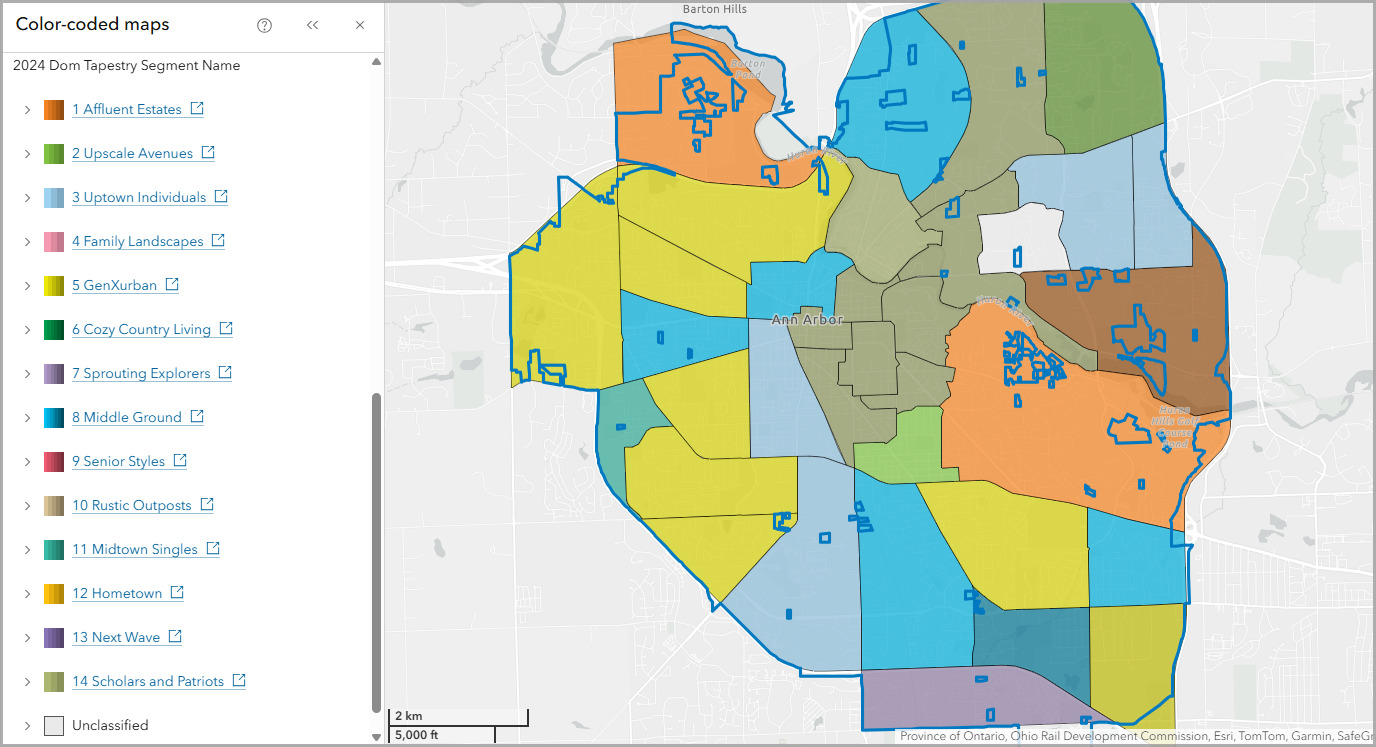
To understand the differences between the datasets, let’s compare two color-coded maps, one using 2024 data and one using 2025 data, looking at the Dominant Tapestry Segment variable in Ann Arbor.
Here’s the Esri Tapestry Segmentation map (using 2024 data).
And here’s the ArcGIS Tapestry map (using 2025 data).
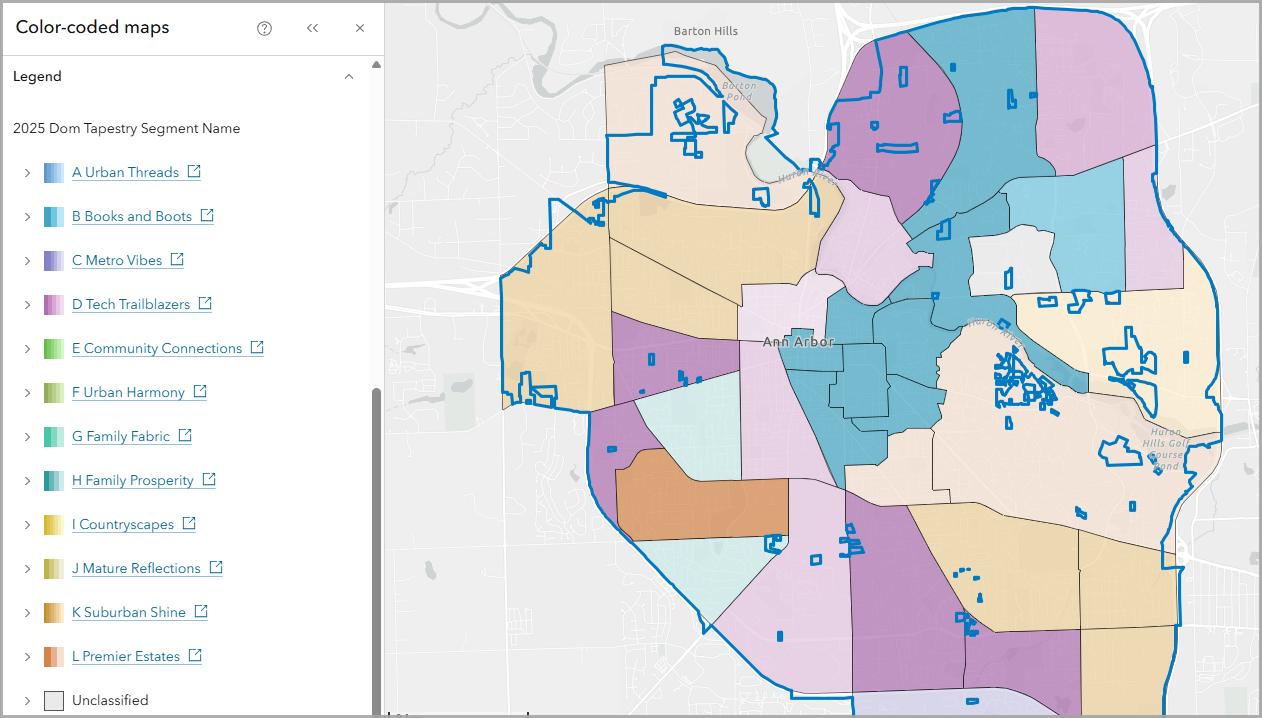
Aside from the new pastel color palette, you can see that segment names are different and that some block groups have entirely new segments, such as around Tuomy Hills, Winewood Thaler, and Boardwalk. These differences reflect the changes happening on the ground and how ArcGIS Tapestry is modeled.
For ArcGIS Business Analyst users, migrating to ArcGIS Tapestry isn’t just a routine data update—it’s a transition that can affect workflows, analyses, saved projects, and downstream outputs. In this article, we’ll walk through how you can migrate from Esri Tapestry Segmentation to ArcGIS Tapestry in Business Analyst.
-
- What needs to be migrated in Business Analyst?
- How do I migrate Tapestry data in Business Analyst?
- How do I migrate Tapestry data in custom infographics and reports?
- How do I migrate Tapestry data in custom variables?
- How do I migrate Tapestry data in saved lists?
- How do I migrate Tapestry data in saved map layers?
- How do I migrate Tapestry data in custom target marketing profiles?
- What about legacy Tapestry data in Business Analyst Pro and Enterprise?
- Upgrade your Tapestry PDF experience with an interactive dashboard
- Applied example
- Resources
What needs to be migrated in Business Analyst?
You can access Tapestry data through Business Analyst mapping and analysis workflows that use the data browser as well as in infographics and reports. There are two generations of Tapestry data currently available: the Esri 2024 data source uses the Esri Tapestry Segmentation dataset, whereas the Esri 2025 data source uses the ArcGIS Tapestry dataset.
There are a few places where you may need to migrate your Tapestry variables, as listed below.
|
Business Analyst Web App |
Business Analyst extension
in ArcGIS Pro |
Business Analyst Enterprise |
Business Analyst widget in ArcGIS Experience Builder |
| Standard and Advanced:
Custom variables Saved lists Saved map layers |
Custom infographics and reports
Saved lists Saved map layers Saved analysis, such as Target Marketing outputs |
Custom infographics and reports
Custom variables Saved lists Saved map layers |
Custom (My/Shared) infographics |
| Advanced only:
Custom infographics and reports |
Any items that are shared across your organization in Business Analyst Web App and Enterprise, such as custom variables, datasets, and infographics, will also need to be updated.
How do I migrate Tapestry data in Business Analyst?
There are some best practices to consider as you migrate your Tapestry data in Business Analyst.
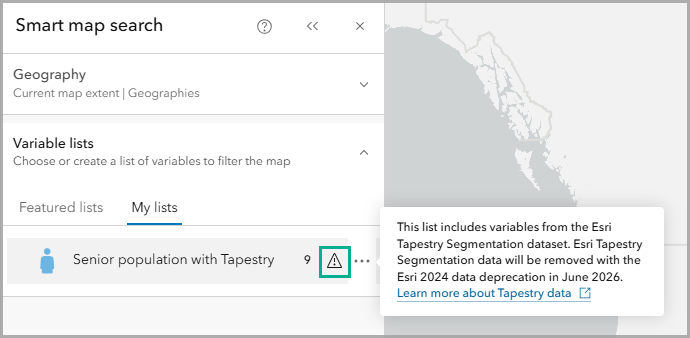
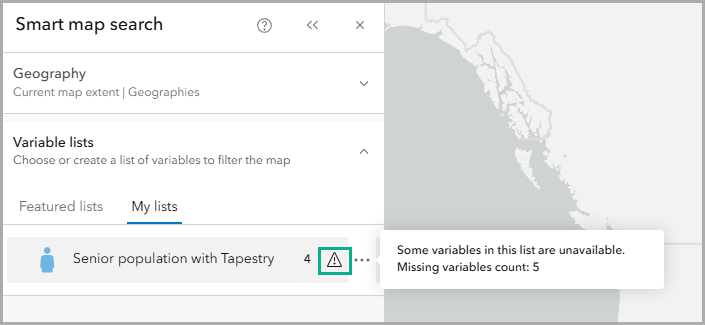
To start, you need to identify where your work is impacted, such as in custom infographics, custom variables, saved lists, and saved map layers. There are some visual cues in Business Analyst Web App to identify impacted content.
In the upcoming February 2026 release, if you’re using Esri Tapestry Segmentation data, there will be a warning message about the upcoming deprecation.
In the upcoming February 2026 release, if you’re using ArcGIS Tapestry data, there will be a warning message when Esri Tapestry Segmentation variables are missing.
Once you’ve identified where your work is impacted, you need to decide how to replace missing variables. Due to the different methodologies and changes to U.S. demographic characteristics over the last decade, there are significant differences between the makeup of the two Tapestry systems. Therefore, it is not possible to directly replace Esri Tapestry Segmentation data one-to-one with ArcGIS Tapestry data. For guidance on how to navigate this transition, see Migrate to ArcGIS Tapestry.
It is recommended to check which segments you previously used are persistent or lost. A persistent segment has been maintained from the Esri Tapestry Segmentation dataset to the ArcGIS Tapestry dataset. A lost segment has not been maintained from the Esri Tapestry Segmentation dataset to the ArcGIS Tapestry dataset.
Keep in mind that even if a segment is persistent, the underlying data may still have shifted. For lost segments, you can use the Esri Tapestry Segmentation lost segments rankings as a general guide to identify which ArcGIS Tapestry segments share similar characteristics with Esri Tapestry Segmentation segments.
And finally, the best practice with this migration is to read the data documentation! Read the description for each of your segments so that you can adjust your interpretation and analysis. To get a broad overview of consumer markets, segments are organized into LifeMode and LifeStage groups.
If you don’t know where to start with the data documentation, check out the ArcGIS Tapestry poster. It provides detailed insights into your previous segments and uses the most important and influential characteristics to map your target segments into ArcGIS Tapestry. Be mindful that income, home prices, housing structures, population diversity and job types have changed over the past two decades, so your customer characteristics will likely have changed too.
How do I migrate Tapestry data in custom infographics and reports?
If you’ve used Esri Tapestry Segmentation data to customize Standard or Gallery infographics and classic reports, or created your own, you’ll need to migrate your variables.
First, download your custom infographics and reports that use Esri Tapestry Segmentation. Switch your data source to Esri 2025 so that you can use ArcGIS Tapestry data. Upload your custom infographics and reports.
As each custom infographic or report loads, you’ll receive a warning that some of your variables are missing, as expected.
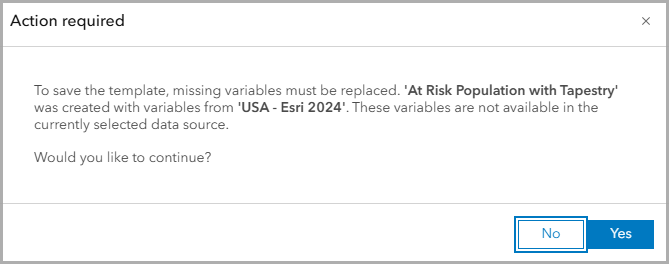
When you click Yes, you’ll receive a list of missing variables. Here’s an example.
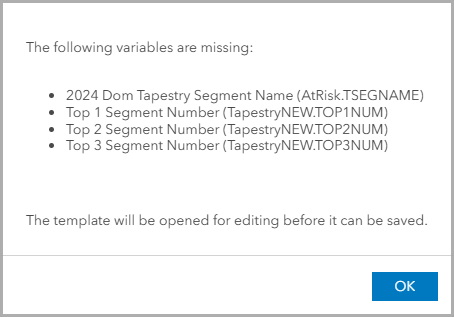
Now you can replace the missing Esri Tapestry Segmentation data with ArcGIS Tapestry data.
You won’t need to update any of the Standard or Gallery infographics or classic reports since the Business Analyst team has designed updated infographics and reports using ArcGIS Tapestry (available with the Esri 2025 data source). However, it might be helpful to review segment information since the underlying data may have shifted.
How do I migrate Tapestry data in custom variables?
If you’ve used Esri Tapestry Segmentation data to create an advanced custom variable in Business Analyst Web App or Enterprise, you’ll need to recreate the custom variable.
Unlike custom infographics and reports, a custom variable will not load if any of the data is missing. Here’s an example.
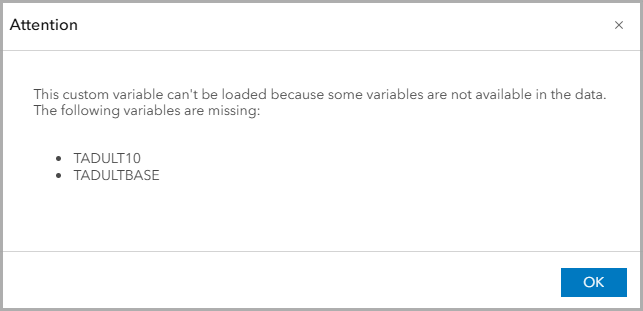
You will need to recreate your custom variable using ArcGIS Tapestry data.
How do I migrate Tapestry data in saved lists?
You can save a custom variable list in smart map search, benchmark comparisons, and suitability analysis.
Your saved lists using Esri Tapestry Segmentation will have missing variables with this migration. Edit the impacted lists and replace missing variables with ArcGIS Tapestry data.
In Business Analyst Pro, you can edit your variable lists when using the data browser or from the Catalog pane under Business Analyst > Variable Lists > Edit.
How do I migrate Tapestry data in saved map layers?
You can save map layers to your project so that you can reopen, modify, and reference your saved layers. Saved layers that may use Tapestry data include color-coded maps, smart map search, suitability analysis, benchmark comparisons, and threshold areas.
Your saved layers using Esri Tapestry Segmentation data will continue to be available to view after the migration. However, you won’t be able to edit those layers. It is recommended to recreate your saved map layers using Esri Tapestry Segmentation to ArcGIS Tapestry.
How do I migrate Tapestry data in custom target marketing profiles?
You can create a custom profile for target marketing using Tapestry data. Your custom profiles using Esri Tapestry Segmentation data will continue to be available to use. However, it is recommended to rename the profile to indicate that it uses legacy Tapestry data.
Are you interested in using updated data that reflects changes in media access, online shopping, civic engagement, social media, and purchasing behavior over the last decade? Then it is recommended to re-create your custom target marketing profiles using ArcGIS Tapestry data.
What about legacy Tapestry data in Business Analyst Pro and Enterprise?
If you’re using Business Analyst Pro or Business Analyst Enterprise, you may be using locally installed and configured datasets. Unlike Business Analyst Web App users, this means you may have access to legacy data. With the June 2026 release, the Esri 2024 data source will be removed. Your administrator may provide access to legacy data after June 2026, but we recommend that you discuss the impact of these changes if you have not already done so. In other words, your Tapestry migration is not as urgent, but still highly recommended to do sooner than later.
For organizations that use ArcGIS Online as the data portal, you will need to follow the same best practices as outlined above for Business Analyst Web App.
Upgrade your Tapestry PDF experience with an interactive dashboard
Since this blog article has covered all the different ways in which you can migrate your saved work to the latest Tapestry system, there is another element for you to consider in the migration: PDFs!
Esri Tapestry Segmentation included static PDFs containing descriptions of all the segments. ArcGIS Tapestry has modernized this outdated experience with an interactive dashboard. For more information, check out Explore ArcGIS Tapestry segments with the new infographic dashboard.
Applied example
Let’s walk through an example to understand how the Tapestry migration might impact your saved work in Business Analyst Web App.
You work for a senior care advocacy organization using Tapestry data to identify areas around Cumberland County with certain characteristics. You use the Esri Tapestry Segmentation dataset to create a custom variable list using smart map search, save the layer, and create a custom infographic using ArcGIS Business Analyst Web App. With the upcoming Tapestry migration, your saved work will have missing variables. So, what do you need to do?
First, if you run a new smart map search using your saved list, you’ll see a warning icon. You can view the saved list using the Esri 2024 and Esri 2025 data sources to compare which variables are missing and need to be replaced. The saved list using the Esri 2025 data source excludes all Esri Tapestry Segmentation variables.
Click the Options button (ellipsis) and Edit list to edit the variables selected. But how do you know which ArcGIS Tapestry variables to use?
While there is no direct one-to-one correspondence between ArcGIS Tapestry and Esri Tapestry Segmentation, there are analytical strategies to migrate between systems. For example, this scenario is looking specifically at senior populations. A fair place to start with the migration is to look at the ArcGIS Tapestry LifeStage group for Mature and Retired Living. According to the data documentation, it looks like LifeMode groups I-L fall within this LifeStage group.
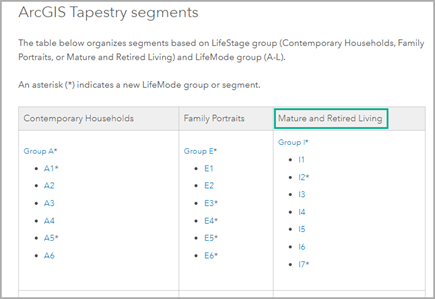
By reading through the LifeMode groups I-L descriptions, you can understand which segments have characteristics that are relevant to senior advocacy work that you can add to the saved list in smart map search. Check out the updated smart map search list below.
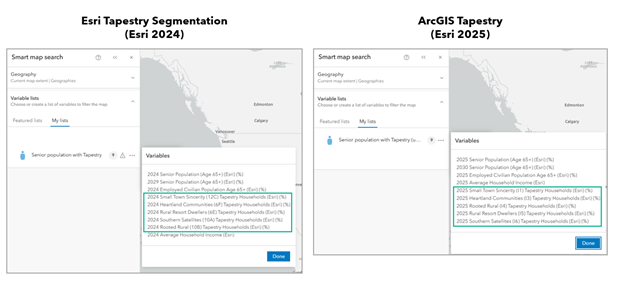
Once you understand the updated segments, you can update your work across Business Analyst. In the example, this includes re-running smart map search with the updated saved variable list.
In conclusion
And that’s it! Esri Tapestry Segmentation data is available in the Esri 2024 data source until June 2026. We highly recommend looking at your saved work to see where you may have used Esri Tapestry Segmentation variables so that you can update it.
Resources
Check out the resources below for quick links to support your migration.
This article uses Esri Tapestry Segmentation and ArcGIS Tapestry data and basemaps provided by Esri.
This article uses ArcGIS Business Analyst Web App for screenshots. You can create a color-coded map, custom variable, and save a smart map search list in Standard or Advanced, but you can only customize an infographic with Advanced.



Article Discussion: