ArcGIS Business Analyst includes a web app and a mobile app (and a Pro extension, Experience Builder widget, and Enterprise environment—but let’s stay focused here).
The mobile app is a companion to the web app; it offers a subset of capabilities for on-the-go analysis. In this article series, you’ll learn about how you can use the mobile app to create a site, take site photos, compare and customize site facts, and run infographics.
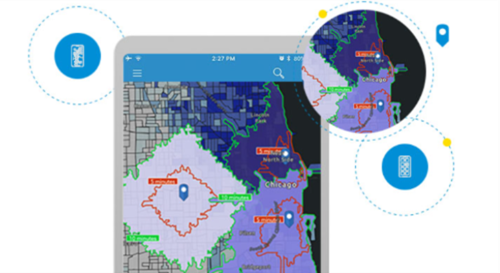
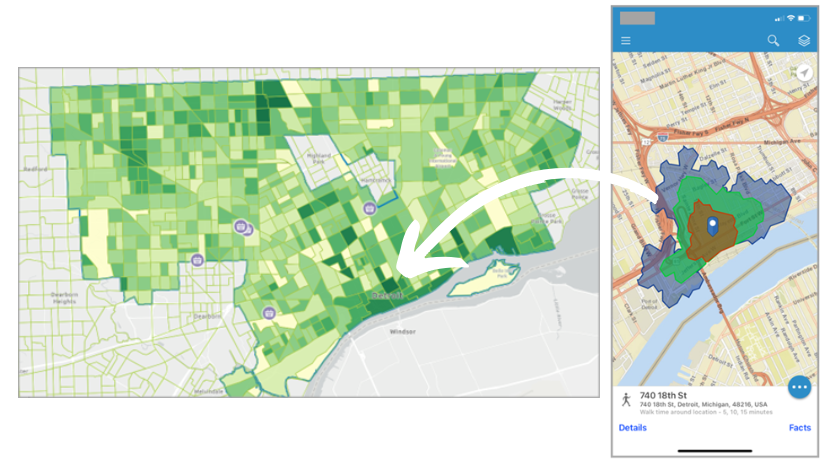
In this blog article, you are a flea market coordinator searching for a site for your pop-up event in Detroit, Michigan. Typically, flea markets are temporary street markets with various vendor booths. You used ArcGIS Business Analyst to locate and create a site. Now you are adding photos of your potential pop-up flea market at 740 18th St Detroit to your Business Analyst site. This scenario is entirely fictitious, and while it may reference real-world locations, it does not consider zoning laws or actual land permissions.
Take site photos
Adding images to a site provides a visual context to better understand the area. For example, you can take photos of nearby parking, public transit stops, and crosswalks to help plan where the “entrance” of the flea market should be. You can also use these photos to customize the Property Details infographic in Business Analyst Web App.
Since you’re probably not actually walking the streets of Corktown, you’ll have to rely on your imagination. The images below utilize stock photos to illustrate the types of images you might need for your site, including details like unpaved areas in the lot or debris to clean up.
In the mobile app, tap Details to open the Location Details screen. To add photos to your Business Analyst site, you can do any of the following:
- Use the Photo Library or Browse options to add an existing photo from your mobile device to your Business Analyst site.
- Use the Take photo option to take a photo in real-time and add it to your Business Analyst site.

When the image is uploaded, it is displayed on the Location Details screen in the image preview section. If your site does not have photos, the image preview is blank.
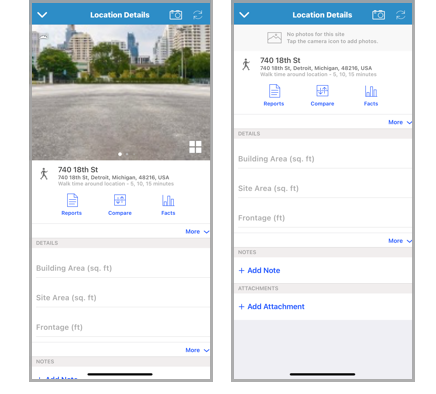
Once your photos are uploaded, you can swipe through the images or click the Gallery button to view all the site photos at once.
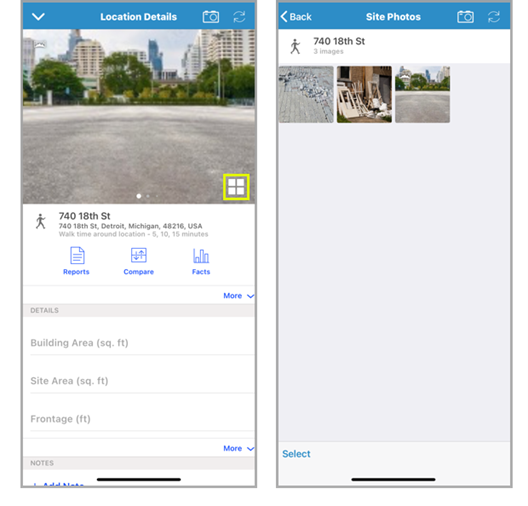
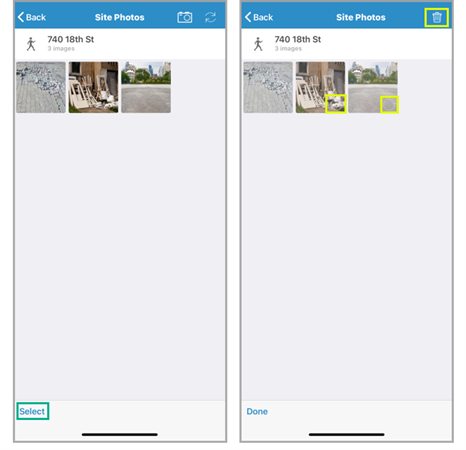
With the image gallery, you can select multiple photos at the same time. Tap Select, select your images, and tap the trash icon to delete images en masse.
You can also interact with each photo. Click on an image in the gallery to view it in Photo Viewer. Depending on the image type (regular, panoramic, or 360), you can zoom in and out or pan to get a closer view.
Panoramic and 360 images are identified with icons to indicate their image type.

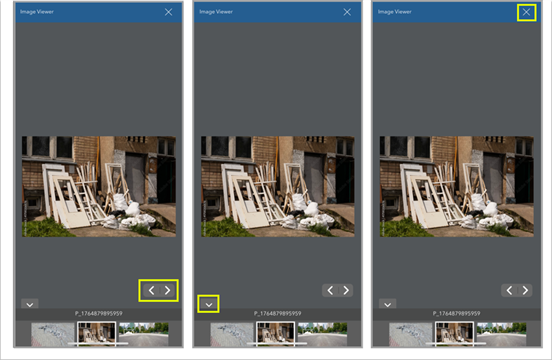
There are a few nifty user interface (UI) elements in Photo Viewer that you can use. For example, you can do any of the following:
- Navigate images by tapping the right and left arrows to scroll through images.
- Hide the thumbnail view by tapping the down arrow for a simplified screen.
- Tap the x button to close Photo Viewer.
Get connected: View site photos in Business Analyst Web App
Once your photos are added to your site using the mobile app, you’ll be able to view them in Business Analyst Web App. For example, open the project pane and click the ellipsis (Options) for your site.
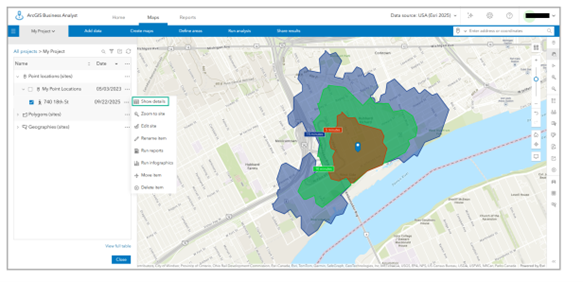
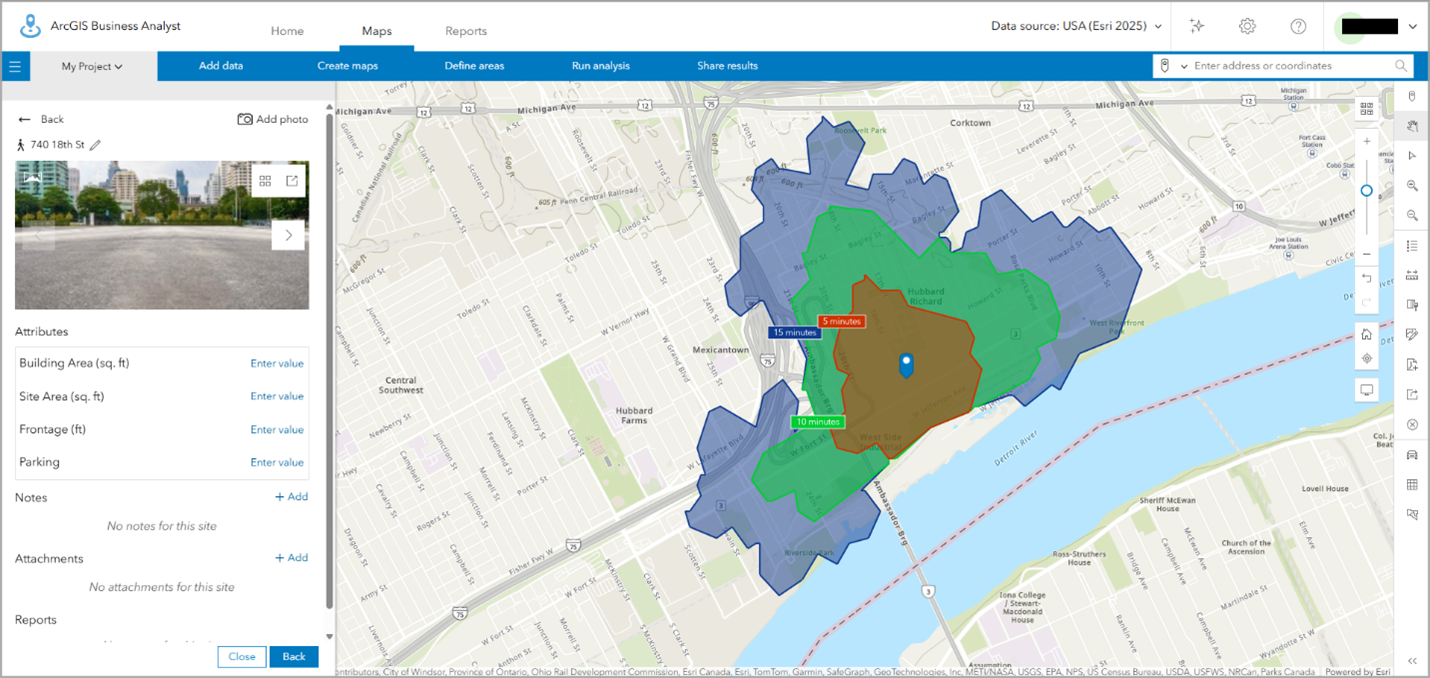
To view your site photos, click Show details. Just like with the mobile app, you can view images individually or in the gallery.
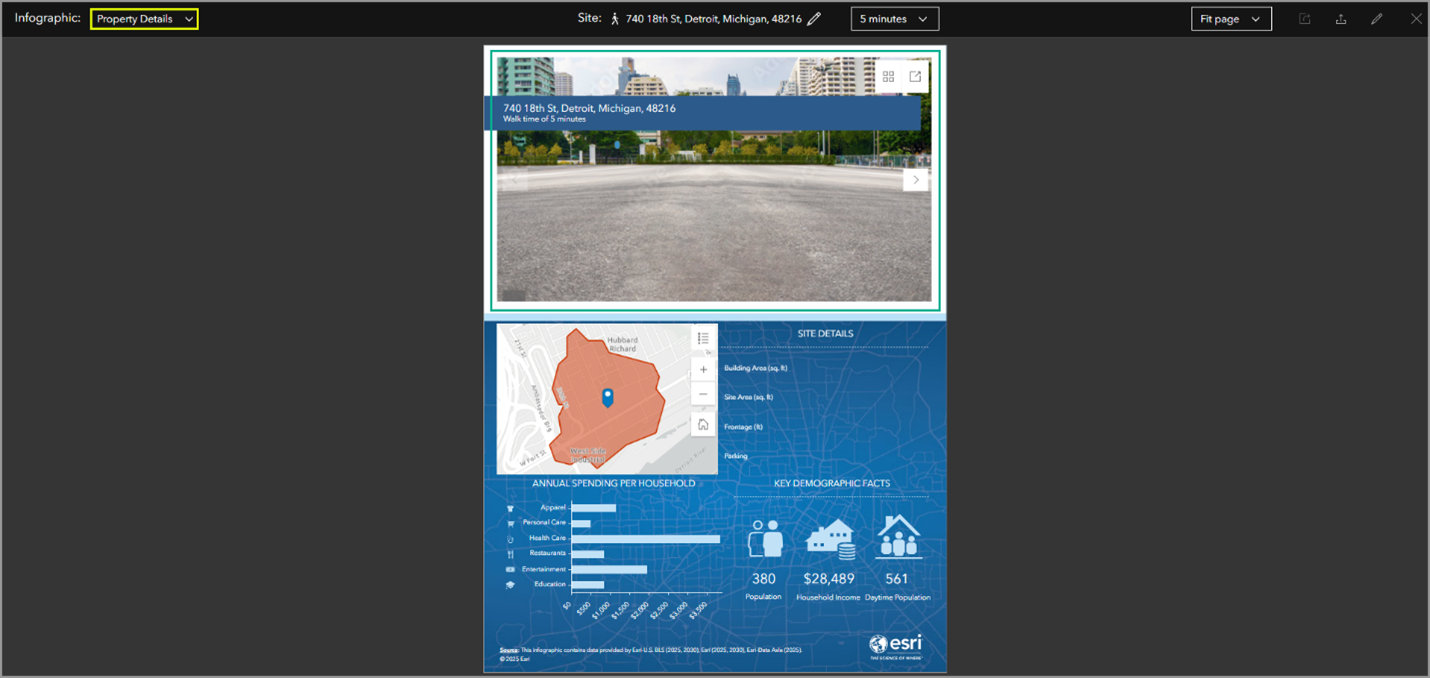
Another way to utilize your site photos from the mobile in the web app is to run the Property Details infographic. You can run infographics in the web app and mobile app. In the Property Details infographic, your site photos are automatically embedded along with a map of the site.
Let’s recap!
You just learned about the photo capabilities in Business Analyst Mobile App. You can use this information next time you’re in the field to add site-specific visual context to your projects.
What’s next?
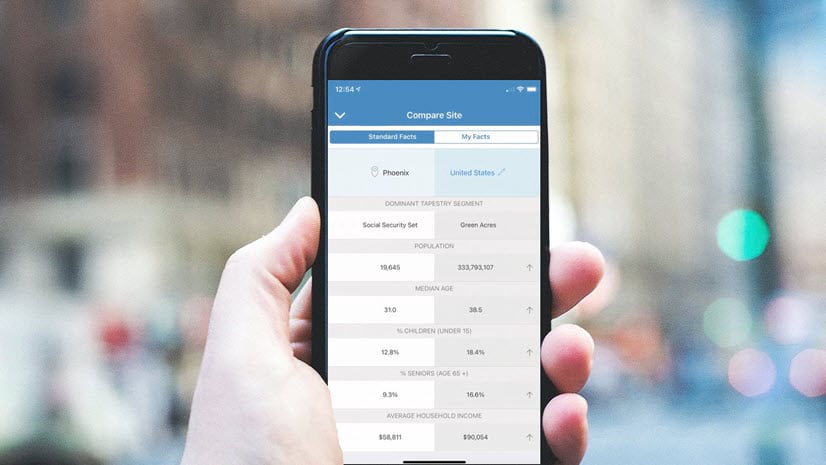
You can use the mobile app to delve into demographic data about your site area. Use Standard Facts to compare how your site stacks up to the data for the city to better understand the hyper-local customer base. Customize My Facts with consumer spending-related variables to strategically determine what kind of vendors you should invite to meet customers’ wants and needs.
To try it for yourself, see the next tutorial in this series: View, customize, and compare site facts for a flea market in Detroit — Get started with ArcGIS Business Analyst Mobile App.
This article was originally published on May 26, 2021, with the title “An Overview Of Business Analyst Mobile App Photo Viewer” by Geetha Narayanan. It has been updated.

Article Discussion: