We recently released ArcGIS Maps SDK for JavaScript version 5.2. This release brought some great layer-based enhancements to the arcgis-search component. This blog will cover those enhancements with some background information and practical demos.
Introduced at version 5.2 (November 2026), the new searchMode property helps users work more effectively with full-text-indexed layers. Full-text indexes improve the performance of spatial queries, such as searching for features on a map or in a database. At a high level, an index will break apart terms into separate groups to be searched. The terms must be separated by a space.
For example, let’s look at the place: “University of New Hampshire”. If this layer was not indexed, any search for this feature must start with “University” because there is no leading wildcard. However, if this layer was properly indexed, we could start our search with “University” or “New” or “Hampshire”, because each group has been indexed for the search. These indexes can be created and persisted and used between the ArcGIS Maps SDK for JavaScript / ArcGIS Online / ArcGIS Enterprise and ArcGIS Pro. See the Searching for Features in Maps and Apps blog for more explanation.
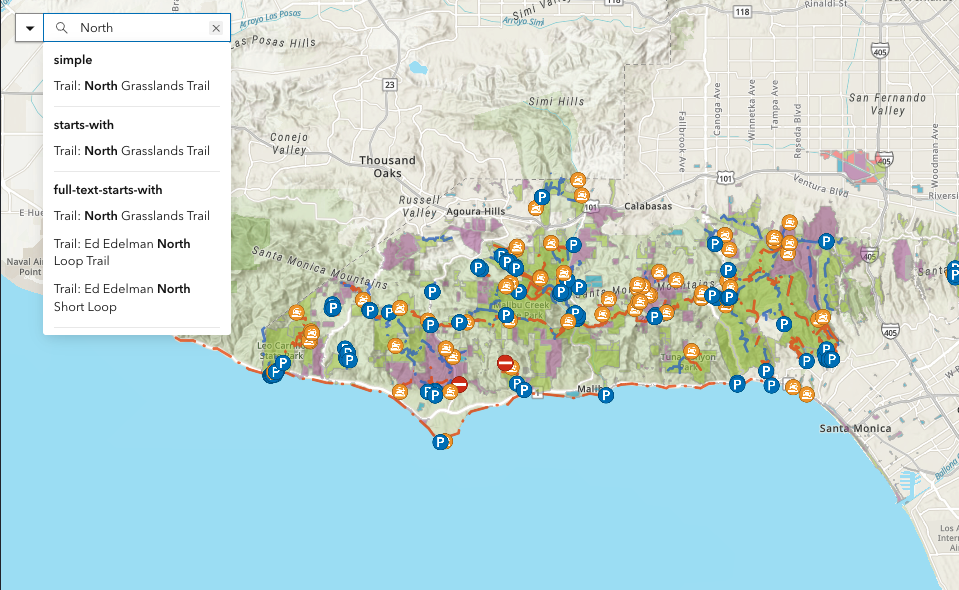
The below image shows some examples of the four different searchMode values with a full-text indexed layer. Note that only "full-text-starts-with" and "full-text-simple" were able to find “North” in a separate indexed group. Each searchMode value is displayed in bold above the suggestions.
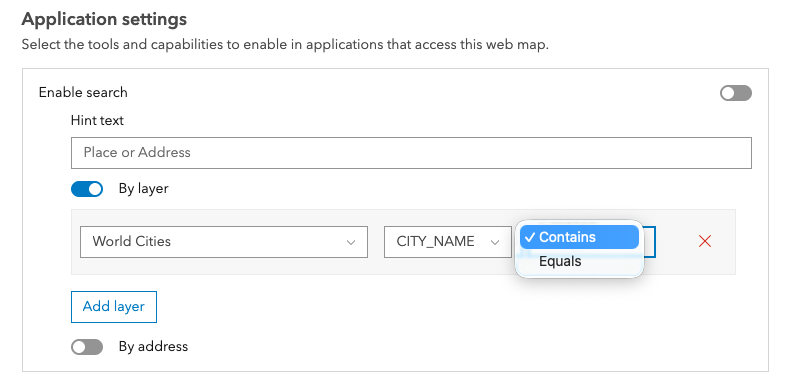
Previously, exactMatch (deprecated at 5.2) could be true or false, where true meant an exact match and false meant a trailing-wildcard search. In the webmap settings (Item Details page of the webmap), this conferred to a value of “equals” for true, and “contains” for false. This is where users can configure the search (locator and layer sources) experience for a specific webmap. These settings can be read or overwritten by an app. This blog focuses on the developer experience, but it is important to also note the non-developer configurations available.
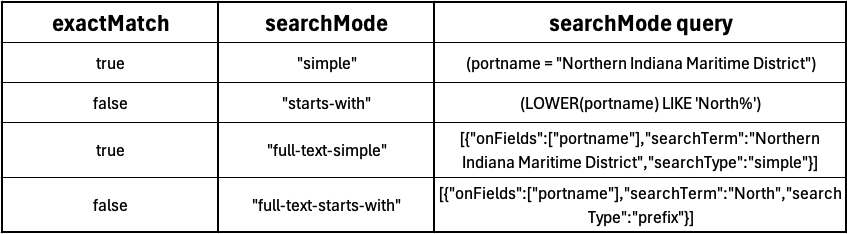
Now, searchMode can be "simple", "starts-with", "full-text-starts-with", or "full-text-simple". Configure these values in LayerSearchSource or in a web map’s portal settings. The legacy behavior remains unchanged. Here is a table that compares these values for a feature whose portname property is “Northern Indiana Maritime District”:
In the webmap settings, these values have slightly different names. The searchModes from above confer to:
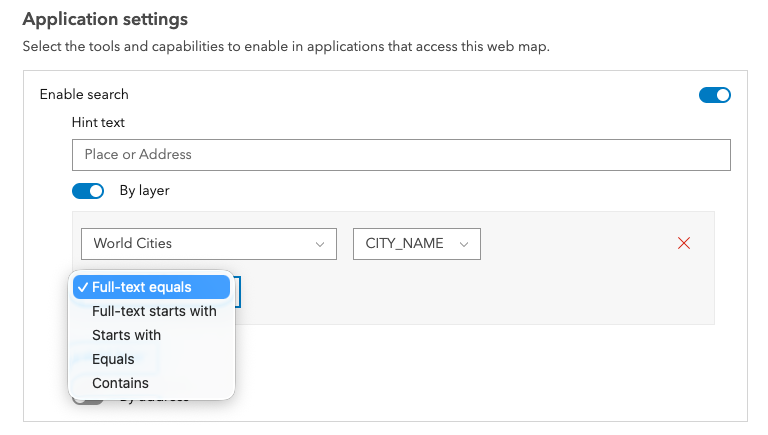
Now we can compare the new searchMode property with the new webmap settings:
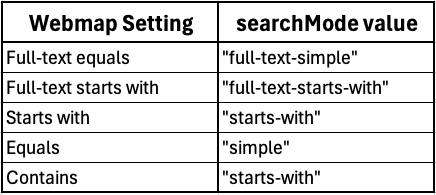
Currently, we do not offer a “contains” searchMode to developers (except for apps like Field Maps for offline searching). The “starts-with” value will perform the same results.
Demos
Now let’s look at some 5.2 search updates in action. We’ll also cover some search tips and best practices along the way. Any demo using the ArcGIS World Geocoder service requires a token for authentication. These demos expect an API Key to authenticate. You can either replace it with your own API Key in the codepens, or remove it and log in once prompted.
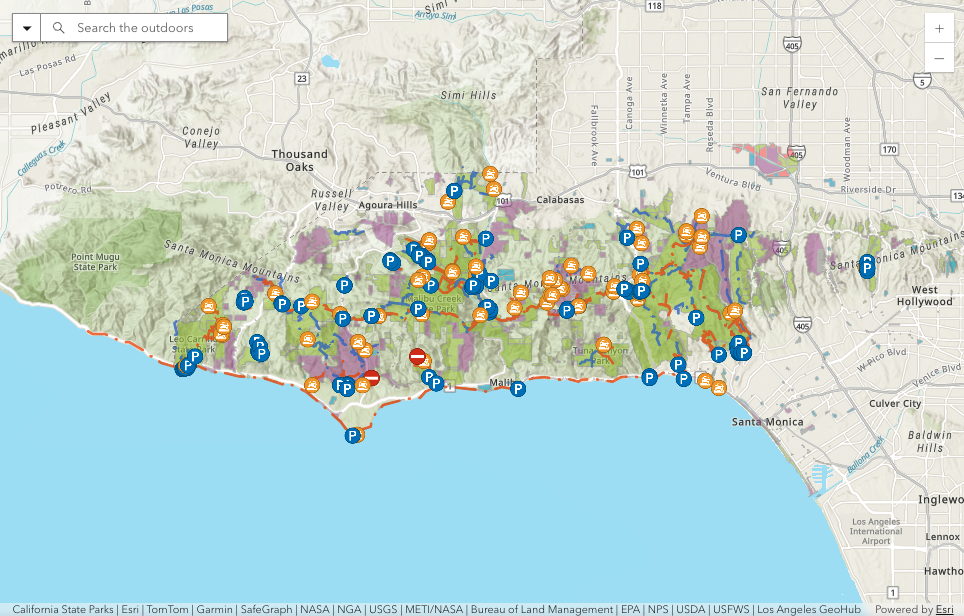
Demo: Compare searchModes
The above app compares the different searchMode values with the same layer search source. First, we set the allPlaceholder value to match the nature-focus theme. Next, since we’re using a webmap, and we don’t want to include any locators associated with the webmap searching, we disable the default sources to the arcgis-search component. Then we define our layers and popups like usual. Each layer uses a different searchMode in the search.sources. Lastly, we modify the minimum characters required to display a suggestion to a value of 1. This is not recommended for large layers, but is appropriate here in this small app. Try different search terms to compare the different searchMode values.
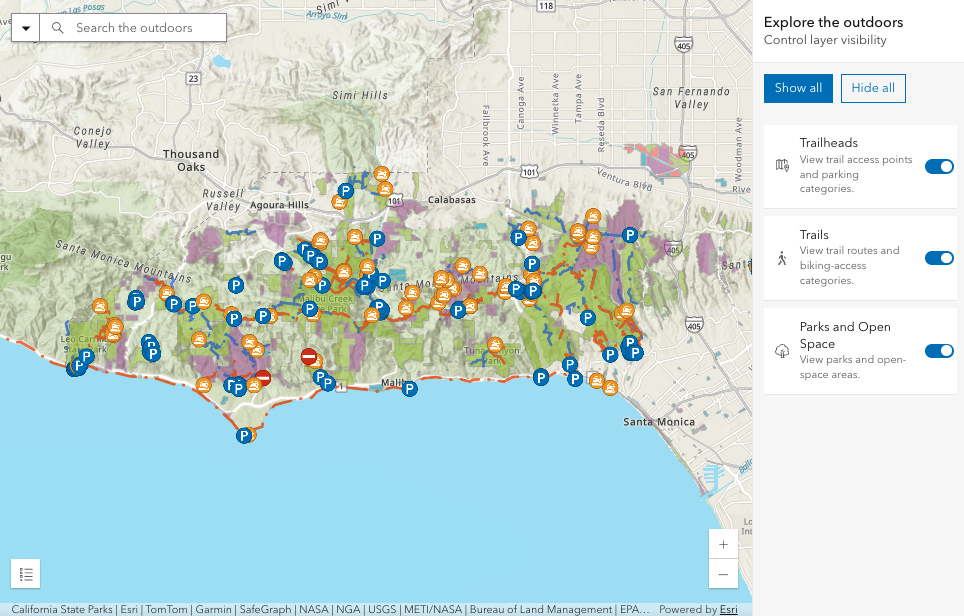
Demo: LayerListModel and LayerSearchSource
The above app is based on a sample made by Sage Wall. Similar to the previous demo, but here we use the new LayerListModel to customize the user experience. This app shows how the search experience works nicely with other classes and components in the SDK to make engaging and useful web applications. See the original sample here.
Demo: LayerListModel and LayerSearchSource – No searchAll
However, there was one issue with the previous demo. Users can search all three categories at the same time.
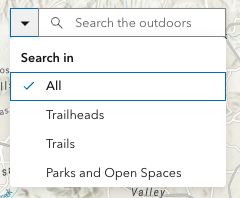
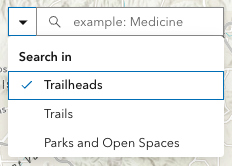
In our scenario, it is unlikely that users want this ability as it can confuse the types of results provided. So we can disable that by using the searchAllDisabled property. Note that when this is disabled, the allPlaceholder value will no longer be honored. The placeholder of the top locator value will display by default.
Let’s move on to some different demos. The componentOnReady method is an important concept for components. This should be used before setting any additional properties or calling any methods in JavaScript. See the Component readiness and events doc for more information. We’ll look at a few different examples of this method, and then look at a new and similar method at version 5.2: onSourcesReady.
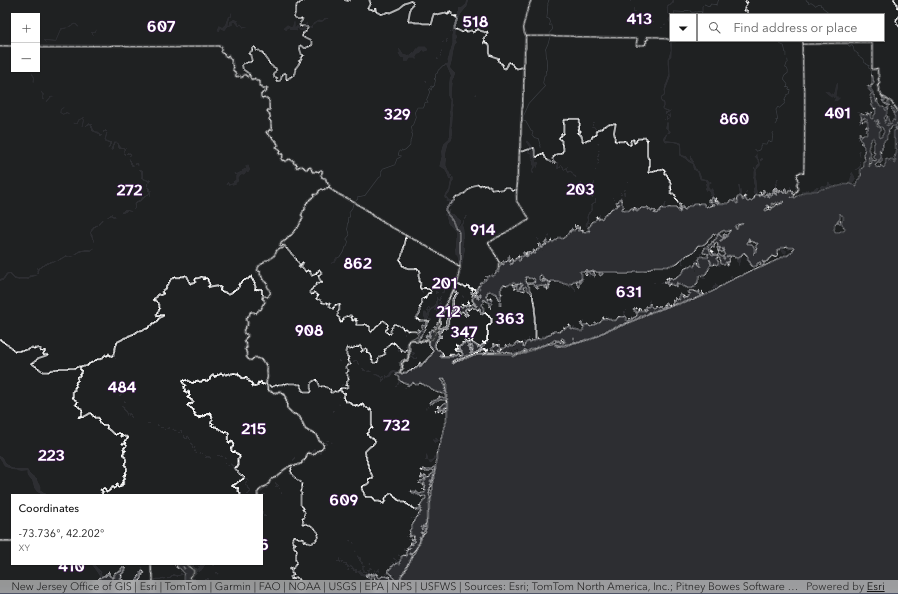
Demo: Search for Area Codes
The above app uses componentOnReady method to ensure the arcgis-search component is ready to go before interaction. This app allows us to search for US telephone Area Codes. It also uses the arcgis-coordinate-conversion-next component in minimal configuration, which adds to the look and feel of the app.
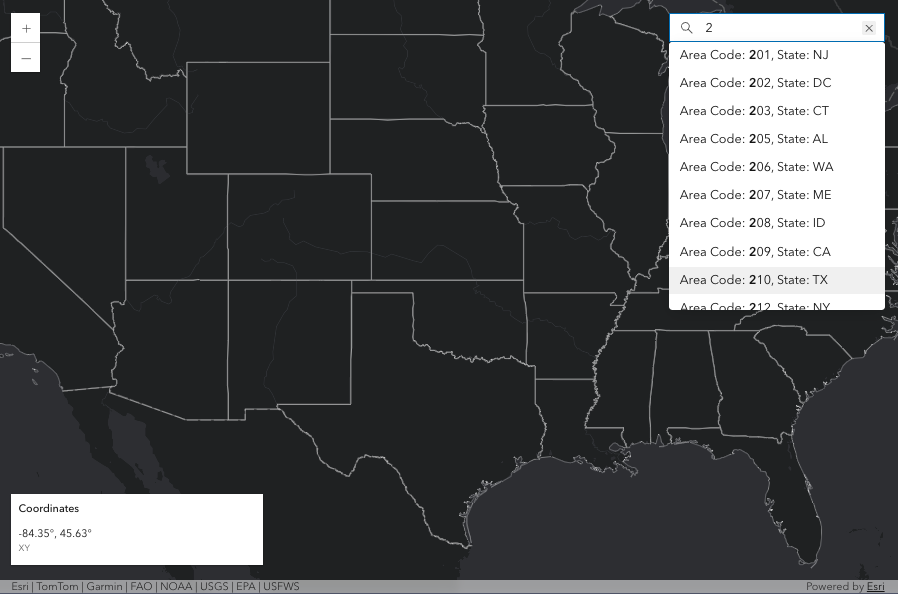
Demo: Explore Area Codes with Search
The above app also uses the componentOnReady method, but has no visible labels on the map. This app is for exploring US telephone Area Codes, and again can take a single character input to offer suggestions. This can be a fun and interactive way to search for Area Codes.
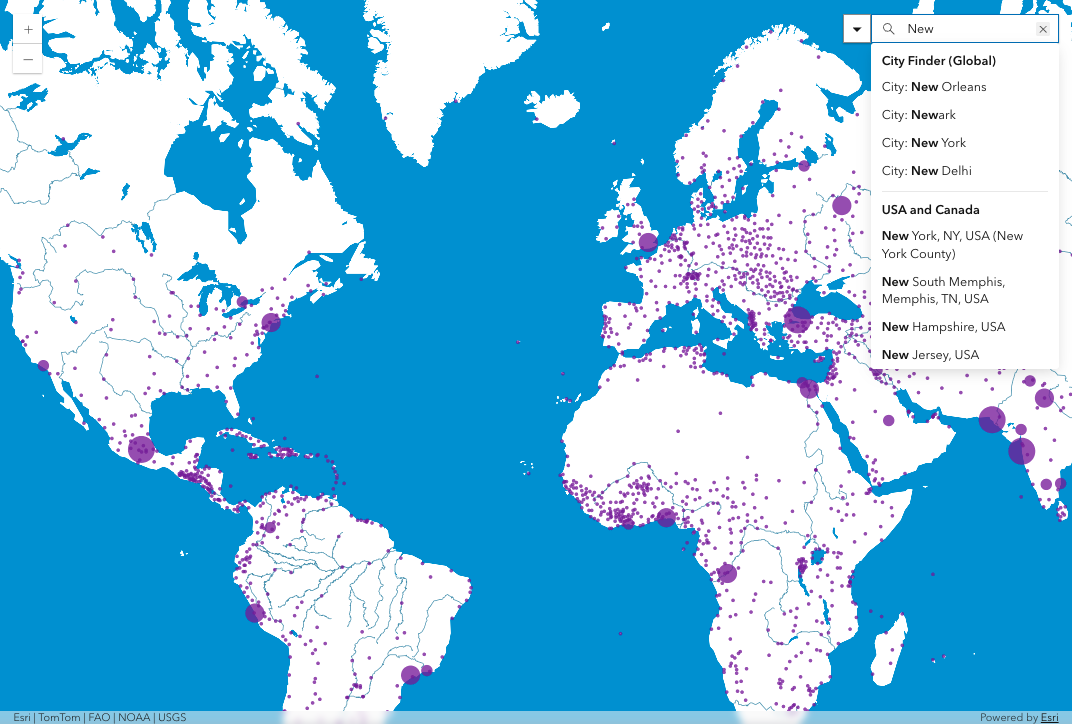
Demo: Search cities with countryCode
The above app also uses the componentOnReady, but also uses countryCode (note this property only applies to locator sources, not layer sources). We have two city search sources, one of cities around the world from a layer, and one of cities restricted to the countries of USA and Canada from a locator (Esri World Geocoder service, which requires authentication). It’s worth noting that we recommend disabling the default sources for the arcgis-search component when modifying locator source properties, otherwise default locators associated with the webmap may display.
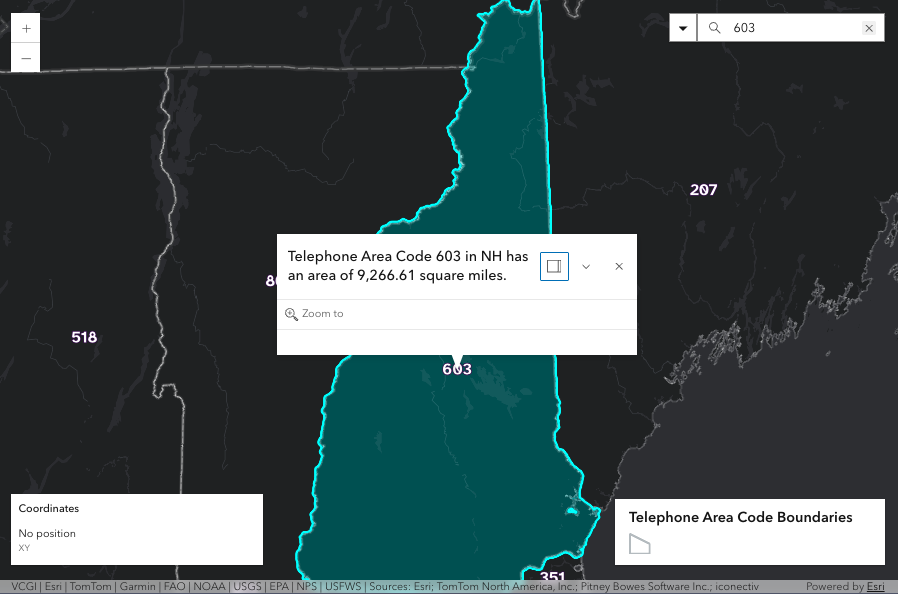
Demo: Search() on load
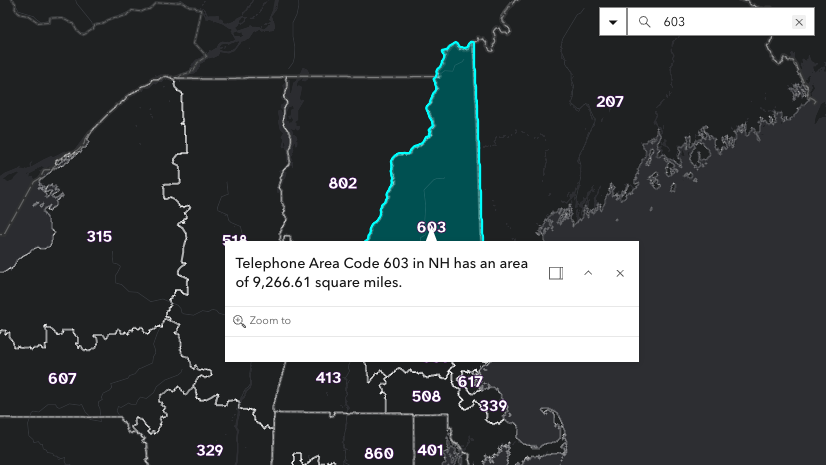
The above app uses the new onSourcesReady method. This waits for all the default resources needed by the arcgis-search component before returning a promise. This can be especially useful when the arcgis-search component needs to be immediately ready to take action once the app loads. In this case, we want to search for “603” using the search method upon loading. This differs from componentOnReady, which waits for the component to be initialized, while onSourcesReady waits for the component to be initialized and default sources to be loaded.
Demo: Search() on load – searchAll
However, there was one issue again with the previous demo. Users couldn’t search both Area Codes and places at the same time. Even though we don’t want an allPlaceholder value, we do want our users to search both sources at the same time.
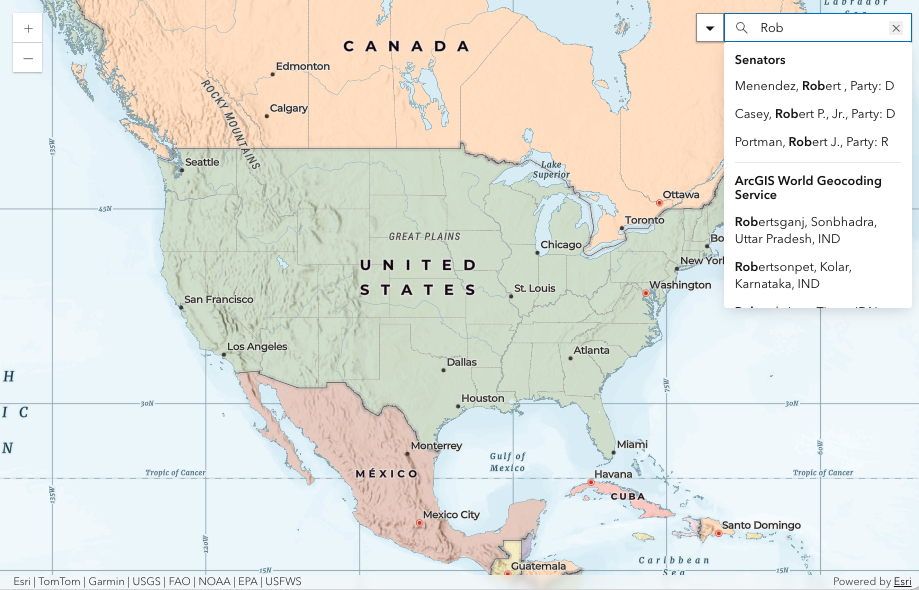
For posterity, the above sample is from our SDK, updated for version 5.2 with the new searchMode.
Conclusion
The new searchMode property and onSourcesReady method help users work more effectively with full-text-indexed layers and the arcgis-search component in general. While many of the search settings can be configured in the webmap UI, they can be overwritten or added-to in custom applications. The flexibility and usefulness of the arcgis-search component at version 5.2 make it a powerful and compelling tool for webmaps and apps.
References
ArcGIS Maps SDK for JavaScript
- 5.2 Release Notes
- Doc: arcgis-search component
- Doc: LayerSearchSource
- Doc: LocatorSearchSource
- Sample: Search component with custom source
ArcGIS Online
- Doc: Add or manage indexes
- ArcGIS Blog: Searching for Features in Maps and Apps
- ArcGIS Blog: Configure layer attribute search in maps and apps
ArcGIS Enterprise
- At version 11.4, Enterprise added a new parameter,
full, to support full-text searches.Text - KB: Create a full-text field index in ArcGIS Online or ArcGIS Enterprise using ArcGIS API for Python
ArcGIS Pro


Article Discussion: