As many story authors already know, accessibility laws have changed. Most ArcGIS StoryMaps authors are required to meet accessibility standards, which includes adding alternative text. If you need help getting started with accessibility features, the ArcGIS StoryMaps Assistant can help speed up the accessibility workflow process by drafting alternative text for you!
This article covers some of the basics about alternative text, how to use the ArcGIS StoryMaps Assistant, and describes some of the best resources to help ensure that your stories are accessible to the widest audience.
What is alternative text?
Alternative text, also called alt text, in its ideal form, briefly and objectively describes the contents of the media. These descriptions also display on the screen if the media fails to load. Media captions, in contrast, are always visible and generally add more details or subjective information to help audiences understand the media’s context.
Alt text is essential for audiences who use adaptive software, such as screen readers that read alt text aloud. Since alt text describes the media for those unable to see the content, it helps ensure that anyone can access the information contained in your media regardless of their abilities or circumstances.
Web crawlers use alt text to generate search results, which makes your content more discoverable. In other words, the more meaningful you can make your descriptions of the media that relate to your content, the more likely it is that your content will appear in web search results.
How do I access the ArcGIS StoryMaps Assistant?
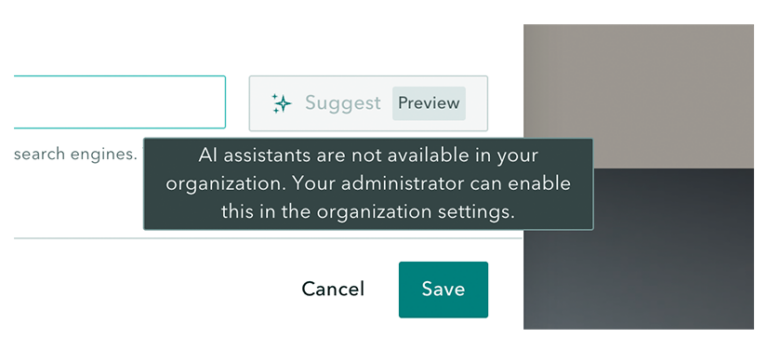
The alt text Assistant is part of the AI suite of tools in the ArcGIS StoryMaps builder. The AI tools must be enabled by your organization’s administrator, otherwise the option will be grayed out.
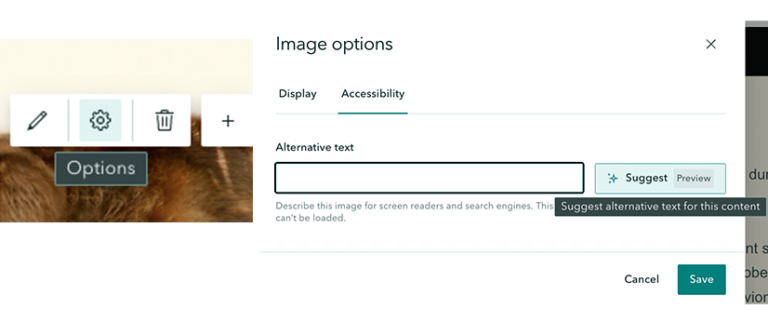
After the tools are enabled in the ArcGIS StoryMaps builder, go to the block palette to add media or embeds including maps and map tours. Within the media toolbar, you will see a gear icon labeled Options. The options open a settings modal with either a tab or a window for accessibility depending on the media type.
Next to the Alternative text box, if the AI tool is available for the media type, you will see a Suggest box. Click the button and the assistant will generate a suggestion for your media. It drafts a suggestion most of the time; however, occasionally, you may receive a message about the tool not having enough information to generate a suggestion.
The Assistant can draft suggested text for most media, including scenes, web maps, express maps, and apps. It is not available for animated gifs, videos, or the swipe block container, though does work for each media item in the swipe block. You should provide a short alt text description of audio and video content as well as a transcript and captions for media.
Edit the draft suggestion
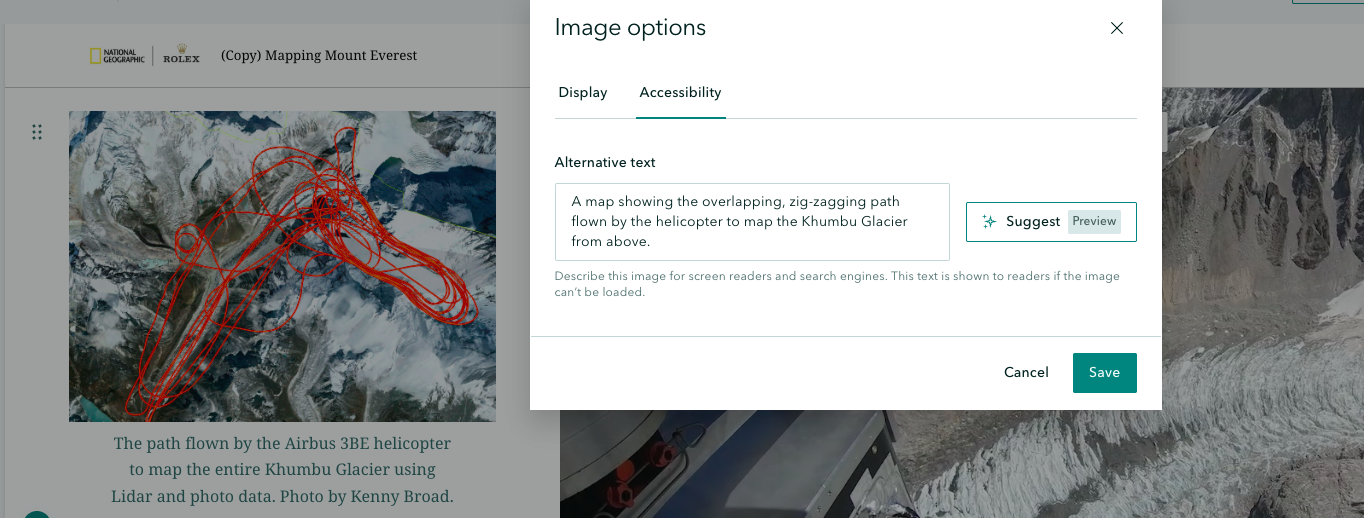
The Assistant provides a suggestion based on the content it detects. Sometimes the draft matches your needs. However, the tool is not perfect. A human needs to review and edit the content to make sure it’s meaningful and add additional context for your audience and for SEO purposes. It may produce overly generic alt text for media that may technically meet compliance requirements but isn’t helpful for audiences or search results. Or it may incorrectly identify the subject of the media, as shown.
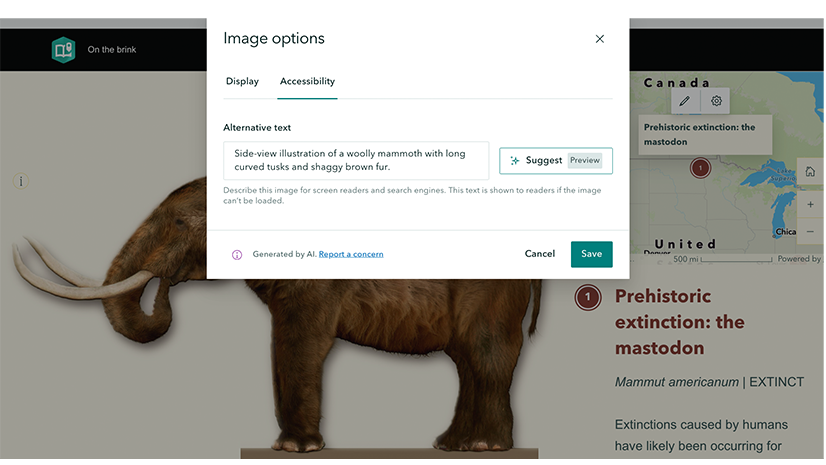
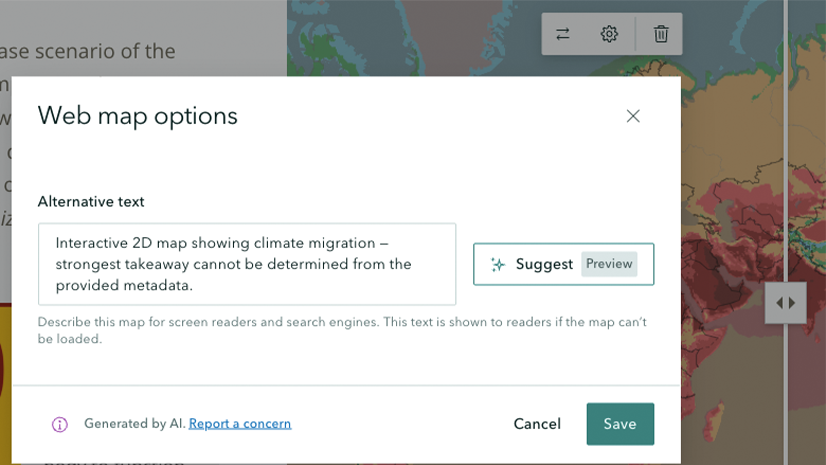
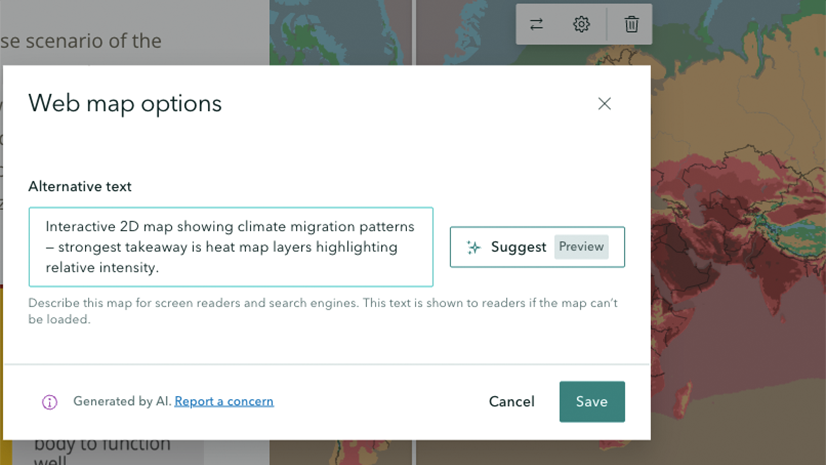
The suggestions it generates for web maps, scenes, and ArcGIS Online apps are based on the information shared in the ArcGIS item details page. Providing complete details for the metadata will help the Assistant draft better suggestions that require less editing. It’s important to know that an item’s alt text suggestions may be very similar or the same for one content item regardless of which layer, scale, or extent of the map or app you are using. This means if you have multiple ArcGIS media items showing different layers of the same content item, you will want to customize alt text for each one.
Your takeaway
The alternative text Assistant in ArcGIS StoryMaps can help you draft alt text to help make your stories more accessible. But it’s not a one-button accessibility solution; therefore, you must review any AI generated content to ensure it aligns with your story’s content and message.



Commenting is not enabled for this article.