We’re often asked if it’s possible to create different sets of editing templates for various workflows while still using the same layer. For example, could one set of templates be used for mapping street signs, while another set is for creating work orders? The answer is yes. By using hosted feature layer views, you can create distinct editing experiences for different workflows, all based on the same underlying dataset. In this article, we’ll walk through an example to highlight the benefits of editing with a view.

Editing Templates
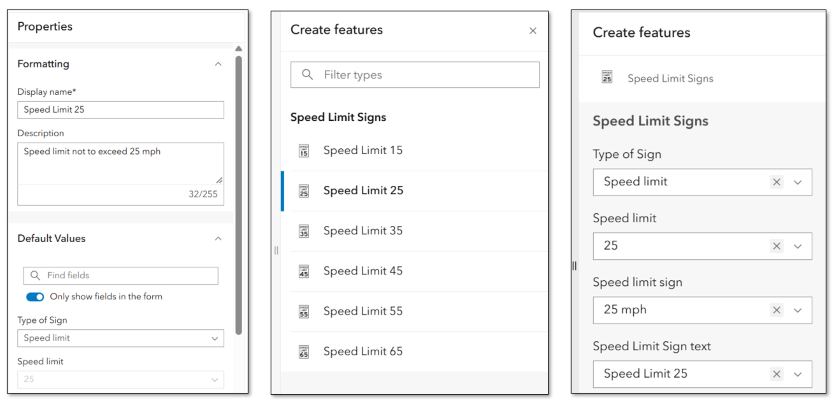
Templates can help streamline data collection by letting you set default values that automatically populate forms with the correct values based on the type of feature you’re mapping. This reduces the number of clicks, and minimizes the risk of errors.
Hosted feature layer view
A hosted feature layer view (aka a ‘view’) provides a customized window into the data. Created from an existing hosted feature layer, a view lets you apply filters, choose which fields to display, and configure settings independently from the source layer. This flexibility allows you to tailor views for different purposes, apps, or editing workflows.
Ground rules
Keep these things in mind when working with templates and views:
- Ownership and Permissions: You must be the layer owner or an administrator to create views and templates, and to configure properties like sharing or editing settings.
- Start with the Source Layer: Some settings, like sync and editor tracking, must be enabled on the source layer before you create a view. Other settings—such as editing, sharing, and item configurations—can be managed independently for each view.
Now that we’ve covered the basics, let’s look at an example.
Example – Speed up editing with a view
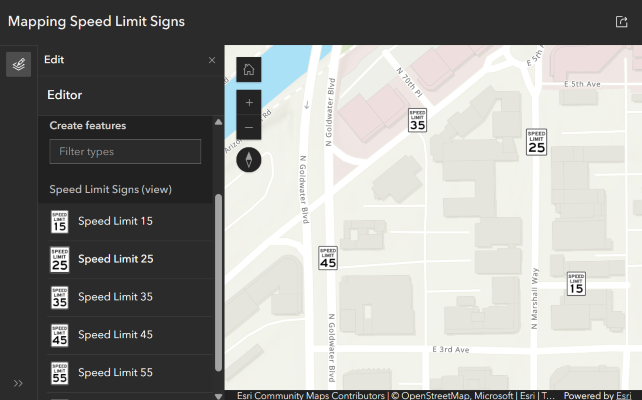
Imagine a city uses a single layer to store all street sign locations and attributes. Different crews map different types of signs— traffic signs, speed limit signs, and street name signs. While having templates for every type of sign could expedite data collection, a long list of templates can be overwhelming. For instance, a crew mapping only speed limit signs doesn’t need to see templates for all the other types of signs. To simplify things, we’ll create a view that shows templates only for speed limit signs.
Getting started
- Create a View:
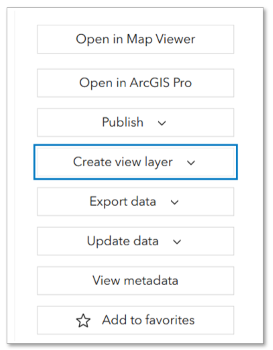
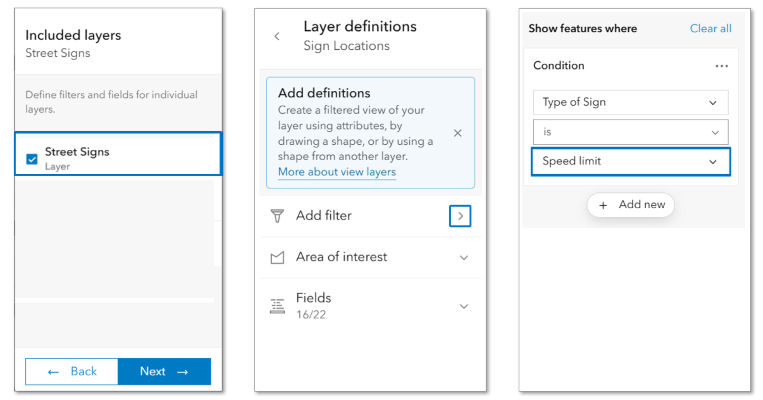
Go to the layer’s item details page and click Create view layer. If your service contains multiple layers or tables, the Create view layer dialog lets you select which ones to include.
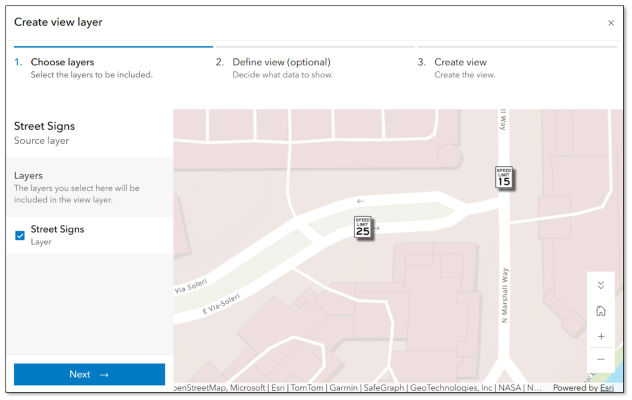
2. Filter: Drill into the view to set up filters—either by attribute or by drawing a spatial extent on the map to define an area of interest.
3. Fields: Choose which fields to display in the view. Hiding unnecessary fields reduces clutter and can help protect sensitive information.
For this example, we’ll filter to show only speed limit signs and limit visible fields to those relevant to the mapping crew.
Configuring the View for Editing
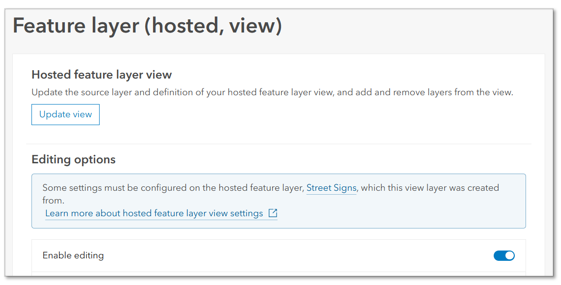
Enable editing
Go to the Settings on the view’s item details page. Here, we can enable editing for the view and configure additional options, such as restricting editing to “add only,” or enabling sync (if it’s enabled on the source layer).
Manage templates
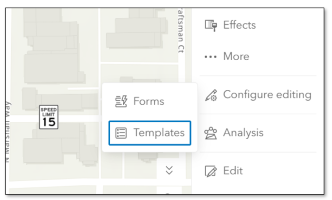
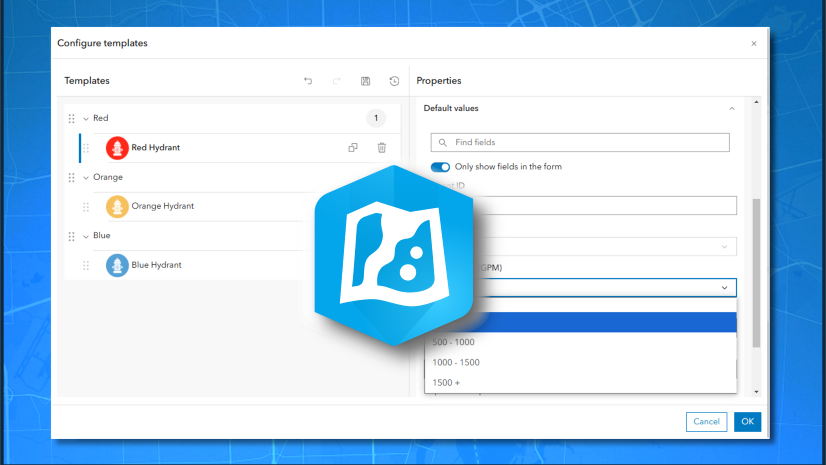
We’ll open the view layer in Map Viewer to do some additional configuration to prepare it for editing. With the view layer selected in Map Viewer, click Configure editing and choose Templates.
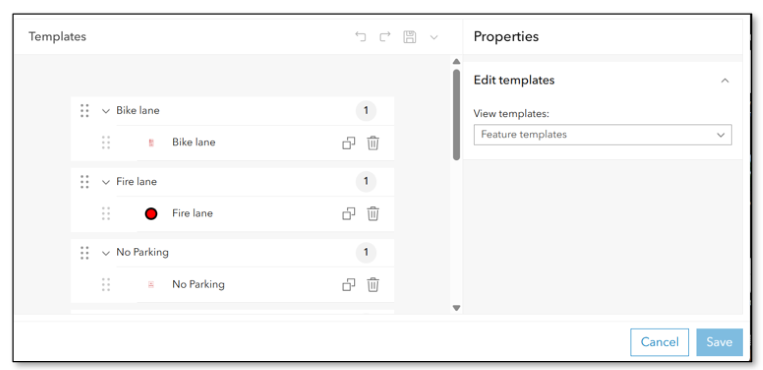
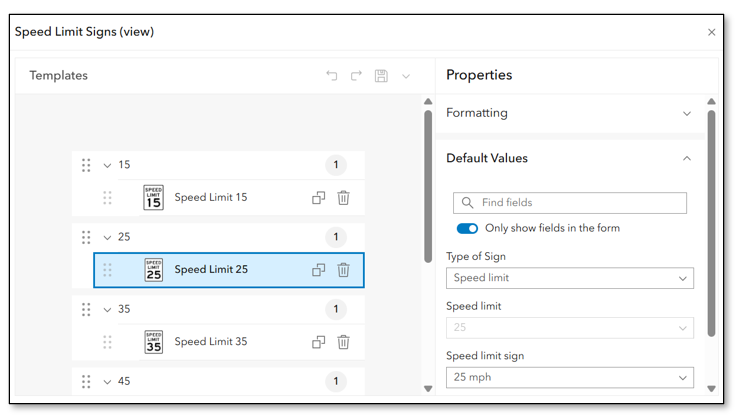
Initially, all templates from the source layer are visible. Depending on how many templates we started with, we may need to do some cleanup- rearrange, delete, or update templates as needed. These changes won’t affect the templates on the source layer.
Another option is to apply a new style to the view and update the templates to match, following the steps outlined in this article.
We’ll style the layer by the field Speed limit, update the templates to match the new style, and then set default values for each template.
Forms
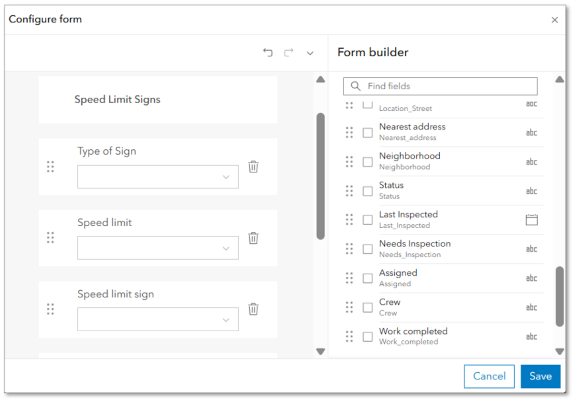
This is also a great time to author or update forms if needed. We won’t go into depth about setting up forms for editing in this article, you can find lots of great resources about forms here.
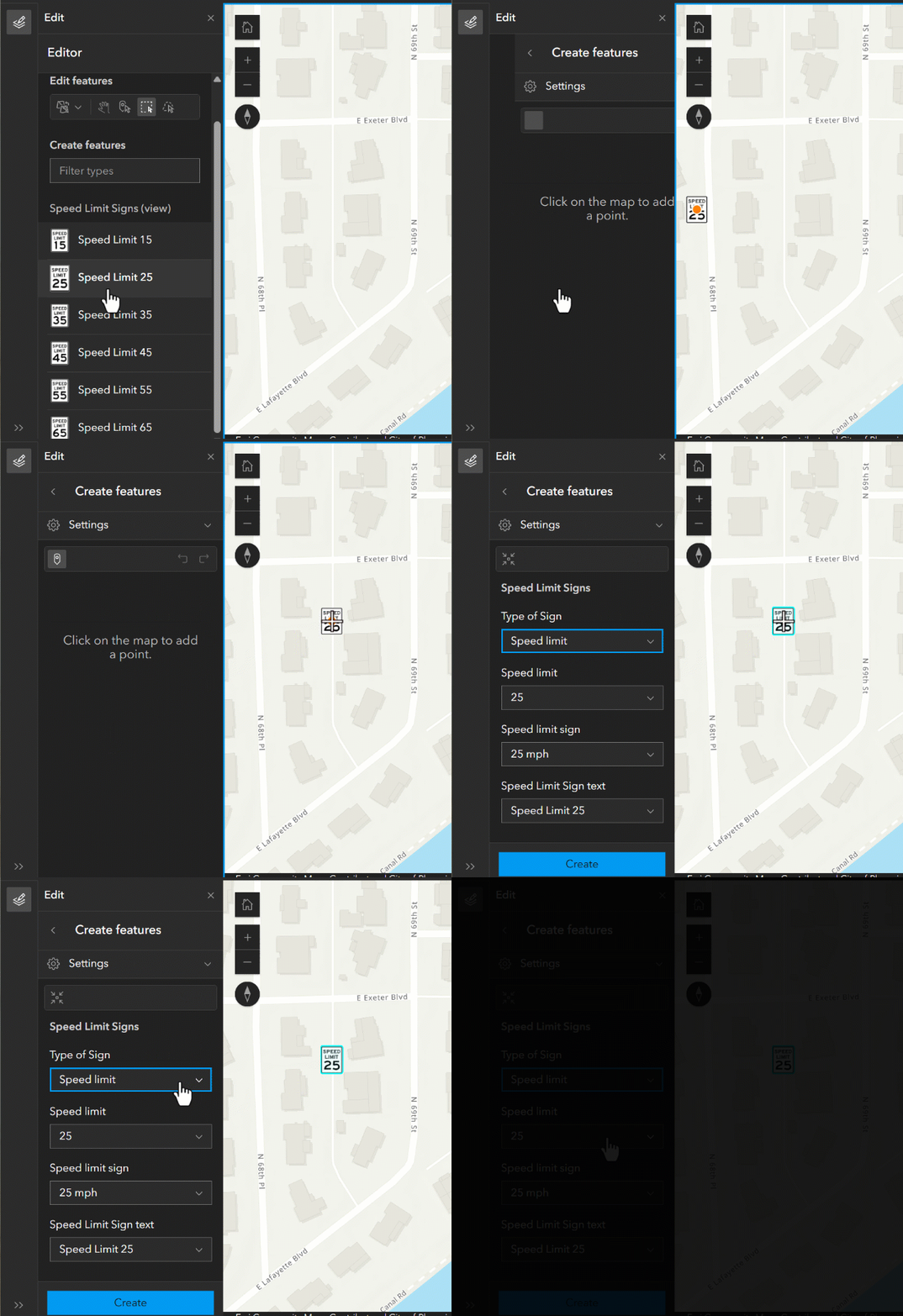
We’ll save the map, and from there, we can share it or use it as the foundation for creating an editing app. There are many different web-based editing apps we can choose from, including Instant Apps, Web Editor, or Experience Builder.
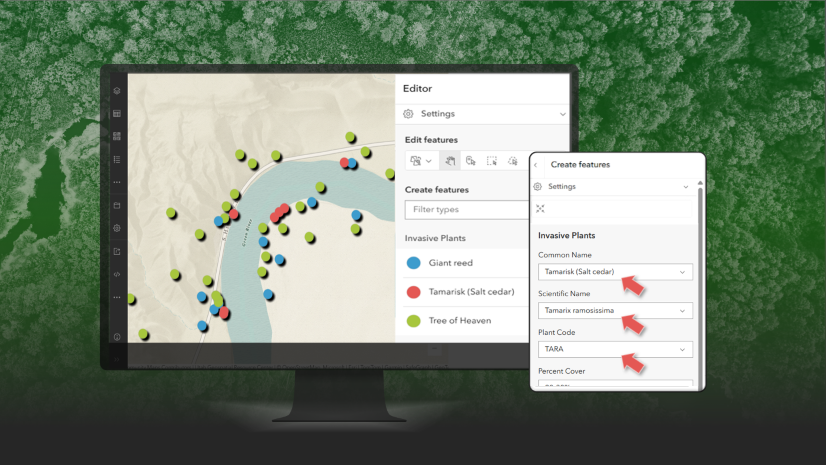
To map a new speed limit sign in any app, data collectors simply select the appropriate template, place the sign on the map, and the attribute fields in the form are automatically filled in with the default values we provided.
Tips for Success
- Give templates clear, user-friendly names.
- Use default values in templates wherever possible.
- Update things like forms, pop-ups, and labels for each view.
- Create views when different audiences need different templates, sharing permissions, editing permissions, attributes, or spatial extents.
In this example, we explored creating a separate view and templates for a specific mapping project. And we could keep going, creating additional views for assigning inspections or sharing sign locations with the public in a non-editable view. Hosted feature layer views open the door to a world of possibilities. We hope you’ll explore editing with a view, and as always, be sure to join the conversation on Esri Community to share your thoughts, ideas, and questions.

Commenting is not enabled for this article.