
Searching for addresses and Points of Interest (POIs) is an integral part of geocoding with ArcGIS. Organizations, such as retail, real estate, and insurance companies can search for either addresses or POIs to obtain precise results. With ArcGIS Pro 3.6, this functionality has advanced; analysts can now search for an address or partial address and receive the complete address as well as associated subaddresses, and relevant POIs via a single request.
This enhanced capability enables organizations to accurately pinpoint locations while providing essential context, such as the type of business or facility at the address. By facilitating swift and accurate directions, this feature supports first responders, saving them valuable time, it also helps organizations in identifying the types of businesses or facilities at a given address, aiding in informed business decisions.
This new capability called “Searching Within an Address” is flexible and can be configured to support various methods for finding relevant information. The capability is also available to developers through our REST API. In this blog, we will demonstrate the capability in ArcGIS Pro 3.6 using the Geocoding Service and will discuss some customizable options available to organizations.
Searching Within an Address
Searching for Specific Address Types
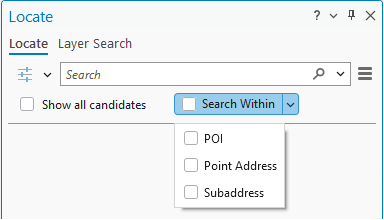
The “Search Within” button on the Locate Pane allows you to choose the type of additional context for your search.
You can select from:
- Points of Interest (POI)
- Building Numbers (Point Address)
- Apartments (Subaddress)
The ArcGIS Pro Locate Pane will generate a list of records associated with the address entered. The default result is Point Address, but you can remove it from the result if you want to see only the associated results. By selecting Subaddress you will be able to view all units associated with an address, and by selecting POI you can see businesses or facilities at a specific address. You can select multiple options simultaneously or choose a single value to narrow down the search results.
When you submit a request, the locate pane produces up to 50 results. The results are grouped by type to help focus the information for review. As you scroll in the pane, you will see more candidates listed. The map display will update to highlight the current list of candidates in the Locate Pane. The Locate Pane provides further insight through the address summary.
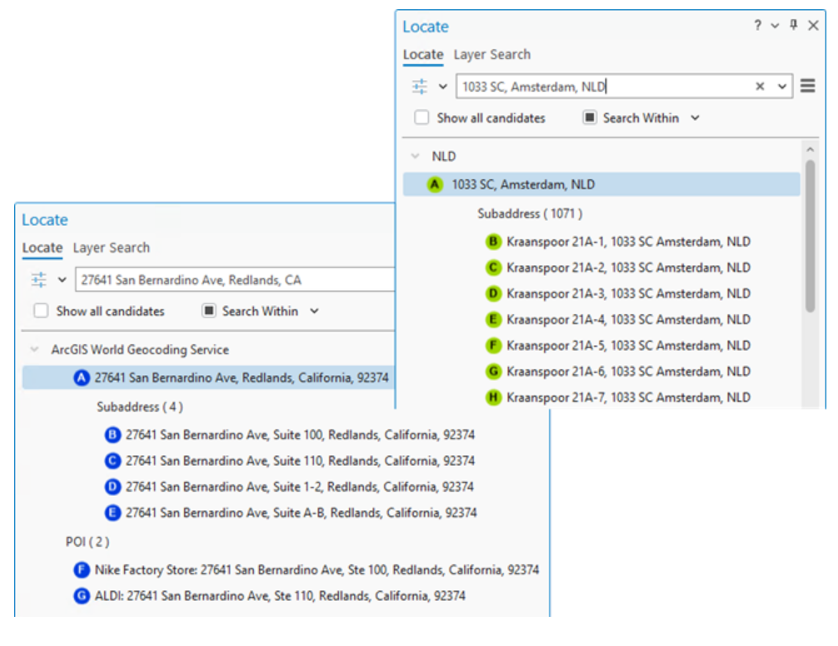
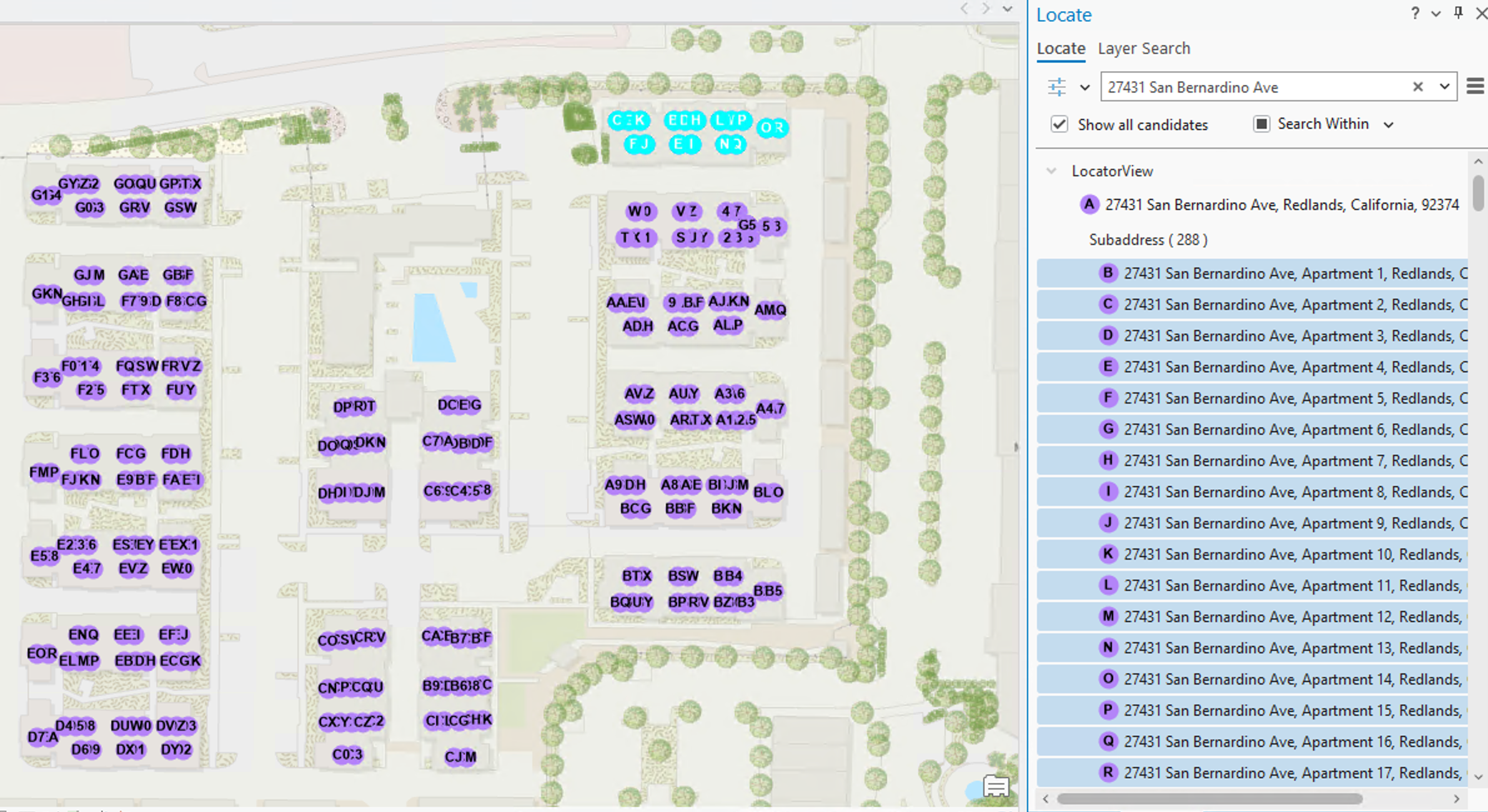
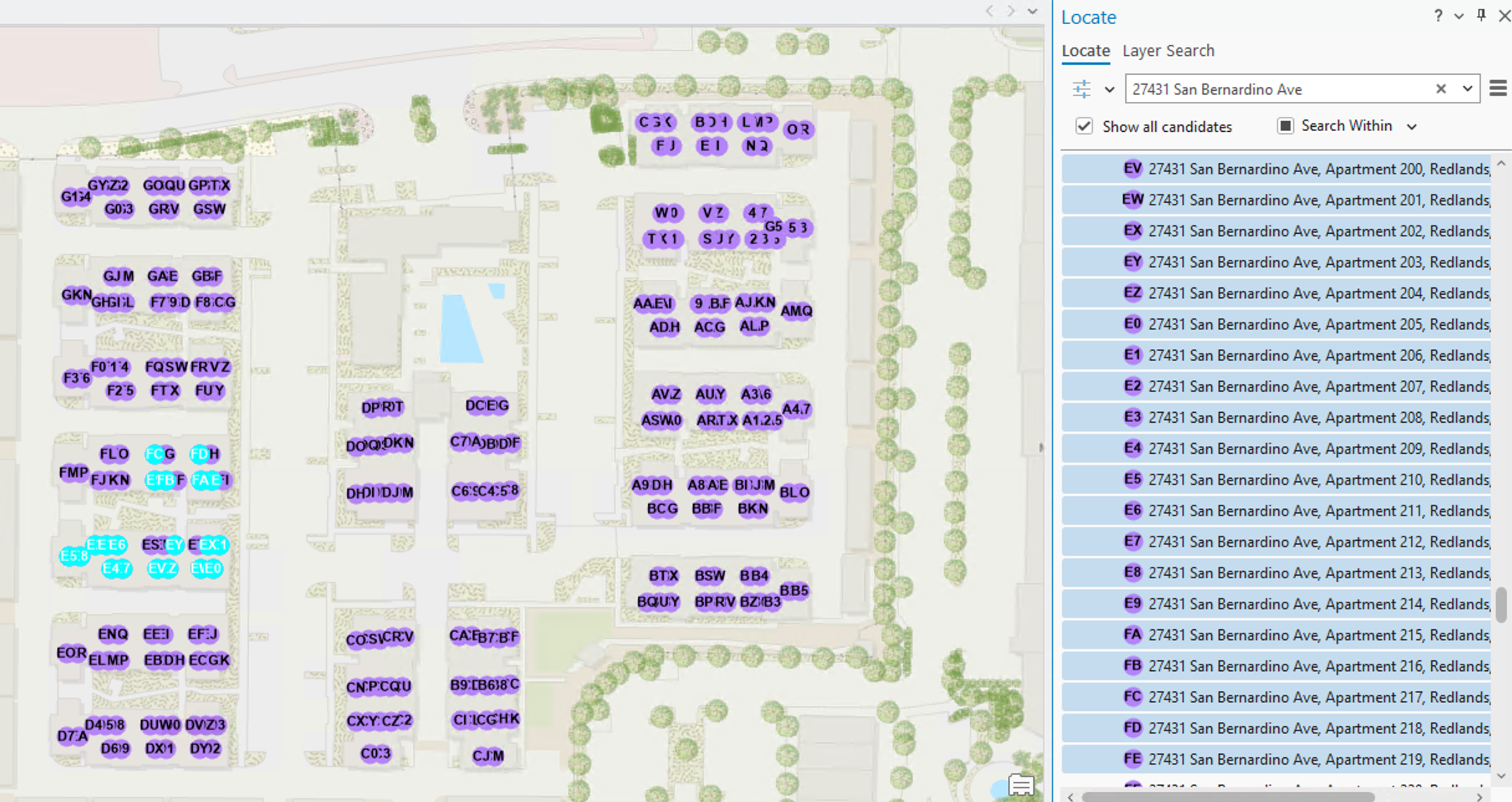
Quickly navigating address matches is especially helpful when critical calls are for apartment within a complex. Being able to see the full list of addresses within a specific location allows dispatchers to guide first responders as efficiently as possible.
Activate Searching Within an Address (SearchWithin): If you are a GIS analyst building your own Locator, and you want to provide similar functionality to your dispatchers via a custom locator, you need to build a multi-role locator which includes address data in the PointAddress role and optionally SubAddress data in the PointAddress role or POI data in the POI role.
After building the locator, you then enable the option for this feature via the locator properties dialog. Navigate to geocoding options and select the features you want to expose for additional context. The options are the same ones you see when using the locate pane.
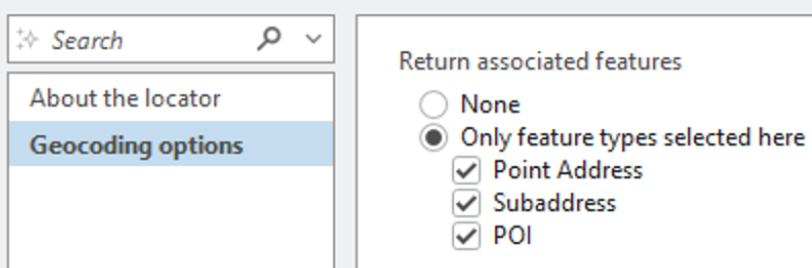
For more information, see Locate features associated with an address.
Learn More About Geocoding in ArcGIS Pro
Ready to explore the enhanced capabilities of the ArcGIS Geocoding in ArcGIS Pro? Click here for more information. Or explore all of our ArcGIS Data capabilities.






Article Discussion: