ArcGIS Geocoding gives you the ability to transform the description of a place into a location on Earth. The capability allows you to find addresses, cities, business names, and postal codes around the world and can seamlessly geocode an entire file of addresses in one operation.
With the release of ArcGIS Pro 3.6, we are pleased to announce the following updates for geocoding:
Match Narrative
The Match Narrative capability ensures your address input has no typing errors or that similar addresses are not overriding your input. The detailed information that is returned from the locator is called match narrative. The match narrative can be viewed at the bottom of the Show Details pop-up for the geocode result listed in the Locate pane. Let’s take a look:
- Typing errors: Sometimes input addresses will have a spelling mistake, such as “Redlends” instead of “Redlands”. If you’re looking for a way to identify spelling errors, you can filter results with the narrative code for inexact.
- Similar names: If you’re curious about matches where the street-type in your input is different from the result, for example, “Rd” instead of “Dr”, you can filter the results with the narrative code for different.
- Out of order: If you’d like to know that a directional such as N for North is in the right position, for example “N Main St” instead of “Main St N”, you can filter the results with the narrative code for repositioned.
- Missing inputs: Sometimes your input address has an unmatched apartment, and you want an indication that the input was recognized as an apartment. You can filter the results with the narrative code for classified.
- Building Applications: If you build a UI for your audience, you can add logic to your application that highlights the address elements based on one or more narrative codes. This will allow you to design an enhanced experience for users of your application.
- Locator properties have two new Match Options that are supported for locators shared to ArcGIS Enterprise 12.0 or published to ArcGIS Server 12.0.
- The Return match narrative setting allows you to return detailed information about how a geocoding result was obtained.
Search Within
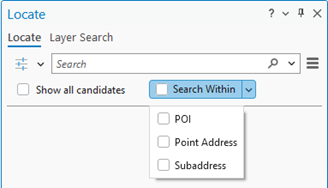
The Return associated features setting, which appears as ‘Search Within’ on the Locate Pane, allows you to enable or disable the return of collections of feature types associated with the input address. By default, this setting is disabled. When enabled, you can do the following:
- Search and discover more addresses at a geocoded location.
- List all businesses located at a specific address.
- Return all addresses that exist within a postal code.
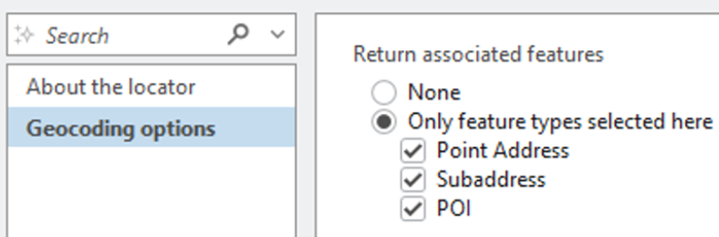
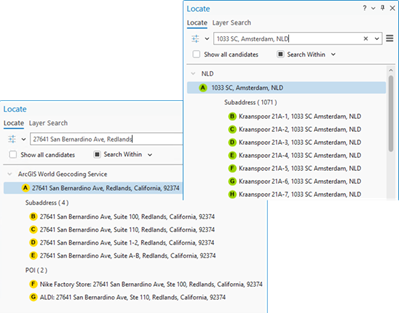
The following are some examples of the scenarios above:
- Searching for the address of a shopping plaza can return other businesses and points of interest (POIs) located there.
- Searching for the address of a high-rise apartment building can return all of the subunits that exist in the building.
- Associated features can be returned only for geocoded PointAddress and PostalExt addresses. The following features are supported:
- For geocoded PointAddress results, collections of Subaddresses or POIs (or both).
- For geocoded PostalExt results, collections of Point Addresses, Subaddresses, or POIs (or any combination of these) for locators that support Great Britain or the Netherlands as countries.
- Using the Search Within control on the Locate pane will return the features associated with both the input address and the matched input address.
MatchID
When you look at your table of addresses, have you ever wanted to know if each record is unique? With this release we are pleased to announce a new capability that gives you the ability to find duplicate addresses. MatchID takes the tedious work out of the data validation processes. For example, addresses can be written in multiple ways such as the two entries below, but you want to know if they are in fact the same place.
- 380 New York St, Redlands
- 380 NY Ave 92373
In this case, both inputs are in the same location, and you can use this information to update your records and remove extra records as needed.
Alternatively, you can include an ID in a request to discover if the result for that ID has changed. For example, the address match may have improved from a Street Address to a Point Address. The reference data for the ArcGIS Geocoding service is updated at each release.
The ID for an address will typically remain the same across each release of the ArcGIS Geocoding service. Be aware that some properties do merge together or subdivide to create new addresses. When this type of change occurs, the ID value for the address can also change. For this scenario, you can submit the original address to see if a new ID exists.
Locate Pane
When you look at results in the Locate Pane, you will see several new fields: Building Complex (BldgComp), Room Type (RoomType), Room Name (RoomName), Wing Type (WingType), Wing Name (WingName), MatchID, and PotentialID.
Locator Roles
When you use the Create Locator tool to build new locators, there are new role fields in Field Mapping to help build more powerful locators: Building Complex, Room, Room From, Room To, Room Type, Wing, and Wing Type.
Sharing locators
There are two new options when publishing your locators. We have added FindAddressCandidates and GeocodeAddresses as additional capability options in the Publishing Geocode Service pane and Share Locator pane. Enhancements have also been made to the Geocode Table tool to improve the performance of batch geocoding jobs.
Learn More About Geocoding in ArcGIS Pro
Ready to explore the enhanced capabilities of the ArcGIS Geocoding in ArcGIS Pro? Click here for more information. Or explore all of our ArcGIS Data capabilities here.





Article Discussion: