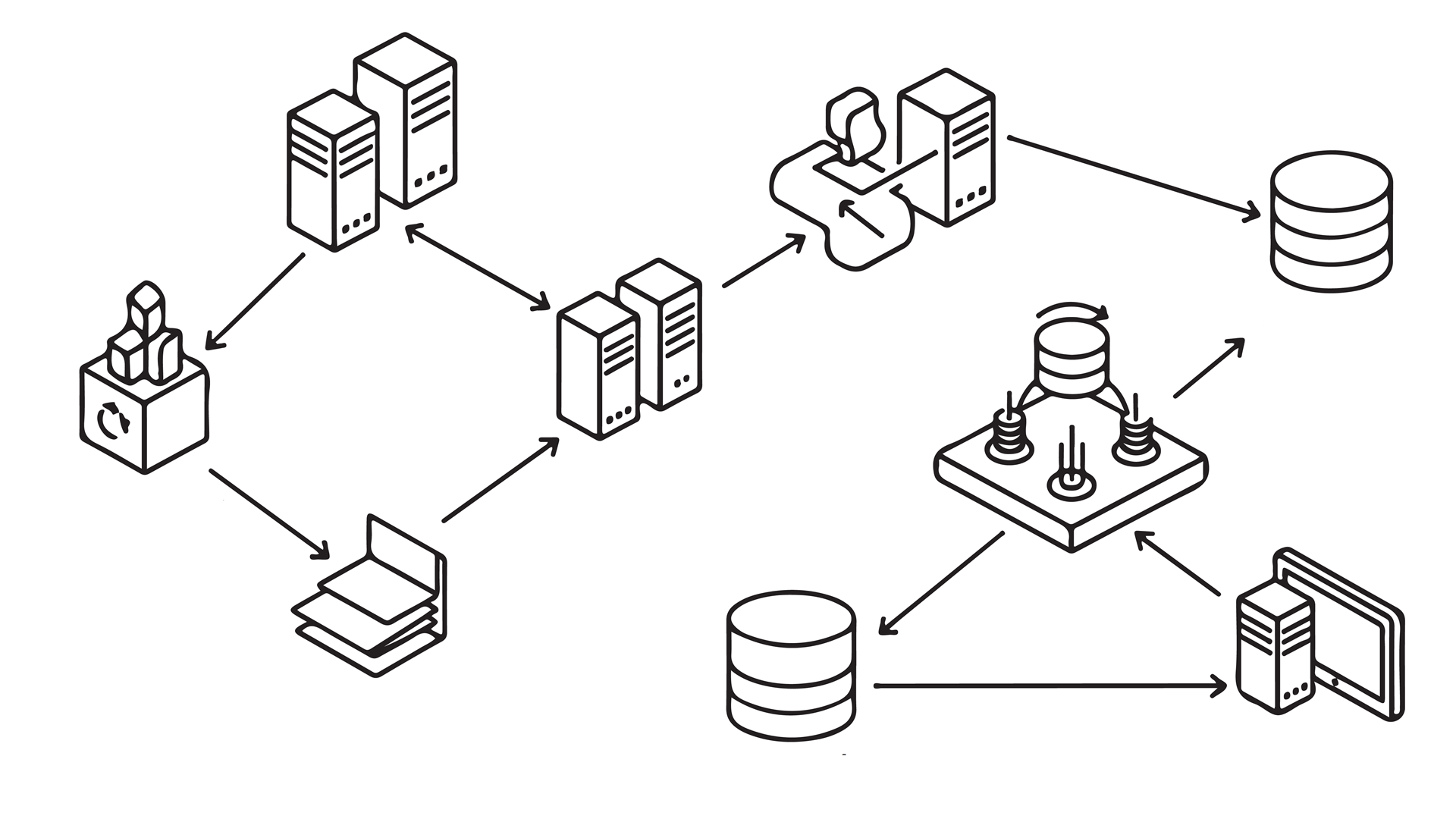
At the 2025 User Conference, one theme kept coming up among users: confusion around how to share and sync data in ArcGIS. Whether teams were trying to share data or projects at geodatabase level, feature service level, or organization level many users weren’t sure which option to use or why one might be a better fit than another for their use case.
This guide is to help you understand the differences, avoid common pitfalls, and choose the right method for your workflow.
This blog article will cover the five ways to distribute data in ArcGIS:
- Geodatabase replication
- Feature service synchronization
- Distributed collaboration
- Portal projects
- Project packages
The context
As ArcGIS has grown into a more complex and versatile platform, a wide range of ArcGIS tools support sharing and syncing data. And while they may sound similar, they’re built for different architectures (desktop or web GIS), versioning models (traditional or branch), and collaboration patterns (file-based or service-based). As workflows have shifted from desktop-centric processes to portal- and cloud-based collaboration, newer approaches are available in addition to long-established ones.
While preparing to share and sync project data, users may choose the wrong tool for their work, leading to a mismatch between the data and the workflow. For example, teams might enable feature service sync on data that isn’t properly configured with the sync option for their data registration type. Or users attempt to share or use portal projects in ArcGIS Online, which will not work because portals projects are only supported in ArcGIS Enterprise.
These misalignments can be avoided if you focus on a few key factors—your client environment, data registration type, offline requirements, and sync pattern—the path forward becomes clearer.
The following sections describe the five most common methods.
Geodatabase replication
-Overview-
- Best for: Syncing data between geodatabases
- Operates at the database level, not through web services
- Works with: Traditional versioned and nonversioned data
- Offline support: Yes
- Use case: Long-term sync between offices or systems
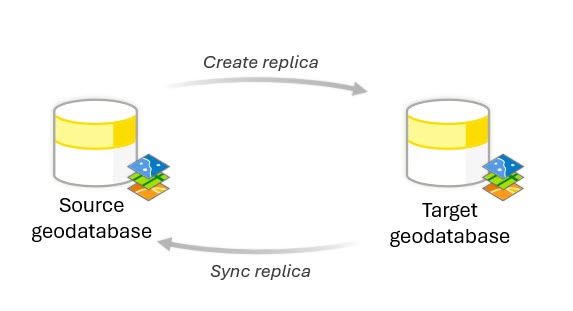
Use case example: Centralized data exchange across offices
In large agencies or multi-office environments, each office may maintain local datasets for their region but still contribute to a central authoritative database. Geodatabase replication allows each office’s edits to be synchronized with a central geodatabase, ensuring that the national or headquarters dataset stays up to date. Likewise, updates from the central database can be propagated back to the local office replicas. This supports coordinated data management across distributed teams.
Key factors
Geodatabase replication is a database-level method for synchronizing data between geodatabases. Rather than copying data, replication creates linked replicas that track and synchronize changes over time.
There are three types of geodatabase replication:
- Checkout and check-in replication is used for temporary, disconnected editing. The target replica (enterprise or file geodatabase) is edited and synchronized back to the source (always an enterprise geodatabase). After synchronization, the replica is deleted. If more edits are needed, a new checkout must be created.
- One-way replication supports ongoing synchronization in a single direction. This can be either be Source-to-target—The source (enterprise geodatabase) is editable; the target (enterprise or file geodatabase) is read-only. Or Target-to-source—The target is editable and sends updates to the source; both must be enterprise geodatabases. Changes can be sent multiple times, and the replica persists after sync.
- Two-way replication allows continuous bidirectional editing. Both replicas (enterprise geodatabases) can be edited, and changes are synchronized in both directions. Conflicts are detected during synchronization and resolved based on configured policies.
Resources
See the following resources to get started:
- Geodatabase replication fundaments (help documentation)
- Distribute data with a checkout replica (guided tutorial)
- Distribute data with a one-way replica (guided tutorial)
- Distribute data with a two-way replica (guided tutorial)
- Manage replicas in ArcGIS (blog article)
Feature service sync
-Overview-
- Best for: Disconnected editing and mobile workflows
- Sync occurs through web feature services
- Works with: Traditional branch, branch versioned, and nonversioned with archive enabled data
- Offline support: Yes
- Use case: Field data collection with later sync and web GIS
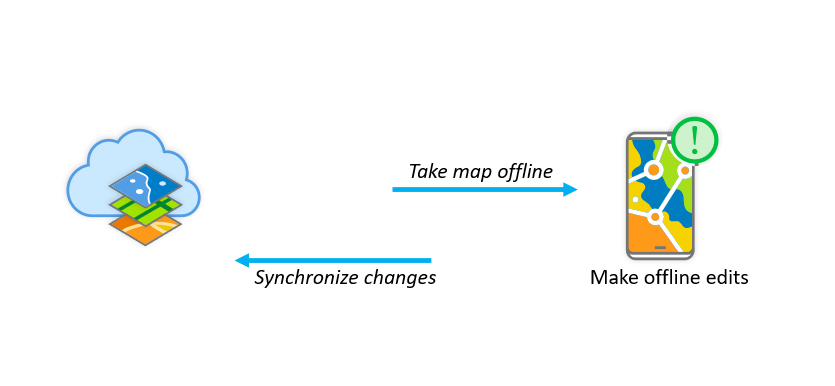
Use case example: Mobile field data collection
Many organizations deploy field crews that need to collect or update GIS data in areas with limited or no connectivity. With sync enabled feature services, field workers using mobile apps (like ArcGIS Field Maps or custom apps built with ArcGIS Runtime) can download relevant data, make edits while disconnected, and then synchronize those edits with the central feature service when they’re back online. This approach keeps both field data and central systems up to date without requiring constant connectivity.
Key requirements for offline feature service sync
Feature service synchronization is a web-based method of distributing data that allows clients to take data offline, make edits locally, and then sync changes back to a central feature service once network connectivity is restored. To support this workflow, a feature service must have the Sync capability enabled, which allows clients to create local copies of data, work with them offline, and then synchronize edits with the server. Sync workflows can support both editable and read-only offline use, making it a flexible option for distributed and mobile environments.
When you prepare data for offline editing using feature service sync, the requirements vary based on how your data is structured and how you intend to work offline:
- Nonversioned data
- Archiving must be enabled to support offline edits.
- Global IDs are required so edits can be tracked incrementally.
- The feature service is published with Sync enabled but version creation set to None (no version created per download).
- Offline edits are written directly back to the base data without version conflict management.
- Branch versioned data
- Data is registered as branch versioned in the geodatabase with replica tracking enabled.
- The feature service must have Sync enabled and typically Version Management enabled so each offline download creates a replica version.
- Offline edits sync back into a replica version that can then be reconciled and posted to the default version.
- Traditional versioned data
- Data is registered as traditional versioned in the geodatabase.
- Global IDs are required so edits can be tracked incrementally.
- The feature service must have Sync enabled with the sync option to be a version created for each downloaded map or for each user.
These requirements help ensure that the offline workflows—whether for simple data downloads or full edit synchronization—function reliably across different registration and versioning types.
Resources
See the following resources to get started:
- Prepare feature services for offline use (help documentation)
- Feature service sync overview (REST API help documentation)
- Working with web layers when disconnected from the web (help documentation)
- Prepare data for use in offline feature services (help documentation)
- Take branch versioned data offline with feature service sync capability (workflow example)
- Take nonversioned data offline (workflow example)
- Take Your Web Maps Offline (guide)
- Offline areas prepared ahead of time (workflow series)
- One-way feature service-to-feature service sync (workflow example)
Distributed collaboration
-Overview-
- Best for: Sharing web content across ArcGIS organizations
- Works with: ArcGIS Online and ArcGIS Enterprise
- Supports scheduled synchronization of data in a multi-organization partnership
- Offline support: No
- Use case: Scheduled sync of web maps, web layers, and apps
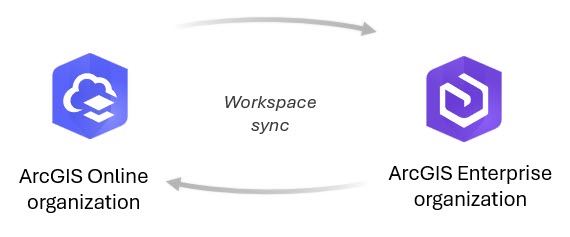
Use case example: Multi‑agency data sharing for joint operations
A municipal public works department wants residents to report issues like potholes, graffiti, and streetlight outages. The department creates a distributed collaboration between its ArcGIS Enterprise portal and an ArcGIS Online organization used by the public. Residents use ArcGIS Field Maps or web forms to submit reports and edits to shared layers in the ArcGIS Online environment. As part of the collaboration, the department periodically synchronizes these updates back to its enterprise data, enabling two-way sharing of community generated data and internal updates.
Key characteristics
Distributed collaboration allows multiple ArcGIS organizations—whether ArcGIS Enterprise portals, ArcGIS Online organizations, or a mix of both—to securely share and synchronize GIS content across their systems. Unlike export and import workflows, distributed collaboration establishes a trusted relationship between portals and automates the sharing and synchronization of items based on defined rules and schedules. This makes authoritative data available across boundaries while preserving each organization’s security model and governance.
Distributed collaboration allows sharing and synchronization of content across multiple ArcGIS organizations–including ArcGIS Enterprise portals, ArcGIS Online organizations, or both. While partnered collaborations only allow sharing and updating group content privately and efficiently between two ArcGIS Online organizations, distributed collaborations establish trusted relationships between portals and organizations so shared items become discoverable and are automatically synchronized based on schedules and access rules. This allows complex workflows involving multiple participants, with one organization acting as the host and others acting as guests. In a partnered collaboration, this is typically done through shared groups, with each organization retaining ownership of its own content, though shared items can be edited by members of both organizations.
Resources
See the following resources to get started:
- About distributed collaboration (help documentation)
- How distributed collaboration works (help documentation)
- Create a partnered collaboration (help documentation)
- Get started with distributed collaboration (guided tutorial)
- Harnessing distributed collaboration for forest restoration (blog article)
- Five ways to use distributed collaboration to share your data with others (blog article)
- Getting the most out of distributed collaboration in ArcGIS Enterprise (blog article)
- The power of partnered collaboration in ArcGIS Online (blog article)
Portal projects
-Overview-
- Best for: Collaborative editing of ArcGIS Pro projects in ArcGIS Enterprise portals
- Works with: ArcGIS Enterprise 11.4 and later and ArcGIS Pro 3.5 and later
- Stored and managed within ArcGIS Enterprise, enabling simultaneous multiuser access from multiple machines without requiring a VPN
- Security, permissions, and privileges are controlled at the portal level rather than the operating system.
- Offline support: No
- Use case: Teams working together on the same project
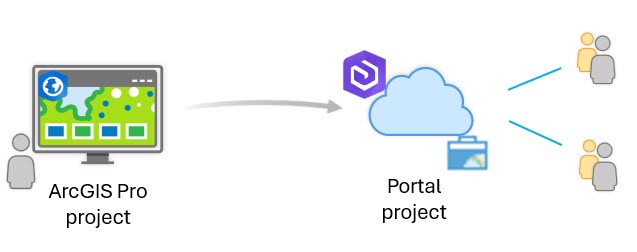
Use case example: Multi-agency emergency response coordination
During an active wildfire, a state emergency management agency needs multiple GIS analysts to update operational maps at the same time. A portal project stored in the organization ArcGIS Enterprise portal allows all authorized staff to access and edit the same maps and layouts from different locations. As fire perimeters and evacuation zones change, updates are saved to the shared project, ensuring everyone works with the most current information.
Key characteristics
Portal projects are a way to distribute and share GIS work within an ArcGIS portal environment by packaging and organizing maps, layers, tools, and configurations into a structured project that references portal content. Unlike offline packages that move data around, portal projects help teams work from a centralized online workspace where content is accessed by authorized users. These projects allow collaborators to open, view, and interact with shared content directly through ArcGIS Pro, ensuring consistency, governance, and up‑to‑date access across the organization.
A portal project is an ArcGIS Pro project that lives in an ArcGIS Enterprise portal (version 11.4 or later) rather than on a local disk. It’s saved as a portal item, and changes are synchronized between the portal and each user’s local copy when they save. This allows multiple users to work on the same project at the same time. Each user works from a local copy, and changes are synchronized with the portal when saved. If two users edit the same element, the first save updates the portal item. Other users are prompted to reload the latest version before saving, ensuring conflicts are resolved and work stays aligned.
Users can open and work on the same portal project from multiple computers without requiring a VPN, as long as they are signed in to the portal.
Permissions and access (who can view, who can update) are managed through portal roles and groups (especially shared update groups), not through operating system permissions. To allow collaborators to update and save changes back to the portal project, it must be shared with a shared update group. Regular groups allow viewing and opening the project, but only shared update group members can save edits to the portal project item.
When setting these access permissions, note that the Home folder, default geodatabase, and toolbox must be specified and accessible to all collaborators. For collaborative projects, the default geodatabase must be an enterprise geodatabase supporting multiuser access.
Resources
See the following resources to get started:
- Portal projects in ArcGIS Pro (help documentation)
- Portal projects in ArcGIS Pro (video)
- Talk me through portal projects (blog article)
- Work together in ArcGIS Pro | Shared update groups and portal projects (blog article)
Project packages
-Overview-
- Best for: Sharing a complete ArcGIS Pro project
- Works with: ArcGIS Pro (can be shared to ArcGIS Online)
- Offline support: Yes
- Use case: Sending a project to a colleague or external partner
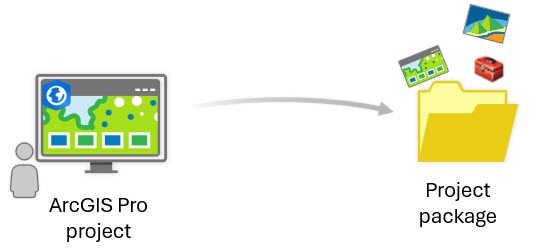
Use case example: Archiving a completed project
An organization completes a long-term infrastructure study and wants to preserve the full analytical environment for compliance and future reference. A project package is created to archive the final maps, data, and tools exactly as they existed at project completion.
Key characteristics
Project packages are a file-based method for distributing ArcGIS Pro work. A project package bundles an ArcGIS Pro project (.aprx) together with its associated maps, data, toolboxes, styles, and other resources into a single portable .ppkx file. Unlike portal projects or sync workflows, project packages create a self-contained snapshot of a project at a specific point in time.
They are designed for static distribution, handoff, or archival, not ongoing synchronization.
Depending on your workflow, ArcGIS Pro supports several package types designed for different levels of sharing—from entire projects to individual layers, tiles, or workflows. These can be grouped into five practical categories:
- Project-level packages
- Project package (.ppkx)—A project package bundles an entire ArcGIS Pro project, including maps, data, toolboxes, styles, tasks, attachments, geoprocessing history, and connections. These are best for sharing or archiving a complete project environment.
- Map and layer packages
- Map packages (.mpkx)—A map package contains a map document (.mapx) and all data referenced by its layers, like a portable map with its data included.
- Layer packages (.lpkx)—A layer package includes both the dataset and full layer properties, such as symbology, labeling, pop-ups, and table settings.
These are best for sharing individual maps or standardized layers.
- Tile and scene packages
- Tile package (.tpk)—A tile package stores raster tiles that can be published as a web tile or elevation layer or used as a basemap.
- Vector tile package (.vtpk)— A vector tile package contains vector tiles and associated styles for scalable, high-performance web mapping.
- Scene layer package (.slpk)—A scene layer package stores 3D content such as buildings, integrated meshes, multipatches, point clouds, or 3D points.
These are best for performance-optimized basemaps and 3D content distribution.
- Workflow packages
- Geoprocessing package (.gpkx)—A geoprocessing package bundles geoprocessing tools, models, scripts, and their required datasets into a portable workflow.
- Deep learning model package (.dlpk)—A deep learning model package contains trained deep learning model files for object detection or image classification in ArcGIS Pro or the cloud.
These are best for sharing analytical workflows and automation.
- Mobile packages
- Mobile map package (.mmpk)—A mobile map package includes maps, basemaps, and referenced data for use in ArcGIS Pro, ArcGIS Navigator, or custom apps built with ArcGIS Maps SDKs.
- Mobile scene package (.mspk)—A mobile scene package contains scenes and referenced 3D data for mobile or runtime applications.
These are best for offline mobile and field-based applications.
- Locator packages
- Locator package (.gcpk)—A locator package contains a locator or composite locator used for geocoding.
These are best for distributing standardized geocoding capabilities.
Resources
See the following resources to get started:
- Introduction to sharing packages (help documentation)
- Share a project package (help documentation)
- A guide to ArcGIS Pro project packages (.ppkx files) (blog article)
The table below shows a snapshot of all the information presented.
| Method | Best for | Primary client application | Data registration type | Offline support | Sync capability |
| Geodatabase replication | Distributing data and sync between geodatabases | ArcGIS Pro | Traditional and nonversioned | Yes | Yes |
| Feature service sync | Mobile and offline editing over web feature services | ArcGIS Pro, ArcGIS Enterprise | Traditional, branch, and nonversioned | Yes | Yes |
| Distributed collaboration
|
Sharing web content across multiple ArcGIS organizations | ArcGIS Enterprise, ArcGIS Online | N/A | No | Yes |
| Portal projects | Collaborative editing of projects in ArcGIS Enterprise portals | ArcGIS Pro, ArcGIS Enterprise | N/A | No | Yes |
| Project packages (.ppkx) | Sharing ArcGIS Pro projects to a file share | ArcGIS Pro | N/A | Yes | No |
Choose the right method
Consider making a decision tree or flowchart based on questions about your workflows:
- Do you need a database-level sync? Try replication.
- Do you need web-based offline editing? Try feature service sync.
- Do you need cross-organization sharing? Try distributed collaborations.
- Is every user in the same organization and working on the same project? Try portal projects.
- Do you need to do a one-time file transfer? Try project packages.
ArcGIS provides a diverse range of tools to support data sharing and synchronization. In this guide, you learned five primary methods—geodatabase replication, feature service sync, distributed collaboration, portal projects, and project packages—each designed for specific architectures and collaboration patterns.
The key to choosing which one is right for you is to start with your workflow. Consider where your data lives, how it’s registered, whether you need offline access, and whether you’re sharing once or synchronizing continuously. When you align the method with your data type and intended workflow, you can choose the right tool to distribute your data and synchronize it with your collaborators’ work.
For more content on data distribution check out the Geodatabase Resources Hub.

Commenting is not enabled for this article.