Designing infrastructure — whether highways, railways, or airport runways — demands precision, speed, and tight collaboration between surveyors, civil engineers, and GIS professionals. With multiple teams collecting and editing project information, maintaining data integrity and tracking changes is critical to prevent costly errors.
ArcGIS for AutoCAD, combined with multiuser editing capabilities in ArcGIS Enterprise, empowers civil engineering teams to work concurrently on designs in Autodesk Civil 3D without the risk of overwriting each other’s work or losing track of design decisions.
This article explores how civil engineers and GIS professionals can improve collaboration between Civil 3D and ArcGIS using branch versioning, illustrated through a proposed airport runway extension project.
Laying the groundwork
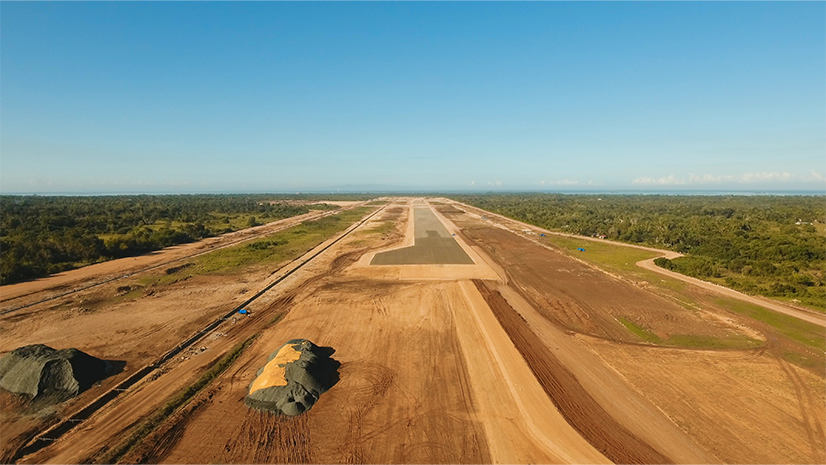
Let’s explore a project scenario for a proposed airport runway extension. This project, like many infrastructure projects, involves multiple teams working in parallel — surveyors capturing existing ground conditions, civil engineers developing design options, and the GIS team ensuring data governance and quality.
The project starts with gathering existing conditions. Historical topographic survey points previously collected by a surveying team allow civil engineers to generate a TIN surface of the existing ground in Civil 3D. However, with data arriving from multiple surveyors in the field, the risk of civil designers working from potentially incomplete or outdated information grows.
Without a way to accurately track and version changes as they happen, merging updates to authoritative project information can be risky, leading to costly rework and delays.
Collaborating on project designs using GIS
The project team is using ArcGIS as the GIS system of record for project information. They’re also using ArcGIS for AutoCAD to keep CAD and GIS data between Civil 3D and ArcGIS in sync.
With survey points stored in ArcGIS Enterprise, a civil engineer uses ArcGIS for AutoCAD to add previously collected survey points as COGO points into a Civil 3D design. Initially, the z-coordinates for the points appear as zero. After identifying an Elevation field among the GIS attributes, the engineer corrects the vertical positioning.
Using ArcGIS for AutoCAD’s support for branch versioned layers, a named version is created for the engineer to propose changes to the survey point elevations. These changes are then submitted for review by teammates and the GIS team, ensuring they can be incorporated into the authoritative dataset.
Watch the video below to see how to correctly position all survey points by updating CAD geometry using GIS attributes.
Before synchronizing the proposed changes to ArcGIS, the engineer uses standard Civil 3D commands to form an initial surface — an essential first step in characterizing the existing ground for the runway extension. The synchronization process ensures that these updates are available for review and, ultimately, for potential use by other project contributors who rely on accurate data for their work downstream.
Multiuser editing between teams and platforms
With branch versioning, civil designers and surveyors using a Professional user type can create and manage their own branch versions directly within Civil 3D using ArcGIS for AutoCAD.
This means that each designer can add GIS web feature layers to their Civil 3D drawings without the risk of overwriting authoritative data. With the default version locked, only changes that the GIS team has reviewed and approved can be added to the main project data.
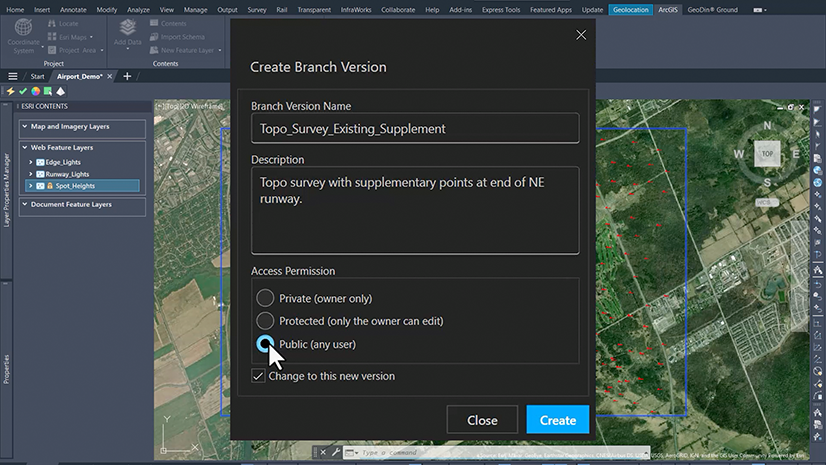
As the project progresses, new survey points have been gathered to fill gaps identified in the initial surface in the northeast corner of the site. One of the surveyors creates a named branch and uploads the latest field data.
Meanwhile, a civil designer working on a proposed taxiway alignment creates a separate branch to test design options without interfering with the main dataset. Throughout the week, team members synchronize their edits to ArcGIS Enterprise, and the GIS manager can see who made each change and when.
Updating design data
Work continues as new data is incorporated, and design options are refined. The short video below shows how supplementary topographic survey data — freshly gathered for the northeast portion of the work site — can be incorporated into a named version using ArcGIS for AutoCAD.
The engineer adds these new points, rebuilds the surface, and synchronizes the changes from Civil 3D. The result is a richer, more accurate TIN surface that better characterizes the existing ground where the runway extension is proposed.
Synchronizing these changes makes them available for review by the lead civil engineer and the GIS team, so that the updated information can be brought into the authoritative dataset when ready. This ensures that all team members — from designers to project managers — are working from the latest, most reliable information.
Reconciling and posting changes
Once the chosen design option is selected, the GIS manager reconciles the preferred branch with the default version from ArcGIS Pro. After a final round of QA/QC, the updated surface is published for stakeholders.
Outdated layers on named branches are archived or deleted as needed, keeping the project data clean and organized. This process not only reduces risk but also ensures that every contributor’s work is traceable and reversible if needed.

The value for project teams
Throughout this workflow, the value of using ArcGIS for AutoCAD with branch versioning is clear:
- Civil engineers gather existing conditions and participate in GIS workflows directly from Civil 3D. They make edits from their familiar CAD environment while leveraging authoritative GIS data.
- GIS managers maintain control and data integrity. They work with a full chronology of who edited what and when, for collaboration between multiple project contributors without bottlenecks.
The entire project team benefits from working from a single source of truth — with every change auditable and the authoritative dataset protected. For infrastructure projects with multiple contributors that need to work concurrently, using branch versioning in GIS and CAD collaboration adds confidence that every design decision is made using current, authoritative project data.
Get started with ArcGIS for AutoCAD
Download ArcGIS for AutoCAD today at no cost and start using branch versioning on your next project. Be sure to also visit the resources page for guided tutorials, videos, and articles to help you and your team get started.
If you’re new to Esri, discover how ArcGIS Enterprise and its powerful capabilities can help you connect your teams, workflows, and data.


Article Discussion: