Whether you’re a POI power user or an excited beginner, points of interest (POI) data in ArcGIS Business Analyst provides a wealth of information on locations like businesses, facilities, services, and public spaces. Popularly accessed in the points of interest search, nearby analysis, and void analysis workflows, any Business Analyst user worth their salt will tell you this data is crucial to many analyses.
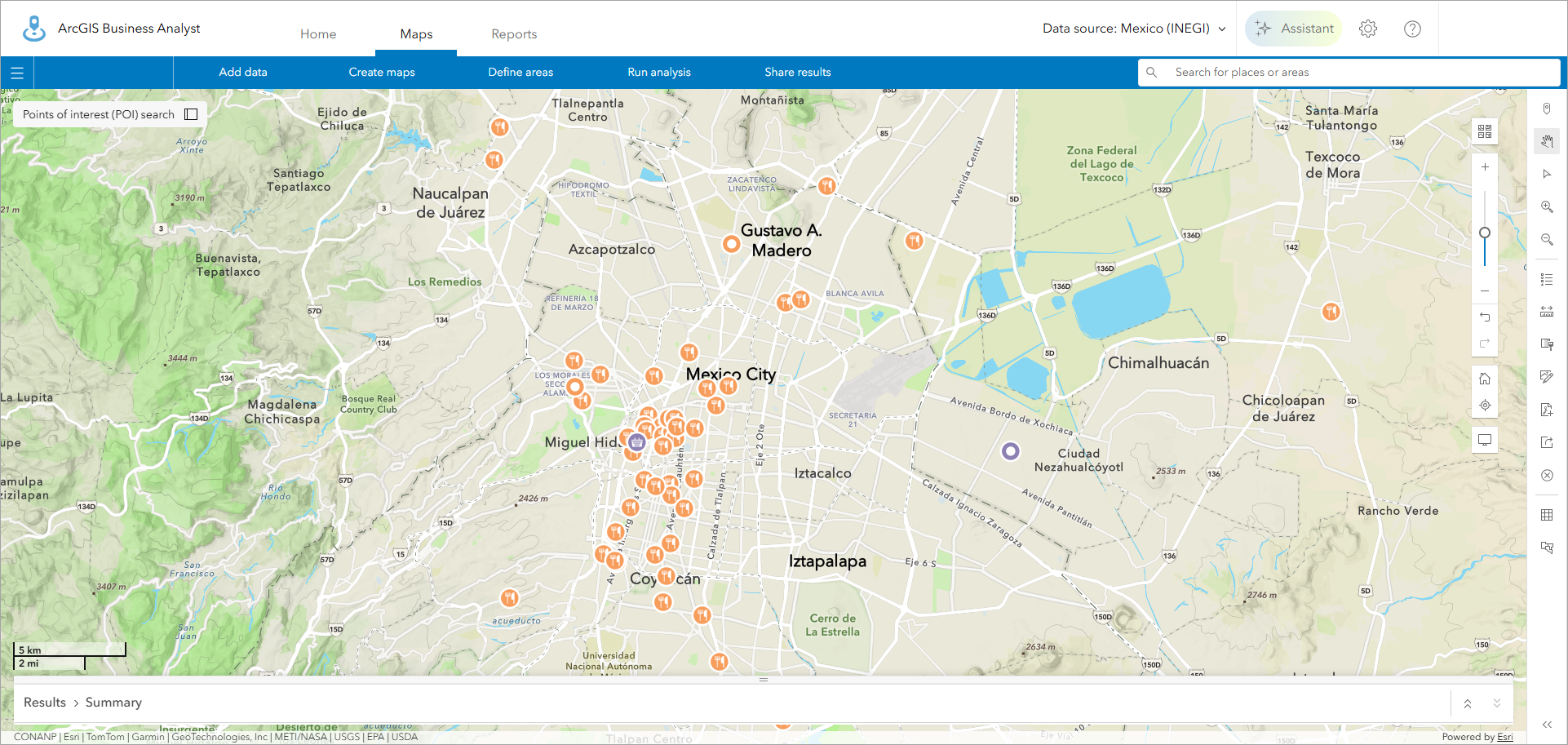
One of the reasons this dataset is so valuable is the breadth of its coverage, thanks to the multiple providers of POI data. But with that data diversity comes the challenge of navigating it: how do you find POIs consistently, when the categorization systems differ from provider to provider? ArcGIS Business Analyst, for the first time, is introducing a consistent POI classification system for multiple POI data sources. Let’s get to know Esri Categories!
What is Esri Categories?
Esri Categories is a proprietary classification system that standardizes POI category searches across the Data Axle, SafeGraph, and Foursquare data sources into one consistent system. The aim is to help you find what you need faster and more reliably, no matter what data source you’re using.
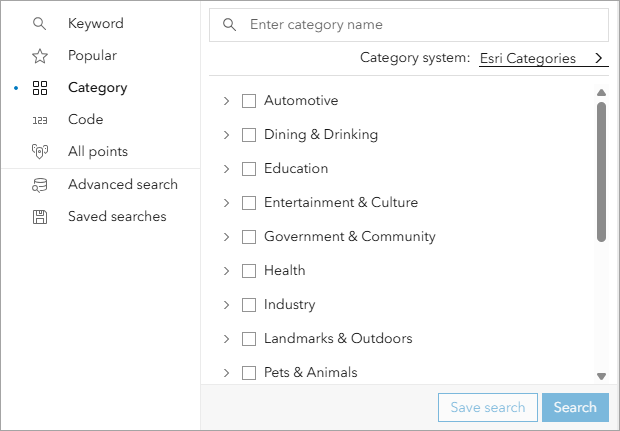
Esri Categories is designed to bring a user-friendly, consistent experience to the POI search process. These are the design principles we followed:
- One category system applied across vendors. At this release, this applies to Data Axle, SafeGraph, and Foursquare data sources, so, for example, “Pet Store” means the same thing everywhere.
- Designed for people, not codes. Though industrial classification codes are useful, most users find the Esri-design system more intuitive than navigating NAICS-only trees for common searches.
- Vendor categories are still supported. Nothing’s going away! If you know, use, and love the category systems of the individual data providers, they’re still available for use.
How do I access Esri Categories in Business Analyst Web App?
In Business Analyst Web App, you can locate Esri Categories through the points of interest search field. The POI category system defaults to the one provided by the currently selected data source. To access Esri Categories, do the following:
- Set the Business Analyst data source to USA (Esri 2026) and open the points of interest search workflow.

- Click the Enter keyword, category, etc. search field.
- In the search pane that opens, click Category.
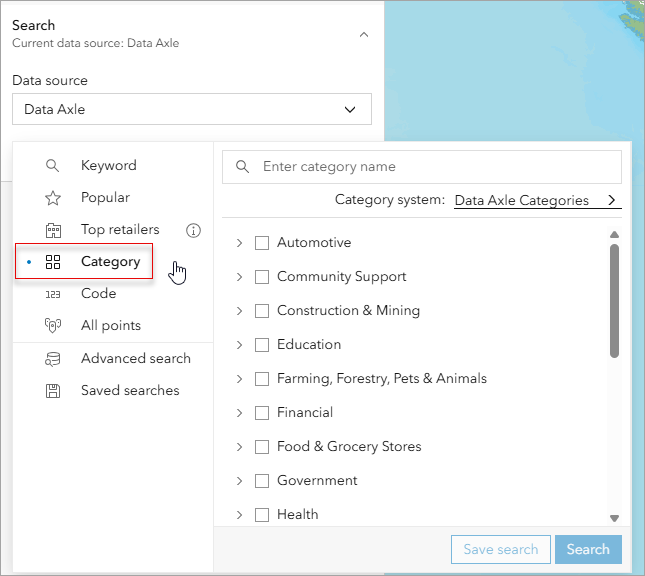
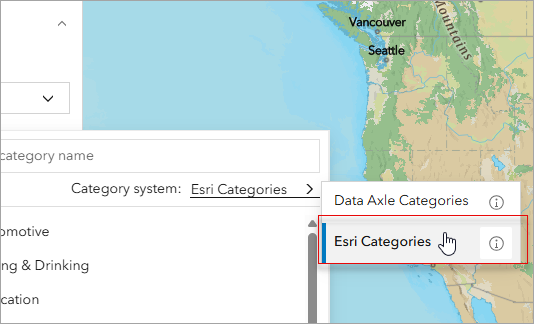
- For Category system, open the drop-down list and select Esri Categories.
How do I access Esri Categories in Business Analyst Pro?
You can access the Esri Categories system when using points of interest search in Business Analyst Pro, by connecting to a U.S. 2026 dataset. You can use the online 2026 dataset through a portal connection or the local U.S. 2026 dataset (pending release in July 2026).
- Set the Business Analyst data source to Portal > North America > Esri 2026 and open the points of interest search workflow.

- Use the Search type drop-down menu to select the Category search type.
- Use the Category system drop-down menu to select Esri Categories.

What problem does this solve, and how does it work?
The conception of Esri Categories began with user feedback regarding the, at times, cumbersome nature of navigating the different POI data sources. Using multiple different systems, the category path to find the same real-world place could vary widely by POI provider. Users felt they had to relearn the search interface each time they switched sources—and saved workflows don’t translate cleanly.
For example, let’s say you’re going to use a category search to map pet stores in your area. You mostly use Foursquare data in your analyses, but this time you’re using Data Axle. And the next time, you might use SafeGraph. But getting to pet stores proves to be a different path, with different classification logic, each time.
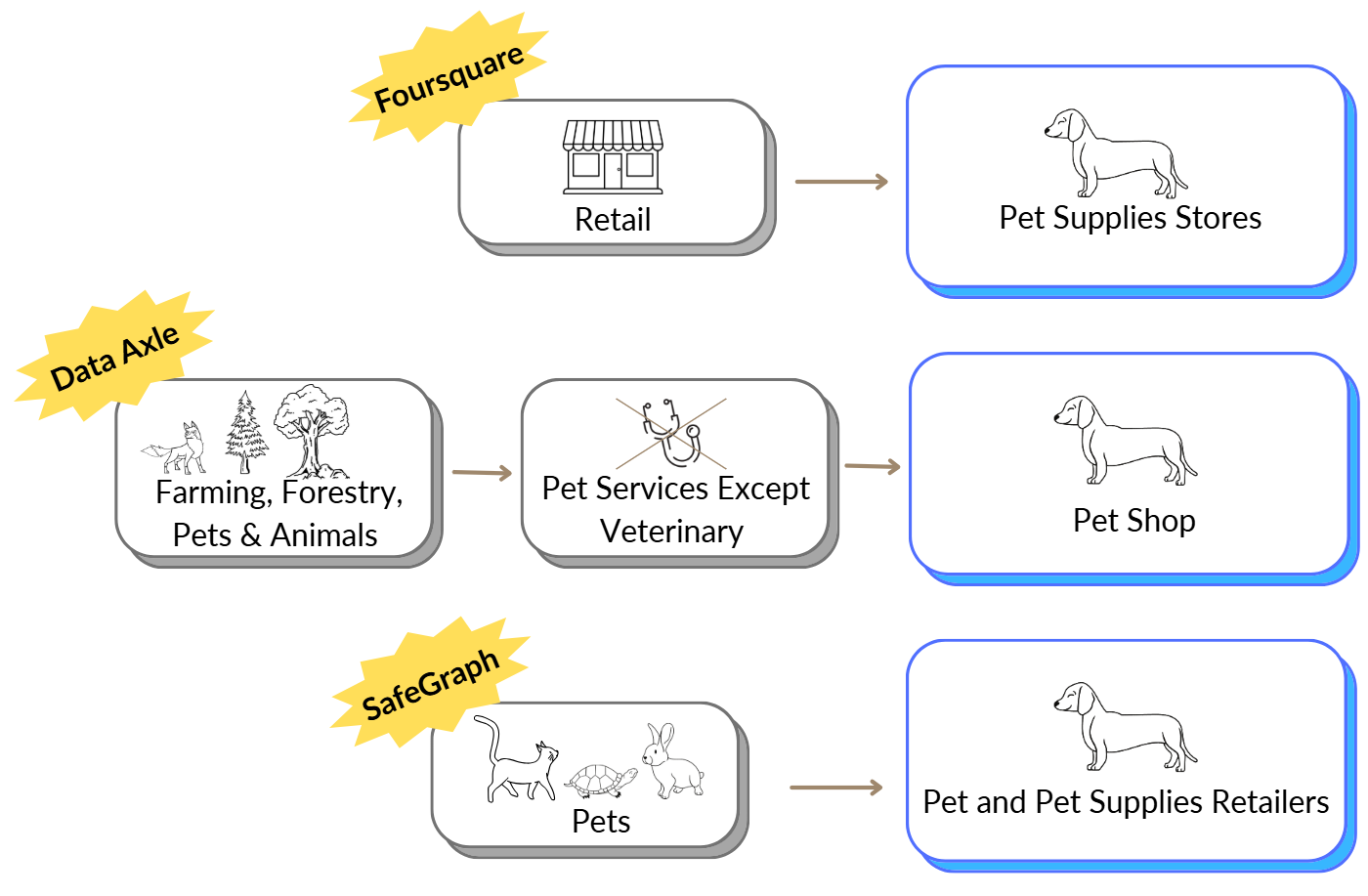
In the non-unified system, the paths to find the same POIs are fairly different:
- Foursquare: Retail > Pet Supplies Stores
- Data Axle: Farming, Forestry, Pets & Animals > Pet Services Except Veterinary > Pet Shop
- SafeGraph: Pets > Pet and Pet Supplies Retailers
A user searching for pet stores shouldn’t have to remember three different category trees. We used standardized industry relationships (like NAICS) as an anchor, then grouped them into a clearer, user-focused hierarchy that stays consistent even when vendor schemas change.
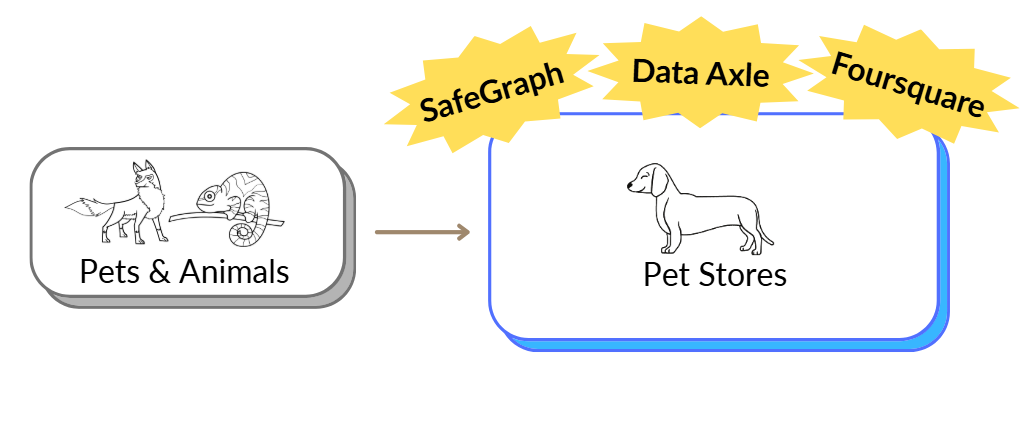
With Esri Categories, “Pet Store” resolves to a consistent category path, so you can switch POI sources without changing how you search—and results remain easy to interpret in maps and analysis. With Esri Categories, you can browse categories in Data Axle, Foursquare, and SafeGraph using the same category system, which locates “Pet Stores” in the same place in all datasets:
- Esri Categories: Pets & Animals > Pet Stores
How will this affect my work?
Leveraging Esri Categories can only improve your workflow! Existing POI search lists will continue to work and display the types of locations users have grown accustomed to. Esri Categories is a user-focused alternate category system you can explore to find the exact locations you’re looking for across most POI related workflows including void analysis, infographics, suitability analysis, and more.
Need to compare results between POI datasets? How about look at similar results across country borders?
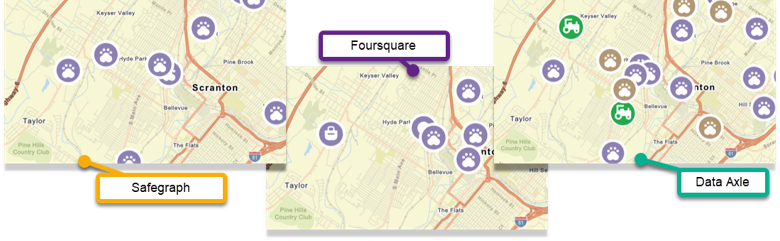
Saved POI searches using Esri Categories allow users to search across multiple datasets without having to change parameters, allowing for an apples-to-apples comparison. Each dataset comes with different focuses and sources resulting in variations in the available points of interest.
Resources
The Esri Categories system will inspire you to create more streamlined, yet precise, POI searches in ArcGIS Business Analyst products. We hope you’ll explore more data and capabilities in Business Analyst Web App and Business Analyst Pro. To continue your Business Analyst journey, visit the following resources:
- Business Analyst product overview page
- Review pricing and purchase Business Analyst
- Business Analyst resources page
- LinkedIn user group
- Business Analyst Web App video channel
- Business Analyst Pro video channel
- Business Analyst on Esri Community
- Business Analyst Web App login page
- Email the team: businessanalyst@esri.com
This article uses Business Analyst Web App Standard and Business Analyst Pro 3.7 to map points of interest (POI). Points of interest data is from the ArcGIS Places dataset provided by Esri. Basemaps are provided by Esri.



Article Discussion: