This piece of content is no longer being maintained and may reference events in the past or product features that have changed.
ArcGIS StoryMaps is the professional tool for harnessing the power of maps to communicate your work using place-based storytelling. The easy-to-use builder enables you to combine maps, 3D scenes, embedded content, multimedia, and more to create an interactive narrative that can inspire interest — and action — from your readers.
Each month, our team uses community feedback to help inform new capabilities that can enhance your storytelling adventures. Check out what’s new this month!
Quick links
New StoryMaps content page
Stories. Briefings. Collections. Templates. Themes. It all begins on what has historically been called your My projects page. But as your creative options in ArcGIS StoryMaps have expanded over time, it only made sense to expand your capacity for filtering through your content, too. Enter your new StoryMaps content page that features combined buttons, menus, and views, several new filters, updated item card design and browsing, and improved mobile experience — all working together to boost the usability and accessibility of the content you create!
Combined buttons and menus
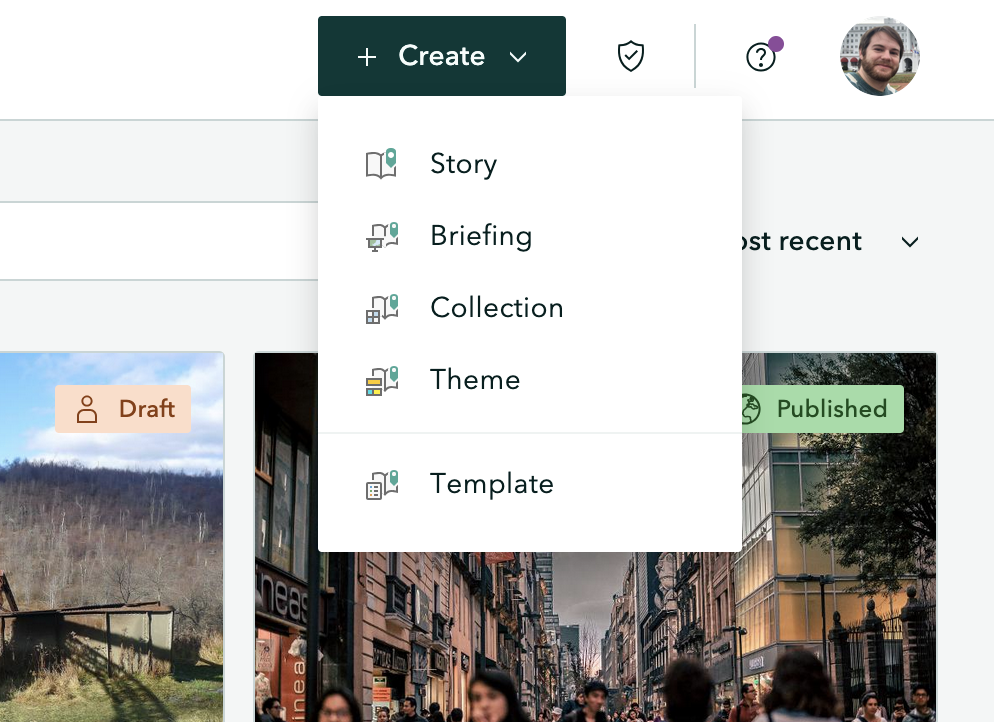
Beginning at the top right of the page, you will find an updated + Create button that serves as a one-stop menu for creating any of the ArcGIS StoryMaps outputs. Immediately to the right of this is the button to Check your published items for issues. (Read July’s What’s new blog to learn more about the item checker.) Continuing to the right, the updated profile menu now includes a link out to your ArcGIS content page along with the updated StoryMaps content moniker.
Combined item view and filters
All your StoryMaps content now appears in a combined item view, meaning all items are immediately browsable, regardless of output type, and can be navigated more intuitively using the new filter options.
Wondering if you remembered to publish that briefing publicly? The left panel now features four categories of Filters for more effective navigation of all your creative outputs: View items in, Content type, Publish status, and Sharing.
Or are you curious which items are getting the least traffic? At the top right of the item cards browser, find six additional filters: Most recent, Least recent, Title (A-Z), Title (Z-A), Most views, and Least views.
Item cards
Item cards received updates to improve content identification and appearance:
- An icon and text associating the item with its output type
- Up to two lines of text for the item title
- No cropping of thumbnail images (to match with ArcGIS Online counterparts)
Item browsing
On the StoryMaps content page, pagination has been applied to the item card browser to improve usability.
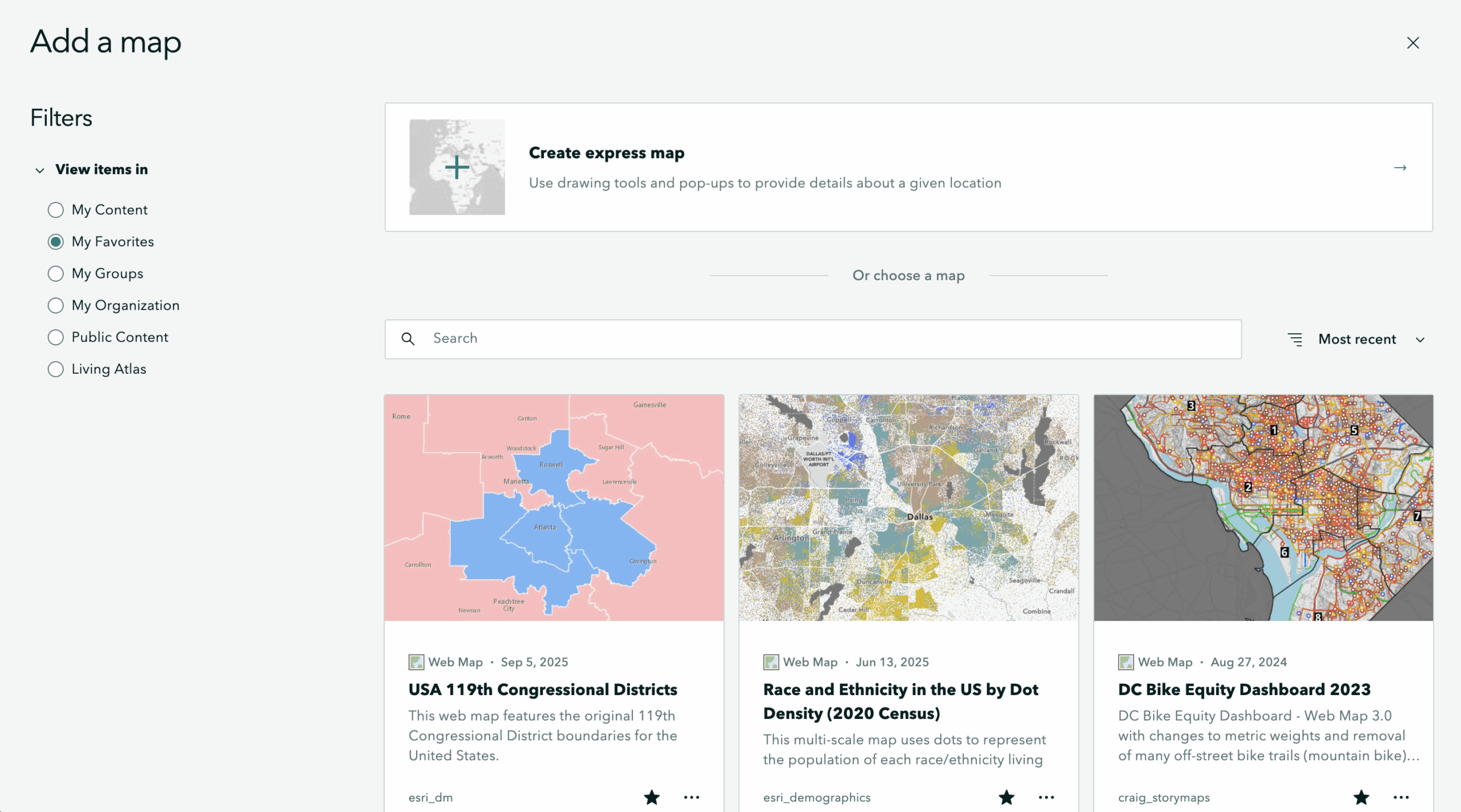
When adding maps or ArcGIS apps to your items as media, the item browsing experience reflects updates like those found on your StoryMaps content page. When adding a map, you will find the View items in filter option along with a more prominent button to Create express map. When adding an ArcGIS app, you will find the View items in filter along with Content type.
Mobile experience
When accessing your StoryMaps content page via mobile, you will now find a tidy Filter and sort drop-down menu featuring all the new filter options to navigate your items. Additionally, the mobile item card design has been updated to enhance your user experience.

And more…
- Briefing and sidecar slides can now be moved and navigated using keyboard shortcuts.
- Express maps are now built with the ArcGIS Maps SDK for JavaScript. This update may cause minor changes to your express maps. If you have feedback or questions, please share them with us on the Esri Community.
- A temporary banner has been added to the StoryMaps content page announcing the 2025 ArcGIS StoryMaps Competition; click to Learn more.
Thank you to Will Hackney for his contributions to this post.
All Adobe Stock images are © 2025 Adobe Stock. All rights reserved.



Article Discussion: