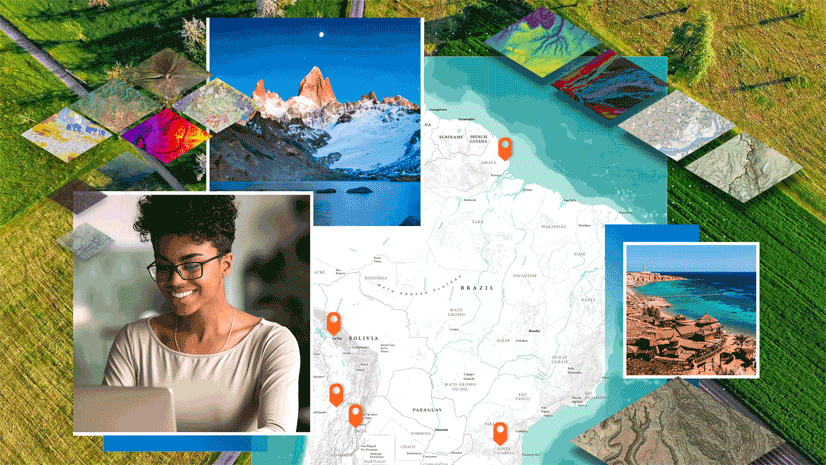
ArcGIS StoryMaps is the professional tool for harnessing the power of maps to communicate your work using geospatial storytelling. The easy-to-use builder enables you to combine maps, 3D scenes, embedded content, multimedia, and more to create an interactive narrative that can inspire interest — and action — from your readers.
Each month, our team uses community feedback to help inform new capabilities that can enhance your storytelling adventures. Check out what’s new this month!
Quick links
Outline in stories
Text. Maps. Images. Charts. The list goes on (and on) of the features at your fingertips to create dynamic geospatial stories. But as your story begins to take shape, those elements can add up quickly, making it harder to navigate and organize your story as you build it.
Visible structure. Simplified navigation. Flexible reorganization. Content awareness. It’s time to let Outline help bring clarity to that complexity.
From the story builder header, select Outline to open the outline panel. If your story includes heading-level text, the outline will display sections defined by those headings; if not, it will show a list of blocks. You can move sections as a whole or expand them to reveal the full list of blocks, which can be reordered individually. Use the ellipses to Jump to block or section. Note: You can still click and drag to reorder individual items directly from the builder.
Want to learn more about structure in geospatial storytelling? Check out these blogs on accessible story structure and narrative structures.

Slide background in briefings
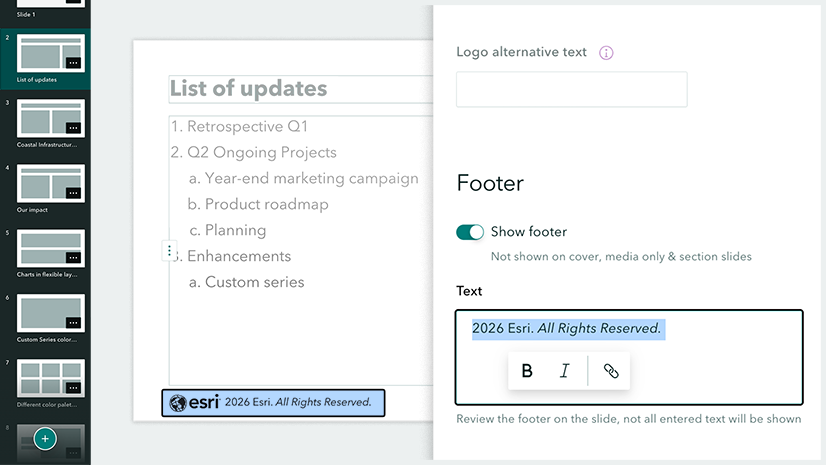
Same old slide background got you down? Not anymore. Background customization options for briefings are here, giving you more control over the look and feel of your presentation. Whether it’s a solid color, gradient, or an image, a thoughtfully chosen background can reinforce your narrative and help audiences stay engaged.
In the briefing builder, click the ellipses at the top of a content slide (this does not apply to cover slides) and select Change background to open the Background style options:
- Color: Choose from your Theme colors or use the range of options (color picker, hex code, or color canvas) to generate a Recent colors option.
- Gradient: Choose from three Theme gradients — Theme background, Theme accent light, or Theme accent dark — each algorithmically generated from your theme. Use the Rotate option to find the angle that best suits your slide content.
- Image: Use the Add image option to upload a file, link to an image on the web, or select one already used in your briefing.
For all these options, be sure to choose a background with enough contrast to keep your text legible. Note: The capability to set slide background settings in the theme builder is coming soon.
Curious how you can use briefings, the slide-based output of ArcGIS StoryMaps? Check out these great examples to get inspired!
Activity map in frames
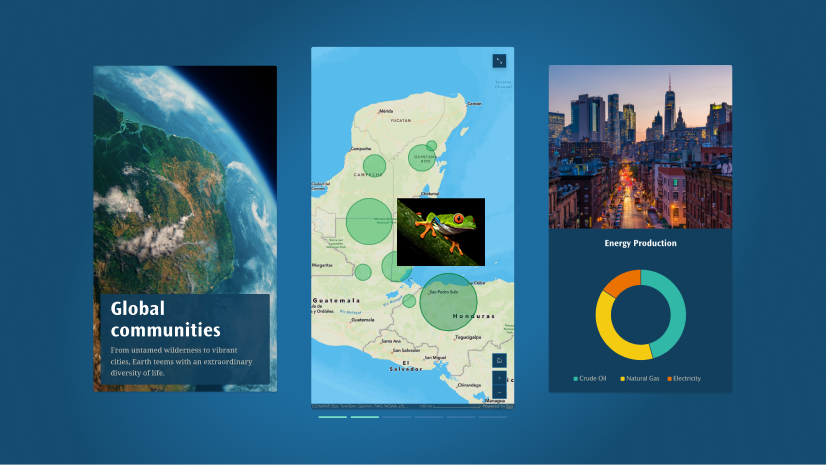
At the end of 2025, we introduced Frames, a new format for mobile-first, short-form storytelling in ArcGIS StoryMaps, and we continue to expand your options for bringing this content to your audiences.
Enter the activity map. Activity maps make it easy to encapsulate your trips into a single, readable moment — just upload a GPX file to create an interactive experience that shows route, distance, time, and elevation gain.
To add an activity map to your frame, select the Single panel layout and choose Activity map from the block palette, then upload your GPX file.
Frames are in beta, and we would love to hear what you think — share your feedback at ArcGIS StoryMaps Frames Feedback.
Word cloud
A core component of geospatial storytelling is using visuals to help communicate complex topics, so we’re excited to introduce a new way to do just that: word clouds. Word clouds reveal patterns in your text, enabling readers to quickly identify key topics or sentiments. Think of them as the textual equivalent of a map overview, offering a zoomed-out view of your narrative.
To add a word cloud to your ArcGIS StoryMaps content, select Infographic from the block palette and choose the Word cloud option. In Edit infographic, add your Source text in the Data tab, then move to the Settings tab to adjust text and background colors — and set the Direction of your word cloud to Horizontal, Orthogonal, or Multidirectional.
Looking to use word clouds effectively in your own stories? Check out our StoryScape issue on creating rhythmic stories — and learn how to craft meaningful interludes by using built-in features like infographics, charts, and tables.
And more…
- Expanding on the March 2026 map tour updates, point-by-point navigation has been added to categorized map tours.
- A Blur effect background option is now available for images configured with the Fit (do not crop) option.
- The color picker has been updated for increased usability and accessibility.
Thank you to Ashley Du and Will Hackney for their contributions to this post.
All Adobe Stock images are © 2026 Adobe Stock. All rights reserved.


Article Discussion: