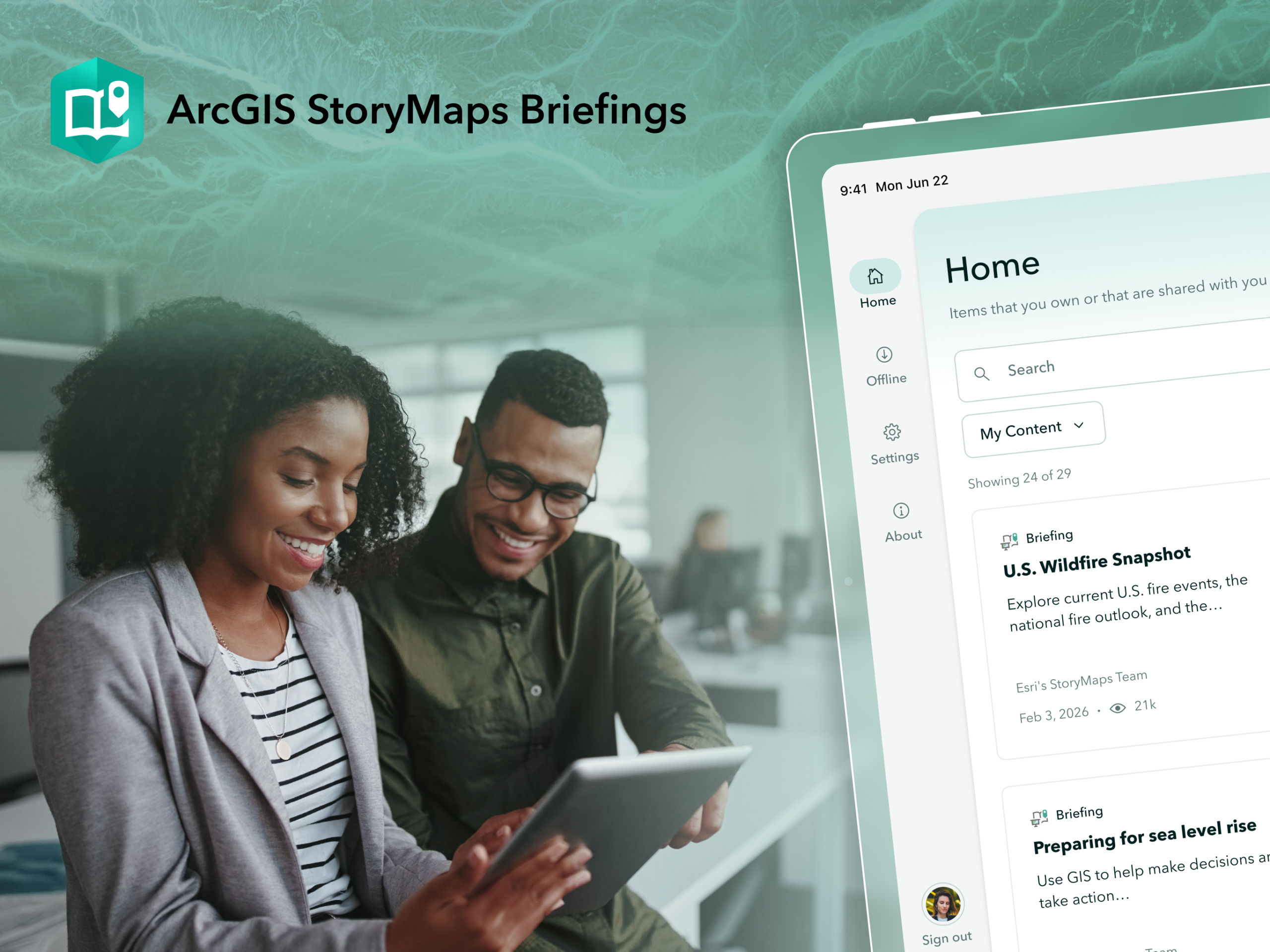
The ArcGIS StoryMaps Briefings app takes seamless presentation delivery to the next level, offering greater flexibility and streamlined workflows. Compatible with iOS and Android phones and tablets and Windows computers, this companion app lets you integrate interactive maps, rich media, and branded themes directly into your briefings. You can confidently present anywhere — whether connected online, working offline, or switching between the two — while showcasing valuable insights from your spatial data in a dynamic, engaging format.
The next generation of the Briefings app is now live. Check out what’s new in this release!
Quick links
Updated app design
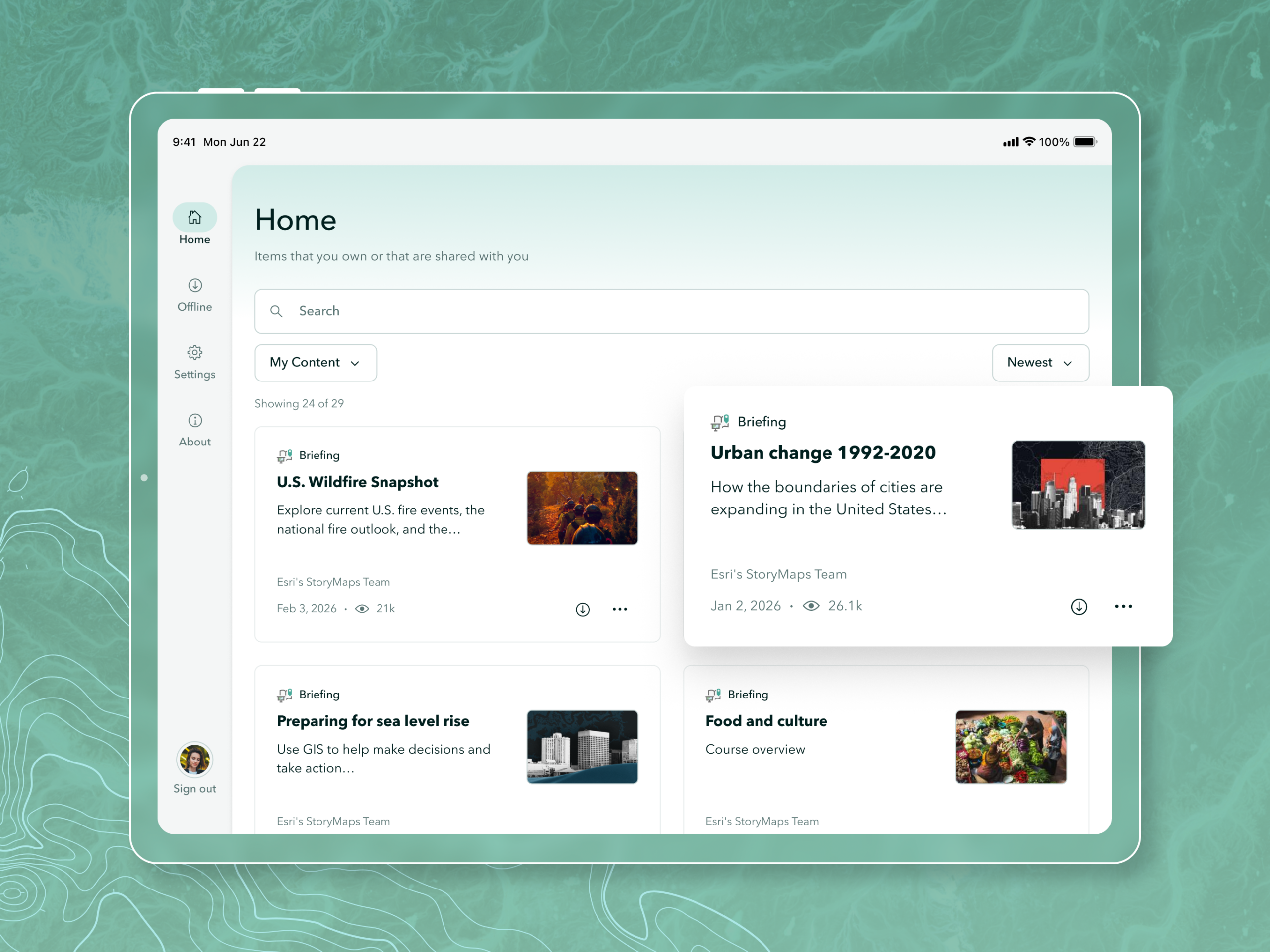
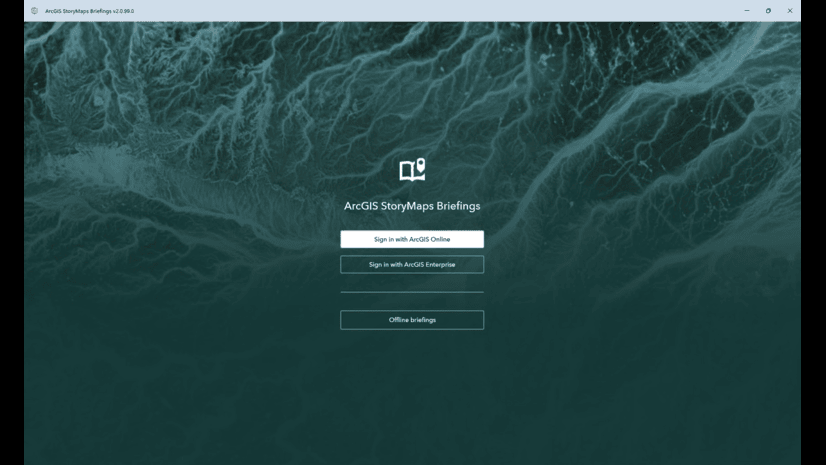
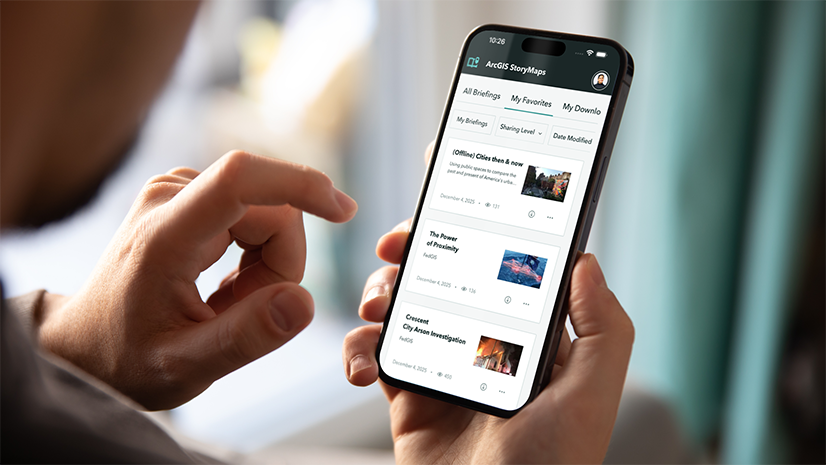
The look and feel of the ArcGIS StoryMaps Briefings app has been updated with a fresh new user experience. When you first sign in, you will see the Home page which as all of the StoryMaps items that you own or that are shared with you. From here, you can find specific items through the search, filter, and sorting options.
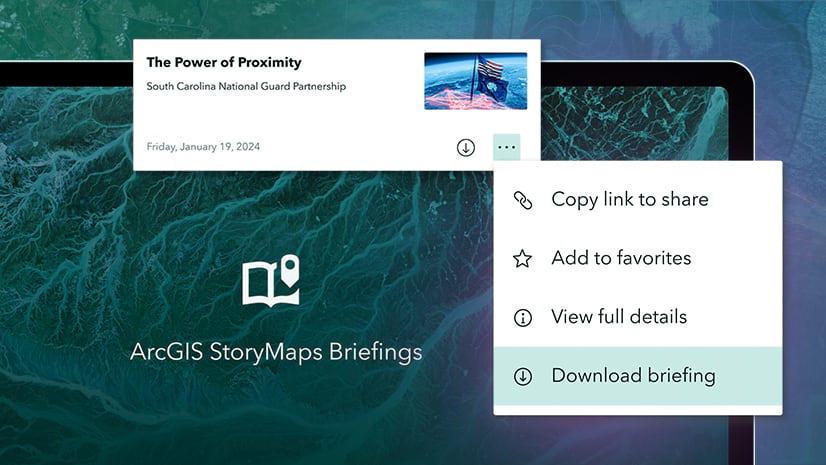
All of your downloaded and on-device briefings can be found on the Offline page. You can download a briefing by clicking the download button on its item card. Downloaded briefings can be viewed without an internet connection and can be managed on the Offline page as well.
You can visit the Settings and About pages to configure and learn more about the ArcGIS StoryMaps Briefings app.
Content search
This release includes updates to the content search. In addition to the items you own, search can now return ArcGIS StoryMaps items from your organization and groups that you belong to. The search bar also displays a few of your most recent search terms to help you find items that you previously viewed.
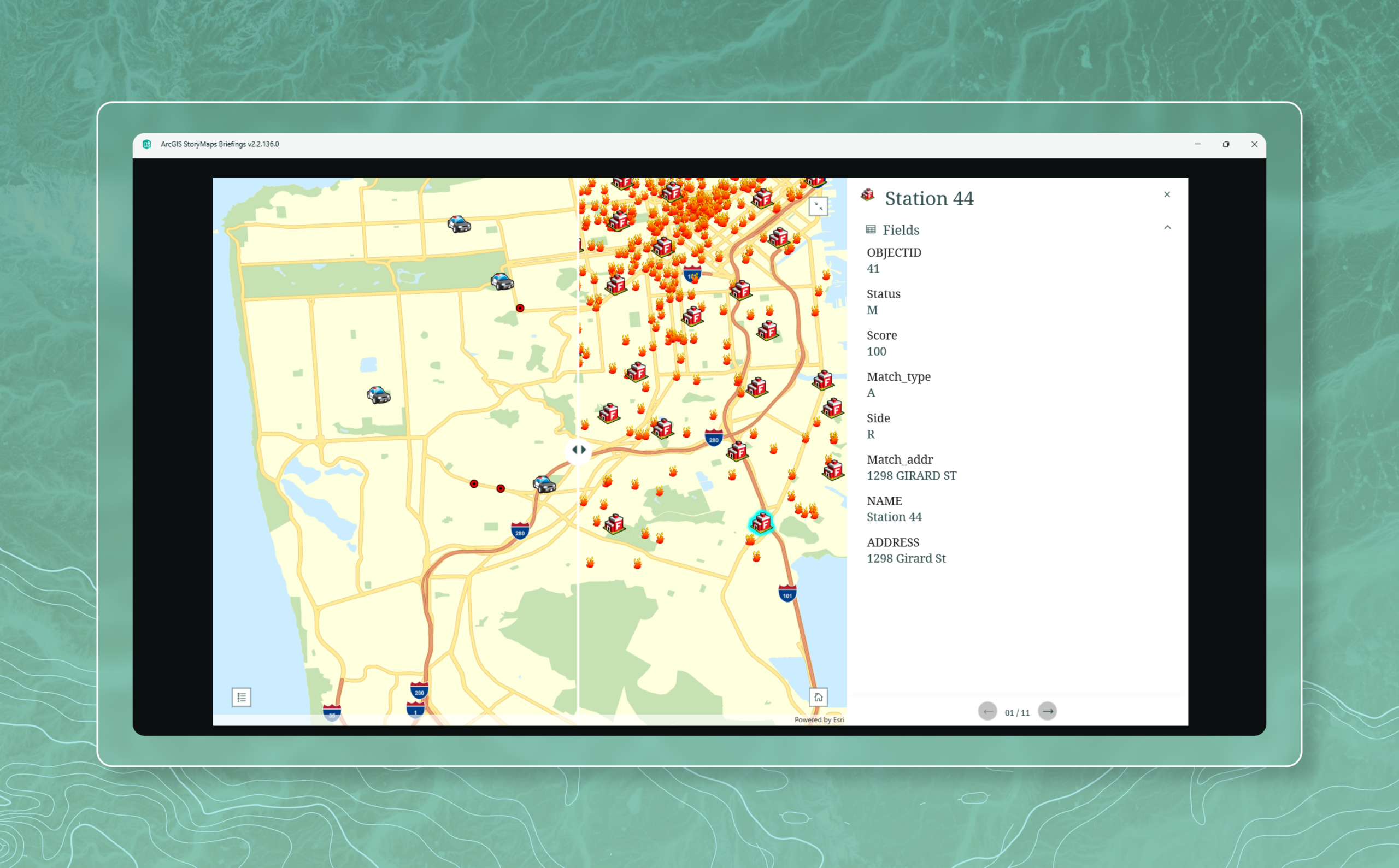
Offline swipe map
The briefings viewer has been improved by adding offline support for swipe maps. To enable swipe maps to work offline, configure mobile map package (.mmpk) or video files in the block when creating the briefing.
Universal StoryMaps experience (beta)
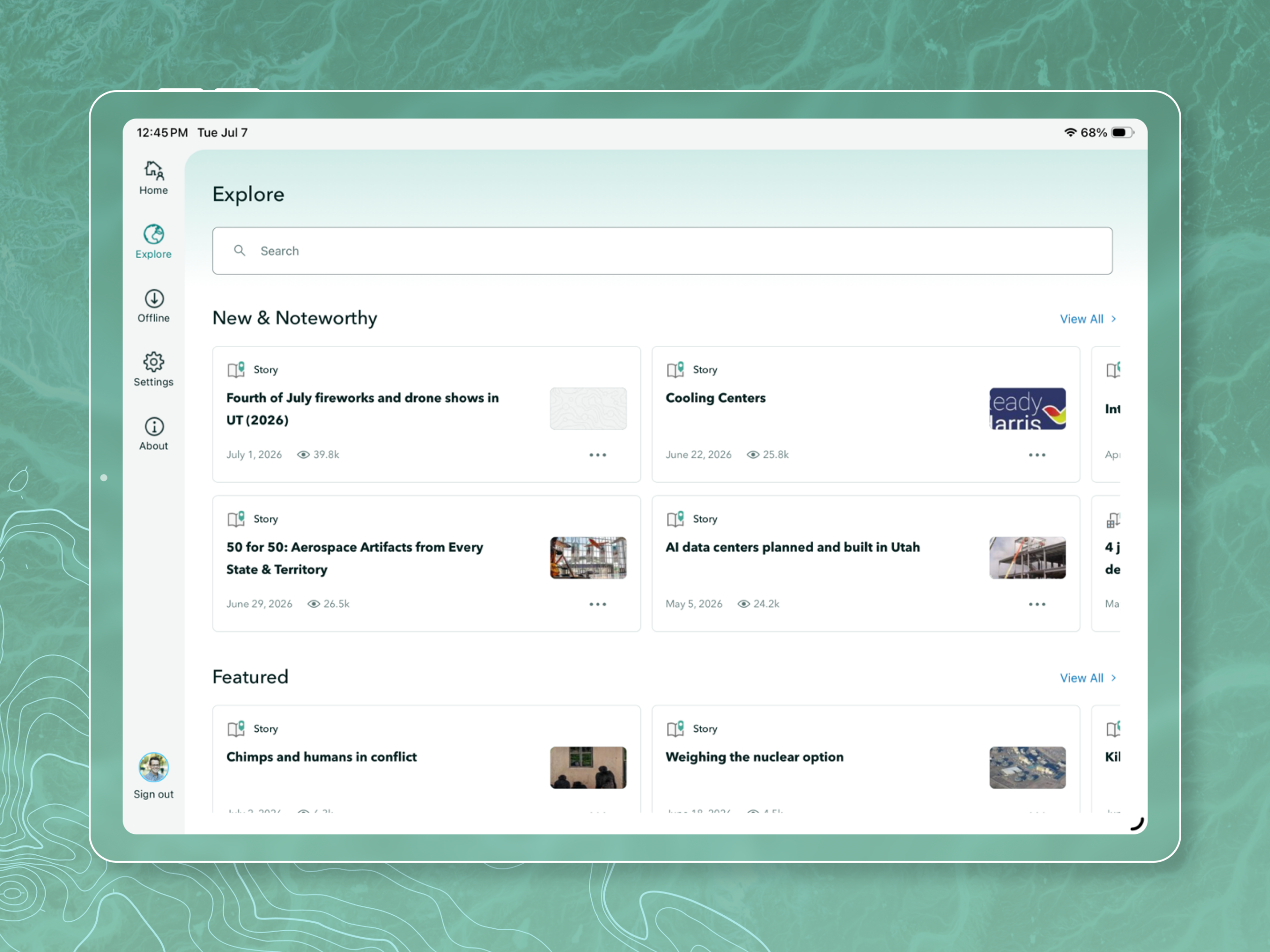
The universal StoryMaps experience adds support for more ArcGIS StoryMaps content. When you turn it on, you will be able to search, browse, and view StoryMaps stories, frames, and collections across the app. You will also have access to the new Explore page with feeds featuring content from the StoryMaps community. The universal StoryMaps experience is a beta feature and can be turned on in the Settings page.
And more…
- Improved legend UI for the map layers inside the map block
- Enhanced 360 images with an auto rotate configuration option.
- Fixed a text sizing issue for infographic blocks in portrait mode.
- Improved text rendering and sizing for all font sizes when displayed on small screens.
- Updated the table of contents to overlay the slides when viewed on a small screen.
- Added the option to share briefings directly on social platforms.
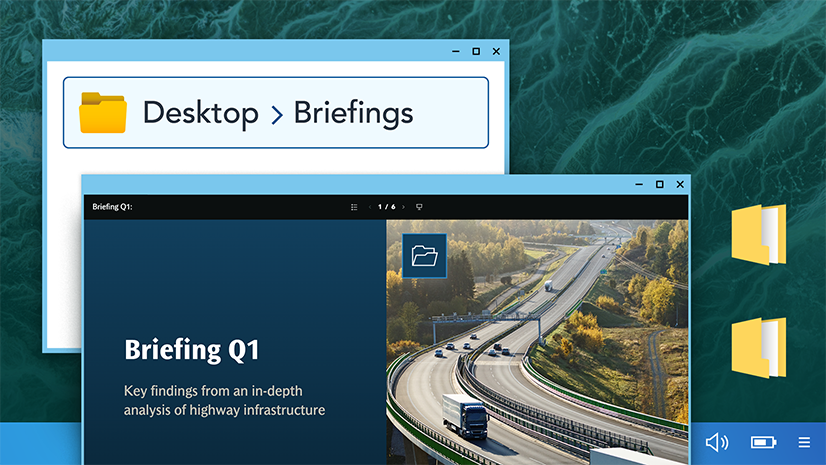
- Added the “Show in Explorer” option for offline briefings in the Windows version of the app. This opens the folder where the offline briefing has been downloaded and makes it easy to copy briefing files for local use.
- Fixed image quality for the images inside image blocks and image gallery blocks.
- Added the About page. The About page has information specific to the app as well as useful links and product documentation.
- Fixed multiple map issues.
- Addressed multiple internationalization issues including RTL and date internationalization issues for non-English languages
- Addressed performance and crash issues across the iOS, Android, and Windows platforms.
Stay tuned for more future developments!
We encourage you to try the ArcGIS StoryMaps Briefings app now available for Android, iOS and, Windows computers, tablets and phones. Let us know your thoughts through the in-app feedback form or in the Esri Community.
- Blog: ArcGIS StoryMaps Briefings Tablet App: Known Issues and What’s Coming
- Download the ArcGIS StoryMaps Briefings App from the Downloads Page

Article Discussion: