Beginning in June 2025, ArcGIS Business Analyst is included as a software option in the Creator user type. This means you may be exploring Business Analyst products for the first time, and are wondering what you can do with them. There’s been a flurry of discussion about using Business Analyst Web App Standard with Creator and above user types…but what about Business Analyst Pro?
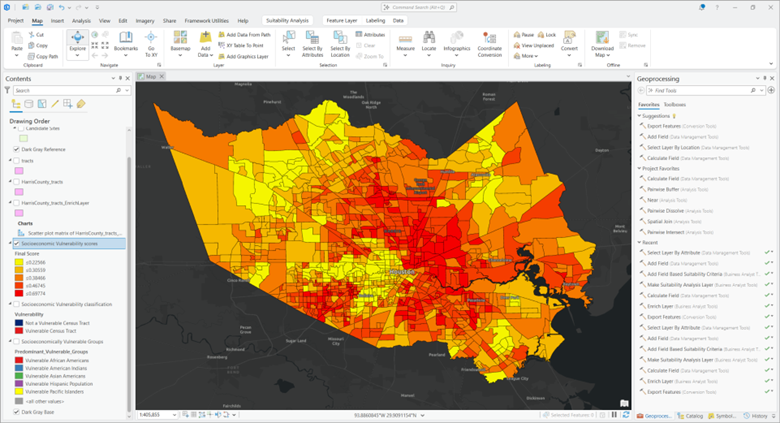
This article walks through the capabilities available to those with a Creator user type and above, including the workflows and data that will allow you to get the most out of this popular ArcGIS software.
What is included with a Creator user type?
The Creator user type is having a moment! Since June, people with a Creator user type (and above—so that includes Professional and Professional plus, too) have been venturing into the capabilities of Business Analyst Web App Standard.
But wait, there’s more! With a Creator user type, you’ve got access to both Business Analyst Web App Standard and ArcGIS Pro Basic, a license level that enables core functionality in ArcGIS Pro.
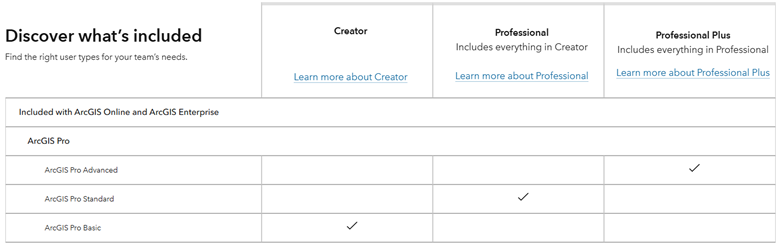
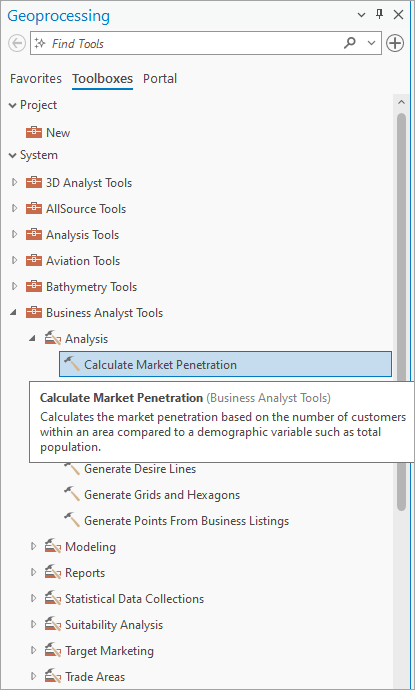
With the purchase of a Business Analyst extension license for ArcGIS Pro, the majority of the capabilities of ArcGIS Pro’s Business Analyst extension are included with the ArcGIS Pro Basic license level. The full list of capabilities included with ArcGIS Pro Basic, Standard, and Advanced is on the Business Analyst toolbox licensing and Territory Design toolbox licensing pages. Any tool that says “Requires Business Analyst” is available in ArcGIS Pro Basic with a Creator user type, provided that the user has purchased a license for the Business Analyst Pro extension.
How do I download and get started with Business Analyst Pro?
To access Business Analyst Pro, you must download ArcGIS Pro through your organization, install the program, and ensure that your administrator has assigned you a license for the Business Analyst extension. Visit the following help topics for guidance on each step:
- Download ArcGIS Pro from ArcGIS Online.
- Install ArcGIS Pro.
- Ensure your organization administrator has assigned an ArcGIS Business Analyst license to you in addition to your ArcGIS Pro Basic license.
How do I access Business Analyst Pro?
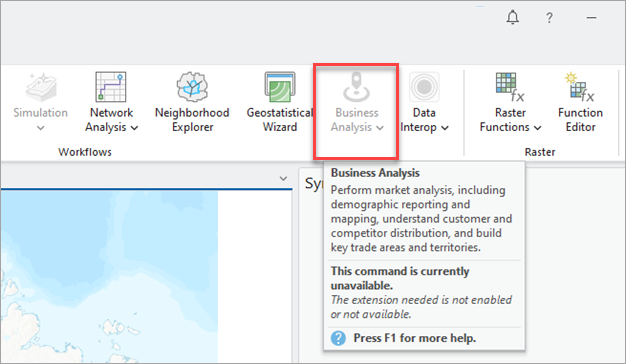
The Business Analyst tools are accessible via the Analysis ribbon in ArcGIS Pro. If you have not been assigned a Business Analyst license, the option will be greyed out and a message will appear when you hover over the Business Analysis button.
How does an organizational administrator check that a user has been assigned Business Analyst?
You must purchase a Business Analyst license to have access to Business Analyst tools and workflows. Once you have purchased a Business Analyst license, the administrator must assign you that license under under the Extensions section of the member license administration workflow.
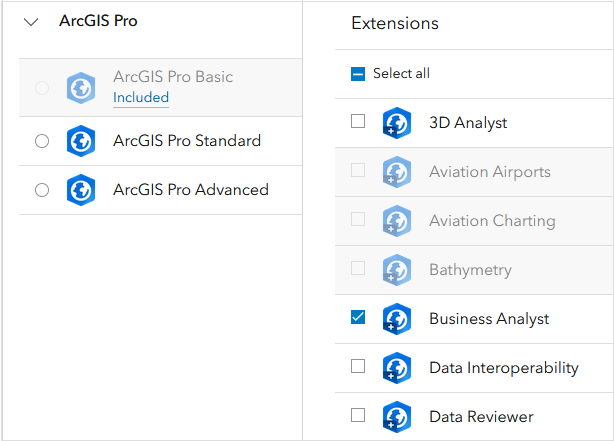
How can I check that I have access to the data and tools in Business Analyst Pro?
Access to Business Analyst Web App Standard is included in the Creator user type. You should start by ensuring that you can start Business Analyst Web App from the app launcher button when logged into ArcGIS Online. If you can run the web app, then any issues with Business Analyst Pro are due to not being assigned a Business Analyst license under the extensions option described above.
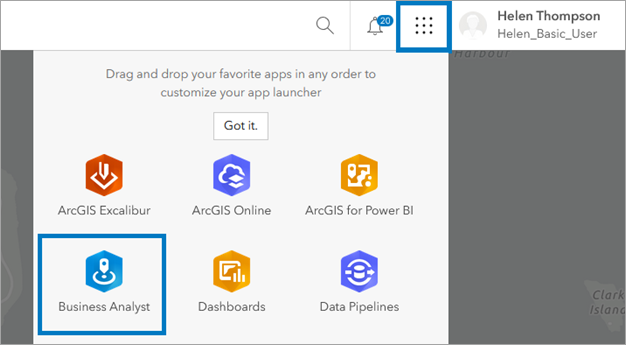
I have been assigned a Business Analyst Pro license and am still not able to access the Business Analyst tools. What should I do now?
The most common reason for this is that ArcGIS Pro has not recognized the new license assignment. This is often due to being logged into ArcGIS Online or Business Analyst Web App via a browser. Your administrator may not have forced a logout after assigning the new Business Analyst allocation.
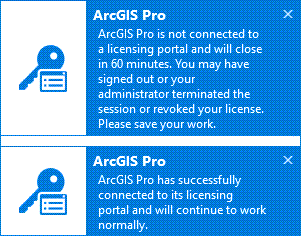
We recommend that you sign out of Business Analyst Pro and all web-based applications. Then quit and restart ArcGIS Pro. Your connection to your licensing portal will be restored and you should now have access to the Business Analyst extension within ArcGIS Pro.
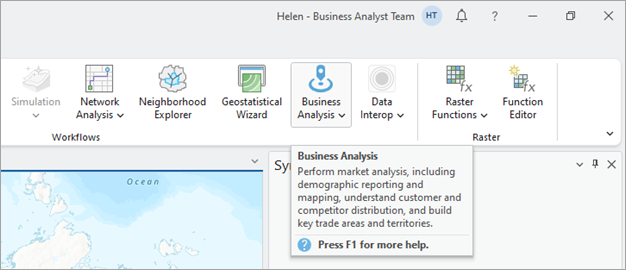
Business Analyst Pro is licensed and available to me. What do I need to check on to make sure I can get started?
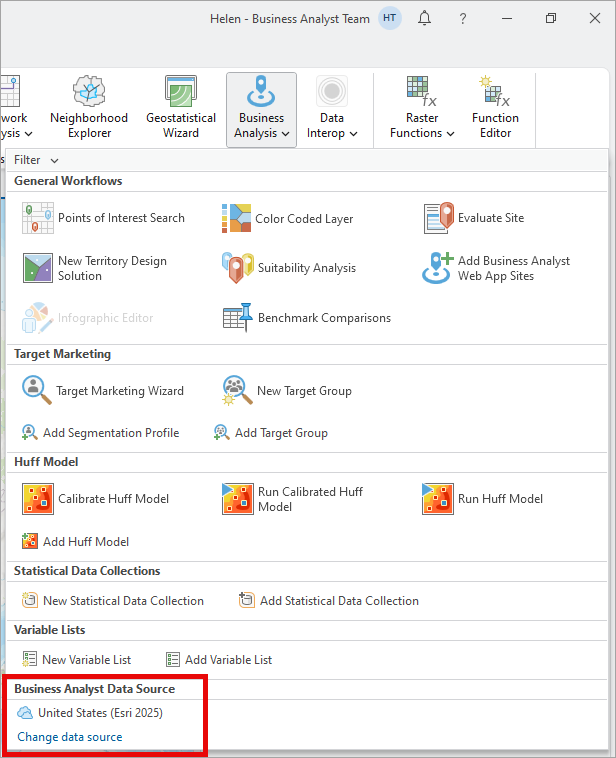
Depending on your organizational setup, location, and data access rights, you should automatically see a geographic area, known as the Business Analyst Data Source, when accessing tools from the Business Analysis menu. This is shown at the bottom of the menu. In the example below, I am using the United States (Esri 2025) online data source—the same data that is available to me in Business Analyst Web App—which is signified by the cloud icon.
The default country dataset is determined by your computer’s regional settings.
Can I change my data source like I can in Business Analyst Web App?
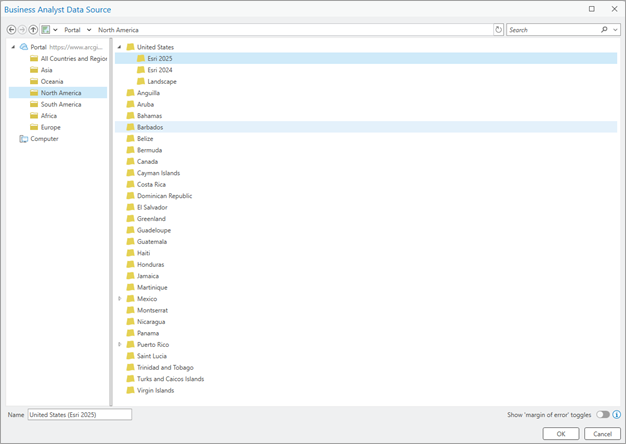
Yes, just like in Business Analyst Web App, the data source can be changed to access any of the data around the world. Simply click Change data source and navigate to the country that you want to use for your analysis. While the menu is different from the one seen in the web app, there is the same availability of data in Business Analyst Pro as in your Business Analyst Web App allocation.
What tools and workflows are available to Creator and above user types?
Most Business Analyst tools, including territory design, are included in ArcGIS Pro Basic, available to Creator user types and above. For detailed information, see:
The following table shows the geoprocessing tools available:
You can also access workflows independent of geoprocessing tools, such as Color-coded layer, Points of interest search, and Benchmark comparisons.
Are the workflows the same between Business Analyst Pro and Business Analyst Web App?
For many users, the idea of working with an online demographic data source will be familiar, but for others who are used to Business Analyst Web App, many of the workflows will be different because the data you use will be a combination of online data and local feature services that are stored in your project folder. Some Business Analyst Pro workflows, such as Territory Design, require local feature services. As you become more familiar with the ArcGIS Pro paradigm, where data is stored, and what data is needed for analysis, the workflow differences will be less of a challenge.
Business Analyst Pro allows you to access data stored in ArcGIS Online and use it to perform powerful, focused analysis. Many workflows—like color-coded layers, benchmark comparisons, and suitability analysis—are launchpads for creating just the data and attributes you need to go further with your analysis, including territory design, target marketing, or even accessing the other tools ArcGIS Pro offers.
Are there limitations I should know about?
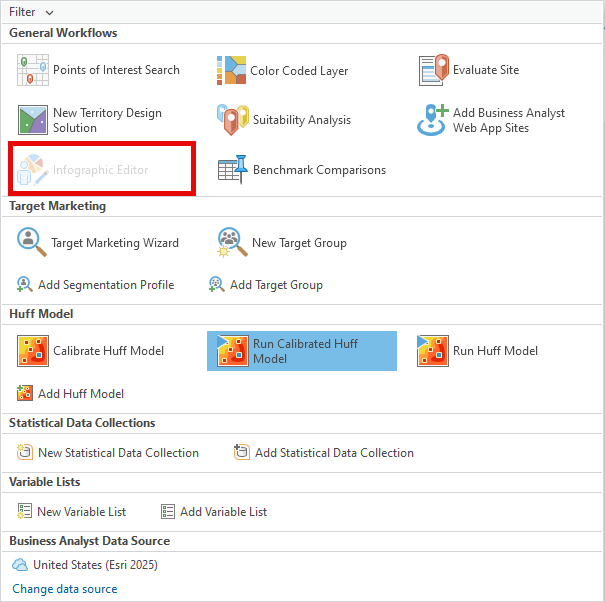
Most functionality in Business Analyst Pro is controlled by user type and data access. As a Creator user, with access to Business Analyst Web App Standard, you cannot edit infographics in Business Analyst Web App. In Business Analyst Pro, you must have access to a local dataset to edit infographics. Without the purchase of a local dataset, the infographics editor workflow will be greyed out.
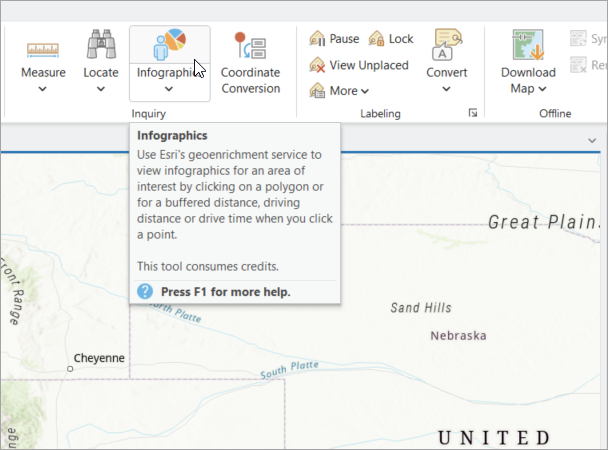
You can still run infographics from the Map ribbon because of your Business Analyst Web App license allocation.
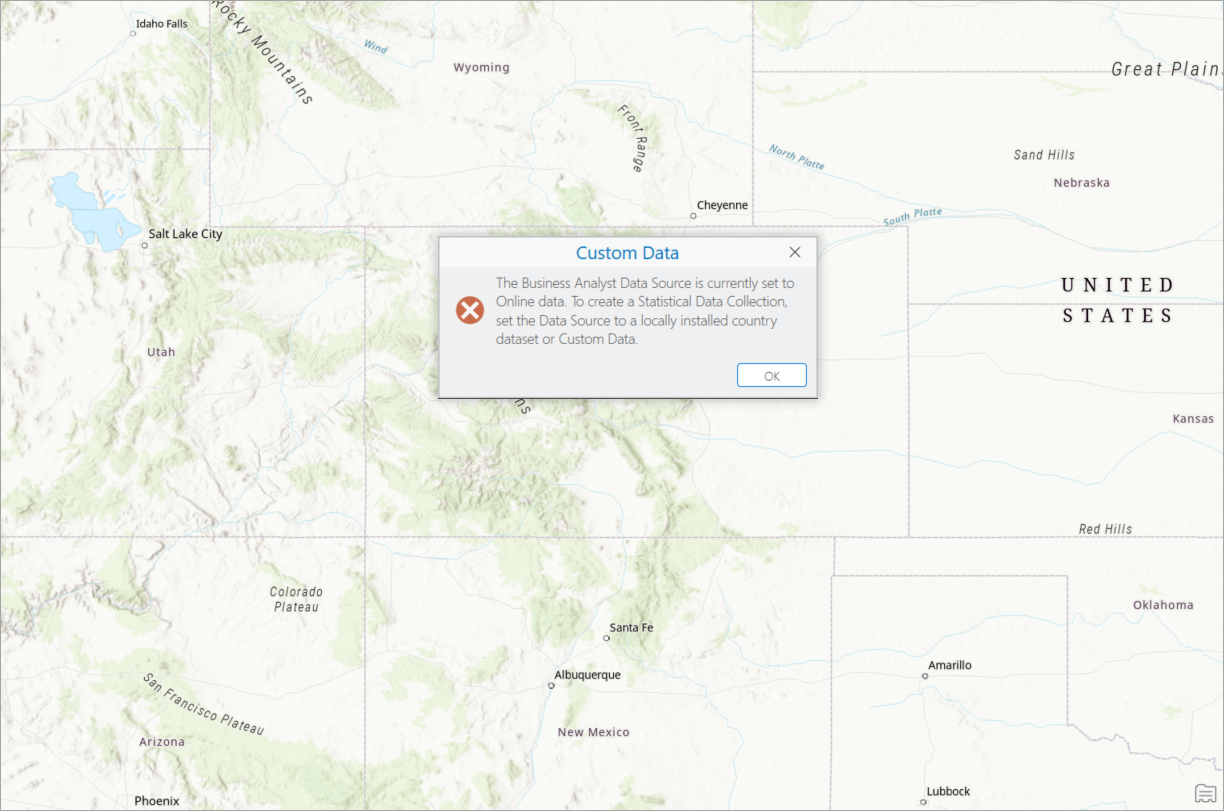
You will not be able to create Statistical Data Collections (also known as custom data) in Business Analyst Pro because you can only access data via ArcGIS Online. Without connecting to the same local data source that was used to create a custom dataset, you can access—but not edit—a Statistical Data Collection that was shared with you through your organization.
Now that you’ve dipped your toe in the world of Business Analyst, we hope you’ll leverage both apps—Business Analyst Web App Standard and the Business Analyst extension in ArcGIS Pro Basic—to explore all the analysis, mapping, and reporting capabilities the software has to offer. To continue your Business Analyst journey, visit the following resources:
- Business Analyst product overview page
- Review pricing and purchase Business Analyst
- Business Analyst resources page
- LinkedIn user group
- Business Analyst Web App video channel
- Business Analyst Pro video channel
- Business Analyst on Esri Community
- Business Analyst Web App login page
- Email the team: businessanalyst@esri.com
This article was updated to provide clarification on the need to purchase a license for the Business Analyst Pro extension. (8/6/2025)


Article Discussion: