We’re excited to announce that the Web Editor template is now available in ArcGIS Enterprise 12.1. This new template combines the configurable Instant Apps interface you know and love with ArcGIS Web Editor, letting you build custom editing apps in minutes. With the Web Editor template, you choose which tools to display to fit your projects and set default options for key tasks like snapping and selection to help you streamline workflows.
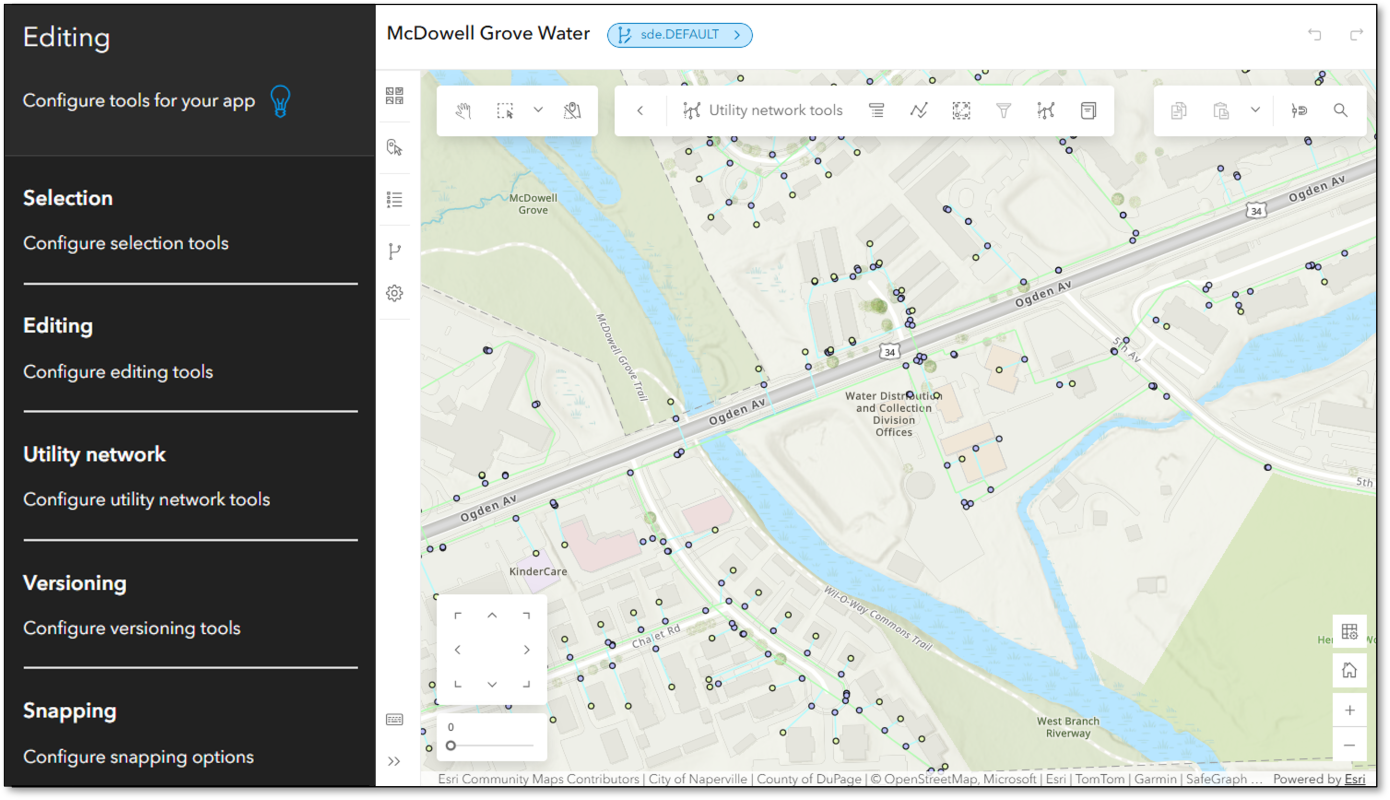
In this article, we’ll explore some new features specifically for Enterprise editing workflows, such as:
- Configuration for Utility Network Tools
- Enable versioning
and we’ll introduce some handy new tools:
Let’s jump in.
The Web Editor Template
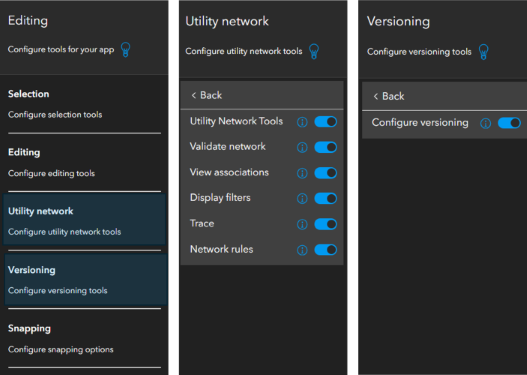
If you’ve used Instant Apps before, you already know how easy it is to quickly get an app up and running. The new Web Editor template has a similar configuration experience to the Side bar template, with a few key difference. The first is the Editing tab. This is where you choose which editing tools to display, set selectable and snappable layers, and unlock Enterprise‑specific tools for working with utility networks and versioned data. We’ll explore these tools more in the following sections.
Note: For a more comprehensive introduction to the Web Editor template, check out this previous article for ArcGIS Online.
Utility network tools
Editing utility networks in ArcGIS Web Editor involves using specialized tools to create, modify, and validate features like pipes, wires, and other devices. The tools you need are located on the utility network toolbar, including options to validate topology, view associations, trace, and review network rules.
With the Web Editor template, you can choose whether to display the utility network toolbar, and decide which tools to make available. In the Utility Network Tools section of the Editing tab, simply toggle to enable the toolbar, then select the tools you want to display. With the ability to show only the tools needed for your workflows, you can declutter the UI for a more streamlined editing experience.

Versioning
With versioning, you can create and manage different versions of the data- allowing multiple users to edit data simultaneously. Using the Web Editor template, you can choose whether to expose versioning options to editors. When enabled, these tools allow editors to:
- Switch between versions,
- Manage existing versions, and
- Create new versions
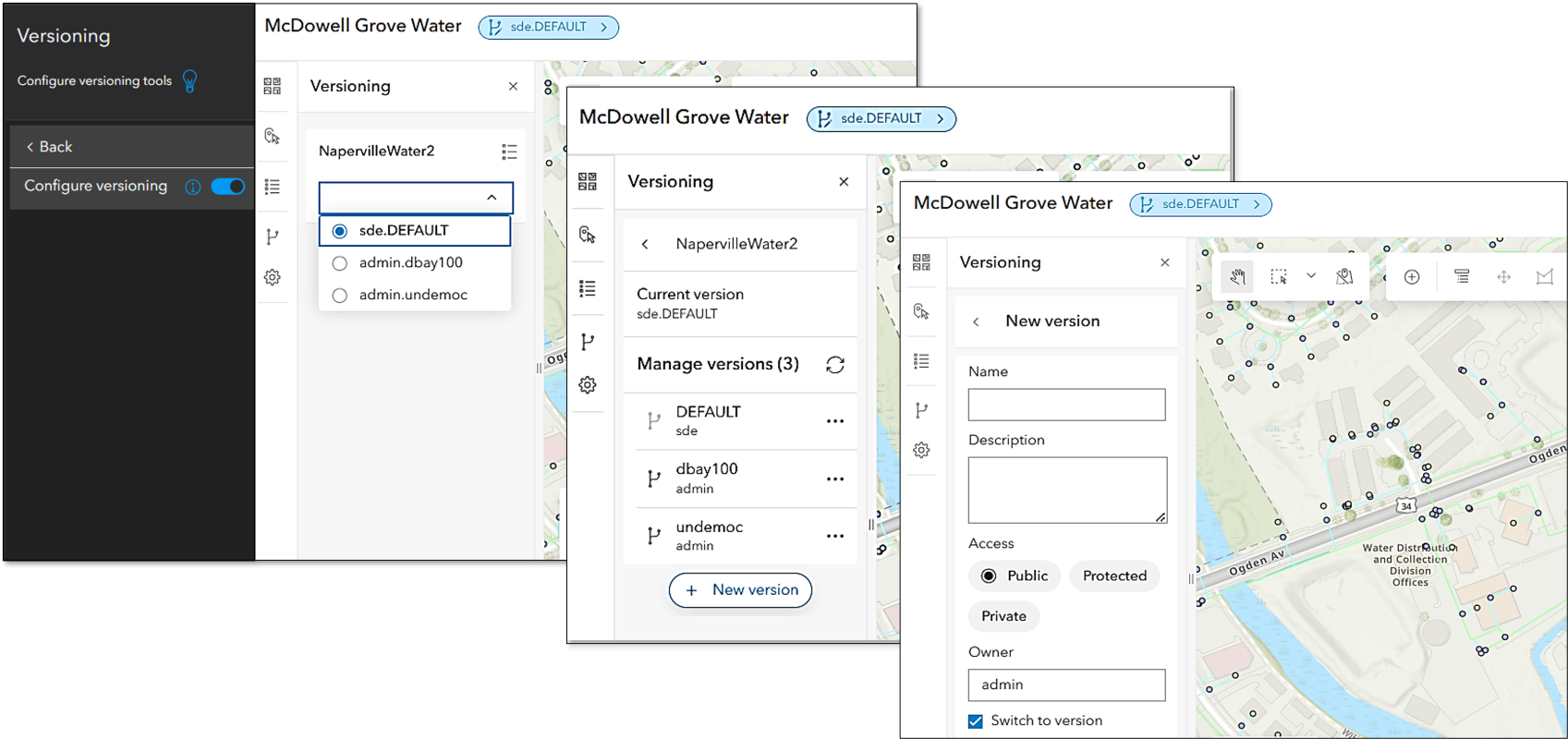
Note: ArcGIS Web Editor supports branch versioning. Traditional versioning is not supported.
Snap chip
At a busy junction, you may have multiple features such as water lines, fittings, and valves that can occur at different heights. The new floating snap chip lets you preview a list of features at that location, along with their heights (Z-values), before deciding which one to snap to. This can help ensure appropriate connectivity between features.

For a step-by-step guide to using the Snap chip, check out this article on editing from A to Z with the snap chip.
True curves
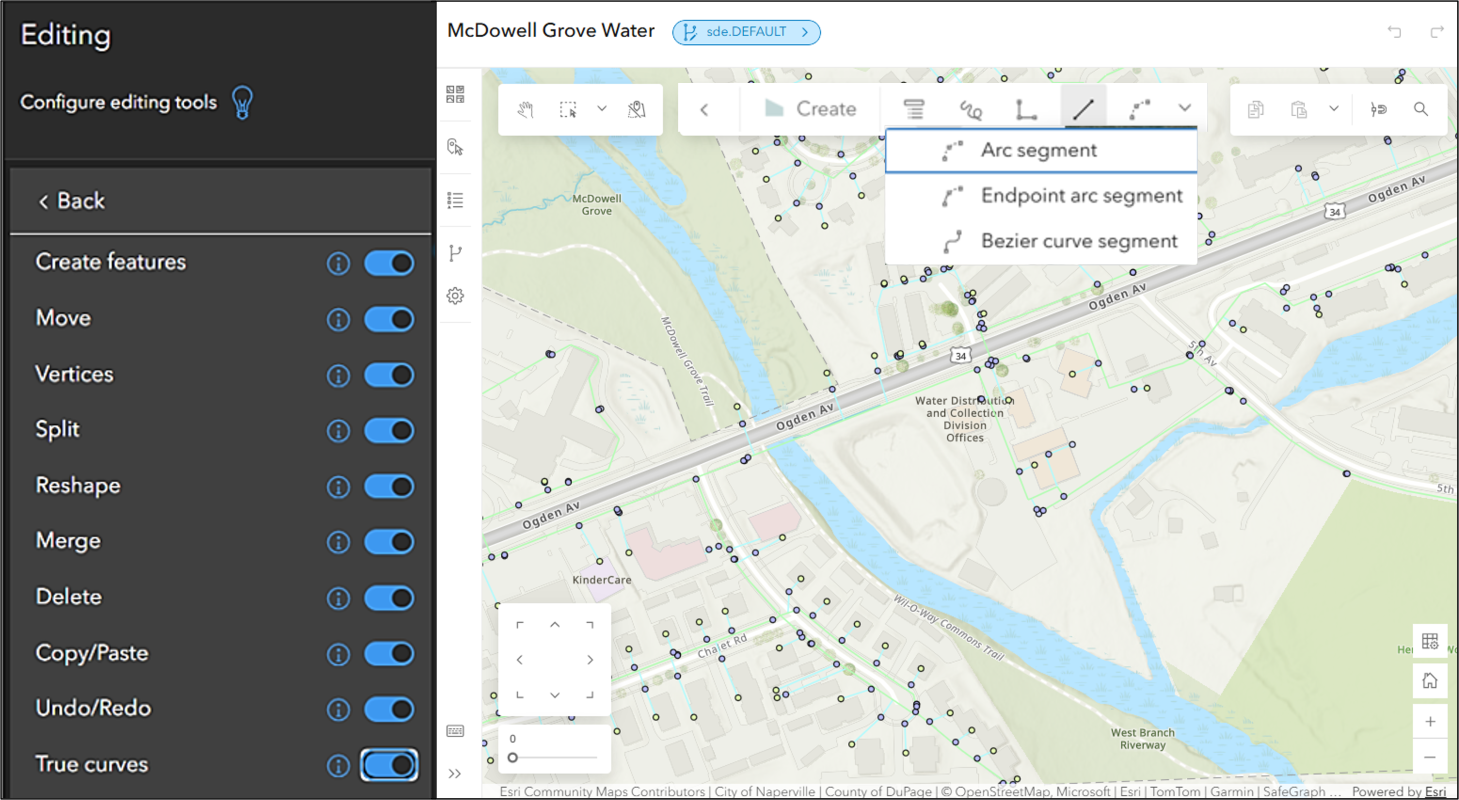
We now support true curves when creating or updating lines or polygons. Enable True curves on the editing toolbar to reveal these 3 new drawing tools:
- Arc segment,
- Endpoint arc segment, and
- Bezier curve segment
These are great for mapping winding roads, river banks, or cul-de-sacs. Check out this article for an introduction to the true curve drawing tools.
Summary
The Web Editor template in ArcGIS Enterprise 12.1 lets you quickly build custom apps to streamline editing workflows. It includes configurable options for editing utility networks, managing versioned data, and leveraging new tools like the snap chip and true curves. We hope these enhancements help you build editing apps to simplify your workflows. As always, stay tuned for more updates, and share your feedback and experiences with us over at Esri Community.





Commenting is not enabled for this article.