ArcGIS StoryMaps is the professional tool for harnessing the power of maps to communicate your work using place-based storytelling. The easy-to-use builder enables you to combine maps, 3D scenes, embedded content, multimedia, and more to create an interactive narrative that can inspire interest — and action — from your readers.
Each month, our team uses community feedback to help inform new capabilities that can enhance your storytelling adventures. Check out what’s new this month!
Quick links
- Frames
- Side-by-side infographics
- Writing assistant updates
- Text sizes
- Table view
- Classic retirement
- And more…
Frames
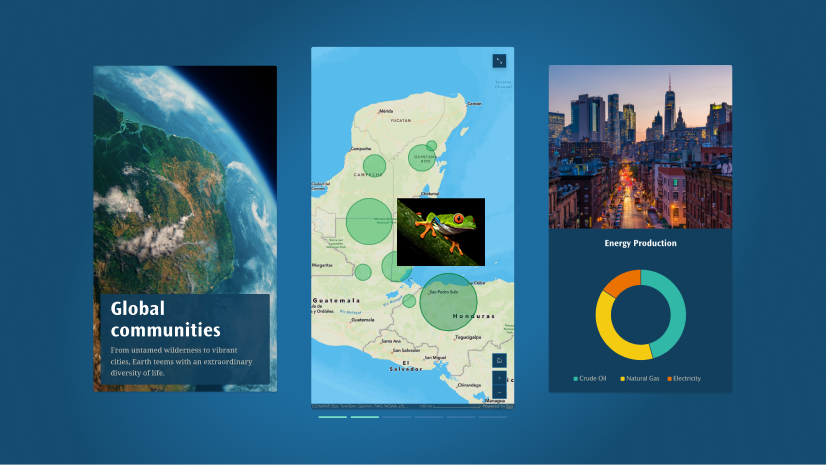
In a world where mobile screens reign supreme, your storytelling efforts may need to be just as concise and accessible as they are captivating. Enter Frames, the newest output from ArcGIS StoryMaps — a format dedicated to short-form storytelling that distills your message into just a few clicks. Whether you’re sharing a key insight, a striking map, or a call to action, Frames enable speed and simplicity in your storytelling.
Composed of portrait-oriented slides (think 9:16 aspect ratio, similar to most phone screens), you can create Frames in minutes — not hours or days — using the streamlined desktop builder. And after hitting the Publish button, your shareable Frame looks just as good on mobile and desktop alike. Need to update your slides to keep your content fresh and relevant to your audience? You can edit and republish your Frame any time.
Begin your short-form storytelling adventure by clicking + Create at the top right of your StoryMaps content page and select Frame. The Frame builder feels like home with a familiar user interface and many of the same features as other ArcGIS StoryMaps outputs. Start by adding an image, video, color, or title to your cover slide. Or jump into adding a + New slide with one of two layouts: Single or Double panel. In a panel, you have ten content types to choose from, encompassing many of the essential media and data visualization features that you’re used to — from text, to maps, to images and videos, to ArcGIS apps, to infographics, and more; use what you need in any combination to get your message across.
Note: Frames are in beta; your organization administrator must enable beta features in the organization settings. Several updates are planned over the next few months for this new output, including the ability to author frames on mobile devices and to embed them seamlessly, in full, on popular social platforms. In the meantime, please let us know on Esri Community or the ArcGIS StoryMaps Frames Feedback survey if you find any issues or have feedback.

Side-by-side infographics
In June 2025, we introduced the infographics block, making it easy for you to enhance the data visualization of your stories and briefings! Whether you want to maximize understanding, support visual learners, or highlight key points, infographics simplify complex information by combining visuals and text.
And now we’re excited to see what you can do with side-by-side infographics! After adding an initial infographic, you will find the option to create a row of up to three infographics by clicking the + button.
Note: All infographics in a single row must use the same layout. Once a second infographic has been added, the layout for that and all subsequent infographics in that row will be locked.
Whether you want to directly compare different datasets or display correlations, side-by-side infographics create a clean, organized layout that will be easier for your audience to follow. Learn more about Using charts, infographics, and tables effectively in ArcGIS StoryMaps.
Writing assistant updates
In July 2025, we introduced four AI assistants to act as thoughtful collaborators without compromising your unique perspective. Whether it’s to ensure that your visuals are reader-friendly for everyone or your message resonates with your audience, these AI assistants can help refine your content by checking for accessibility, clarity, and overall effectiveness.
Note: AI assistants are in beta; your organization administrator must enable beta features in the organization settings.
This month, we’re introducing a number of updates to the writing assistant:
- The Rephrase action has been replaced by an Enhance action, which rewrites the selected text according to four targeted improvements: Vocabulary, Flow and organization, Sentence structure, and Readability.
- The Summarize action now offers three outputs: A bulleted List, a concise one-phrase Title, or a summary in Paragraph form.
- You can now view multiple iterations of AI-revised text in the same writing assistant session.
- A double-paper icon above each iteration of AI-revised text copies that passage to your clipboard.
- The Update text button above the original text passage allows you to change the scope of the text to a full text block (paragraph) or entire story section. (Note that any suggested revisions that have already been made will be erased when you change the original text selection.)
- An Insert button next to Replace at the bottom of the assistant window allows you to insert the last suggested revision either above or below the original passage of text without immediately replacing it.
Learn more about Using the ArcGIS StoryMaps AI assistants to your benefit.
Text sizes
Make a headline that pops. Draw attention to key insights. Or provide additional information without cluttering your story. Flexible text sizing enables you to establish a clear visual hierarchy that not only enhances the aesthetic of your story but also makes it easier to read and understand. So, it only made sense to give you more text size options!
Stories
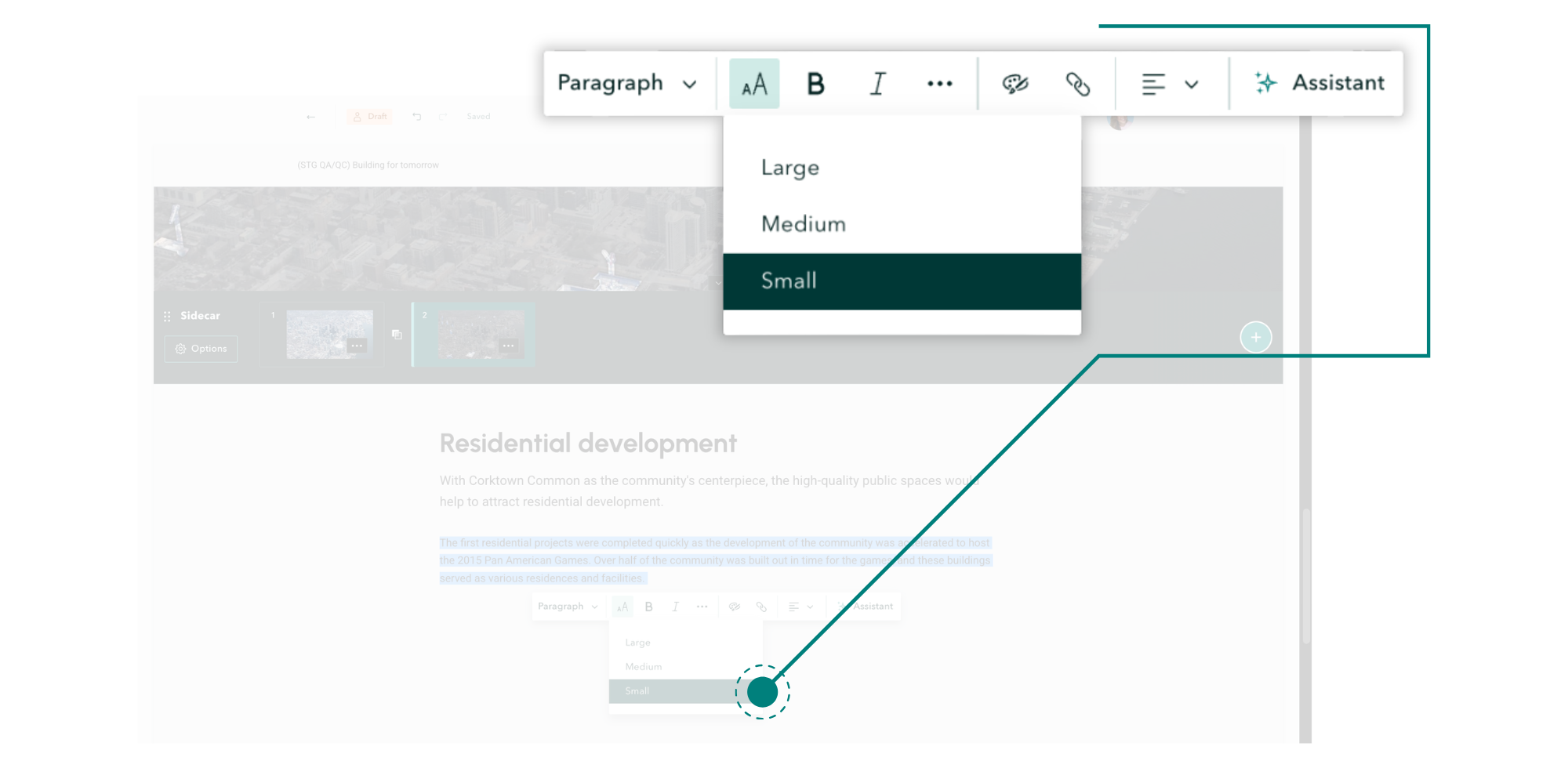
Small has been added to the text size options in stories:
Briefings
And Extra large and Largest has been added to text size options in briefings:
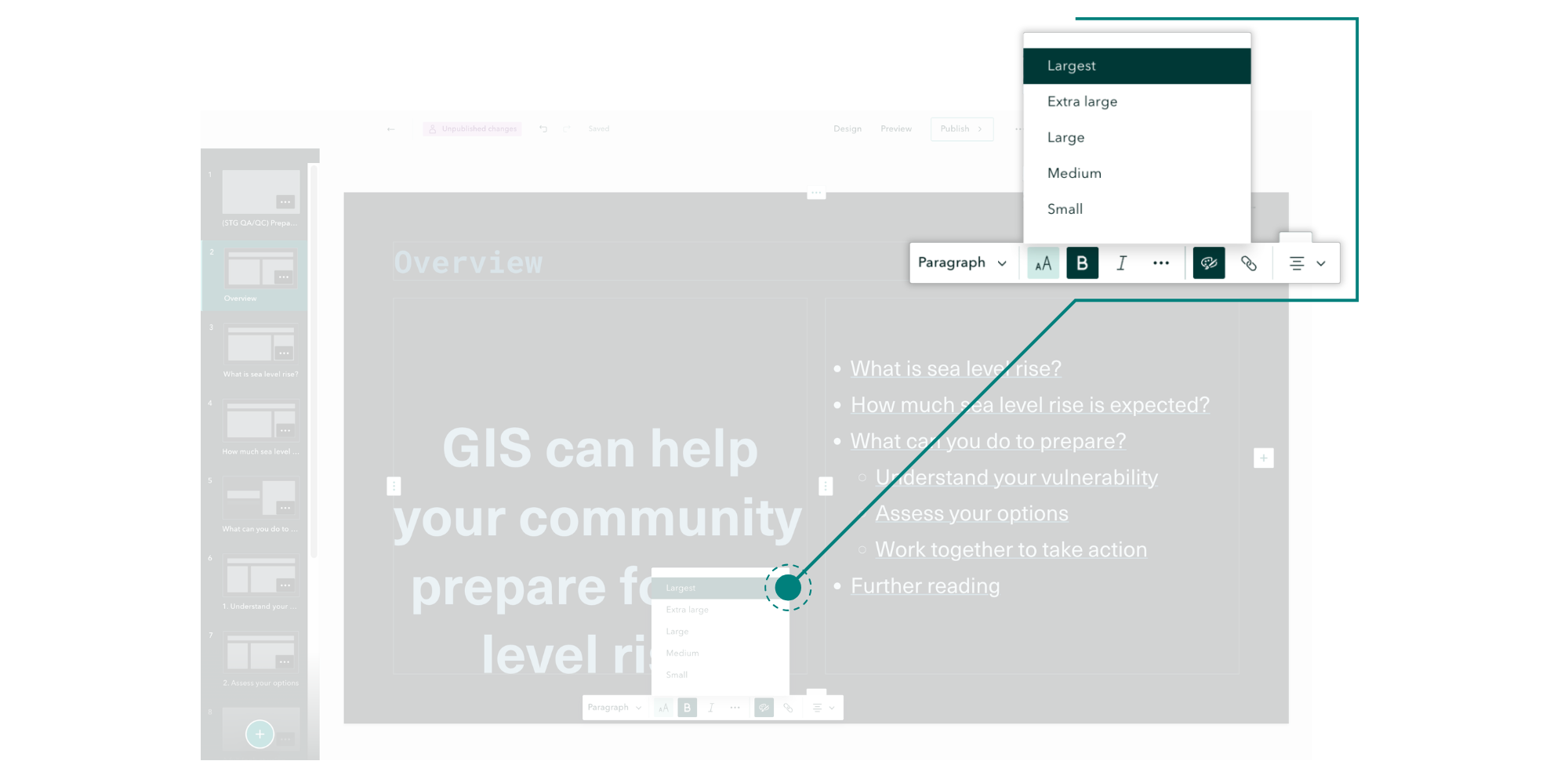
Table view
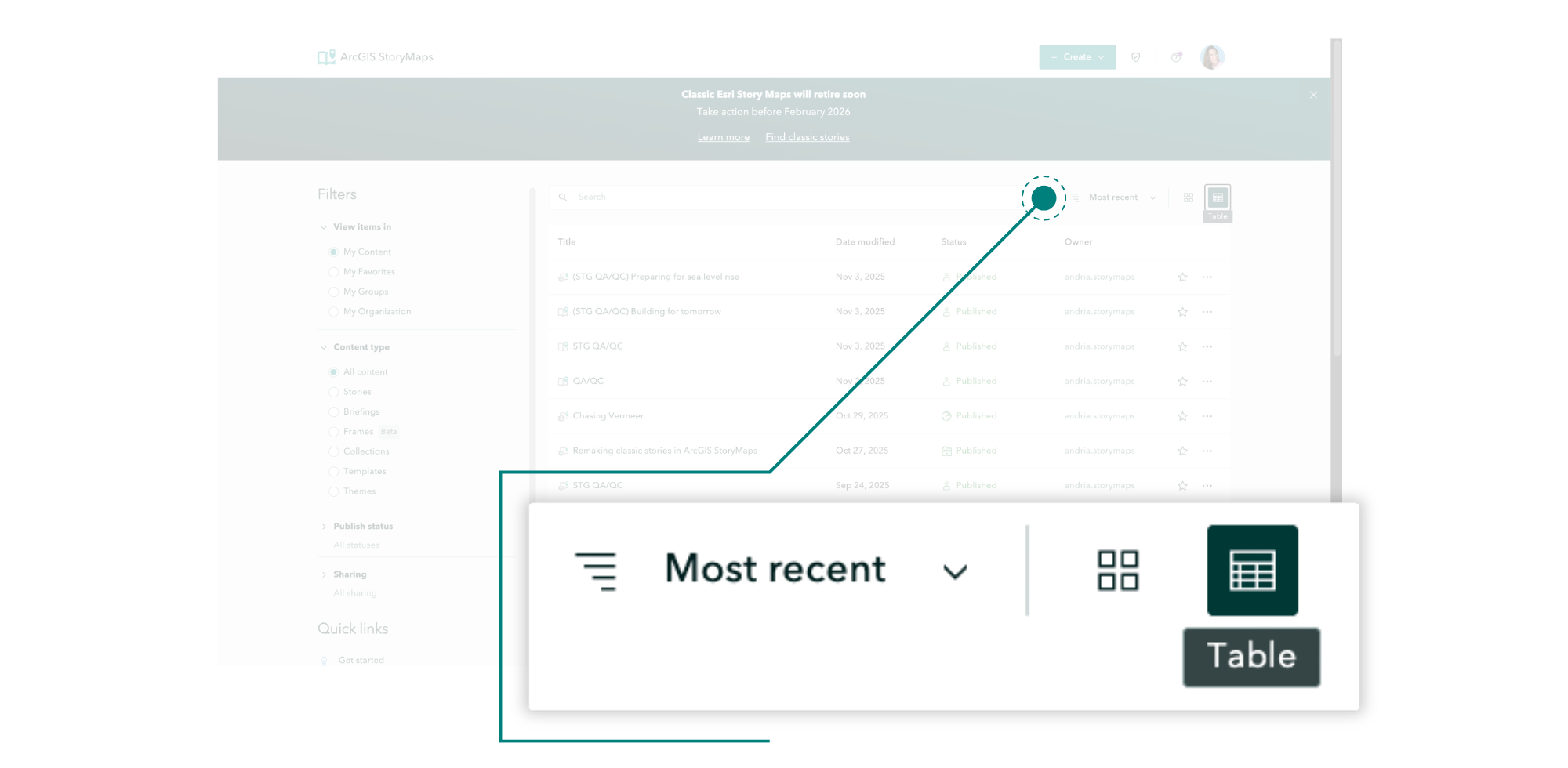
In addition to Grid, Table view is now available on the recently updated StoryMaps content page:
Classic retirement
Banner
Did you create a story using the Classic Esri Story Maps templates (2011-2019)? With retirement scheduled for early 2026, now is the time to remake your Classic stories using ArcGIS StoryMaps. A banner will run across the top of your StoryMaps content page as a reminder to take action, with links to learn more about the retirement and an ArcGIS Online search strategy to help you identify classic stories in your organization.
Configure a replacement item
With the retirement initially announced in 2019, you may have already started taking action by remaking your classic stories using ArcGIS StoryMaps — and great news if you have! You can now specify a Replacement item in the Settings tab on the ArcGIS Online item page for a Classic story. For now, configuring a replacement item adds a banner to the Classic story that includes a link to the new story, but enhancements to this capability are coming soon to further its utility for Classic story retirement. In the meantime, visit Esri Community for the latest on managing the Classic Esri Story Maps retirement in your organization.
And more…
- The ArcGIS Apps block now supports 360 VR Experiences.
- ArcGIS StoryMaps now reflects an organization’s beta settings; in other words, if the organization administrator has turned off beta features, features in beta will be inaccessible in StoryMaps.
- Organization administrators can designate a group for approved basemaps in ArcGIS Online. Basemaps in that group will be available in the Approved category when selecting the basemap for maps in a story or briefing.
Thank you to Ashley Du and Will Hackney for their contributions to this post.
All Adobe Stock images are © 2025 Adobe Stock. All rights reserved.


Being able to set the small text is great. I cannot set the text size for Timeline text. It would be good to be able to set this as well. Thanks for the updates.