Last updated: Oct 21, 2025
ℹ️ This blog series focuses on hosted data services in ArcGIS Online and ArcGIS Location Platform (more about the scope).
Have you ever struggled to manage your hosted data services?:
- Wasting time on manual steps that should be automated.
- Struggling to integrate your system with these services.
- Unsure what tools or workflows are available to get the job done.
- Confused about the trade-offs between different workflows and tools.
- Spending hours hunting for the right docs or examples.
This article tackles those challenges by comparing tools and workflows and includes the resources you need to manage ArcGIS hosted data services in practice.
Notes on accuracy: Surviving the test of time …
As introduced in the first article of this series, this series is a unified resource to save you time and clarify differences between similar technologies, based on information from official sources.
Technology evolves rapidly, so some details may become outdated. Each article includes references to official documentation, which contains the most up-to-date information. In case of discrepancies, the official documentation takes precedence.
If you find something unclear or notice an error, contact us at developers@esri.com
About the hosted data services covered …
This series covers:
- Hosted feature services
- Hosted vector tile services
- Hosted map tile services
There are other popular and useful data services within the ArcGIS system optimized for other purposes, such as hosted image services, hosted scene services, etc. Still, we won’t cover them as explained in the first article since they are not available for ArcGIS Location Platform users.
Quick overview
This guide is for you if you’re responsible for creating and maintaining hosted data services, whether you’re a backend developer, data engineer, solution architect, DevOps specialist, or in a similar role.
[TL;DR] Short on time? This table gives you the key highlights at a glance:
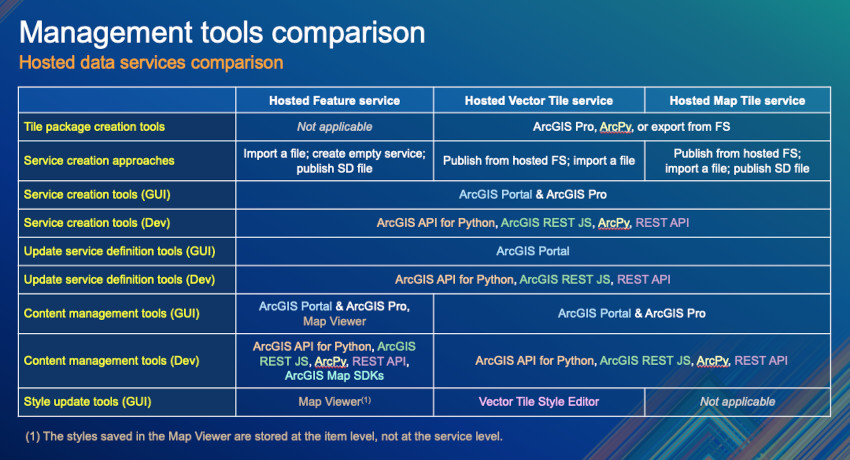
By the end, you’ll know which technologies fit each task, the trade-offs, how to automate, and how to choose the right approach.
Table of contents
- Tile package creation tools (TPK, TPKX & VTPK)
- Service creation approaches and tools
- Service definition management tools
- Content management tools
- Style definition tools
- Summary
- Next steps
Note: Technical details and references are in collapsible sections.
Note: Some links go to ArcGIS Online docs; the steps also apply to ArcGIS Location Platform..
Tile package creation tools (TPK, TPKX & VTPK)
Creating services from tile packages is not very common but has its own advantages and trade-offs.
More about the advantages and trade-offs of creating services from tile packages
Publishing from a tile package avoids tile generation charges (since tiles are pre-generated) and ensures predictable storage, as the service always uses a fixed amount of space with no extra feature storage costs.
There are, however, some trade-offs:
-
Changing the source data requires regenerating and republishing the entire package.
-
Tiles can’t be created on demand, so the cache may include unused areas and waste storage.
- You need a separate workflow to build and upload new tile packages for updates.
By contrast, publishing a tile service from a feature service optimizes tile storage (tiles are generated only when requested) and allows selective updates (refresh only changed regions instead of the entire dataset).
| Tools | Method | TPK | TPKX | VTPK |
|---|---|---|---|---|
| ArcGIS Pro | Manually | Docs | Docs | Docs |
| Using ArcPy | Programmatically | X | X | X |
| Through a hosted feature service | Both | X | X | X |
| Using raster-tiles-compactcache | Programmatically | Repo | – | – |
If you choose this approach, here are additional instructions:
Instructions using ArcPy
ArcPy is a library available on any machine with ArcGIS Pro or ArcGIS Enterprise. In ArcGIS Online, it’s available through the advanced runtime in ArcGIS Notebooks.
Use these tools to create tile packages:
- arcpy.management.CreateMapTilePackage for map tile packages (TPK or TPKX).
- arcpy.management.CreateVectorTilePackage for vector tile packages (VTPK).
Tip: For details on map tile packages, see the official Esri Tile Package Specification.
Instructions through a hosted feature service
If other methods don’t work for you, you can still publish a hosted feature service as an intermediate step to export the tile package
- 1. Create a hosted feature service.
- 2. Publish it as a map tile or vector tile service.
- 3. Enable the service for offline use.
- 4. Use the exportTiles REST API from the map tile service or vector tile service.
Note: This approach incurs tile generation and storage costs as explained here.
Frequently asked questions about tile package creation
Can open-source tools like GDAL and Mapnik create TPK files for ArcGIS?
Technically yes (data can be preprocessed with GDAL, tiles rendered with Mapnik, and packaged as a TPK), but it’s not recommended, given that more reliable workflows are available.
Can I create ArcGIS vector tile packages (.vtpk) from mbtiles?
Yes, with the Data Interoperability extension. You can transform .mbtiles from tools like Tippecanoe, OpenMapTiles, Tegola, Tilemaker, Martin, Mapbox Tiling Service, QGIS, or Planetiler into .vtpk files, although this requires extra setup and licensing. The list of tools isn’t exhaustive.
Where can I learn more about tile caching?
Besides the ArcGIS Pro Tile Cache documentation and Esri’s videos on the topic, a highly recommended resource is the CartoRedux Caching Master Class
Service creation approaches and tools
Hosted data services can be created using different approaches, from manual file imports to scripted integrations. Each approach has trade-offs in simplicity, control, flexibility, and cost, so understanding them helps you choose the right workflow and tool.
| Workflow | Feature service | Vector tile service | Map tile service |
|---|---|---|---|
| Import a static file | Yes | Yes | Yes |
| Publish tile service from a hosted feature service | Not applicable | Yes | Yes |
| Publish an ArcGIS Pro service definition file (.sd) | Yes | No | Yes |
| Create a service with no data from scratch | Yes | No | No |
If you don’t know what a service definition file is…
A service definition is a reusable file that packages everything needed to publish a hosted service. Similar to a configuration file in Docker, Kubernetes, or Terraform, it lets you consistently recreate an environment for ArcGIS services. But it can also bundle data along with the service configuration (schema, rendering rules, spatial reference, capabilities, permissions, etc.).
You can create it with ArcGIS Pro or ArcPy. When you upload this file to ArcGIS Online or ArcGIS Location Platform, you can publish the service exactly as described, making automation much easier.
You can create hosted data services with these tools, though not all support every approach (explained in the next section):
- Data management tools, such as ArcGIS Pro and ArcGIS Portal content and data tools.
- Esri-provided scripting APIs such as ArcGIS API for Python, ArcGIS REST JS, and ArcPy.
Keep in mind that you can achieve the same results by making raw ArcGIS REST API calls (the underlying technology used by all these tools and APIs).
How to create hosted data services
As with everything else, you can create any hosted service manually or through code.
Regardless of the tool, creating a hosted data service is a multi-step process:
- First, create an item (e.g., import a file as a portal item or make an empty item).
- Then publish it as a service.
- If you made an empty item, add the definition schema.
The Portal and data services guide provides step-by-step instructions for creating these three service types using data management tools (ArcGIS Portal and ArcGIS Pro) and scripting APIs (ArcGIS API for Python and ArcGIS REST JS).
The collapsible sections below include additional details and resources for each service type:
Ways to create a hosted feature service
Tutorials about creating feature services through a GUI (ArcGIS Pro, ArcGIS Portal’s “Feature layer tool” or “Import data tool“) or through code:
- Importing static files: Tutorial: Import data to create a feature layer (e.g., GeoJSON, CSV, Excel, Shapefiles, and a few other supported formats)
- Create the service definition manually: Tutorial: Define a new feature layer (with no data). This approach creates an empty service and requires authoring the JSON spec from scratch, so some knowledge of the specification is needed.
Beyond the approaches documented in the guide, you can also use a service definition file (.sd). You first need to author it in ArcGIS Pro by saving the definition for a web layer, then upload and publish it using any of the tools available.
Below is a quick guide to the developer APIs not yet covered in the developer guide:
- The ArcGIS REST APIs can also be used to reproduce these approaches:
- Importing static files:
- Uploading the file via addItem.
- Publishing the item as a service using the publish items operation.
- Create a service definition manually:
- Create the item using addItem.
- Create the service using createService (with
targetType=featureService). - Add the service definition using addToDefinition.
- Importing static files:
- ArcPy can also be used to:
- Publish an ArcGIS Pro service definition file (.sd): Through the arcpy.sharing module to publish a service definition.
- Create a service definition manually: Create a geodatabase with an empty feature class and publish it.
Ways to create a hosted feature layer view from a hosted feature service
A hosted feature layer view is based on an existing layer and lets you filter data by extent, choose fields, and customize capabilities.
Here are some resources on creating layer views with different tools:
- ArcGIS Portal:
- ArcGIS REST JS: Create a feature layer view (tutorial).
- ArcGIS REST API: Create a joined hosted feature layer view (Postman collection).
Some examples are missing, but you can use the ‘💡Pro Tip’ explained below to work them out. If you need help, please don’t hesitate to reach out.
Ways to create a vector tile service
You can create vector tile services either through GUIs or through code.
Publish tile service from a hosted feature service using
- ArcGIS Portal: Use the Import Data tool followed by the Tile Layer tool, or publish it directly from an existing hosted feature service.
- ArcGIS API for Python and ArcGIS REST JS: Create a vector tile service for an app > Publish the map tile service > Scripting APIs (choose the relevant tab).
- REST API: Create the feature service and use the publish items operation (setting
outputType=vectorTilesandpublishParameters=<JSON serviceDefinition>). - ArcGIS Pro: (not available, use ArcGIS Portal instead).
- ArcPy: (not available, use the ArcGIS API for Python instead).
Note: Publishing from a hosted feature service produces a single layer that blends all layers in the service
Import a static file (VTPK)
- ArcGIS Portal: Publish hosted vector tile layers from files.
- ArcGIS API for Python: Publish vector tile layers from a vector tile package
- ArcGIS REST JS: Create the item (related resource), upload the package with addItemData and arcgis-rest-request to call the REST endpoint publish item operation.
- REST API: Upload the file via addItem, and publish the item as a service using the publish items operation.
- ArcGIS Pro: Author a map for vector tile, or add an existing VTPK, and then publish/share the vector tile layer.
- ArcPy: Use CreateSharingDraft and arcpy.sharing.Publish as explained in automate sharing web layers.
Key parameters to set in the request to the REST API: addItem operation:type="Vector Tile Package" | publish item operation: fileType=vectorTilePackage.
Ways to create a map tile service
You can also create map tile services either through GUIs or through code.
Publish tile service from a hosted feature service using
- ArcGIS Portal: Use the Import Data tool followed by the Tile Layer tool, or publish it from a feature service.
- ArcGIS API for Python and ArcGIS REST JS: Check, create a map tile service for an app > Publish the map tile service > Scripting APIs (choose the relevant tab).
- REST API: Use the publish items operation (
outputType=tilesandpublishParameters=<JSON serviceDefinition>). - ArcGIS Pro: (not available, use ArcGIS Portal instead).
- ArcPy: (not available, use the ArcGIS API for Python instead)
Note: Publishing from a hosted feature service produces a single layer that blends all layers in the service
Import a static file (TPK or TPKX)
- ArcGIS Portal: Publish hosted tile layers from files.
- ArcGIS API for Python: Publish tile layers from a tile package.
- ArcGIS REST JS: Create the item (related resource), upload the package using addItemData and arcgis-rest-request to call the REST endpoint publish item operation
- REST API: Uploading the file via addItem, and publishing the item as a service using publish items.
- ArcGIS Pro: sharing a web tile layer.
- ArcPy: Using CreateSharingDraft and arcpy.sharing.Publish as explained in automate sharing web layers.
Key parameters to set in requests to the REST API: addItem operation:type="Tile Package" | publish item operation: fileType=tilePackage, buildInitialCache (to generate tiles immediately after publishing).
Publish an ArcGIS Pro service definition file (.sd)
- ArcGIS Portal: Using the Import data tool to publish the hosted tile layer from the service definition.
- ArcGIS API for Python: This Notebook shows how to publish all service definition files in a folder.
- ArcGIS REST JS: Using arcgis-rest-request to call the REST endpoint publish item operation.
- REST API: Using the publish items operation.
- ArcGIS Pro: Using the Share Package tool with the .sd file and
- ArcPy: Upload it using the arcpy.management.SharePackage and use arcpy.sharing module to publish a service definition.
Key parameter to set in the request to the REST API: publish item operation: fileType=serviceDefinition
Frequently asked questions about hosted services creation
Can hosted map tile services be directly created from other files such as mbtiles or geopackages?
No, they can not.
Can hosted vector tile services be directly created from mbtiles?
No, they can not.
How do I define the tile size and other tiling scheme parameters?
Use the Generate Tile Cache Tiling Scheme geoprocessing tool in ArcGIS Pro (or arcpy.management.GenerateTileCacheTilingScheme) to define parameters such as the coordinate system, tile origin, tile size (e.g., 128 x 128, 256 x 256, 512 x 512, 1024 x 1024), DPI, scale levels (LODs), and resolution. Check this CartoRedux’s video.
You can also configure the tiling scheme using the Tile Layer tool in your ArcGIS portal, though its configuration options (and the corresponding REST endpoints) are more limited. When publishing from tile packages or features, you can customize the tiling scheme as described in Publish tile layers from files or Publish a hosted tile layer from features.
What are the file size limits for uploading data when preparing to publish hosted services?
You can upload files up to 500 GB to “My Content” using multipart uploads, which support up to 10,000 parts. For single uploads through the web browser, the limit is 5 GB. If you’re using chunked transfer uploads, each chunk can be up to 50 MB. These limits apply when preparing data for publishing hosted services
Service definition management tools
As explained in the previous article (What’s inside a service definition), a service definition is stored as a structured JSON object that describes all key aspects of a service or its layers.
We cover both service-level settings, which control the overall behavior of the service, and layer-level settings, which apply only to individual layers.
After publishing a service, you can update its settings from the ArcGIS portal item’s page (https://<org-short-name>.maps.arcgis.com/home/item.html?id=<item-id>#settings). This page exposes the most common configuration options, but sometimes, though, you need to see (or edit) the full JSON specification.
If you need complete control, you can access it through the REST API Admin HTML interface, or manage it through code using developer tools such as the ArcGIS API for Python, ArcGIS REST JS, or directly via the ArcGIS REST Admin API.
⚠️ Important note: Even advanced users can cause unrecoverable issues when working directly with the REST API. Always experiment on disposable services and keep backups in case something important breaks.
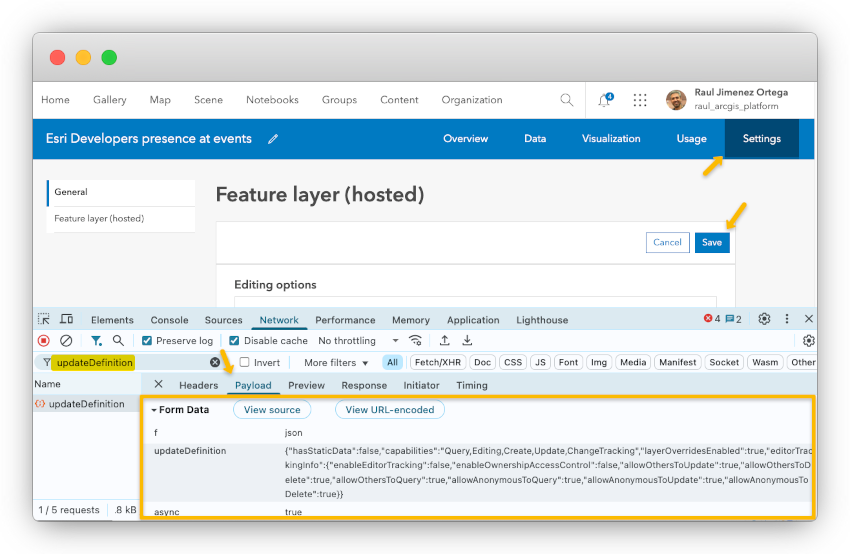
💡Pro Tip: Advanced users can inspect the network requests made by the ArcGIS portal interface when saving changes. Looking at the REST API payloads is a great way to discover which properties are being set and how to configure them when changing service settings programmatically.
ArcGIS Pro and ArcPy are mainly used to author and publish services. You can republish or overwrite an existing service, but they don’t provide a way to directly modify service-level settings after publishing.
Ways to modify a service definition
There are several ways to manage service settings, depending on your workflow or toolset. Below, you can learn how to use each option.
ArcGIS Portal
| Feature services | Vector tile services | Map tile services | |
|---|---|---|---|
| General capabilities | Docs | Docs | Docs |
| Access control | Docs | Docs | Docs |
The ArcGIS Online documentation also provides useful information on all supported services under: Manage data > Configure item details.
ArcGIS API for Python
- Feature services: Check “Update the feature service definition” to understand how to use the FeatureLayerCollection class and the update_definition() method.
- Vector tile services: Use the VectorTileLayerManager class and the edit_tile_service() method.
- Map tile services: Use the MapImageLayerManager and the edit_tile_service() method.
ArcGIS REST JS
- Feature services: Use the updateServiceDefinition method
- Vector tile services and map tile services: There is no specific method to update these. Use arcgis-rest-request to call the REST API.
ArcGIS REST API
The following endpoints can be accessed programmatically, but each service also provides an HTML interface if you set the “f” to “html”.
- Feature services: Provide multiple endpoints for managing their definitions: addToDefinition, updateDefinition, and deleteFromDefinition. Not all changes can be applied with updateDefinition alone—some require first deleting and then re-adding the definition
- Vector tile services: Use the “edit” operation to update the service definition.
- Map tile services: Use the “edit” operation to update the service definition.
Also, note that all data services have a refresh operation to clear the web server cache for the service.
More about feature service, layer, and layer view definitions
It is common to want to make changes to a feature service after it has been published. Many of these changes can be made through the item’s page, such as:
Service-level capabilities
In addition to the ones listed in the “Ways to modify a service definition”:
- Performance and optimization: Manage spatial indexes and manage CDN cache.
- Other capabilities: editing and offline synchronization, and more.
Layer-level capabilities:
- Data model: Add or delete fields (e.g., update field properties: alias, defaults, visibility) to the layers, enable/disable attachments, and much more.
- Data integrity and rules: Create domain lists and ranges, and unique constraints.
- Visualization: Configure the drawing information: default symbology and labels (using Map Viewer).
- Performance and optimization: Manage field indexes, enable complex shape drawing optimization
- Other capabilities: include defining feature templates, enabling time, etc.
As mentioned earlier, any change made through the graphical interface can also be done via the REST API. The API also supports changes not always available in the GUIs, such as:
- Modify the layer structure of an existing service: (add, modify, or delete layers or tables) using the FeatureServer/updateDefinition endpoint.
- Create or delete relationships (1:M or M:M) between layers and tables within the same service. (check Advanced views)
- Register webhooks to trigger on edits or schema changes.
🔔 Reminder: Manually modifying data schemas is complex. While the API reference includes some examples, schema changes are primarily intended to be handled through Esri’s tools. Whenever possible, use the provided tools and SDKs (they simplify the process and help you avoid common pitfalls).
Frequently asked questions about hosted feature services
Are there limitations to joined layer views?
Yes:
- Read-only: Joined views can’t be edited or synced.
- Schema lock: Source layer schemas become fixed after joining.
- Performance: Large joins may slow downloading due to dynamic data processing.
- Offline use: Joined views aren’t available offline.
- Access control: Layers with ownership-based access can’t be used in joins.
- Attachments: Only included if the target layer has a global ID field.
Content management tools
The table below summarizes the type of update each service supports, the maximum scope of change, and whether updates happen immediately or must be explicitly triggered.
| Service type | Update operation | Max. granularity | Update mode |
|---|---|---|---|
| Hosted feature services (FS) | Immediate edits | Per-feature/attribute | Inmediate |
| Hosted vector tile services (from FS) | Cache rebuild | Extent (map area) | On-demand or scheduled |
| Hosted map tile services (from FS) | Cache rebuild | Extent (map area) | On-demand |
| Hosted vector tile services (from VTPK) | Replace cache | Whole service | On-demand |
| Hosted map tile services (from TPK/TPKX) | Replace cache | Whole service | On-demand |
Next, we’ll see which tools are available to manage these updates:
| Tool | Hosted feature service | Hosted vector tile services | Hosted map tile services |
|---|---|---|---|
| ArcGIS Portal | Yes | Yes | Yes |
| ArcGIS Pro | Yes | Yes | Yes |
| ArcGIS API for Python | Yes | Yes | Yes |
| ArcPy | Yes | Yes | Yes |
| ArcGIS REST JS | Yes | Yes | Yes |
| REST API | Yes | Yes | Yes |
| Map Viewer | Yes | No | No |
| ArcGIS Maps SDKs | Yes | No | No |
Keep in mind that not all tools provide the same experience. Some expose only a subset of the service capabilities, which means specific updates may require you to work around missing methods by crafting REST requests directly, as explained in the collapsible sections below.
Ways to manage data from a hosted feature service
The Portal and Data Services guide links to several tutorials on managing content from feature services using the Map Viewer, ArcGIS Pro, ArcGIS Maps SDKs, and scripting SDKs.
In addition, there are other resources that might be helpful:
- ArcGIS Portal: Update data (add, update, add & update features, or overwrite a hosted feature layer) and update, delete, and calculate field/attribute values, attachments.
- ArcGIS Pro: Apply edits directly to a hosted feature service and overwrite a web feature layer.
- ArcGIS API for Python: Edit features (update features sample), append features, manage attachments, and overwrite feature layers.
- ArcPy: Overwrite as explained in the automate sharing a web layer, and edit data using the Data Management toolbox.
- ArcGIS REST JS: Implements: addFeatures, updateFeatures, deleteFeatures, addAttachment, deleteAttachments.
- REST API: Multiple endpoints are available to add features, attachments, append data, apply edits, calculate fields, and delete features and attachments. All these endpoints also provide an HTML interface. A Postman collection is also available at EsriDevs in Postman.
- Map Viewer: Enable manual edits (features, attributes, and attachments) (also available in the ArcGIS Portal > Visualization tab).
- ArcGIS Maps SDKs: As explained in the “ArcGIS Maps SDK for JavaScript: Web Editing” and “Native Maps SDKs: Feature Editing Workflows” technical sessions.
Ways to manage data from a hosted vector tile service
The Portal and Data Services guide links to explaining tutorials on managing content from feature services using the Map Viewer, ArcGIS Pro, ArcGIS Maps SDKs, and scripting SDKs.
- ArcGIS Portal: Depending on the source data (feature service or tile package), you will have different options:
- From a feature service: Set attributes included in the cached tiles, synchronize (rebuild) the entire cache immediately, and schedule the cache to be rebuilt.
- From a tile package: Replace the layer.
- ArcGIS Pro: You can only replace the entire vector tile layer using Replace Web Layer tool.
- ArcGIS API for Python:
- From a feature service: The VectorTileLayerManager class provides methods like rebuild_cache() and update_tiles().
- From a tile package: The VectorTileLayerManager class only works with vector services published from hosted feature services, so you can only replace the service using arcgis.gis.ContentManager.replace_service().
- ArcPy: You can replace the entire layer using arcpy.server.ReplaceWebLayer.
- ArcGIS REST JS: Although it doesn’t provide built-in methods, you can utilize the @esri/arcgis-rest-request package to call the REST API.
- REST API:
- From a feature service: The most relevant operations are:
- The refresh endpoint clears the web server cache. Typically used when there are minor updates to the service or its configuration.
- The rebuildCache endpoint reflects any changes made to the feature layer or service definition. Used when the underlying feature layer data has changed significantly.
- The updateTiles updates specific tiles in the cache by defining the cooking extent and cache levels. This operation is more granular compared to rebuilding the entire cache. Used when only specific tiles or areas need to be updated, saving time and resources compared to a whole cache rebuild.
- The createTask to schedule vector tile service updates.
- From a tile package: using replaceService REST operation,
- From a feature service: The most relevant operations are:
You can find that other operations are exposed through the REST Admin HTML interface, but they are primarily used for the publication process.
Ways to manage data from a hosted map tile service
- ArcGIS Portal:
- From a feature service: Manually generate (build) tiles from the portal interface,
- From a tile package: Replaced the layer,
- ArcGIS Pro: You can only replace the entire vector tile layer using Replace Web Layer tool.
- ArcGIS API for Python:
- From a feature service: Use the MapImageLayerManager class or update_tiles() operation to rebuild/generate tiles for specific extents and levels of detail (LODs). This is typically used when the underlying data or symbology has changed.
- From a feature service: tile package: Use arcgis.gis.ContentManager.replace_service() to replace the service.
- ArcPy: You can replace the entire layer using arcpy.server.ReplaceWebLayer.
- ArcGIS REST JS: Although it doesn’t provide built-in methods, you can utilize the @esri/arcgis-rest-request package to call the REST API.
- REST API:
- From a feature service: Use the updateTiles operation.
- From a tile package: Use the replaceService operation,
You can find that other operations are exposed through the REST Admin HTML interface, but they are primarily used for the publication process.
Frequently asked questions about content management
Are there any limitations when updating map tile services published from tile packages?
Yes, there are a few important limitations to keep in mind when using the Import Tiles REST endpoint:
- Supported sources: Only tile layers originally published from tile packages or service definition files are eligible for updates.
- Layer consistency: The layers in the replacement service must match the existing service in structure and content.
- Service compatibility: The service type and coordinate system of the replacement layer must match those of the current service.
Are there any limits for Feature Services Data queries or updates?
Yes, we highly recommend checking the Best Practices with Hosted Feature Services technical session.
Style definition tools
To make the most of the ArcGIS geoinformation model, it’s important to understand which services can be styled directly within their service definition, and how.
If you still don’t know what the ArcGIS geoinformation model is…
ArcGIS uses a layer abstraction system based on a cascading configuration model (similar to CSS) that lets you override default service configurations with an extended schema. This extended schema includes options such as chart configurations, graphical parameters, and other advanced customizations.
This approach makes services more flexible and reusable across multiple apps and platforms with minimal code, saving significant development time. It also ensures greater consistency (apps look and behave similarly by default), reducing the likelihood of human-introduced errors.
Learn more about this in “The ArcGIS geoinformation model video. A helpful tool for exploring how this model works is ArcGIS Assistant; however, it is not an official Esri product and is not covered by Esri Support. Be sure to read the warning page carefully before using it.
Note: In this section, we focus on graphical tools, given the nature of this work. Everything shown here can also be automated through code, as already explained. Styling options in client SDKs will be covered in a separate article on “Visualization and Interactivity Differences“.
Map tile services
As explained in the previous article, map tile service definitions do not store style information. Styles are applied before the tiles are cached, so changing the appearance requires restyling the source data and republishing the service. When a map tile service is published from a hosted feature service, the style is inherited from the feature service at the time of publication.
You can style map tile services with tools such as ArcGIS Pro, or with Map Viewer when publishing from a hosted feature service, as explained in this tutorial.
Vector tile services
Vector tile services work differently. In this case, the style is not baked into the cached tiles. Instead, the style is stored as a separate resource within the service. That resource itself cannot be modified directly, but you can edit the style JSON in the Vector Tile Style Editor (or, for advanced users, by editing the JSON manually), then save the result as a new style item that references the same vector tile service, allowing client applications to load it.
If you need to change the style resource of the service itself, the service must be republished.
Note: If you’ve wondered whether you can import styles from third-party tools like Maputnik into Esri vector tile layers, the answer is that it is not officially supported. So, styles need to be created or edited with Esri tools such as ArcGIS Pro and the Vector Tile Style Editor.
Feature services
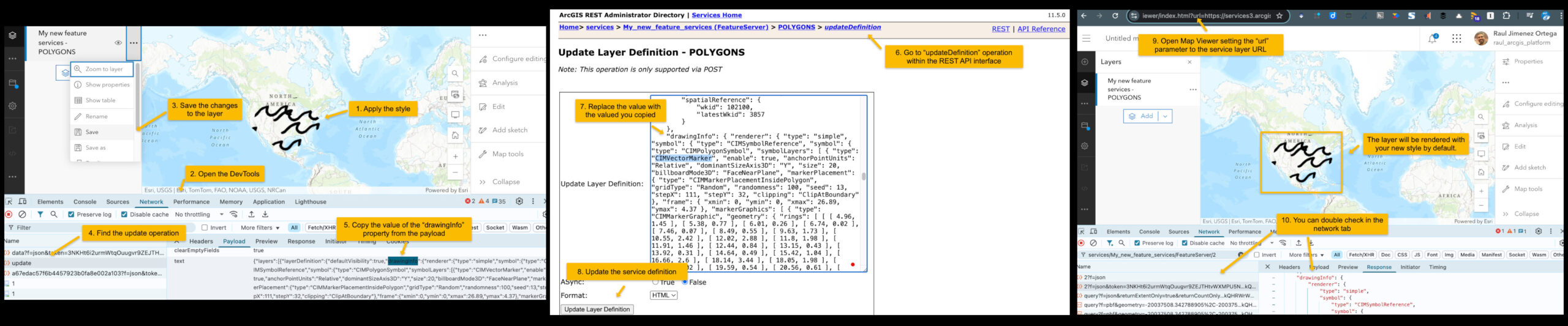
Feature services are a different case. As explained earlier (Service definition management tools), each layer in a feature service includes a drawingInfo property in its JSON service definition.
This property defines the layer’s symbology, labels, transparency, and related settings.
When you change the style directly from Map Viewer, or on the item’s Visualization tab, the drawingInfo is saved at the item level. This means the style will only be applied when the service is loaded using the item’s identifier.
If you want to overwrite its contents directly in the service definition (at the layer level), the only way to do so is through code, doing a REST API call.
Next steps
We hope this article has clarified the wide range of options for managing these services. While the variety of tools and workflows can feel overwhelming, our goal has been to give you the context needed to decide which approach best fits your needs.
Next, we will cover “Behind the scenes and SDK trade-offs“, with a focus on what application developers need to know when consuming these services.
If you have questions, join the conversation in Esri Community > Developers > ArcGIS REST APIs and Services > ArcGIS Location Service. If you find something confusing or believe you’ve spotted an error or inconsistency in this article, reach out to us at developers@esri.com. Your input helps us improve the clarity and accuracy of this content.
Looking for more tutorials? Check: ArcGIS Online data management tutorials and ArcGIS Pro data management tutorials.
And if you found this article useful and believe others in your professional network may benefit from it, we would greatly appreciate it if you could share or engage with the post on LinkedIn, Bluesky, or X.
Thank you to everyone who contributed to the content of this article. You rock! Extra special thanks to Matt George, Chris Wesson, and Yue (Nathan) Wu.


Article Discussion: