The latest ArcGIS Online update brings smarter, more flexible data editing across Map Viewer, Web Editor, and Instant Apps templates. Highlights include the ability to add fields while building forms, collect richer data with the new multiple choice question type, and manage attachments with greater control. You’ll also find handy new features like the snap chip and tangent curve segment tool. In this edition of Editor’s Corner, we’ll cover these updates and more. Let’s go.
Enhancements to Forms
First, we’ll explore some new features for authoring forms in Map Viewer including adding new fields, multiple choice questions, and attachments. Here’s a quick overview of the top three improvements:
1. Add New Fields
You can add new fields to your layer and form at the same time when authoring Forms in Map Viewer. Simply drag a Basic or Choice element from the Form elements pane onto the form canvas, then set properties such as display name, default value, field length, and more. When you save the form, new fields are automatically added to the layer.

2. Multiple Choice Questions
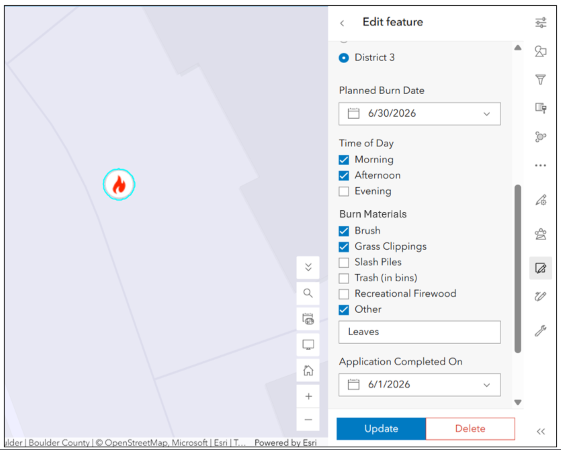
Multiple choice is a new form element located in the Choice section along with combo box, radio buttons, and switch. The difference between multiple choice and other choice questions is that it allows editors to select more than one value in a list. For example, lets say you have a list of invasive species that could be present at a monitoring site. The multiple choice question allows editors to check multiple values in that list, which is handy when more than 1 type occurs at a single site.
To create a choice list, you can enter values one by one, or import them from a .csv file. Further configure the field to set default values, a maximum field length, minimum number of selections, and more. Optional properties include:
- Select all: Lets editors use a single checkbox to quickly select every option.
- Other: Prompts editors to enter a value not in the list.
- Entries are stored in a separate field.
- You can choose an existing field, or a new one will be created automatically.
Selected values are stored as comma-delimited text in a string field. For a deeper dive into multiple choice, including how the data is stored and displayed, check out this article on Working with Multiple Choice in ArcGIS Online.
3. New Attachment Element
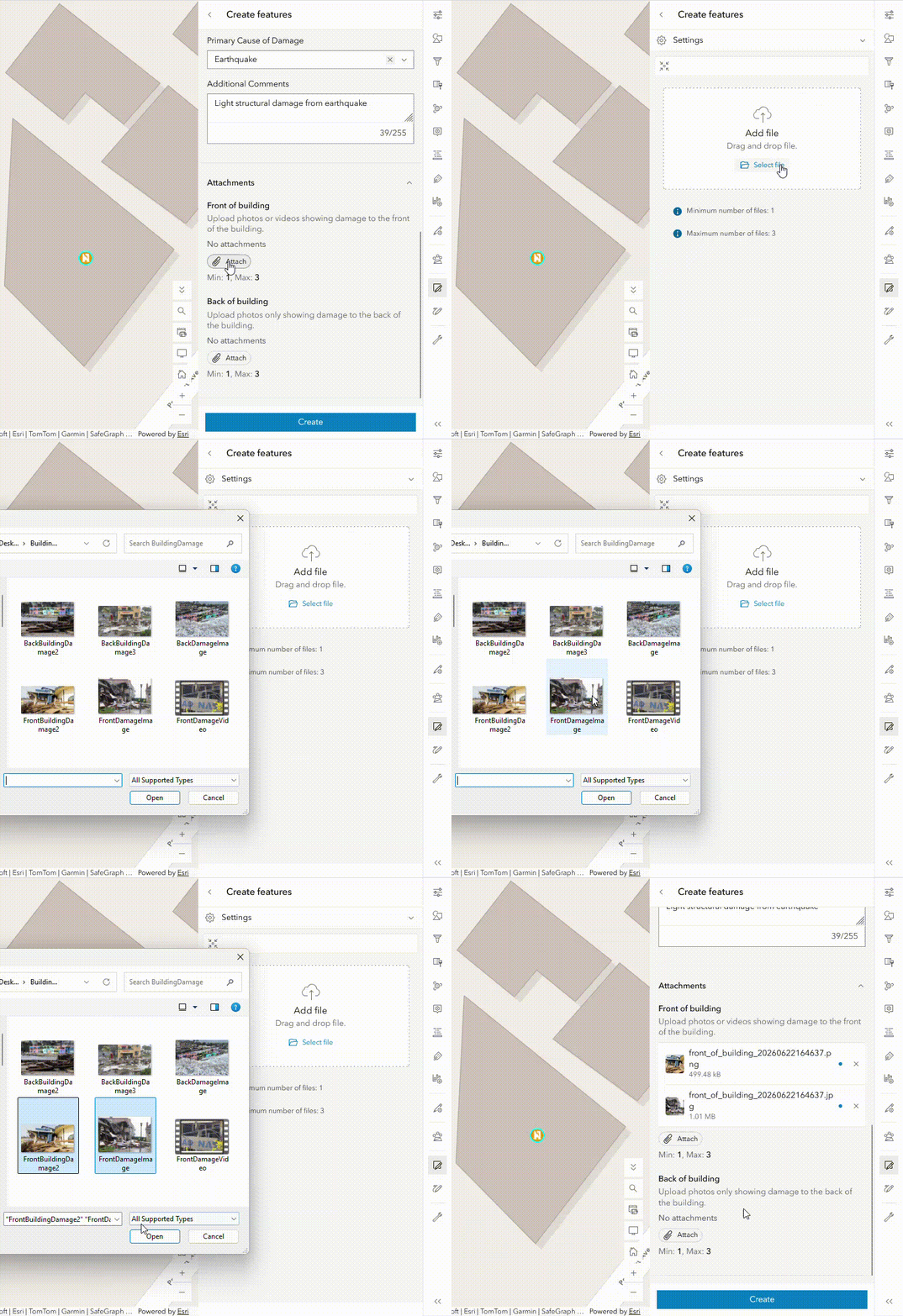
You’ve been asking for it, and we listened! Forms now support attachment elements, giving you more control over the types of attachments that are added to your data.
When you configure a Form in Field Maps Web Designer or Map Viewer, you’ll notice a new section for attachment elements. Simply choose between a General, Media, and Document input type (or pick all three) and drag it directly onto the canvas. From here, you can tailor the editing experience for attachments by:
- Adding an associated keyword
- Choosing which of the following file types are accepted: photo, audio, video, and document files
- Enforcing a minimum / maximum file limit
- Leveraging arcade driven expressions to determine the editability & visibility of an attachment element
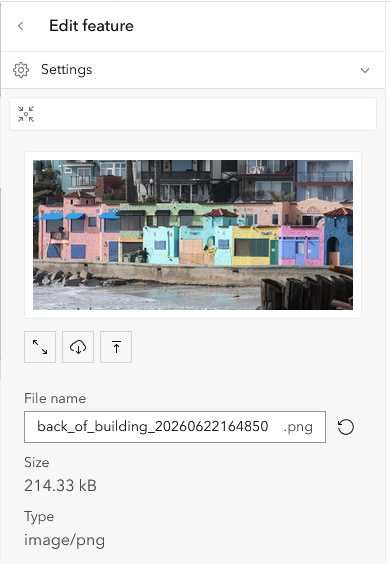
- Automatically calculating a file name once an attachment is uploaded
Additionally, if you are using the General attachment element, you can decide how to handle pre-exisiting feature attachments. to learn more about attachments, see Attach more value to your forms with the new attachment element.
New Editing Tools
Next, we’ll take a look at new data editing tools you’ll find across the board.
Tangent Curve Segment Tool
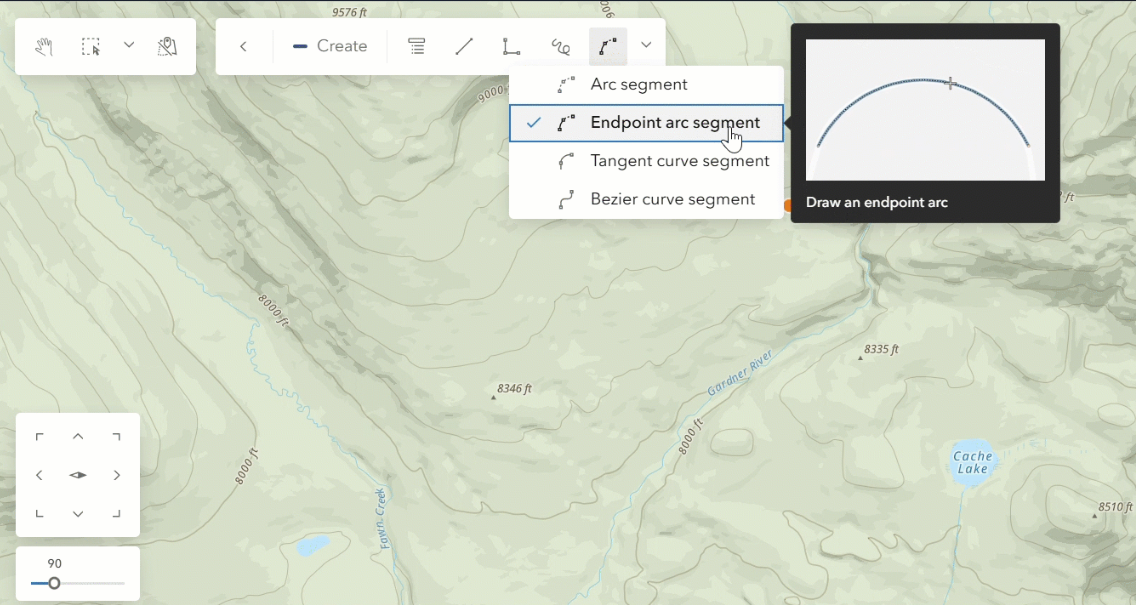
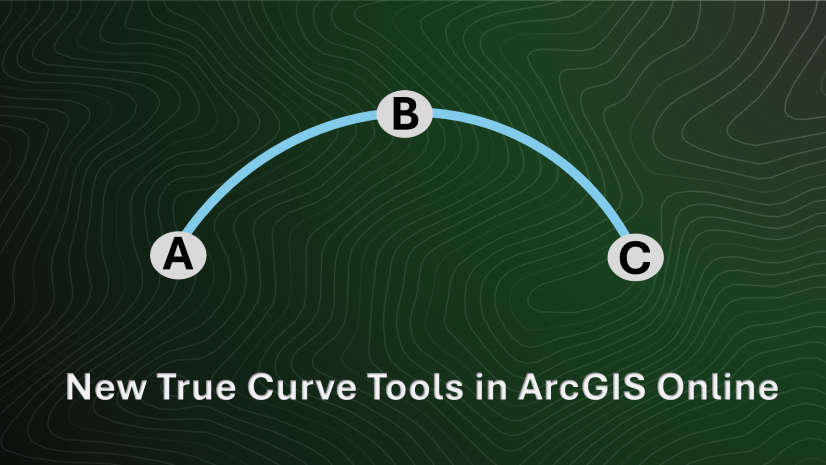
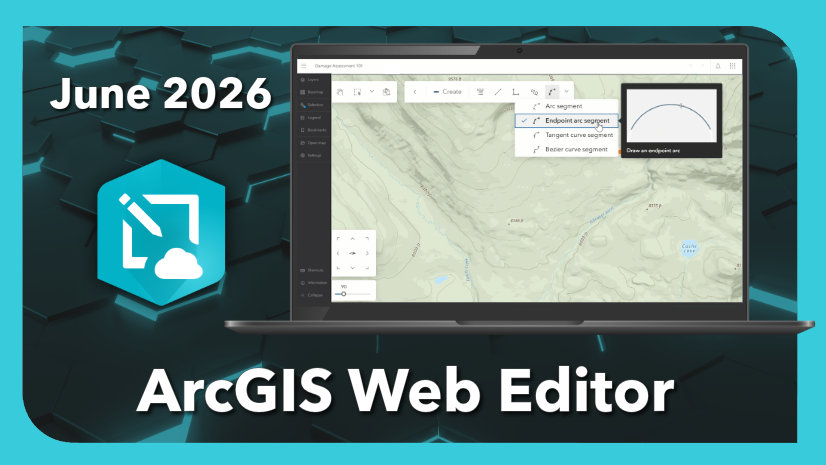
The latest edition to our true curve drawing tools is the tangent curve segment tool. Look for it on the draw toolbar in apps like Map Viewer and the editing toolbar in Web Editor. This new tool lets you draw a smooth, curved line tangent to a previous line, great for features like exit ramps flowing off an interstate. To learn how to get started with true curve drawing tools in ArcGIS Online, see this article.

Configure Contingent Values
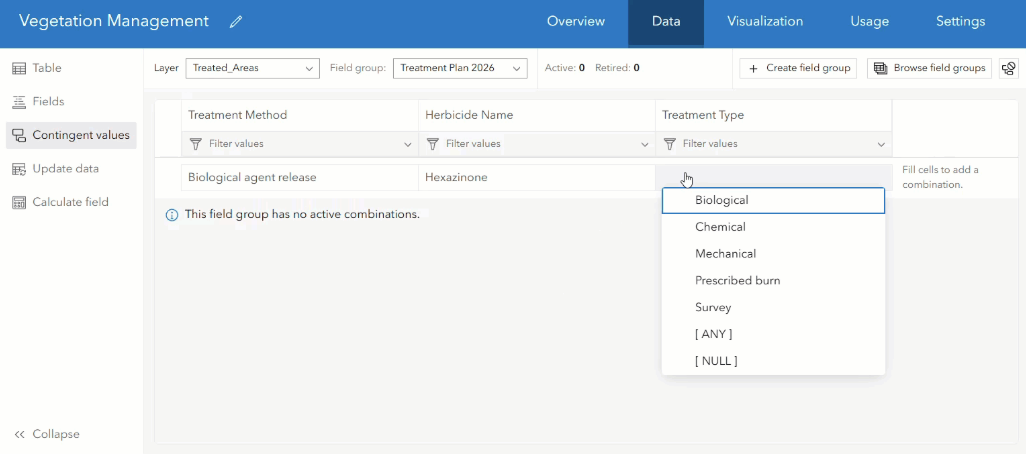
If you use contingent values to define rules for collecting data across multiple fields, this one is for you. Now you can create and update contingent values directly in ArcGIS Online. Those settings carry through when editing data in forms or tables across apps like Map Viewer and Web Editor. To learn more about this brand new workflow, check out this article.
Enhancements in ArcGIS Web Editor
Finally, we’ll highlight some exciting improvements to ArcGIS Web Editor and the Instant Apps Web Editor template. Here’s a break down of what’s new:
Snap Chip
The new snap chip is a game changer for those of you who work with z-enabled layers. When you snap to features that share a location, but have different z-values, the snap chip displays a list of those features and their z-values. Browse the list to choose exactly which one to snap to. The feature you’re editing automatically inherits the z-value of the feature you selected from the list. Read the full article here to learn more about getting started with this snappy new tool.

Editing Templates
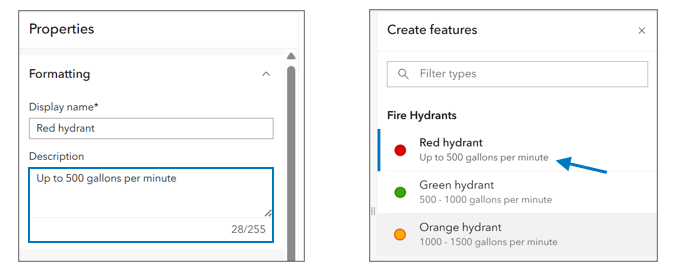
Now you’ll see template descriptions in the Create features pane in Web Editor, making it easier to select the right template when creating features.
Reshape Reimagined
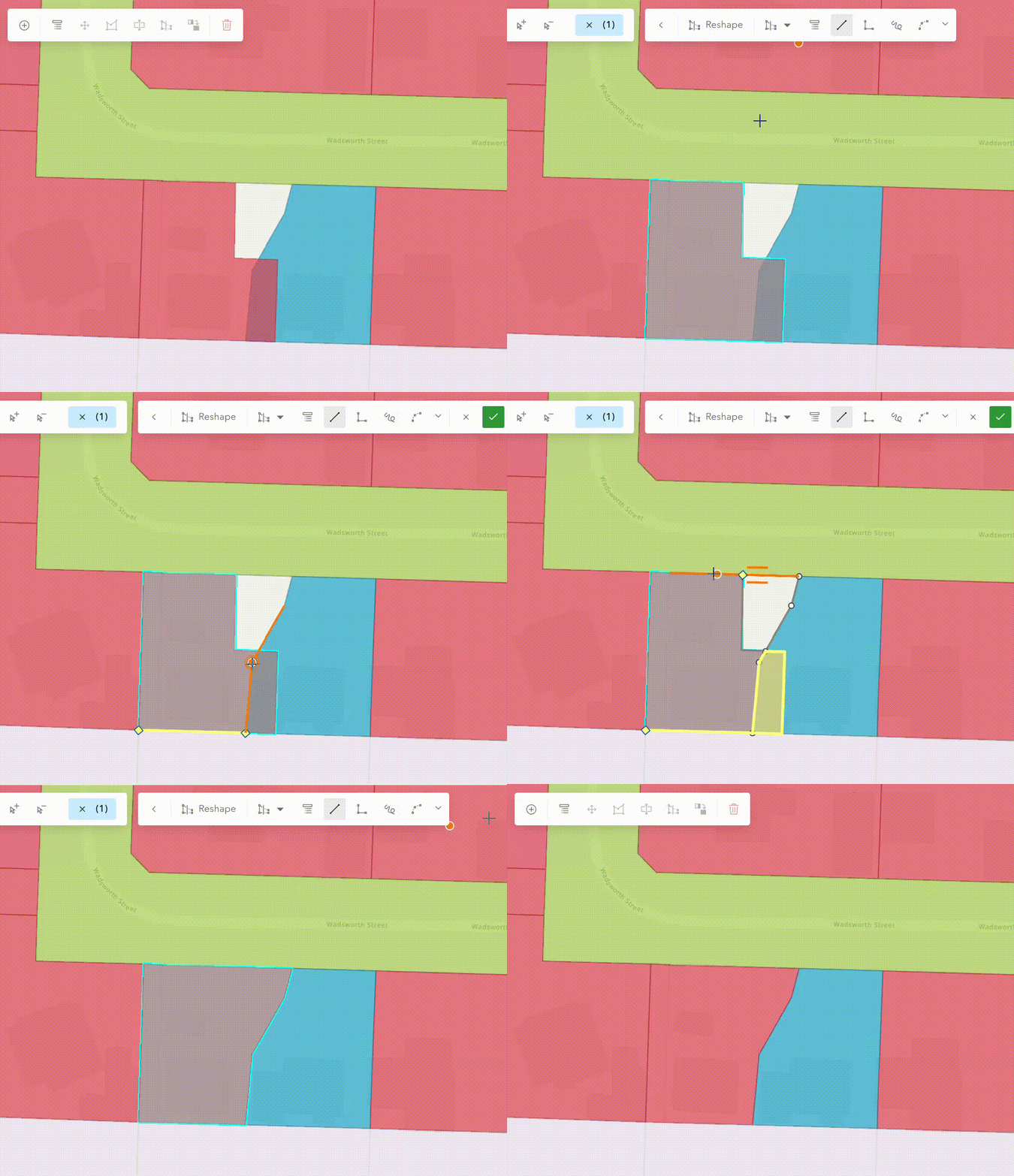
With this update, we worked to make editing features using the Reshape tool more intuitive. Prior to the June 2026 update of ArcGIS Online, reshaping a polygon was shown in a yellow line until the reshape was completed. Now, areas that will be removed appear in yellow and appended areas are shown in blue. These changes let you preview the resulting geometry as you digitize.
New Tooltips for True Curve Tools
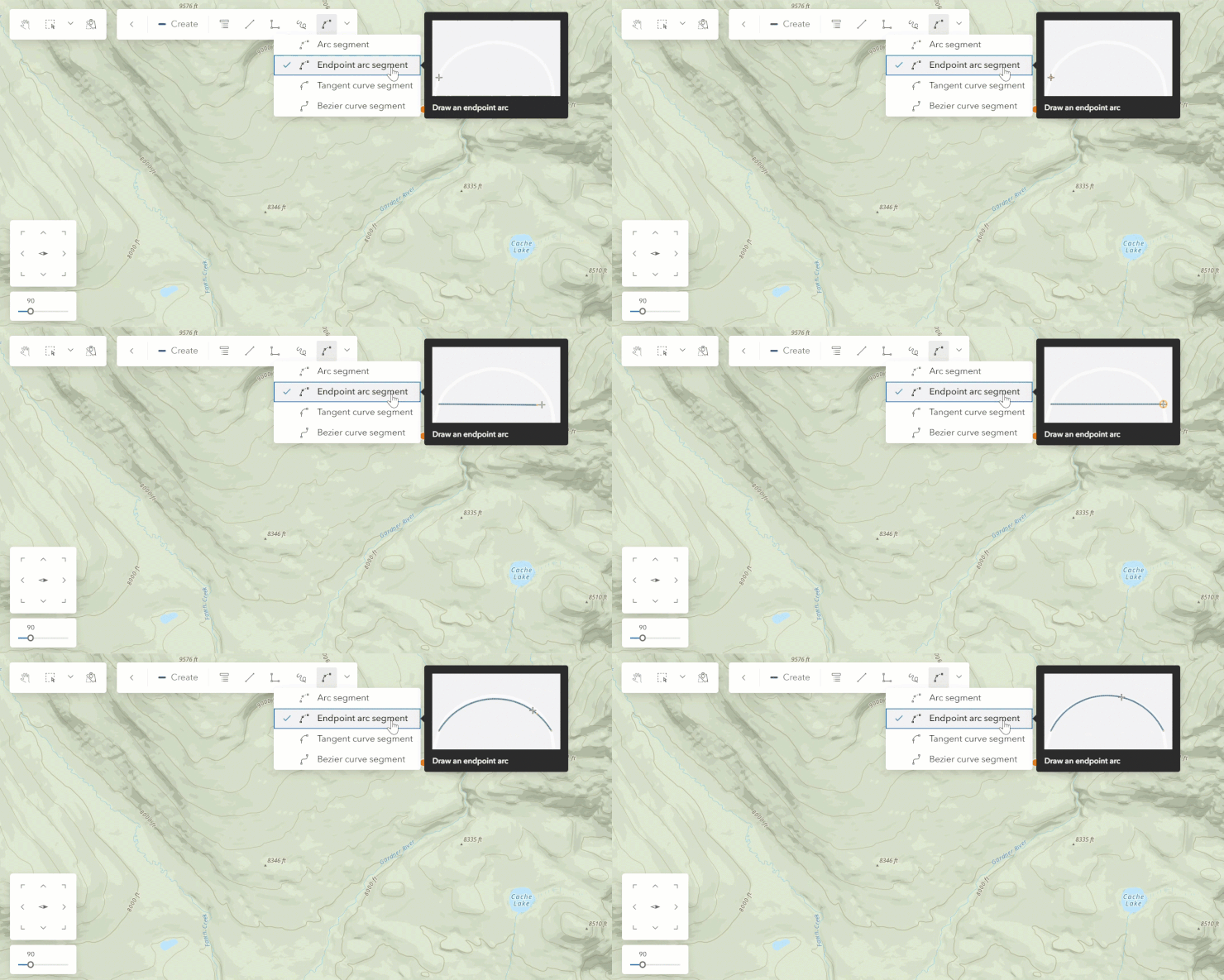
Now when you hover over any of the true curve drawing tools on the editing toolbar, a new tooltip appears showing how you can use the tool.
Enhanced Table Editing in the Web Editor Template
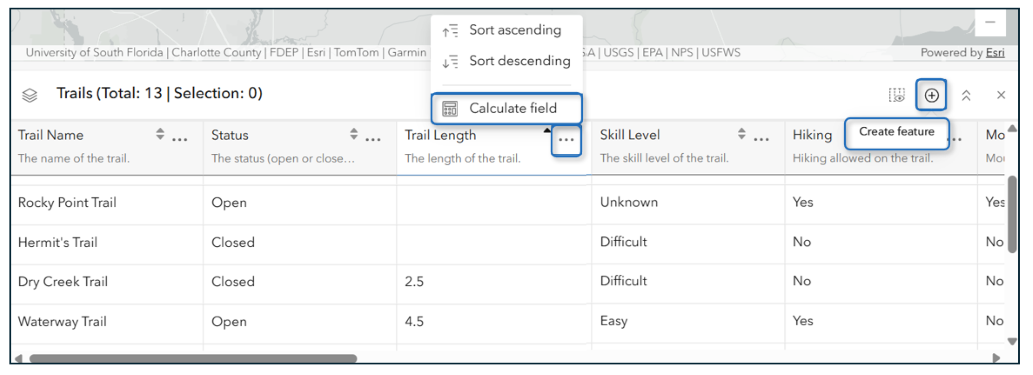
With this update, we’re bringing more editing tools to the table, literally. We’ve added calculate field to the overflow menu, and a button along the top ribbon to get started creating a new feature or record.
Wrap up
With this update, we’ve introduced several new features to help simplify data editing across ArcGIS Online. You’ll find new tools across apps like Map Viewer, Web Editor, and Instant Apps, from multiple choice questions and contingent values to more flexible attachments. We hope these tools will help you get the job done. Don’t forget to share your ideas and feedback with us over on Esri Community.






Commenting is not enabled for this article.